WinJS + universal applications. Learning Navigation

One of the main things that you should think about during the design phase of an application is how to organize navigation within the application in such a way that it is convenient for users to work with content posted in the application.
There are various types of layouts that allow you to most successfully implement the interaction between the various elements of the application so that it is easy to navigate inside the application and also limit the number of controls that are constantly on the screen.
Today we will get to know the basic navigation templates (layouts), and also see how to implement them inside your application.
Basic navigation patterns
Flat template
A flat navigation template is recommended if the application contains a small number of pages, all pages and tabs are located on the same logical level. A flat template allows you to quickly jump between pages. It is suitable for those cases when you need to navigate between various tabs within the application, for example, dialogs in the messenger.
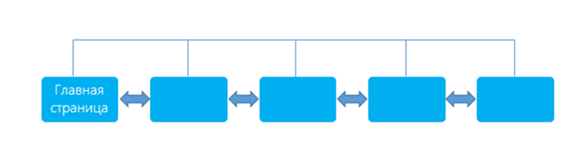

In order to use a flat page template, it is necessary that each page of the application is accessible from any other page, and the user can arbitrarily switch between pages.
A good way to create flat navigation in Windows applications is to use the navigation bar. Let's see how to apply it in the application.
Navigation in Windows applications using the navigation bar
You can implement a flat template in the application using the NavBar , NavBarCommand and NavBarContainer controls , which are part of the WinJS library.
For an example, let's see how to create a navigation bar with two pages. Create an empty Windows application in Visual Studio and remember to add links to the WinJS library. If you are not familiar with WinJS, you can read basic information about this library here .
In the main html file of your application, add a div block and set the data-win-control attribute to WinJS.UI.NavBar . Inside this block, define a NavBarContainer object with controlsNavBarCommand .
Please note : for each NavBarCommand control we set its name, a hint that appears when you hover over the element, the button icon - WinJS.UI.AppBarIcon and the address of the page that will be redirected to when the button is clicked.
We also need to add the Navigation.onnavigating and Navigation.onnavigated event handling code . Here is an example of the code for handling the Navigation.onnavigated event. The handler receives the URL of the location where the transition is made from the event object (defined in the location property of the data-win-options attribute of the NavBarCommand object) Then the handler clears the content node (page control) and draws a new page in the node.
var nav = WinJS.Navigation;
nav.onnavigated = function (evt) {
        var contentHost =
            document.body.querySelector("#contenthost"),
            url = evt.detail.location;
        // Очищение элемента управления страницей
        WinJS.Utilities.empty(contentHost);
        // Оторбражение новой страницы в узле
        WinJS.UI.Pages.render(url, contentHost);
    }
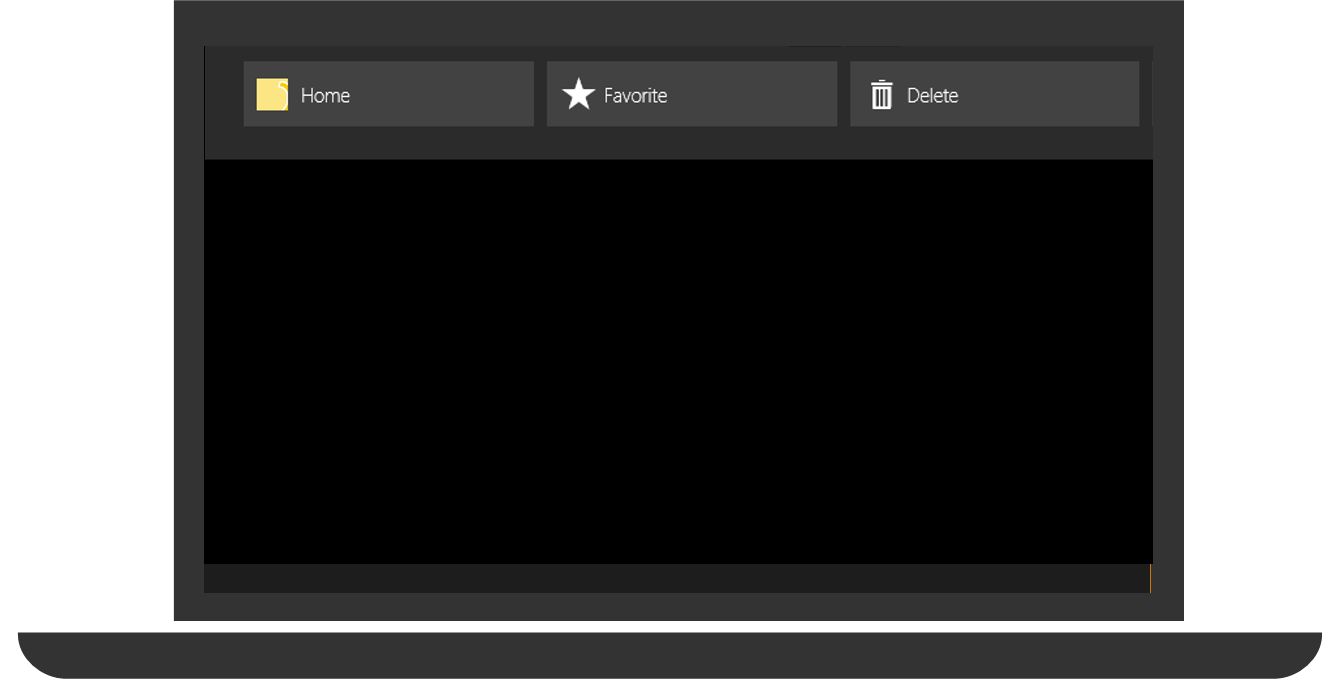
If there is a need to use flat navigation in a Windows Phone application, then you can partially solve this problem by placing the necessary links in the menu of the AppBar application panel .
Hierarchical pattern
This template is used when the contents of the application can be represented as separate, but interconnected sections or categories with different levels of detail. It is also convenient to use it if the application contains structured content.
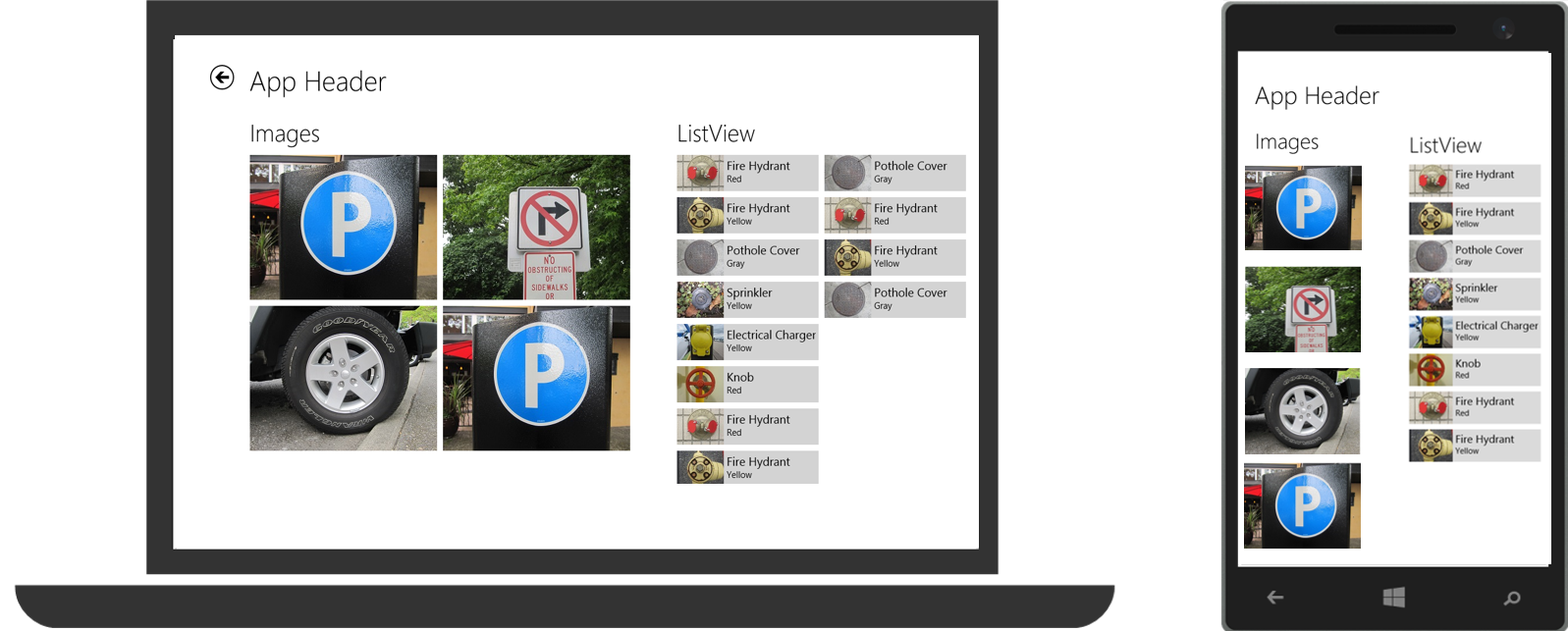
When using a hierarchical template, the application creates a start page - a hub (hub), as well as sections, elements and information. The main page presents all the main features and components of the application. The second level of the application is the page (s) of the application sections. Section pages display samples, a summary, or a brief overview of the items associated with the section. Each page element has a link to the details page, which is the third level of applications. The details page displays most of the content or functions for a particular item selected on the pages of previous levels — the hub and the section.

A hierarchical template can be implemented using the Hub control , which is a control of the WinJS library.
Generic app navigation with the Hub control
Create a project that will contain 3 files - html, js, css. In the html file, define the Hub control and several main sections - HubSection objects . If you are not familiar with how to add WinJS library controls, check out the instructions . The Hub control property, sectionOnScreen, determines the index of the first visible tab. In addition, we use the following properties of the HubSection object - the header property , which sets the section title and the isHeaderStatic property , which determines whether the title is static or dynamic.

 ...
...
After adding the Hub and HubSection objects, we need to initialize them. Note that if any of the objects have dynamic headers, you must handle the Hub.onheaderinvoked event . The handler gets the index of the called HubSection object and sets the value to Hub.sectionOnScreen .
(function () {
    "use strict";
    var app = WinJS.Application;
    var activation = Windows.ApplicationModel.Activation;
    var hub;
    app.onactivated = function (args) {
        if (args.detail.kind === activation.ActivationKind.launch) {
            if (args.detail.previousExecutionState !== activation.ApplicationExecutionState.terminated) {
                // Код инициализации.
            } else {
                // Описываем состояние приложения
            }
            args.setPromise(WinJS.UI.processAll());
        }
        // Получаем индекс вызванного объекта
        // обрабатываем событие headerInvoked
        hub = WinJS.Utilities.query("#hub")[0];
        hub.winControl.onheaderinvoked = onHeaderInvoked;
    };
    app.oncheckpoint = function (args) {
        // Код состояния паузы
    };
    // Код обработки нажатия на заголовок HubSection
    // (делаем секцию полностью видимой)
    function onHeaderInvoked(args) {
        hub.winControl.sectionOnScreen = args.detail.index;
    }
    app.start();
})();
You can add additional controls, such as the BackButton button , and define page styles.
Generic app navigation using the Pivot control
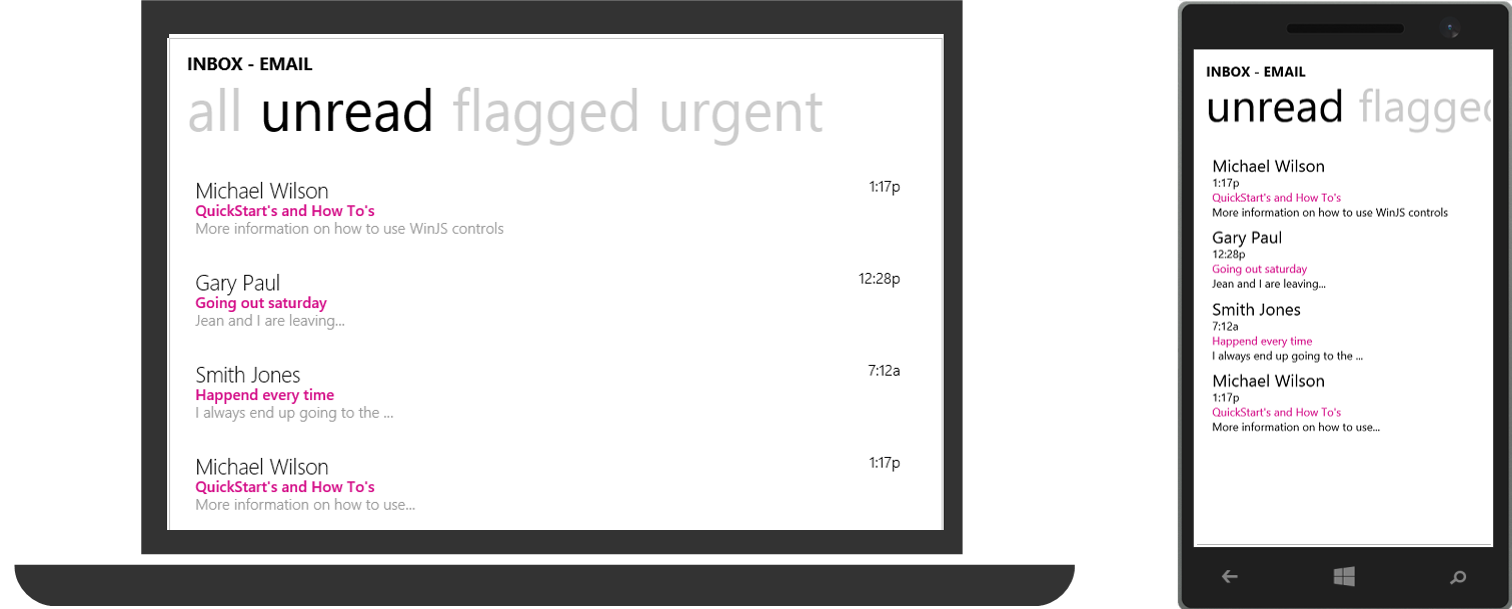
The Pivot control allows you to implement a simple way to control, present and quickly navigate sections of content in your application by moving left or right - continuous rotation like a carousel. It can be used to filter large datasets, view multiple datasets, or switch between application views.
Support for the Pivot control in Windows applications was announced as a new feature in the WinJS 3.0 library. At the time of writing, you can build the WinJS 3.0 library yourself using the package manager (Bower, npm, or NuGet), using the CDN link, downloading the zip archive from our website, or copying the repository to build your own copy from GitHub. In this article , I talked about how to work with the Pivot control in Windows Phone; the difference for Windows applications is in library links and in defining styles for devices.
Sitelinks
Using One-Page Navigation
Flat Navigation
Hierarchical Navigation Pattern
Get to Know the WinJS Library Get to know the WinJS
library controls
WinJS + universal applications. We study ListView
WinJS + universal applications. Learn FlipView
Windows Phone + WinJS. Learning Pivot