February 9, 2014 at 13:20
Get a webcam snapshot and screenshot using VLC
- From the sandbox
- Tutorial
Background
It all started with the fact that someone constantly took my tablet, and without my knowledge. ASUS VivoTab Smart tablet with Windows 8 on board. It was decided to make a fake shortcut on the desktop, launching a script that will take pictures from the camera, a screenshot, send the whole thing to my e-mail, and then, as if nothing had happened, launch Explorer.
Writing a script
Once full Windows is installed, then you can get by with the capabilities of WSH.
To watch the video, VLC is installed on the device . The player can capture video from various sources.
Video sources
The tablet has two cameras: back and front. We will take photos from both.

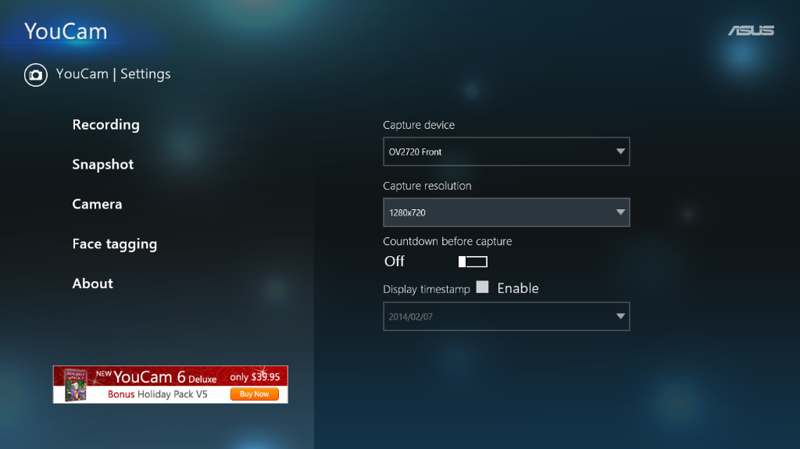
Each camera supports certain resolutions, you can see them in the settings of the ASUS YouCam application:
Screenshots
You can test the selected parameters through the batch file:
C:\\Progra~1\\VideoLAN\\VLC\\vlc.exe dshow:// :dshow-vdev="камера" :dshow-size=разрешениеExamples
C:\\Progra~1\\VideoLAN\\VLC\\vlc.exe dshow:// :dshow-vdev="Vimicro USB Camera (Altair)" :dshow-size=640x480C:\\Progra~1\\VideoLAN\\VLC\\vlc.exe dshow:// :dshow-vdev="IMX175" :dshow-size=1280x720If the player opens, the video is broadcast and there are no errors - excellent, the camera and resolution are selected correctly.
Screen screenshot
VLC and can do it. By the way, in their wiki everything is well-painted.
C:\\Progra~1\\VideoLAN\\VLC\\vlc.exe "screen://"Getting to WSH
So that the command line window does not appear, we will execute the commands using the Exec method:
var WSH = new ActiveXObject('WScript.Shell');
WSH.Exec('C:\\Progra~1\\VideoLAN\\VLC\\vlc.exe dshow:// :dshow-vdev="IMX175" :dshow-size=1280x720');
Great, but we need to save the image, not display it. To do this, we add the necessary parameters :
WSH.Exec('C:\\Progra~1\\VideoLAN\\VLC\\vlc.exe --dshow-vdev="IMX175" --dshow-size=1280x720 -V dummy --intf=dummy --dummy-quiet --video-filter=scene --no-audio --scene-path=C:\\ --scene-format=jpg --scene-prefix=Shot --scene-replace --run-time=1 --scene-ratio=25 "dshow://" vlc://quit');
The image from the camera will be saved in the file C: \\ Shot.jpg
Similarly for the screenshot:
WSH.Exec('C:\\Progra~1\\VideoLAN\\VLC\\vlc.exe -V dummy --dshow-vdev=none --intf=dummy --dummy-quiet --video-filter=scene --no-audio --scene-path=C:\\ --scene-format=jpg --scene-prefix=screen --scene-replace --run-time=1 --scene-ratio=25 "screen://" "dshow://" vlc://quit');
What happened
In general, a solution using VLC is cross-platform. I just showed the implementation to fit your needs.
Here is the archive with the finished script.
What happened
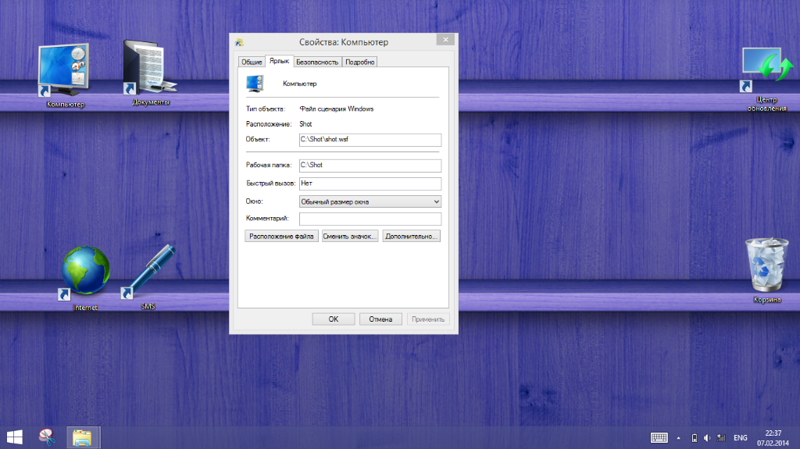
The shortcut launches the script.
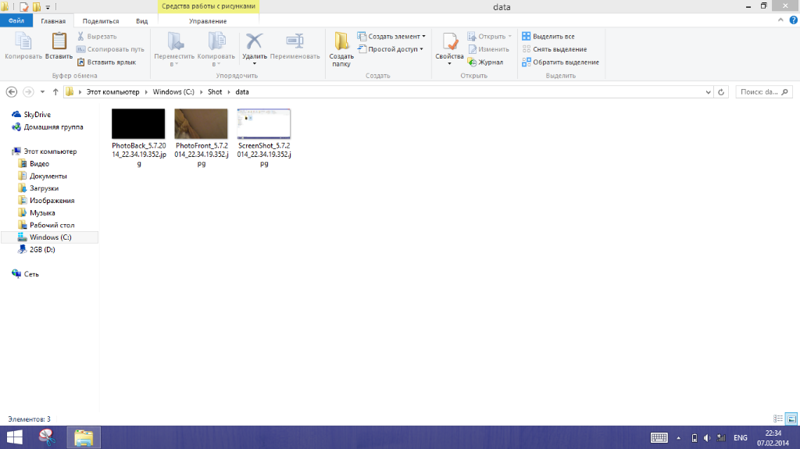
Pictures are taken from both cameras and a screenshot:
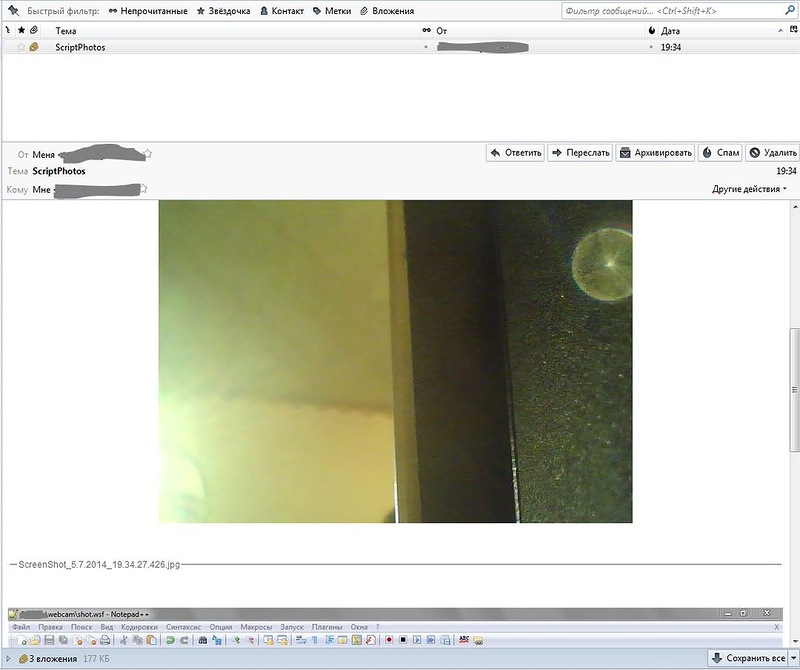
And here is the letter