1C 7.7: Organization of auto exchange via FTP
In this article we will consider the organization of 1C: Enterprise 7.7 auto-exchange using URBD (distributed database management) through an FTP server. To concretize the task, suppose that we have a central office and several remote branches (retail outlets) that will exchange information with the central office through auto-sharing and distributed databases.
We will not dwell on the configuration of distributed information security, assuming that you have already done this more than once. Our task is to minimize the “user component” of auto-exchange to a minimum, i.e. - to ensure that the user launches a certain shortcut for auto-exchange, after the launch of which information from the central base would fall into the periphery and vice versa. To organize all of the above, we need an FTP server, as well as Internet access at all retail outlets. Suppose we have the configuration of a distributed database with the following (screenshot from the central IB):
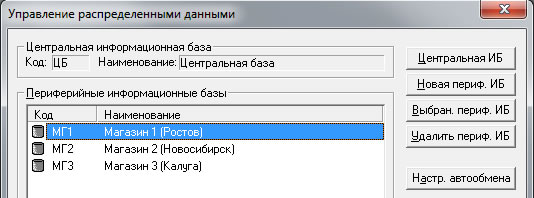
In this case, in the settings for the auto-exchange settings, the mode is set to automatic, the upload directory is C: \ DB \ CP , the download directory is C: \ DB \ PC (where C: \ DB is the path to the central database itself), and the names of the upload and download files for the specified peripheral information systems have the following meanings:
ps The article was first published on my website and in the blog, now I decided to use it to get an invite to Habr. I hope someone will find it useful.
pps If the path to the folder with the database contains spaces (for example, spaces are contained in the name of one of the folders), then for the bat'nikov to work correctly, when calling ncftpget and ncftput% CP_Folder% and% PC_Folder%, you need to quote. If the path to the folder is implied, then quote "% CP_Folder%" in quotation marks, if the full path to the file, then the whole path, i.e. "% CP_Folder% \ MG1C.zip".
We will not dwell on the configuration of distributed information security, assuming that you have already done this more than once. Our task is to minimize the “user component” of auto-exchange to a minimum, i.e. - to ensure that the user launches a certain shortcut for auto-exchange, after the launch of which information from the central base would fall into the periphery and vice versa. To organize all of the above, we need an FTP server, as well as Internet access at all retail outlets. Suppose we have the configuration of a distributed database with the following (screenshot from the central IB):
In this case, in the settings for the auto-exchange settings, the mode is set to automatic, the upload directory is C: \ DB \ CP , the download directory is C: \ DB \ PC (where C: \ DB is the path to the central database itself), and the names of the upload and download files for the specified peripheral information systems have the following meanings:
| Peripheral Information Security | Upload Catalog | Download directory | Upload File Name | Download File Name |
|---|---|---|---|---|
| MG1 (Rostov) | C: \ DB \ CP | C: \ DB \ PC | MG1C.zip | MG1D.zip |
| MG2 (Novosibirsk) | C: \ DB \ CP | C: \ DB \ PC | MG2C.zip | MG2D.zip |
| MG3 (Kaluga) | C: \ DB \ CP | C: \ DB \ PC | MG3C.zip | MG3D.zip |
- Create an AutoExchange subfolder in the folder with the base, i.e. create C: \ DB \ AutoExchange.
- Download the ncftpget.exe and ncftpput.exe utilities from the NcFTP Client Home Page and put them in the AutoExchange folder. This is a console version of the FTP client, in principle, you could use the standard ftp.exe built-in to the OS, but due to the fact that there are certain problems with it (sometimes when there is no way to connect to FTP servers in active mode, sending / receiving data is not occurs, a number of problems are also noted when Kaspersky Anti-Virus is installed, etc.), in general, it is easier to use third-party utilities to ensure reliable and uninterrupted data exchange.
- Create an auto-exchange rule file in the AutoExchange folder, naming it _Exchange.prm :
[General] Quit = 1 AutoExchange = 1 Output=Exchange.log [AutoExchange] SharedMode = Y ReadFrom=* WriteTo=* - Then, in the same folder, create the batch script file _runobmen.bat or _runobmen.сmd (for the Cyrillic characters to be displayed correctly, plus, if you use Cyrillic characters in paths, etc., the file must be encoded in CP866 , you can do this in in the same notebook, choosing Terminal as the font), the contents of the file are as follows:
@echo off rem (c) Decker, 2011-2013, [email protected] set CP_Folder=%~dp0..\CP set PC_Folder=%~dp0..\PC rem set DebugMode=-d stdout set DebugMode= title АвтоОбмен color 0b setlocal enableextensions :fromftp echo Пробуем загрузить изменения. ncftpget.exe -u ftp_user -p ftp_pass -F %DebugMode% ftp.company.ru %PC_Folder% /MG1D.zip ncftpget.exe -u ftp_user -p ftp_pass -F %DebugMode% ftp.company.ru %PC_Folder% /MG2D.zip ncftpget.exe -u ftp_user -p ftp_pass -F %DebugMode% ftp.company.ru %PC_Folder% /MG3D.zip echo ErrorLevel: %ErrorLevel% echo Работает 1С...АвтоОбмен... start "АвтоОбмен" /wait /min "C:\Program Files\1Cv77\BIN\1cv7.exe" config /d"%~dp0..\" /N"obmen" /P"obmen" /@"%~dp0_Exchange.prm" :toftp echo Пробуем выгрузить изменения. ncftpput.exe -u ftp_user -p ftp_pass -F %DebugMode% ftp.company.ru . %CP_Folder%\MG1C.zip ncftpput.exe -u ftp_user -p ftp_pass -F %DebugMode% ftp.company.ru . %CP_Folder%\MG2C.zip ncftpput.exe -u ftp_user -p ftp_pass -F %DebugMode% ftp.company.ru . %CP_Folder%\MG3C.zip echo ErrorLevel: %ErrorLevel% exit - In this example, ftp.company.ru FTP server (login - ftp_user, password - ftp_pass) using ncftpget.exe sequentially downloads the exchange files MG1D.zip, MG2D.zip, MG3D.zip received from the peripheral databases and are added to the% folder PC_Folder%, i.e. in C: \ DB \ PC (download directory). Then, the 1C: Enterprise platform is launched with the username obmen and the password obmen, and auto-exchange occurs. As a result, prepared upload files for peripheral databases appear in the% CP_Folder% folder, which are then subsequently uploaded to the ftp server using ncftpput.exe. On this, the exchange configuration on the side of the central base is completed, it is enough for users to display on the desktop a shortcut to the created _runobmen.bat or _runobmen.сmd, making sure that in the properties of the shortcut the working folder for this scenario is exactly the folder in which it is located.
- The auto-exchange setting in each of the peripheral databases is no different, with the exception of the _runobmen.bat or _runobmen.сmd file . Consider this file as an example of the first peripheral database:
@echo off rem (c) Decker, 2011-2013, [email protected] set CP_Folder=%~dp0..\CP set PC_Folder=%~dp0..\PC rem set DebugMode=-d stdout set DebugMode= title АвтоОбмен color 0b setlocal enableextensions :fromftp echo Пробуем загрузить изменения. ncftpget.exe -u ftp_user -p ftp_pass -F %DebugMode% ftp.company.ru %CP_Folder% /MG1C.zip echo ErrorLevel: %ErrorLevel% echo Работает 1С...АвтоОбмен... start "АвтоОбмен" /wait /min "C:\Program Files\1Cv77\BIN\1cv7.exe" config /d"%~dp0..\" /N"obmen" /P"obmen" /@"%~dp0_Exchange.prm" :toftp echo Пробуем выгрузить изменения. ncftpput.exe -u ftp_user -p ftp_pass -F %DebugMode% ftp.company.ru . %PC_Folder%\MG1D.zip echo ErrorLevel: %ErrorLevel% exit - Here, the first step is to take the MG1C.zip central database upload file from the server and put it in the CP folder, then run auto-exchange and put the upload file from the MG1D.zip peripheral database from the PC folder back to the server. A similar scenario is used in two other peripheral databases, with a difference in file names only.
ps The article was first published on my website and in the blog, now I decided to use it to get an invite to Habr. I hope someone will find it useful.
pps If the path to the folder with the database contains spaces (for example, spaces are contained in the name of one of the folders), then for the bat'nikov to work correctly, when calling ncftpget and ncftput% CP_Folder% and% PC_Folder%, you need to quote. If the path to the folder is implied, then quote "% CP_Folder%" in quotation marks, if the full path to the file, then the whole path, i.e. "% CP_Folder% \ MG1C.zip".