June 4, 2013 at 14:51
Executable specification: SpecFlow A to Z
- Tutorial
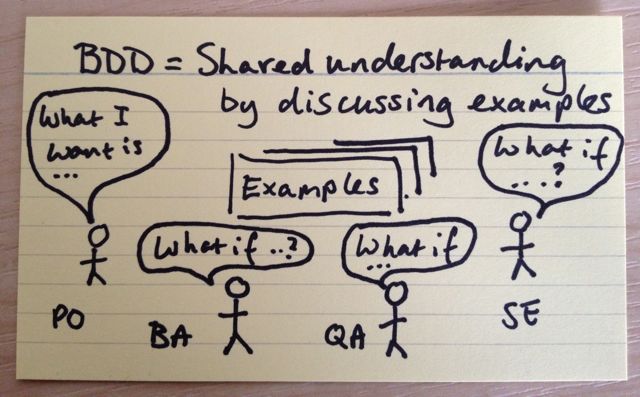
This article is a continuation of the first part and reveals the technical details of working with the "executable specification" using SpecFlow .
To get started, you need a plug-in for Visual Studio (downloaded from the official site) and the SpecFlow package (installed from nuget ).
So, our Product Owner asked the team to develop a calculator ...
@calculator
Feature: Sum
	As a math idiot
	I want to be told the sum of two numbers
	So that I can avoid silly mistakes
@positive @sprint1
Scenario: Add two numbers
	Given I have entered 50 into the calculator
	And I have entered 70 into the calculator
	When I press add
	Then the result should be 120 on the screen
It is worth paying attention to @ attributes. They have several important properties. First, if you are using NUnit, SpecFlow add the [NUnit.Framework.CategoryAttribute ("calculator")] attribute . It is very convenient for making test plans. The categorization is supported by R #, the native NUnit Runner and Team City.
Let's automate this scenario. By this time, the developers have already prepared the calculator interface:
public interface ICalculator
{
    decimal Sum(params decimal[] values);
    decimal Minus(decimal a, decimal b);
    decimal Sin(decimal a);
    decimal Multiply(params decimal[] values);
    decimal Divide(decimal a, decimal b);
}
Add a service testing context:
public class CalculationContext
{
    private readonly List _values = new List();
    public ICalculator Calculator { get; private set; }
    public decimal Result { get; set; }
    public Exception Exception { get; set; }
    public List Values
    {
        get { return _values; }
    }
    public CalculationContext()
    {
        Calculator = new Calculator();
    }
}
SpecFlow uses special attributes to automate steps:
[Binding]
public class Sum : CalcStepsBase
{
    public CalculationContext Context {get;set;}
    public Sum(CalculationContext context)
    {
        Context = CalculationContext();
    }
    [Given("I have entered (.*) into the calculator")]
    public void Enter(int digit)
    {
        Context.Values.Add(digit);
    }
    [When("I press (.*)")]
    public void Press(string action)
    {
        switch (action.ToLower())
        {
            case "add":
            case "plus":
                Context.Result = Context.Calculator.Sum(Context.Values.ToArray());
                break;
            default: throw new InconclusiveException(string.Format("Action \"{0}\" is not implemented", action));
        }
    }
    [Then("the result should be (.*) on the screen")]
    public void Result(decimal expected)
    {
        Assert.AreEqual(expected, Context.Result);
    }
}
There are several advantages to this approach:
- Each step needs to be automated only once.
- You avoid problems with complex inheritance chains, the code looks much clearer
- Attributes use regular expressions, so a single attribute can “catch” several steps. The When attribute, in this case, will work for the phrases “add” and “plus”
Alternative Record
@positive
Scenario: Paste numbers
	Given I have entered two numbers
	| a | b |
	| 1 | 2 |
	When I press add
	Then the result should be 3 on the screen
[Given("I have entered two numbers")]
public void Paste(Table values)
{
    var calcRow = values.CreateInstance();
    Context.Values.Add(calcRow.A);
    Context.Values.Add(calcRow.B);
}
public class CalcTable
{
    public decimal A { get; set; }
    public decimal B { get; set; }
}
This recording option can be convenient when you need to fill a large object. For example, user account information.
Are we going to test only one data set?
Of course, one test is not enough, so writing dozens of scripts for different numbers is a dubious pleasure. Scenario Outline comes to the rescue@calculator
Feature: Calculations
As a math idiot
I want to be told the calculation result of two numbers
So that I can avoid silly mistakes
@positive @b12 @tc34
Scenario Outline: Add two numbers
Given I have entered into the calculator
And I have entered into the calculator
When I press
Then the should be on the screen
Examples:
| firstValue | secondValue | action | result |
| 1 | 2 | plus | 3 |
| 2 | 3 | minus | -1 |
| 2 | 2 | multiply | 4 |
SpecFlow will substitute the values from the table into the placeholder . Already not bad, but automation needs to be added:
[When("I press (.*)")]
public void Press(string action)
{
    switch (action.ToLower())
    {
        case "add":
        case "plus":
            Context.Result = Context.Calculator.Sum(Context.Values.ToArray());
            break;
        case "minus":
            Context.Result = Context.Calculator.Minus(Context.Values[0], Context.Values[1]);
            break;
        case "multiply":
            Context.Result = Context.Calculator.Multiply(Context.Values.ToArray());
            break;
        case "sin":
            Context.Result = Context.Calculator.Sin(Context.Values[0]);
            break;
        default: throw new InconclusiveException(string.Format("Action \"{0}\" is not implemented", action));
    }
}
[Then("the result should be (.*) on the screen")]
[Then("the (.*) should be on the screen")]
public void Result(decimal expected)
{
    Assert.AreEqual(expected, Context.Result);
}
We changed the second line for better readability. Therefore, the second attribute must be hung on the Result method. At the exit you will receive 3 tests with reports of the form:
Given I have entered 1 into the calculator
-> done: Sum.Enter(1) (0,0s)
And I have entered 2 into the calculator
-> done: Sum.Enter(2) (0,0s)
When I press plus
-> done: Sum.Press("plus") (0,0s)
Then the result should be 3 on the screen
-> done: Sum.Result(3) (0,0s)
What about negative tests?
Add a division check by 0:@calculator
Feature: Devision
As a math idiot
I want to be told the devision of two numbers
So that I can avoid silly mistakes
@negative @exception
Scenario: Zero division
Given I have entered 10 into the calculator
And I have entered 0 into the calculator
When I press divide
Then exception must occur
In this case, I do not want to interfere with flies with cutlets and for division I would prefer to have a separate file. The question arises. What to do with context? He stayed in the Sum class . SpecFlow supports injection into the constructor. Select the base class:
public class CalcStepsBase
{
    protected CalculationContext Context;
    public CalcStepsBase(CalculationContext context)
    {
        Context = context;
    }
}
Inherit the new class with steps for dividing from it:
[Binding]
public class Division : CalcStepsBase
{
    public Division(CalculationContext context) : base(context)
    {
    }
    [When("I press divide"), Scope(Scenario = "Zero division")]
    public void ZeroDivision()
    {
        try
        {
            Context.Calculator.Divide(Context.Values[0], Context.Values[1]);
        }
        catch (DivideByZeroException ex)
        {
            Context.Exception = ex;
        }
    }
    [Then("exception must occur")]
    public void Exception()
    {
        Assert.That(Context.Exception, Is.TypeOf());
    }
}
In order that the baids do not conflict, we will divide them into positive and negative
[When("I press (.*)"), Scope(Tag = "positive")]
[When("I press divide"), Scope(Scenario = "Zero division")]
We can filter the scope both by script and by tag.
Data Driven Tests
Four examples of addition, subtraction and multiplication are clearly not enough. There are many systems with impressive volumes of input and output values. In this case, the sheet in the DSL will not look very clear. In order to write tests on the one hand, and on the other, to save the GWT format, you can go in two ways:- Use BDDfy
- finish SpecFlow to your needs
I settled on the second option, so as not to support two formats:
[TestFixture]
[Feature(
    "Sum Excel",
    As = "Math idiot",
    IWant = "to be told sum of two numbers",
    SoThat = "I can avoid silly mistakes")]
public class ExcelSumTests : GherkinGenerationTestsBase
{
    [TestCaseSource("Excel")]
    [Scenario("Sum Excel", "excel", "positive", "calculator")]
    public void AddTwoNumbers_TheResultShouldBeOnTheScreen(string firstValue, string secondValue, string action, string result)
    {
        Given(string.Format("I have entered {0} into the calculator", firstValue));
        Given(string.Format("I have entered {0} into the calculator", secondValue), "And ");
        When(string.Format("I press {0}", action));
        Then(string.Format("the result should be {0} on the screen", result));
    }
    public static IEnumerable Excel()
    {
        return ExcelTestCaseDataReader.FromFile("Sum.xlsx").GetArguments();
    }
}
Background and preconditions
Sometimes for a whole bunch of scenarios you need to specify a set of preconditions. Copying them into each scenario is obviously not convenient. Two approaches come to the rescue.Background
Background:
	Given Calculator is initialized
@positive
Scenario: Add two numbers
	Given I have entered 1 into the calculator
	When I press sin
	Then the result should be 0.841470984807896 on the screen
Using tags
Preconditions can also be implemented using tags:[Binding]
public class Sum : CalcStepsBase
{
public Sum(CalculationContext context)
: base(context)
{
}
[BeforeScenario("calculator")]
[Given("Calculator is initialized")]
public void InitCalculator()
{
Context.Init();
}
}
The method marked with the BeforeScenario attribute will be executed before the script runs. Attributes are passed to the constructor to limit the scope. We tagged scripts with a calculator tag . Now, before each run of such a script, the InitCalculator method will be executed .
Reports
In order to build a report, you will need the utility specflow.exe and nunit. Below is an msbuild script that runs nunit first and then builds a specflow report.. C:/Program Files (x86)/NUnit 2.6.2 "$(NUnitHome)\bin\nunit-console.exe" "$(teamcity_build_checkoutDir)\TestResult.txt" "$(teamcity_build_checkoutDir)\TestResult.xml" "$(teamcity_build_checkoutDir)\Etna.QA.SpecFlow.Examples\Etna.QA.SpecFlow.Examples.csproj" "C:\Program Files (x86)\TechTalk\SpecFlow\specflow.exe" It is worth paying attention to the / domain: multiple flag . It tells NUnit to run the assembly from the folder in which it is located. Otherwise, problems with configs may occur.
As a result, we get such a report

Scheduled launch in Team City
In the build setup, you need to specify new artifact: our execution report: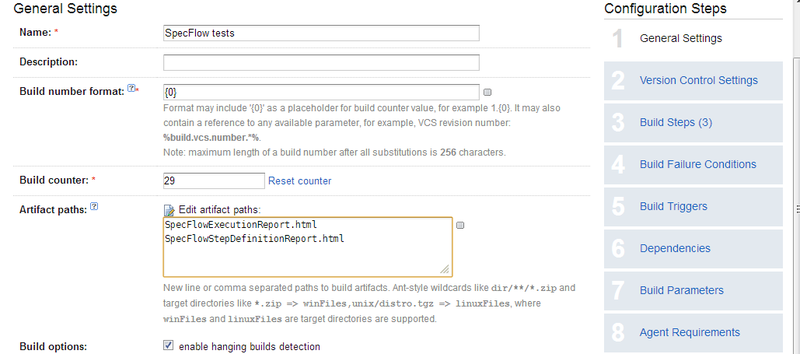
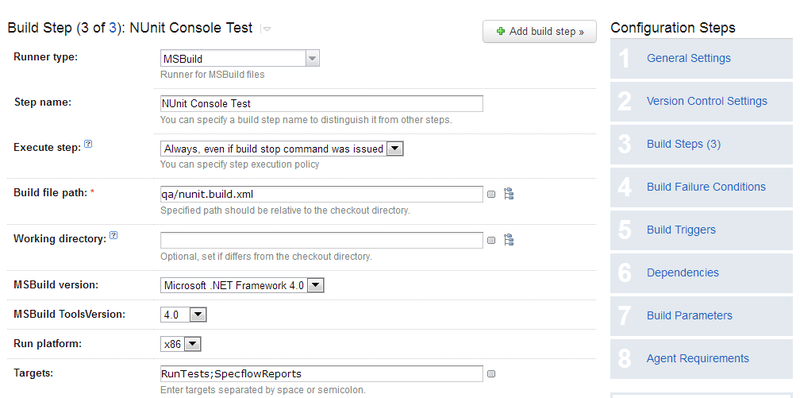
Instead of the step with starting NUnit, we will use the msbuild script that we wrote earlier:
A new report tab will appear in Team City. Here it looks like this:
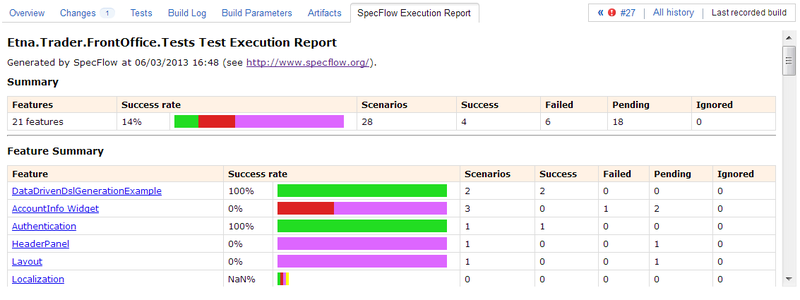
Non-automated scripts are shown in violet, successfully completed, passed in green, and error tests in red.
All that remains is to put a trigger to run the tests on a schedule.