May 2, 2013 at 13:47
Completely free two-factor authentication for Citrix Web Interface 5.x using Mobile-OTP as a soft token
Two-factor authentication - providing information for entering the system from two different types of authentication, in most cases the first source is the username and password, which are unchanged and can be compromised (trojans, keyloggers, etc.). For this, the second type of authentication is used, some device that generates a unique temporary password / code that is valid for a short period (5-30 seconds), which ensures security even if the temporary password is intercepted.
In addition, a temporary password is generated by devices that are not subject to interception risks, usually with hardware keys, such as the following:

Citrix Web Interface “out of the box” supportstwo-factor authentication using Aladdin SafeWord and RSA SecurID hardware keys, the cost of which ranges from 25-50USD, as well as two-factor authentication using a RADIUS server, with which you can connect the keys cheaper (about 5USD)
 In order to save even more for the same purpose You can use soft tokens on mobile phones. By the way, the goal of introducing software tokens can also be convenience for the end user - the hardware key is an additional device that you should always have with you, and most users have the phone at hand all the time.
There are a lot of free software tokens for phones on the market, for example, Google Authenticator , but our choice fell on the Mobile-OTP project the following reasons:
OK, the choice is justified, let's move on to implementation.
You can use any ready-made RADIUS server, and just connect the pam module for MOTP (for example motpy ). But it’s easier to use the ready-made assembly of MOTP-AS
MOTP-AS is a RADIUS server with support for Mobile-OTP plus a web interface for creating and connecting users. You can download VMWare image and run directly on the machine where WI is installed, or on another host in the same grid. It is understood that the MOTP-AS server should not be accessible externally .
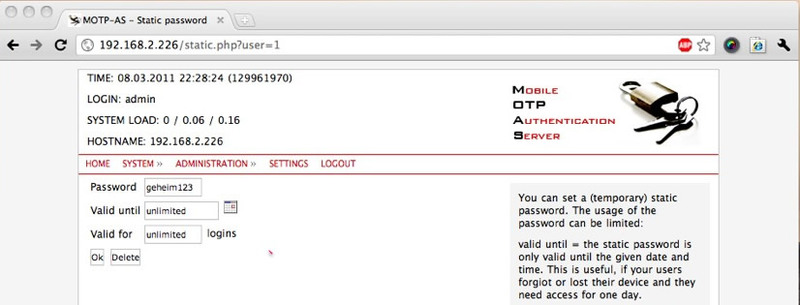
MOTP-AS provides a convenient admin interface; connecting a software token to a user is quite simple:
1. Add a client for RADIUS
“System” => “RADIUS” => “Add new RADIUS client”
Name: Citrix Web Interface
Secret: RADsecret - Radius secret (we will point it to in the WI config)
IP: 192.168.0.100 - the address where the WI server will be accessible
2. Add the user
“Administration” => “Users” => “Add new User”
User: john
Name: John Doe
Role : user
3. Add a software token
=> “Administration” => “Devices” => “Add new Device”
Name: nokia 6310i
Secret: 1234567812345678
Here, the value of the Secret field is taken from the client generated by the phone, see the instructions for the specific client to generate a secret.
Shared Secret for the RADIUS server will be stored in a text file on the local drive, the path to it is indicated by the variable RADIUS_SECRET_PATH in the web.config file (the path must be relative to / WEB_INF)
- in the Citrix Web Interface management console, right-click and select "authentication methods"
- Click Properties and select Two-Factor authentication
- Specify RADIUS in the Two-Factor settings list
- Specify the address where the MOTP-AS server is accessible (leave the standard port - 1812)
- click OK

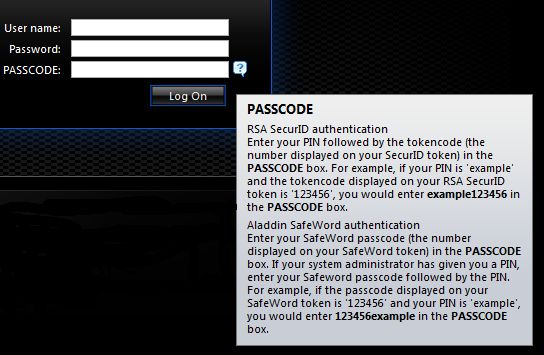
It should work like this: when entering the system, an additional PASSCODE code will be requested, where you need to enter the temporary password.
Successfully applied for WI versions 5.3 and 5.4.
Detailed information on connecting users here
In addition, a temporary password is generated by devices that are not subject to interception risks, usually with hardware keys, such as the following:
Citrix Web Interface “out of the box” supportstwo-factor authentication using Aladdin SafeWord and RSA SecurID hardware keys, the cost of which ranges from 25-50USD, as well as two-factor authentication using a RADIUS server, with which you can connect the keys cheaper (about 5USD)
In order to save even more for the same purpose You can use soft tokens on mobile phones. By the way, the goal of introducing software tokens can also be convenience for the end user - the hardware key is an additional device that you should always have with you, and most users have the phone at hand all the time. There are a lot of free software tokens for phones on the market, for example, Google Authenticator , but our choice fell on the Mobile-OTP project the following reasons:
- the presence of clients for all phones (and not just for ios / android / blackberry) - J2ME, WP7, PalmOS, webOS, Maemo, Openmoko
- additional protection by a PIN code (which is not available in Google Authenticator), that is, even if the device is lost, a temporary password without a pin will not be generated
- Availability of source codes for all customers - you can rebuild with your branding, if you really need to
OK, the choice is justified, let's move on to implementation.
Installation and configuration of a RADIUS server for MOTP
You can use any ready-made RADIUS server, and just connect the pam module for MOTP (for example motpy ). But it’s easier to use the ready-made assembly of MOTP-AS
MOTP-AS
MOTP-AS is a RADIUS server with support for Mobile-OTP plus a web interface for creating and connecting users. You can download VMWare image and run directly on the machine where WI is installed, or on another host in the same grid. It is understood that the MOTP-AS server should not be accessible externally .
User Connection
MOTP-AS provides a convenient admin interface; connecting a software token to a user is quite simple:
1. Add a client for RADIUS
“System” => “RADIUS” => “Add new RADIUS client”
Name: Citrix Web Interface
Secret: RADsecret - Radius secret (we will point it to in the WI config)
IP: 192.168.0.100 - the address where the WI server will be accessible
2. Add the user
“Administration” => “Users” => “Add new User”
User: john
Name: John Doe
Role : user
3. Add a software token
=> “Administration” => “Devices” => “Add new Device”
Name: nokia 6310i
Secret: 1234567812345678
Here, the value of the Secret field is taken from the client generated by the phone, see the instructions for the specific client to generate a secret.
Configuring Citrix Web Interface to Use MOTP-AS as a Second Authentication Factor
Point Shared Secret for the RADIUS server to WI
Shared Secret for the RADIUS server will be stored in a text file on the local drive, the path to it is indicated by the variable RADIUS_SECRET_PATH in the web.config file (the path must be relative to / WEB_INF)
We activate RADIUS authentication for the XenApp site
- in the Citrix Web Interface management console, right-click and select "authentication methods"
- Click Properties and select Two-Factor authentication
- Specify RADIUS in the Two-Factor settings list
- Specify the address where the MOTP-AS server is accessible (leave the standard port - 1812)
- click OK
Well, basically, that's all
It should work like this: when entering the system, an additional PASSCODE code will be requested, where you need to enter the temporary password.
Successfully applied for WI versions 5.3 and 5.4.
Detailed information on connecting users here