Continuous Deployment to Windows Instance
- Tutorial
What is Continuous Delivery many have probably heard more than once. One of the key points of this process is the construction of the Build Pipeline (“pipeline” from the contractor to the customer). And for this, it is necessary to automate such processes as the assembly of the project, its deployment on the infrastructure, testing, etc. A great tool for such tasks is Jenkins. 
To automate application deployment, the simplest option would be to run Jenkins scripts on infrastructure hosts via ssh. But what if one (or several) of Windows was running into the fleet of Linux instances? How to deploy to an "enemy" host - see under the cut.
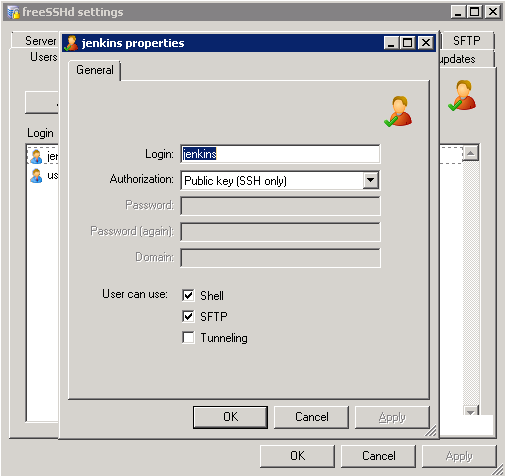
To deploy on Windows as well as on Linux (well, almost), you need to install FreeSSHd and run it as a service. Next, you need to configure it through the “freeSSHd settings” window (called from the system tray). I will not describe all the settings / features, only the basic ones, those that we will need for remote command execution. On the “Users” tab, add the user “jenkins” and set the following settings:
On the “SSH”
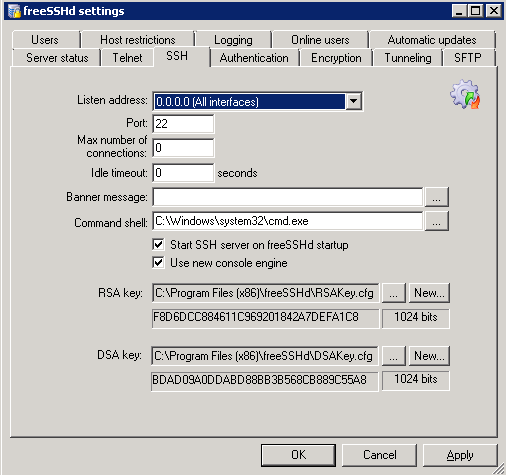
tab : And on the “Authentication” tab, specify the path where the public keys will be stored: The

host is ready for deployment!
Now you need to generate a key pair on the Jenkins host and put the public part of the key into the directory on the Windows instance specified in the freeSSHd settings.
Check if we are all set up correctly (on Jenkins):
If you got a list of files, then everything is OK.
We pass directly to the deployment. Create a new job in Jenkins (click on “New Job”). Then set the name and select “Build a free-style software project”. In the editing page that opens, in the “Build” section, click on “Add build step” and select “Execute shell”.
Here we write a bash script that will take artifacts (in our case from the git repository), copy them from the Jenkins host to the Windows instance and run cmd scripts on it:
Everything is simple here: the script downloads artifacts, copies them to a Windows instance, runs the necessary cmd scripts.
After all these actions, we have a job, which, when you click on "Build Now", will deploy the application.
Thanks for attention! Successful deployments!
To automate application deployment, the simplest option would be to run Jenkins scripts on infrastructure hosts via ssh. But what if one (or several) of Windows was running into the fleet of Linux instances? How to deploy to an "enemy" host - see under the cut.
To deploy on Windows as well as on Linux (well, almost), you need to install FreeSSHd and run it as a service. Next, you need to configure it through the “freeSSHd settings” window (called from the system tray). I will not describe all the settings / features, only the basic ones, those that we will need for remote command execution. On the “Users” tab, add the user “jenkins” and set the following settings:
On the “SSH”
tab : And on the “Authentication” tab, specify the path where the public keys will be stored: The
host is ready for deployment!
Now you need to generate a key pair on the Jenkins host and put the public part of the key into the directory on the Windows instance specified in the freeSSHd settings.
Check if we are all set up correctly (on Jenkins):
# su jenkins -
$ ssh [email protected] 'cmd /c dir'
If you got a list of files, then everything is OK.
We pass directly to the deployment. Create a new job in Jenkins (click on “New Job”). Then set the name and select “Build a free-style software project”. In the editing page that opens, in the “Build” section, click on “Add build step” and select “Execute shell”.
Here we write a bash script that will take artifacts (in our case from the git repository), copy them from the Jenkins host to the Windows instance and run cmd scripts on it:
#!/bin/bash -x
REPO=/path/to/local/repo/
cd$REPO
git checkout
git pull origin master
#copy files:
lftp -u jenkins,pl sftp://10.1.1.160 <<EOF
mirror -R ./
bye
EOF
#start daemons:
ssh [email protected] 'cmd /c cd \DIRECTORY && script.cmd'
Everything is simple here: the script downloads artifacts, copies them to a Windows instance, runs the necessary cmd scripts.
After all these actions, we have a job, which, when you click on "Build Now", will deploy the application.
Thanks for attention! Successful deployments!