March 14, 2012 at 13:52
Docking Ubuntu Shell to Xfce
 Everyone knows the problems of working with the revolutionary Unity desktop environment in Linux Ubuntu. The user interface is undergoing significant changes and experiments, leading to the next "waves of emigration" to other systems and assemblies. After some period of work in the Unity environment in Ubuntu 10.04 LTS (Long Time Support) and quite successful getting used to the Unity realities, I had to return to the new build environment - 11.10. A surprise was expected here, since the number of supported desktop themes decreased and the system settings became somehow more chopped off. The list of topics lacked windows with the right arrangement of the closing buttons, which led to the search for other shells, no matter how progressive the existence in the Unity environment might look like. Over a year ago, Xfce 4.8 released a version with stable positive reviews, so it was logical to try it instead of Unity. As an alternative, the LXDE environment was tested, comparable in lightness to Xfce and very similar to it in organizing work with the table.
If you install Linux after choosing the desktop, then on the basis of Ubuntu there are 2 clones that use both of the desktop environments without using Unity, with the names Lubuntu and Xubuntu. If a choice decision comes later, then, as it turned out, the flexibility of the system allows one and the other alternative environments to be run on it in turn. After standard installation procedures, you can try out all the options. However, this is not news, but the main thing that I want to talk about in the article is the flexibility of the Xfce environment settings, which leaves the clumsy Unity control stubs far behind and bypasses the LXDE settings power, which, in general, would also deserve a place in the sun , and, of course, someone completely satisfied. For myself, I preferred the choice of surprisingly flexible Xfce.
Both environments are similar in many ways to the Windows desktop, but have significant differences in flexibility and ease of setup. For example, the Aero interface, which requires increased processor and video card power in Windows 7, is implemented in Xfce with much more variations and much less user effort, is implemented on GTK and is positioned as an easy and fast shell for UNIX systems.
As an attempt to ennoble hardcore Unity windows that, as mentioned, do not indulge in a variety of styles, the Windows 7 theme for Ubuntu 11.04 was still used. If at 11.04, it reaches the appearance of Windows windows (the close button on the right), then on the topics 11.10 the close button turned out on the left, although the rest of the windows came out pretty neat, with aero effects :). True, any touch on the settings violated the idyll, the look of the buttons fell into a typical Ubunt style. To restore, it was necessary to run the installation scripts again. The sum of the inconvenience of theme management made us abandon this usability rescue plan and move on to installing Xfce and LXDE.
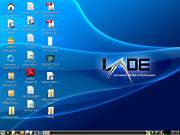
LXDE (Lightweight X11 Desktop Environment) is a fast-oriented environment with a relatively ascetic set of functions. Window manager - Openbox , file manager - PCManFM , program menu bar - LXPanel, everything is very similar to Windows, but “loving” the black color of the panels and not loving a lot of settings. It is these 2 circumstances that have stopped the desire for further work on setting up the environment in this environment. Someone would like black with contrasting white in other parts of the window, but I personally did not like the lack of an easy way to remove the black panels. In turn, there was another environment with richer promising opportunities.
(These 3 images are taken from the project site, to illustrate what I mean)
 ,
,  ,
,  .
. The taskbar is adjustable in height and width (percent of the width of the window), as in Xfce, so it allows you to save and then increase the occupied space at the horizontal or vertical edge of the window.
Xfce(an untranslatable combination of letters that previously meant “XForms Common Environment”) is an application with a long history, long without XForms, with a consistent implementation of the concept of component modularity, which allows combinatorially increasing the power of settings and components, while remaining light in code size. The set includes a number of convenient programs: a terminal from Gnome on a gray background and a number of adjustments; Orage Reminder Calendar Thunar file manager; Onboard On-Screen Keyboard; Xfconf parameter editor. You can read more about them in a recent article about Xfce 4.8 .
The authors themselves in the Xfce kernel distinguish such components (half copied from the description of the environment):
Window Manager (xfwm4). Controls the placement of windows on the screen.
Panel (xfce4-panel). Buttons for launching programs, window management, application menus, switch jobs and more. This is a rather complex set of structural elements that allows you to build entire menus from the names or icons of programs. A simple line of buttons in Mac / Unity / Win7 turns into two-dimensional, although it requires a few vain settings. Initially, 2 panels are supplied, but you can make as many as you like, and they are very flexible in settings. On any of them you can put the usual "tray" elements, including buttons of open or closed windows.
Desktop (xfdesktop). Sets the color or background image of the desktop. Shows the application menu, as well as device icons, minimized applications, launch buttons, or folder contents.
File Manager (thunar).
Session Manager (xfce4-session). Restores the session at startup and allows you to turn off the computer from the Xfce environment. Restores all open windows and panels to their original form.
System setup (xfce4-settings). Customize the appearance of the desktop, monitor, keyboard and mouse. Without any discount on speed and lightness, several settings windows perfectly configure the work environment. Although there are a lot of settings, it’s better than a little and poorly thought out (as in Unity).
Search for applications (xfce4-appfinder). Shows installed applications in the system by category, which makes it easy to find and launch them. (On the other hand, update checking and configuration can be attributed to it.)
Utilities and scripts(xfce-utils). Running scripts at startup, an execution dialog, and Xfce version information.
Configuration Manager (xfconf). D-Bus based configuration storage service.
Xfce is also a development platform that provides several libraries that allow developers to create their own desktop applications.
As a result, we got a very full-fledged work environment, which is in no way inferior to others and has its own serious advantages, listed above.
Of the most liked components, setting up the work environment has already been mentioned. Next, the screenshots will show what happened as a result of a couple of hours of simple settings.
Starting configuration - Ubuntu 11.10 with a small number of pre-installed programs (Gimp, Kate, Chromium, VLC). The final uncertainty in the power of Unity and the mentioned theme of Windows 7 for Ubuntu 11.04.
LXDE installations completed:
sudo apt-get install lxde-core
And Xfce 4.8:
sudo apt-get install xfce4
Next, leaving the user’s account, we go into it again, but already changing the shell to Xfce (in the initial delivery there were only 2 shells in this list: Unity and Unity2D): Next, the shell quickly tuned to the most suitable: 2 opaque panels bottom and top turned into 3 translucent, each of which is of incomplete width, so it does not always interfere with the full-width of the window. (Screenshots are taken in the window of the virtual machine, so the window sizes have such an unusual shape). The left panel was filled manually with sets of programs - browsers, text editors (at the bottom). The button for closing the window has been moved to the upper left corner farthest from mouse actions (it seemed more convenient). How is this configuration flexibility achieved?


The logout menu in it is also wonderful: the buttons are made quite “square”, which is good for any type of manipulators - fingers on the touch screen and mouse on the desktop. And after all, it’s more convenient than small Windows buttons or a list of options in Unity or earlier WindowsXP-2003. Let’s take a look at the different settings menus and the wealth of choices. All programs are compiled and classified in the classic Start menu, which is here called the Application Menu. System settings occupy one of the lines. Of the desktop settings commands in this list there are: Appearance. Window manager. Window Manager (optional). Panel. Desktop. Screen saver.


It makes no sense to list the usual settings here - the user will see them. We show unusual ones that will interest and convince of the validity of the choice of the window environment. We open 3 settings windows, how many fit on the screen and show the most interesting places - the translucency settings. It can be seen that the out-of-focus windows are translucent. This is ensured by the Effects tab in the Window Manager. The translucency of the panels is on the Panel window, and there is also a choice of color. On the “Elements” tab, the panel menu items are then selected, which are then seen as menu items (on the left). It can be seen that the menu is also translucent, in accordance with the settings. And also the title bar of the active window is translucent (almost like in Aero, without blur).

Let translucency is not always convenient - when working with many open windows, sometimes you need to have several windows of a normal appearance. But the impressive tuning capabilities, assembled from a relatively small number of tuning components. And such an impression remains from each element of the settings windows, which show that the ergonomics of the interface have been worked out for years. Or at least very thoroughly.
There are several dozens of types of window titles in the settings. Windows-like captions that are visible on screenshots are the Wallis theme in the Style tab, highlighted in the screenshot. A large list of the rest contains many bizarre themes. Everything is hard to show, easier to see and choose the right one. Another great topic selection list is on the Appearance - Styles tab. He is responsible for the colors of the window elements.

The LXDE environment makes a different impression on its background. The approach in it also feels balanced and thought out. But forethought is of a different kind. She kind of says: “It’s better to make it easier, but more convenient than more complicated and more difficult to set up.” Therefore, the interface is somewhat dull and non-configurable further than a similarly located (manually too) panel similar to Xfce. Finally, we give a screenshot of the very drawback of Unity, which made us look for a different solution among the desktop environments that had not existed in version 10.04 (the poverty of the variety of window design themes). All themes contain control buttons in the upper left and all - Unity style.


Applications
... True, after everything was set up in the new environment, I began to recall little by little that there were some programs that were used on that assembly 10.04, which, quite possibly, they ensured the best quality of the system in terms of tuning.
First: compizconfig-settings-manager (ccsm)
sudo apt-get install compizconfig-settings-manager
ccsm
Opens the settings panel, more convenient than visible in the "raw" distribution. To show it all, I had to make 2 screens on those close screenshots.
 ,
The utility adjusts the behavior of visual effects in windows, which can be called micro-issues of user interaction with interfaces. But we dealt with issues of windows and panels (lancers), therefore this program does not, by and large, apply to the topic of discussion.
Second: Ubuntu Tweak 0.6 - myubuntu.ru/novosti/testirujte-ubuntu-tweak-06 .
ubuntu-tweak 0.6.1-1 ~ oneiric1
Officially, it is supported in 11.04 and lower, but it also started in 11.10.
,
The utility adjusts the behavior of visual effects in windows, which can be called micro-issues of user interaction with interfaces. But we dealt with issues of windows and panels (lancers), therefore this program does not, by and large, apply to the topic of discussion.
Second: Ubuntu Tweak 0.6 - myubuntu.ru/novosti/testirujte-ubuntu-tweak-06 .
ubuntu-tweak 0.6.1-1 ~ oneiric1
Officially, it is supported in 11.04 and lower, but it also started in 11.10.

It was she who made it possible to do the necessary manipulations with the windows to get a Windows-like theme (no, I didn’t do it exactly at 10.04! There were themes with simple settings). 2 tabs are interesting here: “Settings - Theme” and “Settings - Window Manager Settings”. However, this happened rather late (and of poor quality), due to which 2 environments described above were investigated and an article was written to tell about everything seen.
The third useful utility: gnome-tweak-tool 3.2.0-0ubuntu1 It opens the settings in a convenient form, but ubuntu-tweak, which also has all the settings, set the theme for the settings.

Interestingly, there are window transparency effects in the settings, but in the checked version 11.10 they do not work, and an attempt to change leads to closing the settings window. And what's more interesting, there is no theme with normal contrast in the font of an inactive window. As a result, Unity is “complemented” by the interests of enthusiasts, while Xfce already has everything you need. When Unity “rushed” in pursuit of a mirage of touch interfaces, Xfce does not lose its presence of mind and does not forget about tablets, and does not forget about mice (depicted on its logo).
*) An overview (and criticism) of environmental trends in the light of revolutions: Unity and GNOME Shell. Part 1: Who is to blame?. Here, by the way, it is also mentioned at the end: "... the complete inability to configure anything is unlikely to attract users. A reasonable compromise can be seen in Xfce and in versions of GNOME 2 before the start of the" campaign to simplify the interface. "."