
 April 28, 2011 at 10:53
Create an application for Windows Phone 7 from start to finish. Part 8. Creating a consistent look
- Transfer
Previous Section
There are various ways to create a consistent look. For example, you can use built-in styles and resources, you can create your own style, and you can also use data templates to customize items in the list.
In this part you will learn:
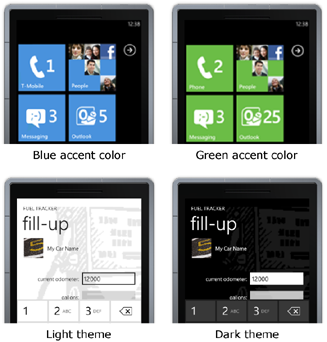
Consistent appearance and compliance with Metro design guidelines are crucial for Windows Phone applications. The following image shows examples of various primary colors (accent colors), as well as light and dark themes.
Like cascading style sheets (CSS) in conjunction with HTML, XAML allows you to apply the same settings to the properties of controls using a special syntax called markup extension. With styles and resources, you can reuse settings and create a consistent look for your application.
There are many built-in styles and resources for use in Windows Phone projects that meet the requirements of the Metro design and are suitable for both light and dark themes. These resources include brushes, colors, fonts, text styles, and themes.
The following example shows how to attach a brush, which is a resource embedded in Windows Phone, to the background of the Button control using the markup extension.
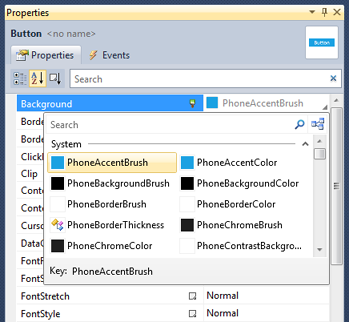
The following image shows how to attach a brush, which is a resource embedded in Windows Phone, to the background of the Button control using the Properties window.
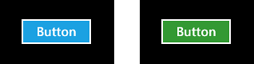
Since the background of the previous example is PhoneAccentBrush, the color of the button will be based on the current primary color (accent color) selected by the user. The following image shows how the button looks when the user selects blue or green as the primary color.
Interface Design Recommendation:
If the primary or background color of the control is set explicitly, make sure that its content is equally clearly visible in both dark and light themes. If the specified color is not visible, also explicitly set the background or primary color so that it is sufficiently contrasted or choose a more suitable color.
The following example shows a TextBlock from a summary page of the Fuel Tracker application, where the Style property has the value of a style that is a resource embedded in Windows Phone using a markup extension.
UI design tip:
Follow a common style of capitalization.
You can see the list of available built-in styles and resources for Windows Phone here: Theme Resources for Windows Phone . You can learn more about markup extensions here: XAML Overview .
If you want to create your own style, as a rule, you should declare the style as a page or panel resource and apply it as a static resource using the markup extension. Each style, as a rule, has a key, which is used to refer to it later, and a target type, which indicates which type of control it can be applied to. The main part of the style is a collection of Setter objects that contain the Property and Value parameters. You can create styles in Visual Studio by specifying them directly in XAML code, or you can use Expression Blend, which allows you to create styles in a more visualized way. When creating resources that set colors, you must make sure that your choice of colors looks equally good as in light,
The Fuel Tracker app uses styles in many places. For example, the summary page contains the LabelStyle and ValueStyle styles in the first Pivot element, which is defined in the Grid resource section. In a summary page file, these styles apply to TextBlock objects. The following snippet of XAML code shows an example of how styles are defined and how they are applied.
When you bind a collection of objects to a ListBox or any other list, the ListBox displays a string representation of the objects in the collection. In order to customize the appearance of objects in the collection, you should set the ItemTemplate property of the ListBox control to the DataTemplate value, which determines the appearance of objects. You will learn more about how you can use data templates to customize the appearance in the next section, entitled “Displaying Data.”
Next part
There are various ways to create a consistent look. For example, you can use built-in styles and resources, you can create your own style, and you can also use data templates to customize items in the list.
In this part you will learn:
- How to use styles built into Windows Phone.
- How to create your own style.
- What are data templates.
Colors and Themes
Consistent appearance and compliance with Metro design guidelines are crucial for Windows Phone applications. The following image shows examples of various primary colors (accent colors), as well as light and dark themes.
Using Inline Styles
Like cascading style sheets (CSS) in conjunction with HTML, XAML allows you to apply the same settings to the properties of controls using a special syntax called markup extension. With styles and resources, you can reuse settings and create a consistent look for your application.
There are many built-in styles and resources for use in Windows Phone projects that meet the requirements of the Metro design and are suitable for both light and dark themes. These resources include brushes, colors, fonts, text styles, and themes.
The following example shows how to attach a brush, which is a resource embedded in Windows Phone, to the background of the Button control using the markup extension.
* This source code was highlighted with Source Code Highlighter.The following image shows how to attach a brush, which is a resource embedded in Windows Phone, to the background of the Button control using the Properties window.
Since the background of the previous example is PhoneAccentBrush, the color of the button will be based on the current primary color (accent color) selected by the user. The following image shows how the button looks when the user selects blue or green as the primary color.
Interface Design Recommendation:
If the primary or background color of the control is set explicitly, make sure that its content is equally clearly visible in both dark and light themes. If the specified color is not visible, also explicitly set the background or primary color so that it is sufficiently contrasted or choose a more suitable color.
The following example shows a TextBlock from a summary page of the Fuel Tracker application, where the Style property has the value of a style that is a resource embedded in Windows Phone using a markup extension.
- Style="{StaticResource PhoneTextLargeStyle}"
- Text="CURRENT MPG:"
- HorizontalAlignment="Right" VerticalAlignment="Center"/>
* This source code was highlighted with Source Code Highlighter.UI design tip:
Follow a common style of capitalization.
You can see the list of available built-in styles and resources for Windows Phone here: Theme Resources for Windows Phone . You can learn more about markup extensions here: XAML Overview .
Create your own styles
If you want to create your own style, as a rule, you should declare the style as a page or panel resource and apply it as a static resource using the markup extension. Each style, as a rule, has a key, which is used to refer to it later, and a target type, which indicates which type of control it can be applied to. The main part of the style is a collection of Setter objects that contain the Property and Value parameters. You can create styles in Visual Studio by specifying them directly in XAML code, or you can use Expression Blend, which allows you to create styles in a more visualized way. When creating resources that set colors, you must make sure that your choice of colors looks equally good as in light,
The Fuel Tracker app uses styles in many places. For example, the summary page contains the LabelStyle and ValueStyle styles in the first Pivot element, which is defined in the Grid resource section. In a summary page file, these styles apply to TextBlock objects. The following snippet of XAML code shows an example of how styles are defined and how they are applied.
-
-
-
- . . .
-
- Style="{StaticResource LabelStyle}"
- Text="date:">
-
- Style="{StaticResource ValueStyle}"
- Text="{Binding FillupHistory[0].Date, Converter={StaticResource StringFormatter}, ConverterParameter=\{0:d\} }" >
* This source code was highlighted with Source Code Highlighter.Data templates
When you bind a collection of objects to a ListBox or any other list, the ListBox displays a string representation of the objects in the collection. In order to customize the appearance of objects in the collection, you should set the ItemTemplate property of the ListBox control to the DataTemplate value, which determines the appearance of objects. You will learn more about how you can use data templates to customize the appearance in the next section, entitled “Displaying Data.”
Next part