October 2, 2010 at 07:12
We put the second video card in the PCI-Express x1 connector
 If your computer has 2 video outputs and you want to connect 3 monitors, then with some probability it will not be possible to do this simply by adding a second video card - not all motherboards have 2 PCI Express X16 slots, and regular size video cards will not fit into numerous PCI Express X1 slots for incompatibility on the connector. Not everyone knows that in fact, installing a long X16 connector in a short slot is possible, so it is not necessary to buy a different and more expensive motherboard for the 3rd monitor. This article is devoted to ways to expand the potential capabilities of the computer, as well as it dispels doubts and fears that something will not work when finalizing the board with a file. An hour of work - and the 3rd monitor will be connected to your system.
The problem of installing 2 video cards exists due to the fact that most PCI-Express x1 slots have a plastic edge at the end farthest from the wall of the computer case, and video cards do not have a slot for compatibility with the edge. As shown below, the problem is solved by simply cutting this side.
Why might this be needed?
1) To install the 3rd monitor in the system.
Of course, there are solutions with a 3rd monitor without surgical operations with connectors.
1.1)Buy a budget type motherboard with a video connector installed on the board. Attention! You need to be sure that the BIOS of the board does not automatically disable the integrated video if it sees the installed video card. For some, especially budget boards, such a solution occurs. How to make sure that the embedded video is not turned off? Most likely, only installation experience (video cards and 2 video drivers), because they can’t write about this in the instructions for the board. (For example, I once connected 3 monitors to the Intel budget board (on the G31) for testing, but the Gigabyte budget boards with 2 slots for RAM had the function of automatically disabling the integrated graphics.)
 (Fig . 1)
 1.2) Buy a video card with a PCI connector -Express x1. There are few such video cards, but they are. news.softportal.com/nitem-5729.html, Www.oszone.net/print/9646 , www.oszone.net/11230/Club3D_PCIe_x1_Radeon_HD_4350 .
 (Fig. 2)
 1.3) Buy a motherboard with 2 or more PCI-Express x16 connectors (many motherboards are not in the lower price category).
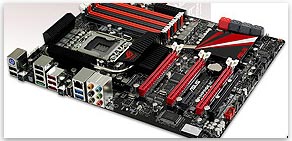 (Fig. 3)
 1.4) Cut off excess textolite from the video card, for example, here:
www.invisiblerobot.com/pcie_x1
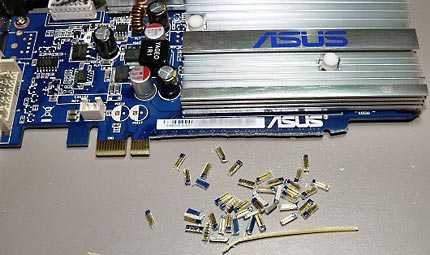 (Fig. 4)
(to some extent, it’s a joke - why damage the video card, but they did it here too:
www .overclockers.ru / hardnews / 22289.shtml )
1.5) Do not bother much, but buy a motherboard that has more PCI-Express x16 connectors on it:
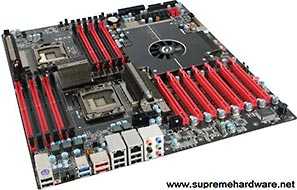 (Fig. 5)
(even a big joke).
All methods involve material costs and a more limited selection of configuration options. If you already have a board with a free PCI-Express x1 slot and a video card with a PCI-Express x16 slot, it’s easier to do as described below.
Method 1.6) Make a slot on any PCIe X1 slot, convenient for installing a video card.
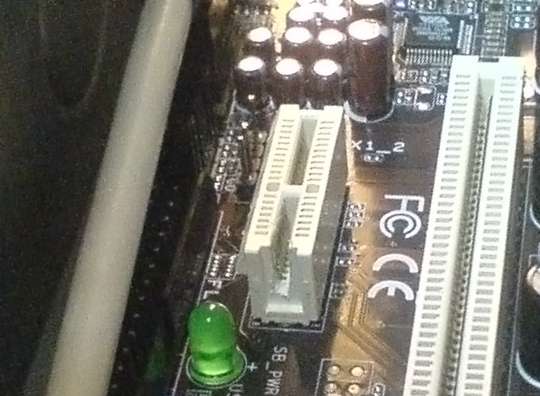 (fig. 6)
The specification requires the inclusion of power lines and grounding of the expansion card, even if fewer connections are used. Therefore, theoretically, after connecting, we can get problems due to an incomplete connection to the power, but in practice they are not, because all the power lines on the video card are simply combined into one, and on low-power video cards (no higher than 3850) the power and frequency currents do not so large that it is critical. (There is an adapter uk.startech.com/product/PEX1TO16-PCI-Express-x1-to-Low-Profile-x16-Slot-Extension-Adapter to solve the problem, but you won’t need it.) At least you can hope so, and more powerful video cards have no reason to turn it on because they start to affect the limited bus bandwidth (at the end of the article there’s a link that answers the question, what power card it’s reasonable to put in PCIe X1, and if in 2 words, then we don’t lose anything for video cards of the GF8600GT / ATI 2600XT level). Yes, and the card becomes heavy, which is dangerous for the integrity of such a small connector.
UPD 10.10.2010 13:25 Readers in the comments recalled several more ways to connect the 3rd monitor, from well-known ancient to new ones.
1.7) Buy a PCI video card. This is how monitors were connected during AGP and earlier. Such cards are not just very old - there are enterprising manufacturers that they are now in modern chips (usually with fantastic prices):
www.3dnews.ru/news/audio_videokarta_asus_pod_shinu_pci_s_podderzhkoi_hdmi_1_3a
www.newegg.com/Product/Product.aspx?Item=N82E16814131082
www3 .pny.com / 8400-GS-512MB-PCI-Low-Profile-P2679C269.aspx
www.thg.ru/technews/20070820_110407.html
Exception: as the reader Silent forest pointed out, you cannot achieve the result if the PCI-card and PCI-Express-card are from the same VNidia company due to the banal unsupport of the driver for the old NVidia card at the same time as the new one (installing ATI PCI-Express resolved the conflict).
1.8) Buy a USB 2.0 to VGA adapter (prices also quite bite, at least $ 40 - the products are not massive, they are produced in small batches, with a high share of development costs):
www.nix.ru/autocatalog/adapters_switches/STLab_U470_USB_to_VGA_Adapter_88604.html
www .nextag.com / Startech-USB2VGAE2-USB-To-669150066 / prices-html
(There are probably problems with drivers for non-mass operating systems.)
1.9)Use ATI Eyefinity technology (a 3rd monitor requires a DisplayPort adapter and a video card with Eyefinity support - Radeon 5xxx (RV870 chip) and, of course, a third monitor with a DisplayPort connector) - for those who want to support the material development of innovative technologies :)
www. amd.com/ru/products/technologies/eyefinity/Pages/eyefinity.aspx
www.nix.ru/computer_hardware_news/hardware_news_viewer.html?id=159707&page=10
2) For connecting video cards in Crossfire mode.
Strictly speaking, special motherboards are provided for this mode. But, perhaps, the solution will work with any pair of PCIe slots (not tested).
The process of finalizing the connector.
Before work, make sure that the motherboard really has free space for installing the freely hanging “tail” of the PCI-Express x16 connector. There may be parts (capacitors, other connectors) that, at best, can be re-soldered by placing in a different position.
Cutting the wall is quite simple, but requires compliance with several technical points in terms of the accuracy of the operation.
1) it is better to remove the motherboard from the case, as careless movement can damage the integrity of the connector or surrounding parts;
2) perform the cutting so that the plastic of the connector in the base does not crack. Therefore, do not use nippers, cut with a sharp scalpel or blade for a construction knife, scraping off with small pieces or dremel (a burr with an installed circular saw or emery blade), but be careful not to damage the contacts. Violation of the integrity of the plastic can also lead to the separation of the contacts, unreliable connection.
3) when cutting pieces of plastic with a sharp knife, you should be very careful not to cut off the spring contacts, which are literally a millimeter from the operation site. If you cut with a sharp knife, the procedure takes 25-30 minutes, and the contacts are more likely to be more protected by the fact that the sharp blade does not cut them. In practice, I had one contact bent inward, into the space for the textolite of the card, but then I managed to fold it back.
4) cut the plastic to the level of the bottom of the connector; the photo shows the process of sequentially scraping the wall of the connector to the desired depth:
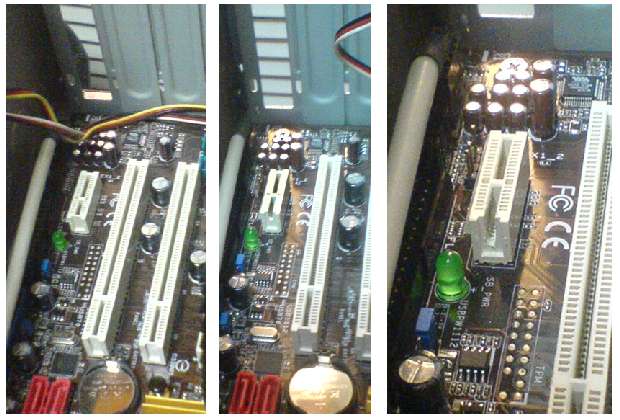 (Fig. 7)
5) before installing the video card, carefully check that the contacts are not bent inward and the video card will not damage them.
6) when installing a video card - check whether the bare connector of the video card touches the conductive surfaces (radiators, parts). If there is such a danger, insulate the connector or surfaces with at least tape or thick paper attached to the card.
 (Fig. 8)
7) After installing the 2nd video card, fix it to the case, since the attachment point for one small PCIe connector is quite dangerous for the integrity of the connector.
In practice, I ignored recommendation (1), because there was enough space for work inside the case and used a non-sharp used blade. Shavings from the inside of the connector were blown out through the tube from a ballpoint pen (using office tools).
 (fig. 9)
Such an insignificant set of tools (a blade, a tube, possibly an adhesive tape) and about an hour of installation time is a small fee for the ability to connect a third monitor. It may be superfluous, but it will not be superfluous to check the convenience of working with it.
 (Fig. 10)
 An example of the process of cutting the wall of a connector filmed on video using a heated blade of a kitchen knife: www.youtube.com/watch?v=gVBD-M_STsc (another author; the video was posted on YouTube 10/19/2009). (Fig. 11) This method will also lead to a result, even 10 minutes faster, but the “cold” method is more convenient because the plastic does not deform and does not need to clean off the flows, leading to a presentable look. Another solution example

through the PCI Express x1 to PCI Express x16 extension adapter - in an article by SilentF people.overclockers.ru/SilentF/record4 .
(UPD 2017-10: the link has become unavailable, but there is one more thing - how to make such an adapter yourself , soldering the cable loop)
 (Fig. 10a)
Here the issue is resolved, the failure of which can lead to a non-start of the video card: the PRSNT # 2 pin at the end of the PCIe x16 connector is connected with the same signal on the PCIe x1 connector. He is responsible for determining the “full plugging” of the card into the slot: if the card is not fully inserted, a certain bit of the PRSNT (Piin-based Presence Detector) of the hardware register says “0” - “not inserted”. If these lines are not closed on the video card, without this revision the register will mark: “not inserted”, and what the system decides on the basis of it, we can check. In any case, the absence of a signal should not lead to unstable operation: it affects this hardware bit, and switching from 0 to 1 still creates a hardware interrupt (hot plug-in expansion cards - “insert during operation”). What does it do in the system, is it blocked (in theory, it should, because in a PCIe computer - not a “hot-plug” connector) - is also not known, but experience shows that without a jumper, the 8300GS graphics card in PCIe x1 works. (If there is a suspicion of incorrect operation due to PRSNT # 2, you canmake a jumper with a thin wire directly on the video card.)
Installing a 3rd monitor in the system (Windows XP)
When you turn on the computer, the video signal is not supplied to the second card at first, the display indicates an unconnected cable. The operating system detects the video card without problems and connects the driver if it is a card from the same manufacturer as the first one that was previously installed. WinXP asks to restart itself after the driver automatically installs without any special actions for this. After the restart, the system began to see the monitor on the second video card, and the monitor detected a cable connection.
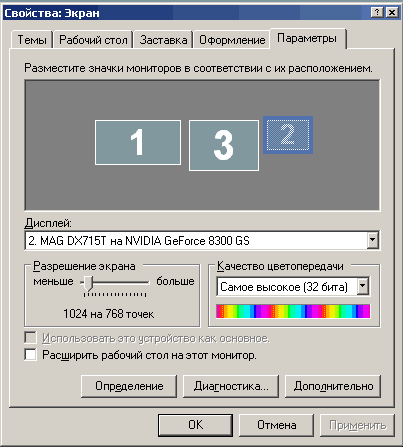 (Fig. 12)
(Interestingly, the 2nd monitor on the 1st video card is numbered third in the system.)
After activating the monitor in the display properties (you may need to start the monitor connection wizard, it depends on the driver), the desktop background appears on it.
 (Fig. 13)
It remains to adjust the resolution and connection frequency. When installing a CRT monitor, do not forget to set the sweep frequency to at least 70 Hz so as not to use 60 Hz by default. For LCD monitors, this action is not necessary.
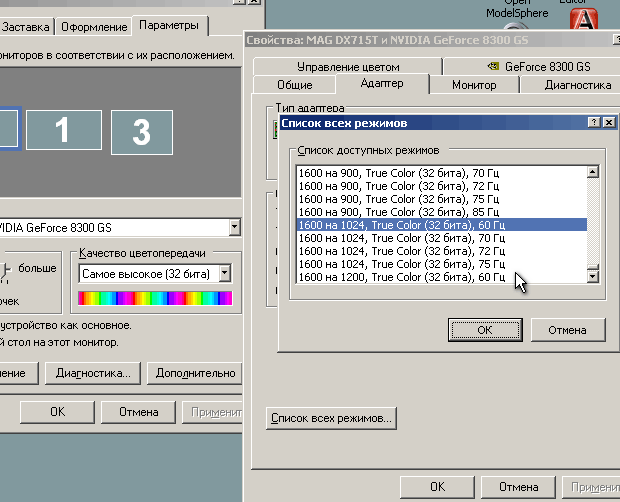 (Fig. 14)
If the chip manufacturers (NVidia, ATI, Matrox) are different, you need to install a second driver - usually, according to reviews from other articles, they get along (UPD: at the prompt of Jeditobe and confirmation of guessss_who , Windows Vista does not support different drivers at the same time video card manufacturers XP and Win7 do not suffer from this.). In the display settings, the required number of additional monitors is connected from the system. Result:
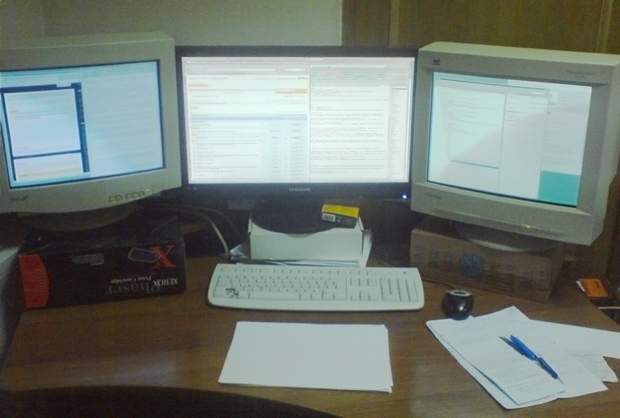 (Fig. 15)
In other articles, there were repeated measurements of the performance of video cards on the PCI-Express x1 connector, which showed that all video cards below ATI 3850 / GF 9800 in almost all modes and games behave almost the same as compared to the PCI connector -Express x16 - they have enough data flow through 1 PCI-Express channel, equal to 250 MB / s in one direction (500 MB / s in both directions).
Here is an article that discusses a performance drop of 15-20% in tests on the ATI 3850 with PCIe x1, x4, x8, x16.
www.tomshardware.com/reviews/pci-express-2.0,1915-9.html
On the GF 9800 GX2:
www.tomshardware.com/reviews/pci-express-2.0,1915-10.html
The article is large; on different pages describes how the experiments were set.
Conclusions
If the video card does not have game tasks or is low-power, then the PCIe x1 solution will hardly be inferior to other solutions with a more expensive motherboard (except for some very demanding applications like Microsoft Flight Simulator, Crysis, Call Of Duty 4).