April 22, 2010 at 20:59
Distribution of GPS signal or new life to old devices using GPS Gate
Using a PDA as a car navigator is not always convenient and software often for PDAs is less functional.
It is much more convenient to use if you have a laptop, but it usually does not have its own GPS navigator on board,
and you don’t feel like buying an additional GPS with an existing PDA with GPS. Now I will tell you how to use the built-in GPS in the PDA on a laptop.

Franson GpsGate - a program that allows you to use one GPS-receiver in several GPS-programs at the same time.
It creates any number of virtual COM ports to which programs can connect. GpsGate has extensive functionality,
for example, GPS simulator, GPS logger, protocol conversion, bluetooth-server, connection via ActiveSync and a network,
transfer of coordinates via TCP / IP to another computer on the network or apps.gpsgate.com .
GpsGate is available for Windows and PDAs.
Supported PDA platforms:
Pocket PC ARM, Pocket PC 2002, Windows Mobile 2003, WM5, WM6
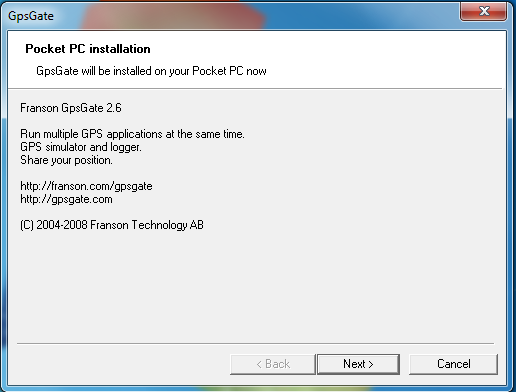
So we need the GpsGate v2.6 program for PDAs
and the version for PC .
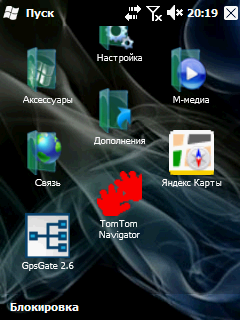
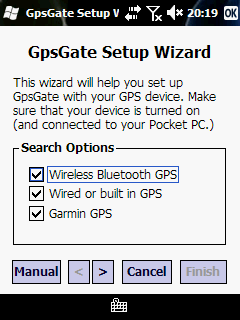
First, install the version for the PDA. We start GpsGate on the PDA, the GpsGate Setup Wizard window appears, we will not use the installation wizard, so we boldly press the "Manual" button.
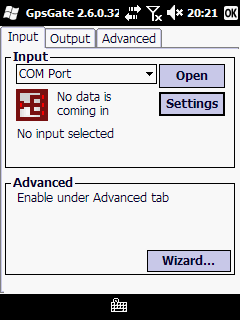
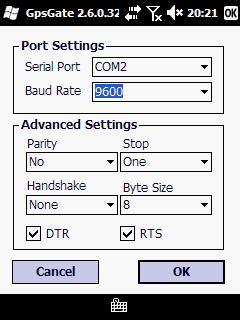
In the “Input” tab, select the data source for the program, in our case it’s the COM port of the PDA-GPS receiver and press the “OPEN” button, in the Port Settings, select the port that
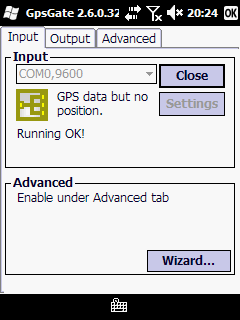
we have in the Windows settings, I have COM0 and speed data transmission. If everything is correct, then the “Open” button will change to “Close”.
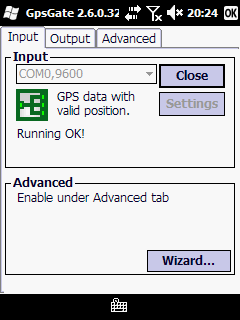
The yellow color of the icon and the inscription “GPS data but no position” indicates that the program connected to the GPS COM port, but your location has not yet been determined; if the icon is green,
the program has determined your location. We figured out the incoming data, now we will decide what to do with the outgoing. We go to the tab “Output”, “Add output” here we will make a choice of what we need. Purpose of the main positions:
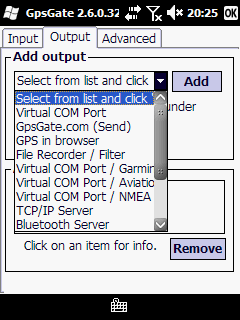
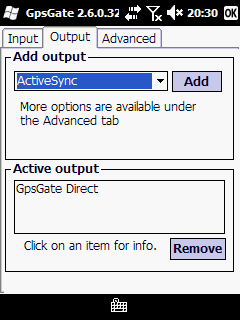
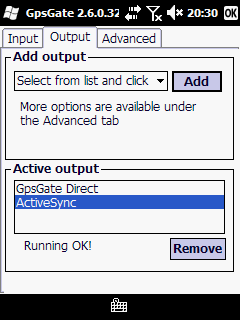
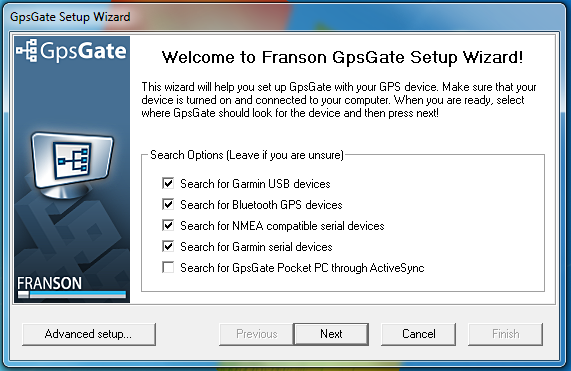
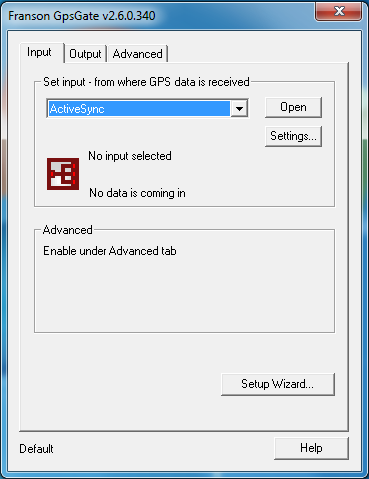
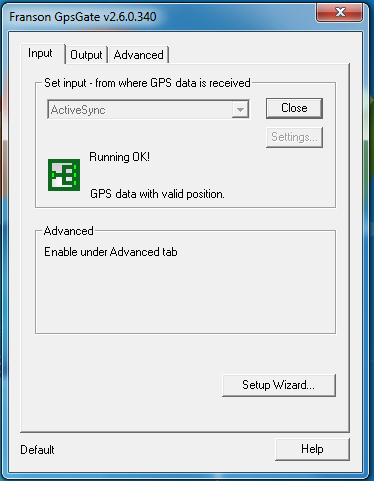
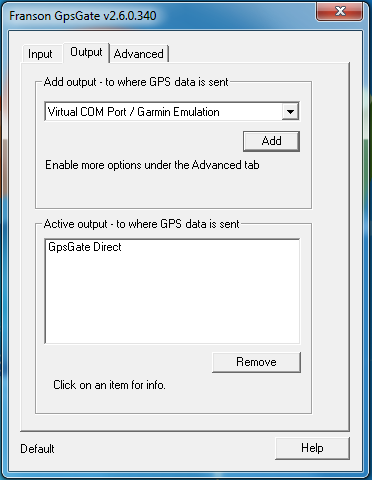
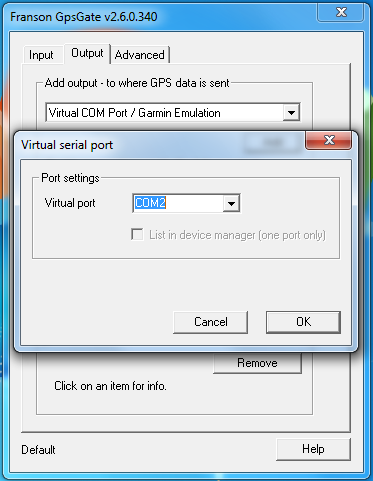
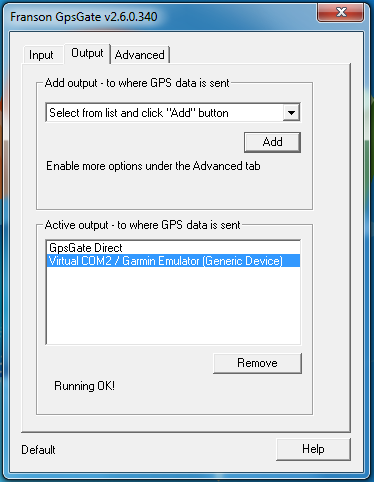
Select ActiveSync and click Add, it appears at the bottom. We establish communication with the PDA via ActiveSync via Bluetooth or cable. Now you can put GpsGate PC. Install and run. Next, select "Advanced setup". In the settings, select the “Input” tab, there we select ActiveSync. Then go to “Output” and select Virtual COM / Garmin Emulator, to work with the Garmin program Nroute or if you prefer GIS Russa or Ozi Explorer, then select Virtual Com Port / NMEA Filter. Click “Add”, set the virtual port we need, for example COM2 and click “OK”. In the navigation program, set COM2. Enjoy the result. UPD: The disadvantages include the fact that the software is paid, the cost can be found here
It is much more convenient to use if you have a laptop, but it usually does not have its own GPS navigator on board,
and you don’t feel like buying an additional GPS with an existing PDA with GPS. Now I will tell you how to use the built-in GPS in the PDA on a laptop.
Franson GpsGate - a program that allows you to use one GPS-receiver in several GPS-programs at the same time.
It creates any number of virtual COM ports to which programs can connect. GpsGate has extensive functionality,
for example, GPS simulator, GPS logger, protocol conversion, bluetooth-server, connection via ActiveSync and a network,
transfer of coordinates via TCP / IP to another computer on the network or apps.gpsgate.com .
GpsGate is available for Windows and PDAs.
Supported PDA platforms:
Pocket PC ARM, Pocket PC 2002, Windows Mobile 2003, WM5, WM6
So we need the GpsGate v2.6 program for PDAs
and the version for PC .
First, install the version for the PDA. We start GpsGate on the PDA, the GpsGate Setup Wizard window appears, we will not use the installation wizard, so we boldly press the "Manual" button.
In the “Input” tab, select the data source for the program, in our case it’s the COM port of the PDA-GPS receiver and press the “OPEN” button, in the Port Settings, select the port that
we have in the Windows settings, I have COM0 and speed data transmission. If everything is correct, then the “Open” button will change to “Close”.
The yellow color of the icon and the inscription “GPS data but no position” indicates that the program connected to the GPS COM port, but your location has not yet been determined; if the icon is green,
the program has determined your location. We figured out the incoming data, now we will decide what to do with the outgoing. We go to the tab “Output”, “Add output” here we will make a choice of what we need. Purpose of the main positions:
- Bluetooth Server - the work of the PDA as a regular Bluetooth-GPS receiver;
- Virtual COM port - all data from the GPS port (indicated in the “Input” tab) is redirected without changes to the one we specify here;
This is necessary so that it would be possible to create several virtual COM ports to run several GPS navigation programs on the PDA at the same time; - GPSGate.com (Send) - All your coordinates are sent via GPRS to the gpsate.com server, where you can see the location on the googlemaps map;
- ActiveSync - this is the tab we need. Here we connect ActiveSync with a laptop. GpsGate PDA transfers data from GPS to GpsGate PC. GpsGate PC creates a virtual COM port or ports to which are already connected using navigation programs.
Select ActiveSync and click Add, it appears at the bottom. We establish communication with the PDA via ActiveSync via Bluetooth or cable. Now you can put GpsGate PC. Install and run. Next, select "Advanced setup". In the settings, select the “Input” tab, there we select ActiveSync. Then go to “Output” and select Virtual COM / Garmin Emulator, to work with the Garmin program Nroute or if you prefer GIS Russa or Ozi Explorer, then select Virtual Com Port / NMEA Filter. Click “Add”, set the virtual port we need, for example COM2 and click “OK”. In the navigation program, set COM2. Enjoy the result. UPD: The disadvantages include the fact that the software is paid, the cost can be found here