August 6, 2008 at 00:21
Configure TortoiseSVN + SSH
Now I want to tell you how to configure TortoiseSVN so that it works through SSH, I have little experience, on the setup, so please do not hit hard :)
TortoiseSVN: tortoisesvn.tigris.org
PuTTY: www.chiark.greenend.org.uk/~sgtatham/putty
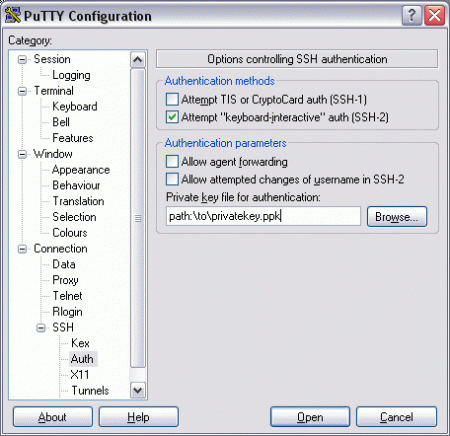
There we select Connection-> SSH-> Auth from the options branch and enter the path to the private key for authentication in the Private key file for authentication (rsa private key)
Host Name : login @ server_address
Port :
Protocol port : SSH
Saved Session : session name The
sign that you configured the paths correctly is that you can connect ( Open button ), do not forget to save the session .

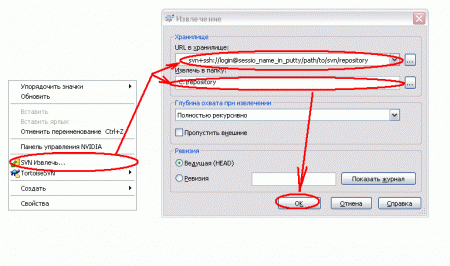
in the URL field in the repository, enter something like:
svn + ssh: // login @ session_name_to_path_name / var / svn / test
in the field Extract to folder indicate where it will be retrieved current version.
Link to the English version of the manual on which I did it for the first time
Step 1
To get started, download:TortoiseSVN: tortoisesvn.tigris.org
PuTTY: www.chiark.greenend.org.uk/~sgtatham/putty
Step 2
After everything has downloaded, install Putty and TortoiseSVN, there should be no problems here.Step 3
After installation, open Putty:There we select Connection-> SSH-> Auth from the options branch and enter the path to the private key for authentication in the Private key file for authentication (rsa private key)
Step 4
After we go to the Session branch and enter in the fields:Host Name : login @ server_address
Port :
Protocol port : SSH
Saved Session : session name The
sign that you configured the paths correctly is that you can connect ( Open button ), do not forget to save the session .
Step 5
Next, RMB in any free place of any folder and select SVN Extract ... :in the URL field in the repository, enter something like:
svn + ssh: // login @ session_name_to_path_name / var / svn / test
in the field Extract to folder indicate where it will be retrieved current version.
Total
This is all that needs to be done, the main thing in the turtle settings in the Network item is NOT to specify the path to the SSH client.Link to the English version of the manual on which I did it for the first time