January 30, 2018 at 16:44
ArcSight Forwarder Connector. Let's go wherever we want
- Tutorial
Good afternoon, habrasociety!
In this article, I will share my experience in uploading events from ArcSight ESM. I will consider the functionality in detail and provide step-by-step instructions for setting up the ArcSight Forwarder Connector, as well as describe interesting life hacks.
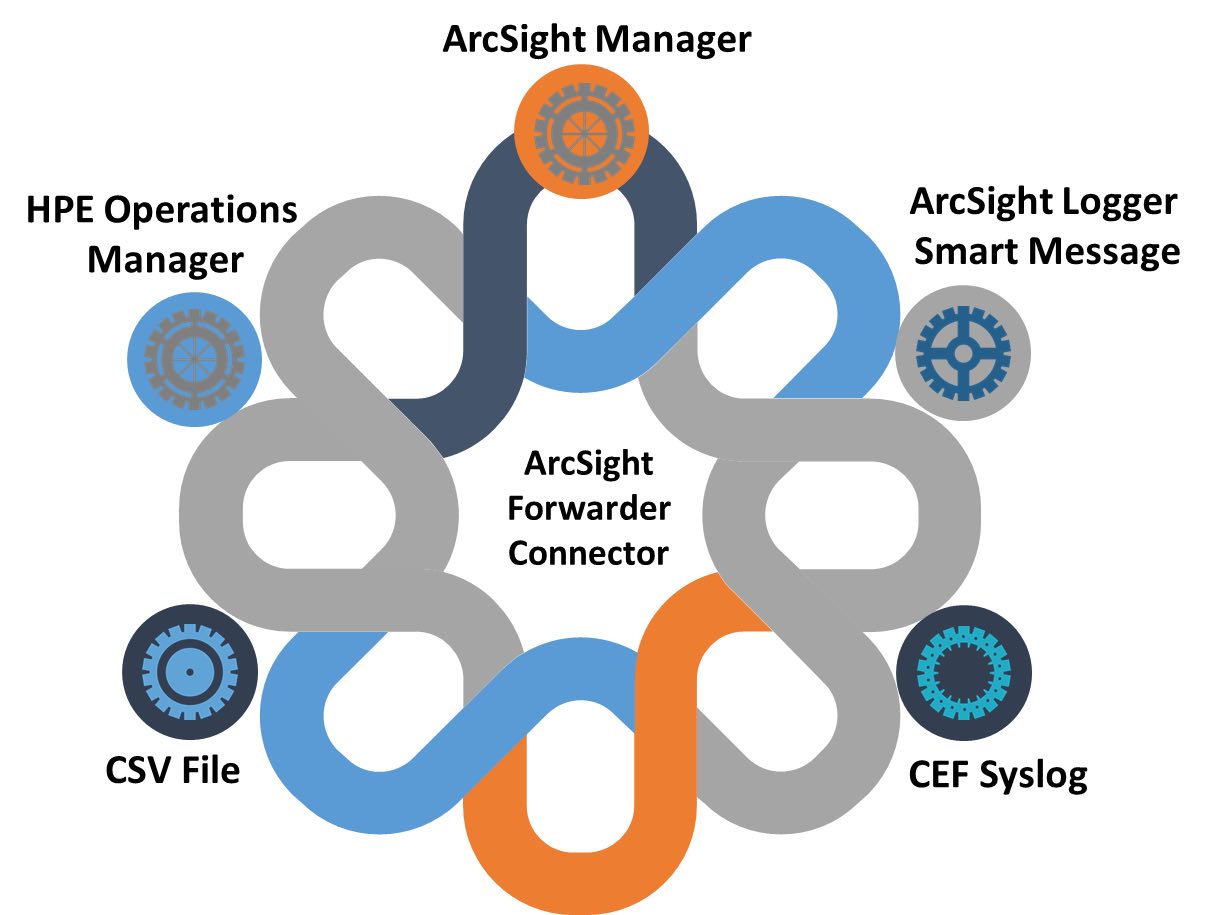
To begin with, let's figure out why events are generally sent from Arcsight ESM (after all, they live well in the database).
We can implement all these points using the ArcSight Forwarder Connector, but the initial configuration starts on the ArcSight ESM itself:
After creating an account and filtering on the Arcsight ESM, we can begin to install and configure the Arcsight Forwarder Connector
Setting destination types:
Tricks for working with Arcsight Forwarder Connector
As a result, we can observe that ArcSight has a lot of possibilities for integration, both with its systems and with external sources. But for the sake of truth, it’s worth saying that the flow of events is gradually increasing, the same events must be sent to several sources, there must be a constant interaction of different systems ... and here the possibilities of an ordinary connector end.
Therefore, Micro Focus engineers developed a new architecture, called ArcSight Data Platform. A distinctive feature of this architecture is the ArcSight Event Broker product, which serves to route a huge stream of events to various systems (ESM, Logger, UEBA, Investigate, Hadoop, etc.) and is capable of processing more than 500,000 EPS !!!
In this article, I will share my experience in uploading events from ArcSight ESM. I will consider the functionality in detail and provide step-by-step instructions for setting up the ArcSight Forwarder Connector, as well as describe interesting life hacks.
To begin with, let's figure out why events are generally sent from Arcsight ESM (after all, they live well in the database).
- Your company has several ESM servers and the task is to send events to the central ArcSight ESM for global correlation
- You have a third-party system (such as ELK) to which you need to send events from ArcSight

- Syslog events sending in CEF format
- Uploading events to a CSV file for further work
We can implement all these points using the ArcSight Forwarder Connector, but the initial configuration starts on the ArcSight ESM itself:
Initial setup on Arcsight ESM
All work is done on the latest version of Arcsight ESM 6.11 (but this also applies to previous versions).
First, create an account that will be used to upload events from ESM.
In the navigation panel, go to the “Users” section and in the “Customer User Groups” directory, create our own “Forwarder Events” directory.
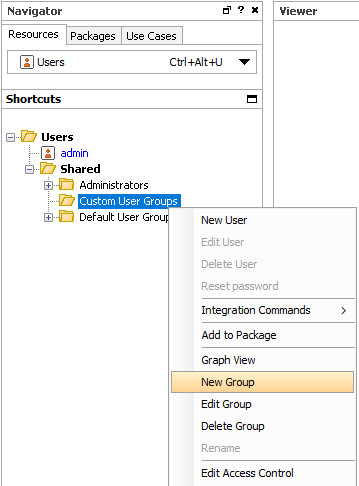
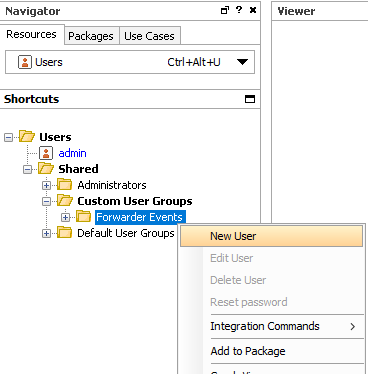
Click on the newly created “Forwarder Event” group and create a user, for example, “fwd”.
For the new user, you need to set the account type and password.
User Type = Forwarding Connector
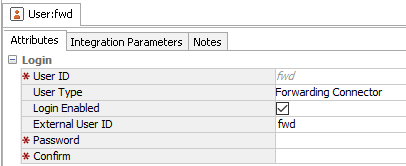
Now we need to create a filter for those events that we want to unload from Arcsight ESM. To do this, select the “Filters” section in the navigation panel and create a filter with the necessary conditions.
For example, I plan to unload all correlation events from ESM, so my filter will look like this:
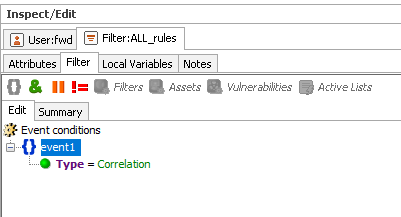
After the filter is created, it must be applied to the Forwarder Events group, which includes the user fwd.
Go to the navigation panel in the “Users” section and select “Edit Access Control” for the “Forwarder Events” group.
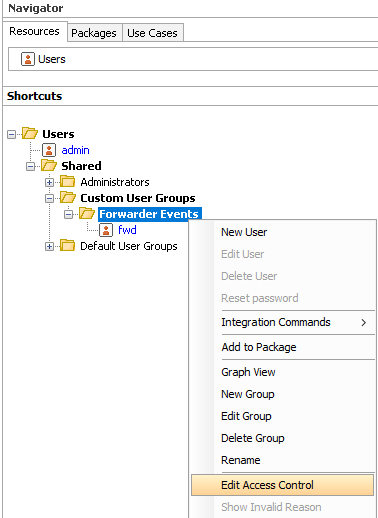
Next, in the “ACL Editor”, go to the “Events” tab and click “Add” to add our previously created filter
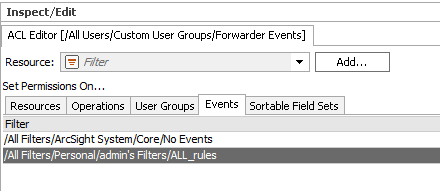
. That's all Arcsight ESM settings completed
First, create an account that will be used to upload events from ESM.
In the navigation panel, go to the “Users” section and in the “Customer User Groups” directory, create our own “Forwarder Events” directory.
Click on the newly created “Forwarder Event” group and create a user, for example, “fwd”.
For the new user, you need to set the account type and password.
User Type = Forwarding Connector
Now we need to create a filter for those events that we want to unload from Arcsight ESM. To do this, select the “Filters” section in the navigation panel and create a filter with the necessary conditions.
For example, I plan to unload all correlation events from ESM, so my filter will look like this:
After the filter is created, it must be applied to the Forwarder Events group, which includes the user fwd.
Go to the navigation panel in the “Users” section and select “Edit Access Control” for the “Forwarder Events” group.
Next, in the “ACL Editor”, go to the “Events” tab and click “Add” to add our previously created filter
. That's all Arcsight ESM settings completed
After creating an account and filtering on the Arcsight ESM, we can begin to install and configure the Arcsight Forwarder Connector
Install and configure ArcSight Forwarder Connector
To install the Arcsight Forwarder Connector, we need any Linux server and the latest version (ArcSight-7.5.0.7986.0-SuperConnector-Linux64.bin) of the connector.
First of all, we need to make our file executable:
Now we proceed with installing the connector itself: We
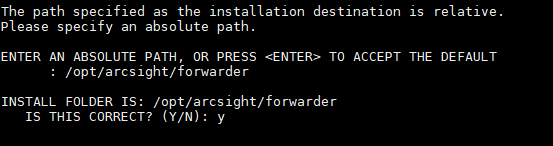
look at the information, press “Enter” and specify the installation directory:
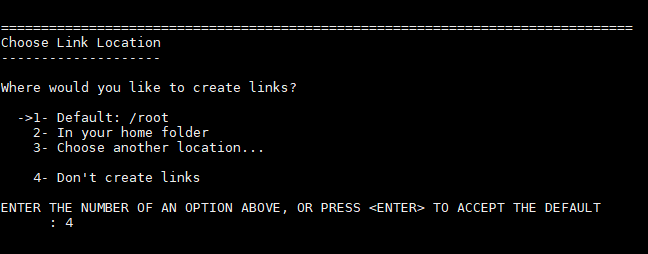
Then we refuse to create links by selecting “4” and confirm the installation.
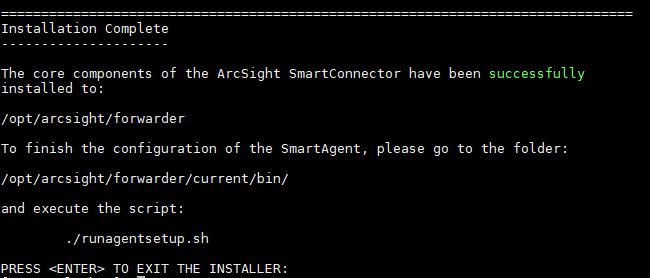
In the end we will receive information about the successful installation and further instructions on how to start the connector customizer.
Now do the preliminary configuration.
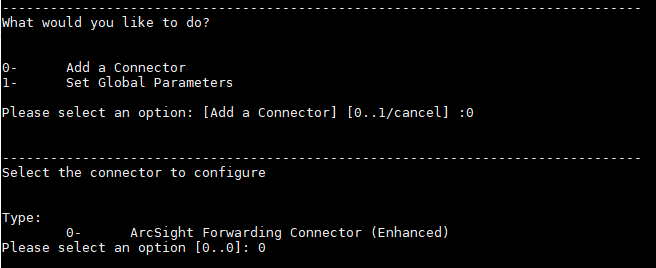
Launch ./runagentsetup.sh
Select the item “Add a Connector” and the type “ArcSight Forwarding Connector (Enhanced)”
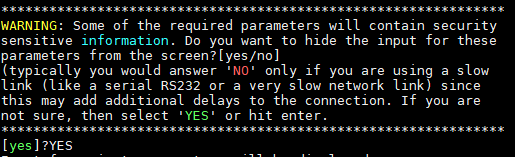
Next, the connector will offer you to hide the parameter entry (login / password)
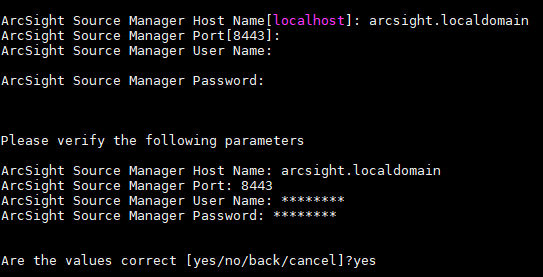
Now we set the parameters of the ESM server from which we will collect events and specify the parameters of the previously created “fwd” account
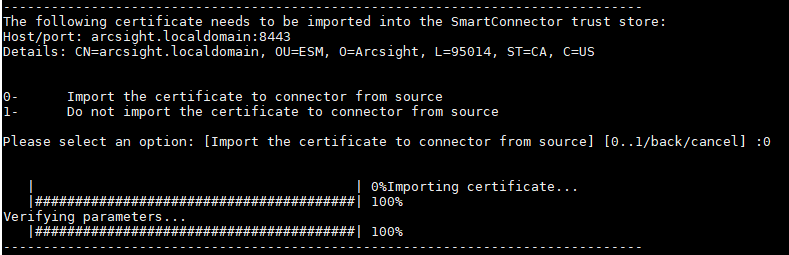
Now we need to import the ArcSight ESM certificate into our connector
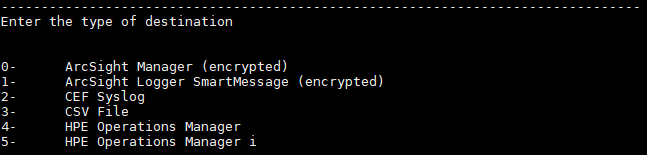
When the integration with ESM was successful, the connector will offer you several options for transmitting events.
Next, I will describe the settings for each of the options
First of all, we need to make our file executable:
chmod +x ArcSight-7.5.0.7986.0-SuperConnector-Linux64.binNow we proceed with installing the connector itself: We
./ArcSight-7.5.0.7986.0-SuperConnector-Linux64.binlook at the information, press “Enter” and specify the installation directory:
/opt/arcsight/forwarderThen we refuse to create links by selecting “4” and confirm the installation.
In the end we will receive information about the successful installation and further instructions on how to start the connector customizer.
Now do the preliminary configuration.
Launch ./runagentsetup.sh
/opt/arcsight/forwarder/current/bin/runagentsetup.shSelect the item “Add a Connector” and the type “ArcSight Forwarding Connector (Enhanced)”
Next, the connector will offer you to hide the parameter entry (login / password)
Now we set the parameters of the ESM server from which we will collect events and specify the parameters of the previously created “fwd” account
Now we need to import the ArcSight ESM certificate into our connector
When the integration with ESM was successful, the connector will offer you several options for transmitting events.
Next, I will describe the settings for each of the options
Setting destination types:
Post events to ArcSight ESM
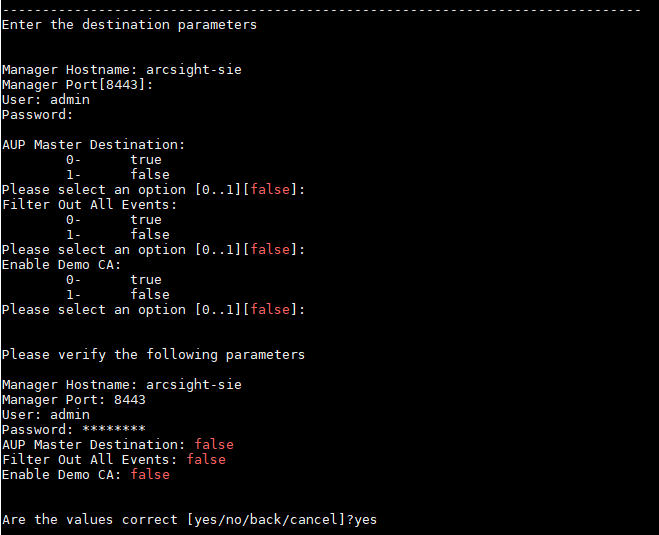
Enter the ESM server data to which we will send events. Here it will already be necessary to specify the login and password of the standard account.
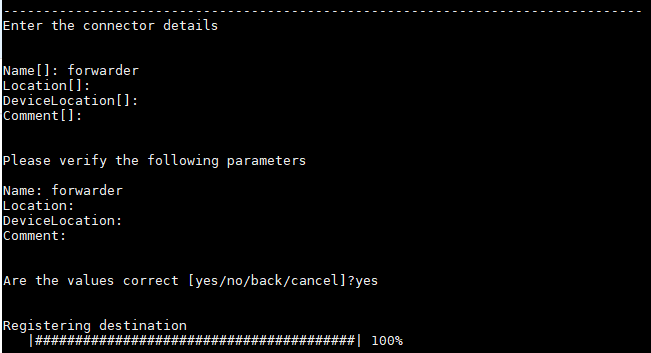
Now we indicate the name of the connector that will appear on the ESM destination server.
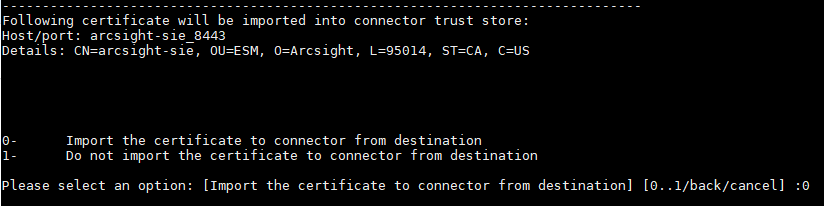
Import the certificate for the connector
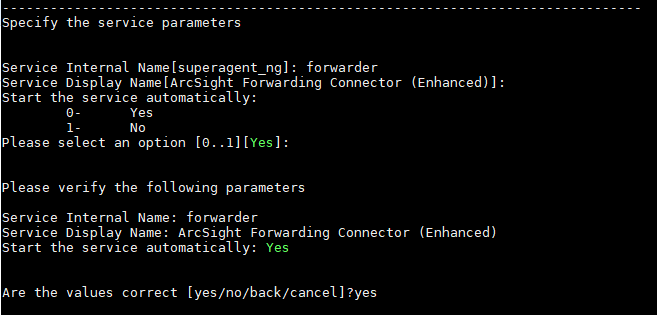
. This completes the setup. It remains to determine only the connector start parameter. We can install the connector as a service with automatic start, or as an application that needs to be started manually.
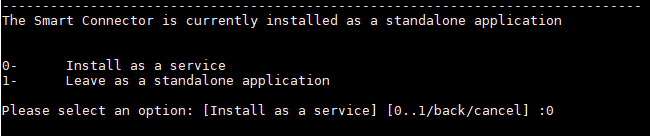
I usually choose to create a service with automatic start.
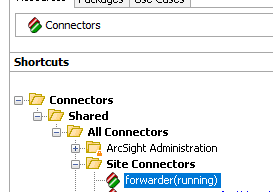
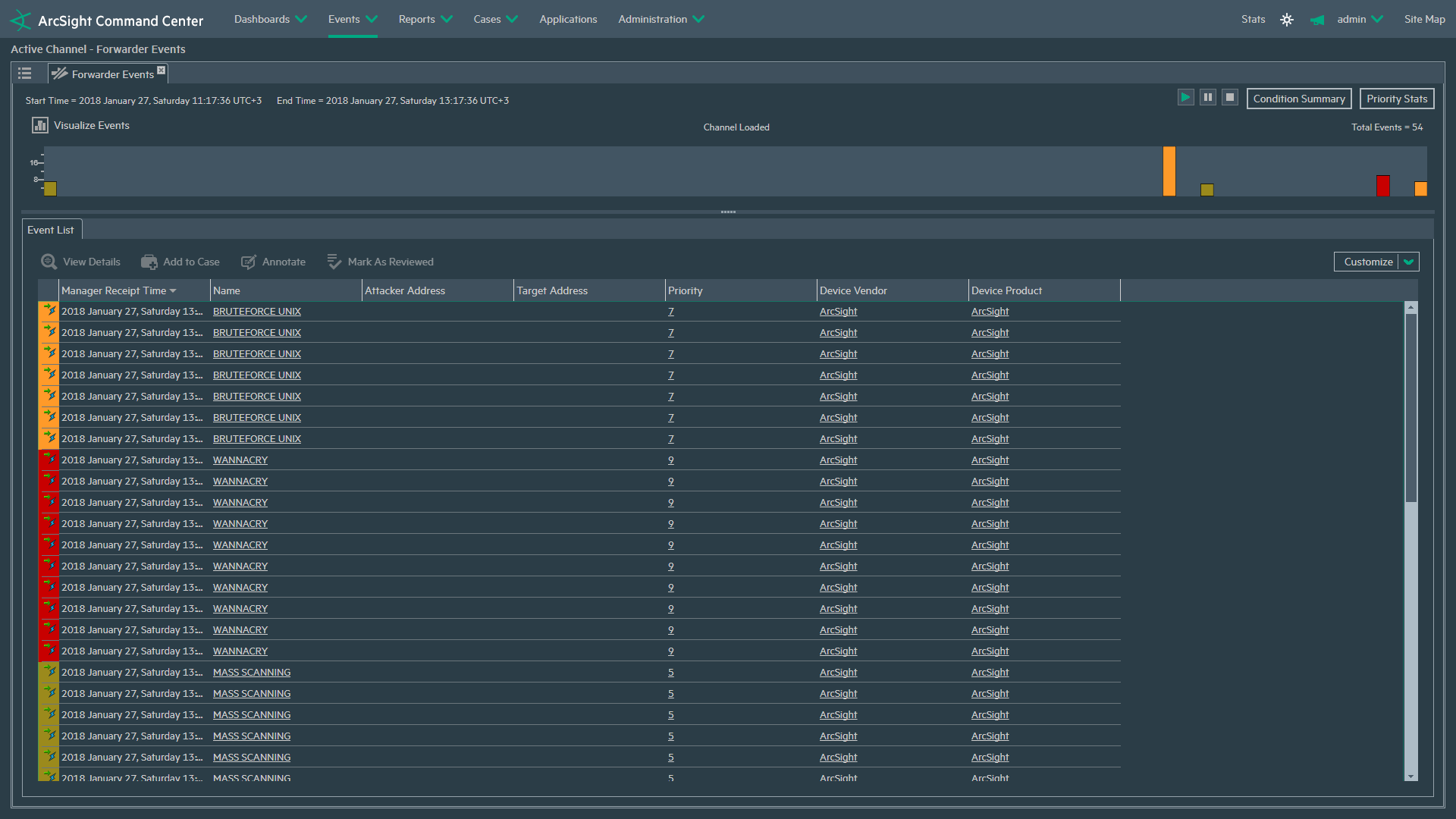
On the destination server, check the registration of the connector and the arrival of events on it
Now we indicate the name of the connector that will appear on the ESM destination server.
Import the certificate for the connector
. This completes the setup. It remains to determine only the connector start parameter. We can install the connector as a service with automatic start, or as an application that needs to be started manually.
/opt/arcsight/forwarder/current/bin/arcsight agentsI usually choose to create a service with automatic start.
On the destination server, check the registration of the connector and the arrival of events on it
Submitting Events to ArcSight Logger
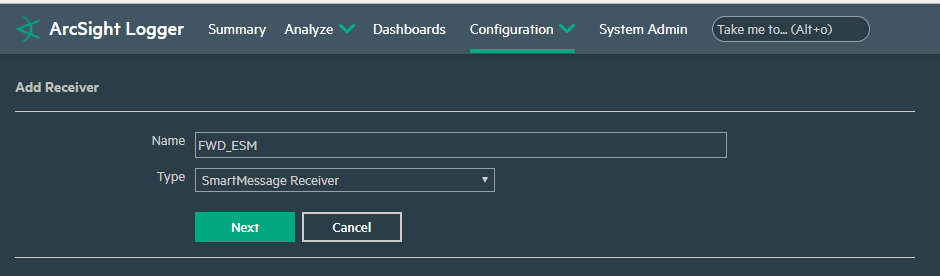
The first step is to create a “Receiver” on the Arcsight Logger itself. To do this, in the Logger, select the "Configuration" section, then "Receivers" and click Add.
We give a name to our recipient and select the type of events received.
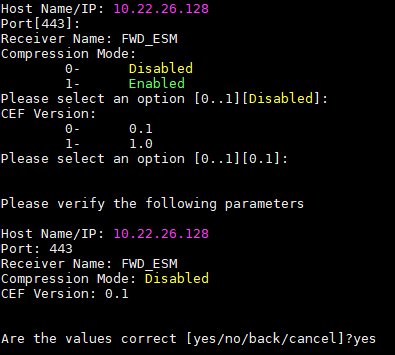
Now we go to the configuration on the connector. We
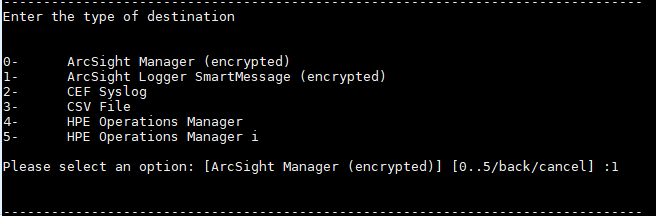
set the parameters for connecting to Logger and indicate our created Receiver - FWD_ESM
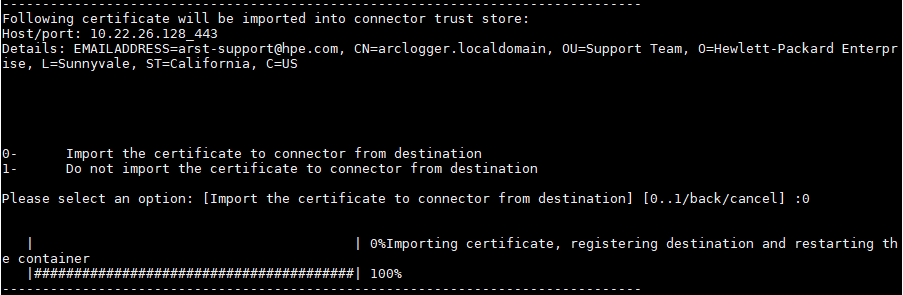
Import the certificate for the connector
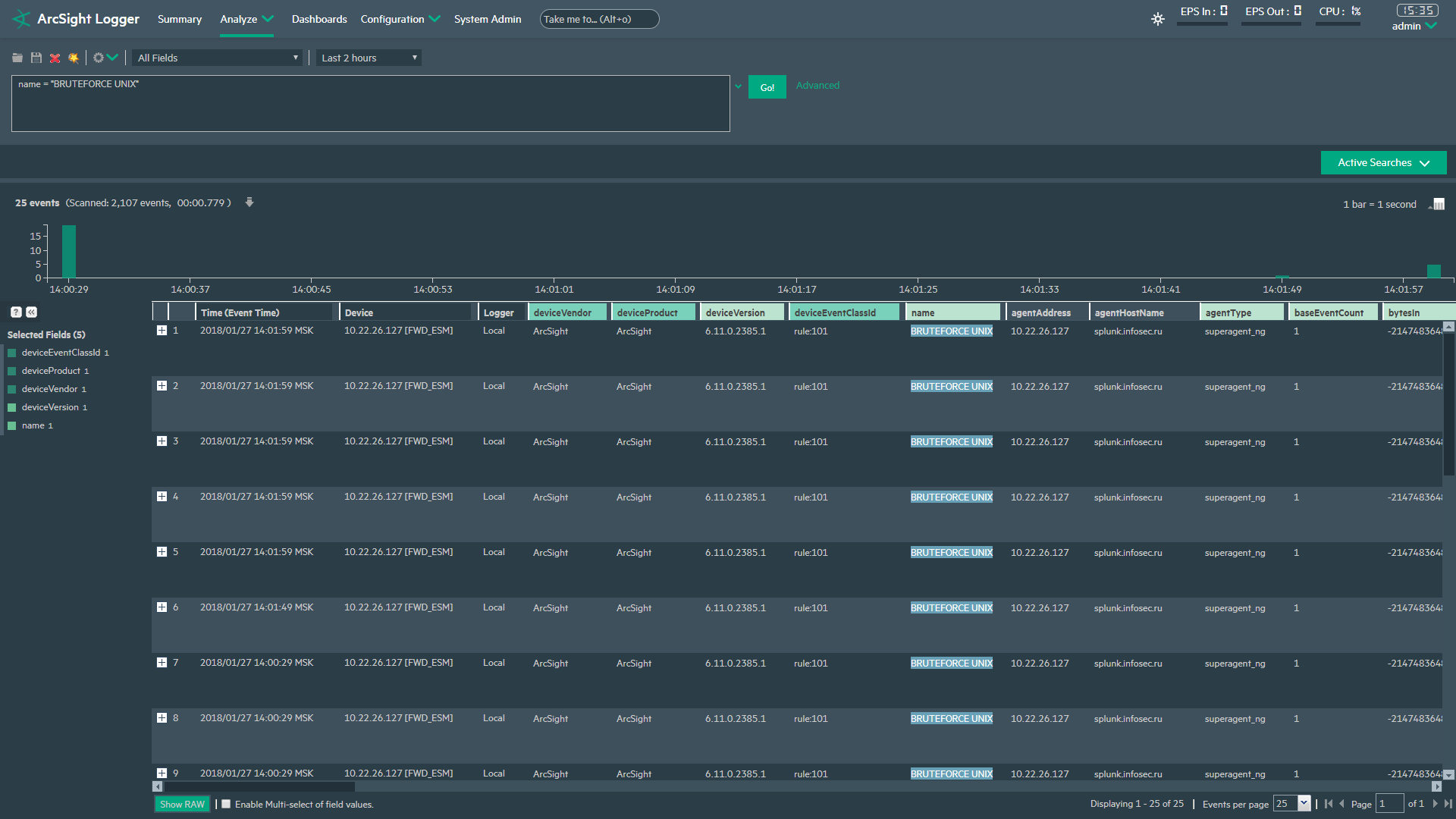
Check the arrival of events on ArcSight Logger
We give a name to our recipient and select the type of events received.
Now we go to the configuration on the connector. We
set the parameters for connecting to Logger and indicate our created Receiver - FWD_ESM
Import the certificate for the connector
Check the arrival of events on ArcSight Logger
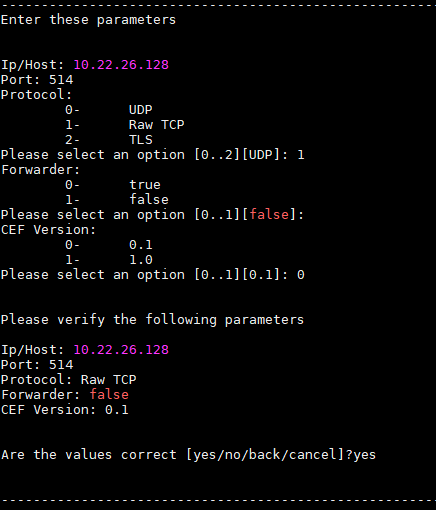
Syslog events sending in CEF format
Everything is elementary here. We enter only the destination address, on which port we will send and indicate the data transfer protocol. We
check the arrival of events, for example, in ELK
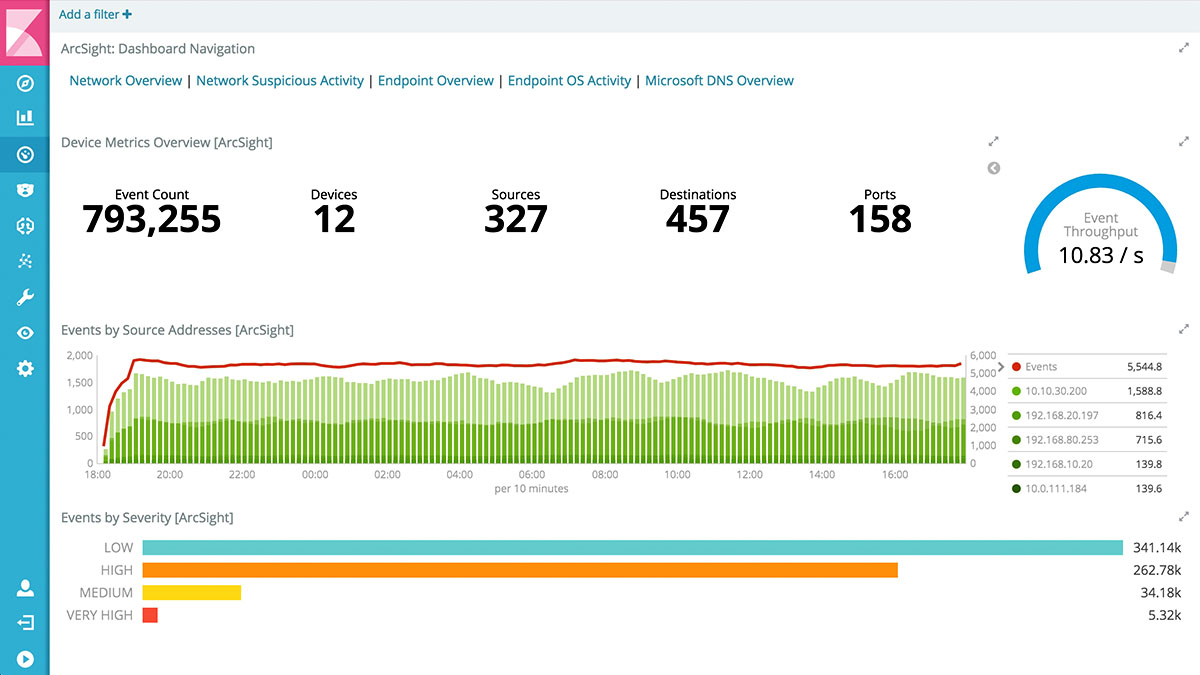
check the arrival of events, for example, in ELK
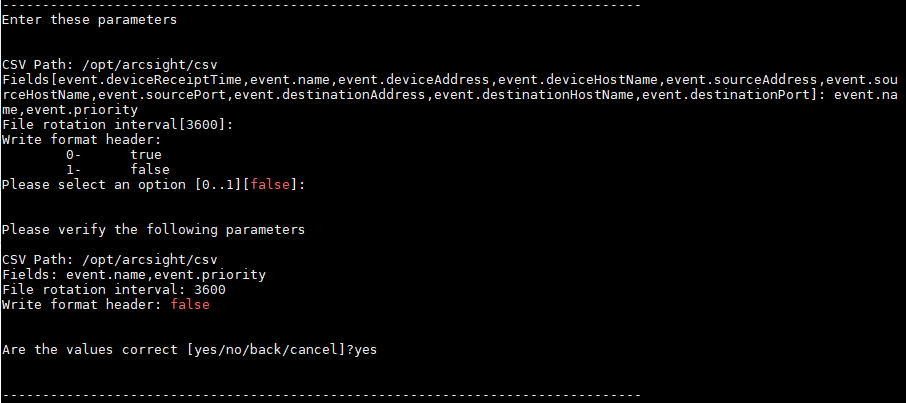
Sending events by uploading to a CSV file
In this case, we need to specify only the directory where the csv file will be created, which fields to upload and the file rotation time
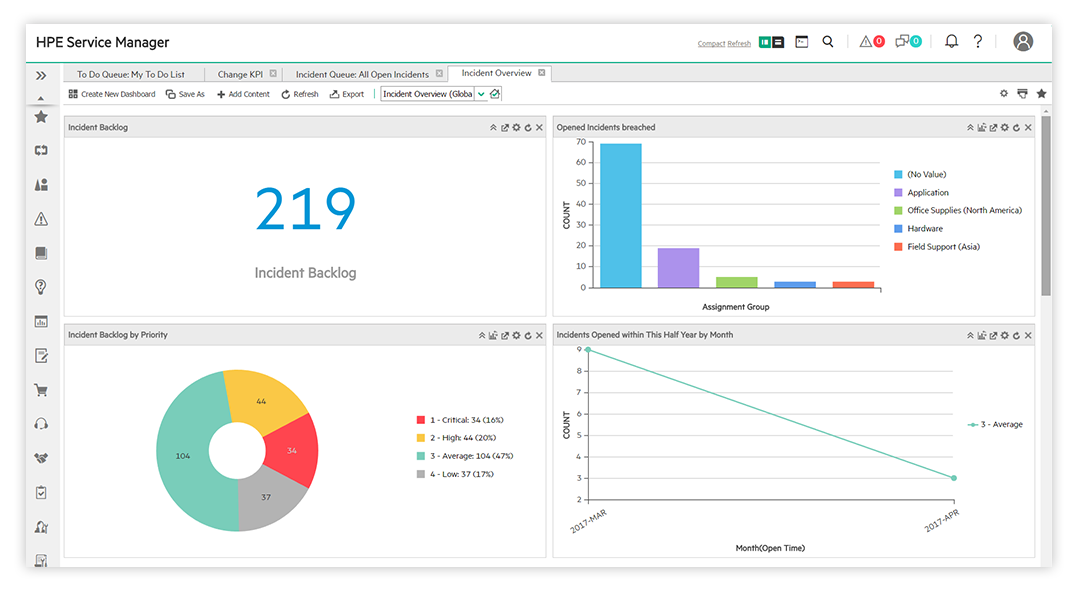
Sending Events to HPE Operations Manager
Events are transmitted through the SNMP protocol with further event mapping in IT Operations Management
Tricks for working with Arcsight Forwarder Connector
Unloading correlation events together with basic
By default, the Arcsight Forwarder Connector fires only correlation events. But what to do if basic events are necessary, for example, for a detailed investigation of the incident.
To do this, we need to specify the ID connector and user ID as a parameter, as well as register all this in the ESM configuration file.
You can find out the

ID of the connector using the fwd user ID command in his ESM profile.
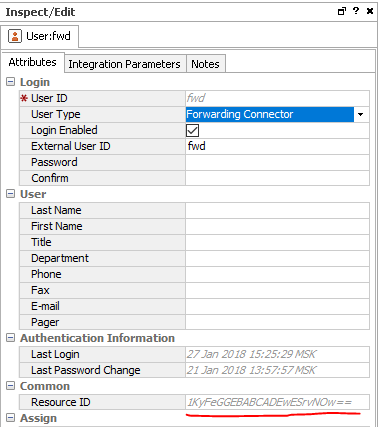
Next, we need to add an additional parameter to the server.properties file on the Arcsight ESM
server.
We stop the server. We enter the parameters.

We start the ESM server.
Now the correlation events will be unloaded together with the base
To do this, we need to specify the ID connector and user ID as a parameter, as well as register all this in the ESM configuration file.
You can find out the
cat /opt/arcsight/forwarder/current/user/agent/agent.properties | grep entityidID of the connector using the fwd user ID command in his ESM profile.
Next, we need to add an additional parameter to the server.properties file on the Arcsight ESM
server.
/etc/init.d/arcsight_services stop allWe stop the server. We enter the parameters.
vi /opt/arcsight/manager/config/server.propertieseventstream.cfc=(connectro ID).(forwarder user ID)We start the ESM server.
/etc/init.d/arcsight_services start allNow the correlation events will be unloaded together with the base
Advanced Event Filtering on Forwarder Connector
After installing the Arcsight Forwarder Connector and connecting all the necessary destination nodes, run
Select “
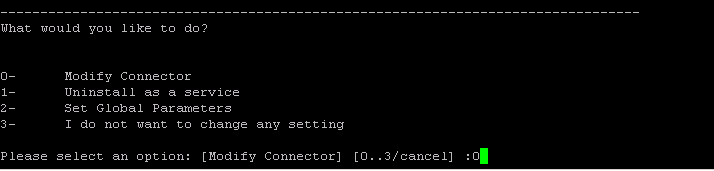
Add Modify Connector” Next, “Add, modify, or remove destinations”

Next, select which destination will be filtered

Select “Modify destination settings”
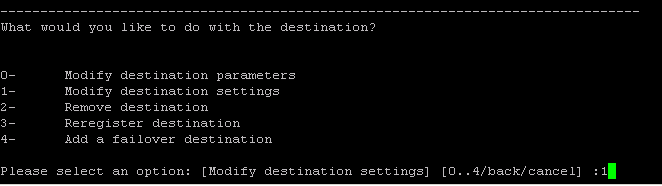
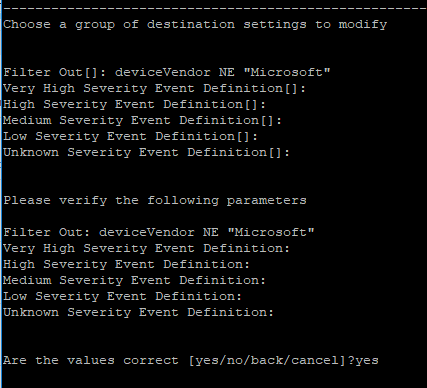
In this menu, all connector settings are set . In our case, point 10 is needed - Filters
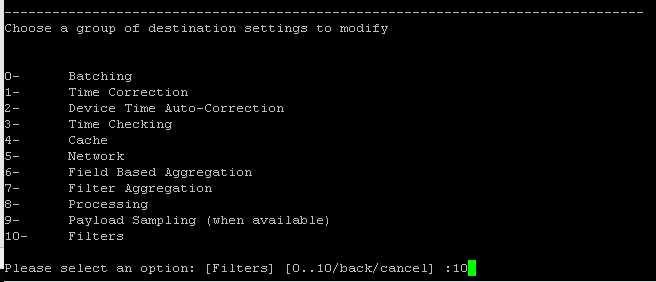
Assign filtering: in my case, discard all events that are NOT EQUAL to the value in the deviceVendor field.
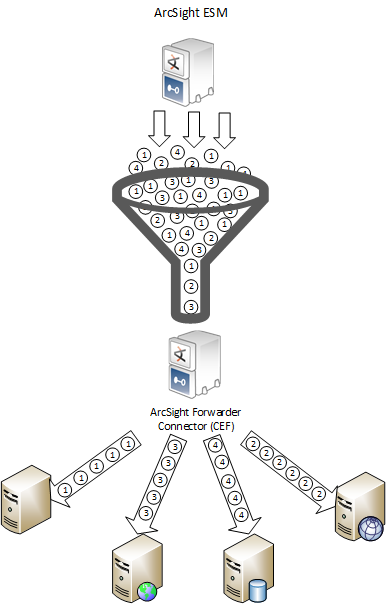
Thus, we can send a diverse stream of events to the Forwarder Connector and scatter events to the destination source we need.
/opt/arcsight/forwarder/current/bin/runagentsetup.shSelect “
Add Modify Connector” Next, “Add, modify, or remove destinations”
Next, select which destination will be filtered
Select “Modify destination settings”
In this menu, all connector settings are set . In our case, point 10 is needed - Filters
Assign filtering: in my case, discard all events that are NOT EQUAL to the value in the deviceVendor field.
Thus, we can send a diverse stream of events to the Forwarder Connector and scatter events to the destination source we need.
Setting the encoding of paged events
For the correct display of events containing Russian-language characters, it is necessary to specify additional parameters in the agent.wrapper.conf file on the Forwarder Connector.
Enter the following lines (do not go wrong with the serial numbering of wrapper.java.additional)
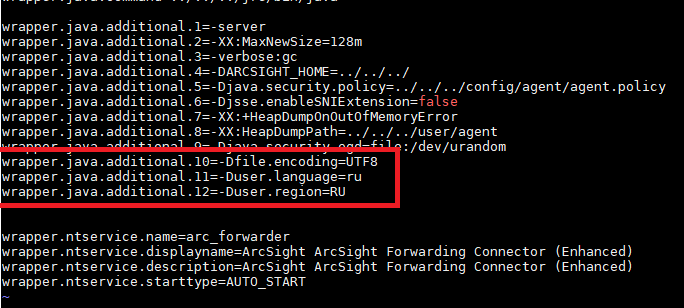
vi /opt/arcsight/forwarder/current/user/agent/agent.wrapper.confEnter the following lines (do not go wrong with the serial numbering of wrapper.java.additional)
wrapper.java.additional.10=-Dfile.encoding=UTF8

wrapper.java.additional.11=-Duser.language=ru

wrapper.java.additional.12=-Duser.region=RU
As a result, we can observe that ArcSight has a lot of possibilities for integration, both with its systems and with external sources. But for the sake of truth, it’s worth saying that the flow of events is gradually increasing, the same events must be sent to several sources, there must be a constant interaction of different systems ... and here the possibilities of an ordinary connector end.
Therefore, Micro Focus engineers developed a new architecture, called ArcSight Data Platform. A distinctive feature of this architecture is the ArcSight Event Broker product, which serves to route a huge stream of events to various systems (ESM, Logger, UEBA, Investigate, Hadoop, etc.) and is capable of processing more than 500,000 EPS !!!