Plugin for HANA Database project in Visual Studio
I work on SCRUM in an ASP .NET MVC project in which HANA is used as a database and TFS as a Source Control. At the database level, we mainly use View (Calculation, Attributes and DB Views), as well as the Stored Procedure - to perform transactional requests to the server.
After the end of each release, I always had a question: “What exactly has changed in this release?” or "Who made what change?" In this regard, I thought: “Why not track the state of objects in TFS after each change?”
As a result, I decided to create a plugin that allows you to use the Database project in Visual Studio (VS) and import the changes that are in the database. So the idea of creating this application was born.
We start with a simple one and see what prototypes Microsoft has. As an example, take the MS-SQL server and Database project in Visual Studio and consider all the features that they have:
I’ll say right away that it’s very difficult to maintain all these features, especially since in HANA there is such a kind of object as Graphic View: it is created in graphical form and you can’t demonstrate it in Visual Studio (but nevertheless, an approach was found for this type of object to import it into VS).
I went the simple way. We consider each opportunity individually.
There are two tasks:
I chose only the second: firstly, I already have an existing project, and secondly, feedback is needed to create a project in VS (I will talk about it a little later), which is a very difficult task.
So, I have to create a bridge that imports all objects from DB to DB VS.
This is almost the same as in the previous task. That is, if I already have an existing schema, I just need to bring the objects to DB VS. However, it is worth considering here: if the changed (deleted) object already exists in the project, you should edit it (delete) in DB VS. This is necessary in order to track changes in TFS, so I also implemented this task.
After the changes have appeared in DB VS, you need to track them in TFS. To do this, somehow in VS it is necessary to mark the changed files so that it is included in the list of items for Check-In. Here I had to use the ".New framework libraries" for TFS. I used Visual Studio 2012 while creating this plugin, but for other (higher) versions of VS, you need to use the necessary (additional) frameworks from Microsoft so that the plugin can make changes to TFS.
The plugin consists of 4 main parts:
In this window we enter all the necessary information for our plugin. After the verification was successful, the system remembers the data and uses it after the next login. If for some reason the plug-in was unable to “reach” one server (for example, after changing its rights in DB or in TFS), then the authorization window opens again and allows you to edit your rights.
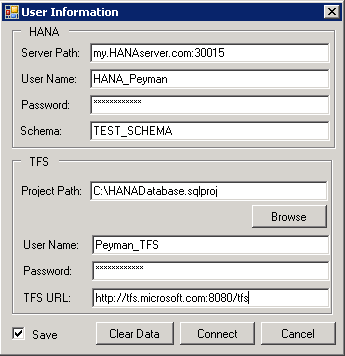
We need to enter two types of data:
If you check the box next to Save, then after a successful connection to the servers your data will be saved.
This is the hardest part of the plugin. Here, using system dictionaries, we get information about all the objects that are in the system. Objects that are supported in the current implementation:
I know that in HANA many projects also use other objects (like REST Services (XSJS), etc.), but in our case we ignored them. For all objects except Views, I use system dictionaries to get data. As an example, we consider obtaining data about tables.
To do this, we get the name of the tables in our scheme using the following query:
After that we get the data about the columns of the tables using the following query and in C # code using Linq we combine them:
The most difficult thing was to get information about the Graphic Attribute View. There is no direct opportunity to get data about the structure of the View. But if you think about it, HANA Studio shows this graphic view with the help of certain metadata in the database. I also tried to get exactly this metadata, but I found an XML file, which for each View is stored in DB. Thus, I solved this question: that is, in order to get information about the view and also track its changes, I need to save its XML in DBVS. In the XML structure, there is such data as incoming parameters, outgoing parameters, names of all the tables that are used in the current view, data type, filters, join-s and much more.
Calculation / Database Views are also mainly created and saved as SQL Script, so there were no special problems.
After receiving information with the database, you need to look at what change is in the current and previous states of DB VS. OCM is a change synchronization link and synchronizes DB VS in three stages:
In the first case: OCM generates a script, adds a file, locates it in DB VS and updates additional files.
In the second case: OCM compares the generated script with an existing file in DB VS and, if the object has changed, changes the existing file.
In the third case: OCM deletes object files that are not in the current version of the schema.
Below are screenshots that show what the plugin window looks like and how the migration process works:

Fig. 1. A list of objects (in this case, tables) that have changed
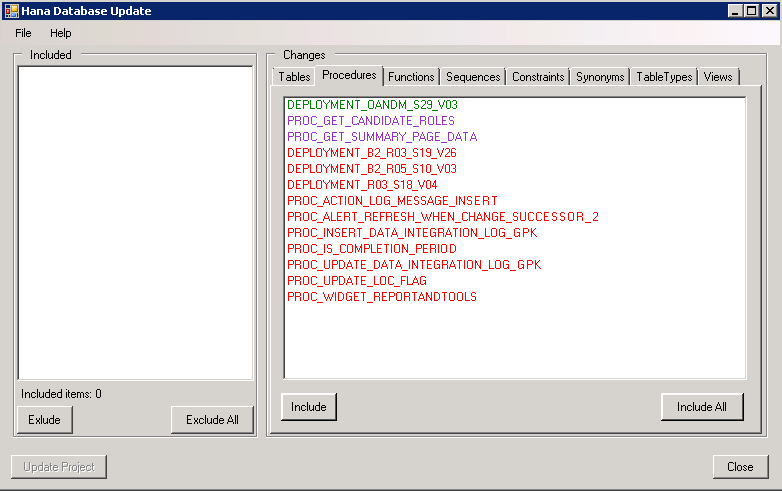
Figure 2. List of Stored Procedure that have changed
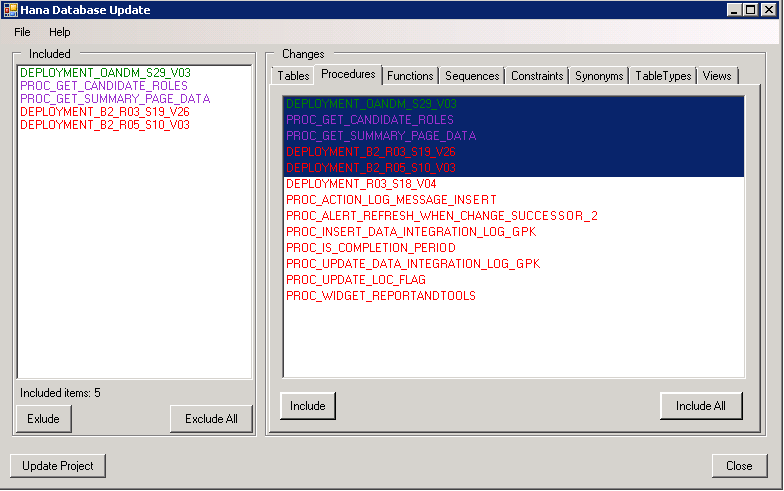
. 3. The Included window includes a list of typed objects for modification in DB VS
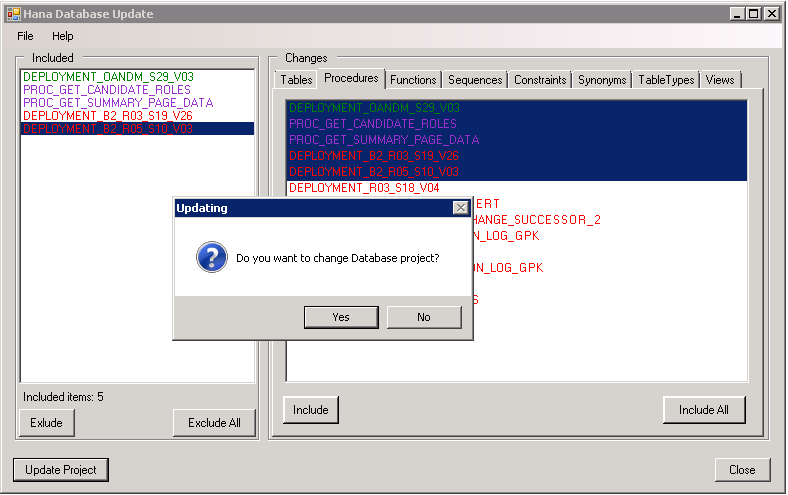
Fig. 4. Question on acceptance of change in DB VS
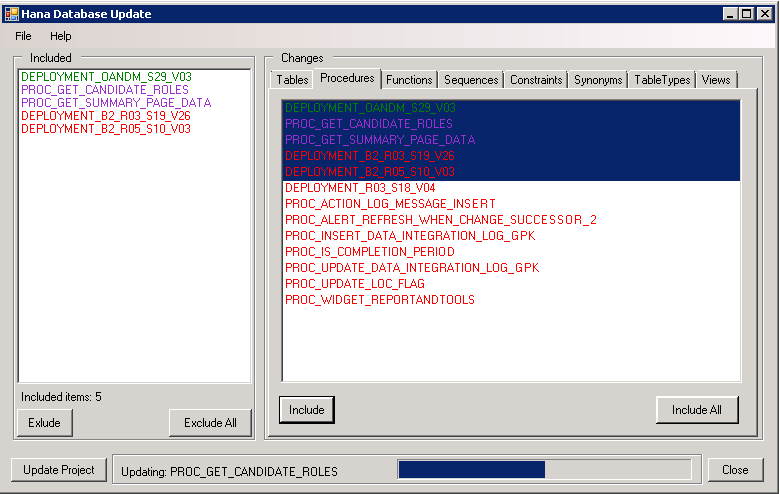
Fig. 5. There is a process of migration to DB VS
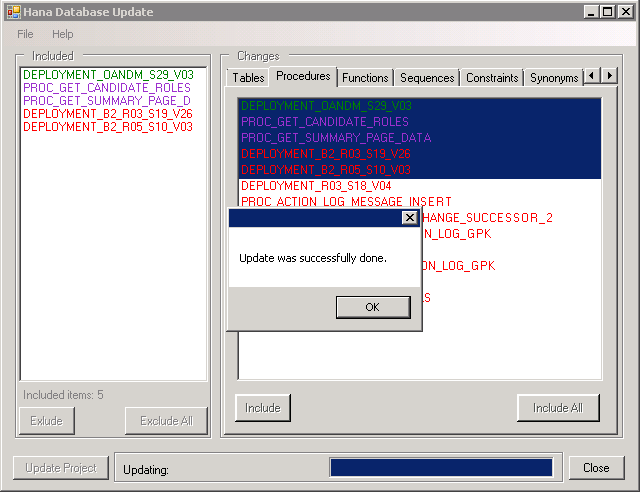
Fig. 6. Successful migration message
TFS MS monitors every change that occurs in the project and marks them accordingly: so that with Check-In they all fall into the list of changed items in TFC.
With this plugin, I was able to track all the changes within our project. I moved on and expanded this plugin for the Merge Delivery Unit in different schemes, as well as for comparing different schemes after the merge process, to make sure everything was staged correctly. But I’ll talk about this in the next article
After the end of each release, I always had a question: “What exactly has changed in this release?” or "Who made what change?" In this regard, I thought: “Why not track the state of objects in TFS after each change?”
As a result, I decided to create a plugin that allows you to use the Database project in Visual Studio (VS) and import the changes that are in the database. So the idea of creating this application was born.
We start with a simple one and see what prototypes Microsoft has. As an example, take the MS-SQL server and Database project in Visual Studio and consider all the features that they have:
- You can create your own schema (use the existing one) in MS-SQL and then import it into the Database project in Visual Studio (DB VS).
- You can create (modify) an object in Database and transform the changes into a database.
- You can track changes in Source Control (in my case, in TFS).
- Thus, we can track all the changes that occur during development, as well as their authors.
I’ll say right away that it’s very difficult to maintain all these features, especially since in HANA there is such a kind of object as Graphic View: it is created in graphical form and you can’t demonstrate it in Visual Studio (but nevertheless, an approach was found for this type of object to import it into VS).
I went the simple way. We consider each opportunity individually.
Create / use a schema in HANA and import it into DB VS
There are two tasks:
- Create a project from scratch in DB VS and import it into DB.
- Use an existing project (schema) in DB and import it into DB VS.
I chose only the second: firstly, I already have an existing project, and secondly, feedback is needed to create a project in VS (I will talk about it a little later), which is a very difficult task.
So, I have to create a bridge that imports all objects from DB to DB VS.
Creation (change) of an object in Database and transformation of changes into a database
This is almost the same as in the previous task. That is, if I already have an existing schema, I just need to bring the objects to DB VS. However, it is worth considering here: if the changed (deleted) object already exists in the project, you should edit it (delete) in DB VS. This is necessary in order to track changes in TFS, so I also implemented this task.
Ability to track changes in Source Control (in my case in TFS)
After the changes have appeared in DB VS, you need to track them in TFS. To do this, somehow in VS it is necessary to mark the changed files so that it is included in the list of items for Check-In. Here I had to use the ".New framework libraries" for TFS. I used Visual Studio 2012 while creating this plugin, but for other (higher) versions of VS, you need to use the necessary (additional) frameworks from Microsoft so that the plugin can make changes to TFS.
DB VS Plugin
The plugin consists of 4 main parts:
- Authentication Window.
- HANA Object Transformer.
- Object Changes Manager.
- TFS Manager
Authentication Window
In this window we enter all the necessary information for our plugin. After the verification was successful, the system remembers the data and uses it after the next login. If for some reason the plug-in was unable to “reach” one server (for example, after changing its rights in DB or in TFS), then the authorization window opens again and allows you to edit your rights.
We need to enter two types of data:
- All the necessary information for HANA, namely: Server Path, User Name, Password and Schema Name.
- Information about the project and TFS: in the Project Path field, you can show the location of the DB VS-file for use in the plugin. Also information about the TFS Credential, such as User Name, Password and TFS Server URL.
If you check the box next to Save, then after a successful connection to the servers your data will be saved.
HANA Object Transformer
This is the hardest part of the plugin. Here, using system dictionaries, we get information about all the objects that are in the system. Objects that are supported in the current implementation:
- Tables.
- Constraints (Foreign Keys, Primary Keys, Unique).
- Table Types.
- Sequences.
- Functions
- Stored Procedures.
- Synonyms
- Views (Attribute Views, Calculation Views, Database Views).
I know that in HANA many projects also use other objects (like REST Services (XSJS), etc.), but in our case we ignored them. For all objects except Views, I use system dictionaries to get data. As an example, we consider obtaining data about tables.
To do this, we get the name of the tables in our scheme using the following query:
SELECT
	SCHEMA_NAME,TABLE_NAME,TABLE_OID,COMMENTS,FIXED_PART_SIZE,IS_LOGGED,IS_SYSTEM_TABLE,IS_COLUMN_TABLE,TABLE_TYPE,IS_INSERT_ONLY,IS_TENANT_SHARED_DATA,IS_TENANT_SHARED_METADATA,SESSION_TYPE,IS_TEMPORARY,TEMPORARY_TABLE_TYPE,COMMIT_ACTION,IS_USER_DEFINED_TYPE,HAS_PRIMARY_KEY,PARTITION_SPEC,USES_EXTKEY,AUTO_MERGE_ON,USES_DIMFN_CACHE,IS_PUBLIC,AUTO_OPTIMIZE_COMPRESSION_ON,COMPRESSED_EXTKEY,HAS_TEXT_FIELDS,HAS_TEXT_FIELDS,USES_QUEUE_TABLE,IS_PRELOAD,IS_PARTIAL_PRELOAD,UNLOAD_PRIORITY,HAS_SCHEMA_FLEXIBILITY,IS_REPLICA
FROM TABLES
WHERE SCHEMA_NAME = CURRENT_SCHEMA AND IS_USER_DEFINED_TYPE = 'FALSE';
After that we get the data about the columns of the tables using the following query and in C # code using Linq we combine them:
SELECT
	SCHEMA_NAME, TABLE_NAME, TABLE_OID, COLUMN_NAME, POSITION, DATA_TYPE_ID, DATA_TYPE_NAME, OFFSET, LENGTH, SCALE, IS_NULLABLE, DEFAULT_VALUE, COLLATION,COMMENTS, MAX_VALUE, MIN_VALUE, CS_DATA_TYPE_ID, CS_DATA_TYPE_NAME,DDIC_DATA_TYPE_ID, DDIC_DATA_TYPE_NAME, COMPRESSION_TYPE, INDEX_TYPE, COLUMN_ID, PRELOAD,GENERATED_ALWAYS_AS, HAS_SCHEMA_FLEXIBILITY, FUZZY_SEARCH_INDEX, FUZZY_SEARCH_MODE,MEMORY_THRESHOLD,LOAD_UNIT,GENERATION_TYPE
FROM TABLE_COLUMNS WHERE SCHEMA_NAME = CURRENT_SCHEMA ORDER BY POSITION
The most difficult thing was to get information about the Graphic Attribute View. There is no direct opportunity to get data about the structure of the View. But if you think about it, HANA Studio shows this graphic view with the help of certain metadata in the database. I also tried to get exactly this metadata, but I found an XML file, which for each View is stored in DB. Thus, I solved this question: that is, in order to get information about the view and also track its changes, I need to save its XML in DBVS. In the XML structure, there is such data as incoming parameters, outgoing parameters, names of all the tables that are used in the current view, data type, filters, join-s and much more.
Calculation / Database Views are also mainly created and saved as SQL Script, so there were no special problems.
Object Changes Manager (OCM)
After receiving information with the database, you need to look at what change is in the current and previous states of DB VS. OCM is a change synchronization link and synchronizes DB VS in three stages:
- Checks which new objects have been added to the schema.
- Checks for changes in each existing object.
- Checks the removal of objects in the schema.
In the first case: OCM generates a script, adds a file, locates it in DB VS and updates additional files.
In the second case: OCM compares the generated script with an existing file in DB VS and, if the object has changed, changes the existing file.
In the third case: OCM deletes object files that are not in the current version of the schema.
Below are screenshots that show what the plugin window looks like and how the migration process works:
Fig. 1. A list of objects (in this case, tables) that have changed
- red color - deleted items,
- green - new
- purple - modified
Figure 2. List of Stored Procedure that have changed
. 3. The Included window includes a list of typed objects for modification in DB VS
Fig. 4. Question on acceptance of change in DB VS
Fig. 5. There is a process of migration to DB VS
Fig. 6. Successful migration message
TFS Manager Service (TFS MS)
TFS MS monitors every change that occurs in the project and marks them accordingly: so that with Check-In they all fall into the list of changed items in TFC.
With this plugin, I was able to track all the changes within our project. I moved on and expanded this plugin for the Merge Delivery Unit in different schemes, as well as for comparing different schemes after the merge process, to make sure everything was staged correctly. But I’ll talk about this in the next article