
“Is this your backup so tired?” *
* And what is your backup so stale? (Odessa.)

Even the most expensive systems that perform periodic backups (for example, every night) have one significant limitation: everything that was done on the computer after the last backup is in no way protected and will be irretrievably lost if the computer leaves system.
Suppose, for example, the first part of Dead Souls was written yesterday and a backup was made at night. And today the second part is written, and in an emotional impulse destroyed even before the time came for another backup.
Continuous data protection (CDP) technology is designed to deal with such situations. Everything that is written to the disk is simultaneously sent to the backup.
Let's take a closer look at how this is done in the Arcserve RHA (Replication and High Availability) product using real-life examples in Windows and Linux environments.
Contents
Introduction
1. Architecture
2. Software Installation
2.1. Installation of control components
2.2. Installing managed components on Windows
2.3. Installing managed components on Linux
3. Data recovery experiments
3.1. File recovery for a given point in time
3.2. Restoring a MS SQL database at a given point in time
3.3 Restoring a MySQL database on Linux at a given point in time
4. Conclusion and advertising
Suppose we have two servers.
The battle server (Master) contains constantly updated data. We monitor the changes and keep a statement (journal) of changes in the form of “was -> became”, for example:
The change log is constantly sent to the backup server (Replica) and applied to its files. Thus, the files of the combat and backup servers become identical.
Some details:

In order for the scheme described above to work, we need to install on the Master and Replica machines a component called Engine, which takes the main job of tracking changes in files and replicating data from one machine to another.
In order to configure the operation of these two Engines, we install the Control Service on another machine (Manager). This machine is required only for configuration, receiving reports and running individual actions on managed machines. It should not be constantly on.
Finally, we get the user interface by connecting to the management service with an Internet browser and downloading a windows application from there.
Download Arcserve RHA ( iso or zip ) from the developer's site (as indicated on the page arcserve.zendesk.com/hc/en-us/articles/205009209-RHA-R16-5-SP5-ARCSERVE-RHA-16-5-SP5 ) :
The product lasts 30 days without license keys.
Let's start by installing the Control Service on the management machine (Manager).
It requires the .NET Framework 3.5.
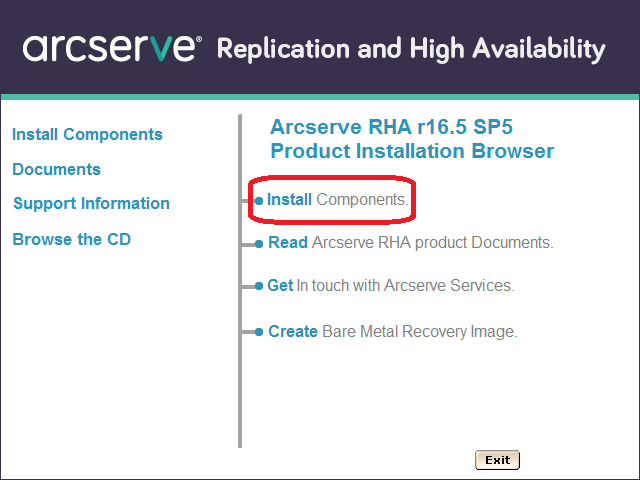
Now run Setup.exe from the Arcserve RHA distribution and select “Install Components”:
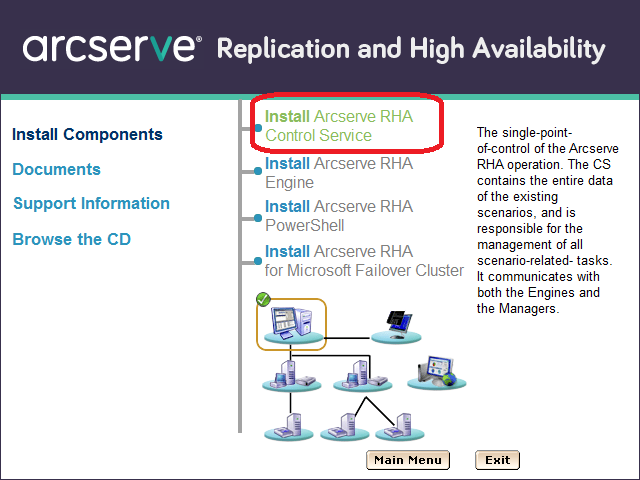
On the next screen, select “Install Arcserve RHA Control Service”. (Feature: it’s impossible to click on the words “Install Arcserve RHA ...”, but on “... Control Service” it turns out):
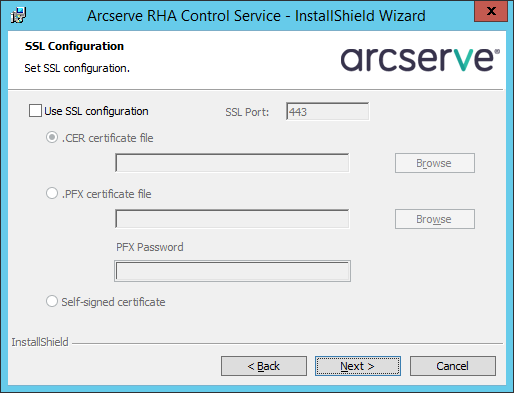
Then we will click through several screens until we get to the SSL configuration. We will not enable SSL for testing, but during operational use you can add your certificate here or use a self-signed one:
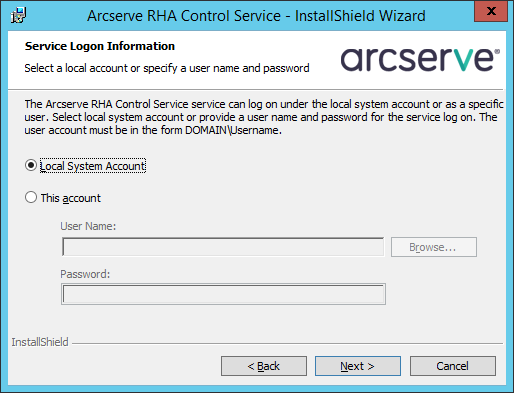
We will start the service on behalf of Local System:
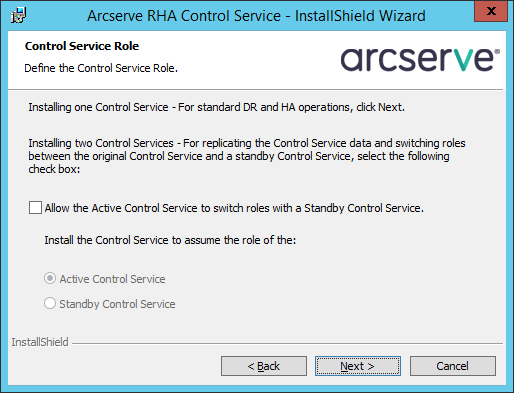
The next screen concerns the possibility of having two control machines to increase fault tolerance. For testing purposes, we restrict ourselves to one thing:
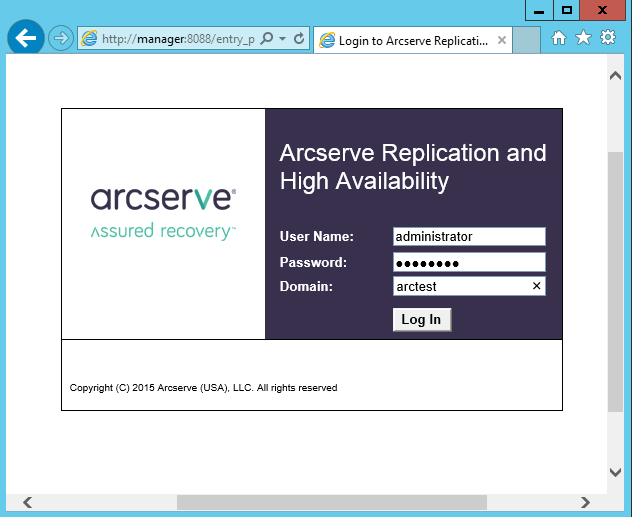
After the installation is completed, we will connect with an Internet browser to the Manager machine on port 8088. You can log in as a user who has local administrator rights on the Manager machine:
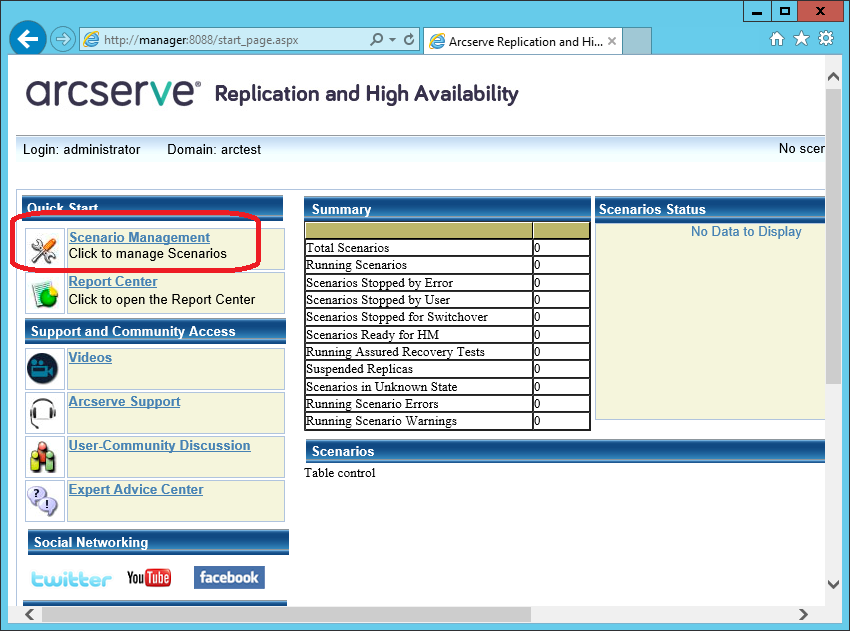
We will gain access to a page on which the statistics of various machines will be published. But for real management, we need to download from this site and run the windows-utility “Arcserve RHA Manager”. It can be run no longer on the server, but on the workstation (for example, Windows 7 or 10). To download, click on the “Scenario Management” link:
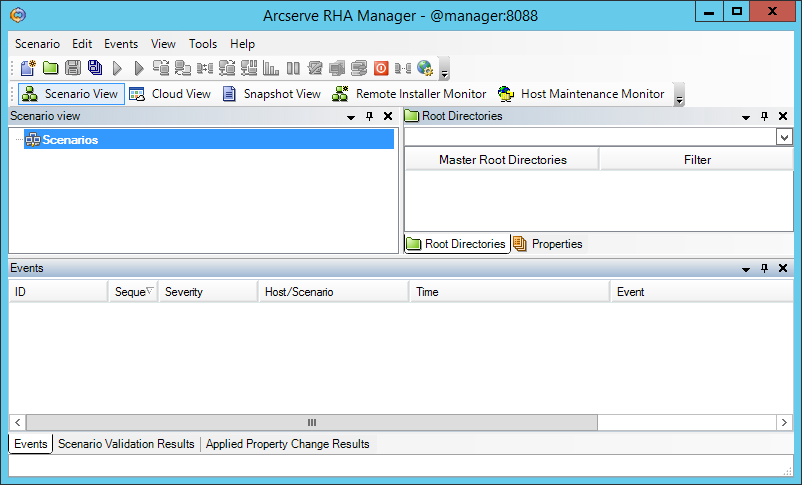
After security warnings, the “Arcserve RHA Manager” program should start:
This program will continue to be launched only from the web page.
On the Master and Replica machines we install the working components - Engine.
You can install them locally from the distribution, or you can - remotely. For remote installation on a server, the server must have the “File Server” role installed:
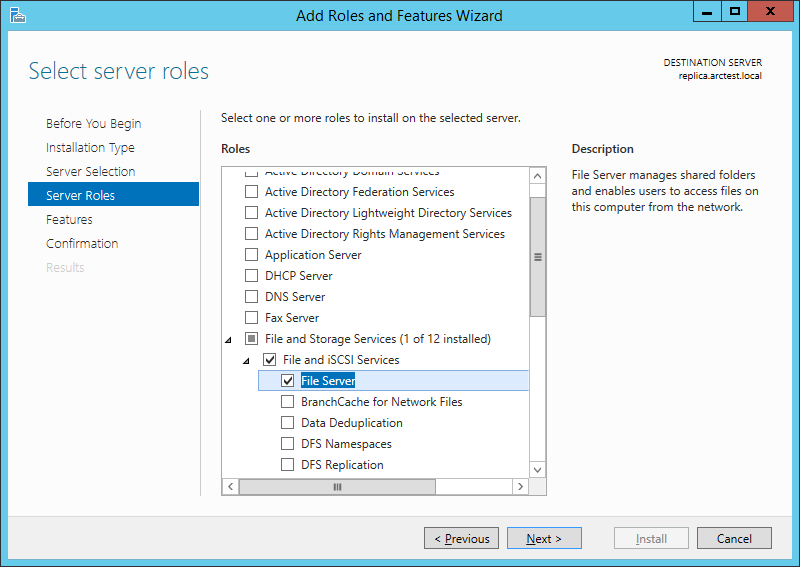
If the “File Server” role is installed on the master and replica machines, then on the Manager machine we can access “\\ master \ C $” and “\ \ replica \ C $ ”.
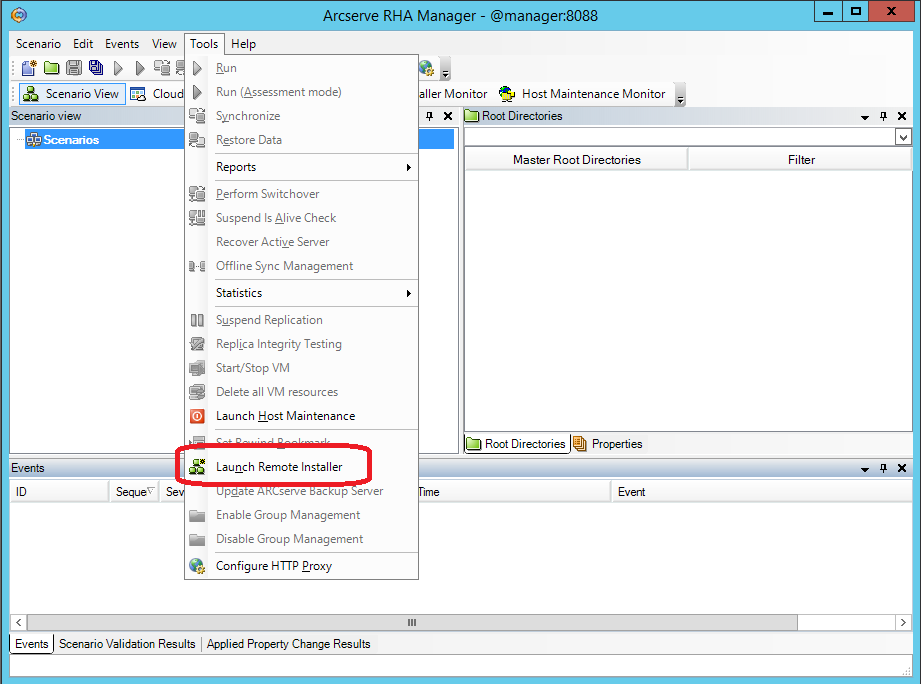
From the Arcserve RHA Manager utility, which was discussed in the previous section, we start the remote installation via the menu “Tools -> Launch Remote Installer”.
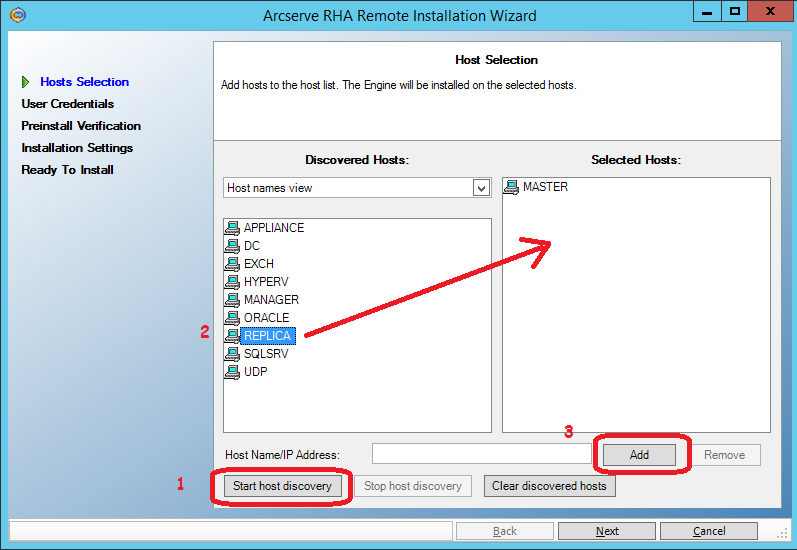
On the next screen, click the “Start host discovery” button (1) and get a list of machines from the Active Directory cache.
Select the master and replica machines and add them to the list of candidates for installing Engine using the “Add” button (3)
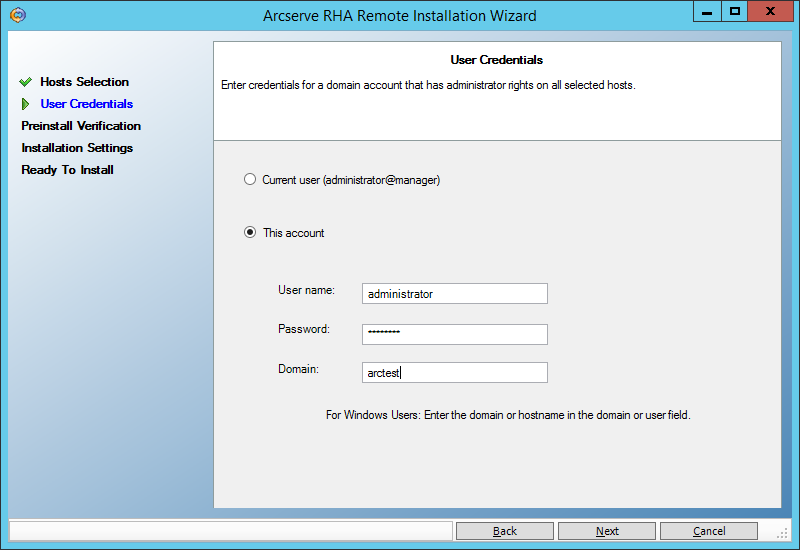
On the next screen, enter the user (domain administrator) under which the remote installation will be performed:
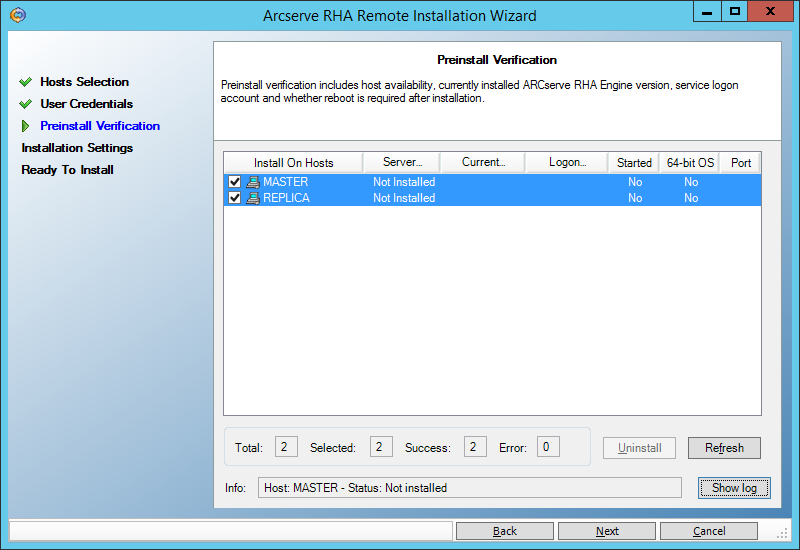
Next, make sure that both servers (master and replica) allow the remote installation and are marked with checkmarks:
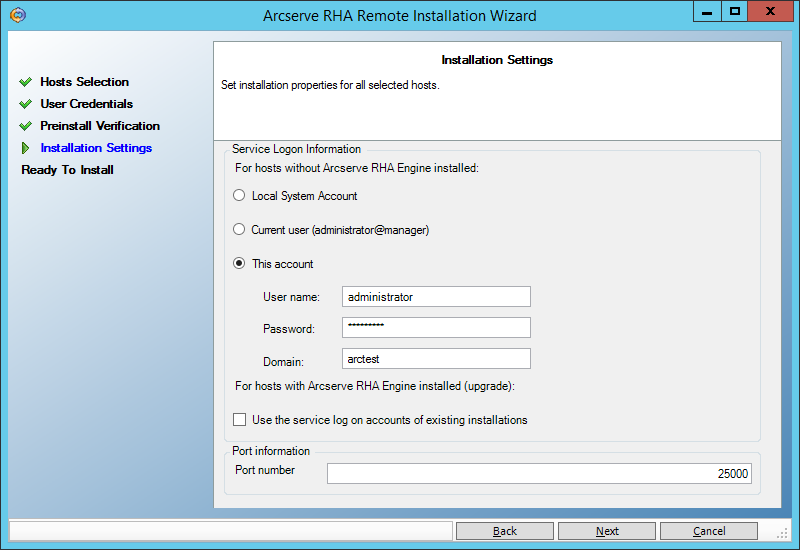
On the next screen, enter the user under which the Engine service will be launched.
For continuous backup purposes, a user with Local Administrator rights is sufficient. But if we want to use the High Availability functionality, when the backup machine can pretend to be a failed main machine, then we need to start the service under a domain administrator. The example described below from section () requires just such privileges:
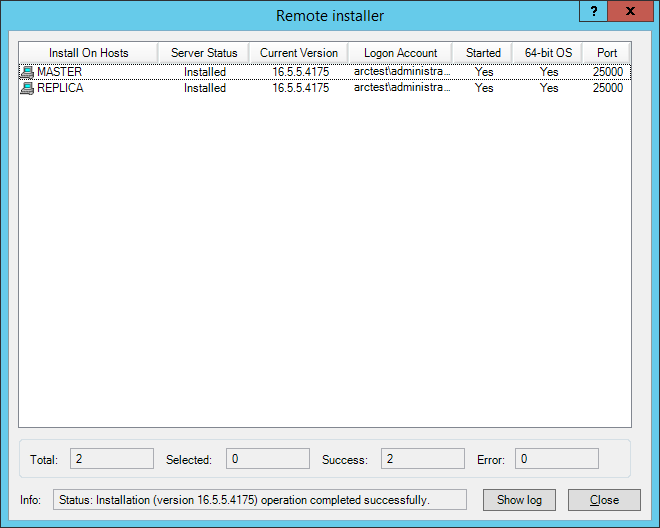
Click any Next -> Install -> Yes and wait for the installation to complete:
You can install the Engine component on the server by digging into the UNIX_Linux directory on the distribution kit and finding the agent you need in the tar archive. In particular, for installation on CentOS 6.5 I used the arcserverha_rhel6.tgz archive .
If 32-bit libraries are not installed on the machine, you need to install them. For example, on CentOS 6.5 I had to do:
(after updating their 64-bit versions: “yum install glibc libstdc ++ pam”),
then run ./install.sh and agree with all the prompts.
In the firewall, open port 25000 (TCP)
Create a car Master directory "C: \ Ax-left-wife \", and put the files:
Tanya.jpg
Lena.jpg
Dzhokonda.jpg
create a replication scenario that directory on the machine Replica. In the “Arcserve RHA Manager” menu, select Scenario -> New
. We leave the first screen of the scripting wizard unchanged:
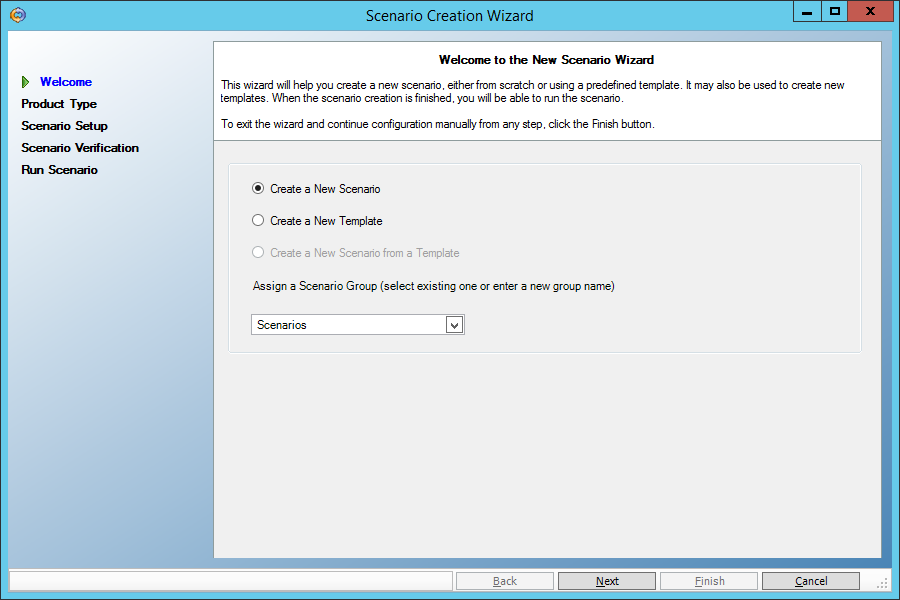
On the second screen, do not change anything either - the file replication script should be selected there (File Server):

Select the Master server as the main machine, and as a backup - Replica:
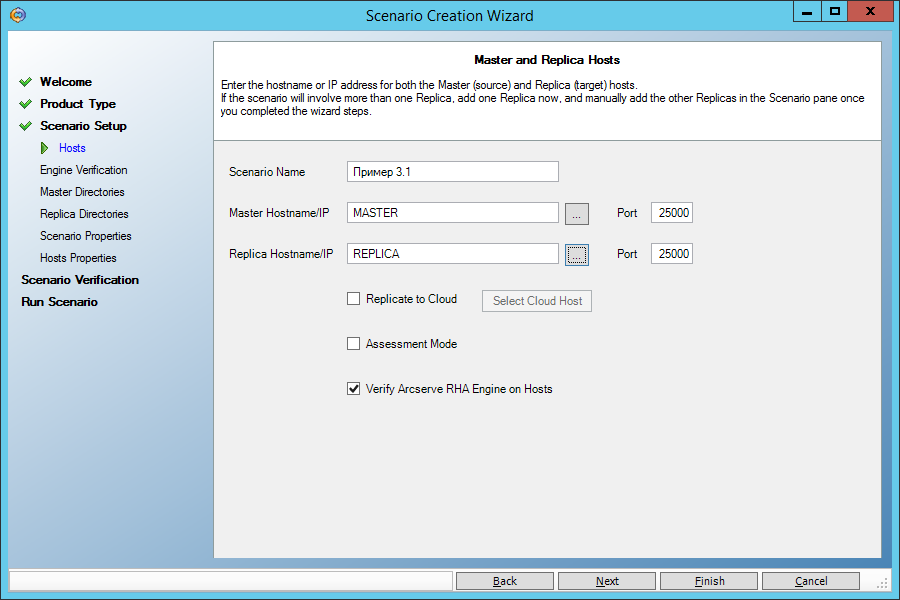
On the next screen, we see confirmation that the Engine service is installed on both machines. If we did not install it earlier, then we can do it remotely from here.
On the next screen, select the source directory “C: \ Ax-left-wife \” on the Master machine:
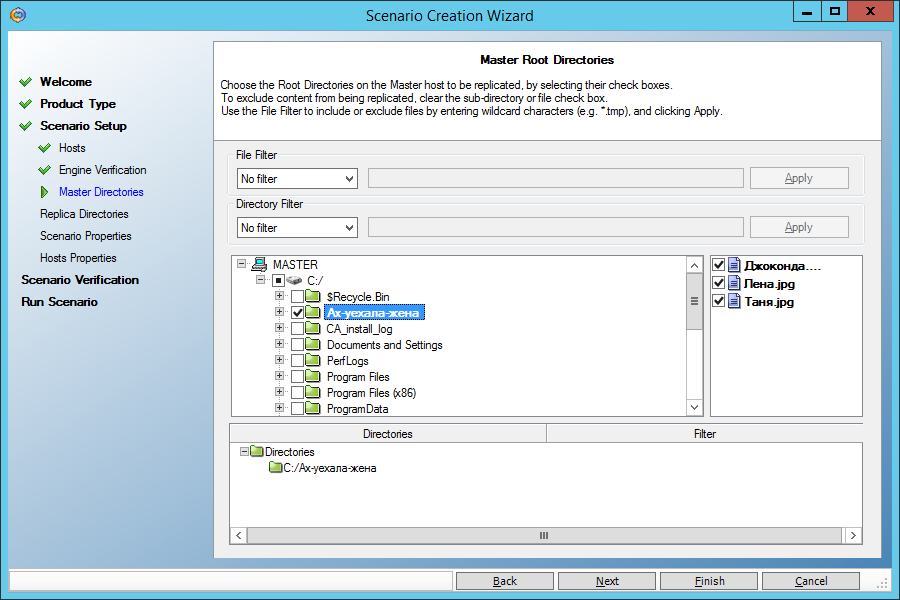
On the next screen, we are prompted to replicate this directory to a directory with the same name on the Replica machine. We agree:
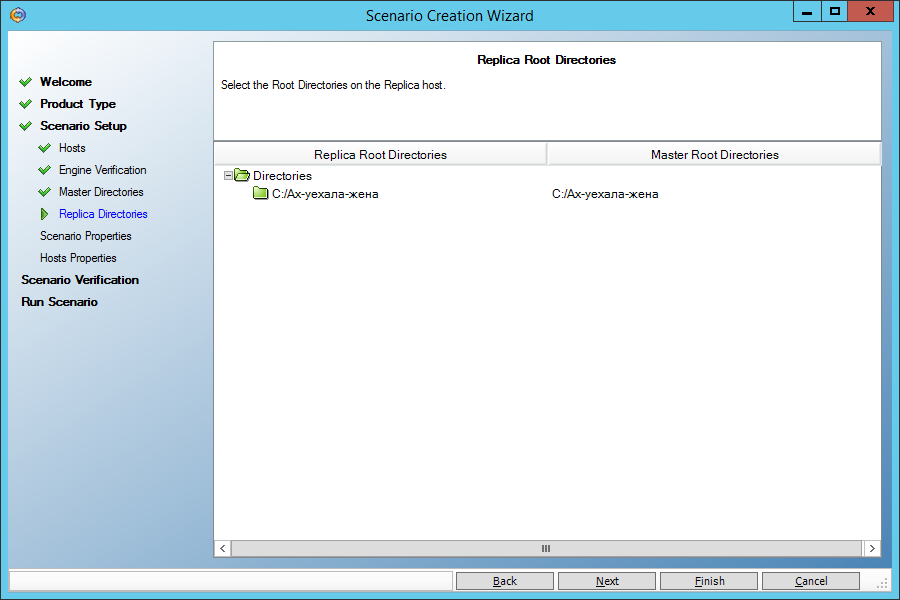
On the next screen, we do not change anything:
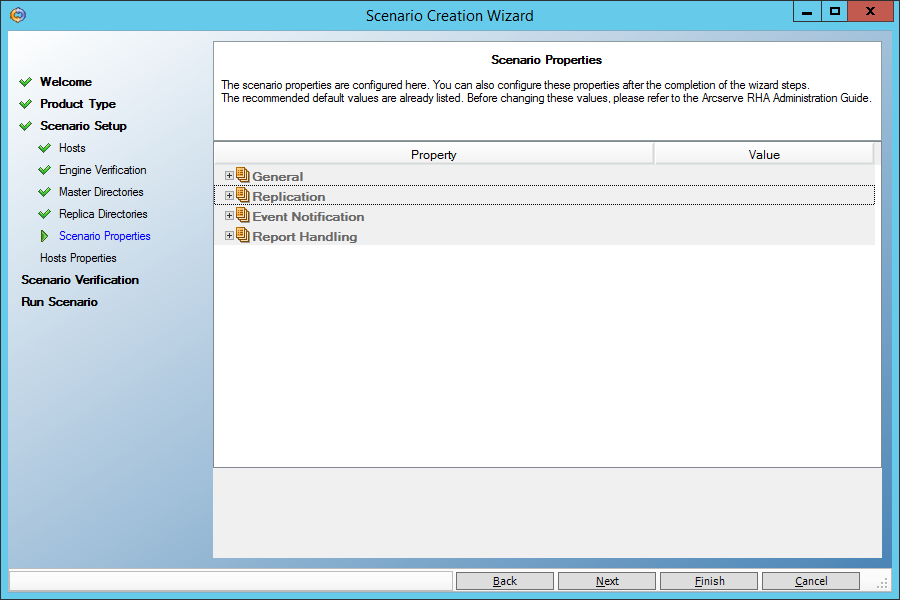
And here we need to set the “Data Rewind” parameter to “On” in order to be able to restore data at an arbitrary point in time in the past:

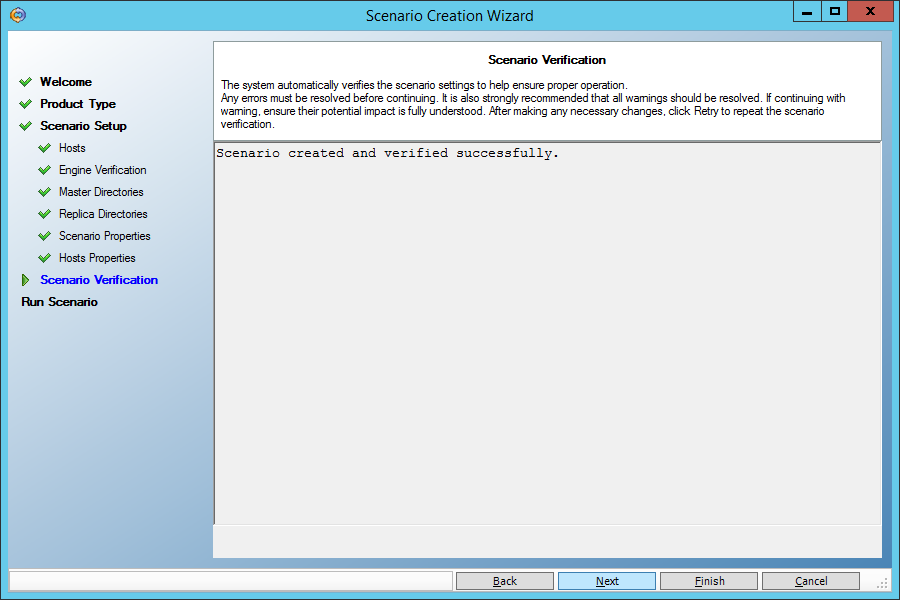
Finally, we will be told that the script does not contain errors:
Run the script by clicking the “Run Now” button:

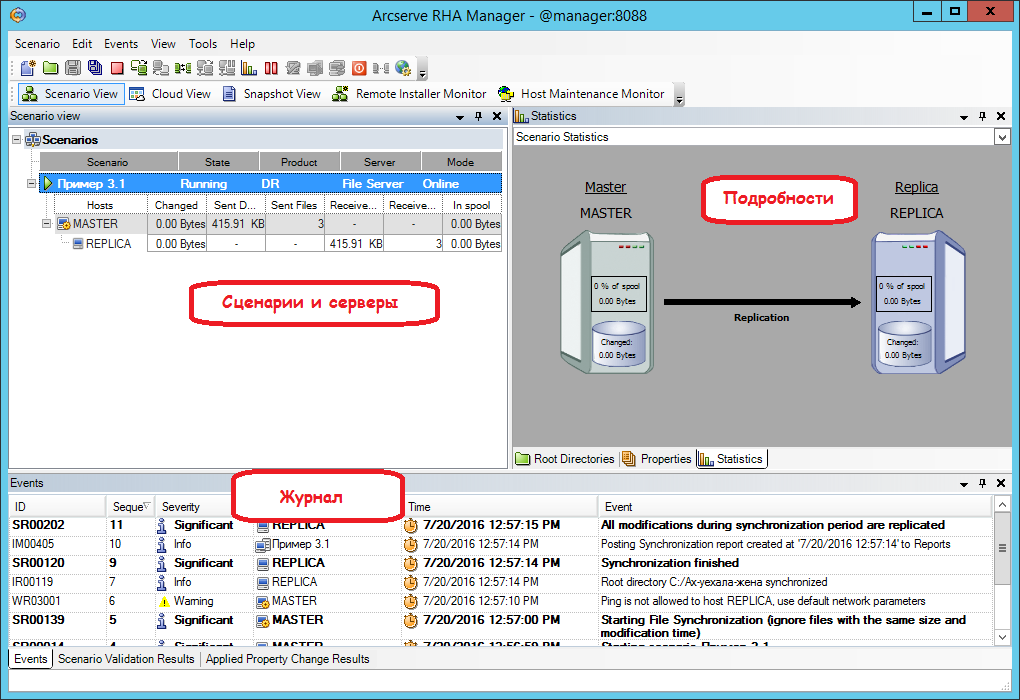
On the main screen we will see how the script works. The specified directory is quickly synchronized (it will become the same on the main and backup machines), and now any change in the directory on the Master machine will lead to a similar change in its copy on the Replica machine.
We will perform three actions on the Master machine:
1. Change the Dzhokonda file.jpg
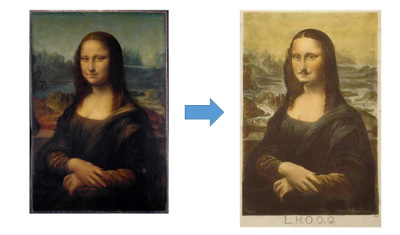
2. Delete the file Tanya.jpg
3. Add the file Masha.jpg
Make sure that on the Replica machine the same thing happened with the files.
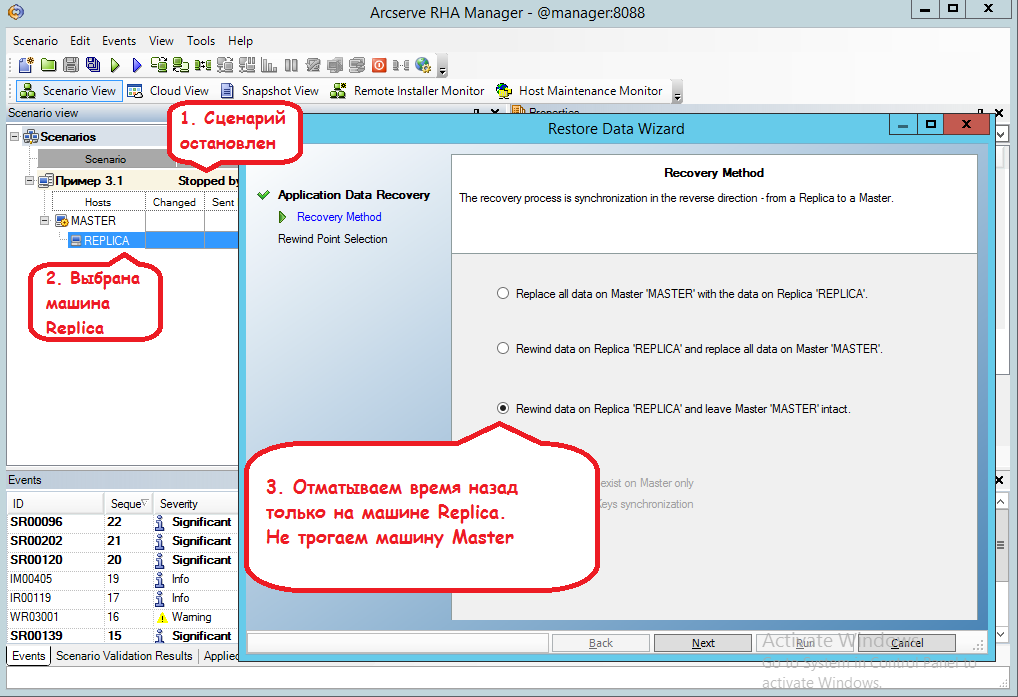
Now we would like to restore Gioconda to its former appearance. To do this, rewind time back on the Replica machine, using the Data Recovery tool.
First we need to stop the script (Tools -> Stop menu)
Then click on the Replica machine and call up the Tools -> Data Recovery menu:
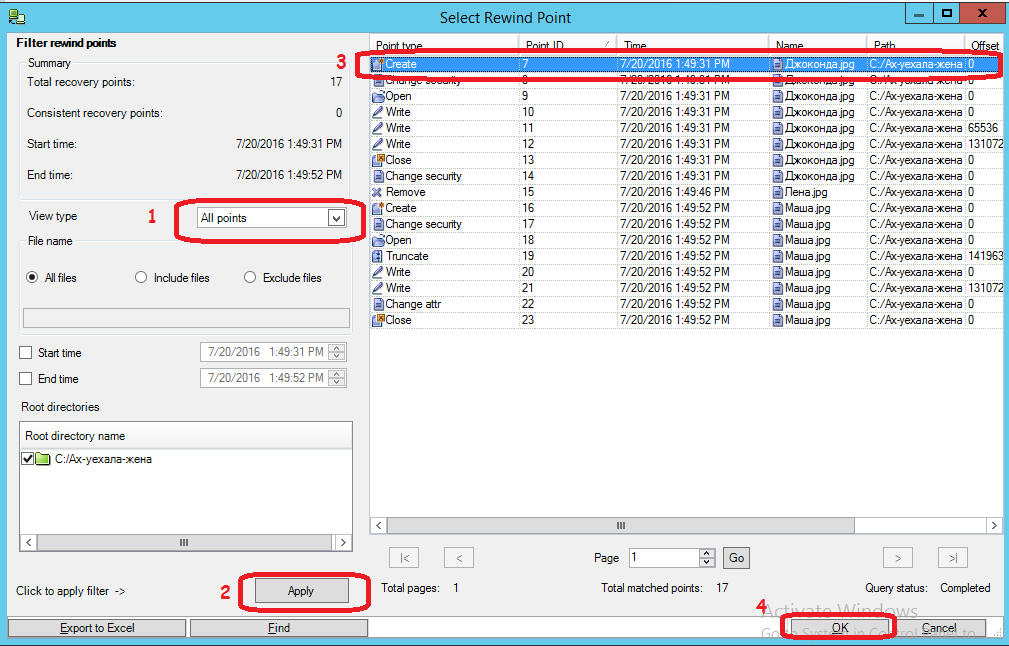
By clicking on the “Select Recovery Point” button in the next window, we get into such a window where you need:
(1) Set viewing of all time points, which can be rolled back in time
(2) Click the Apply button
(3) Select the very first point when the Mona Lisa has not yet been damaged
(4) Click on the “OK” button
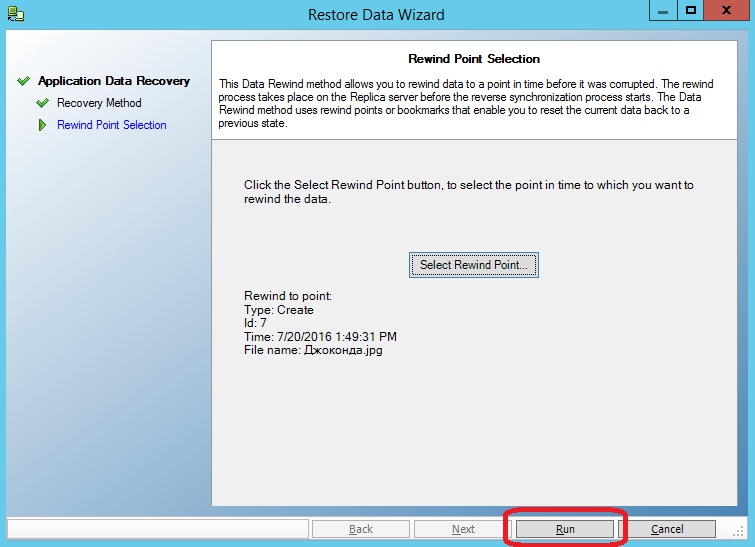
Then we press the “Run” button: We
check what happened to the files on the Replica machine.
-
Dzhokonda.jpg returned to its initial state again - Masha.jpg disappeared
- Lena.jpg appeared
Just in order not to lose Masha.jpg, we did not restore data on both machines. Now it’s enough to rewrite the “Dzhokonda.jpg” file to the Master machine, and we will get the unspoiled file back to work, without affecting everyone else.
Assume that MS SQL is installed on the Master machine. You can not install MS SQL on the Replica machine, then it will serve only as a repository for the DATA directory:
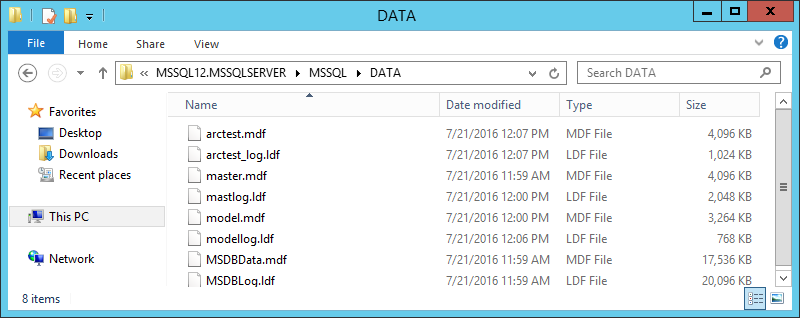
The MS SQL replication script is similar to the file replication script, but three things are added that make our life easier:
1. Select the correct initial synchronization method - block-by-block. Before starting replication, the system must make sure that the data on the two machines is identical and synchronize what is different.
For a scenario of the “File Server” type, a simplified initial synchronization is used by default, in which the files are considered identical if their size and modification time coincide. Such an assumption gives a good saving in initial synchronization time on file servers, but is completely unacceptable for databases, therefore the script for MS SQL compares one after another all the data blocks that make up the files.
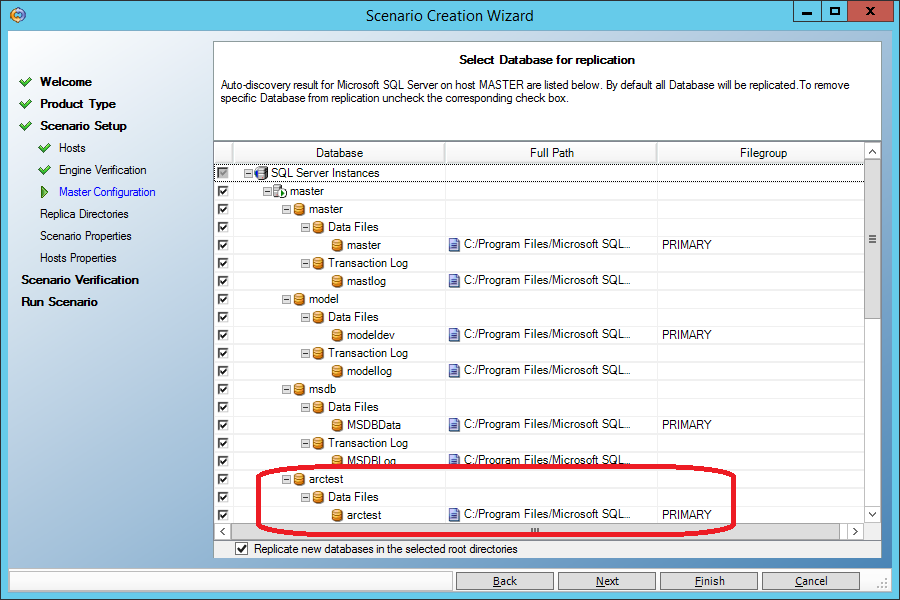
2. we don’t have to explicitly indicate where the database files are located, this information is automatically pulled up:
2. when data is restored to the main machine (Master), MS SQL services will be automatically extinguished and put into manual start mode. After recovery, everything will return to its place:

Suppose someone forgot to write “where” in the “update” command:
(whoever did this himself will understand the depth of the fall).
As in the previous case, we stop the replication script, run “Tools-> Data Recovery”, but select the recovery not only to the backup machine, but also to the main one: All that
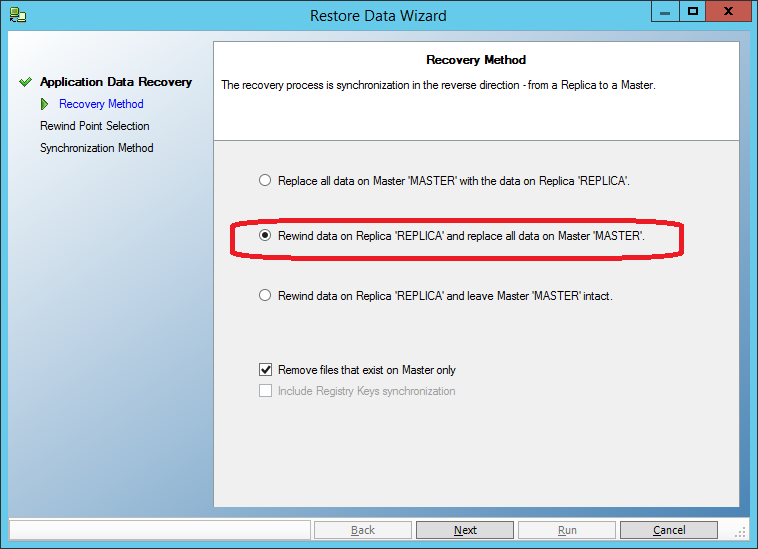
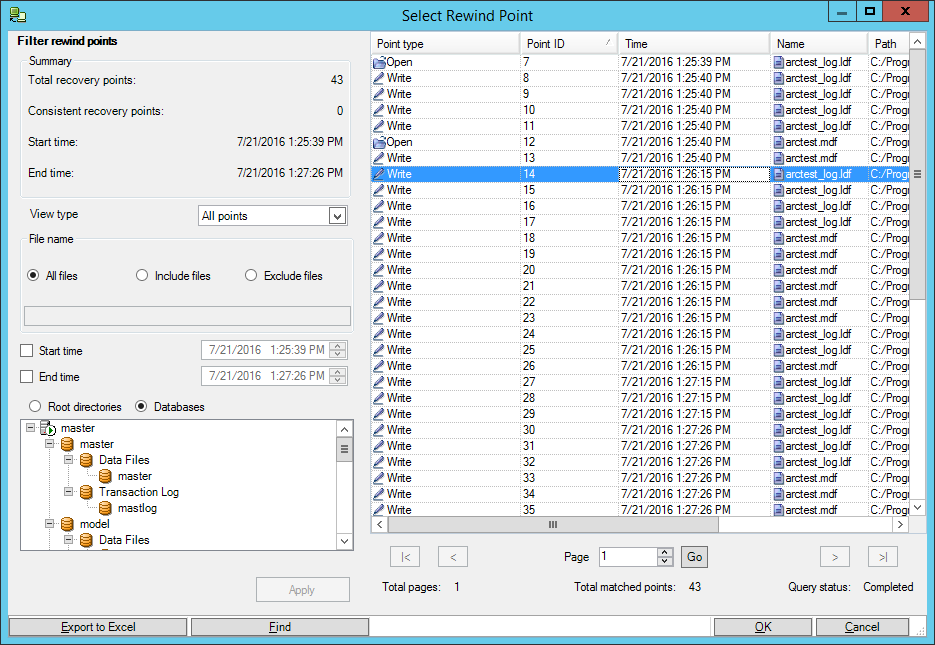
remains is to select the point in time preceding the moment of data corruption and spend recovery:
On two co-master and co-replica machines, CentOS 6.5 and MySQL are installed (in the same directories).
Strictly speaking, you can not install MySQL on the standby machine (co-replica), but we will try to go a little further and catch the replicated data on the standby MySQL server.
On the co-master machine, the MySQL service is running, on the co-replica machine, it is turned off.
Create a new script like “Custom Application”.
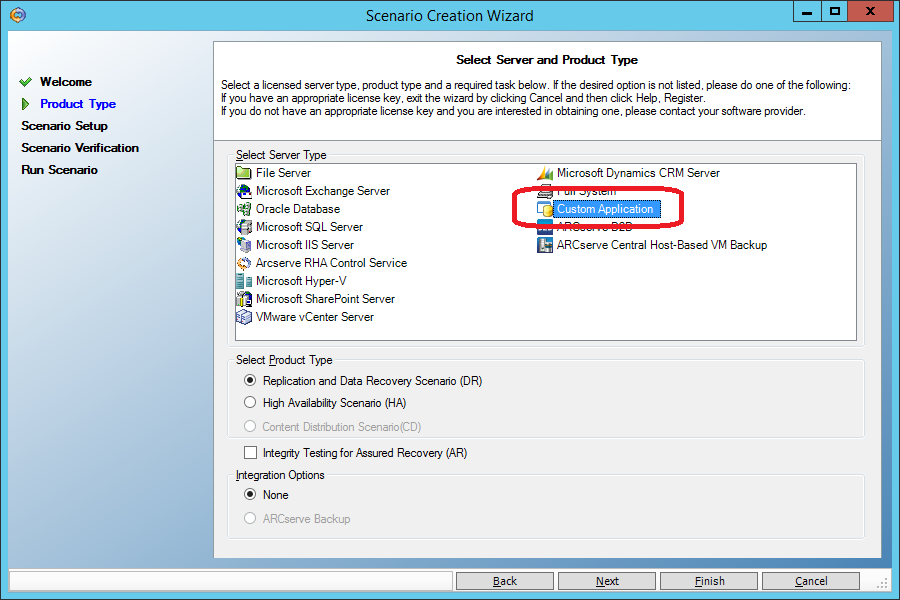
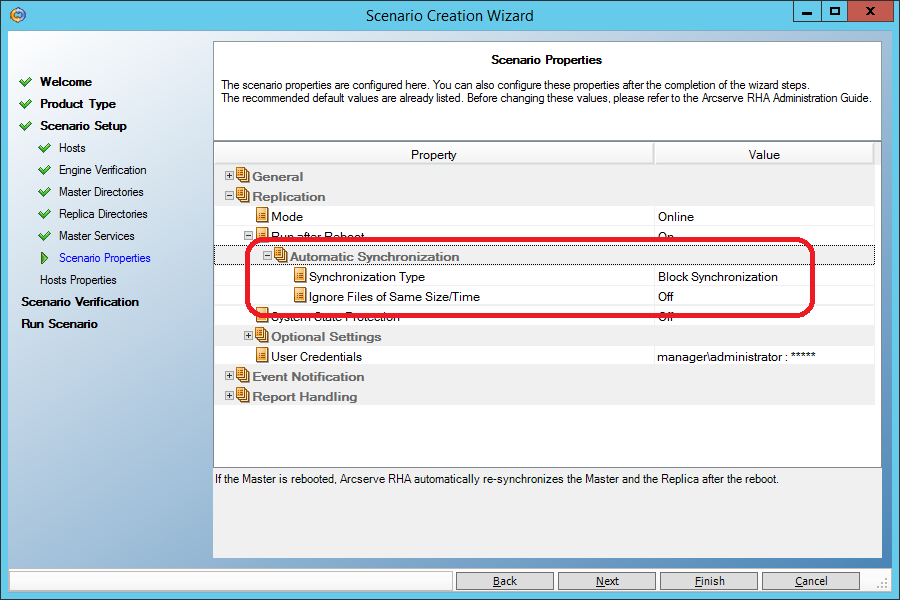
Unlike the “File Server” script (section 3.1), the “Custom Application” script by default has block-by-block initial synchronization. I repeat once again: for a scenario of the “File Server” type, a simplified initial synchronization is used by default, in which the files are considered identical if their size and modification time are the same. Such an assumption gives a good saving in initial synchronization time on file servers, but is completely unacceptable for databases, therefore a script like “File Server” is unacceptable for MySQL replication.
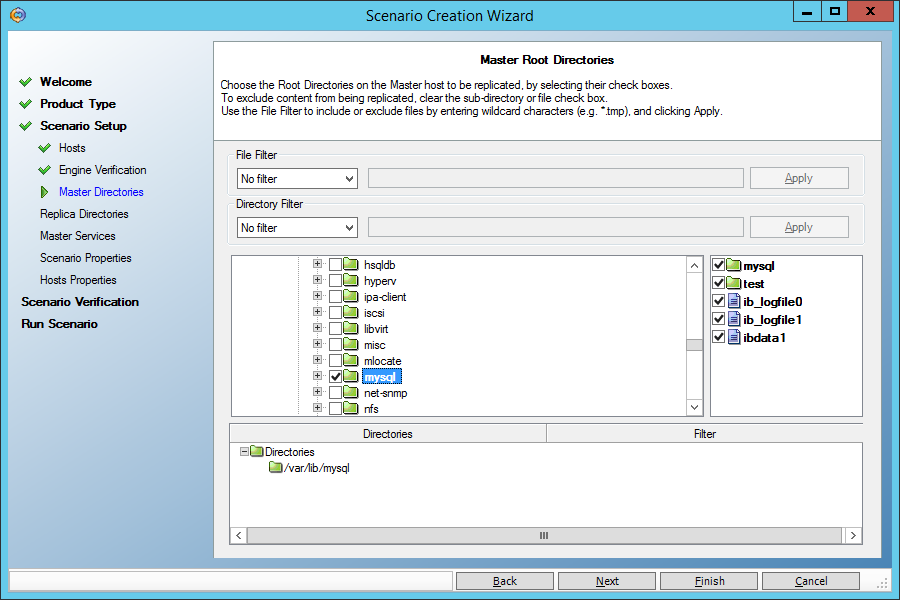
On the screen where the directories for replication are set, we set the directory with MySQL data (var / lib / mysql / in my case). Just make sure it doesn't have the mysql.sock socket file . If there is, specify another location in the my.cnf configuration file .
Do not forget, as in all previous scenarios, to allow rollback to a point in time in the past during recovery:

On the co-master machine, look at the table Table_1:
And spoil it by making the name in all the entries the same:
Now we will return everything back, using the restore function for a given point in time. As before, we stop the replication script and restore the data on both machines. But first of all, stop the mysqld service:
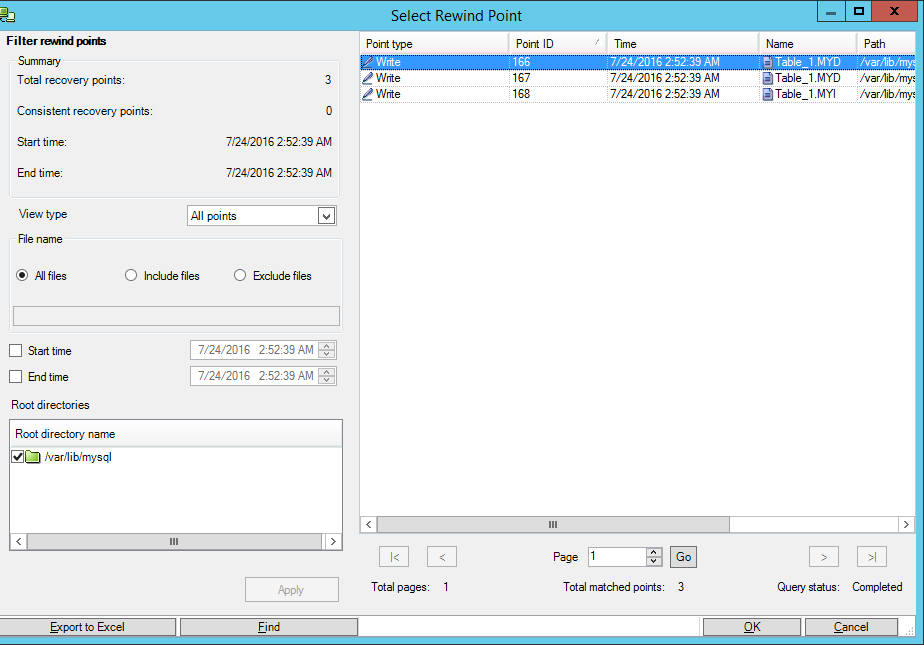
We select a point in time when the database has not yet been corrupted:
After that, we will start the MySQL service on the master machine and make sure that the data is restored.
And now - a surprise! Let's start the MySQL service on the co-replica machine and get a working database on the backup machine. We come close to the advanced functionality of Arcserve RHA, when instead of a lost system, a backup system with up-to-date data comes into operation.
Today we raised the backup MySQL service manually. But the Arcserve RHA product is able to independently launch the backup system so that it looks like a failed system. For example, start the necessary services, change the entries in the DNS, IP address, even the NetBIOS name of the machine. This can be done in scenarios like “High Availfbility”, but this is a topic for another article.
In this article, we examined only the main features of the Arcserve RHA product aimed at restoring data at a given point in time in the past. That is, only half of the name “Replication and High Availability” has been decoded. In the next article, you will see how the second part of the name is implemented - High Availability. We will see how a failed machine (physical or virtual) will be replaced by a backup machine containing an actual copy of the data.
[Advertising] Currently, until the end of September 2016, you can get the Arcserve RHA product for free by purchasing the Arcserve UDP Premium Plus product at the price of Arcserve UDP Premium.
For more information , contact Arcserve partners .
Even the most expensive systems that perform periodic backups (for example, every night) have one significant limitation: everything that was done on the computer after the last backup is in no way protected and will be irretrievably lost if the computer leaves system.
Suppose, for example, the first part of Dead Souls was written yesterday and a backup was made at night. And today the second part is written, and in an emotional impulse destroyed even before the time came for another backup.
Continuous data protection (CDP) technology is designed to deal with such situations. Everything that is written to the disk is simultaneously sent to the backup.
Let's take a closer look at how this is done in the Arcserve RHA (Replication and High Availability) product using real-life examples in Windows and Linux environments.
Contents
Introduction
1. Architecture
2. Software Installation
2.1. Installation of control components
2.2. Installing managed components on Windows
2.3. Installing managed components on Linux
3. Data recovery experiments
3.1. File recovery for a given point in time
3.2. Restoring a MS SQL database at a given point in time
3.3 Restoring a MySQL database on Linux at a given point in time
4. Conclusion and advertising
Introduction
Suppose we have two servers.
The battle server (Master) contains constantly updated data. We monitor the changes and keep a statement (journal) of changes in the form of “was -> became”, for example:
| Time | Content of the Wash File | Change Log |
|---|---|---|
| 10:30:51 | MOTHER SOAP FRAME | |
| 10:30:52 | MOM SOAP PAPU | File “wash”, offset 10, “RAM” -> “PAP” |
The change log is constantly sent to the backup server (Replica) and applied to its files. Thus, the files of the combat and backup servers become identical.
Some details:
- Changes are tracked at the byte level, that is, when one byte is changed, the log will contain information only about this byte, and not about the entire data block;
- The change log is sent over a regular IP network, that is, you can distribute the battle and backup servers over considerable distances, including to different cities;
- When the connection is broken, data is accumulated in the buffer and, as soon as the connection is restored, they will be transferred and applied to the backup server;
- The history of changes (in a given volume, for example, the last 500 Megabytes) is stored on the backup machine and can be applied in the reverse order by returning the contents of the files to a state at a certain point in time.
1. Architecture
In order for the scheme described above to work, we need to install on the Master and Replica machines a component called Engine, which takes the main job of tracking changes in files and replicating data from one machine to another.
In order to configure the operation of these two Engines, we install the Control Service on another machine (Manager). This machine is required only for configuration, receiving reports and running individual actions on managed machines. It should not be constantly on.
Finally, we get the user interface by connecting to the management service with an Internet browser and downloading a windows application from there.
2. Software Installation
Download Arcserve RHA ( iso or zip ) from the developer's site (as indicated on the page arcserve.zendesk.com/hc/en-us/articles/205009209-RHA-R16-5-SP5-ARCSERVE-RHA-16-5-SP5 ) :
The product lasts 30 days without license keys.
2.1. Installation of control components
Let's start by installing the Control Service on the management machine (Manager).
It requires the .NET Framework 3.5.
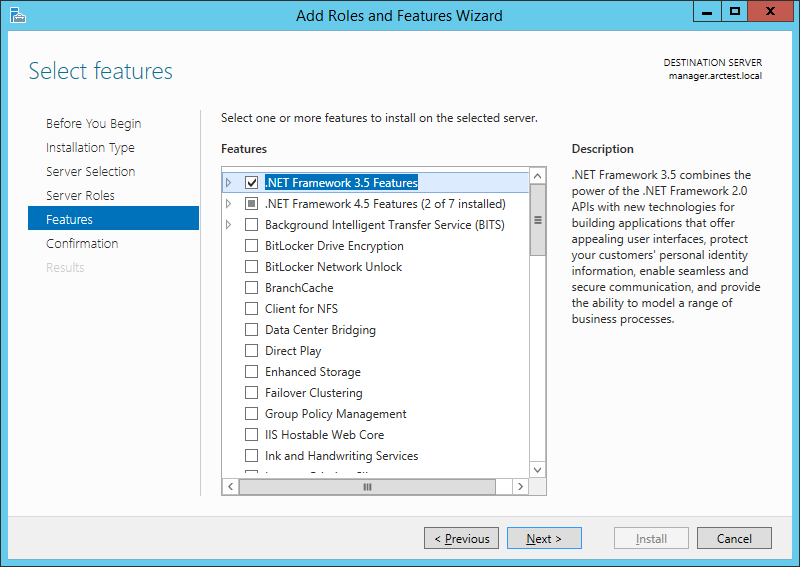
On Windows 2012 R2, the .NET Framework 3.5 is installed like this.
In Server Manager, select Manage -> Add Roles and Features. Checkmark “.NET Framework 3.5 Features”.
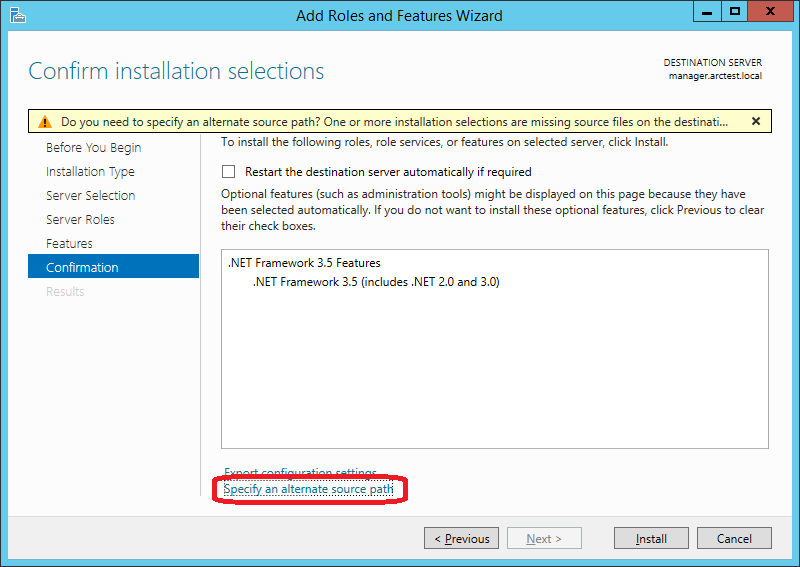
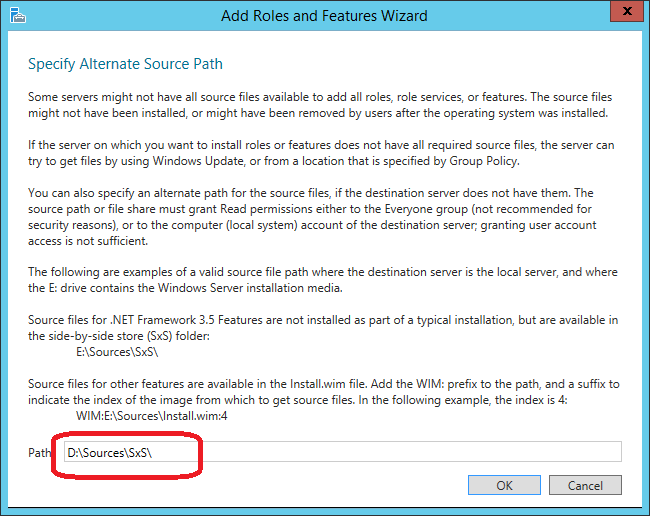
Important! You must explicitly indicate where this component is located on the Windows distribution. To do this, on the next screen, click “Specify an alternate source path”:
In my case, the path looks like this (D: - DVD with Windows distribution):
Important! You must explicitly indicate where this component is located on the Windows distribution. To do this, on the next screen, click “Specify an alternate source path”:
In my case, the path looks like this (D: - DVD with Windows distribution):
Now run Setup.exe from the Arcserve RHA distribution and select “Install Components”:
On the next screen, select “Install Arcserve RHA Control Service”. (Feature: it’s impossible to click on the words “Install Arcserve RHA ...”, but on “... Control Service” it turns out):
Then we will click through several screens until we get to the SSL configuration. We will not enable SSL for testing, but during operational use you can add your certificate here or use a self-signed one:
We will start the service on behalf of Local System:
The next screen concerns the possibility of having two control machines to increase fault tolerance. For testing purposes, we restrict ourselves to one thing:
After the installation is completed, we will connect with an Internet browser to the Manager machine on port 8088. You can log in as a user who has local administrator rights on the Manager machine:
We will gain access to a page on which the statistics of various machines will be published. But for real management, we need to download from this site and run the windows-utility “Arcserve RHA Manager”. It can be run no longer on the server, but on the workstation (for example, Windows 7 or 10). To download, click on the “Scenario Management” link:
After security warnings, the “Arcserve RHA Manager” program should start:
This program will continue to be launched only from the web page.
2.2. Install Managed Components on Windows
On the Master and Replica machines we install the working components - Engine.
You can install them locally from the distribution, or you can - remotely. For remote installation on a server, the server must have the “File Server” role installed:
If the “File Server” role is installed on the master and replica machines, then on the Manager machine we can access “\\ master \ C $” and “\ \ replica \ C $ ”.
From the Arcserve RHA Manager utility, which was discussed in the previous section, we start the remote installation via the menu “Tools -> Launch Remote Installer”.
On the next screen, click the “Start host discovery” button (1) and get a list of machines from the Active Directory cache.
Select the master and replica machines and add them to the list of candidates for installing Engine using the “Add” button (3)
On the next screen, enter the user (domain administrator) under which the remote installation will be performed:
Next, make sure that both servers (master and replica) allow the remote installation and are marked with checkmarks:
On the next screen, enter the user under which the Engine service will be launched.
For continuous backup purposes, a user with Local Administrator rights is sufficient. But if we want to use the High Availability functionality, when the backup machine can pretend to be a failed main machine, then we need to start the service under a domain administrator. The example described below from section () requires just such privileges:
Click any Next -> Install -> Yes and wait for the installation to complete:
2.3. Installing managed components on Linux
You can install the Engine component on the server by digging into the UNIX_Linux directory on the distribution kit and finding the agent you need in the tar archive. In particular, for installation on CentOS 6.5 I used the arcserverha_rhel6.tgz archive .
If 32-bit libraries are not installed on the machine, you need to install them. For example, on CentOS 6.5 I had to do:
yum install glibc.i686 libstdc ++. i686 pam.i686
(after updating their 64-bit versions: “yum install glibc libstdc ++ pam”),
then run ./install.sh and agree with all the prompts.
In the firewall, open port 25000 (TCP)
3. Data recovery experiments
3.1. File recovery at a given point in time
Create a car Master directory "C: \ Ax-left-wife \", and put the files:
Tanya.jpg
Lena.jpg
Dzhokonda.jpg
create a replication scenario that directory on the machine Replica. In the “Arcserve RHA Manager” menu, select Scenario -> New
. We leave the first screen of the scripting wizard unchanged:
On the second screen, do not change anything either - the file replication script should be selected there (File Server):
Select the Master server as the main machine, and as a backup - Replica:
On the next screen, we see confirmation that the Engine service is installed on both machines. If we did not install it earlier, then we can do it remotely from here.
On the next screen, select the source directory “C: \ Ax-left-wife \” on the Master machine:
On the next screen, we are prompted to replicate this directory to a directory with the same name on the Replica machine. We agree:
On the next screen, we do not change anything:
And here we need to set the “Data Rewind” parameter to “On” in order to be able to restore data at an arbitrary point in time in the past:
Finally, we will be told that the script does not contain errors:
Run the script by clicking the “Run Now” button:
On the main screen we will see how the script works. The specified directory is quickly synchronized (it will become the same on the main and backup machines), and now any change in the directory on the Master machine will lead to a similar change in its copy on the Replica machine.
We will perform three actions on the Master machine:
1. Change the Dzhokonda file.jpg
2. Delete the file Tanya.jpg
3. Add the file Masha.jpg
Make sure that on the Replica machine the same thing happened with the files.
Now we would like to restore Gioconda to its former appearance. To do this, rewind time back on the Replica machine, using the Data Recovery tool.
First we need to stop the script (Tools -> Stop menu)
Then click on the Replica machine and call up the Tools -> Data Recovery menu:
By clicking on the “Select Recovery Point” button in the next window, we get into such a window where you need:
(1) Set viewing of all time points, which can be rolled back in time
(2) Click the Apply button
(3) Select the very first point when the Mona Lisa has not yet been damaged
(4) Click on the “OK” button
Then we press the “Run” button: We
check what happened to the files on the Replica machine.
-
Dzhokonda.jpg returned to its initial state again - Masha.jpg disappeared
- Lena.jpg appeared
Just in order not to lose Masha.jpg, we did not restore data on both machines. Now it’s enough to rewrite the “Dzhokonda.jpg” file to the Master machine, and we will get the unspoiled file back to work, without affecting everyone else.
3.2. Recovery of the MS SQL database at a given point in time
Assume that MS SQL is installed on the Master machine. You can not install MS SQL on the Replica machine, then it will serve only as a repository for the DATA directory:
The MS SQL replication script is similar to the file replication script, but three things are added that make our life easier:
1. Select the correct initial synchronization method - block-by-block. Before starting replication, the system must make sure that the data on the two machines is identical and synchronize what is different.
For a scenario of the “File Server” type, a simplified initial synchronization is used by default, in which the files are considered identical if their size and modification time coincide. Such an assumption gives a good saving in initial synchronization time on file servers, but is completely unacceptable for databases, therefore the script for MS SQL compares one after another all the data blocks that make up the files.
2. we don’t have to explicitly indicate where the database files are located, this information is automatically pulled up:
2. when data is restored to the main machine (Master), MS SQL services will be automatically extinguished and put into manual start mode. After recovery, everything will return to its place:
Suppose someone forgot to write “where” in the “update” command:
begin transaction;
update dbo.Table_1 set name='Сидоров';
commit;
(whoever did this himself will understand the depth of the fall).
As in the previous case, we stop the replication script, run “Tools-> Data Recovery”, but select the recovery not only to the backup machine, but also to the main one: All that
remains is to select the point in time preceding the moment of data corruption and spend recovery:
3.3. Recover MySQL database on Linux at a given point in time
On two co-master and co-replica machines, CentOS 6.5 and MySQL are installed (in the same directories).
Strictly speaking, you can not install MySQL on the standby machine (co-replica), but we will try to go a little further and catch the replicated data on the standby MySQL server.
On the co-master machine, the MySQL service is running, on the co-replica machine, it is turned off.
Create a new script like “Custom Application”.
Unlike the “File Server” script (section 3.1), the “Custom Application” script by default has block-by-block initial synchronization. I repeat once again: for a scenario of the “File Server” type, a simplified initial synchronization is used by default, in which the files are considered identical if their size and modification time are the same. Such an assumption gives a good saving in initial synchronization time on file servers, but is completely unacceptable for databases, therefore a script like “File Server” is unacceptable for MySQL replication.
On the screen where the directories for replication are set, we set the directory with MySQL data (var / lib / mysql / in my case). Just make sure it doesn't have the mysql.sock socket file . If there is, specify another location in the my.cnf configuration file .
Do not forget, as in all previous scenarios, to allow rollback to a point in time in the past during recovery:
On the co-master machine, look at the table Table_1:
mysql> select * from Table_1;
+ ---- + -------------- +
| id | name |
+ ---- + -------------- +
| 1 | Ivanov |
| 2 | Petrov |
+ ---- + -------------- +
2 rows in set (0.01 sec)
And spoil it by making the name in all the entries the same:
mysql> update Table_1 set name = 'Sidorov';
Query OK, 2 rows affected (0.00 sec)
Rows matched: 2 Changed: 2 Warnings: 0
Now we will return everything back, using the restore function for a given point in time. As before, we stop the replication script and restore the data on both machines. But first of all, stop the mysqld service:
[root @ co-master mysql] # service mysqld stop
Stopping mysqld: [OK]
We select a point in time when the database has not yet been corrupted:
After that, we will start the MySQL service on the master machine and make sure that the data is restored.
And now - a surprise! Let's start the MySQL service on the co-replica machine and get a working database on the backup machine. We come close to the advanced functionality of Arcserve RHA, when instead of a lost system, a backup system with up-to-date data comes into operation.
Today we raised the backup MySQL service manually. But the Arcserve RHA product is able to independently launch the backup system so that it looks like a failed system. For example, start the necessary services, change the entries in the DNS, IP address, even the NetBIOS name of the machine. This can be done in scenarios like “High Availfbility”, but this is a topic for another article.
4. Conclusion and advertising
In this article, we examined only the main features of the Arcserve RHA product aimed at restoring data at a given point in time in the past. That is, only half of the name “Replication and High Availability” has been decoded. In the next article, you will see how the second part of the name is implemented - High Availability. We will see how a failed machine (physical or virtual) will be replaced by a backup machine containing an actual copy of the data.
[Advertising] Currently, until the end of September 2016, you can get the Arcserve RHA product for free by purchasing the Arcserve UDP Premium Plus product at the price of Arcserve UDP Premium.
For more information , contact Arcserve partners .