
 February 17, 2016 at 17:19
Symantec Backup Exec: Recovering Oracle Installed on Linux
The first part described how to make a backup copy of an Oracle database installed on Linux using Symantec Backup Exec, now we will consider how to recover data from this copy. As with backups, not everything is so simple and obvious.
Recovery will take place in three stages, this is due to the fact that SBE separates files and databases, when we set up the backup, we selected the path to ORACLE_HOME and the database in [ROOT]. In this order, we will restore.
It is not necessary to restore data to the same server, this feature is very convenient, since you can make a test server for development, as well as check the possibility of recovery and practice deploying a backup. So let's start, create the first task:

We select the server name and date for restoring directories in the resources. On the tab “File redirection” we indicate which server to recover data if you do not need to restore to the one from which the backup was made. We click to execute immediately and observe in the section "Task Monitor" the successful completion of the task.
The field of how ORACLE_HOME was restored - only the software part of the ORACLE database was restored. Next, you need to start the database. Since there are no data files, you can run the database no more than in mount mode.
If you restore to another server, then most likely you will get an error related to the database configuration file, for example
Such an error occurs when the database is working with spfile in which settings from another server remain. The easiest way is to find the standard configuration example file - it usually has a minimal set of parameters for starting the database. You need to look for it in ORACLE_HOME / dbs, its name is init.ora. The regular pfile is called init.ora. So, we try to start the database with another parameter file.
If the launch is successful, then
Stop and start the database again
The database is in nomount mode, listener is running, we proceed to restore the dbf database data files (The so-called extension in the file name can be anything, in Linux it does not matter and is indicated more for the convenience of perceiving files).
We return to the SBE management console on the data backup server.
Using the same principle as in the first stage, create a restore task.
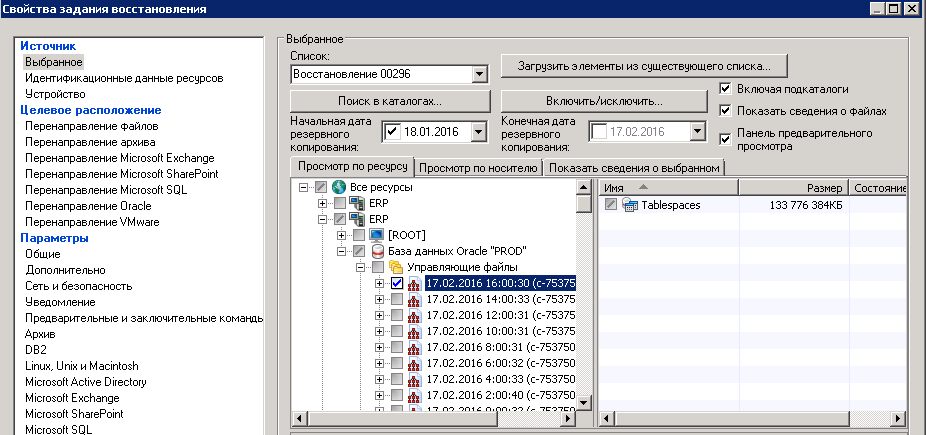
In this task, we select the "Control Files" section and select one corresponding to the time at which point we want to restore the database. Next, we also look at all the tabs, in “Oracle Redirection” we indicate the name of the server to which we are restoring (different from the one from which the backup was made) and stop on the Oracle tab.
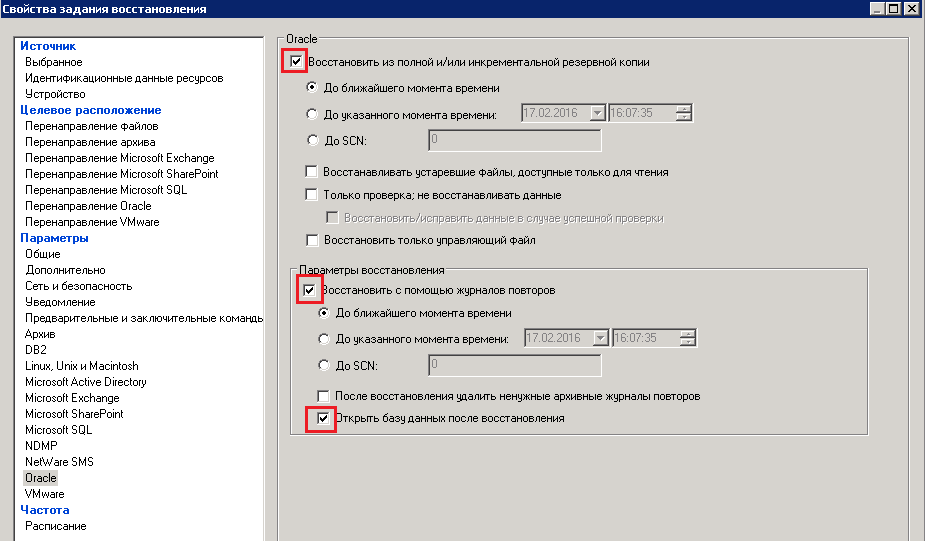
I recommend setting the checkboxes as in the picture, this will help to avoid some problems, for example, such as the inconsistency of the time specified by you and the selected Control file. The moment at which data will be restored will be equal to the time of the selected control file. We start recovery, at the end of a successful recovery we return to the server where we performed the recovery and perform the following:
If the command did not return errors, check alert.log for errors. No problems were found - the recovery was successful!
Recovery will take place in three stages, this is due to the fact that SBE separates files and databases, when we set up the backup, we selected the path to ORACLE_HOME and the database in [ROOT]. In this order, we will restore.
Step 1. Restore ORACLE_HOME
It is not necessary to restore data to the same server, this feature is very convenient, since you can make a test server for development, as well as check the possibility of recovery and practice deploying a backup. So let's start, create the first task:
Меню > Файл > Создать > Задание восстановления
We select the server name and date for restoring directories in the resources. On the tab “File redirection” we indicate which server to recover data if you do not need to restore to the one from which the backup was made. We click to execute immediately and observe in the section "Task Monitor" the successful completion of the task.
Stage 2. Preparing to restore data files
The field of how ORACLE_HOME was restored - only the software part of the ORACLE database was restored. Next, you need to start the database. Since there are no data files, you can run the database no more than in mount mode.
SQL> startup nomount
lsnrctl start
If you restore to another server, then most likely you will get an error related to the database configuration file, for example
ORA-27102: out of memory
Linux Error: 12: Cannot allocate memory
Such an error occurs when the database is working with spfile in which settings from another server remain. The easiest way is to find the standard configuration example file - it usually has a minimal set of parameters for starting the database. You need to look for it in ORACLE_HOME / dbs, its name is init.ora. The regular pfile is called init.ora. So, we try to start the database with another parameter file.
SQL> shu immediate --- останавливаем БД
SQL> startup pfile=<путь к файлу параметров> nomount;
If the launch is successful, then
SQL> create spfile from pfile=<путь к файлу параметров>;
Stop and start the database again
SQL> shu immediate
SQL> startup nomount
The database is in nomount mode, listener is running, we proceed to restore the dbf database data files (The so-called extension in the file name can be anything, in Linux it does not matter and is indicated more for the convenience of perceiving files).
Stage 3. Restoring Oracle database data files.
We return to the SBE management console on the data backup server.
Using the same principle as in the first stage, create a restore task.
Меню > Файл > Создать > Задание восстановления
In this task, we select the "Control Files" section and select one corresponding to the time at which point we want to restore the database. Next, we also look at all the tabs, in “Oracle Redirection” we indicate the name of the server to which we are restoring (different from the one from which the backup was made) and stop on the Oracle tab.
I recommend setting the checkboxes as in the picture, this will help to avoid some problems, for example, such as the inconsistency of the time specified by you and the selected Control file. The moment at which data will be restored will be equal to the time of the selected control file. We start recovery, at the end of a successful recovery we return to the server where we performed the recovery and perform the following:
SQL> ALTER DATABASE OPEN RESETLOGS;
If the command did not return errors, check alert.log for errors. No problems were found - the recovery was successful!