
 May 8, 2015 at 12:29
Direct publication of training materials in SAP Learning Solution (this is not in the manuals)
- Tutorial
Hi Habr!
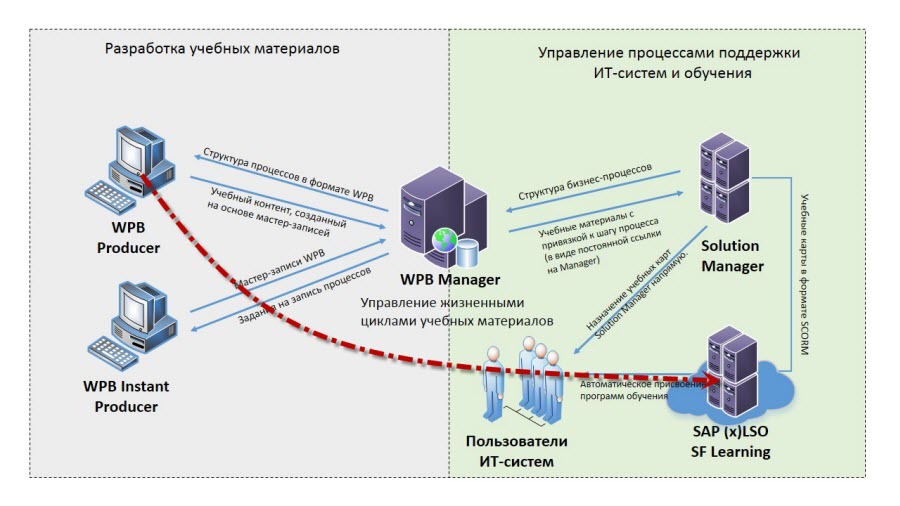
About a month and a half ago, we wrote about how to make friends SAP Workforce Performance Builder with SAP Solution Manager in order to bring some freshness and even innovation to the user support process. We dwell on the fact that training materials are stored in Solution Manager and we assign them to users through Learning Maps. Unfortunately, we completely ignored those who use the training management system based on SAP Enterprise Learning Solution (SAP xLSO) for employee training . In this post, we will correct this error and tell you how you can directly publish training materials from WPB to SAP LSO to build and automate the user training process, bypassing the LSO Authoring Environment.
Now you don’t have to do a double job: export the content to the SCORM format, upload it to the authoring environment of SAP LSO, then upload it to the LSO server.
So, let's begin.
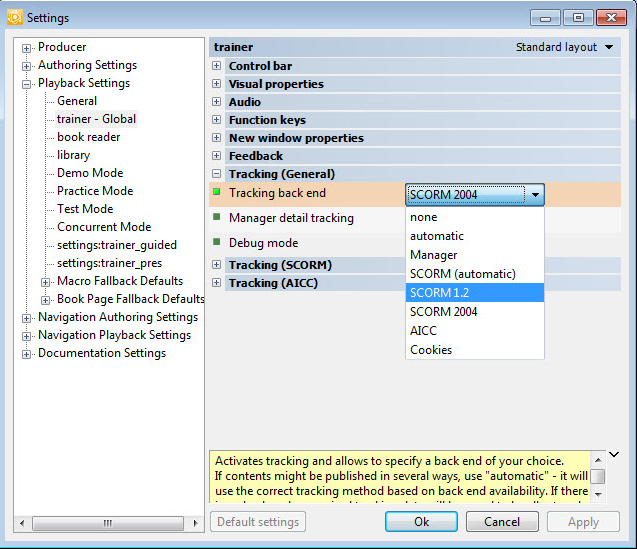
First, in the settings of SAP Workforce Performance Builder, on the trainer - Global / Tracking (General) tab, we specify the environment that will track the progress of the course. For SAP LSO without EhP installed, choose SCORM 1.2 . If you plan to download WPB training materials to any other LMS, then this setting will also be needed.
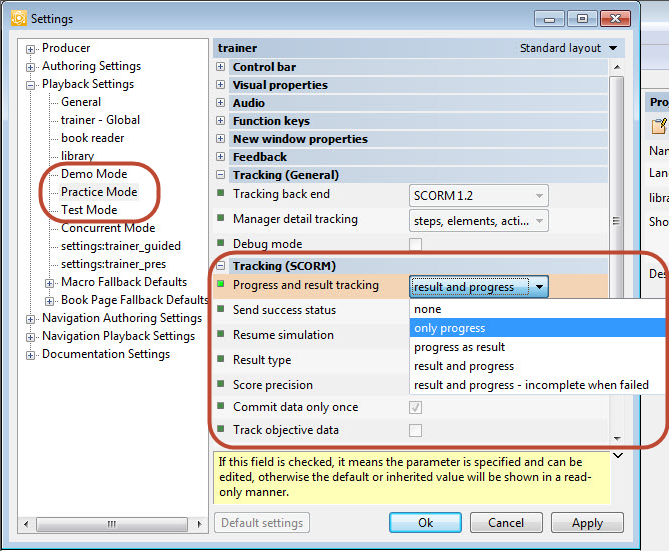
To eliminate communication errors with the LMS system, remove the checkmark from the Fullscreen parameter for courses based on WPB books, as well as for all modes: Demo Mode, Practice Mode, Test Mode .

Now we’ll configure for each mode the tracking option for the course on the Tracking tab (SCORM) . For example, for the Practice mode (Practice), we will choose the tracking option “Only progress”, for us the main thing is to know that the employee has gone through the “Practice” mode to the end; the course will be counted as completed only after completing it in the "Test" mode .
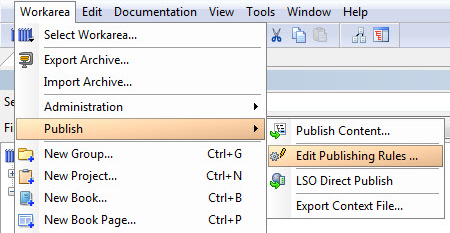
After the settings are completed, create a rule for publishing the course in SAP LSO.
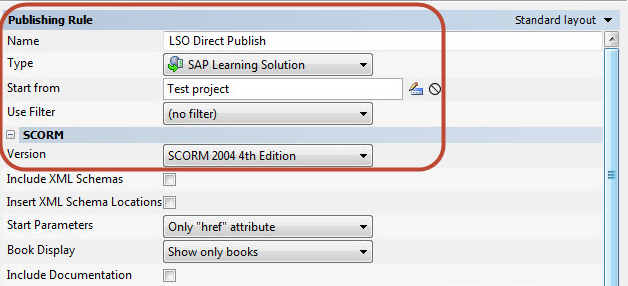
After clicking on the Add button in the first and second settings block, you need to specify:
1. The name of the rule (for example, LSO Direct Publish);
2. Type of publication (SAP Learning Solution);
3. The starting point of publication (current project);
4. SCORM version (If SAP LSO without EhP or EhP version is less than 3, select SCORM 1.2. If EhP version is 4 or higher, then SCORM 2004 can be selected).
Then we indicate the settings of the SAP LSO system, where we will publish the course as a SCORM package.
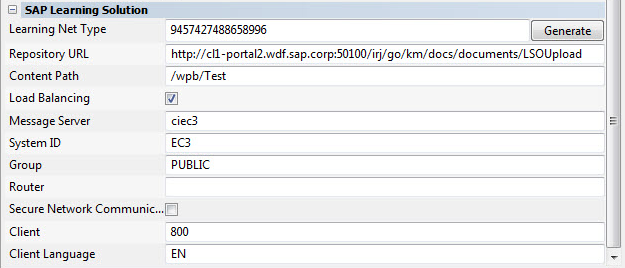
Learning Net Type - SCORM packet identifier that is displayed in the LSO. To generate a new identifier, click the Generate button .
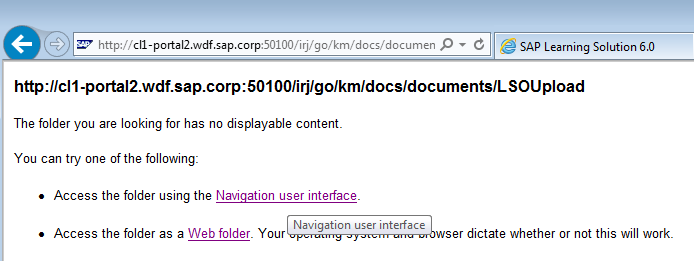
Repository URL - The address of the SAP LSO content server. You can find out the address by running transaction SPRO in the target SAP LSO system and then the path: Training and Event Management - SAP Learning Solution - Content Management - Determine Standard Settings. Copy the value of the “Path to Standard Upload Server” line and verify the value is correct by pasting the value into the address bar of the browser and pressing Enter. If the server is specified correctly, the following will be displayed:
Content Path - the path to the SAP LSO content server where we will upload our course.
If the load balancer is used, then the final settings of the target SAP LSO should look like this:
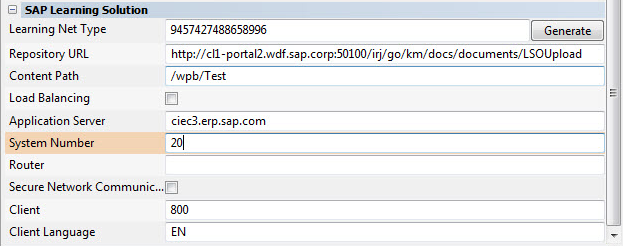
If the balancer is not used, then this:
Click the Publish button . After that, we will be prompted to enter the user name and password of the SAP LSO user with the right to publish content. Upon completion of the download on the SAP LSO content server in the target folder, the published course will look like this:

In order for the SAP LSO system to see the course loaded by us not just as content, you need to perform routine operations to turn it into a Web course. To do this, in the target SAP LSO system, start the transaction LSO_PVCT to edit the course catalogs.

Create the D - Course Type object in the folder we need and select the Web-Based Training type .
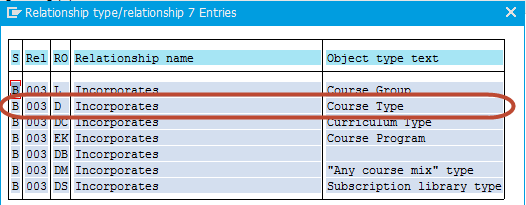
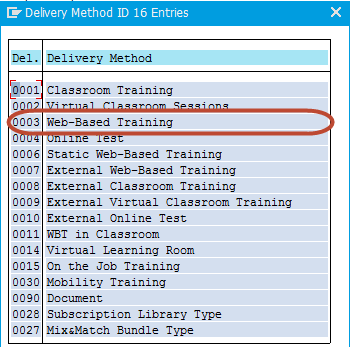
On the first tab, we indicate the short and full name of our course, then go to the Course Type Content tab , where we will connect the SCORM package downloaded from SAP WPB to it.

To do this, activate the Content Type field and start the search:
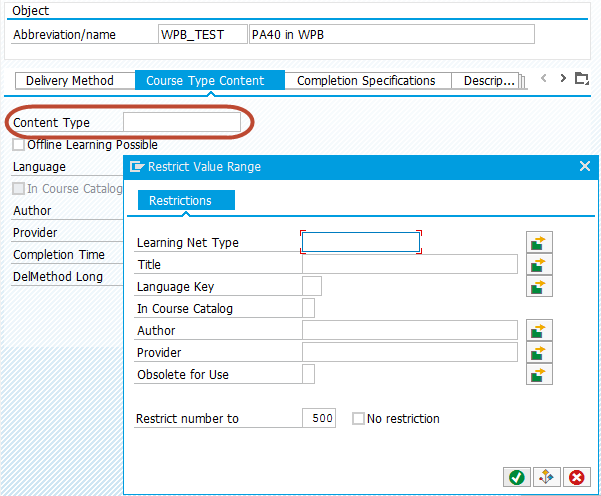
Find the SCORM package that we downloaded in the list and select it:
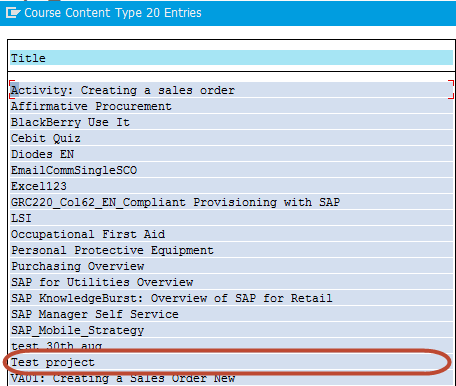
All required actions have been completed. We keep our new course. Now it is available for independent study on the training portal, but aerobatics will be used in it to build and automate training programs for new users using the SAP LSO qualifications catalog.
A demonstration of the direct publishing process in SAP LSO can be seen here .
PS The next post, as promised, will be about creating a UI5 application in the Web IDE.