April 14, 2015 at 15:56
PVS-Studio security research
- Tutorial
- Recovery mode

Greetings! This is my first post on Habré in principle, but not the first article about hacking software in general, so I have the skill to write everything from the beginning and in steps, for beginner crackers. In this article I will talk about how I was unlearned from the triality of PVS-Studio .
Training
Before you begin, remember: all the actions you perform at your own peril and risk. Respect the work of programmers!
First of all, download and install the program. Everything is simple here.
What are we dealing with?
Let's find out what the program is written on, and what we will have to " treat ". Old fart for this purpose PEiD , but he's very much old now that database is not updated, and many compilers, he just does not understand. Usually, I use ExeInfo PE .
We go into the directory with the program, and " by eye " decide that the first experimental file will be PVSStudioStandalone.exe . Its launch also indicates that it is the main executable file. We set ExeInfo PE on it and get:
Microsoft Visual C # / Basic.NET | Explore, browse, and analyze .NET assemblies with .NET Reflector
ExeInfo PE Window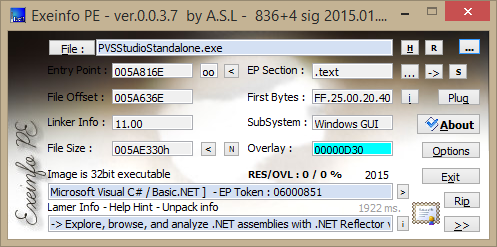
Immersion. EXE No. 1
We are recommended to install .NET Reflector , and open our experimental subject in it. So let's do it.
Screen of .NET Reflector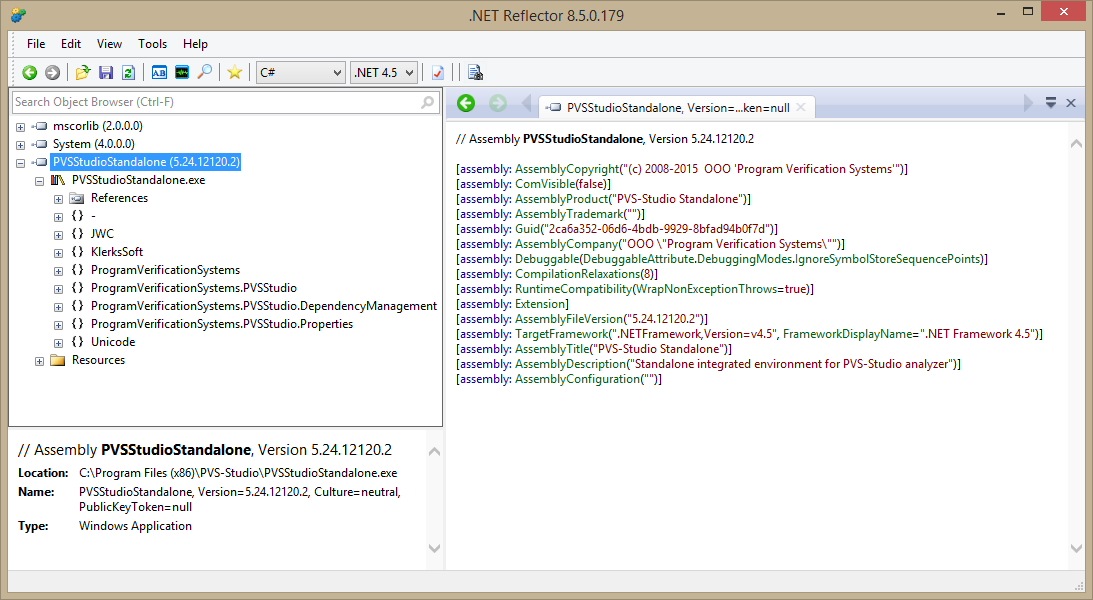
We see that class names are not obfuscated , (they look normal). Also with the code of the methods of these classes, if you look at them. We draw the first conclusion : the main executable file is not protected in any way. Okay Move on.
Let's find a license check and everything related to it.
Launch PVS-Studio , go to the Tools -> Options ... -> Registration menu . Let's try to enter the user name and random key (I didn’t contact the author, I didn’t ask for the key, so I don’t know the format):
Enter random reg.data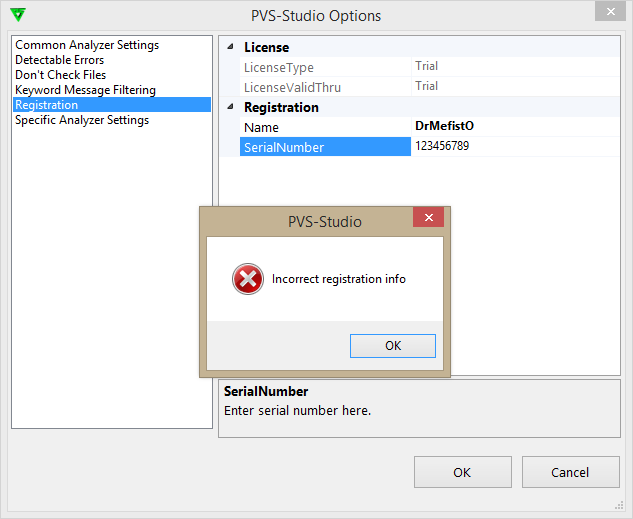
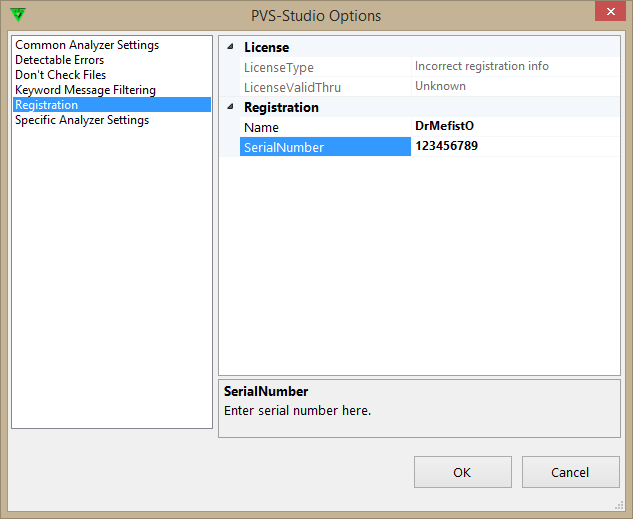
Now you can search the text of the error message in the .NET Reflector . Hit F3 ( Search ), then Ctrl + S ( Search String or Constant ). Enter " Incorrect registration info ". We get:
Looking for Incorrect registration info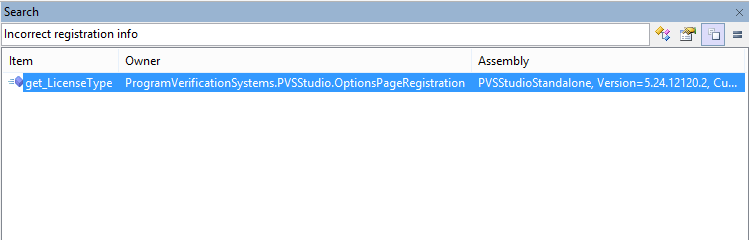
Double-click on the found link and get the following code:
Get_LicenseType () method code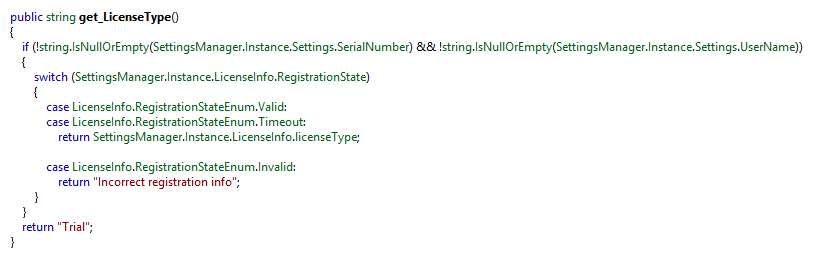
Let's try to find out where this method is called from. Hit Ctrl + R ( Analyze ), expand the list, and expand the Used By list in it :
List of references to the get_LicenseType () method
Click RMB according to the method found, and there Go To Member .
ResetRegistrationInformation () Method Code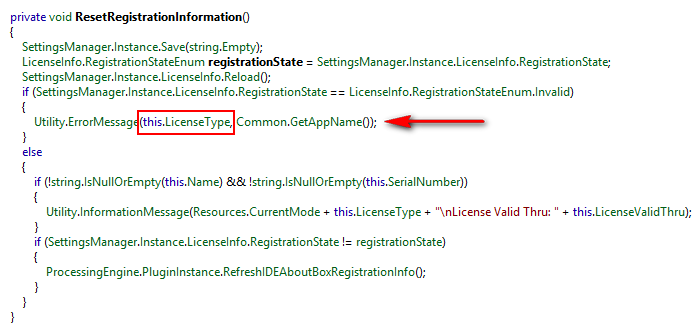
On the screen, I highlighted the place where we get the error message. In the condition of the if statement, we see a check for the Invalid license type . So this type was installed somewhere above the code. We’ll just go through all the methods in order until we find something suspicious ... And, here it is:
Method ProgramVerificationSystems.PVSStudio.LicenseInfo.Reload ()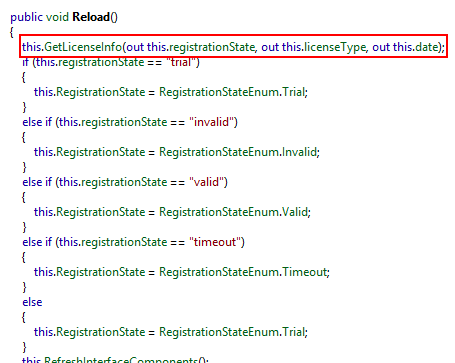
We happily go to the GetLicenseInfo () method !
GetLicenseInfo () Method Code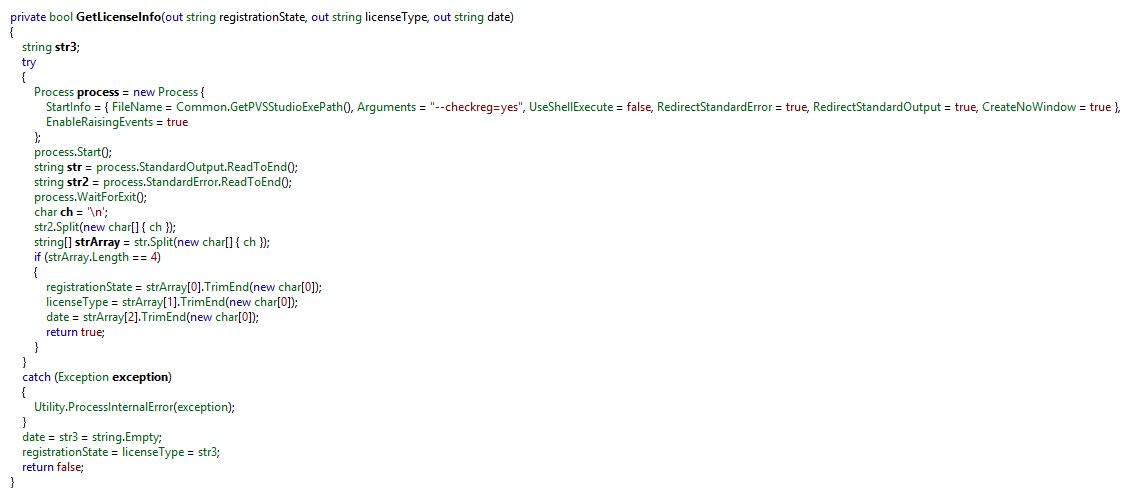
What's going on here? It seems that some kind of exe file is launched, with the argument --checkreg = yes , then its output to the console is parsed, and based on the results, license information is given. Which file is running? It’s easy to find out: we go into the GetPVSStudioExePath () method and see:
GetPVSStudioExePath () Method Code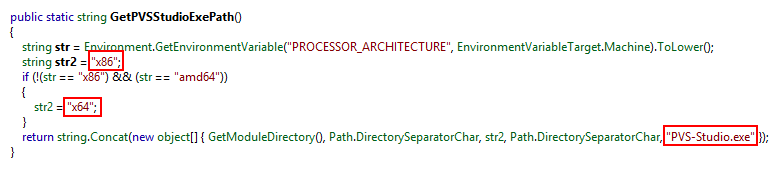
There is an exe PVS-Studio.exe that seems to be in x86 or x64 directories . Having looked in the directory with the program, we are convinced that, yes - such folders, and we have such an executable file. Perfectly!
So he, when passing him a special parameter about a license request ( --checkreg = yes ), should spit out information about our license with you.
Even deeper. EXE No. 2
We will try to launch PVS-Studio.exe separately through the command line, passing to it our desire to find out about the license.
Request a license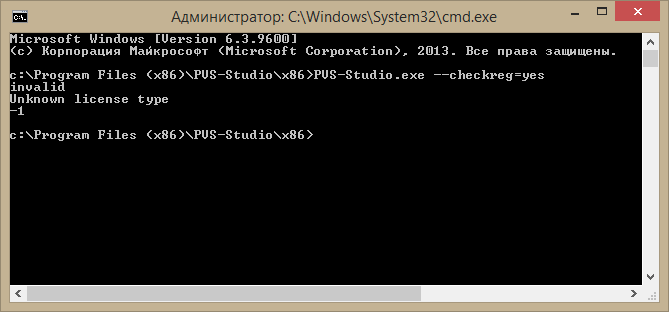
Very good search line: " Unknown license type ". We will look for her through Olly Debugger v2 . Open in " Olka " of PVS-Studio.exe , click PCM -> Search for -> the All referenced This strings :
All Referenced Text Strings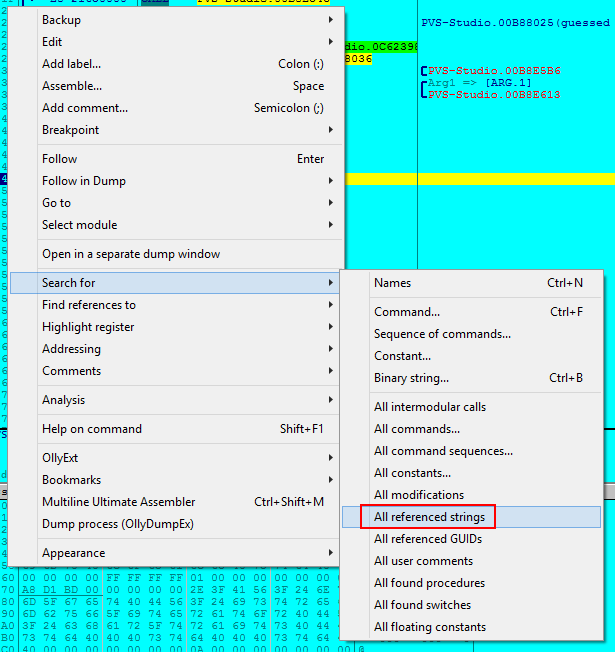
Press Ctrl + F ( Search for Text ), enter: Unknown license type . And, we find one link:
Search results Unknown license type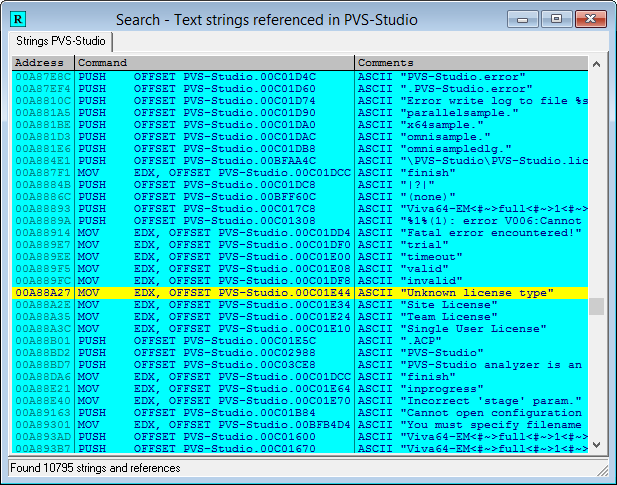
By double-clicking on the link we get to the code:
Interesting code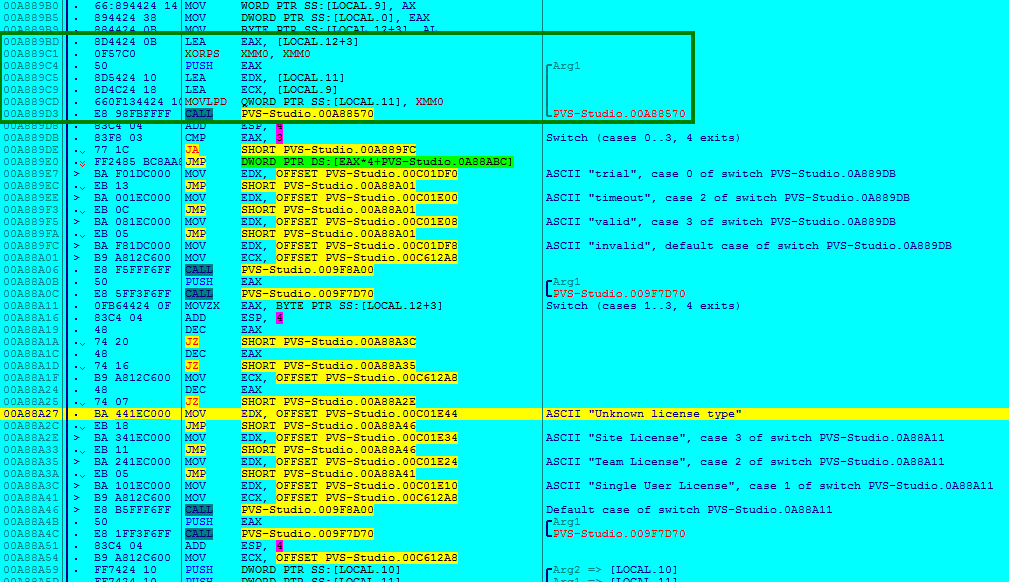
On the screen, I highlighted an interesting, in my opinion, function with a rectangle.
Firstly, immediately after its call, the value in the EAX register is checked for a number from zero to three ( 0 - trial , 1 - invalid , 2 - timeout , 3 - valid ).
Then, the byte is checked under the address BYTE PTR SS: [LOCAL.12 + 3] (as Olka called it ) for values from 0 to 3 ( 0 - Unknown license type , 1 - Single User License , 2 - Team License, 3 - Site License ). This address is provided at the function input in the EAX register .
Somewhere further there is still a date output to the console, but I did not deal with it, because if the license type is valid , then the date does not matter to him.
Patching. EXE No. 1
Now the most interesting thing: you need to patch the code at the address that CALL points to (in my case, 0xA88570 ), so that the type of license and mode we need is displayed . Let's compile the code:
First of all, we’ll “ fix ” the byte responsible for the type of license. I chose Site License (this is number 3 ). Judging by the information we have, we write in Olka such a code (press Space on the address 0xA88570 ):
mov byte ptr [eax], 3
Then, fix the value returned in EAX . I also chose 3 ( valid ):
mov eax, 3
Well, finally, exit the function:
retn
Work results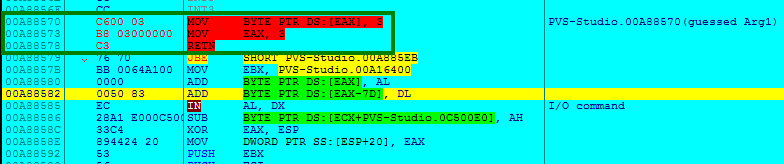
All! We save the changes to the executable file, and enjoy the fully working license!
Patching. EXE No. 2
This time, the executable file is 64-bit, so Olka cannot find the code. But, you can find it using x64dbg . Show a little perseverance and you can patch it too!
PS As you can see, from the strength of half an hour of research, and we are waiting for a good result.
the end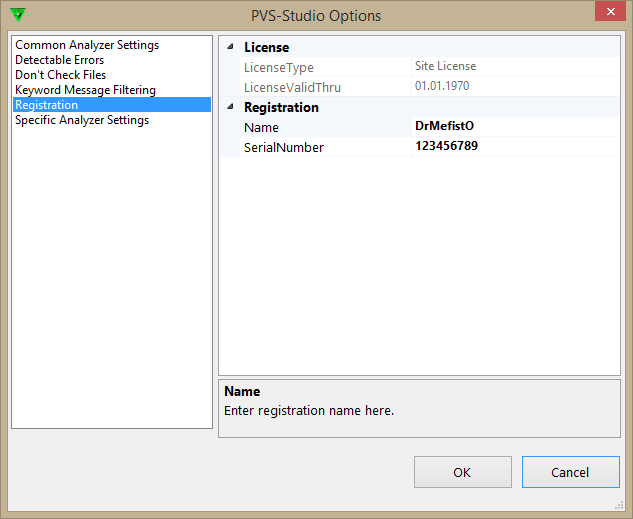
Thanks to all!