Diagnosing problems after installing or upgrading ORACLE APEX
- Transfer
What should I do if, after upgrading or installing APEX, the browser displays an error message or a blank white page instead of the start page? This article contains the most common causes and methods for solving such problems.
After installation or upgrade, a blank page with a white background is displayed instead of the authorization start page in Workspace.

In this case, it is recommended to view the source HTML-code of the page to make sure that the server has transmitted at least some information.

We see that the HTML page was correctly generated by the server, but was not displayed in the browser. The APEX authorization page contains a large amount of JavaScript code and CSS. If access to these files is not available, the browser displays a blank page. Therefore, it is necessary to verify that static files (Images, CSS, JavaScript) were correctly placed on the server and can be called with the URL prefix specified during installation (usually / i /). The easiest method is to open the following URL in the browser:
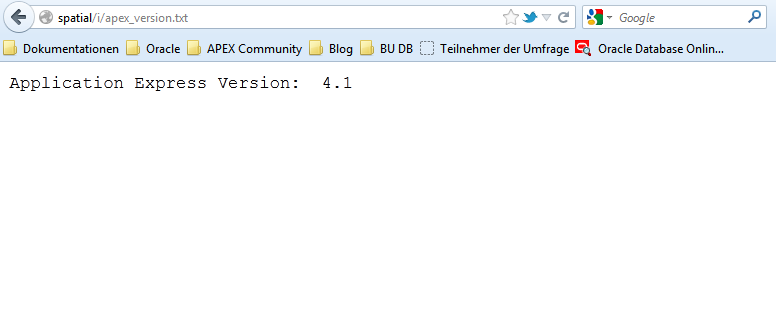
The screenshot shows that the static files are version 4.1.
If the received version does not match the installed version of APEX (here 4.2.1), then the effect will be the same as if these files were missing.
It may also happen that the file is not available. Then the result will look like the image below.

In both cases, it is necessary to verify the installation of static files. How to do this depends on the web server you are using.
There are also cases where, instead of a blank page, the browser displays an HTTP error.

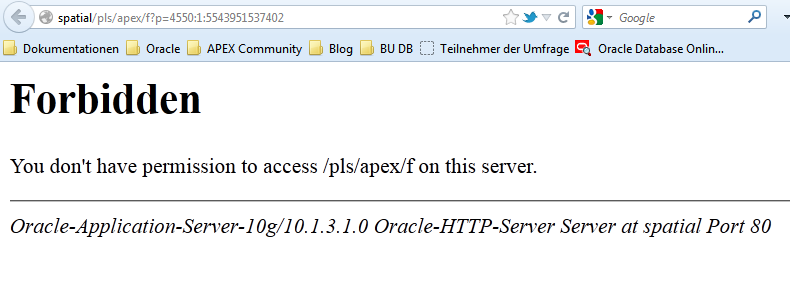

Depending on the Web server used, the error messages look different. Apex itself in most cases has nothing to do with it - an error occurs in other modules. For diagnostics, you can look at the logs or display a description of the error on the screen. Let us consider the last method in more detail:
If you are using Apache with mod_plsql, then you need to add the following line to the DAD file (dads.conf):
and restart the web server. Alternatively, of course, you can simply look at the error_log file, but this is not so obvious.
If you are using PL / SQL Embedded Gateway, you must run the following command in the database under the SYS user:
Changes take effect immediately.
If you are using APEX Listener, you must set the debug.printDebugToScreen property in the XML configuration file to true.
Now, instead of the faceless error 403, comprehensive information will be shown:
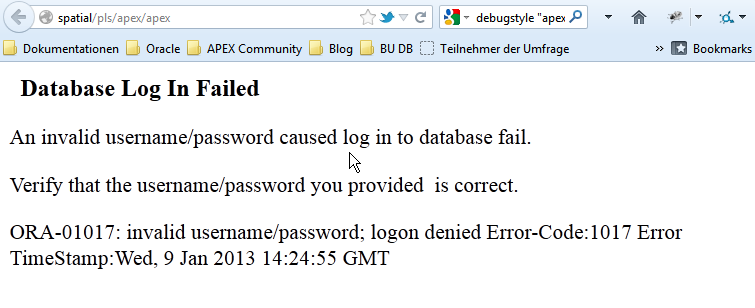
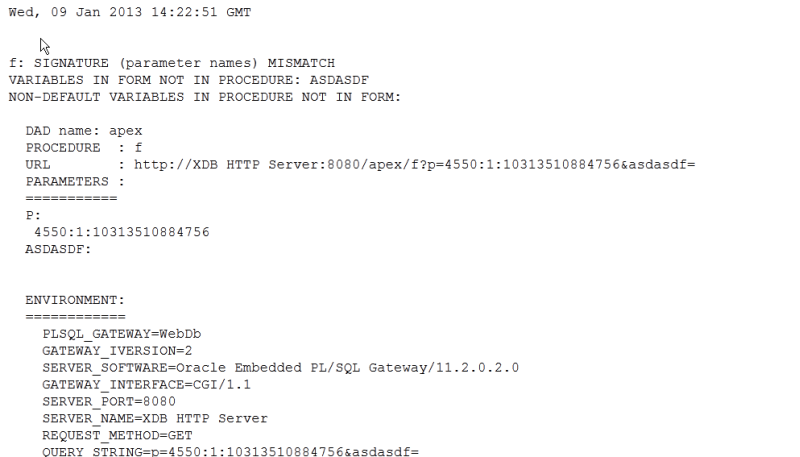
In the example above, the problem with the password of the user APEX_PUBLIC_USER is visible. For example, it could expire. When using the PL / SQL Embedded Gateway, the site with the error message looks different - but contains the same information. The example below shows the PL / SQL error that occurs if an additional parameter is added to the Apex site URL that Apex cannot recognize - for example, "& myparameter = coolvalue".
In most cases, such visual error messages make diagnosis easier and help solve the problem.
If the error messages look mysterious and incomprehensible, indicate a problem inside the APEX modules, it is recommended to examine the installation log or the APEX upgrade log for errors.

In the log file, it is convenient to look for errors that occurred during installation by the prefix "ORA-". If the study of the log file did not help to identify the problem, then, if you have a paid license, you can use technical support.
It is important to know that in the case of upgrading Apex to a radically new version (for example, from 4.0 to 4.2, not installing hotfixes), you can easily "roll back" to the old version, since the new version is installed not "on top", but "next to" the old one. Moreover, all Apex applications and workspaces (Workspaces) are simply copied to the new version. Then the installation script redirects public synonyms to the new version and thus makes the new version active. If the new version refuses to work - you can easily "roll back" to the old version - you just need to "redirect" the synonyms back and remove the new version of Apex.
A blank page is displayed.
After installation or upgrade, a blank page with a white background is displayed instead of the authorization start page in Workspace.
In this case, it is recommended to view the source HTML-code of the page to make sure that the server has transmitted at least some information.
We see that the HTML page was correctly generated by the server, but was not displayed in the browser. The APEX authorization page contains a large amount of JavaScript code and CSS. If access to these files is not available, the browser displays a blank page. Therefore, it is necessary to verify that static files (Images, CSS, JavaScript) were correctly placed on the server and can be called with the URL prefix specified during installation (usually / i /). The easiest method is to open the following URL in the browser:
http://{hostname}:{port}/i/apex_version.txt
The screenshot shows that the static files are version 4.1.
If the received version does not match the installed version of APEX (here 4.2.1), then the effect will be the same as if these files were missing.
It may also happen that the file is not available. Then the result will look like the image below.
In both cases, it is necessary to verify the installation of static files. How to do this depends on the web server you are using.
- If you are using Apache Webserver with mod_plsql, then the alias / i / should be configured to point to the $ APEX_HOME / apex / images directory. $ APEX_HOME is the directory into which the Apex distribution has been unzipped.
- If using PL / SQL Embedded Gateway, static files must be loaded into the database using the script $ APEX_HOME / apxldimg.sql. This script uses the directory name as a parameter. Attention: the script adds the path "/ apex / images" to the directory specified in the parameter and loads the contents of the resulting directory as a result of concatenation into the database. Thus, when running the script, you must specify only the directory with the unzipped Apex distribution.
If the script is invoked by the commandSQL> @apxldimg D:\
then the script will wait for the presence of static files in the "D: \ apex \ images" directory. - When using APEX LISTENER, the latter creates from the directory $ APEX_HOME / apex / images an ajax archive containing all static files.
$ cd $APEX_HOME/apex/images
$ jar -cf i.war *
The i.war file must be installed on the Java-Application Server (Glassfish, Weblogic, Tomcat) as a new web application - the previous one from the previous version of the apex should be deleted.
After updating the web application, you need to run the test again: open the URL /i/apex_version.txt in the browser. The version of Apex in this file must match the version of Apex in the database.
Connection errors
There are also cases where, instead of a blank page, the browser displays an HTTP error.
TTP 503: Service temporarily unavailable
HTTP 403: Forbidden
HTTP 404: Not Found
Depending on the Web server used, the error messages look different. Apex itself in most cases has nothing to do with it - an error occurs in other modules. For diagnostics, you can look at the logs or display a description of the error on the screen. Let us consider the last method in more detail:
If you are using Apache with mod_plsql, then you need to add the following line to the DAD file (dads.conf):
PlsqlErrorStyle DebugStyle
and restart the web server. Alternatively, of course, you can simply look at the error_log file, but this is not so obvious.
If you are using PL / SQL Embedded Gateway, you must run the following command in the database under the SYS user:
exec dbms_epg.set_dad_attribute('APEX', 'error-style', 'DebugStyle');
Changes take effect immediately.
If you are using APEX Listener, you must set the debug.printDebugToScreen property in the XML configuration file to true.
Now, instead of the faceless error 403, comprehensive information will be shown:
In the example above, the problem with the password of the user APEX_PUBLIC_USER is visible. For example, it could expire. When using the PL / SQL Embedded Gateway, the site with the error message looks different - but contains the same information. The example below shows the PL / SQL error that occurs if an additional parameter is added to the Apex site URL that Apex cannot recognize - for example, "& myparameter = coolvalue".
In most cases, such visual error messages make diagnosis easier and help solve the problem.
If the error messages look mysterious and incomprehensible, indicate a problem inside the APEX modules, it is recommended to examine the installation log or the APEX upgrade log for errors.
In the log file, it is convenient to look for errors that occurred during installation by the prefix "ORA-". If the study of the log file did not help to identify the problem, then, if you have a paid license, you can use technical support.
It is important to know that in the case of upgrading Apex to a radically new version (for example, from 4.0 to 4.2, not installing hotfixes), you can easily "roll back" to the old version, since the new version is installed not "on top", but "next to" the old one. Moreover, all Apex applications and workspaces (Workspaces) are simply copied to the new version. Then the installation script redirects public synonyms to the new version and thus makes the new version active. If the new version refuses to work - you can easily "roll back" to the old version - you just need to "redirect" the synonyms back and remove the new version of Apex.