As I wrote custom locker

Hello to habrastarozhilam from habranovichka. Exactly a year ago, I decided to write a custom locker (lock screen) for my old Samsung Galaxy Gio in the style of the then popular Samsung Galaxy s3. What reasons made me do this, I won’t write, but I’ll add only that I was not going to upload the program on Google Play and didn’t plan to make money on it in any other way. This post is about the consequences of my decision.
I'll start from afar. Many praise Android for its openness and the ability to replace and customize firmware to fit its needs. What can I say? Compared to other popular operating systems, this is certainly true, but if you dig deeper into the Android architecture, difficulties and questions arise. Lockscreen (in Android it is called keyguard) just raises questions: why didn’t Google deal with it, since with launchers, why didn’t they make a dialogue with all the lockers available on the device and with the ability to select the default one? Somewhere deep in the brain, in a quiet, indecisive voice, someone answers: maybe Google (Android Ink. To be more precise) did so for security reasons. This voice is probably right, and many locker developers, and I (modesty did not allow myself to be assigned to them) had to invent a bicycle, and not one.
We study source codes
I started by using one of the advantages of Android - from studying the source. I am one of those conservatives who have been sitting on the stock firmware (2.3.6) for 2.5 years, so I studied the corresponding sources. The classes responsible for locking the screen are in android.policy.jar, which is in the system / framework. The original goal was to find an “entry point”, i.e. where and when is the locker called. Searched here .
The PhoneWindowManager.java class has a screenTurnedOff (int why) method, which calls the KeyguardViewMediator class method of the same name. Having tracked who calls whom, I found a method in the KeyguardViewManager class that creates the View locker directly.
publicsynchronizedvoidshow(){
	if (DEBUG) Log.d(TAG, "show(); mKeyguardView==" + mKeyguardView);
	if (mKeyguardHost == null) {
		if (DEBUG) Log.d(TAG, "keyguard host is null, creating it...");
		mKeyguardHost = new KeyguardViewHost(mContext, mCallback);
		finalint stretch = ViewGroup.LayoutParams.MATCH_PARENT;
		int flags = WindowManager.LayoutParams.FLAG_FORCE_NOT_FULLSCREEN
			| WindowManager.LayoutParams.FLAG_SHOW_WALLPAPER
			| WindowManager.LayoutParams.FLAG_KEEP_SURFACE_WHILE_ANIMATING
			/*| WindowManager.LayoutParams.FLAG_LAYOUT_IN_SCREEN
			| WindowManager.LayoutParams.FLAG_LAYOUT_INSET_DECOR*/ ;
		if (!mNeedsInput) {
			flags |= WindowManager.LayoutParams.FLAG_ALT_FOCUSABLE_IM;
		}
		WindowManager.LayoutParams lp = new WindowManager.LayoutParams(
			stretch, stretch, WindowManager.LayoutParams.TYPE_KEYGUARD,
			flags, PixelFormat.TRANSLUCENT);
		lp.softInputMode = WindowManager.LayoutParams.SOFT_INPUT_ADJUST_PAN;
		lp.windowAnimations = com.android.internal.R.style.Animation_LockScreen;
		lp.screenOrientation = ActivityInfo.SCREEN_ORIENTATION_NOSENSOR;
		lp.setTitle("Keyguard");
		mWindowLayoutParams = lp;
		mViewManager.addView(mKeyguardHost, lp);
	}
	if (mKeyguardView == null) {
		if (DEBUG) Log.d(TAG, "keyguard view is null, creating it...");
		mKeyguardView = mKeyguardViewProperties.createKeyguardView(mContext, mUpdateMonitor, this);
		mKeyguardView.setId(R.id.lock_screen);
		mKeyguardView.setCallback(mCallback);
		final ViewGroup.LayoutParams lp = new FrameLayout.LayoutParams(
		ViewGroup.LayoutParams.MATCH_PARENT,
		ViewGroup.LayoutParams.MATCH_PARENT);
		mKeyguardHost.addView(mKeyguardView, lp);
		if (mScreenOn) {
			mKeyguardView.onScreenTurnedOn();
		}
	}
	mKeyguardHost.setVisibility(View.VISIBLE);
	mKeyguardView.requestFocus();
}
Well, all ingenious is simple. I decided to repeat this code for my application and received an error - there is no permission needed. A little google, added the following permissions : SYSTEM_ALERT_WINDOW and INTERNAL_SYSTEM_WINDOW. It did not help.
I returned to studying the PhoneWindowManager.java class:
publicintcheckAddPermission(WindowManager.LayoutParams attrs){
	int type = attrs.type;
	if (type < WindowManager.LayoutParams.FIRST_SYSTEM_WINDOW || type > WindowManager.LayoutParams.LAST_SYSTEM_WINDOW) {
		return WindowManagerImpl.ADD_OKAY;
	}
	String permission = null;
	switch (type) {
		case TYPE_TOAST:
			// XXX right now the app process has complete control over// this...  should introduce a token to let the system// monitor/control what they are doing.break;
		case TYPE_INPUT_METHOD:
		case TYPE_WALLPAPER:
			// The window manager will check these.break;
		case TYPE_PHONE:
		case TYPE_PRIORITY_PHONE:
		case TYPE_SYSTEM_ALERT:
		case TYPE_SYSTEM_ERROR:
		case TYPE_SYSTEM_OVERLAY:
			permission = android.Manifest.permission.SYSTEM_ALERT_WINDOW;
			break;
		default:
			permission = android.Manifest.permission.INTERNAL_SYSTEM_WINDOW;
	}
	if (permission != null) {
		if (mContext.checkCallingOrSelfPermission(permission) != PackageManager.PERMISSION_GRANTED) {
			return WindowManagerImpl.ADD_PERMISSION_DENIED;
		}
	}
	return WindowManagerImpl.ADD_OKAY;
}
For the required TYPE_KEYGUARD window, you need the second of my added permissions. The back point of the body began to feel that not everything was as simple as I imagined. It was decided to look at the description of this permission. Here is an excerpt from the AndroidManifest.xml framework-res.apk package.
<permissionandroid:label="@string/permlab_internalSystemWindow"android:name="android.permission.INTERNAL_SYSTEM_WINDOW"android:protectionLevel="signature"android:description="@string/permdesc_internalSystemWindow" />Here it is - a black streak in life. After all, I understood that “signature” means that only a package signed with the same key as the package that issued this permission can use this permissions (in our case, framework-res.apk). Okay, get the tools for making bicycles.
Version one
The first solution was to use activity as a lockscreen. On stackoverflow, it is advised to use the following code:
@OverridepublicvoidonAttachedToWindow(){
	getWindow().setType(WindowManager.LayoutParams.TYPE_KEYGUARD);
	super.onAttachedToWindow();
}
I admit that in the first versions I used this method. It has significant drawbacks: the statusbar is not blocked, since API11 this method does not work.
The solution to the first flaw ( overflowing the stack again helped) is as follows. Using the WindowManager, a transparent View is drawn on top of the status bar , which captures all TouchEvents. Here is a service that implements this:
publicclassStatusbarServiceextendsService{
	View v;
	@OverridepublicvoidonStart(Intent intent, int id){
		super.onStart(intent, id);
		Bundle e = intent.getExtras();
		if(e != null){
			int statusBarHeight = (Integer) e.get("SBH");
			WindowManager.LayoutParams lp = new WindowManager.LayoutParams(WindowManager.LayoutParams.FILL_PARENT, statusBarHeight, WindowManager.LayoutParams.TYPE_SYSTEM_ALERT, WindowManager.LayoutParams.FLAG_NOT_FOCUSABLE | WindowManager.LayoutParams.FLAG_NOT_TOUCH_MODAL | WindowManager.LayoutParams.FLAG_LAYOUT_IN_SCREEN, PixelFormat.TRANSLUCENT);
			lp.gravity = Gravity.TOP;
			WindowManager wm = (WindowManager) getSystemService(WINDOW_SERVICE);
			v = new View(getBaseContext());
			wm.addView(v, lp);
		}
	}
	@OverridepublicvoidonDestroy(){
		super.onDestroy();
		WindowManager wm = (WindowManager) getSystemService(WINDOW_SERVICE);
		wm.removeView(v);
	}
	@Overridepublic IBinder onBind(Intent arg0){
		returnnull;
	}
}
There was no second flaw for me; on Gingerbread this code worked perfectly. On w3bsit3-dns.com, where I rashly posted my creation, users complained that on many phones my locker was minimized like a regular application. Such a solution was found for them. As a standard launcher, a dummy is installed. When I press the HOME button, the system calls my dummy launcher. If the custom locker is active, the launcher immediately closes in the onCreate () method, i.e. visually pressing the HOME button does not lead to anything. If the custom locker is not active, my launcher immediately calls another correct launcher, which the user specified in the settings.
Here is the dummy code:
publicclassHomeActivityextendsActivity{
	@OverridepublicvoidonCreate(Bundle savedInstanceState){
		super.onCreate(savedInstanceState);
		if(MainService.unlocked != false){
			try{
				SharedPreferences pref = PreferenceManager.getDefaultSharedPreferences(getBaseContext());
				String pn = pref.getString("settings_launcher_pn", "");
				String an = pref.getString("settings_launcher_an", "");
				Intent launch = new Intent(Intent.ACTION_MAIN);
				launch.addCategory(Intent.CATEGORY_HOME);
				launch.addFlags(Intent.FLAG_ACTIVITY_EXCLUDE_FROM_RECENTS);
				launch.setClassName(pn, an);
				startActivity(launch);
			} catch(Exception e){
				Intent i = null;
				PackageManager pm = getPackageManager();
				for(ResolveInfo ri:pm.queryIntentActivities(new Intent(Intent.ACTION_MAIN).addCategory(Intent.CATEGORY_HOME), PackageManager.MATCH_DEFAULT_ONLY)){
					if(!getPackageName().equals(ri.activityInfo.packageName)){
						i = new Intent().addCategory(Intent.CATEGORY_HOME).setAction(Intent.ACTION_MAIN).addFlags(Intent.FLAG_ACTIVITY_EXCLUDE_FROM_RECENTS).setClassName(ri.activityInfo.packageName, ri.activityInfo.name);
					}
				}
				if(i != null) startActivity(i);
			}
		}
		finish();
	}
}
It looked like this:
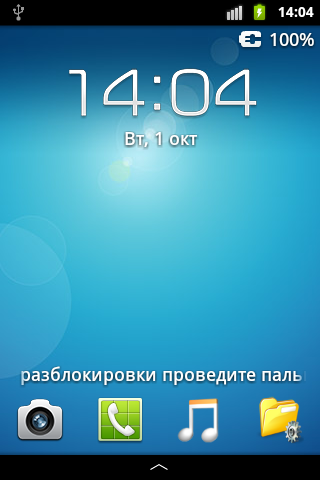
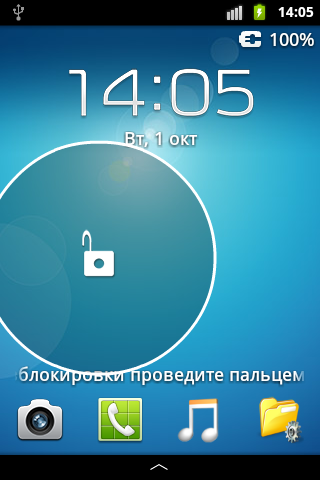
These bikes rode long and well until I decided to make the “correct” lockscreen, and already in the style of the Samsung Galaxy S4.
Version two
When does a system need to run a custom locker? Obviously when turning off the screen. Let's create a service that registers BroadcastReceiver, as from the manifest this filter does not work.
Two features must be considered:
1. The service must be started when the device boots. Create BroadcastReseiver with IntentFilter "android.intent.action.BOOT_COMPLETED". There is one BUT: the service at startup should disable the standard screen lock. A feature of Android is that the standard PIN input window is part of the stock lock screen. Therefore, the service should only be started when the PIN is entered.
The maximum that was enough for my imagination:
publicclassBootReceiverextendsBroadcastReceiver{
	@OverridepublicvoidonReceive(Context context, Intent intent){
		TelephonyManager tm = (TelephonyManager)context.getSystemService(Context.TELEPHONY_SERVICE);
		if(PreferenceManager.getDefaultSharedPreferences(context).getBoolean("unlock_screen_enable", false)){
			if(tm.getSimState() != TelephonyManager.SIM_STATE_PIN_REQUIRED && tm.getSimState() != TelephonyManager.SIM_STATE_PUK_REQUIRED){
				context.startService(new Intent(context, KeyguardService.class));
			} else {
				AlarmManager alarms = (AlarmManager)context.getSystemService(Context.ALARM_SERVICE);
	            Intent intentToFire = new Intent(context, BootReceiver.class);
	            PendingIntent alarmIntent = PendingIntent.getBroadcast(context, 0, intentToFire, 0);
	            alarms.set(AlarmManager.RTC_WAKEUP, System.currentTimeMillis() + 10000, alarmIntent);
			}
		}
	}
}
2. Having analyzed PhoneWindowManager, it is clear that the why variable, which takes 3 values,
is passed to the screenTurnedOff (int why) method: - the screen turns off after a timeout (in this case, the stock locker starts with a delay),
- the screen turns off when the proximity sensor is triggered (during the phone conversation),
- the screen turns off when the button is pressed.
In my case, there is no such diversity. Therefore, the service monitors the status of the phone, and the screen is not blocked during an incoming call or during a call.
Here is the main service code:
publicclassKeyguardServiceextendsService{
	KeyguardMediator keyguardMediator;
	KeyguardManager.KeyguardLock keyguardLock;
	boolean telephone = false; //false - no call, true - in callboolean wasLocked = false;
	@OverridepublicvoidonCreate(){
		super.onCreate();
		TelephonyManager telephonyManager = (TelephonyManager)getSystemService(Context.TELEPHONY_SERVICE);
		telephonyManager.listen(new MyPhoneStateListener(), PhoneStateListener.LISTEN_CALL_STATE);
		keyguardLock = ((KeyguardManager)getSystemService(KEYGUARD_SERVICE)).newKeyguardLock("Custom keyguard by Arriva");
		keyguardLock.disableKeyguard();
		IntentFilter filter = new IntentFilter();
		filter.addAction(Intent.ACTION_SCREEN_OFF);
		registerReceiver(receiver, filter);
		keyguardMediator = new KeyguardMediator(this);
	}
	@OverridepublicvoidonDestroy(){
		super.onDestroy();
		unregisterReceiver(receiver);
		keyguardLock.reenableKeyguard();
		keyguardLock = null;
		keyguardMediator.destroy();
	}
	voidchangeTelephoneState(int state){
		if(state == TelephonyManager.CALL_STATE_IDLE){
			telephone = false;
			if(wasLocked){
				wasLocked = false;
				keyguardMediator.visibility(true);
			}
		} else {
			telephone = true;
			if(keyguardMediator.isShowing){
				wasLocked = true;
				keyguardMediator.visibility(false);
			}
		}
	}
	private BroadcastReceiver receiver = new BroadcastReceiver(){
		@OverridepublicvoidonReceive(Context context, Intent intent){
			String settingsLock = PreferenceManager.getDefaultSharedPreferences(context).getString("screen_lock", "2");
			if(!settingsLock.equals("1")){
				keyguardMediator.show();
			}
		}
	};
	classMyPhoneStateListenerextendsPhoneStateListener{
		@OverridepublicvoidonCallStateChanged(int state, String incomingNumber){
			super.onCallStateChanged(state, incomingNumber);
			changeTelephoneState(state);
		}
	}
}
The idea of not using activity, but using WindowManager was still strong. Of the five window types using the SYSTEM_ALERT_WINDOW permission, TYPE_SYSTEM_ALERT suited me. Moreover, he had obvious advantages: the statusbar was blocked (at least on Gingerbread) and the HOME button was intercepted (it works even on Jelly Bean).
The intermediate link between the service and KeyguardView is the KeyguardMediator class:
publicclassKeyguardMediator{
	WindowManager windowManager;
	KeyguardHost keyguardHost;
	KeyguardView keyguardView;
	Context context;
	boolean isShowing;
	String[] prefShortcutsArray;
	String prefScreenLock;
	String prefUnlockEffect;
	String prefPatternPassword;
	boolean prefMultipleWidgets;
	boolean prefShortcuts;
	boolean prefHelpText;
	boolean prefPatternVisible;
	boolean prefWallpaper;
	boolean drawWallpaperView;
	boolean drawWallpaperViewSqueeze;
	publicKeyguardMediator(Context con){
		context = con;
		windowManager = (WindowManager)context.getSystemService(Context.WINDOW_SERVICE);
		// Этот класс ко всему прочему хранит еще и настройки
	}
	voidonResume(){
		if(keyguardView != null){
			keyguardView.onResume();
		}
	}
	voidonPause(){
		if(keyguardView != null){
			keyguardView.onPause();
		}
	}
	voidshow(){
		if(isShowing){
			visibility(true);
			return;
		}
		keyguardView = new KeyguardView(context, this);
		isShowing = true;
		int flags = WindowManager.LayoutParams.FLAG_FORCE_NOT_FULLSCREEN;
		if(!drawWallpaperView) {
			flags |= WindowManager.LayoutParams.FLAG_SHOW_WALLPAPER;
		}
		int format = PixelFormat.OPAQUE;
		if(!drawWallpaperView) {
			format = PixelFormat.TRANSLUCENT;
		}
		WindowManager.LayoutParams lp = new WindowManager.LayoutParams(WindowManager.LayoutParams.FILL_PARENT, WindowManager.LayoutParams.FILL_PARENT, WindowManager.LayoutParams.TYPE_SYSTEM_ALERT, flags, format);
		if(drawWallpaperView){
			lp.windowAnimations = android.R.style.Animation_Toast;
			// Можно использовать только стандартную анимацию
		}
		lp.screenOrientation = ActivityInfo.SCREEN_ORIENTATION_NOSENSOR;
		lp.setTitle("Custom keyguard");
		keyguardHost = new KeyguardHost(context);
		keyguardHost.addView(keyguardView);
		windowManager.addView(keyguardHost, lp);
	}
	voidhide(){
		if(!isShowing){
			return;
		}
		isShowing = false;
		keyguardHost.setVisibility(View.GONE);
		// Прежде чем удалить View необходимо сделать его невидимым, тогда он исчезнет с анимацией
		windowManager.removeView(keyguardHost);
		keyguardHost = null;
		keyguardView = null;
	}
	voidvisibility(boolean visible){
		// Во время звонка View становится невидимым
		keyguardHost.setVisibility(visible ? View.VISIBLE : View.GONE);
		if(keyguardView != null){
			if(visible){
				keyguardView.onResume();
			} else {
				keyguardView.onPause();
			}
		}
	}
	voidstartWidgetPicker(){
		// Запускает activity выбора виджетов
	}
	voidfinishWidgetPicker(){
		// Перенаправляет результат layout'у с виджетами
	}
	voiddestroy(){
		if(keyguardHost != null){
			windowManager.removeView(keyguardHost);
			keyguardHost = null;
			keyguardView = null;
		}
	}
}
Further, the story becomes less interesting, so to speak, everyday. You can add application shortcuts to my locker (everything is standard and simple here) and widgets (but this point is worthy of a separate article).
Now everything has become more modern:
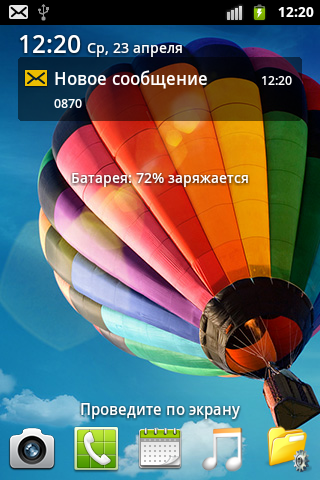
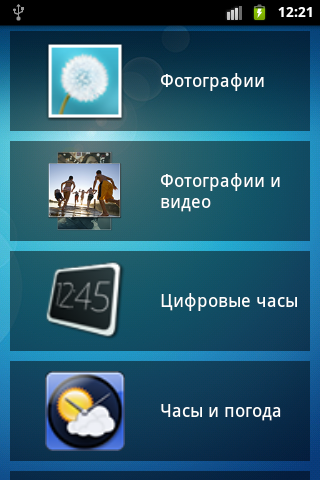
Conclusion
With this post I did not want to promote myself. This is not a guide for writing lockers. I just wanted to show how a person who is too lazy to read at least one book on the basics of Java, but who has been practicing writing programs for two years, can contrive to get a specific result.