
 February 19, 2014 at 04:05
Xcode and Travis: running tests on many configurations
- Tutorial
 In principle, the main idea of this note can be fit into one sentence: "since you are writing tests, it would be nice to run them on all possible configurations, and not on one single one." But since the format of single-line articles on the hub is not accepted, and the information is acquired in proportion to the logarithm of the number of words in the explanation, I will reveal the idea in more detail.
Introduction
Do you like bugs? I adore some of them: fat juicy fatal bugs are a real pleasure, it is impossible not to miss them and release a release with them. However, there are also unlikely small bugs that are not visible to the naked eye, but which strive to manifest themselves in some specific conditions, for example, only on a certain version of the OS, or exclusively when compiler optimization is enabled. These little scoundrels, being uncaught, can drink a lot of the developer’s blood and spoil the sleep at night. Paradoxically, the less often a bug manifests itself, the more forces sometimes go into its capture and elimination. If you understand what I mean, then the idea that tests should be run on the whole set of potentially used combinations of OS versions, devices, and compilation settings will probably seem obvious to you.
However, as a cursory inspection of a couple of dozens of popular libraries on GitHub showed, most developers, even using automatic test run for each commit (via Travis-CI), they still test only one configuration for the latest version of iOS. Units in addition run tests on OS X, but this is limited. Let's see how it can be done differently.
In principle, the Continuous Integration module built into Xcode 5 allows you to run tests on several simulators, but it does not provide sufficient flexibility, and in general, many did not like it. Therefore, in this article we will not consider it in detail, moreover, we have already written about it .
xcodebuild
For testing, we will use the xcodebuild utility , which comes with the Xcode Command Line Tools . Previously, most preferred xctool from Facebook, as Firstly, xcodebuild did not start without tambourines and dances, and secondly, xctool produces a more pleasant conclusion. However, with the release of Xcode 5, the situation changed in favor of the native xcodebuild : tambourines have become unnecessary, and xctool at the moment does not allow you to specify the type of simulator, which is actually the key moment for us.
A typical testing command looks like this:
xcodebuild test -project {project}.xcodeproj -scheme {scheme} -sdk iphonesimulator -destination OS=6.0,name=iPhone -configuration Release
Everything is quite obvious: we indicate the project (or workspace), scheme, SDK, OS version, simulator name and Debug / Release configuration.
With a small script, we can easily iterate and test all possible configurations (assuming that we have 5.0 Deployment Target, and we are testing a universal library for iOS and OS X):
for configuration in Release Debug
do
    for device in "iPhone" "iPad"
    do
        for iosversion in 6.0 6.1 5.0 5.1
        do
            test_ios iOSTests "$iosversion" "$device" "$configuration"
        done
    done
    for device in "iPhone Retina (3.5-inch)" "iPhone Retina (4-inch)" "iPad Retina"
    do
        for iosversion in 6.0 6.1 7.0
        do
            test_ios iOSTests "$iosversion" "$device" "$configuration"
        done
    done
    for device in "iPhone Retina (4-inch 64-bit)" "iPad Retina (64-bit)"
    do
        test_ios iOSTests-64bit 7.0 "$device" "$configuration"
    done
    test_osx OSXTests "$configuration"
done
This will give us 40 possible configurations, which perhaps looks already redundant. After all, testing the logic at different resolutions or UI with different optimization settings does not make much sense. And if you managed to upgrade the system to OS X Mavericks, then you managed to notice that iOS 5 simulators didn’t work on it.
So, in the rest of this article we will test the following configurations:
| Logic tests | iOS 6.0 | iOS 6.1 | iOS 7.0 | iOS 7.0 64-bit | OS X |
| Release | ✓ | ✓ | ✓ | ✓ | ✓ |
| Debug | ✓ | ✓ | ✓ | ✓ | ✓ |
| UI Tests | iPhone | iPad | iPhone Retina (3.5-inch) | iPhone Retina (4-inch) | iPad Retina |
| iOS 6.0 | ✓ | ✓ | ✓ | ✓ | ✓ |
| iOS 7.0 | ✓ | ✓ | ✓ | ✓ |
Adding a binding to count successfully tested configurations and exit on the first failure, we get the
final version of the script:
test-main-configurations.sh
#!/bin/sh
# Global settings
project=XCode/TravisCI.xcodeproj
Formatting output
function red() {
    eval "$1=\"$(tput setaf 1)$2$(tput sgr 0)\""
}
function green() {
    eval "$1=\"$(tput setaf 2)$2$(tput sgr 0)\""
}
function yellow() {
    eval "$1=\"$(tput setaf 3)$2$(tput sgr 0)\""
}
function bold() {
    eval "$1=\"$(tput bold)$2$(tput sgr 0)\""
}
function echo_fmt() {
    local str=$1
    local color=$2
    local bold=$3
    if [ "$color" != '' ]; then
        $color str "$str"
    fi
    if [ "$bold" != '' ]; then
        $bold str "$str"
    fi
    echo $str
}
Testing
succeeded_count=0
function test() {
    local options="$@"
    echo_fmt "xcodebuild test -project $project $options" yellow
    xcodebuild test -project $project "$@"
    local exitcode=$?
    if [[ $exitcode != 0 ]] ; then
        echo_fmt "xcodebuild exited with code $exitcode" red
        echo_fmt "=== TESTS FAILED ===" red bold
        exit 1
    else
        ((succeeded_count++))
    fi
}
function test_ios() {
    local scheme=$1
    local iosversion=$2
    local device="$3"
    local configuration=$4
    shift 4
    echo_fmt "=== TEST SCHEME $scheme IOS $iosversion DEVICE $device CONFIGURATION $configuration ===" yellow bold
    test -scheme "$scheme" \
         -sdk iphonesimulator \
         -destination OS="$iosversion",name="$device" \
         -configuration "$configuration" \
         "$@"
}
function test_osx() {
    local scheme=$1
    local configuration=$2
    shift 2
    echo_fmt "=== TEST SCHEME $scheme OSX CONFIGURATION $configuration ===" yellow bold
    test -scheme "$scheme" -configuration "$configuration" "$@"
}
# Logic tests
for configuration in Release Debug
do
    for iosversion in 6.0 6.1 7.0 #5.0 5.1 # Mavericks does not support iOS 5 Simulator
    do
        test_ios "iOSLogicTests" "$iosversion" "iPad Retina" "$configuration"
    done
    test_ios "iOSLogicTests-64bit" 7.0 "iPad Retina (64-bit)" "$configuration" ONLY_ACTIVE_ARCH=YES
    test_osx "OSXTests" "$configuration"
done
# UI tests
test_ios "iOSUITests" 6.0 "iPhone" Debug
for device in "iPad" "iPhone Retina (3.5-inch)" "iPhone Retina (4-inch)" "iPad Retina"
do
    for iosversion in 6.0 7.0
    do
        test_ios "iOSUITests" "$iosversion" "$device" Debug
    done
done
# Result
echo_fmt "=== SUCCEEDED $succeeded_count CONFIGURATIONS. ===" green bold
Which launch:
./Script/test-main-configurations.sh
=== SUCCEEDED 19 CONFIGURATIONS ===or error message:
=== TESTS FAILED ===
About testing on the iOS 64-bit simulator
Because of some kind of bug, Xcode often doesn’t let you run tests on a 64-bit simulator and swears with a strange message:
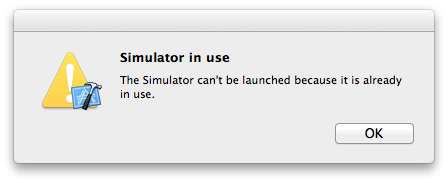
This disgrace is fixed by setting “Build Active Architecture Only” = “YES” for the tested configuration (Debug / Release). Therefore, in the script for 64-bit tests there is an additional option
This disgrace is fixed by setting “Build Active Architecture Only” = “YES” for the tested configuration (Debug / Release). Therefore, in the script for 64-bit tests there is an additional option
ONLY_ACTIVE_ARCH=YES.Xcode
Someone may not like to run the script manually, so you can create a separate target that will run it. To do this, in Xcode, do the Add Target ... -> Other -> Aggregate manipulations , then Editor -> Add Build Phase -> Add Run Script Build Phase , and add the following script:
cd ${SRCROOT}/.. # переходим в корень репозитория
scriptname="test-main-configurations"
script="Script/${scriptname}.sh"
log="Script/${scriptname}.log"
$script > $log # запускаем скрипт, вывод записываем в файл
if [[ $? != 0 ]] ; then # если скрипт завершился неудачей, ...
    echo "error: TESTS FAILED" # ... то показываем ошибку и выходим, ...
    exit 1
else
    rm $log # ... иначе удаляем временный файл
fi
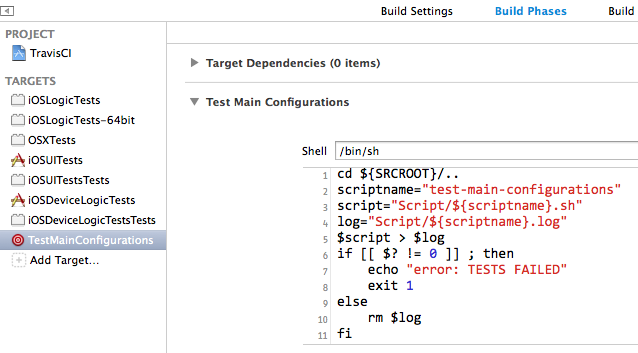
Now, if the assembly of this target ( ⌘ + B ) has completed successfully, then the tests passed successfully, if not, go to the Scripts / test-main-configurations.log log and see what is the reason.
Of course, to run such testing manually before each commit is not enough willpower, but it is quite possible to make this a mandatory step when releasing a new release, for example by adding a similar Build Phase in the release branch of DVCS .
Travis-ci
But of course, it’s more effective when the tests are regularly run automatically, for this we’ll set up the Travis-CI integration system , which will automatically run all our tests with every push on GitHub. I will not describe in too much detail, since there has already been a corresponding article , I will dwell only on the necessary points.
All we need is to add the .travis.yml file to the root of the repository , which will indicate that we need to run our script:
language: objective-c
script: Script/test-main-configurations.sh
Well, log in to Travis-CI and enable the checkmark for the desired repository. In principle, that's all. Now commits will be thoroughly tested, and pull requests will be accompanied by messages from Travis:


Do not forget to check that the test circuits are present in the repository, i.e. the Shared checkbox is set for them :
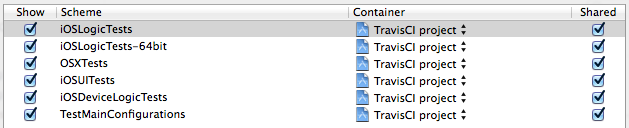
By the way, Travis uses Xcode 5.0.2 on OS X 10.8.5, so it can run tests on iOS 5.0 and iOS 5.1.
Testing on the device.
If you still have a device on iOS 5, then you can run tests on it by writing a similar script for several configurations. Logic tests run only on the simulator, and only application tests can be run on the device. Therefore, if you are testing a library, you will have to create an empty container application with your library and test it.
The xcodebuild command for testing on a device looks something like this:
xcodebuild test -project XCode/TravisCI.xcodeproj -scheme iOSDeviceLogicTests -sdk iphoneos -destination name='iPad Yan' -configuration Release
If something does not start, then see the spoiler
- There may be problems with the provisioning profile . Check if the application starts on the device from Xcode.
- Verify that there is a container application for the test target in Build Phases in Target Dependencies .
- The Bundle Loader parameter in Build Settings must be set to:
$(BUILT_PRODUCTS_DIR)/MyExistingApp.app/MyExistingApp - And the Test Host parameter has a value:
$(BUNDLE_LOADER) - In addition, in the assembly settings of the container application, the parameter Symbols Hidden by Default should be equal to NO .
That's all. Have a nice test!