January 20, 2014 at 12:07
On-the-fly virtual machine migration without vMotion with Veeam Backup & Replication
Recently, I was faced with the following task: I had to perform on-the-fly migration of a virtual machine (VM), despite the fact that the vMotion function was not available in the existing version of VMware vSphere. I have successfully managed to solve this problem, and under the cut, I want to share my solution, because, I think, it can be useful to someone else.
VMware vMotion is a special vSphere feature that allows you to move VMs from one host to another on the fly, that is, without a visible impact on the production system. VMotion technology was introduced back in 2003 and is currently part of all editions of vSphere, except the Essentials Kit, which is designed to build small virtual infrastructures.
There are several scenarios when vMotion can be useful, starting from a case of scheduled system maintenance (for example, installing software update packages), when you need to migrate a VM to another server for a short period of time without downtime / downtime, and ending with a case of VM migration in case of problems with server performance. Of course, if the vSphere license allows you to do this, then the migration is performed with a couple of mouse clicks. But what to do when the installed version of vSphere does not have such an opportunity, but it is required for a one-time project? In this case, you can take advantage of the Quick Migration functionality available in Veeam Backup & Replication v7.
So what is it?
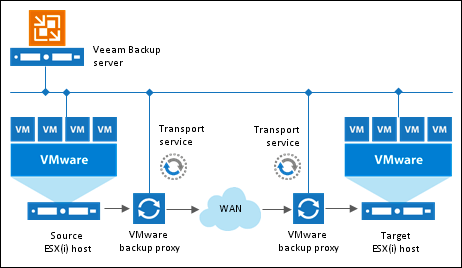
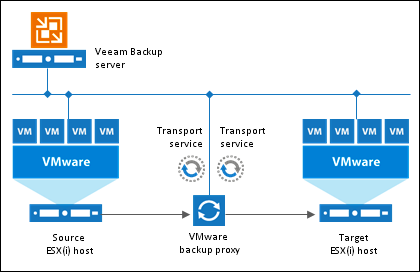
Quick Migration is one of the features of Veeam Backup & Replication, which is also available in the free version ( Free Edition ). The Quick Migration workflow is shown in the figure below. VMware backup proxy serves as a link in the migration of VMs.
Now I will show how Quick Migration works with a practical example. So, what needs to be done to perform the simplest migration “on the fly” without vMotion:
You need to download the free Veeam Backup & Replication Free Edition.
Install the program on a physical server or VM running Windows (64-bit required). The installer is standard and the installation of the product takes no more than 15 minutes.
Add two hosts to the Veeam Backup console: the first host (on which the VM is running) and the second host (where it needs to be moved), after which they will be available in the vSphere managed hosts section. The user interface is quite simple, I hope that there will be no difficulties with this operation. However, to make sure that everything is correct, you can see the visual installation process (in English).
When the hosts are successfully added to the console, you can proceed to the migration itself.
Quick Migration allows you to move a running VM between hosts and / or storage. In order to start the operation, you need to select the VM, right-click on it and select the Quick Migration ... item from the menu list.

The process itself contains several steps - mouse clicks. It is necessary to confirm the VM (you can take several), select the destination host where the transfer is made, and indicate the proxy server, if any are already in the system to increase the speed of the process:
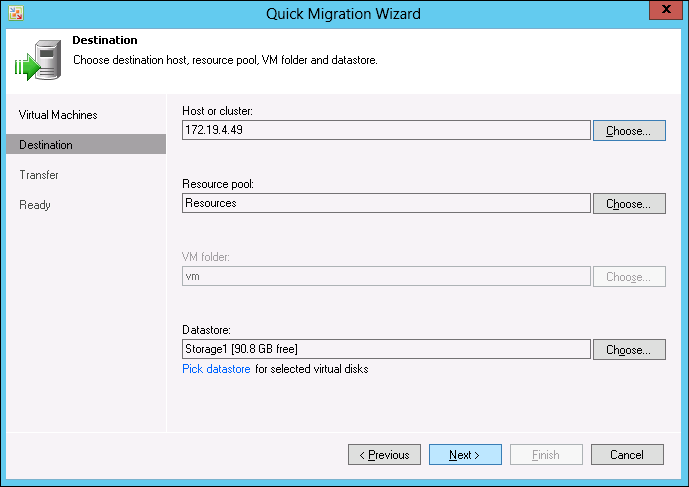
And that’s all! The system will transfer the VM to another host / storage, register it there and inform you that the machine can be used.
A few extra thoughts.
Quick Migration can be useful if you need to migrate VMware VMs between hosts (different datastores / hosts and datastores) of VMware ESX (i) without pausing it, that is, on the fly, and the VMware vMotion option is not available.
In general, Quick Migration works with VMs in any state, but this feature becomes very useful when VMs are running on a productive network and there is no way to turn them off (or pause).
Quick Migration can migrate multiple VMs in parallel.
Quick Migration is available only for VMware servers, but not for Hyper-V.
Useful resources
[1] Overview of Veeam Backup Free Edition (Habr)
[2] User manuals, FAQ on licenses, etc. (Russian and English)