December 13, 2013 at 15:07
Debugging 3CX Phone for Android using ADB monitor
This guide will provide you with all the information you need to collect reports and errors related to your 3CXPhone for Android, necessary for 3CX technical support.
Follow the link www.oracle.com/technetwork/java/javase/downloads/index.htm

Click on the Java Platform (JDK) 7u45 icon, then select, depending on your system, Windows x86 or Windows x64. You can also use direct links to download these files:
- Windows x86: download.oracle.com/otn-pub/java/jdk/7u45-b18/jdk-7u45-windows-i586.exe
- Windows x64: download.oracle. com / otn-pub / java / jdk / 7u45-b18 / jdk-7u45-windows-x64.exe
Download and install the version that matches your operating system (x86 for 32-bit Windows machines, x64 for 64-bit Windows machines)
The next step is to download and install the Android SDK Tools on your machine. To do this:
Follow the link developer.android.com/sdk/index.html

Scroll the list and click Download for other platforms.
Click on the file android-sdk_r22.3-Windows.zip, download it and extract it to a folder on your computer.
After you download and install the Android SDK Manager, you need to run it. For the next steps, you need to install the Google USB Driver.
Go to the android-sdk-windows \ tools folder on your computer and click on android.bat
Android SDK Manager will start
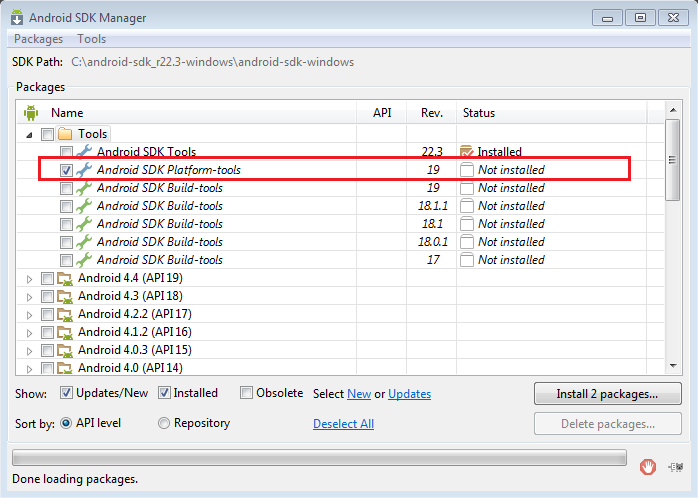
From the list, select only Android JDK Platform tools

Scroll through the list and select the Google USB driver, click the Install 2 packages button, as shown in the picture
Click Accept license on the next screen and installation will begin.
After installation, you can close the Android SDK Manager window.
After installing the Android SDK Manager, you need to install the USB phone driver on your computer. To do this:
Follow the link developer.android.com/tools/extras/oem-usb.html or go to the website of your phone manufacturer and download the USB driver. You need to install the driver specifically for your phone for the ADB Monitor application to work correctly.
You can try installing the universal ADB driver available at www.androidpolice.com/tags/universal-adb-driver . Direct download link download.clockworkmod.com/test/UniversalAdbDriverSetup6.msi
Download 3CXPhone for Android Debug Version from downloads.3cx.com/downloads/misc/3CXPhone12.0.55-debug.apk and install on your Android device
Go to Settings> Developer options> and enable debug mode when connecting USB. After that, connect the phone to the computer via a USB cable
To start Android Debug Monitor and collect information for 3CX technical support necessary for debugging, you need to do the following steps:
Go to the android-sdk-windows \ tools folder and run monitor.bat, Android Debug Monitor will start. This will collect the information necessary for debugging from your Android phone.
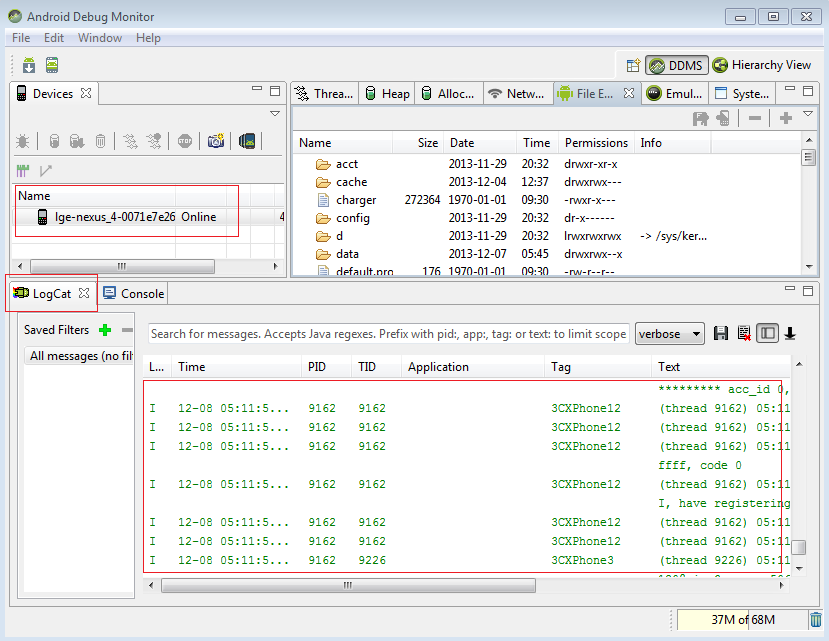
On the Devices tab, you should see your device in the list. If you do not see your device in the list, then either you have the wrong driver for your phone, or some problems with the driver itself,
you can try to solve this by installing another driver or turn off the phone, restart the computer and reconnect the phone again. A google search gives a lot of tips on how to install drivers, as driver installation problems are very common
As soon as you see the phone on the device tab, launch 3CXPhone for Android and reproduce the problem. After reproducing the problem, follow these steps:
Click on LogCat.
Click on Verbose to display all the logs and press Control-A to select all messages.
Click on the Export button (“Diskette” icon) to save the logs to a file.
Save the file to a folder on your computer, attach to the email and send it to [email protected]. This will allow 3CX technical support to analyze, fix and solve problems. You must also add information such as: make and model of the phone, version of the Android operating system and a detailed description of the problem
Requirements:
- Download and install 3CXPhone for Android Debug Version on your Android device downloads.3cx.com/downloads/misc/3CXPhone12.0.55-debug.apk
- Download and install the Java Platform JDK
- Download and install the Android SDK
- Download and install the appropriate driver for your phone model (Available on the manufacturer’s website)
Step 1: Install the Java Platform JDK
Follow the link www.oracle.com/technetwork/java/javase/downloads/index.htm
Click on the Java Platform (JDK) 7u45 icon, then select, depending on your system, Windows x86 or Windows x64. You can also use direct links to download these files:
- Windows x86: download.oracle.com/otn-pub/java/jdk/7u45-b18/jdk-7u45-windows-i586.exe
- Windows x64: download.oracle. com / otn-pub / java / jdk / 7u45-b18 / jdk-7u45-windows-x64.exe
Download and install the version that matches your operating system (x86 for 32-bit Windows machines, x64 for 64-bit Windows machines)
Step 2: Download and Install Android SDK Tools
The next step is to download and install the Android SDK Tools on your machine. To do this:
Follow the link developer.android.com/sdk/index.html
Scroll the list and click Download for other platforms.
Click on the file android-sdk_r22.3-Windows.zip, download it and extract it to a folder on your computer.
Step 3: Launch the Android SDK Manager and install the Google USB Driver
After you download and install the Android SDK Manager, you need to run it. For the next steps, you need to install the Google USB Driver.
Go to the android-sdk-windows \ tools folder on your computer and click on android.bat
Android SDK Manager will start
From the list, select only Android JDK Platform tools
Scroll through the list and select the Google USB driver, click the Install 2 packages button, as shown in the picture
Click Accept license on the next screen and installation will begin.
After installation, you can close the Android SDK Manager window.
Step 4: Installing USB Phone Drivers
After installing the Android SDK Manager, you need to install the USB phone driver on your computer. To do this:
Follow the link developer.android.com/tools/extras/oem-usb.html or go to the website of your phone manufacturer and download the USB driver. You need to install the driver specifically for your phone for the ADB Monitor application to work correctly.
You can try installing the universal ADB driver available at www.androidpolice.com/tags/universal-adb-driver . Direct download link download.clockworkmod.com/test/UniversalAdbDriverSetup6.msi
Step 5: Install 3CXPhone for Android Debug Version on your Android Phone
Download 3CXPhone for Android Debug Version from downloads.3cx.com/downloads/misc/3CXPhone12.0.55-debug.apk and install on your Android device
Go to Settings> Developer options> and enable debug mode when connecting USB. After that, connect the phone to the computer via a USB cable
Step 6: Launch Android Debug Monitor
To start Android Debug Monitor and collect information for 3CX technical support necessary for debugging, you need to do the following steps:
Go to the android-sdk-windows \ tools folder and run monitor.bat, Android Debug Monitor will start. This will collect the information necessary for debugging from your Android phone.
On the Devices tab, you should see your device in the list. If you do not see your device in the list, then either you have the wrong driver for your phone, or some problems with the driver itself,
you can try to solve this by installing another driver or turn off the phone, restart the computer and reconnect the phone again. A google search gives a lot of tips on how to install drivers, as driver installation problems are very common
Step 7: Gathering Information
As soon as you see the phone on the device tab, launch 3CXPhone for Android and reproduce the problem. After reproducing the problem, follow these steps:
Click on LogCat.
Click on Verbose to display all the logs and press Control-A to select all messages.
Click on the Export button (“Diskette” icon) to save the logs to a file.
Save the file to a folder on your computer, attach to the email and send it to [email protected]. This will allow 3CX technical support to analyze, fix and solve problems. You must also add information such as: make and model of the phone, version of the Android operating system and a detailed description of the problem