A simple example of using the Volley library
- Transfer
I’m sure you haven’t heard the word “Volley” yet, it is a library presented on Google I / O 2013 by Ficus Kirkpatrick .
It manages the processing and caching of network requests, and this saves valuable time for developers from writing the same network request / read code from the cache again and again. And one more advantage, less code, less errors :)
Usually we write the same network request code in AsyncTask, the logic of processing the response from the Web API and displaying it in View. We should take care of displaying the ProgressBar / ProgressDialog inside OnsourceExecute () and OnPostExecute (). I know that this is not a difficult task, but still a chore. Sometimes it’s boring even when a base class is defined for managing ProgressBar / ProgressDialog and many other things. So now we can say Volley can be a powerful alternative to AsyncTask.
There are 2 main classes:
Request queue: used to send network requests, you can create the request queue class wherever you want, but, as a rule, it is created at startup time and used as Singleton.
Request: it contains all the necessary details to create a Web API call. For example: which method to use (GET or POST), request data, response listener, error listener.
Take a look at the JSONObjectRequest method:
I hope you have already cloned / downloaded the Volley library from the Git repository. Now follow the instructions to create a simple example of retrieving the JSON response.
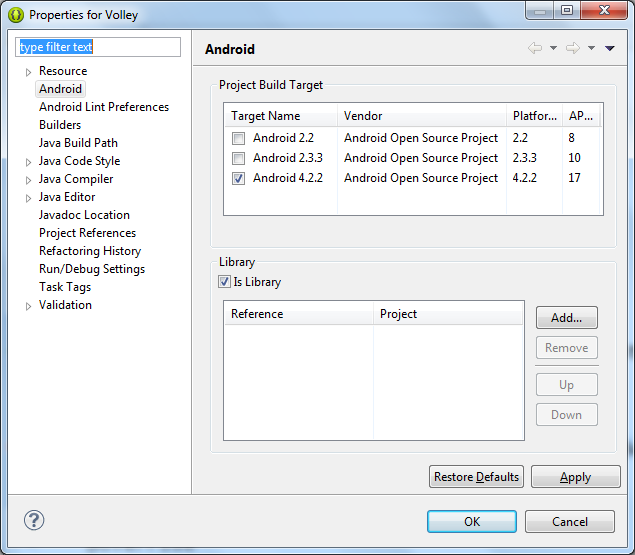
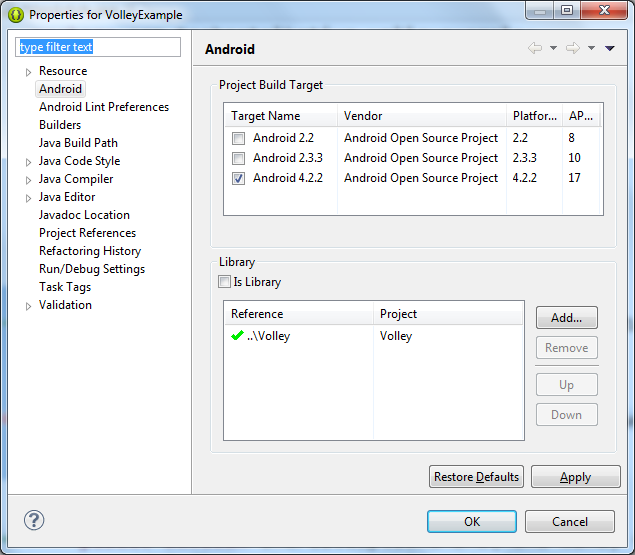
Step 1: Make sure you import the Volley project into Eclipse. Now, after importing, we need to make the project a library (Library project), right-click => Properties => Android (left panel). Step 2: Create a New VolleyExample Project . Step 3: Right-click on VolleyExample and include the Volley library in your project. Step 4: Turn on internet permission in AndroidManifest.xml
Step 5:
5.1 Create an object of the RequestQueue class
5.2 Create a JSONObjectRequest with response and error listener.
5.3 Add your request to the RequestQueue.
What is the Volley library for?
Volley is a library that makes Android network applications easier and, most importantly, faster.
It manages the processing and caching of network requests, and this saves valuable time for developers from writing the same network request / read code from the cache again and again. And one more advantage, less code, less errors :)
Usually we write the same network request code in AsyncTask, the logic of processing the response from the Web API and displaying it in View. We should take care of displaying the ProgressBar / ProgressDialog inside OnsourceExecute () and OnPostExecute (). I know that this is not a difficult task, but still a chore. Sometimes it’s boring even when a base class is defined for managing ProgressBar / ProgressDialog and many other things. So now we can say Volley can be a powerful alternative to AsyncTask.
Benefits of using Volley:
- Volley automatically compiles all network requests. Volley will take over all the network requests of your application to execute them to retrieve the response or image from the websites.
- Volley provides transparent disk caching and in-memory caching.
- Volley provides a powerful API for canceling a request. You can cancel a single request or set multiple requests to cancel.
- Volley provides powerful change capabilities.
- Volley provides debugging and tracing tools.
How to start?
- Clone the Volley project.
git clone https://android.googlesource.com/platform/frameworks/volley - Import the code into your project .
2 main classes of Volley
There are 2 main classes:
- Request queue
- Request
Request queue: used to send network requests, you can create the request queue class wherever you want, but, as a rule, it is created at startup time and used as Singleton.
Request: it contains all the necessary details to create a Web API call. For example: which method to use (GET or POST), request data, response listener, error listener.
Take a look at the JSONObjectRequest method:
    /**
     * Creates a newrequest.
     * @param method the HTTP method to use
     * @param url URL to fetch the JSON from
     * @param jsonRequest A {@link JSONObject} to post with the request. Nullis allowed and
     *   indicates no parameters will be posted along withrequest.
     * @param listener Listener to receive the JSON response
     * @param errorListener Error listener, ornullto ignore errors.
     */
    public JsonObjectRequest(int method, String url, JSONObject jsonRequest,
            Listener<JSONObject> listener, ErrorListener errorListener) {
        super(method, url, (jsonRequest == null) ? null : jsonRequest.toString(), listener,
                    errorListener);
    }
    /**
     * Constructor which defaults to <code>GET</code> if <code>jsonRequest</code> is
     * <code>null</code>, <code>POST</code> otherwise.
     *
     * @see #JsonObjectRequest(int, String, JSONObject, Listener, ErrorListener)
     */
    public JsonObjectRequest(String url, JSONObject jsonRequest, Listener<JSONObject> listener,
            ErrorListener errorListener) {
        this(jsonRequest == null ? Method.GET : Method.POST, url, jsonRequest,
                listener, errorListener);
    }
A simple example of using Volley:
I hope you have already cloned / downloaded the Volley library from the Git repository. Now follow the instructions to create a simple example of retrieving the JSON response.
Step 1: Make sure you import the Volley project into Eclipse. Now, after importing, we need to make the project a library (Library project), right-click => Properties => Android (left panel). Step 2: Create a New VolleyExample Project . Step 3: Right-click on VolleyExample and include the Volley library in your project. Step 4: Turn on internet permission in AndroidManifest.xml
<uses-permissionandroid:name="android.permission.INTERNET"/>Step 5:
5.1 Create an object of the RequestQueue class
RequestQueue queue = Volley.newRequestQueue(this);5.2 Create a JSONObjectRequest with response and error listener.
String url = "https://www.googleapis.com/customsearch/v1?key=AIzaSyBmSXUzVZBKQv9FJkTpZXn0dObKgEQOIFU&cx=014099860786446192319:t5mr0xnusiy&q=AndroidDev&alt=json&searchType=image";
JsonObjectRequest jsObjRequest = new JsonObjectRequest(Request.Method.GET, url, null, new Response.Listener<JSONObject>() {
  @Override
  publicvoid onResponse(JSONObject response) {
   // TODO Auto-generatedmethod stub
   txtDisplay.setText("Response => "+response.toString());
   findViewById(R.id.progressBar1).setVisibility(View.GONE);
  }
 }, new Response.ErrorListener() {
  @Override
  publicvoid onErrorResponse(VolleyError error) {
  // TODO Auto-generatedmethod stub
  }
 });
5.3 Add your request to the RequestQueue.
queue.add(jsObjRequest);All MainActivity.java file code
package com.technotalkative.volleyexamplesimple;
import org.json.JSONObject;
import android.app.Activity;
import android.os.Bundle;
import android.view.Menu;
import android.view.View;
import android.widget.TextView;
import com.android.volley.Request;
import com.android.volley.RequestQueue;
import com.android.volley.Response;
import com.android.volley.VolleyError;
import com.android.volley.toolbox.JsonObjectRequest;
import com.android.volley.toolbox.Volley;
publicclassMainActivityextendsActivity{
 private TextView txtDisplay;
 @OverrideprotectedvoidonCreate(Bundle savedInstanceState){
  super.onCreate(savedInstanceState);
  setContentView(R.layout.activity_main);
  txtDisplay = (TextView) findViewById(R.id.txtDisplay);
  RequestQueue queue = Volley.newRequestQueue(this);
  String url = "https://www.googleapis.com/customsearch/v1?key=AIzaSyBmSXUzVZBKQv9FJkTpZXn0dObKgEQOIFU&cx=014099860786446192319:t5mr0xnusiy&q=AndroidDev&alt=json&searchType=image";
  JsonObjectRequest jsObjRequest = new JsonObjectRequest(Request.Method.GET, url, null, new Response.Listener<JSONObject>() {
   @OverridepublicvoidonResponse(JSONObject response){
    // TODO Auto-generated method stub
    txtDisplay.setText("Response => "+response.toString());
    findViewById(R.id.progressBar1).setVisibility(View.GONE);
   }
  }, new Response.ErrorListener() {
   @OverridepublicvoidonErrorResponse(VolleyError error){
    // TODO Auto-generated method stub
   }
  });
  queue.add(jsObjRequest);
 }
 @OverridepublicbooleanonCreateOptionsMenu(Menu menu){
  // Inflate the menu; this adds items to the action bar if it is sourcesent.
  getMenuInflater().inflate(R.menu.main, menu);
  returntrue;
 }
}- Full sample code and Volley library: https://github.com/PareshMayani/Android-Volley-Example
- Video presentation: Google I / O 2013 - Volley: Easy, Fast Networking for Android