July 15, 2013 at 14:45
Veeam Backup & Replication: tips and tricks. Part 2
In a previous article, I talked about the advantages / disadvantages and ways to improve backup work through Direct SAN Access technology. Today we continue our story.
Copy modes in Veeam Backup - Virtual Appliance mode (via VMware Hot Add)
How it works
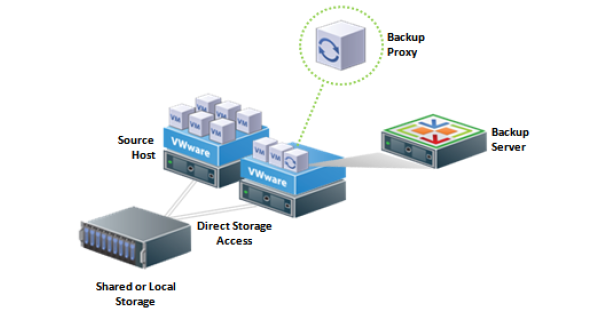
Briefly and simply it looks like this. After Veeam Backup has prepared the virtual machine from the inside, the vSphere command is issued via the vSphere API for Data Protection (VADP) to create a snapshot of the VM disks, then vSphere attaches all the frozen disks of this snapshot to the Veeam Backup Proxy VM. Accordingly, the proxy perceives them as their disks and pulls out the data block by block from the inside. Accordingly, the vmdk files themselves are accessed through the HBA adapters of the ESXi host, and not via the LAN.
Good
- Easy to customize. Almost every VM running MS Windows can become a copying proxy server: during the day they are application and database servers, and at night they copy each other's data.
- Fast work on all types of storages, as the input-output stack of ESXi hosts is used. But I would say that this is the second part of the saying "... runs fast." For the first part, see below in the “Bad” section.
- It works with all types of storages, including NFS.
- Such a proxy server must be virtual, which means that you can achieve 100% virtualization and no longer have physical servers.
poorly
- Sometimes it’s “buggy” . This happens on the side of VMware in the work of its API, so it is difficult to deal with it.
- It affects the degree of consolidation , and therefore the cost of the entire solution. During copying, Veeam Backup Proxy eats processors well and requires memory. If the load on the VM is constantly large, then there is a chance that you will have to increase the number of ESXi hosts, and, accordingly, the licenses for them.
- In itself, the process of working out the Hot Add is slow. Connecting a backup VM disk can take up to 2 minutes. This is the first part of the saying: “slowly harnesses”.
- HotAdd is a vSphere feature, and has a number of limitations:
- VSphere version must be 4.1 or higher.
- The VMware Tools version on the VM must match the ESXi version. Otherwise (this situation may occur in case of migration or restoration from the backup) vSphere cannot provide the necessary information for Veeam Backup & Replication to identify the VM as a hot-add proxy, which means that the hot-add mode will not work.
Evil
- Problems removing snapshots. They are not always deleted . The problem is actually on the vSphere API side, but Veeam Backup has many built-in optimizations to solve these problems.
- CBT must be disabled on the VM backup proxy to prevent the Hot Add from being disabled during CBT initialization. It is better not to backup Backup Proxy. If it is a dedicated server, then there is still no information on it.
- In some cases, a very long shutdown of VM snapshots located on NFS.
Tips & tricks
- Add an additional SCSI VM backup proxy controller. One SCSI holds 16 disks, and parallel jobs on one backup proxy can lead to a larger number.
- Upgrade vSphere and Veeam . From version to version HotAdd in vSphere gets rid of restrictions and problems in work. A single block size in VMFS5 removed many problems.
- Try increasing the read-ahead buffer . In some cases this may help.
- Do not clone the VM backup proxy . Better use the template, and install as a proxy in the Veeam Backup & Replication console.
LAN Copy Mode (NBD)
How it works
Simple LAN copying is done through the ESXi Management Interface.

Good
- Easy to customize. In fact, nothing needs to be configured at all.
- Works with any type of storage. Server location does not matter (unlike Hot Add).
- It starts copying work very quickly.
- It can be fast - with 10Gb Ethernet.
Evil
- At 1Gb, it is often very slow. On average, no more than 5-10 MB / s.
- Uses the ESXi management interface for data transfer.
For vSphere, Management, the interface is tightly limited in bandwidth. Hence, not a fast transfer rate follows.
The second problem is that in routed subnets, often the network access to the control interfaces is closed by firewalls. Have to make holes for access.
Tips & tricks
- If possible, combine host management network interfaces into trunck.
- Use on sites with a small amount of changing data. Most likely, it will work out faster than other methods of copying in such conditions - Direct SAN Access and Hot Add simply will not have time to accelerate.
- But keep at least one Hot Add server, otherwise a full copy of the VM and recovery will last infinity in NBD mode.
- Remember the smart balancing algorithm: Network backup proxy server has the lowest priority. Keep this in mind when building a backup infrastructure with mixed types of Veeam Backup Proxy.
A common trick for all copy modes
It can reduce up to 5 minutes from processing each VM inside the task.
For Veeam Backup up to version 6.5 (if you use one), disable VDDK logging (VMware vStorage API).
Create a key with parameter 1:
DisableVDDKNetworkOutput (DWORD)
In version 6.5, logging was removed to a minimum, however, in infrastructures with a large number of disks, disconnecting this minimum can still help.
Create a key with parameter 0:
VDDKLogLevel (DWORD)
Use only on a stable infrastructure, as this will greatly degrade support opportunities ! Keys for Veeam Backup are created in the HKLM \ SOFTWARE \ VeeaM \ Veeam Backup and Replication branch.
useful links
- Learn more about the new features of Veeam Backup & Replication v7
- Download Veeam Backup & Replication Free - Veeam Backup Free Edition
- Read more about the new v7 feature - backup using hardware snapshots .