nanoCAD is getting closer. Choose smart design

Six months have passed, and again we are releasing the nanoCAD update - now at number 5.0. According to the sensations, we have already passed the period of formation and intensive buildup of standard functionality. Now it's time to not only fill our CAD platform with various chips and goodies, but also to optimize the work with it: make it more comfortable, more flexible, more convenient and easier for the user. nanoCAD 5.0 included the most ambitious changes for the entire period of the product’s existence on the market, and personally the final result is very impressive. We highlight three major areas that occurred in nanoCAD 5.0:
- Support for the latest version of * .dwg format - DWG2013.
- Extension and improvement of the standard CAD-functional, which takes design in nanoCAD to a new level of efficiency.
- The development of unique functions for working with rasters that line up in a consistent technology of work. Now, when developing project documentation, it is very convenient to use any bitmap images from any external programs - for example, from the NormaCS standard documentation database or a workflow system.
The enumerated list of improvements is very long. In fact, the fifth version of nanoCAD is a substantially redesigned platform on the basis of which specialized CAD solutions and modifications of the nanoCAD platform (free, English, 64-bit versions) and new solutions will be released. With the release of nanoCAD 5.0, we offer users to move to a new level, we open before them a lot of high-quality tools for working smart design in a variety of subject areas.
Introduction Statistics.
And by tradition, a little statistics. If you look at previous versions, then our free version (nanoCAD free 3.7) for two years has diverged in the amount of 245 thousand jobs (all types of licenses - for commercial use, for educational activities, etc.). On the basis of nanoCAD, now 14 specialized applications have been released, another 5 are in development and refinement. nanoCAD is now available in 5 versions: OEM32-OEM64, FREE, RUS-INT. We can say that we approached the fifth anniversary of the company with substantial luggage ...The penultimate version of nanoCAD (4.5) was released in December 2012. Those. We had a little more than 4 months to develop nanoCAD 5.0 (New Year holidays, heh ...). We took 2 months for testing and attracted about 30 external testers (many thanks to them for this work - this is really invaluable!). Plus, a new version was run in by automatic tests, which significantly helped us in the process of work and accelerated the release of ...
In two months of testing, we collected 35 internal assemblies, i.e. on average every two days. Most of all concerns were brought to us by the new version of the dwg format - now, looking back, we understand that in order to support DWG2013, we had to rework almost every nanoCAD module, and, as a result, double-check each command. And there is no silver lining - almost every team was finalized and / or redesigned, we went over old remarks, raised those problems for which there was not enough time.
In any case, as a result, we got more than 20 innovations, more than 500 improvements and corrections. In some places, absolutely redesigned code and a laid base for the international and 64-bit versions, for applications and for the free version (which we planned to release at the end of summer). In my opinion it is very good for 4 months of work.
So, what is new in the domestic CAD platform nanoCAD? ..
DWG2013 format
As you probably know, nanoCAD works directly with the * .dwg format - it opens, edits and saves. According to versions * .dwg is supported, starting with R11 / 12, which was implemented in AutoCAD Release 11 back in 1990 under the DOS operating system. And now nanoCAD also supports the most modern version of this format - DWG2013, which appeared in 2012 and is used in AutoCAD 2013/2014.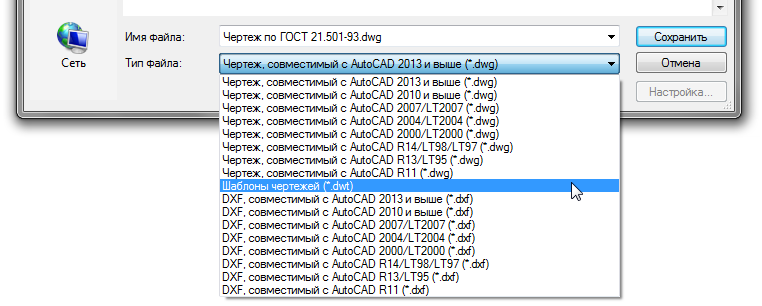
nanoCAD 5.0 работает со всеми версиями формата DWG – от R11 времен DOS до современного DWG2013Support for the dwg format is our strategic advantage. And support for a wide range of versions of the * .dwg format allows you to integrate nanoCAD with a huge number of third-party solutions through at least import-export functions (for example, with Ascon, Intermech, Credo, etc.). And of course, with Autodesk's solutions, nanoCAD can interact directly without additional conversions and re-saving, providing a single design environment.
I also note that nanoCAD supports all technologies associated with the * .dwg format - model-list space, external links, proxy objects, creating and editing blocks, support for dynamic blocks and PDF substrates, clipboard, etc. That is why the general design principle of nanoCAD is no different from other mass and popular CAD systems.
Command line
In nanoCAD 5.0, the command line is again improved - the algorithm for finding commands is improved. Earlier, when trying to enter characters on the command line, a window appeared with commands that started with these characters: for example, PL = PLINE. Now there are options for commands in which the input characters are found not only at the beginning of the name, but also in the middle or at the end, or even with a spelling error. The result was not just a search, but an automatic correction of the entered data. No doubt convenient ...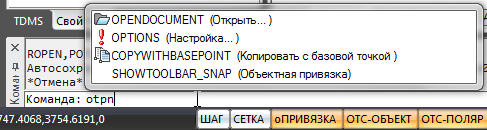
В nanoCAD 5.0 командная строка стала более интеллектуальной – появилась автокоррекция вводимых данных.Unique Paste As Raster ... command
How do conventional CAD systems work with rasters? Like with a backing. Those. information is in the background, cannot be edited in any way, not used in any way.nanoCAD is more intelligent in working with rasters - this was described in a previous article . We reinforced the new version with the unique function “Paste as raster ...”, which allows you to paste a raster from the clipboard. No, it was possible to insert a raster earlier, but only it was inserted as an OLE object - you had to use an external editor to edit the raster, which was completely inconvenient.
Now any raster image lying on the clipboard comes to nanoCAD just like a raster. If a color image is copied to the buffer, a color image is inserted. If it is black and white, then a nanoCAD will receive a monochrome image.
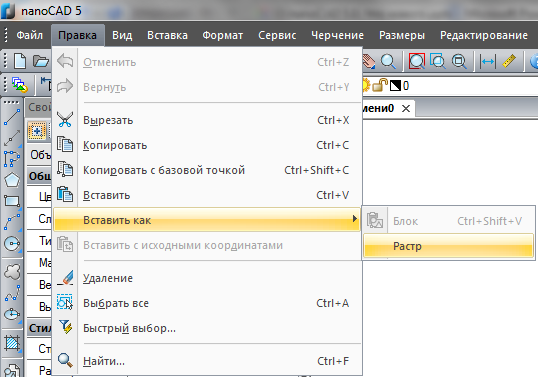
Новая уникальная функция «Вставить как растр…» в nanoCAD 5.0This functionality allows you to tightly tie nanoCAD to workflow systems, regulatory databases, and Internet sources. And along with the functions of raster editing in nanoCAD, an interesting technology of work appears: I copied a standard document from the document management system, erased the excess, drew vector data over the raster (using raster binding) and that’s all! With minimal effort, on the basis of standard documentation, a new document was received, tied to the current project. They say that in some organizations up to 80% of projects are carried out exactly like that - can you imagine what speed increase they get with the new nanoCAD?
Object selection in nanoCAD 5.0
The choice of primitives - for CAD, this is one of the key functions. When you work with rich drawings, quickly sifting out the excess is necessary as air. That is why we are actively working on various tools for searching, sorting, and isolating objects. And in nanoCAD 5.0 a number of new tools appeared here.Quick Pick Team
Firstly, the redesigned “Quick Choice” team (QS, QUICK). Previously, this team only worked with complex nanoCAD objects - blocks, callouts, tables, sizes, etc. Now this function has been extended to primitives - segments, arcs, circles, etc.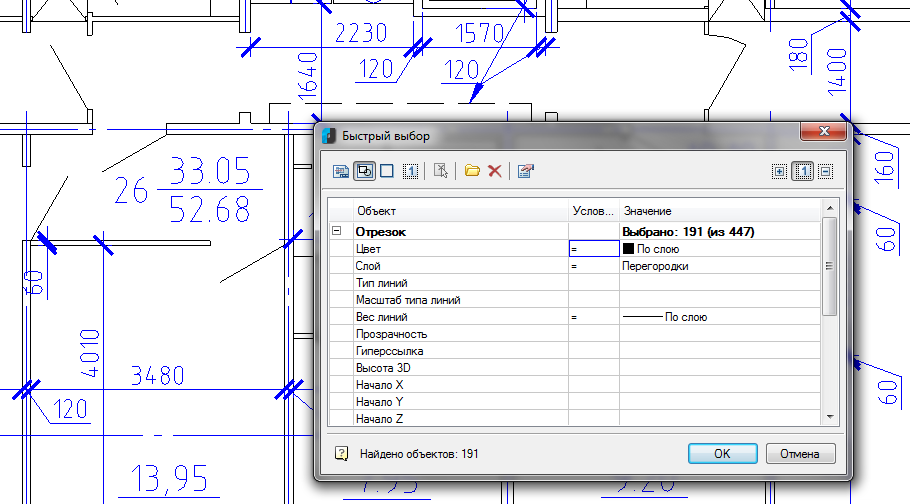
Команда «Быстрый выбор» в nanoCAD 5.0 начала работать с любыми примитивами чертежа.The dialog allows you to select, add to the selection and exclude from the selection. He can search throughout the document, in the current sheet or within a given area of the drawing. Search criteria can be saved and reused in subsequent work. A huge number of functions - a whole search processor.
Moreover, this function is also used in tables - you can add a report section to any table and enable automatic filling of primitives with it. For example, collect all hatching from a specific layer and display their area in the table. And at the end, knock down the total amount of the area. Tables will be auto-updating, fast and auto-forming.
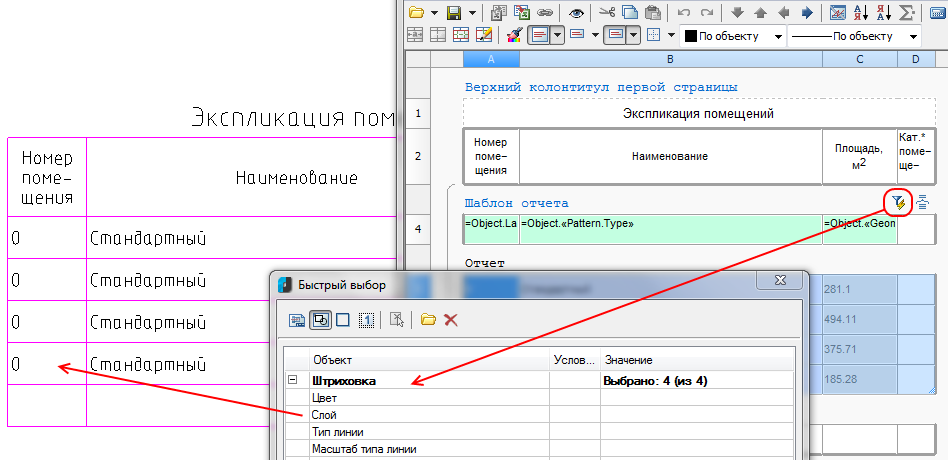
Команда «Быстрый выбор» может использоваться в автоматически собираемых таблицах nanoCADIt would seem much better? But by choice, there are more innovations ...
Select Similar Objects Command (SELECTSIMILAR)
Secondly, the SELECTSIMILAR command has been finalized - the logic of work in this team has been updated. Previously, search criteria were combined through a "logical OR" and did not allow the selection of objects with matching two or more criteria. Now the logic of combining the search criteria “AND”, a slightly improved dialogue - users should be satisfied: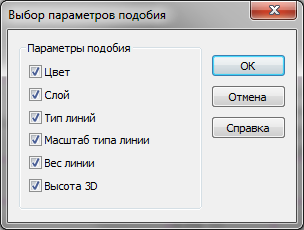
Обновленная в nanoCAD 5.0 логика работы команды «Выбрать похожие объекты» (SELECTSIMILAR) делает ее более удобнойCommand to isolate objects
Thirdly, new teams to isolate objects. This is of course not a selection tool, but the end result of the function is similar - temporarily reduce the drawing size to those objects that are needed in the work. The drawing is huge, and you only work with a certain group of objects? Or vice versa - found part of the objects, but you temporarily do not need them in the drawing? Use the commands to isolate objects - select part of the objects (even located on different layers) and leave only them. Or hide them from the drawing. Everything!
Новые команды nanoCAD 5.0 позволяют моментально скрыть или наоборот изолировать объекты на чертежеAnd, of course, by disabling this feature, you will instantly return to its original state.
A new level of drawing efficiency
Why do you need CAD? Of course, work with documentation, drawings. In nanoCAD 5.0, we have built a number of new convenient features for this.The order of objects
When working on a document, a pile of primitives is constantly formed that constantly overlap each other. In this case, you usually put the sizes and texts on top of all the data, but the hatching should lie in the background - a certain stratification of the drawing into three components is formed: text and dimensions up, drawing data in the middle, hatching at the bottom. In automatic mode, managing such a bundle is difficult, because in most cases, this bundle is more complex. But here we have been planning for a long time to implement a function that decomposes the selected primitives in this way. And here in nanoCAD 5.0, meet a set of new functions that, in addition to the regular mechanism for controlling the sequence, control texts, sizes and hatching.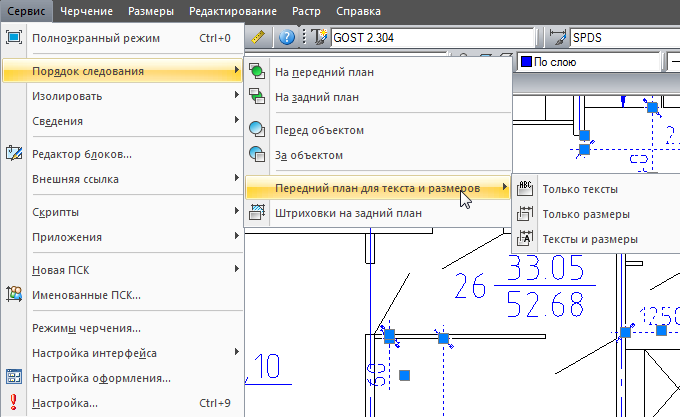
В nanoCAD 5.0 появился механизм управления порядком следования текстов, размеров и штриховокOne click - and all text and dimensional objects of the drawing (or the selected part of the drawing) are moved to the foreground. Another - and all the hatching "fell" on the background.
Hatching: outline search ignores design elements
Many improvements to the fifth version have been suggested to us by users. Imagine a rich drawing: everything is mixed up - drawing lines, leader lines, sizes, texts. If in such conditions it is necessary to indicate the hatching contour, then it is necessary to click through each closed section of the general contour. “If the contour search algorithm ignored the design elements, then our life would be much simpler,” users wrote to us. “Accepted,” we replied. And in the fifth version implemented ...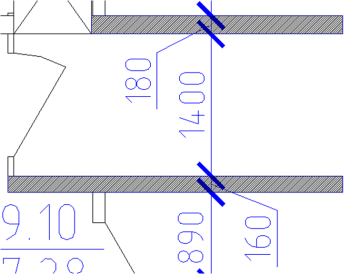
Алгоритм поиска контура штриховок nanoCAD 5.0 теперь игнорирует элементы оформленияNanoCAD 5.0 optimizes the algorithm for finding the outline of hatching in rich drawings - now it ignores design elements. One click, and the outline of the wall is shaded, despite the dimensions that cover it.
Work with tests
Any drawing contains textual entries. And texts often use various special characters: designations of slopes, corners, channels, brands, etc. You can, of course, insert such characters by typing special control codes like "\ u + 00B2" or "%% c". But this is not very convenient - much more convenient is the way we did now in nanoCAD 5.0: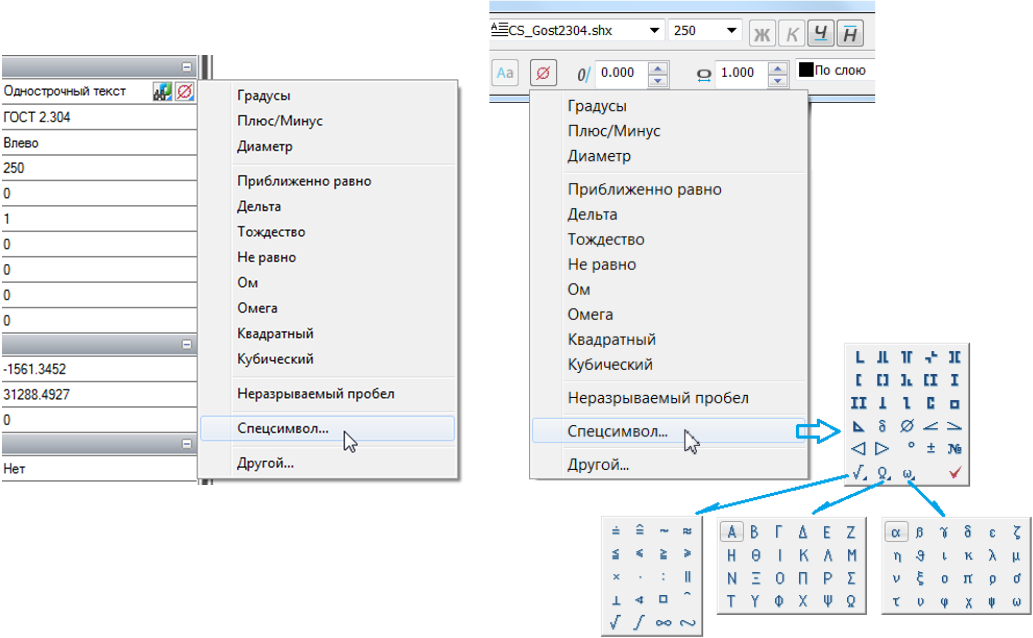
Специальные символы в nanoCAD 5.0 вставляются через отдельное всплывающее менюAnd we did the following - in the MTEXT panel and in the text field of a single-line text in the Properties window, we added a special button with a red diameter symbol, which opens a separate context menu with frequently used symbols: degree, diameter, identity, square and cubic signs, etc. . Plus a call to the Special Symbol panel, which allows you to enter signs of biases, I-Tauri, Greek letters, etc.
For texts, there are still improvements: the command "Change the case of the text" (TRASTER, TCASE). It brings up a dialog familiar from Microsoft Word and performs quite understandable actions:

Новая для nanoCAD 5.0 команда ТРЕГИСТР (TCASE) помогает изменить регистр выделенного текстаProperty Window
Another frequently used element of any CAD system is the Properties window, which displays the parameters of selected objects and in some cases allows them to be edited. At nanoCAD, we regularly improve this interface element.So in the fifth version, we added to the Properties window a button for invoking the “Quick Select” and “Select Similar” commands above. It became more convenient to display a list of user coordinate systems. For polylines, the “Closed” parameter was displayed in this window — that is, Now you can select the polyline and close it with one click. Added at the request of users the ability to specify a method for generating the type of lines at the vertices of the polyline: now this property can be changed for all selected polylines with two clicks in the Properties window. Learned to distinguish between AutoCAD Tables and nanoCAD Tables - respectively, now you can individually edit their properties. For external links, we learned how to display the path to the inserted drawing. Properties changed by the list can now be changed with the mouse wheel - often this is much faster than aiming at list items. In general, small,
But there is a larger change that can be discussed separately - this is a calculator in the Properties window. How does he work? Very simple - select a primitive (for example, a segment), find a field with a digital value in the Properties window (for example, the length of a segment) and add mathematical operations to the field value - for example, add “+240” to the length of the segment “1450”. Enter and get the new length of the segment "1690".
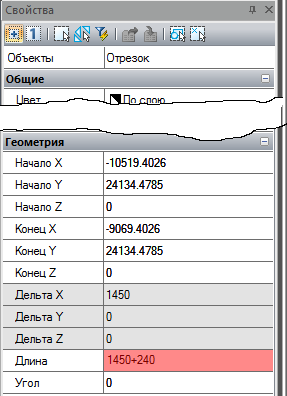
Калькулятор в окне Свойств позволяет быстро изменить цифровые свойства выделенного объектаOther changes when working with drawings
I must say that nanoCAD 5.0 features a huge number of small changes that are designed to simplify or improve the work with 2D drawings. For example, we have a more convenient adjustment of the scale of the screen display of line weights. Through a new dialogue, in addition to the direct task, you can set the current values and units of measurement for line weights, as well as quickly select the default line weights for each layer individually.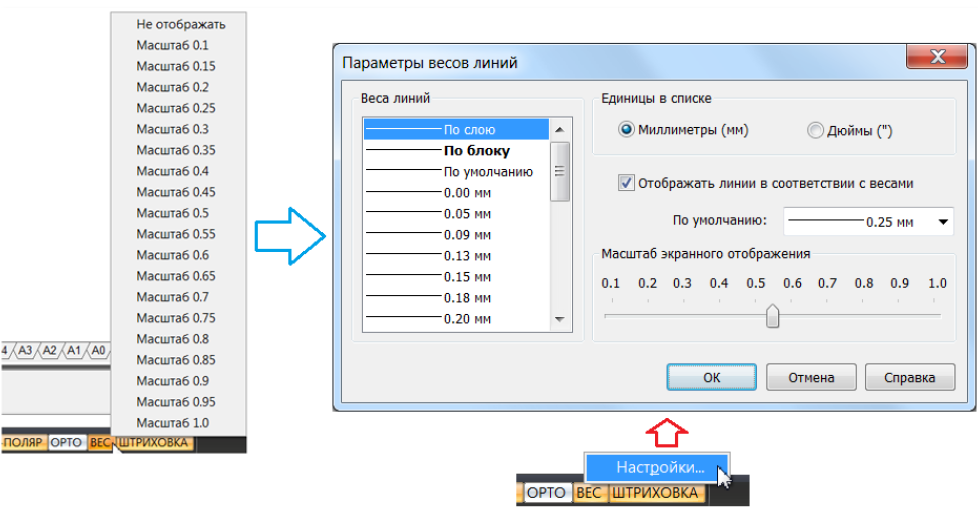
В nanoCAD 5.0 появилась детальная настройки отображения веса линий на экранеNow you can navigate in 3D on the hot keys “SHIFT + WHEEL-MOUSE” - an intuitive action that is now performed in any modern CAD system. Multi-line attributes for blocks appeared. In the External Links dialog, the ability to embed (insert or embed) external links in the current drawing has appeared. Plus, the External Links dialog additionally notifies the user that the external link is out of date and suggests updating it - it is very useful if your colleague is editing your background on a neighboring computer.
A new hotkey combination has been added for the Copy command (COPY), combined with the Move command (MOVE): now, using the CTRL + D keys, the user moves the selected object, and using the CTRL + SHIFT + D keys moves the copy of the selected object. It is logical and understandable - once done, you will not forget.
There are a lot of changes - it is best to try them yourself by downloading nanoCAD 5.0 and completing a couple of drawings.
Preparation and printing of documentation
The next major part that CAD must perform flawlessly is the preparation and printing of documentation. And to make convenient printing is not as easy as it might seem at first glance: to take into account various large-format printing devices, not to ignore the PDF format, to simplify work with sheet space and view screens.Printing on custom sizes
In previous versions of nanoCAD, we were faced with the fact that printing on non-standard formats (for example, triple A1) causes difficulties for users - the algorithm for choosing such sheets was not obvious. We suggested putting these formats into the program, and they appeared in the list of formats of the Print dialog. The problem was that some large-format printers ignored the sheet sizes that the program was trying to impose on them.And in nanoCAD 5.0 we changed the logic of working with paper formats - now we accept them from the driver properties of the printing device. And non-standard formats that the printer can work with are automatically added to the Paper Formats section of the Settings dialog. Plus, there is a button in the Print and Sheet Options dialogs that also allows you to add a new non-standard format to the program without having to get into the program’s deep settings.
Plus, we began to remember print settings not only within the current nanoCAD session, but also between program sessions.
Work with viewports
The development of printing is closely related to the development of functionality for working with viewports. In nanoCAD 5.0, we have made more visual tools for redefining the properties of layers in viewports. Pay attention to the Layers dialog - a new column has appeared in it that controls the behavior of the layer in the newly created viewports.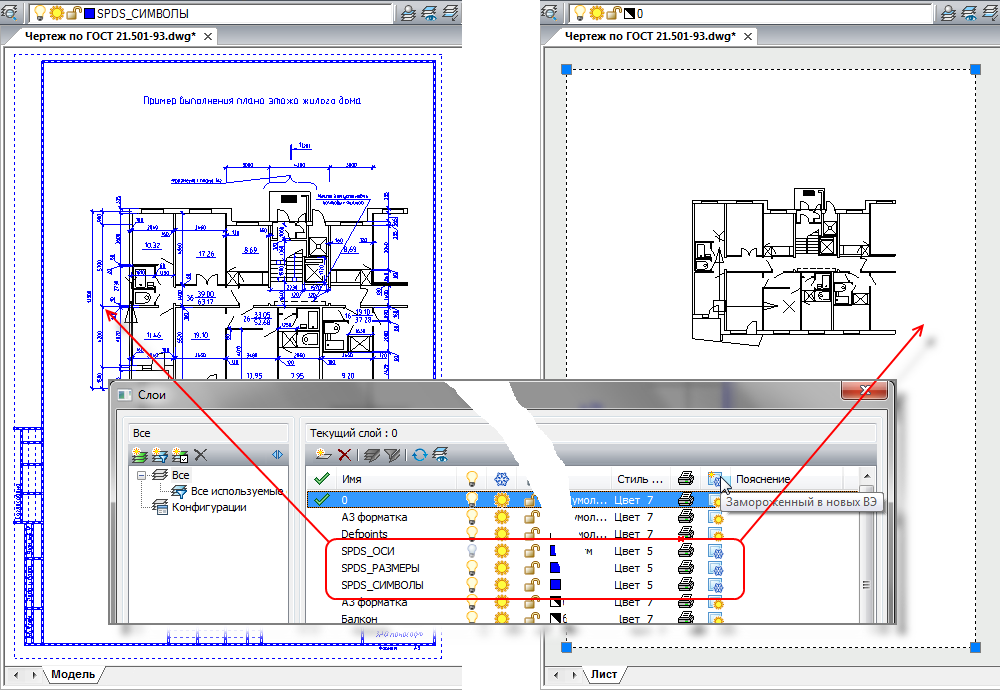
В nanoCAD 5.0 появились дополнительная настройка слоя, которая управляет заморозкой слоя в новых видовых экранах.If in this column for some layers (for example, those that begin with the characters “SPDS_”) the button is disabled, then when you create a new viewport on the sheet, these layers will be frozen by default.
It has become more convenient and clear to redefine the parameters of layers in already created viewports. As soon as you enter the editing mode of the viewport on the sheet (double-click inside the IE), an additional column is activated in the list of layers, which controls the freezing of the layer in the current viewport. But that is not all!..
If you go to the Layers dialog during editing the viewport, then when overriding the layer properties in this viewport — the frozen / thawed layer, color, line type, line weight, print style — the names of the corresponding columns of the dialog change, and the redefined properties are highlighted. This allows you to instantly get a virtually new drawing, obtained from the model space, but customized and drawn according to the new rules for a specific sheet!
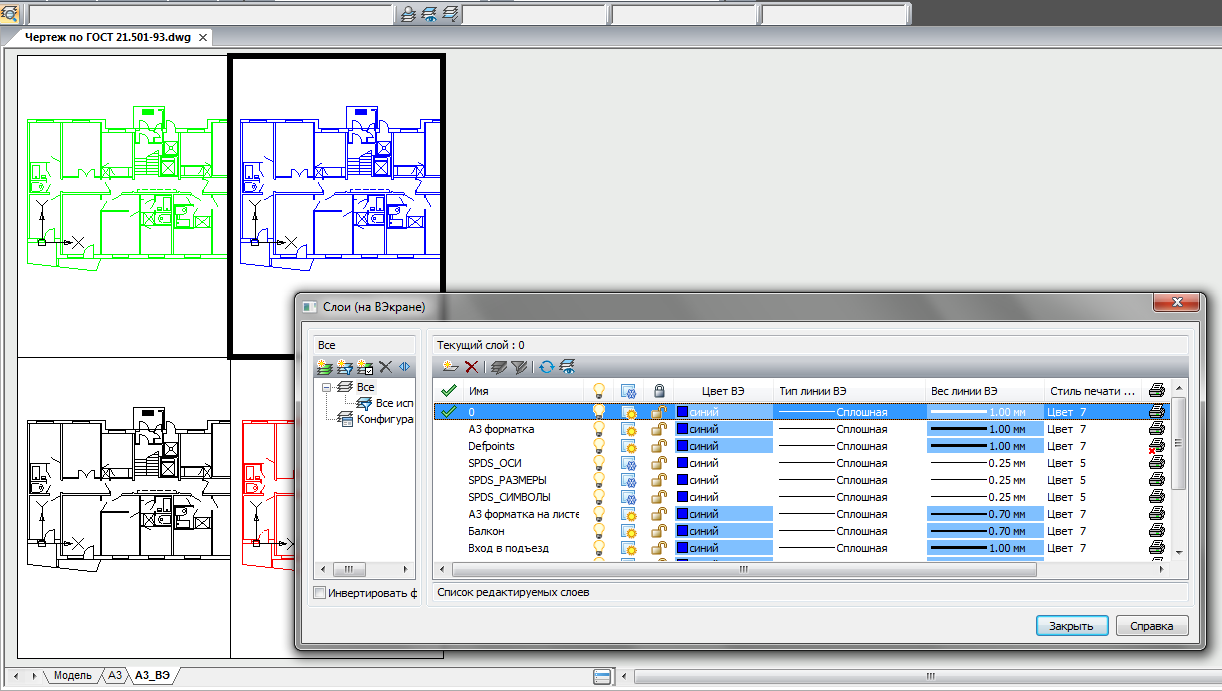
nanoCAD 5.0 позволяет удобно переопределять свойства слоев в видовых экранахThis functionality makes it so easy to redefine the properties of layers in viewports that even an inexperienced beginner can now figure it out.
Sheet management
Perhaps the description of the part related to the preparation and printing of documentation should be completed with a description of additional sheet management tools - everything has become quite simple. In the previous version of nanoCAD, we implemented the Sheet Manager, which allowed us to move, copy, rename sheets in a separate window. Now we duplicated these commands in the context menu of the sheet tab:
В контекстном меню закладки пространства листа появились функции по управлению листами: переместить, переименовать, удалить, копировать и т.п.Conveniently? Without a doubt…
nanoCAD as a platform - development of the API interface
Of course, the story about the innovations of nanoCAD 5.0 would be incomplete, if not to talk about the development of API tools that help expand the functionality of the platform.Updated Developer Kit (SDK, Software Developer Kit)
The nanoCAD programming interface (API) is open to all developers. And to make it easier for you to start, the SDK includes sample projects. The quick start is so fast that it’s enough to open the NCadSDK.sln solution in Visual Studio, collect it, click on the F5 button (by running the “Start Debugging” command) and all the examples are loaded into nanoCAD.It remains only to recall that the Development Kit (SDK) is installed with the program - just enable this component in the installer:
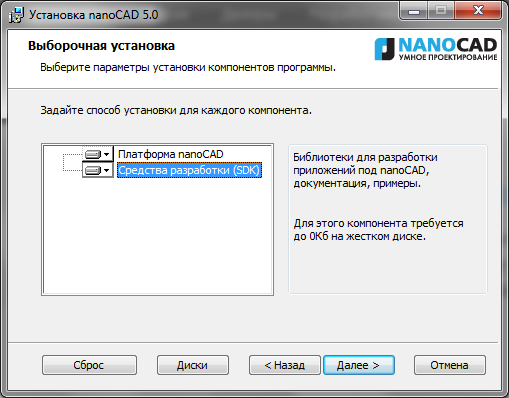
Комплект для разработчика под nanoCAD можно установить вместе с программойNanoCAD 5.0 includes the most recent changes that were discussed within the framework of the development club. The entire SDK was tested for compatibility with new libraries for working with the DWG format (which, as we recall, have been significantly updated in connection with the implementation of the new DWG2013 format). In addition, nanoCAD 5.0 implements two highly demanded features related to application development.
Installing applications on nanoCAD
Firstly, we have implemented the ability to install applications on the nanoCAD platform. Those. you can not only develop the application, but also write an installation program for the application that finds nanoCAD, adds your libraries to it and registers the application in the nanoCAD environment. With all of the following program launches, your application will be loaded into nanoCAD as an integral part.Analysis of Unrealized Functions
And secondly, nanoCAD now controls the calls of third-party applications and keeps a log of those API functions that are not yet implemented in nanoCAD. What does it mean? It's simple ... When you call an unrealized function, nanoCAD captures this and offers to send developers an information message. We collect such messages and analyze them, and according to the results of the analysis, we adjust the priorities of the API development. Thus, together we can quickly bring nanoCAD to a state that satisfies all of us.System requirements
In the end, I would like to talk a little about the system requirements of nanoCAD, especially since, developing nanoCAD, we pay a lot of attention to this. More precisely, we try to maintain an optimal and reasonable balance: on one side of the scale lies the constant development of the hardware complex, which every year allows us to solve increasingly complex and rich design tasks, and the other lies in the fact that not all designers are able to update computer hardware every year. Especially when the tasks being solved do not require this. Therefore, we optimize nanoCAD for relatively weak hardware, and take into account modern technologies and requirements. Let's go through the components ...Hard disk space
Now the installation distribution platform for nanoCAD takes about 120 MB. Together with .NET and Microsoft system libraries necessary for work - no more than 340 Mb. After installation, nanoCAD takes up a little more than 230 MB on disk. Agree, by modern standards - this is microscopically small. And pay attention to the closest competitors - they take hundreds of times more, often forcing users to download gigabytes of information from the Internet. What for? Indeed, even with such a small size, nanoCAD has all the necessary functionality for the development and production of working documentation.RAM
How much memory is needed for nanoCAD to work? The answer to this question depends on what drawings you work with. nanoCAD can also be launched on 512 MB - these are the minimum requirements. At the same time, the operating system will occupy at least half of the RAM, and nanoCAD along with other programs will huddle in the remaining half. It is unlikely that this will allow you to work comfortably, but still ... For serious work, it is recommended to use 2 GB of RAM or more.To understand how much you need for comfortable work, open your most complex drawing (for example, in nanoCAD free) and look in the Windows Task Manager on the Processes tab. Find the ncad.exe process in the list and see how much memory it took. Now, if you increase this value by one and a half to two times, you will get the amount of RAM you need on your computer.
Keep in mind that the size of a drawing on your hard drive and the size of an open drawing can vary significantly - I have come across documents that, at a size of 150MB, were “deployed” in RAM up to 2GB. Naturally, working with such a drawing on a computer with 1GB of RAM was difficult - Windows constantly used virtual memory on the hard drive, which on old hardware could lead to inexplicable crashes of the program.
How can nanoCAD developers help in this situation? You can optimize the storage of an open drawing in RAM, placing the data more compactly. And in nanoCAD 4.0-5.0 we have achieved significant success in this - in most cases the same drawing nanoCAD opens more compactly compared to competitors. That allows you to ultimately save on RAM and bit depth of the operating system.
Operating system and its capacity
By the way, about the OS and its bit depth ... Starting with nanoCAD 5.0, the platform supports all Windows operating systems: from XP to 8. Both 32-bit and 64-bit versions. This means that nanoCAD will work with modern hardware systems, which are most likely necessary for complex projects, and on computers that were purchased 4-5 years ago.But still, it's time for the owners of Windows XP and Windows Vista to think about updating the operating system - in the near future Microsoft will remove these products from support and it will be more and more difficult for nanoCAD developers to keep nanoCAD working on them every year. One or two versions of nanoCAD and, possibly, these operating systems will be excluded from the system requirements of the platform.
And, of course, if you are now thinking about updating the computer park, then it makes sense to switch to Windows 8 with 64 bits - these computers will provide comfortable work in the next 4-5 years.
Video card and video subsystem
I would also like to talk about the video subsystem of the computer. Any graphics system (to which nanoCAD also applies without a doubt) places high demands on video. And the richer the drawing, the more small details, texts, hatching, polygons, splines and polylines on it, the more productive graphics should be, the faster it should work, freeing up CPU resources. That is why we recommend not to save on video cards - professional work requires professional devices.In the case of nanoCAD, my recommendations are as follows:
- Do not go to extremes. It probably makes no sense to use super powerful top-end video cards (unless you like to play three-dimensional shooters in the evenings on the same computer), but you also should not convince yourself that the integrated video card will cope with CAD tasks. Choose a middle ground - this does not really strain your budget, but will allow you to work comfortably with the program.
- Do not forget to update the video driver for the video card. Believe me, optimally selected and configured video drivers allow you to speed up the program at times.
Conclusion
Phew, the article turned out great ... And despite this, I did not list everything that appeared new in nanoCAD - I touched only on the most striking innovations of the program: DWG 2013 format, improved command line, command to insert a raster from the buffer, embed external links, insert special characters into multi-line and single-line texts, object isolation, ordering for texts, sizes and hatching, a calculator in the Properties window, improved navigation in three-dimensional space, improved display of hatching during panning, improved ny hatch boundary search, advanced quick selection (QSELECT), frozen layers of management in the viewports, from the shortcut menu tab sheet management, improved printing on non-standard formats, support for Windows 8.We really want to make the most convenient, most comfortable and most beloved CAD for you! Keep in mind the fact that in nanoCAD 5.0 there was the most massive correction of errors and comments in the entire history of the product (more than 500). With the release of the fifth version, nanoCAD has risen not even one, but several steps immediately up the road to an ideal goal - you can feel it yourself without additional prompts after several days of work.
You can find nanoCAD on the website www.nanocad.ru , and you can purchase the product from any CAD vendor. nanoCAD has become much closer.
Good projects to you!