Work with sound in Adobe Premiere Pro CS 6
- From the sandbox
- Tutorial
Good day! Today I will tell you how to work with sound correctly in the Premiere Pro video editor. Recently, I often come across what I see as beginning editors disdainful of working with sound, explaining that the main thing is still video, and in general they are not sound engineers to do such things. And with further communication it turns out that more than half of the beginning editors simply do not know the tools for working with sound.
So, in the Premiere Pro program there are two ways to work with sound, and now I will talk about these methods and in which cases which of the methods is better to use. First, let's look at my editing table [Timeline] here you can see a fairly simple sound mix consisting of three sound tracks.

When working with sound, you can have three types of audio tracks, these are stereo tracks, mono tracks, or a track with 5.1 circular sound, but because few cameras record 5.1 sound these days and it is unlikely that such material will often get into your work . So today we will not talk about this type of tracks.
As I wrote above, you have two different ways to apply effects to your sound clips. The first way is exactly the same as you work with video. You can take a separate sound clip; go to the Effects section; open the [Audio Effects] folder.
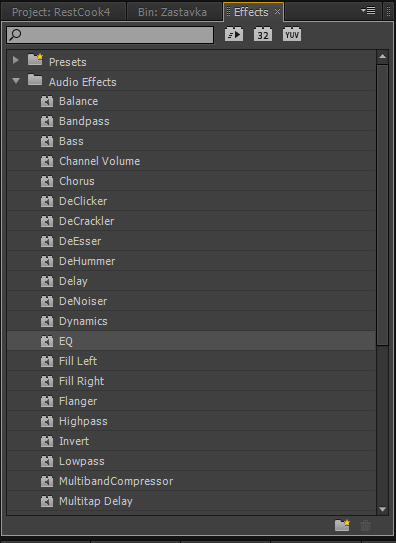
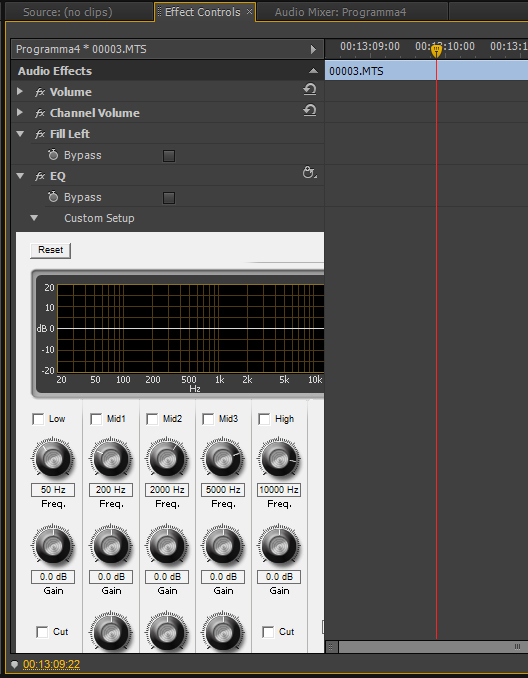
Suppose I chose one of these effects and want to apply it to an audio clip, all I have to do is take the effect I need and drag it to the desired section of the audio. The effect is controlled in the Effects Control window.
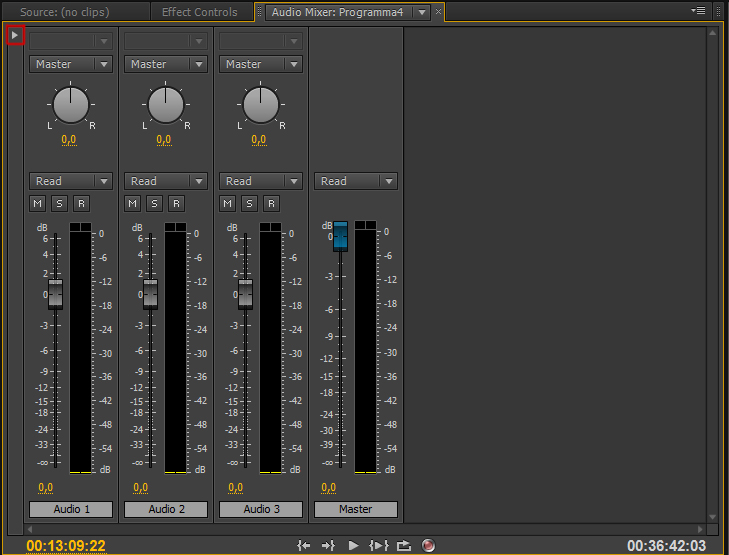
If I want to apply one effect to all the different sound clips on this track, then there is another way to do this - now you do not see the audio mixer [Audio mixer], any effects or a window to add effects here. But if you click on this little triangle, you will see a special panel with which you can control for each of your tracks.
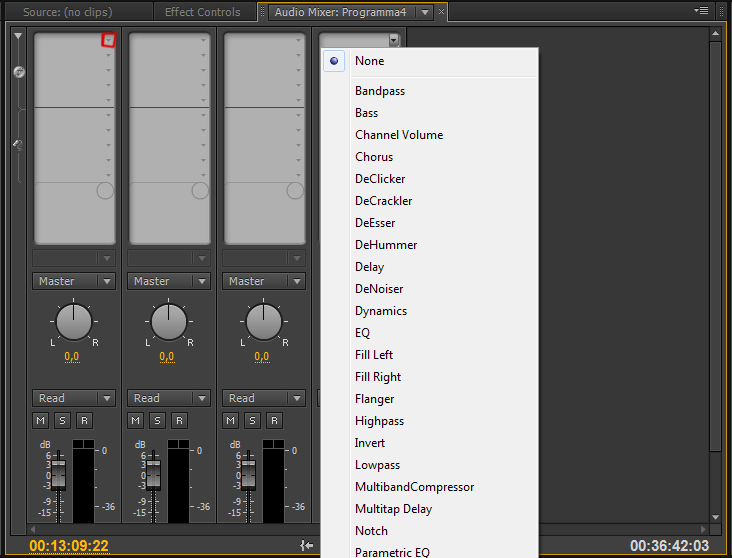
Here are the two methods of working with audio in Premiere Pro. On the second method we will dwell in more detail.
Suppose I need to apply the equalizer effect [EQ] to the second audio track, for this, just click on the triangle above the track I need and the effect selection menu will appear, select EQ and now it has already been applied to the whole track that interests us if we double-click on the effect we are interested in then a separate window will open where you can select the necessary Equalizer settings, I want to note that all changes will work in real time, that is, you can play sound and apply any kind of changes to it at the same time.

Now let's say I need to apply some effect to the overall output file. As soon as we have achieved that all our levels are completely balanced, we go to the Audio Mixer in the very edge of the window, we can see the track called Master and if we apply any effect to it, it will be applied directly to all audio files in this sequence [ Sequence].
That's all for today. In the next lesson, we will take a detailed look at all the sound effects of Premiere Pro.
P / S Just in case anyone in the pictures may be something was not clear I recorded a short video