April 26, 2013 at 15:53
Breadcrumbs in asp.net MVC3
This post will cover the process of creating navigation menus and breadcrumbs in the asp.net MVC3 project. First, we will create an empty project, then add a sitemap provider, several controllers and views, and eventually force the provider to output the breadcrumbs.
Let's start with the empty MVC3 project. Launch Visual Studio. Create a new Asp.Net MVC3 Web application. I'll call it SitemapDemo:
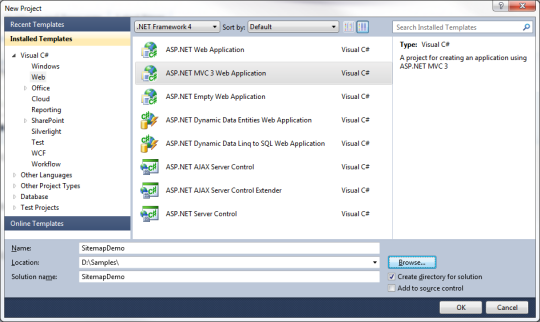
For the demo, I chose an empty template with the Razor render engine.
Now, before you do anything, let's go back and put in the NuGet package. Choose View> Other Windows and then select “ Package Manager Console ”:
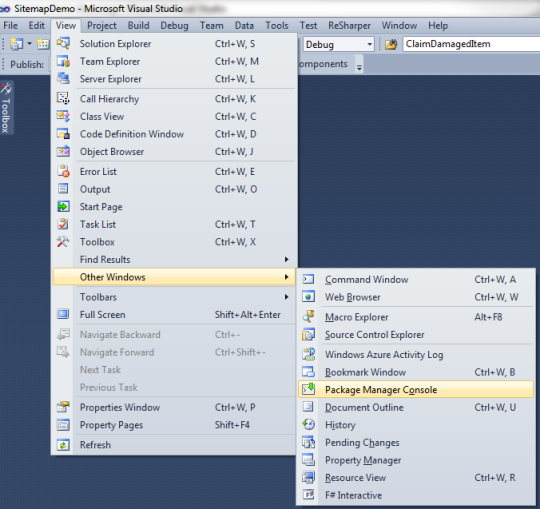
To add Asp.net MVC sitemap provider to the current project, enter the following command in the Package Manager Console and press enter:
This command will download the necessary files (dlls, cshtml files) and add them to your MVC project. The operation may take several minutes, depending on your connection. If successful, the Package Manager Console will output something like this: Now let's see what the NuGet package manager actually added to our project:
Because we use Razor as a visualization engine, we can delete asax files that have been added to the SitemapDemo> Views> Shared> DisplayTemplates folder . Here's what our project now looks like:

Now everything is ready. Now let's add some controllers and views before we start playing with SiteMapProvider.
The MVC Sitemap provider will die quietly in some cases if we try to get it to work with controller methods that do not exist or non-existent views. Therefore, we first create controllers and views.
All sites have a homepage, so for starters, let's create one. Right-click on the Controllers folder and create the “HomeController” controller:

Now your controller is created and opened, right-click on the Index action and select “ Add View ... ”
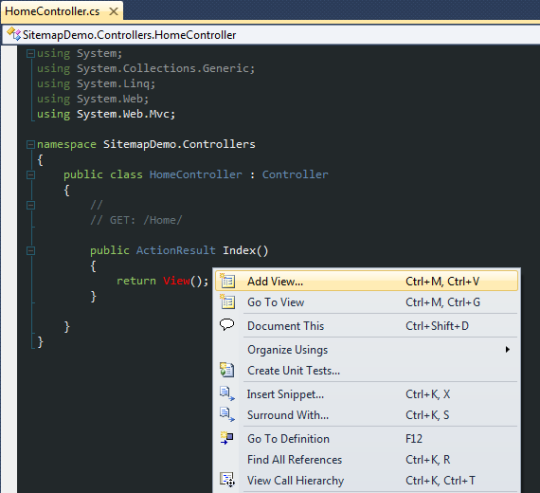
In the Add View dialog, just click “ Add ”. Nothing needs to be changed. Now let's change the text in the created page. Add a heading like “Index - this is the home page”.
Now, by the same principle, let's add another controller. Let's call it NewsController. Add one more “Sports” method to it:
Now let's add views for each NewsController controller method. We will do this in the same way that we added the submission for the home page - by right-clicking on each method in the controller. Again, we just leave the “Add View” dialog box as default and just click “Add” for both views.
Let's add another controller - AboutController. Once created, leave it unchanged and add a new Index view. We also edit the title on the page.
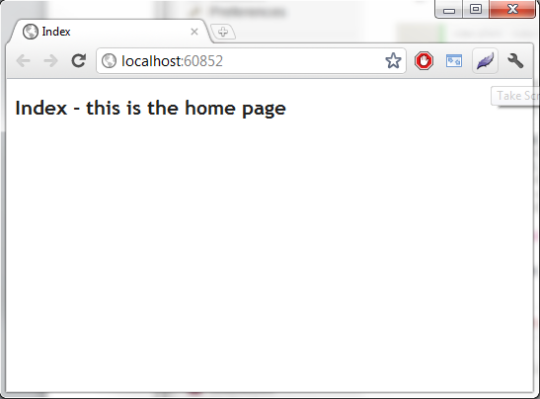
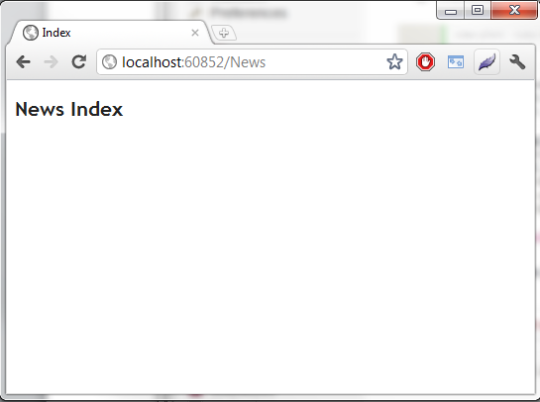
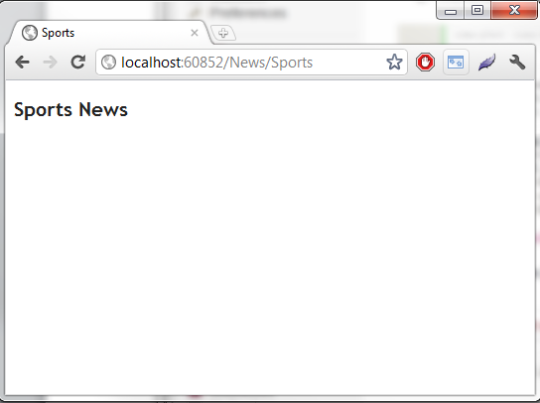
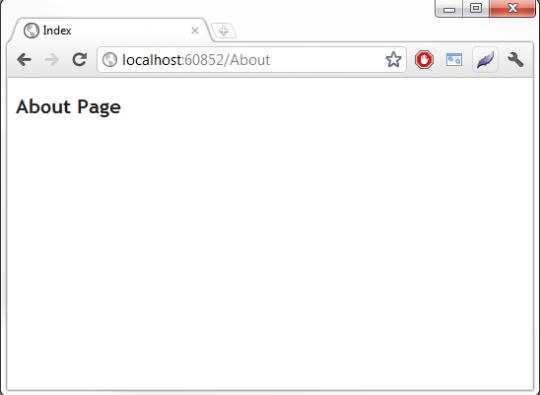
Now in our project there are 4 pages. It is worth testing them before we begin to implement Site Map Provider. Below are screenshots of the resulting pages:
Great, now we have a small site with a simple structure. Imagine the structure of the site in the diagram:
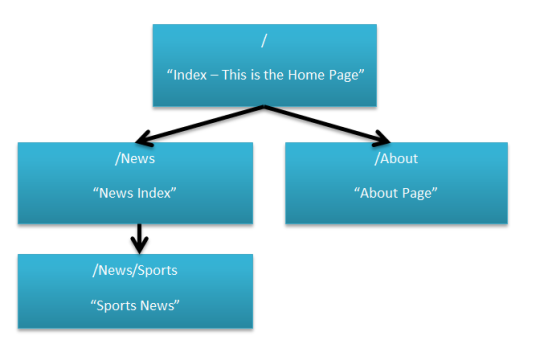
Visualization of the site layout will help us correctly describe the structure of the Mvc.sitemap file. Our Index page is a wrapper for the entire site, as is the home page and the first page when you enter the site.
Now let's move on to the site map configuration. Let's start by editing the Mvc.sitemap file, which is located at the root of our project. The file contains the xml nodes necessary to represent the combinations of your controllers and methods.
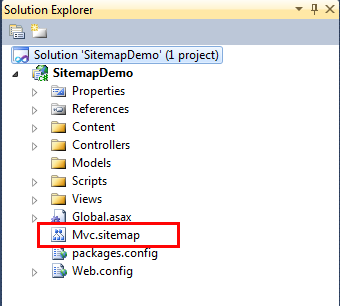
Edit Mvc.Sitemap as follows:
And so we formed the structure of our site in the MVC.Sitemap file. A common mistake here is to forget to wrap the entire site with an xml node representing the home page that the visitor sees at the very beginning.
Now that we have several controllers and methods and the site structure is properly described in Mvc.Sitemap, let's add page navigation.
Open _Layout.cshtml located in the Views / Shared folder. Change the page body code as follows:
So we call the MvcSiteMap library and say to display the navigation menu on all pages. Method call parameters indicate the following:
If we launch our application, we should see the navigation menu on each page:
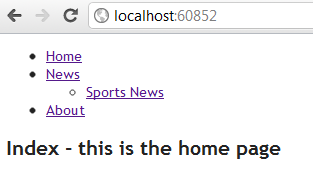
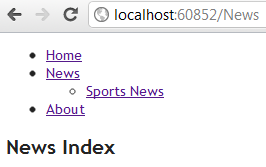
We managed to bring a simple navigation menu to the pages of our site. If you want to change the layout styles, just change the code in Views / Shared / DisplayTemplates / MenuHelperModel.cshtml . Let's make a small change - change the markers of the list items from circles to squares:
You can refresh the page without having to rebuild the project. The News start page should look like this:
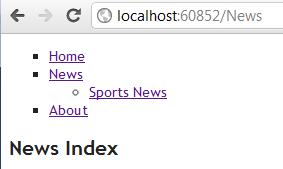
Just as easily we can add bread crumbs. Open our _Layout.cshtml and write the following code:
Now all pages have convenient breadcrumbs:
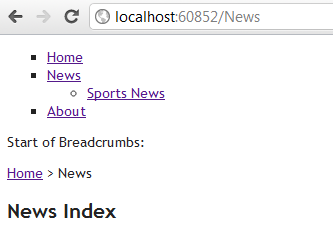
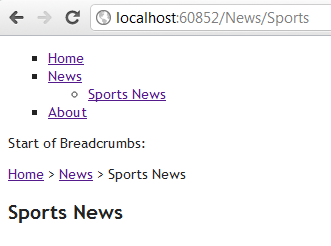
Similarly, if you want to customize the appearance of breadcrumbs, you need to edit the file Views / Shared / DisplayTemplates / SiteMapPathHelperModel.cshtml .
Any real site will at some point use a dynamic or parameterized URL. Adding a dynamic URL to the MVC Sitemap is pretty simple if you know how. Let's start by adding a new method to the NewsController:
Now add a view. Edit Article.cshtml as follows:
We open the page in the localhost browser: xxxx / News / Article / 1234:
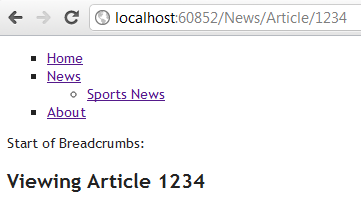
Note that the new page is not marked in the sitemap and therefore the breadcrumbs are empty.
In order to insert into the page in the navigation menu, you first need to decide where it will be located. I want her inside the News section. Edit the Mvc.Sitemap and add the Key attribute to the “News” node.
Now add the attributes to the Article method of the News controller:
Let's build the project and open localhost in the browser: xxxx / News / Article / 1234:
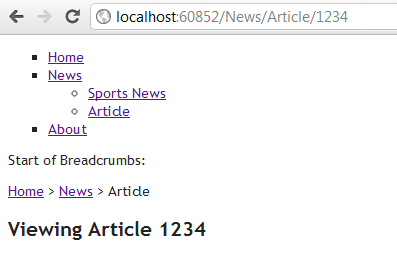
Now we have breadcrumbs and navigation menus on the new page, despite the dynamic URL!
You can download the solution here .
Article translation: edspencer.me.uk/2011/09/20/mvc-sitemap-provider-tutorial-2-breadcrumbs
INSTALLATION
Let's start with the empty MVC3 project. Launch Visual Studio. Create a new Asp.Net MVC3 Web application. I'll call it SitemapDemo:
For the demo, I chose an empty template with the Razor render engine.
Now, before you do anything, let's go back and put in the NuGet package. Choose View> Other Windows and then select “ Package Manager Console ”:
To add Asp.net MVC sitemap provider to the current project, enter the following command in the Package Manager Console and press enter:
PM> Install-Package MvcSiteMapProviderThis command will download the necessary files (dlls, cshtml files) and add them to your MVC project. The operation may take several minutes, depending on your connection. If successful, the Package Manager Console will output something like this: Now let's see what the NuGet package manager actually added to our project:
PM> Install-Package MvcSiteMapProvider

Successfully installed 'MvcSiteMapProvider 3.1.0.0'.

Successfully added 'MvcSiteMapProvider 3.1.0.0' to SitemapDemo.


PM>- SitemapDemo> References> MvcSiteMapProvider - Link to MvcSiteMapProvider.dll
- SitemapDemo> Mvc.sitemap - This file will be used to describe our MVC3 website in XML nodes
- SitemapDemo> Views> Shared> DisplayTemplates> MenuHelperModel.cshtml
- SitemapDemo> Views> Shared> DisplayTemplates> SiteMapHelperModel.cshtml
- SitemapDemo> Views> Shared> DisplayTemplates> SiteMapNodeModel.cshtml
- SitemapDemo> Views> Shared> DisplayTemplates> SiteMapNodeModelList.cshtml
- SitemapDemo> Views> Shared> DisplayTemplates> SiteMapPathHelperModel.cshtml
- SitemapDemo> Views> Shared> DisplayTemplates> SiteMapTitleHelperModel.cshtml
Because we use Razor as a visualization engine, we can delete asax files that have been added to the SitemapDemo> Views> Shared> DisplayTemplates folder . Here's what our project now looks like:
Now everything is ready. Now let's add some controllers and views before we start playing with SiteMapProvider.
IMPORTANT
The MVC Sitemap provider will die quietly in some cases if we try to get it to work with controller methods that do not exist or non-existent views. Therefore, we first create controllers and views.
All sites have a homepage, so for starters, let's create one. Right-click on the Controllers folder and create the “HomeController” controller:
Now your controller is created and opened, right-click on the Index action and select “ Add View ... ”
In the Add View dialog, just click “ Add ”. Nothing needs to be changed. Now let's change the text in the created page. Add a heading like “Index - this is the home page”.
Now, by the same principle, let's add another controller. Let's call it NewsController. Add one more “Sports” method to it:
using System;
using System.Collections.Generic;
using System.Linq;
using System.Web;
using System.Web.Mvc;
namespace SitemapDemo.Controllers
{
    public class NewsController : Controller
    {
        //
        // GET: /News/
        public ActionResult Index()
        {
            return View();
        }
        //
        // GET: /News/Sports/
        public ActionResult Sports()
        {
            return View();
        }
    }
}
Now let's add views for each NewsController controller method. We will do this in the same way that we added the submission for the home page - by right-clicking on each method in the controller. Again, we just leave the “Add View” dialog box as default and just click “Add” for both views.
Let's add another controller - AboutController. Once created, leave it unchanged and add a new Index view. We also edit the title on the page.
Now in our project there are 4 pages. It is worth testing them before we begin to implement Site Map Provider. Below are screenshots of the resulting pages:
Screenshots
localhost: xxxx
localhost: xxxx / News
localhost: xxxx / News / Sports
localhost: xxxx / About
localhost: xxxx / News
localhost: xxxx / News / Sports
localhost: xxxx / About
Great, now we have a small site with a simple structure. Imagine the structure of the site in the diagram:
Visualization of the site layout will help us correctly describe the structure of the Mvc.sitemap file. Our Index page is a wrapper for the entire site, as is the home page and the first page when you enter the site.
Now let's move on to the site map configuration. Let's start by editing the Mvc.sitemap file, which is located at the root of our project. The file contains the xml nodes necessary to represent the combinations of your controllers and methods.
Edit Mvc.Sitemap as follows:
And so we formed the structure of our site in the MVC.Sitemap file. A common mistake here is to forget to wrap the entire site with an xml node representing the home page that the visitor sees at the very beginning.
ADD NAVIGATION
Now that we have several controllers and methods and the site structure is properly described in Mvc.Sitemap, let's add page navigation.
Open _Layout.cshtml located in the Views / Shared folder. Change the page body code as follows:
    @Html.MvcSiteMap().Menu(false, true, true)
    @RenderBody()
So we call the MvcSiteMap library and say to display the navigation menu on all pages. Method call parameters indicate the following:
- We do not want to start from the current node
- We want to show nodes in child levels
- We want to show the root node. If set to false, the “Home” node will not be shown
If we launch our application, we should see the navigation menu on each page:
EDITING A NAVIGATION VIEW
We managed to bring a simple navigation menu to the pages of our site. If you want to change the layout styles, just change the code in Views / Shared / DisplayTemplates / MenuHelperModel.cshtml . Let's make a small change - change the markers of the list items from circles to squares:
@foreach (var node in Model.Nodes) {
- @Html.DisplayFor(m => node)
@if (node.Children.Any()) {
@Html.DisplayFor(m => node.Children)
}
}
You can refresh the page without having to rebuild the project. The News start page should look like this:
BREAD BABIES
Just as easily we can add bread crumbs. Open our _Layout.cshtml and write the following code:
    @Html.MvcSiteMap().Menu(false, true, true)
    Start of Breadcrumbs:
    @Html.MvcSiteMap().SiteMapPath()
    @RenderBody()
Now all pages have convenient breadcrumbs:
Similarly, if you want to customize the appearance of breadcrumbs, you need to edit the file Views / Shared / DisplayTemplates / SiteMapPathHelperModel.cshtml .
DYNAMIC URL / PARAMETERED URL
Any real site will at some point use a dynamic or parameterized URL. Adding a dynamic URL to the MVC Sitemap is pretty simple if you know how. Let's start by adding a new method to the NewsController:
//GET: News/Article/x
public ActionResult Article(int id)
{
    ViewBag.id = id;
    return View();
}
Now add a view. Edit Article.cshtml as follows:
@{
    ViewBag.Title = "Article";
}
Viewing Article @ViewBag.id
We open the page in the localhost browser: xxxx / News / Article / 1234:
Note that the new page is not marked in the sitemap and therefore the breadcrumbs are empty.
In order to insert into the page in the navigation menu, you first need to decide where it will be located. I want her inside the News section. Edit the Mvc.Sitemap and add the Key attribute to the “News” node.
Now add the attributes to the Article method of the News controller:
//GET: News/Article/x
[MvcSiteMapNode(Title = "Article", ParentKey = "News")]
public ActionResult Article(int id)
{
    ViewBag.id = id;
    return View();
}
Let's build the project and open localhost in the browser: xxxx / News / Article / 1234:
Now we have breadcrumbs and navigation menus on the new page, despite the dynamic URL!
DOWNLOAD THE DECISION
You can download the solution here .
Article translation: edspencer.me.uk/2011/09/20/mvc-sitemap-provider-tutorial-2-breadcrumbs