Analysis of Code Coverage for iOS and OS X projects (xCode 4.4)
Foreword
This topic does not intend to talk about code coverage , and whether this tool is needed or not. Also, the question of the appropriateness of tests in iOS projects will not be raised (suppose that they still need someone, which means there is).
Motivation
It is very convenient when profiling / analysis tools are built into the IDE. The history with code coverage in xCode is not entirely cloudless: in the days of xCode 3.x and GCC everything was simple and the necessary links and compiler flags were googled at a time. With the advent of xCode 4.1, everything became a little more complicated due to the use of LLVM-GCC, I had to go to some tricks (right up to assembling LLVM with my own hands). And in 4.3, the libprofile_rt library was moved to another directory, which also caused a lot of problems.
It was experimentally established that setting up code coverage for xCode 4.4 takes several minutes, and since it’s cheap, why not use it? An alternative practical use case, proven in practice, is to directly test the project code and search for the 'dead' code, followed by its analysis and cleaning.
Project setup in xCode 4.4
Create a new project (iOS / OS X) with the checkmark Include Unit Tests . You can use my test project with ready-made unit tests.
Setting up a project involves two steps:
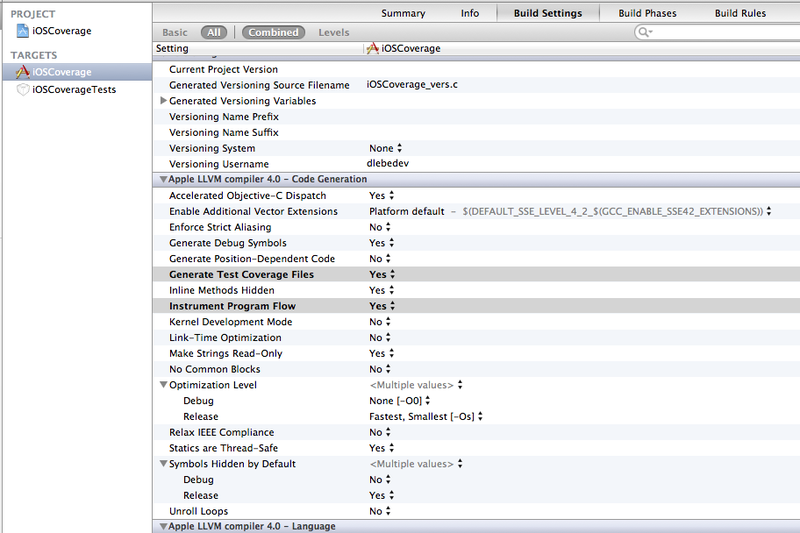
1. Open the target% project-name%, and set the flags in the Code generation section :
Generate Test Coverage Files = YES
Instrument Program Flow = YES
2. For iOS only. To avoid the crashes described here , you must add a file with the following contents to the * .c project:
#include
FILE* fopen$UNIX2003(const char* filename, const char* mode);
size_t fwrite$UNIX2003(const void* ptr, size_t size, size_t nitems, FILE* stream);
FILE* fopen$UNIX2003(const char* filename, const char* mode) {
    return fopen(filename, mode);
}
size_t fwrite$UNIX2003(const void* ptr, size_t size, size_t nitems, FILE* stream) {
    return fwrite(ptr, size, nitems, stream);
}
That's the whole project setup. Now, after running% projectname% Tests, you need to open the directory (for iOS) "/Users/%user%/Library/Developer/Xcode/DerivedData/%project-nameBLABLABLABLA%/Build/Intermediates/%project-name%.build/ "Debug-iphonesimulator /% project-name% .build / Objects-normal / i386" . In this directory, we are interested in the * .gcda and * .gcno files, which contain coverage data. Important : if you are going to test the coverage of the application code, not the tests, you must specify UIApplicationExitsOnSuspend = YES in * .plist , since * .gcda files are created only after the program has finished in an "error" way.
For clarity, I give the code of the tested class and several tests:
#import "MyCalc.h"
@implementation MyCalc
- (CGFloat)performOperation:(MyMathOperation)operation withA:(CGFloat)a B:(CGFloat)b {
    CGFloat result = 0.f;
    switch (operation) {
        case MyMathOperationAdd:
            result = a + b;
            break;
        case MyMathOperationSubtract:
            result = a - b;
            break;
        case MyMathOperationDivide:
            result = a / b;
            break;
        case MyMathOperationMultiply:
            result = a * b;
            break;
        default:
            NSLog(@"Unsupported operation");
            break;
    }
    return result;
}
- (CGFloat)negate:(CGFloat)number {
    //this method works incorrectly
    return number;
}
@end
- (void)testNegation {
    CGFloat input = 3;
    CGFloat expected = -3;
    CGFloat result = [self.calculator negate:input];
    STAssertEquals(result, expected, @"Negation failed. Expected: %f, Actual: %f", expected, result);
}
- (void)testAddition {
    CGFloat a = 3;
    CGFloat b = 4;
    CGFloat expected = a + b;
    CGFloat result = [self.calculator performOperation:MyMathOperationAdd withA:a B:b];
    STAssertEquals(result, expected, @"Addition failed. Expected: %f, Actual: %f", expected, result);
}
- (void)testMultiplication {
    CGFloat a = 14;
    CGFloat b = 3;
    CGFloat expected = a * b;
    CGFloat result = [self.calculator performOperation:MyMathOperationMultiply withA:a B:b];
    STAssertEquals(result, expected, @"Addition failed. Expected: %f, Actual: %f", expected, result);
}
Results Analysis
Consider several tools for presenting statistics in a human-friendly format.
gcov
gcov is a utility that generates coverage statistics based on * .gcda and * .gcno files. Until recently, it worked only with GCC, at the moment it works perfectly with LLVM. The output is a plain-text report.
For example, here is the result of running on the MyCalc.gcda files from the test project:

At the output, we have statistics as a percentage of coverage, as well as the MyCalc.m.gcov file:
        -:    0:Source:/Users/dlebedev/src/sandbox/Coverage/iOS/iOSCoverage/../../Common/MyCalc.m
        -:    0:Graph:MyCalc.gcno
        -:    0:Data:MyCalc.gcda
        -:    0:Runs:0
        -:    0:Programs:0
        -:    1://
        -:    2://  MyCalc.m
        -:    3://  iOSCoverage
        -:    4://
        -:    5://  Created by Denis Lebedev on 23.08.12.
        -:    6://  Copyright (c) 2012 Denis Lebedev. All rights reserved.
        -:    7://
        -:    8:
        -:    9:#import "MyCalc.h"
        -:   10:
        -:   11:@implementation MyCalc
        -:   12:
        2:   13:- (CGFloat)performOperation:(MyMathOperation)operation withA:(CGFloat)a B:(CGFloat)b {
        2:   14:    CGFloat result = 0.f;
        -:   15:
        2:   16:    switch (operation) {
        -:   17:        case MyMathOperationAdd:
        1:   18:            result = a + b;
        1:   19:            break;
        -:   20:        case MyMathOperationSubtract:
    #####:   21:            result = a - b;
        -:   22:
    #####:   23:            break;
        -:   24:        case MyMathOperationDivide:
    #####:   25:            result = a / b;
        -:   26:
    #####:   27:            break;
        -:   28:        case MyMathOperationMultiply:
        1:   29:            result = a * b;
        1:   30:            break;
        -:   31:        default:
    #####:   32:            NSLog(@"Unsupported operation");
    #####:   33:            break;
        -:   34:    }
        2:   35:    return result;
        -:   36:}
        1:   37:- (CGFloat)negate:(CGFloat)number {
        -:   38:    //this method works incorrectly
        1:   39:    return number;
        -:   40:}
        -:   41:
        -:   42:@end
#####: - the line did not complete.
n: - the line was executed n times.
More details can be found here .
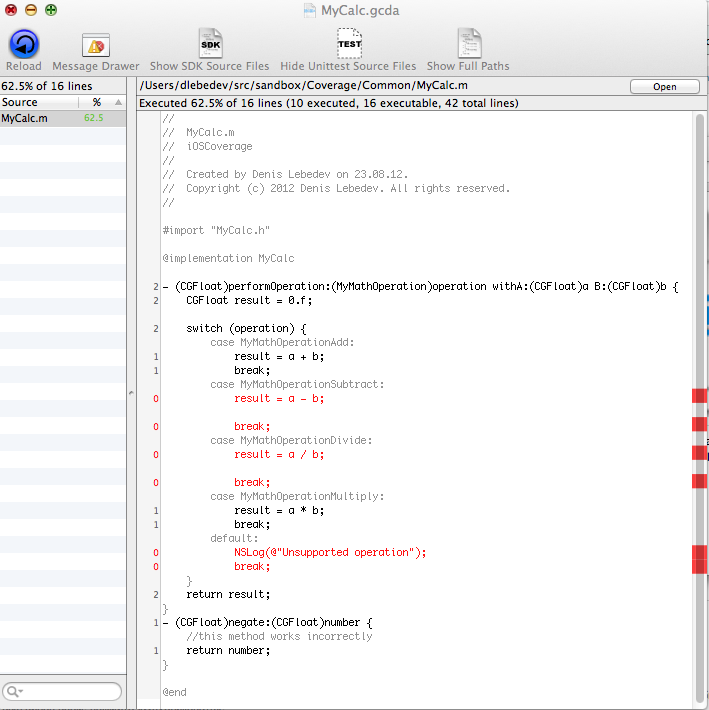
Coverstory
CoverStory is a GUI add-on for gcov that additionally allows generating html reports using Apple Script.
lcov
lcov is another graphical front-end for gcov. It is very convenient if there are a large number of files, as it groups html into directories, as well as during process automation - the utility works from the terminal.
Install lcov:
# sudo mkdir -p /usr/local/src; cd /usr/local/src
# sudo wget http://downloads.sourceforge.net/ltp/lcov-1.6.tar.gz
# sudo tar -xzvf lcov-1.6.tar.gz
# cd lcov-1.6
# sudo vim /usr/local/src/lcov-1.6/bin/install.shOn line 34 (install -D $ SOURCE $ TARGET), remove the -D flag.
# sudo make install
To get the report, execute the following commands in the folder with * .gcda-files:
lcov -t 'Code coverage report' -o report.info -c -d .
genhtml -o html-report report.info
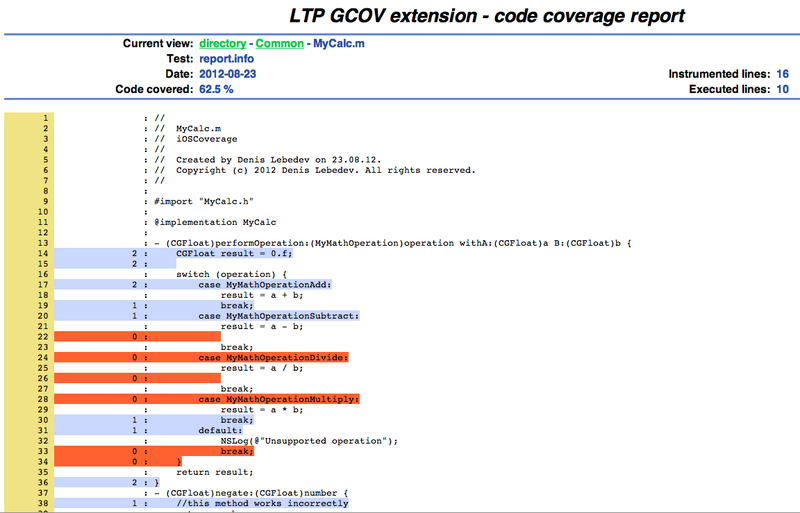
The result in the html-report folder:
Automation
As mentioned above, lcov is convenient in continuos integration. The demonstrated example will be exclusively academic and with annoying flaws (the script could not be applied to a project using CocoaPods).
Script code (it can also be found in the folder with the iOS test project):
#!/bin/sh
TARGET_NAME="iOSCoverage"
TEST_TARGET_NAME="iOSCoverageTests"
BUILD_CONFIG="Debug"
SDK_VERSION="iphonesimulator5.1"
rm -rf build
rm -rf html-report
echo Building and running tests
xcodebuild -target $TEST_TARGET_NAME OBJECT_FILE_DIR_normal=/build/ TEST_AFTER_BUILD=YES -sdk iphonesimulator5.1 -configuration $BUILD_CONFIG -xcconfig settings.xcconfig
echo Copying files
mkdir build/gcda
cp build/$TARGET_NAME.build/$BUILD_CONFIG-iphonesimulator/$TARGET_NAME.build/Objects-normal/i386/*.gcda build/gcda/
cp build/$TARGET_NAME.build/$BUILD_CONFIG-iphonesimulator/$TARGET_NAME.build/Objects-normal/i386/*.gcno build/gcda/
echo Generating report
cd build/gcda
lcov -t 'Code coverage report' -o report.info -c -d .
cd ..
cd ..
genhtml -o html-report build/gcda/report.info
The contents of settings.xcconfig (you can omit flags in the project):
GCC_INSTRUMENT_PROGRAM_FLOW_ARCS = YES
GCC_GENERATE_TEST_COVERAGE_FILES = YES
We put the script and settings.xcconfig file next to the project (first we replace the target and SDK name variables with the necessary ones), run ... and we get an error. Since initially iPhone Simulator is not able to run tests from the command line. How to fix this annoying misunderstanding is described here . After that, run the script again and get the html-report folder with statistics.
UPD: For closer integration with Jenkins, you can use gcovr + Cobertura Plugin . Thanks moborb for the tip.