June 16, 2012 at 08:53
The dude. Practical Monitoring (Part 1)
For me, it all started with this post . Habrauser gsandul decided to write a book-guide on the monitoring system The Dude , and I helped him to the best of my ability. If you had a desire to positively evaluate this post, then all the bonuses to the author of the book - he deserved it more.
All comments, suggestions, etc. please write in the comments - this will take into account errors and shortcomings in the following parts of the book.
Under the cut, the first part.
So let's get started.
Dude functionality allows you to monitor individual servers, as well as networks and network services of any degree of complexity. In most cases, the capabilities of this software are not used to the maximum. This is due primarily to the lack of quality documentation. Even an experienced system or network administrator needs several weeks to correctly configure system monitoring if he starts to do it from scratch. This book is intended to simplify the study of this product.
Surely, you will not find answers to all the questions that arise when using Dude. After all, the purpose of this book is not a description of each of the possible system settings. However, most likely, upon reading, you will be able to independently solve any task of monitoring your system.
What you are reading right now, strictly speaking, is not Dude documentation. This is a book on monitoring with Dude. If you just read the headings of this book, you will probably have the feeling that everything is written in a mess, and the author randomly moves from one topic to another. I assure you this is not so. The procedure for submitting information is thought out, you just need to read in a row what is written and then, at some stage, you will understand this product and be able to use it effectively.
This book describes the monitoring of network devices, mainly Cisco routers and switches, as well as servers running Windows, Linux, FreeBSD. Unfortunately, work with the RouterOS operating system is not considered here, as I don’t have devices running it.
Active monitoring involves polling devices with a certain periodicity in order to determine the availability of the devices themselves and the services they provide, as well as checking the current status of the devices, for example, the percentage of processor utilization, disks, temperature on the chassis, and others. With Dude, such monitoring can be done. Moreover, in Dude, basically, all monitoring is carried out in this mode.
Passive monitoring means waiting from the device for messages about events occurring in the system. Typically, such messages are sent by devices using the syslog protocol, or using SNMP traps. As for working with SNMP Traps, Dude, despite the excellent SNMP support, does NOT support working with them. However, in this software product work with syslog messages is well implemented. An entire chapter is devoted to this below.
In fact, the basic functions of Dude are enough to solve the basic monitoring tasks. But, thanks to the excellent support of the SNMP protocol, as well as the processing functions of the responses received from SNMP devices, it is possible to carry out very complex and high-quality monitoring.
If you do not need round-the-clock monitoring of services, then you can install Dude on your workstation and monitor the system only when you are at the workplace. However, most often monitoring should be around the clock, so you need to install a monitoring system on servers that operate around the clock.
As for the load on the system from Dude, it is minimal. An example from practice: a server with an Intel Pentium III processor with a processor frequency of 800 Mts and 256 MB of RAM under FreeBSD can handle monitoring of about 50 network devices and servers. It is also worth considering that at the same time 3 people were connected to the server using the Dude client, and, moreover, Apache + Cacti + syslog-ng + smsd were launched and worked on it.
When choosing a server location, it is necessary to be guided by two criteria: the minimum distance of the server from the main devices that need to be monitored and the capacity of the Internet channel between the monitoring server and the stations with clients that will connect to it. To understand why this is so, you need to know how the server, client, and client work in conjunction with the server.
You must immediately make a reservation that the client and server must be the same version. The version used will be the one installed on the server. If you installed on the client a version different from the one on the server, then when you connect to it, you will be prompted to update the client version to the server version, even if the client has a later version. The update will be performed automatically, while the client will download the files necessary for the update from the server and restart.
A client can only be connected to one server, and several clients can be connected to a server at a time. This is shown graphically in the figure.
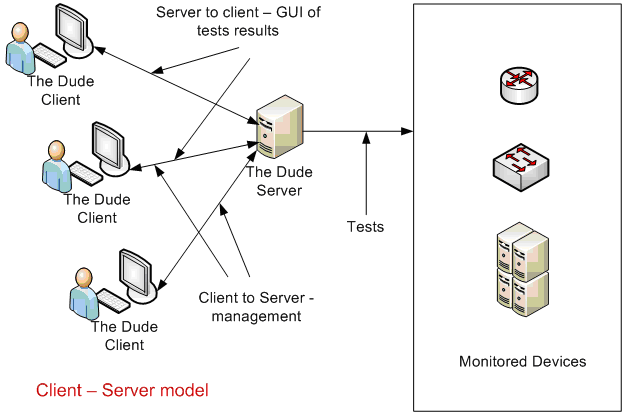
The server stores, uses and modifies the current configuration to perform monitoring. Actually, the server conducts sounding of the system, gives alerts if failures occur, saves the sounding results in its configuration for subsequent display in graphical form. The server itself is not able to graphically display the network diagram. To obtain a graphic image, as well as some types of alerts about failures in the system, the client is used. Even if Dude is running on your workstation, to display all the information received by the local server during the monitoring process, you need to connect to the local server with the local client.
The client does not store any information other than located in RAM, i.e. intended for display. The main purpose of the client is to draw a beautiful picture and, in case of failures or other events, display it in the client console for easy viewing. The second purpose of the client is a graphical user interface designed to configure the server.
When you complete the client process, all data stored by it in RAM is deleted from it. The client does not store data other than the settings for connecting to the server. Therefore, the client is forced to download all the data necessary for operation from the server each time.
The volume of data loaded by the client is relatively high - it can reach several tens of megabytes. If you connect to the server locally or over a local network, there will be no noticeable delays in loading the client. However, when you connect via Internet channels, delays can be quite noticeable. In general, if your access speed to the server is more than 10 Mbit / s, delays are acceptable, but if your access speed is much lower than this value, then loading the client may take several minutes.
After downloading the configuration to the client, the server constantly communicates with him, passing him only the changes. This process consumes a small capacity of the Internet channel - about 30-50 Kbps. At the same time, the server communicates with all clients at the same time, i.e. any changes in configuration or in the status of sensing immediately become available to all customers. If, for example, one of the clients changes the location of the device’s image on the map, then on other clients the image immediately shifts. Therefore, one of the criteria for choosing a server location is the bandwidth of the channel to it.
Another criterion for choosing a server location is its distance from the main servers. The closer the monitoring server is to them, the better. For example, in this case, packet loss to the servers will be much less and there will be no false positives of the monitoring system. But not only so. Sometimes it is necessary to determine the availability of services of your network from a certain place, and this is not always the subnet where the IT employee's workstation is located.
Consider a case study.
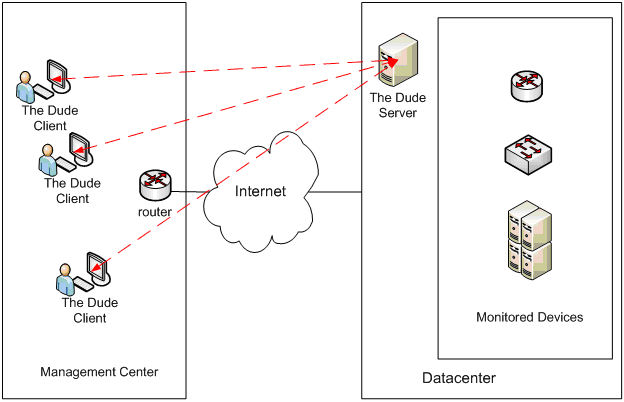
There is an office of a certain organization, let's call it a control center. From this office, the operational management of the server and network infrastructure is carried out, located in the data center hundreds of kilometers from the control center. Usually 5 client workstations connect to the Dude server from the control center. Despite the fact that a large amount of data is transmitted between the Dude server and clients via the Internet, the server location was selected in the data center. This was mainly done because the picture, if the server was located in the control center, would not be objective. For example, if there is a malfunction of the Internet channel in the control center, there would be a false positive of the monitoring system when, as in fact, in this case, the servers in the data center performed their functions in the normal mode, i.e. there was no damage to the business.
In the example described above, everything is fine in terms of minimal packet loss and time delays between the NMS and the devices that are being monitored. However, devices that need to be monitored can also be located in the network control center. You can install an additional Dude server on the local network of the control center, but this creates the inconvenience that the client can only be connected to one Dude server. This problem can be solved using an additional Dude server as the primary Agent.
Reading this definition immediately raises many questions. In order to correctly understand what this means, you must have an idea of how it works.
Here are the main points of work of a bunch of agents and servers:
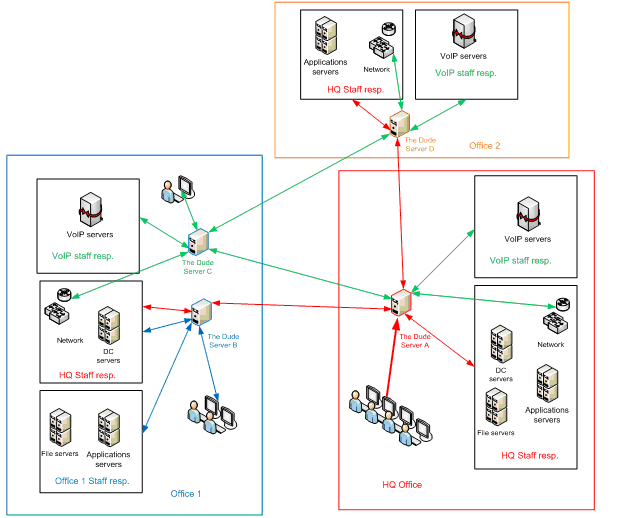
The organization has a headquarters and two remote offices. At the same time, office No. 1 has its own staff of IT specialists, while office No. 2 does not. Along with the servers and the network, these headquarters specialists are responsible for the servers and network infrastructure of office No. 2 and partly for the servers and network infrastructure of office No. 1. A separate server is designed for the VoIP support staff, which is located in office No. 1.
In this case, we have 4 Dude servers. Moreover, servers A and B are both servers and agents of other servers, server C performs only server functions, server D - only agent functions.
When connected to different servers, the picture will be different.
Compare what the specialist responsible for VoIP sees
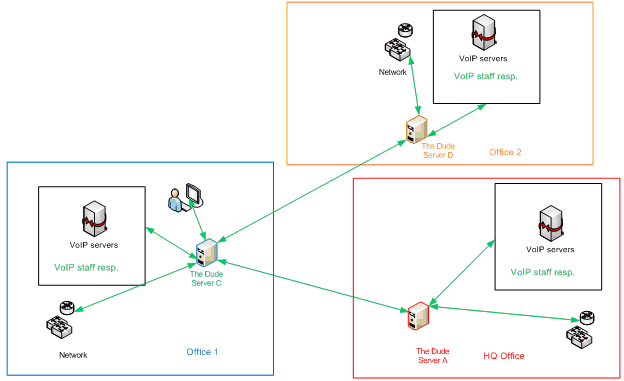
with what the headquarters employees see.
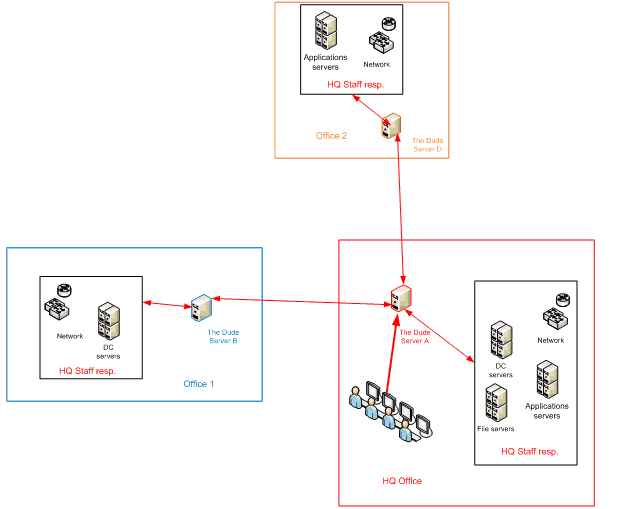
It should be noted that some of the equipment is independently monitored by several servers. For example, data network equipment. However, in this case, if the headquarters staff needs to have a complete picture of all the network equipment, then the VoIP support staff needs only one router and switch, which includes VoIP equipment.
Server D, which works only as an agent, does not contain network cards at all and does not monitor anything on its own. However, its presence is important, at least from the point of view that the specialist responsible for VoIP will be able to assess the latency and packet loss rate from the second office to headquarters.
In addition, for various reasons, it is not always the network, or part of the network, may be available from other offices. For example, for security reasons, the default routes may not be registered on the switches of office No. 2. Also, between offices the VPN may not be configured and Internet access can be provided only through a proxy server.
There are many options for using a bunch of servers and agents. How to use the scheme with agents, and whether to use it at all, you must decide for yourself, based on the configuration of your network.

It is recommended to set everything by default, as the installed software does not take up much disk space, and then you may need all the functionality. Functions unnecessary during subsequent work, for example, the server part, can and will even need to be disabled after installation.
The next dialog will prompt you to select the installation location, after which the installation will start, which will take several seconds. Upon completion of the installation, you can immediately start the software and begin to configure it, more about which will be described below.
It should be noted right away that installation and startup must be done as root. Running under a different user is possible, however, due to the peculiarities of working under wine, if you run the software not under the root, then it will be impossible to run the ping utility. Moreover, the ping test will not work, which will lead to the loss of one of the main functionalities.
The installation algorithm is as follows:
Installation details for various Linux distributions: Debian, RedHat, CentOS and others, you can find at this link .
A more interesting task is to start the Dude server under FreeBSD in the automatic Start Up process mode, in terms of Windows, as a service. Although this task is examined using FreeBSD as an example, it can certainly be implemented under Linux using the same, or maybe other, means.
Dude under FreeBSD must be run from X-Windows. This includes at least connecting a keyboard and monitor to the server, starting Xorg or another window manager such as Gnome or KDE, then starting Dude under wine.
This problem can be solved using Xvfb. Xvfb is an X11 virtual server that executes all graphic operations only in memory, without displaying them on the screen. Xvfb also does not need input devices such as a keyboard or mouse.
In addition to Xvfb, you must also install the monit daemon. The installation of this daemon is due to the fact that if you try to start Dude from scripts that are launched at startup, located in /usr/local/etc/rc.d/, then you will not succeed. The reason that Dude does not start from /usr/local/etc/rc.d/ is not completely determined by me, because I am not a FreeBSD Extra Class Expert. However, above all, using the monit daemon can be considered good practice if you need to ensure self-healing after the failure of other daemons.
The described installation was carried out under FreeBSD 7.0 and 7.2. To simplify the description of the installation process, installation from the ports is shown, however, in order to save time, you can install everything using the packages:
Next, you need to configure and run xorg - how to do this, you can easily find on the Internet. Running xorg to install Dude must be done as root. After launching xorg, download the Dude installation file from the manufacturer’s website.
Run the installation.
Once the installation is complete, you must run Dude once under xorg to perform the initial minimum configuration. To do this, enter the command.
In the next dialog, select the interface language. The

following window will be launched.
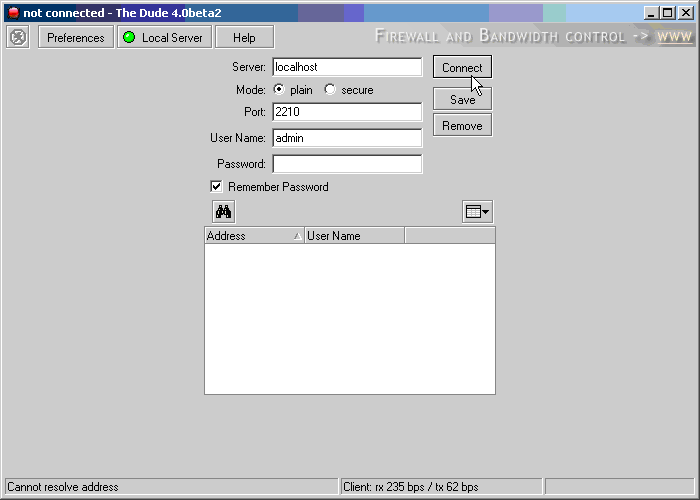
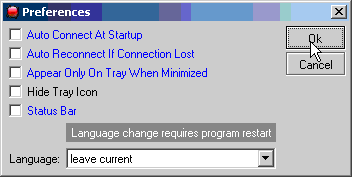
Click the button and remove all checkmarks
Then press the button and select the item shown in the figure below.
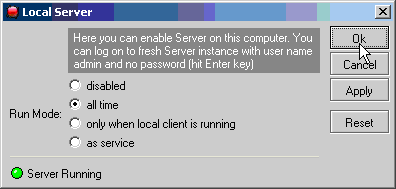
The presets are ready. Click OK, close the Dude console, shut down xorg.
To enable the automatic start procedure after a system reboot, you must:
To verify the launch, you need to run the monit daemon.
Then give the command the
result should be the same
and still, for the test you can give the
Result should be the same
Server with Dude is ready - now you can start the Dude client on another workstation under any of the supported operating systems and start configuring . You can also restart FreeBSD to make sure 100% that everything works as it should.
At the first start, you will be asked to select the interface language and then start scanning the local network.
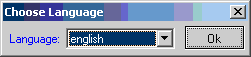
software is well localized. At the same time, both the menu and various messages of the program are localized. However, I prefer and recommend using the original English version for the following reasons:
You must decide which language to use, but the rest of this book will cover the English version.
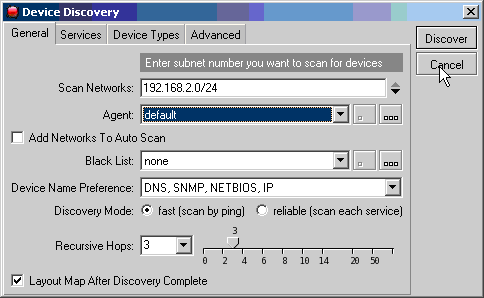
Dude will automatically detect the network and its mask by the IP settings of your network card. You can run a scan, but it can most likely be ineffective until you configure Dude first. In any case, the network scan can be started at any time, in addition, the scan can be launched automatically with the frequency you define. Details of network scanning are described below. At this stage, I recommend canceling this operation.
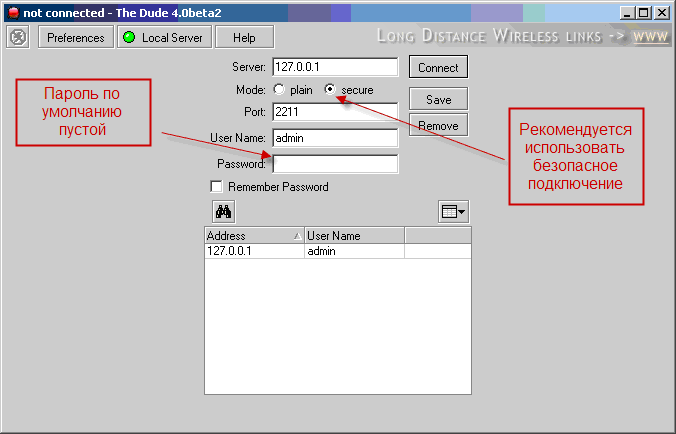
Why this should be done, see security issues. How to change the password is discussed below in the user management section.
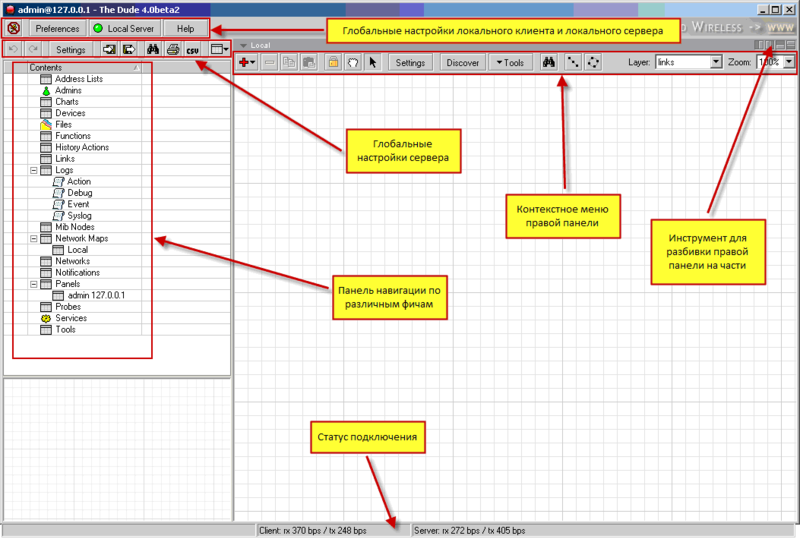
An interface can be conditionally divided into six main parts:

 , you can choose one of two connection methods:
To connect, you need to specify the IP address of the Dude server - if you are connecting to a local server, you must specify the loopback address - 127.0.0.1.
It should be noted that when connecting you must use the host IP address. Due to the nature of the operation, Dude does not support the conversion of a name to an IP address using DNS at the connection stage.
When setting up a firewall between a client and a server, it is necessary to take into account that communication at the transport level takes place using the TCP protocol. The default ports 2210 and 2211 for remote and secure connections can be changed in the server settings.
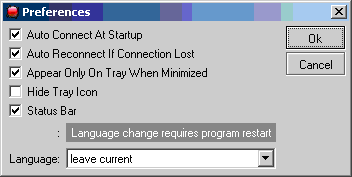
Settings button is trivial, so I won’t even dwell on them.
.
If it is green - the server is running, gray - stopped. If the local server is not used on this host, it is recommended to disable it - this is due not so much to the consumption of resources of the local host as to security.
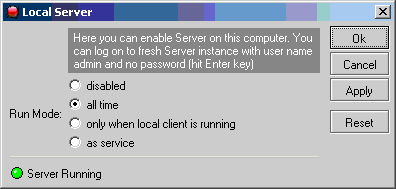
Here you can disable the local server. And also choose the type of his work.
“All Time” means that the server will be started when you log in to your host. If you close the local client, the server will not be unloaded from memory and will perform its functions.
“As service” means that the server will operate as a service, i.e. run at system startup and run in the background. The service itself is called “The Dude Server” and will be installed when you select this mode of operation.

Before proceeding with the discussion of the global server settings, it is necessary to note four more important functions that were logically grouped by the developers near the global settings button.
 are designed to cancel previous actions and restore the previous action after canceling. These functions are very important, because, for example, if you accidentally delete an important element, you can restore it immediately by clicking on the cancel button for the previous action. In this case, an action means not only deleting an object, but also, for example, moving it within the map. The depth of action memorization is set on the Misc tab of the server properties.
 are used to create a backup copy of the configuration and restore the configuration from the backup. When you click on the button
  , a configuration save dialog will appear, in which you will be asked to choose a backup storage location. The backups themselves are a gz archive file. Dude does not support automatic backups at some intervals. However, you can simply configure the backup using external scripts relative to Dude, but more on that below.
Restoring from a backup - the procedure is simple. To do this, click and select the desired configuration from previously saved.
After clicking the button , you will see a dialog with many tabs. It is

immediately necessary to pay attention to the fact that those values of the settings fields that have changed are highlighted in blue.
Of particular note is the Reset button. This button resets ALL (!) Dude settings, i.e. A “clean” configuration remains on your server, as if you had reinstalled it. Do not click this button if you really are not going to reset all the settings, especially if you are not doing regular backups. If this button is pressed, an additional window will appear asking you to confirm the configuration reset, which will save you from accidents.
All comments, suggestions, etc. please write in the comments - this will take into account errors and shortcomings in the following parts of the book.
Under the cut, the first part.
So let's get started.
Introduction
Among the existing monitoring systems, Dude is positioned as the best product in terms of price / quality ratio. This is true because It is distributed free of charge. However, despite being free, it is not inferior, but often superior to commercial products. I know many examples of the successful use of this software product, ranging from commercial banks and Internet providers to government agencies.Dude functionality allows you to monitor individual servers, as well as networks and network services of any degree of complexity. In most cases, the capabilities of this software are not used to the maximum. This is due primarily to the lack of quality documentation. Even an experienced system or network administrator needs several weeks to correctly configure system monitoring if he starts to do it from scratch. This book is intended to simplify the study of this product.
Surely, you will not find answers to all the questions that arise when using Dude. After all, the purpose of this book is not a description of each of the possible system settings. However, most likely, upon reading, you will be able to independently solve any task of monitoring your system.
What you are reading right now, strictly speaking, is not Dude documentation. This is a book on monitoring with Dude. If you just read the headings of this book, you will probably have the feeling that everything is written in a mess, and the author randomly moves from one topic to another. I assure you this is not so. The procedure for submitting information is thought out, you just need to read in a row what is written and then, at some stage, you will understand this product and be able to use it effectively.
This book describes the monitoring of network devices, mainly Cisco routers and switches, as well as servers running Windows, Linux, FreeBSD. Unfortunately, work with the RouterOS operating system is not considered here, as I don’t have devices running it.
Short description of system features
Monitoring system status, as a rule, is carried out by one or more workstations or servers. The monitoring system is called Network Management Station (NMS), a network management station. Further, the system on which Dude is installed may be called NMS. Dude supports both active and passive monitoring.Supported Monitoring Types
There are two types of monitoring: active and passive.Active monitoring involves polling devices with a certain periodicity in order to determine the availability of the devices themselves and the services they provide, as well as checking the current status of the devices, for example, the percentage of processor utilization, disks, temperature on the chassis, and others. With Dude, such monitoring can be done. Moreover, in Dude, basically, all monitoring is carried out in this mode.
Passive monitoring means waiting from the device for messages about events occurring in the system. Typically, such messages are sent by devices using the syslog protocol, or using SNMP traps. As for working with SNMP Traps, Dude, despite the excellent SNMP support, does NOT support working with them. However, in this software product work with syslog messages is well implemented. An entire chapter is devoted to this below.
Active monitoring, supported survey types, and reporting
What Dude can do in active monitoring mode is written on his page:- automatic network scan and map display;
- device type detection and manufacturer identification;
- monitoring devices and connections between them and failure alerts;
- display devices in graphical form with the ability to add your own images;
- simple installation and use;
- You can build your network maps with the addition of non-standard devices;
- supports monitoring via SNMP, ICMP, DNS, UDP and TCP for devices that support these protocols;
- You can graphically display the use of connections between devices;
- Run remote administration tools directly from the console
- works under client-server architecture;
- runs and runs on Linux and FreeBSD in Wine, MacOS in Darwine, Windows;
- and much more…
In fact, the basic functions of Dude are enough to solve the basic monitoring tasks. But, thanks to the excellent support of the SNMP protocol, as well as the processing functions of the responses received from SNMP devices, it is possible to carry out very complex and high-quality monitoring.
Client, Server, Agent. How it works
Before proceeding with the installation and configuration of the monitoring system, you must select the place - the physical server where your NMS will be located. Moreover, there may be several such servers. For some installations, it may be sufficient that the NMS is located on a workstation of a system or network administrator. It all depends on what you want to receive.If you do not need round-the-clock monitoring of services, then you can install Dude on your workstation and monitor the system only when you are at the workplace. However, most often monitoring should be around the clock, so you need to install a monitoring system on servers that operate around the clock.
As for the load on the system from Dude, it is minimal. An example from practice: a server with an Intel Pentium III processor with a processor frequency of 800 Mts and 256 MB of RAM under FreeBSD can handle monitoring of about 50 network devices and servers. It is also worth considering that at the same time 3 people were connected to the server using the Dude client, and, moreover, Apache + Cacti + syslog-ng + smsd were launched and worked on it.
When choosing a server location, it is necessary to be guided by two criteria: the minimum distance of the server from the main devices that need to be monitored and the capacity of the Internet channel between the monitoring server and the stations with clients that will connect to it. To understand why this is so, you need to know how the server, client, and client work in conjunction with the server.
Client server
Client-server architecture is understandable to almost any IT professional. There are some features of the implementation of this architecture in Dude.You must immediately make a reservation that the client and server must be the same version. The version used will be the one installed on the server. If you installed on the client a version different from the one on the server, then when you connect to it, you will be prompted to update the client version to the server version, even if the client has a later version. The update will be performed automatically, while the client will download the files necessary for the update from the server and restart.
A client can only be connected to one server, and several clients can be connected to a server at a time. This is shown graphically in the figure.
The server stores, uses and modifies the current configuration to perform monitoring. Actually, the server conducts sounding of the system, gives alerts if failures occur, saves the sounding results in its configuration for subsequent display in graphical form. The server itself is not able to graphically display the network diagram. To obtain a graphic image, as well as some types of alerts about failures in the system, the client is used. Even if Dude is running on your workstation, to display all the information received by the local server during the monitoring process, you need to connect to the local server with the local client.
The client does not store any information other than located in RAM, i.e. intended for display. The main purpose of the client is to draw a beautiful picture and, in case of failures or other events, display it in the client console for easy viewing. The second purpose of the client is a graphical user interface designed to configure the server.
When you complete the client process, all data stored by it in RAM is deleted from it. The client does not store data other than the settings for connecting to the server. Therefore, the client is forced to download all the data necessary for operation from the server each time.
The volume of data loaded by the client is relatively high - it can reach several tens of megabytes. If you connect to the server locally or over a local network, there will be no noticeable delays in loading the client. However, when you connect via Internet channels, delays can be quite noticeable. In general, if your access speed to the server is more than 10 Mbit / s, delays are acceptable, but if your access speed is much lower than this value, then loading the client may take several minutes.
After downloading the configuration to the client, the server constantly communicates with him, passing him only the changes. This process consumes a small capacity of the Internet channel - about 30-50 Kbps. At the same time, the server communicates with all clients at the same time, i.e. any changes in configuration or in the status of sensing immediately become available to all customers. If, for example, one of the clients changes the location of the device’s image on the map, then on other clients the image immediately shifts. Therefore, one of the criteria for choosing a server location is the bandwidth of the channel to it.
Another criterion for choosing a server location is its distance from the main servers. The closer the monitoring server is to them, the better. For example, in this case, packet loss to the servers will be much less and there will be no false positives of the monitoring system. But not only so. Sometimes it is necessary to determine the availability of services of your network from a certain place, and this is not always the subnet where the IT employee's workstation is located.
Consider a case study.
There is an office of a certain organization, let's call it a control center. From this office, the operational management of the server and network infrastructure is carried out, located in the data center hundreds of kilometers from the control center. Usually 5 client workstations connect to the Dude server from the control center. Despite the fact that a large amount of data is transmitted between the Dude server and clients via the Internet, the server location was selected in the data center. This was mainly done because the picture, if the server was located in the control center, would not be objective. For example, if there is a malfunction of the Internet channel in the control center, there would be a false positive of the monitoring system when, as in fact, in this case, the servers in the data center performed their functions in the normal mode, i.e. there was no damage to the business.
In the example described above, everything is fine in terms of minimal packet loss and time delays between the NMS and the devices that are being monitored. However, devices that need to be monitored can also be located in the network control center. You can install an additional Dude server on the local network of the control center, but this creates the inconvenience that the client can only be connected to one Dude server. This problem can be solved using an additional Dude server as the primary Agent.
Servers and Agents
Dude developers gave this definition to Agents: Agents are other Dude servers that can probe on behalf of this server, thus allowing access to parts of networks that are not directly accessible to this server, or simply transferring part of the work to a location closer to the device being interviewed.Reading this definition immediately raises many questions. In order to correctly understand what this means, you must have an idea of how it works.
Here are the main points of work of a bunch of agents and servers:
- when you install the server, the agent is also installed;
- any Dude server can act as an agent for an arbitrary number of servers;
- any Dude server can have an arbitrary number of agents;
- the server connects to the agent and gives it tasks for the execution of certain probes, while the configuration of the probes — what, how, with what parameters and when it will be executed — is transmitted by the server to the agent;
- the agent simply launches the probes, then the sensing results are provided to the server for storage and subsequent display on the client;
- Dude server can only perform agent functions;
- if you use the server only as an agent, then the server does not store any configurations other than the one necessary for server authentication.
The organization has a headquarters and two remote offices. At the same time, office No. 1 has its own staff of IT specialists, while office No. 2 does not. Along with the servers and the network, these headquarters specialists are responsible for the servers and network infrastructure of office No. 2 and partly for the servers and network infrastructure of office No. 1. A separate server is designed for the VoIP support staff, which is located in office No. 1.
In this case, we have 4 Dude servers. Moreover, servers A and B are both servers and agents of other servers, server C performs only server functions, server D - only agent functions.
When connected to different servers, the picture will be different.
Compare what the specialist responsible for VoIP sees
with what the headquarters employees see.
It should be noted that some of the equipment is independently monitored by several servers. For example, data network equipment. However, in this case, if the headquarters staff needs to have a complete picture of all the network equipment, then the VoIP support staff needs only one router and switch, which includes VoIP equipment.
Server D, which works only as an agent, does not contain network cards at all and does not monitor anything on its own. However, its presence is important, at least from the point of view that the specialist responsible for VoIP will be able to assess the latency and packet loss rate from the second office to headquarters.
In addition, for various reasons, it is not always the network, or part of the network, may be available from other offices. For example, for security reasons, the default routes may not be registered on the switches of office No. 2. Also, between offices the VPN may not be configured and Internet access can be provided only through a proxy server.
There are many options for using a bunch of servers and agents. How to use the scheme with agents, and whether to use it at all, you must decide for yourself, based on the configuration of your network.
Installation
Dude was written under the Windows operating system. The distribution kit comes as an executable exe file. You can download it from the developers site .Windows
Installing under Windows is trivial. To install, download the distribution kit from the manufacturer’s website and run it. You will be asked to read and accept the license agreement, then the following dialog will appear.It is recommended to set everything by default, as the installed software does not take up much disk space, and then you may need all the functionality. Functions unnecessary during subsequent work, for example, the server part, can and will even need to be disabled after installation.
The next dialog will prompt you to select the installation location, after which the installation will start, which will take several seconds. Upon completion of the installation, you can immediately start the software and begin to configure it, more about which will be described below.
Linux, FreeBSD
Installing under these operating systems is more time-consuming, however, if you have experience working with them, then this will not cause any special difficulties.It should be noted right away that installation and startup must be done as root. Running under a different user is possible, however, due to the peculiarities of working under wine, if you run the software not under the root, then it will be impossible to run the ping utility. Moreover, the ping test will not work, which will lead to the loss of one of the main functionalities.
The installation algorithm is as follows:
- install X-Windows;
- install wine;
- Run Dude from X-Windows
- start Dude itself from the X-Windows.
Installation details for various Linux distributions: Debian, RedHat, CentOS and others, you can find at this link .
A more interesting task is to start the Dude server under FreeBSD in the automatic Start Up process mode, in terms of Windows, as a service. Although this task is examined using FreeBSD as an example, it can certainly be implemented under Linux using the same, or maybe other, means.
An example of starting a server under FreeBSD without using a keyboard and monitor as a Windows Service
Under Windows Dude, you can run as a service using the program itself - as described below. Launching as a service is necessary so that after the server is overloaded for any reason - whether it is a power failure or a scheduled reboot - Dude automatically boots up and performs its functions. In addition, launching as a service means saving a terminal license and server resources.Dude under FreeBSD must be run from X-Windows. This includes at least connecting a keyboard and monitor to the server, starting Xorg or another window manager such as Gnome or KDE, then starting Dude under wine.
This problem can be solved using Xvfb. Xvfb is an X11 virtual server that executes all graphic operations only in memory, without displaying them on the screen. Xvfb also does not need input devices such as a keyboard or mouse.
In addition to Xvfb, you must also install the monit daemon. The installation of this daemon is due to the fact that if you try to start Dude from scripts that are launched at startup, located in /usr/local/etc/rc.d/, then you will not succeed. The reason that Dude does not start from /usr/local/etc/rc.d/ is not completely determined by me, because I am not a FreeBSD Extra Class Expert. However, above all, using the monit daemon can be considered good practice if you need to ensure self-healing after the failure of other daemons.
The described installation was carried out under FreeBSD 7.0 and 7.2. To simplify the description of the installation process, installation from the ports is shown, however, in order to save time, you can install everything using the packages:
- Install xorg
cd / usr / ports / x11 / xorg
make; make install clean - Install wine
cd / usr / ports / emulators / wine /
make; make install clean - Install Xvfb
cd / usr / ports / x11-servers / xorg-vfbserver /
make; make install clean - Install monit
/ usr / ports / sysutils / monit /
make; make install clean - Install wget
cd / usr / ports / ftp / wget /
make; make install clean
Next, you need to configure and run xorg - how to do this, you can easily find on the Internet. Running xorg to install Dude must be done as root. After launching xorg, download the Dude installation file from the manufacturer’s website.
wget www.mikrotik.com/download/dude/3.5/dude-install-3.5.exeRun the installation.
wine ~/dude-install-3.5.exe &Once the installation is complete, you must run Dude once under xorg to perform the initial minimum configuration. To do this, enter the command.
wine ~/.wine/drive_c/Program\ Files/Dude/dude.exeIn the next dialog, select the interface language. The
following window will be launched.
Click the button
and remove all checkmarks Then press the button
and select the item shown in the figure below. The presets are ready. Click OK, close the Dude console, shut down xorg.
To enable the automatic start procedure after a system reboot, you must:
- Enable monit autostart at startup, why register a line in /etc/rc.conf
monit_enable="YES" - Create a script /usr/local/etc/rc.d/startXvfb.sh with the following contents
#!/bin/sh

/usr/local/bin/Xvfb -shmem -screen 0 800x600x16 & - Create a script to run Dude - /root/dudestart.sh
#!/bin/sh

DISPLAY=:0 /usr/local/bin/wine /root/.wine/drive_c/Program\ Files/Dude/dude.exe & - Create a configuration file for the / usr / local / etc / monitrc daemon (you need to fix the IP address to yours)
# Check if Virtual X-windows process started

 check process Xvfb with pidfile /tmp/.X0-lock

 start program = "/usr/local/etc/rc.d/startXvfb.sh"


# Check If Dude started do not start if Xvfb is not runnig

 check host dude with address 192.168.0.250

 start program = "/root/dudestart.sh start"

 if failed port 2210 then start

depends on Xvfb - Set the attributes for the newly created files
chmod 600 / usr / local / etc / monitrc
chmod 700 /root/dudestart.sh
chmod 700 /usr/local/etc/rc.d/startXvfb.sh
To verify the launch, you need to run the monit daemon.
/usr/local/etc/rc.d/monitThen give the command the
netstat -an | grep 2210result should be the same
tcp4 0 0 *.2210 *.* LISTENand still, for the test you can give the
ps -ax | grep dudeResult should be the same
58905 ?? S 591:12.24 /root/.wine/drive_c/Program Files/Dude/dude.exe (wine)Server with Dude is ready - now you can start the Dude client on another workstation under any of the supported operating systems and start configuring . You can also restart FreeBSD to make sure 100% that everything works as it should.
First start
It is assumed that the first installation will be performed on the NMS. However, the first launch is the same for both the server side and the client side, if you installed everything by default.At the first start, you will be asked to select the interface language and then start scanning the local network.
Localization
This is the localization selection window that will be displayed the first time you start Dude. Dudesoftware is well localized. At the same time, both the menu and various messages of the program are localized. However, I prefer and recommend using the original English version for the following reasons:
- the name of the event folders is localized, which creates some confusion if you first installed a version localized to some language, and then decided to switch to the original language;
- if you have at least one person in the staff who does not speak the language of localization, then sometimes insurmountable difficulties will be created for this part of the staff;
- if you read documentation in English every day, then it often should be easier for you to understand the English version than the localized one;
- despite, in general, good localization, some things are not translated accurately. For example, you can compare how the definition of an agent was translated by me and how the definition of its translation that came with the installation program determines.
You must decide which language to use, but the rest of this book will cover the English version.
Network scan on first start
In the next window, you will be asked to scan the local network.Dude will automatically detect the network and its mask by the IP settings of your network card. You can run a scan, but it can most likely be ineffective until you configure Dude first. In any case, the network scan can be started at any time, in addition, the scan can be launched automatically with the frequency you define. Details of network scanning are described below. At this stage, I recommend canceling this operation.
First run as client only
If you plan to use this installation only as a client, then immediately you need to do two things:- change the default password for the administrator;
- stop the local server.
Why this should be done, see security issues. How to change the password is discussed below in the user management section.
Graphical User Interface (GUI)
GUI Dude is intuitive and easy to use. Its various features will be considered gradually as they are described.General view, purpose of areas
First you need to consider globally what it is.An interface can be conditionally divided into six main parts:
- Global settings of the local client and local server;
- Global settings of the server to which the client is currently connected;
- Left panel - navigation panel for various features of the software product;
- The right panel with the context menu - which changes depending on what you have selected in the left panel - is used to display the network, functions, probes, graphs and other things selected in the left panel;
- A tool for breaking the right panel into parts;
- The status of the client connecting to the server and the amount of data transmitted between the client and the server, as well as the total amount of data transmitted and received by the server per unit time, including the operation of probes and data transfer between the server and the clients.
The global settings panel of the local client and local server
In this panel, you can choose the method of connecting to the server, the behavior of the local client and local serverConnecting client to server
By clicking on the button, you can choose one of two connection methods:- Открытое подключение. Необходимо учитывать, что данные между сервером и клиентом, включая имя пользователя и пароль, передаются по сети в открытом виде, поэтому предпочтительно использовать не удалённое, а безопасное подключение;
- Безопасное подключение. Более предпочтительное в виду того, что данные передаваемые между сервером и клиентом шифруются.
To connect, you need to specify the IP address of the Dude server - if you are connecting to a local server, you must specify the loopback address - 127.0.0.1.
It should be noted that when connecting you must use the host IP address. Due to the nature of the operation, Dude does not support the conversion of a name to an IP address using DNS at the connection stage.
When setting up a firewall between a client and a server, it is necessary to take into account that communication at the transport level takes place using the TCP protocol. The default ports 2210 and 2211 for remote and secure connections can be changed in the server settings.
Local client behavior
The behavior of the local client is set by clicking theSettings button is trivial, so I won’t even dwell on them.
Local Server Settings
The settings of the local server are determined by pressing the button of its status. If it is green - the server is running, gray - stopped. If the local server is not used on this host, it is recommended to disable it - this is due not so much to the consumption of resources of the local host as to security.
Here you can disable the local server. And also choose the type of his work.
“All Time” means that the server will be started when you log in to your host. If you close the local client, the server will not be unloaded from memory and will perform its functions.
“As service” means that the server will operate as a service, i.e. run at system startup and run in the background. The service itself is called “The Dude Server” and will be installed when you select this mode of operation.
Global server settings
The global settings of the server to which the client is currently connected can be viewed and changed by clicking on the Settings button.Before proceeding with the discussion of the global server settings, it is necessary to note four more important functions that were logically grouped by the developers near the global settings button.
Undo redo
The buttonsare designed to cancel previous actions and restore the previous action after canceling. These functions are very important, because, for example, if you accidentally delete an important element, you can restore it immediately by clicking on the cancel button for the previous action. In this case, an action means not only deleting an object, but also, for example, moving it within the map. The depth of action memorization is set on the Misc tab of the server properties.Backup
The buttonsare used to create a backup copy of the configuration and restore the configuration from the backup. When you click on the button , a configuration save dialog will appear, in which you will be asked to choose a backup storage location. The backups themselves are a gz archive file. Dude does not support automatic backups at some intervals. However, you can simply configure the backup using external scripts relative to Dude, but more on that below. Restoring from a backup - the procedure is simple. To do this, click
and select the desired configuration from previously saved.Server settings
It is immediately necessary to make a reservation that in this section not all possible global server settings will be considered - some of them will be discussed in other sections below.After clicking the button
, you will see a dialog with many tabs. It is immediately necessary to pay attention to the fact that those values of the settings fields that have changed are highlighted in blue.
Of particular note is the Reset button. This button resets ALL (!) Dude settings, i.e. A “clean” configuration remains on your server, as if you had reinstalled it. Do not click this button if you really are not going to reset all the settings, especially if you are not doing regular backups. If this button is pressed, an additional window will appear asking you to confirm the configuration reset, which will save you from accidents.