June 15, 2012 at 09:24
HA (High Available) VMware vSphere Cluster on HP BL460c and EVA Server Blades
The practical application of knowledge about working with EVA and iLO arrays in ProLiant servers , which you received a little earlier, can be the deployment of a highly accessible cluster on vSphere.
The cluster can be used for medium and large enterprises to reduce unplanned downtime. Since for a business such parameters as the availability of its service or services to a client in 24x7 mode are important, such a solution is based on a high availability cluster. A cluster always includes at least 2 servers. In our solution, servers running VMware monitor each other’s state, and at that time only one of them will be the leader; a virtual machine with our business application will be deployed on it. In the event of a failure of the master server, its role automatically takes the second, while for the customer access to the business application is practically not interrupted.
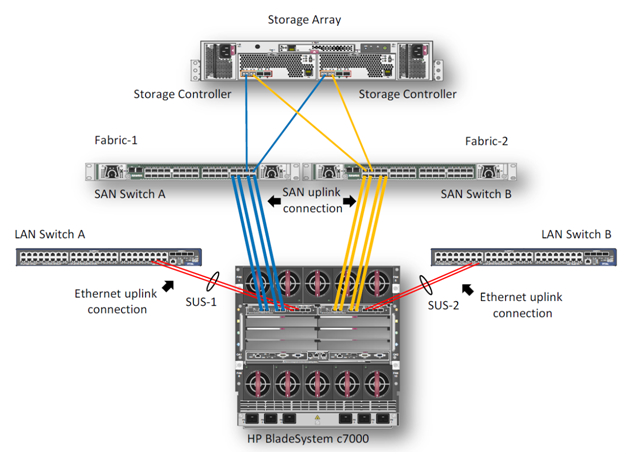
In this example, we will describe the process of creating a highly accessible VMware cluster on BL460c G7 blade servers. The equipment consists of an HP c7000 blade basket and two BL460c G7 blade servers where a VMware HA (High Available) cluster is configured. Only the G7 blade server models are currently available in the HP demo center in Moscow, but based on the described example, you can also build a cluster on the new Gen8 blade servers. Configuration, in general, will not be different. The storage system is the HP EVA 4400. For Ethernet and Fiber Channel connections, the c7000 has 2 HP Virtual Connect Flex Fabric modules in bays 1 and 2.
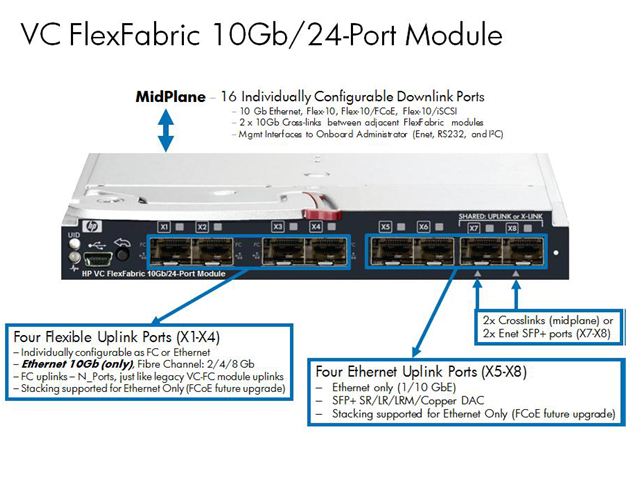
Virtual Connect FlexFabric is a converged virtualized I / O module for the c7000 blade basket.
The HP Virtual Connect FlexFabric module uses Flex-10, FCoE, Accelerated iSCSI technologies for switching blade servers and network infrastructure (SAN and LAN) at a speed of 10Gb.
Of the possibilities: the transfer of “profiles” (MAC table and WWN servers) not only between different blades in the chassis, but also to remote sites where there is the same blade server.
Using Virtual Connect, each of the two ports on the network card of the blade server can be divided into 4 virtual ports 1GbE / 10GbE / 8Gb FC / iSCSI with a total bandwidth of 10GbE per port. This allows you to get from 8 virtual ports per server (on the BL460c G7), which must be set during the first initialization.
The only limitation is that HP Virtual Connect FlexFabric are not full switches. These are aggregators, for the operation of which it is necessary to have separate Ethernet and SAN switches (in the latest firmware, however, Direct Connect with the HP P10000 3PAR has appeared).
The general view of the equipment used is reflected in the Onboard Administrator.

The NC553i Dual Port FlexFabric 10Gb integrated in the ProLiant BL460c G7 can work directly with HP Virtual Connect FlexFabric modules without additional mezzanine cards. Two HP Virtual Connect FlexFabric modules are installed to provide fault tolerance for communication paths between blade servers and EVA 4400 storage and Ethernet switches.
In this example, we will consider the scenario when the traffic from the HP Virtual Connect FlexFabric module is divided into Ethernet switches and an FC factory. FCoE in this case is used for switching modules with blade servers inside the basket.
HP Virtual Connect FlexFabric modules require transceivers to work with various protocols. In this example, 4 Gb FC SFP transceivers were installed in ports 1 and 2 on each module, and 10 Gb SFP + transceivers were installed in ports 4 and 5. 10 GbE channels were used in this test to use network equipment in our demo center.
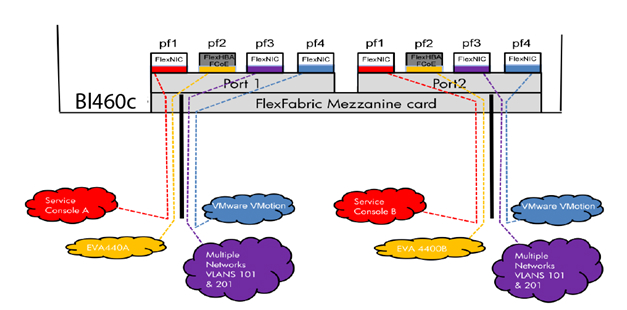
The diagram shows that 3 ports of the NC553i Dual Port FlexFabric 10Gb network adapter are configured as FlexNIC for virtual machines to communicate with each other and for connecting to a network infrastructure. The remaining port was configured as FCoE for communication with the SAN infrastructure and the EVA 4400 storage system.
HP Virtual Connect Manager management software is supplied with each Virtual Connect module, and HP Virtual Connect Enterprise Manager for the Enterprise modules. Using Enterprise Manager, you can manage up to 256 domains from one console (1 domain - 4 Blade systems with Virtual Connect).
After connecting the module, you need to configure it. This is done either by connecting the basket itself to the Onboard Administrator, or by the IP address that is assigned to the module by default at the factory.
After connecting the HP FlexFabric, we need to define the domain, Ethernet network, SAN factory, and server profiles for the hosts. These settings are made in the HP Virtual Connect Manager or on the command line. In our example, the domain has already been created, so the next step will be to define VC Sharing Uplink Sets to support Ethernet networks of virtual machines with the names HTC-77-A and HTC-77-B. Turn on the “Map VLAN tags” function in the installation wizard.
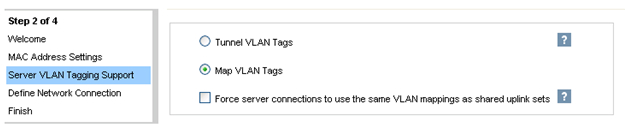
The “Map VLAN tags” feature allows you to use one physical interface to work with multiple networks using the Shared Uplink Set. In this way, you can configure many VLANs on the server's network interface card. The Shared Uplink Sets parameters were set in the VCM installation wizard. SUS job example:
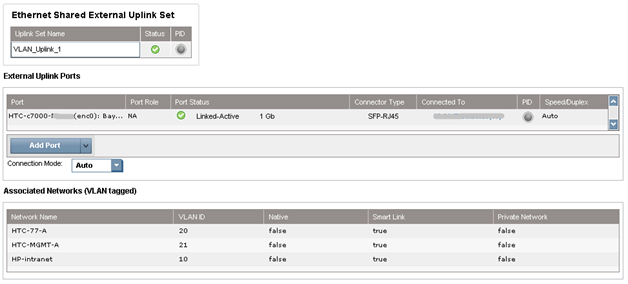
Both HTC-77-A and HTC-MGMT-A networks were assigned: VLAN_Uplink_1 to port 5 of module 1; the second Shared Uplink Set (VLAN_Uplink_2) was assigned to port 5 of module 2, and includes the HTC-77-B (VLAN 20) and HTC-MGMT-B (VLAN 21) networks. An example of creating Ethernet networks in VCM:
The HP Virtual Connect module can create an uplink-free internal network using high-performance 10Gb connections to the c7000 basket backplane. The internal network can be used for VMware vMotion, as well as for the organization of network resiliency. The traffic of this network does not go to the external ports of the c7000 basket. In our case, 2 VMware vMotion networks were configured. Two networks were configured for the management console with the names HP-MGMT-A and HP-MGMT-B. Port 6 of the HP Virtual Connect FlexFabric modules in slots 1 and 2 was used to connect to the management console.

After that, the SAN factory setup begins. It's pretty simple: in VCM choose Define - SAN Fabric. Select the SAN-1 module in compartment 1, port X1. For the second SAN-2 module, the port is also X1. SAN configuration example:

The last step is to “glue” all previously made settings into the server profile. This can be done in several ways: for example, via the VCM web interface or through the Virtual Connect - Virtual Connect Scripting Utility (VCSU) command line. Before installing the OS, you need to check that all system, NIC and FC drivers are updated, and all network parameters are set. Example of creating a profile in CVM:
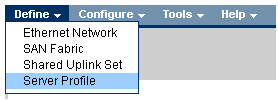
In VCM, select Define - Server Profile, enter the profile name and select the network connections of the profile from those created earlier.
In our case, all ports were assigned by us in advance: 6 Ethernet ports and 2 SAN ports for each profile. The profiles for compartment 11 and 12 are identical, i.e. each server sees the same set of ports. The total speed does not exceed 10 Gb / s for each port on the server’s network card.
If you plan to expand the network in the future, it is recommended to assign unassigned (unassigned) ports in the profile. By doing so, you can further activate these ports without shutting down and restarting the server.
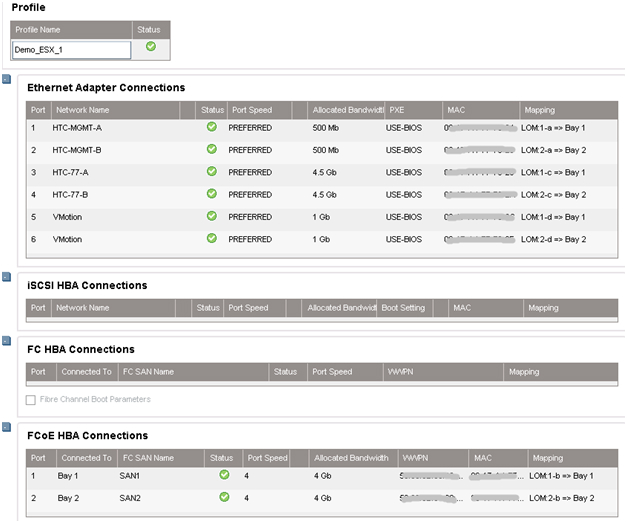
When creating a profile by default, only 2 ports are available in the Ethernet section. To add more, you need to call the context menu with the right mouse button and select “Add connection”.
We assign a speed for each type of port: management ports - 500Mb / s, vMotion ports - 1Gb / s, SAN ports - 4Gb / s and virtual machine ports - 4.5Gb / s.
After creating profiles, they are attached to the blade compartment of the basket in the same menu.

This completes the basket settings. Next, there is a remote connection to the blades themselves and the deployment of VMware ESX 5.0, an example of remote OS installation on ProLiant servers through iLO has already been described .
In our case, instead of Windows, VMware is selected in the installer drop-down menu and the path to the distribution is indicated.
After installation, the server restarts and you can begin to configure the virtual machines. To do this, connect to the ESX server. We go to the Configuration section, create 6 vmnics for each host, as in the Virtual Connect module: Service Console (vSwitch0), VM Network (vSwitch1), vMotion (vSwitch2). Thus, we get a fault-tolerant configuration, where each network corresponds to 2 vmnics.
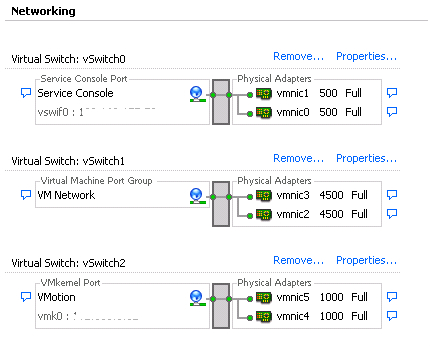
As soon as vmnics are added, you will notice that each adapter is automatically set to the speed specified in the server profile during configuration in Virtual Connect Manager.
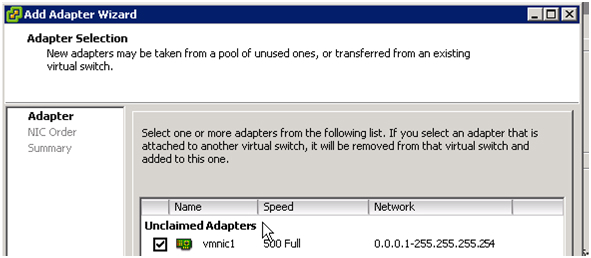
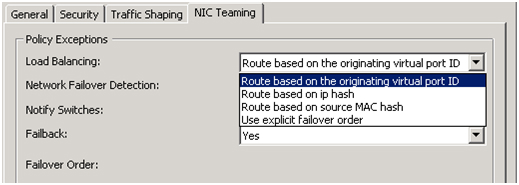
After adding vmnics we combine them into a group using vSwitch: Port tab - in the Configuration field, select vSwitch - Edit, select NIC Teaming, make sure that both vmnics are visible. We select the load balancing “Route based on the originating virtual port ID” - these settings are recommended to be set by default (more about this method can be found on the VMware website .
The previous review described how to work with the EVA disk management interface - Command View.
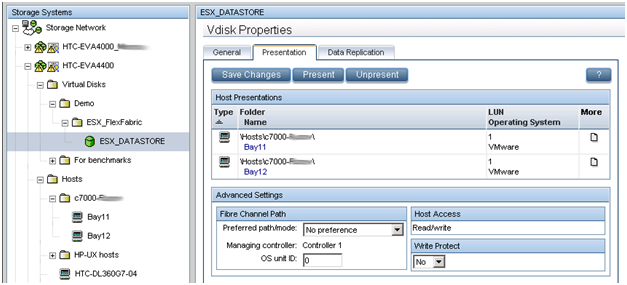
In this example, we are creating a 500 GB LUN that is shared between two virtual machine hosts. Using the method described in the previous article, a virtual disk is created and presented to two ESX hosts. The size of the LUN is determined by the type of OS and the roles that this cluster will perform. A prerequisite for the cluster (in particular, for VMware vMotion) - the LUN must be shared. The new LUN must be formatted in VMFS, and the Raw Device mappings (RDMs) feature for virtual machines must be enabled.
HP Virtual Connect in conjunction with VMware vMotion provides the same level of redundancy as when using two VC-FC modules and two VC-Eth modules, except that only 2 HP FlexFabric modules are needed. HP Virtual Connect FlexFabric enables you to organize fault-tolerant paths to a common LUN and fault-tolerant network interface integration (NIC Teaming) for networking. All VMware vSphere settings meet Best Practices described in the document .
A check was made for cluster availability. A Windows 2008 Server R2 virtual machine was deployed on one of the hosts.
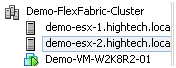
The virtual machine was manually migrated several times from one server to another; during the migration, the cluster remained available.
Cluster Diagram:
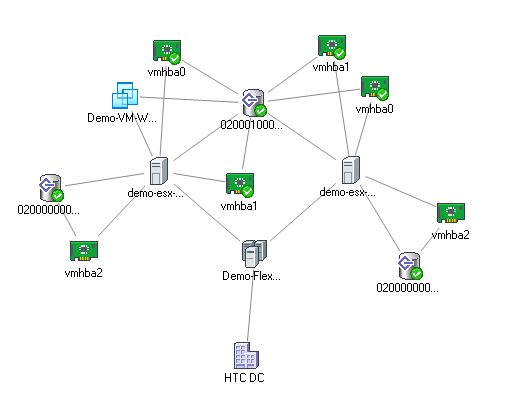
HTC DC is our DC, Demo-FlexFabric Cluster is our cluster, Demo-ESX1 and Demo-ESX2 are VMware hosts, vmhba2 are SAS blade server controllers connected to the internal disk subsystem. Vmhba0 and vmhba1 are two ports of the integrated network cards NC553i Dual Port FlexFabric 10Gb Adapter connected to a shared LUN EVA 4400. Demo-VM-W2K8R2-01 is a virtual machine.
References:
1. HP Blade Server BL460c Gen8
2. HP Virtual Connect FlexFabric
3. Deploying a VMware vSphere HA Cluster with HP Virtual Connect FlexFabric
4. VMware Best Practices vSphere 5.0
5. VMware Virtual Networking Concepts
The cluster can be used for medium and large enterprises to reduce unplanned downtime. Since for a business such parameters as the availability of its service or services to a client in 24x7 mode are important, such a solution is based on a high availability cluster. A cluster always includes at least 2 servers. In our solution, servers running VMware monitor each other’s state, and at that time only one of them will be the leader; a virtual machine with our business application will be deployed on it. In the event of a failure of the master server, its role automatically takes the second, while for the customer access to the business application is practically not interrupted.
1. Description of the task
In this example, we will describe the process of creating a highly accessible VMware cluster on BL460c G7 blade servers. The equipment consists of an HP c7000 blade basket and two BL460c G7 blade servers where a VMware HA (High Available) cluster is configured. Only the G7 blade server models are currently available in the HP demo center in Moscow, but based on the described example, you can also build a cluster on the new Gen8 blade servers. Configuration, in general, will not be different. The storage system is the HP EVA 4400. For Ethernet and Fiber Channel connections, the c7000 has 2 HP Virtual Connect Flex Fabric modules in bays 1 and 2.
2. Description of the components
Virtual Connect FlexFabric is a converged virtualized I / O module for the c7000 blade basket.
The HP Virtual Connect FlexFabric module uses Flex-10, FCoE, Accelerated iSCSI technologies for switching blade servers and network infrastructure (SAN and LAN) at a speed of 10Gb.
Of the possibilities: the transfer of “profiles” (MAC table and WWN servers) not only between different blades in the chassis, but also to remote sites where there is the same blade server.
Using Virtual Connect, each of the two ports on the network card of the blade server can be divided into 4 virtual ports 1GbE / 10GbE / 8Gb FC / iSCSI with a total bandwidth of 10GbE per port. This allows you to get from 8 virtual ports per server (on the BL460c G7), which must be set during the first initialization.
The only limitation is that HP Virtual Connect FlexFabric are not full switches. These are aggregators, for the operation of which it is necessary to have separate Ethernet and SAN switches (in the latest firmware, however, Direct Connect with the HP P10000 3PAR has appeared).
The general view of the equipment used is reflected in the Onboard Administrator.
The NC553i Dual Port FlexFabric 10Gb integrated in the ProLiant BL460c G7 can work directly with HP Virtual Connect FlexFabric modules without additional mezzanine cards. Two HP Virtual Connect FlexFabric modules are installed to provide fault tolerance for communication paths between blade servers and EVA 4400 storage and Ethernet switches.
In this example, we will consider the scenario when the traffic from the HP Virtual Connect FlexFabric module is divided into Ethernet switches and an FC factory. FCoE in this case is used for switching modules with blade servers inside the basket.
HP Virtual Connect FlexFabric modules require transceivers to work with various protocols. In this example, 4 Gb FC SFP transceivers were installed in ports 1 and 2 on each module, and 10 Gb SFP + transceivers were installed in ports 4 and 5. 10 GbE channels were used in this test to use network equipment in our demo center.
The diagram shows that 3 ports of the NC553i Dual Port FlexFabric 10Gb network adapter are configured as FlexNIC for virtual machines to communicate with each other and for connecting to a network infrastructure. The remaining port was configured as FCoE for communication with the SAN infrastructure and the EVA 4400 storage system.
HP Virtual Connect Manager management software is supplied with each Virtual Connect module, and HP Virtual Connect Enterprise Manager for the Enterprise modules. Using Enterprise Manager, you can manage up to 256 domains from one console (1 domain - 4 Blade systems with Virtual Connect).
After connecting the module, you need to configure it. This is done either by connecting the basket itself to the Onboard Administrator, or by the IP address that is assigned to the module by default at the factory.
3. Configure profiles in Virtual Connect Manager
After connecting the HP FlexFabric, we need to define the domain, Ethernet network, SAN factory, and server profiles for the hosts. These settings are made in the HP Virtual Connect Manager or on the command line. In our example, the domain has already been created, so the next step will be to define VC Sharing Uplink Sets to support Ethernet networks of virtual machines with the names HTC-77-A and HTC-77-B. Turn on the “Map VLAN tags” function in the installation wizard.
The “Map VLAN tags” feature allows you to use one physical interface to work with multiple networks using the Shared Uplink Set. In this way, you can configure many VLANs on the server's network interface card. The Shared Uplink Sets parameters were set in the VCM installation wizard. SUS job example:
Both HTC-77-A and HTC-MGMT-A networks were assigned: VLAN_Uplink_1 to port 5 of module 1; the second Shared Uplink Set (VLAN_Uplink_2) was assigned to port 5 of module 2, and includes the HTC-77-B (VLAN 20) and HTC-MGMT-B (VLAN 21) networks. An example of creating Ethernet networks in VCM:
The HP Virtual Connect module can create an uplink-free internal network using high-performance 10Gb connections to the c7000 basket backplane. The internal network can be used for VMware vMotion, as well as for the organization of network resiliency. The traffic of this network does not go to the external ports of the c7000 basket. In our case, 2 VMware vMotion networks were configured. Two networks were configured for the management console with the names HP-MGMT-A and HP-MGMT-B. Port 6 of the HP Virtual Connect FlexFabric modules in slots 1 and 2 was used to connect to the management console.
After that, the SAN factory setup begins. It's pretty simple: in VCM choose Define - SAN Fabric. Select the SAN-1 module in compartment 1, port X1. For the second SAN-2 module, the port is also X1. SAN configuration example:
The last step is to “glue” all previously made settings into the server profile. This can be done in several ways: for example, via the VCM web interface or through the Virtual Connect - Virtual Connect Scripting Utility (VCSU) command line. Before installing the OS, you need to check that all system, NIC and FC drivers are updated, and all network parameters are set. Example of creating a profile in CVM:
In VCM, select Define - Server Profile, enter the profile name and select the network connections of the profile from those created earlier.
In our case, all ports were assigned by us in advance: 6 Ethernet ports and 2 SAN ports for each profile. The profiles for compartment 11 and 12 are identical, i.e. each server sees the same set of ports. The total speed does not exceed 10 Gb / s for each port on the server’s network card.
If you plan to expand the network in the future, it is recommended to assign unassigned (unassigned) ports in the profile. By doing so, you can further activate these ports without shutting down and restarting the server.
When creating a profile by default, only 2 ports are available in the Ethernet section. To add more, you need to call the context menu with the right mouse button and select “Add connection”.
We assign a speed for each type of port: management ports - 500Mb / s, vMotion ports - 1Gb / s, SAN ports - 4Gb / s and virtual machine ports - 4.5Gb / s.
After creating profiles, they are attached to the blade compartment of the basket in the same menu.
4. Configure VMware Cluster
This completes the basket settings. Next, there is a remote connection to the blades themselves and the deployment of VMware ESX 5.0, an example of remote OS installation on ProLiant servers through iLO has already been described .
In our case, instead of Windows, VMware is selected in the installer drop-down menu and the path to the distribution is indicated.
After installation, the server restarts and you can begin to configure the virtual machines. To do this, connect to the ESX server. We go to the Configuration section, create 6 vmnics for each host, as in the Virtual Connect module: Service Console (vSwitch0), VM Network (vSwitch1), vMotion (vSwitch2). Thus, we get a fault-tolerant configuration, where each network corresponds to 2 vmnics.
As soon as vmnics are added, you will notice that each adapter is automatically set to the speed specified in the server profile during configuration in Virtual Connect Manager.
After adding vmnics we combine them into a group using vSwitch: Port tab - in the Configuration field, select vSwitch - Edit, select NIC Teaming, make sure that both vmnics are visible. We select the load balancing “Route based on the originating virtual port ID” - these settings are recommended to be set by default (more about this method can be found on the VMware website .
5. Configuring the EVA 4400 Disk Array
The previous review described how to work with the EVA disk management interface - Command View.
In this example, we are creating a 500 GB LUN that is shared between two virtual machine hosts. Using the method described in the previous article, a virtual disk is created and presented to two ESX hosts. The size of the LUN is determined by the type of OS and the roles that this cluster will perform. A prerequisite for the cluster (in particular, for VMware vMotion) - the LUN must be shared. The new LUN must be formatted in VMFS, and the Raw Device mappings (RDMs) feature for virtual machines must be enabled.
6. Implement VMware HA and VMware vMotion
HP Virtual Connect in conjunction with VMware vMotion provides the same level of redundancy as when using two VC-FC modules and two VC-Eth modules, except that only 2 HP FlexFabric modules are needed. HP Virtual Connect FlexFabric enables you to organize fault-tolerant paths to a common LUN and fault-tolerant network interface integration (NIC Teaming) for networking. All VMware vSphere settings meet Best Practices described in the document .
A check was made for cluster availability. A Windows 2008 Server R2 virtual machine was deployed on one of the hosts.
The virtual machine was manually migrated several times from one server to another; during the migration, the cluster remained available.
Cluster Diagram:
HTC DC is our DC, Demo-FlexFabric Cluster is our cluster, Demo-ESX1 and Demo-ESX2 are VMware hosts, vmhba2 are SAS blade server controllers connected to the internal disk subsystem. Vmhba0 and vmhba1 are two ports of the integrated network cards NC553i Dual Port FlexFabric 10Gb Adapter connected to a shared LUN EVA 4400. Demo-VM-W2K8R2-01 is a virtual machine.
References:
1. HP Blade Server BL460c Gen8
2. HP Virtual Connect FlexFabric
3. Deploying a VMware vSphere HA Cluster with HP Virtual Connect FlexFabric
4. VMware Best Practices vSphere 5.0
5. VMware Virtual Networking Concepts