April 26, 2012 at 18:38
Analog Teamviewer or VNC Strength
Very often, I have to remotely administer user computers.
The first thing that comes to mind is TeamViewer, and the truth is, it can be said a monopolist in the field of RemoteControl.
But, there is also a large number of programs, both paid (most) and free.
That's just because TeamViewer is paid, I wanted to find something free and still work correctly.
And I found, VNC , the only problem is that the VNC Server application specifically requires user interaction.
But, since users often don’t even know what an address bar is in the browser, the task was to automate the connection, to the level of a single click.
So, here is my solution, I ask you immediately not to kick, this is just my solution to this problem, I use it myself, and I think good solutions should be shared.
The difference between this implementation and TeamViewer is that we do not connect to the user, but he to us.
1. The user already has or can download the RC64.exe file (this is a self-extracting archive).
His task is only to launch it and he will connect to me.

2. For my part, you need UVNC Viewer, which works in Listen mode ("C: \ Program Files \ UltraVNC \ vncviewer.exe" -listen).
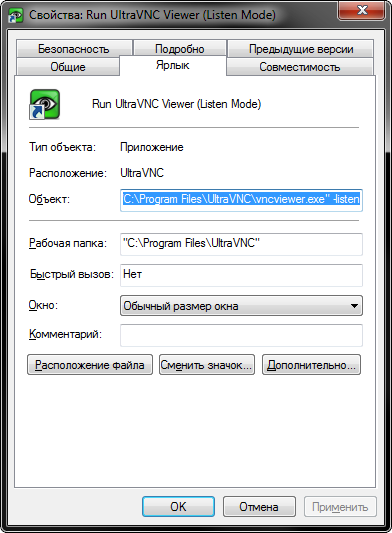
That's all, there is a connection.
1. For an automated connection, we need a permanent server, but since providers mainly issue dynamic IP, you will have to use services like DynDNS .
In my case, it is much easier for me, since I have a DIR-320 router with firmware from Oleg (Linux version 2.4.37.10 (root @ localhost) (gcc version 3.4.6) # 1 2010-11-26 21:53: 28 MSK
1.9.2.7-d-r2381), in which I linked my router to my dyndns account

and registered port forwarding.
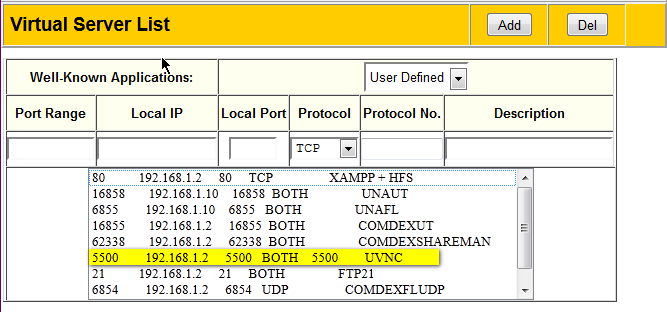
If you do not have a router, you will have to use regular DynDNS tools .

Honestly, I did not use this method, but I think there is nothing complicated about it.
2. Here is my buildUVNC Server, in order to sharpen it for yourself, open the start_wnc.vbs file and change the
winvnc -connect alexbuk.dyndns.org►500 line
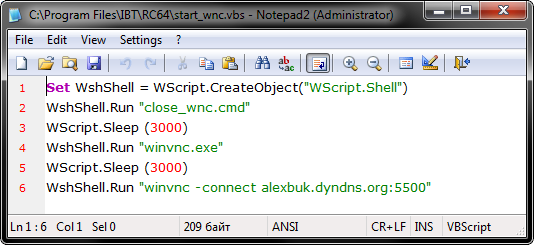
to your server in it.
In fact, I just downloaded the standard UVNC installed in Server mode, and tore out all the files from the installation folder, this did not affect the performance.
That's all, now you have a free TeamViewer.
Note:
1. The VNC server starts via VBS because it is invisible and you can specify a pause (it is necessary for a correct connection).
2. The batch file close_wnc.cmd before starting the server closes the already running version of UVNC, just in case.
3. The program is unpacked into the temporary folder% TEMP% \ IBT_HELP_UVNC
And yet, please take a novice lightweight yet, writing articles for the first time is not so simple.
Thanks for attention.
To avoid holivar - this is just a tool for solving my problems.
If you have a solution too, share it.
UPD
In a note.
1. There are no NAT problems.
2. UVNC SC, not a competitor to this solution, and even more so TeamViewer.
3. Search on the topic is full of different solutions, but there are few workers (convenient and simple).
UPD 2.
In the note.
1. Regarding the gnaw of UVNC in Win7: since UVNC Viewer automatically selects the connection mode, to solve this problem, you need to specify it manually for this:
The standard launch is “C: \ Program Files \ UltraVNC \ vncviewer.exe” -listen
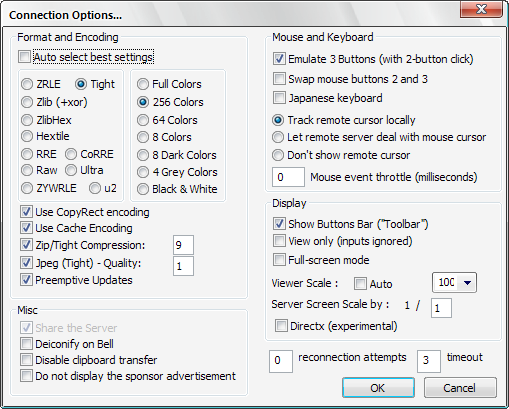
Start with the parameters “C: \ Program Files \ UltraVNC \ vncviewer.exe” -listen -autoacceptincoming -256colors -encoding tight -compresslevel 9
Here
-autoacceptincoming - means
automatic acceptance of the connection (I'm not particularly sure that it is necessary) -256colors - well, their colors are quite enough by the way
-encoding tight - it is the encryption type that supports compression (others, as I understand it, do not support)
-compresslevel 9 - the compression level is the highest
So you change these settings on your machine, the client has the same file.
And when connected, the settings will take on this form
The first thing that comes to mind is TeamViewer, and the truth is, it can be said a monopolist in the field of RemoteControl.
But, there is also a large number of programs, both paid (most) and free.
That's just because TeamViewer is paid, I wanted to find something free and still work correctly.
And I found, VNC , the only problem is that the VNC Server application specifically requires user interaction.
But, since users often don’t even know what an address bar is in the browser, the task was to automate the connection, to the level of a single click.
So, here is my solution, I ask you immediately not to kick, this is just my solution to this problem, I use it myself, and I think good solutions should be shared.
The difference between this implementation and TeamViewer is that we do not connect to the user, but he to us.
1. The user already has or can download the RC64.exe file (this is a self-extracting archive).
His task is only to launch it and he will connect to me.
2. For my part, you need UVNC Viewer, which works in Listen mode ("C: \ Program Files \ UltraVNC \ vncviewer.exe" -listen).
That's all, there is a connection.
And now in more detail.
1. For an automated connection, we need a permanent server, but since providers mainly issue dynamic IP, you will have to use services like DynDNS .
In my case, it is much easier for me, since I have a DIR-320 router with firmware from Oleg (Linux version 2.4.37.10 (root @ localhost) (gcc version 3.4.6) # 1 2010-11-26 21:53: 28 MSK
1.9.2.7-d-r2381), in which I linked my router to my dyndns account
and registered port forwarding.
If you do not have a router, you will have to use regular DynDNS tools .
Honestly, I did not use this method, but I think there is nothing complicated about it.
2. Here is my buildUVNC Server, in order to sharpen it for yourself, open the start_wnc.vbs file and change the
winvnc -connect alexbuk.dyndns.org►500 line
to your server in it.
In fact, I just downloaded the standard UVNC installed in Server mode, and tore out all the files from the installation folder, this did not affect the performance.
That's all, now you have a free TeamViewer.
Note:
1. The VNC server starts via VBS because it is invisible and you can specify a pause (it is necessary for a correct connection).
2. The batch file close_wnc.cmd before starting the server closes the already running version of UVNC, just in case.
3. The program is unpacked into the temporary folder% TEMP% \ IBT_HELP_UVNC
And yet, please take a novice lightweight yet, writing articles for the first time is not so simple.
Thanks for attention.
To avoid holivar - this is just a tool for solving my problems.
If you have a solution too, share it.
UPD
In a note.
1. There are no NAT problems.
2. UVNC SC, not a competitor to this solution, and even more so TeamViewer.
3. Search on the topic is full of different solutions, but there are few workers (convenient and simple).
UPD 2.
In the note.
1. Regarding the gnaw of UVNC in Win7: since UVNC Viewer automatically selects the connection mode, to solve this problem, you need to specify it manually for this:
The standard launch is “C: \ Program Files \ UltraVNC \ vncviewer.exe” -listen
Start with the parameters “C: \ Program Files \ UltraVNC \ vncviewer.exe” -listen -autoacceptincoming -256colors -encoding tight -compresslevel 9
Here
-autoacceptincoming - means
automatic acceptance of the connection (I'm not particularly sure that it is necessary) -256colors - well, their colors are quite enough by the way
-encoding tight - it is the encryption type that supports compression (others, as I understand it, do not support)
-compresslevel 9 - the compression level is the highest
So you change these settings on your machine, the client has the same file.
And when connected, the settings will take on this form