April 27, 2012 at 09:16
SysAdmin Anywhere: Using UDP Hole Punching to Implement Remote Desktop
Introduction
 System administrators are inherently lazy people. They do not like to do the same thing a hundred times. They want to automate everything so that it works with minimal intervention. And I am like that.
 In order to make life easier for myself and my kind, a program was created that combined disparate administrative tools into one product with the simple name SysAdmin . It includes multi-domain network support, reports, inventory and many other useful things that are scattered across different MMCs or included in third-party products. Work has become much more convenient. This program has already grown to version 5.3, changed the interface to Metro-style. But, unfortunately, there is no way to administer computers that are not included in the domain.
However, I wanted more:
- Fully administer remote computers;
- Configure access without a personal presence on the remote side and without the presence of a qualified employee from the remote side;
- Do not open ports on the router;
- If it is impossible to personally attend, do not open access to the router from the Internet;
- Do not complicate the technical solution if you need to have access to more than one computer on a remote network:
- Do not open ports on the router for each computer;
- Do not open access on the router to the server, and from it to computers (There is not always a need for a server, and introducing it as a means for remote access is not economically feasible);
- Do not open one port and each time do not reconfigure the router to access another computer;
- Do not raise VPN.

From experience:
For work it was necessary to create a VPN-network with regional offices located throughout the country. Powerful VPN equipment was installed in the central office, and equipment of the same company was planned locally, but easier. It was necessary to find out everything about their Internet connection, local area network, installed equipment, etc. Prepare VPN equipment and send it to them to connect it and it works. The piquancy of the situation was that it was actually for me to do it, there were no business trips, and the level of users on the ground was very diverse. Of course, everything was implemented, but it took a lot of time for correspondence and telephone conversations.
Due to the limitations listed above, an intermediary was needed for implementation. The client part is installed on the remote computer, which creates a connection with the intermediary that is not blocked by firewalls, because it is initiated by the most remote machine. An administrator only needs to know the address of the intermediary in order to connect to it and gain access to remote computers. Thanks to such an intermediary, we get a number of advantages:
- No need to open ports on the router. Safety is increased, the level of the necessary qualifications of the user is reduced;
- The administrator has access to the control panel located in the cloud through a browser that supports Microsoft Silverlight through a secure connection;
- Commands from the administrator using a cloud service are sent to a remote computer. The response is transmitted to the administrator in the same way;
- The remote computer is online, so there is no need for the presence of the user;
- Additional services (inventory, service desk, reports, license accounting, archiving, monitoring, etc.) with data storage in the cloud and access to it, even if the remote computer is not connected to the Internet;
- Remote Desktop (VNC)
- Access from a mobile phone to Windows Phone.
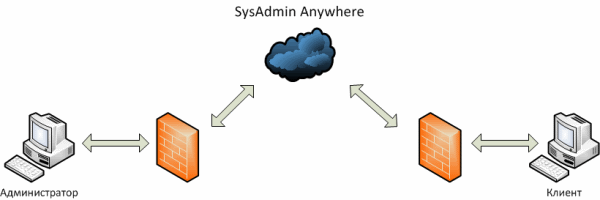
We did not have to look for a platform for an intermediary for a long time. Microsoft Azure, by the way, was suitable for this. Moreover, there was an opportunity to get 30-day access for experiments.
It so happened that by this time I had changed my focus from system administration to programming. Therefore, I decided to create a service myself.
My colleague joined me, and together we began to develop a prototype service. Our task was to create a workable model of interaction between a remote client and a cloud service during the test period. Further development could be continued using the Azure SDK.
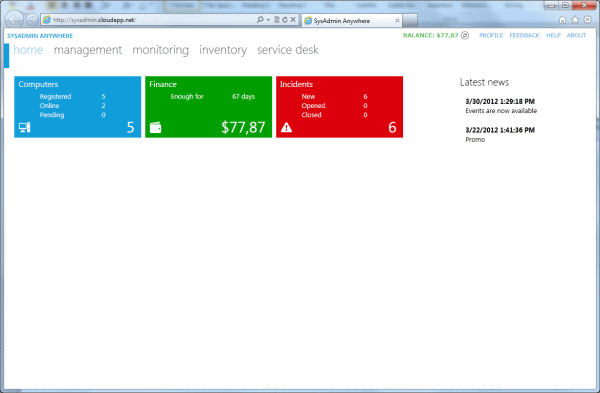
The most difficult thing was to organize a permanent connection between the remote computer and the cloud service. As a result of long and tedious experiments (deploying to the cloud takes tangible time), a working solution appeared that gave confidence in achieving the goal.
We were able to connect the remote computer to the cloud, while not configuring anything from the network equipment. For us, this was a breakthrough.
Now the task was to transfer the command from the administrator to the cloud, and then to the computer and get an answer from him. We decided that a universal solution would be to use WMI. Moreover, the cloud service should not know anything about WMI. Its task is forwarding. This was conceived in order to update the cloud service and client software on remote computers as rarely as possible (now it is updated to the latest version by pressing a button in the console).
Example:
A request is sent from the administrator to get a list of installed services (Select * From Win32_Service) plus a set of fields whose values we need. All this is serialized by JSON, packaged, encrypted and transmitted to the cloud. In the cloud, data is written to the queue and then taken from it by an instance of the service to which the remote computer is connected.
The client, having received the request, fulfills it. The result is serialized by JSON, packaged, encrypted, and passed in the reverse order to the administrator.
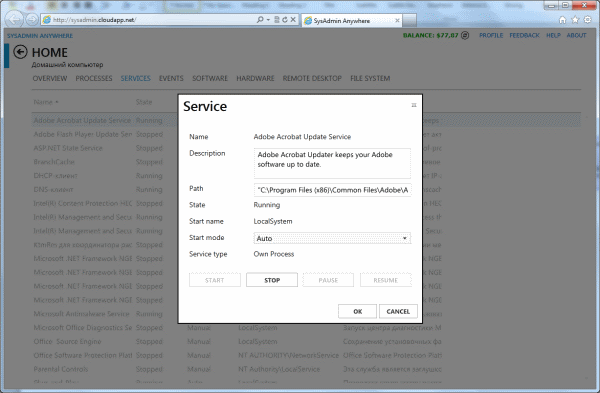
The use of WMI is not limited to just a request; the call of functions and procedures is implemented. For example, any of the services can be stopped.
It would seem that everything is simple, but do not forget that if we plan to make a scalable solution, we cannot do without working with several instances of our service in the cloud. Working with them requires some revision of their experience in development. You should always keep in mind that there is not one instance, but several, and they work in parallel. If you want to do something exclusive - do not forget to notify the rest of the copies about it. For example, billing. It will be extremely unpleasant when each instance goes through the database and recounts the client’s balance, reducing it each time. This option is shown as an example of what might happen, although we are currently working to eliminate this problem in the future.
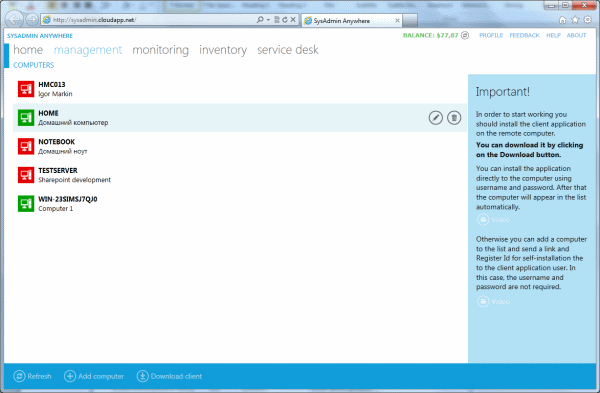
When creating the service, we proceeded from the fact that in most cases it is not necessary to have access to the remote desktop. Direct control of processes, services, etc. is enough. This is faster and easier to do through the web interface.
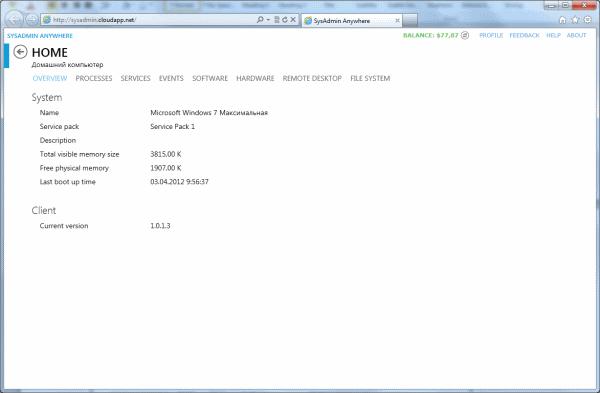
Nevertheless, the remote desktop is very popular and its implementation requires a direct connection between computers. It is irrational to transmit such a volume of information through the cloud, since the delay in updating the screen can reach several seconds.
Implementing UDP Hole Punching
The most interesting task was the implementation of the remote desktop access system. To save time, it was decided to take a ready-made VNC implementation, which, however, posed its own problems: it is impossible to connect the client and the VNC server directly. The only solution was to create intermediaries whose task is to relay traffic. Thus, the VNC client and server will “think” that they work locally, when in fact all the traffic between them we will transmit over the Internet.
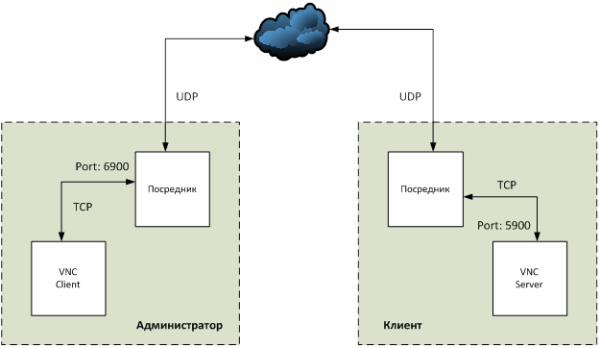
NAT Travesal
The question remained open: how to transfer information between intermediaries? The first option that comes to mind - to drive everything through the cloud - is how expensive this is so inefficient. It is much better to connect everything directly. This is where we come across the standard NAT Traversal problem.
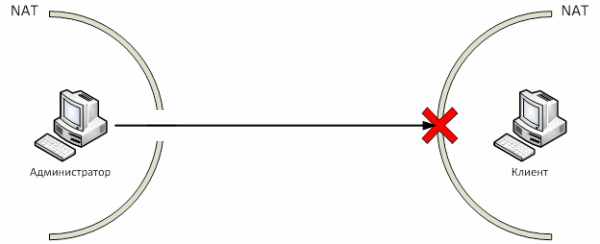
Network Address Translation (NAT) makes it impossible to establish a direct connection between clients. NAT is the process of translating local addresses that are not accessible from the Internet into external ones. There are several standard ways to bypass NAT: open a port, raise a VPN.
Unfortunately, none of them suits us, because it immediately complicates the installation of all necessary components (and we want the client to be installed on a working machine accessible to the least advanced users without the help of an administrator). Therefore, we will use the UDP Hole Punching mechanism.
UDP Hole Punching
UDP hole punching is a method for directly connecting two computers that are behind NATs. To initiate a connection, a third party is required - a server that is visible to both computers. Commonly used public STUN servers.
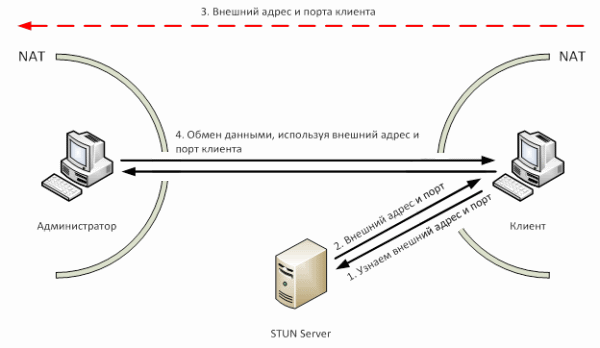
So, our task is to directly connect the client on the remote machine and the console. To do this, you need to take several steps:
- Find out the external IP and port of the remote machine. To do this, we use STUN, a network protocol that allows you to determine the external IP address.
- Transfer this information to our application.
- Establish a connection and use it further for data exchange
How does it look in code?
In theory, everything is simple. How does it all look in practice?
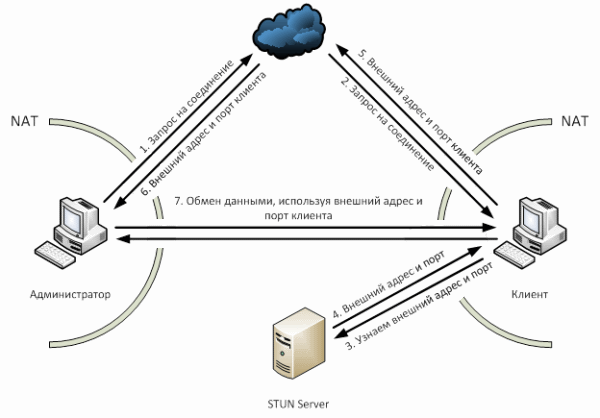
As you can see from the image above, a little more complicated. First, we send a connection request from our application, which is transmitted through the cloud to the application on the client machine (steps 1 and 2). The client machine requests its external address and port from the STUN server (steps 3 and 4). There are many implementations of the STUN protocol on the network.
string address = String.Empty;
udpClient = new UdpClient();
udpClient.AllowNatTraversal(true);
ResultSTUN result = ClientSTUN.Query("stun.ekiga.net", 3478, udpClient.Client);
if (result.NetType == UDP_BLOCKED) { /* обработка ошибки */ }
else { address = result.PublicEndPoint.ToString(); }
Because our solution uses UDP, we can use the same socket to connect to the client (which distinguishes it from TCP).
After these simple manipulations, address will contain the external address and port of the client machine (or an error message). This valuable information is transmitted to the management console through the cloud (steps 5 and 6). Creating a connection, knowing the port and address, is already a technical matter. Now we can transfer all the information we need.
The task of NAT Traversal is solved simply and elegantly using UDP, but what if we want all the advantages of TCP: guaranteed packet delivery, data integrity, lack of duplication, etc.? The first thought that comes to mind is to write your protocol on top of UDP. Naturally, we are not the first to encounter this problem. Therefore, after a short search, you can find a solution like Lindgren.Network , which is ultimately used in our application.