Task Synchronization Getting Things Gnome! between Linux and Windows
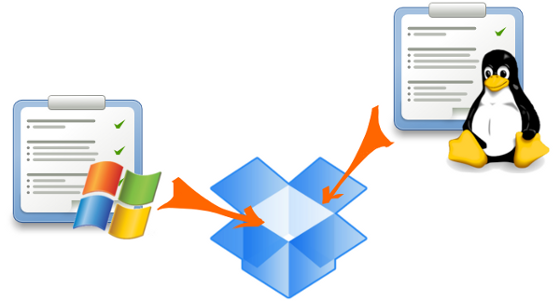
It just so happened that Windows is on the home computer. At work, I switched to Linux. And inspired by the Time Management article for Ubuntu’s water , I decided to try Gtg to manage my time. It turned out to install Gtg on a working Linux computer without problems, it is in the repository of my fairly young Linux-a . But I wanted to do synchronization with my home computer. But when installing Gtg on Windows, I ran into difficulties. Those interested in the way to solve them, I ask under cat.
The site Getting Things Gnome! There is a hint of the Windows version, which encouraged me when installing on Linux. Follow the link to Launchpad.net, I saw a sad phrase: “Getting Things GNOME! Windows does not have any download files registered with Launchpad. ”After downloading the code using Bazaar for this, I tried it (Gtg-win) to install and run correctly.
As a result, I had to make several changes to the source code for correct operation, the archive with corrections can be downloaded from SourceForge , there you will find ConfigObj and PyXDG, which are necessary for work. But for installation, you must still adhere to the algorithm below.
Following the original Readme, to run we need the following.
- Python . I used version 2.7.1. Everything is transparent here.
- PyGTK . I used the standalone version for python 2.7 (http://ftp.gnome.org/pub/GNOME/binaries/win32/pygtk/2.22/pygtk-all-in-one-2.22.6.win32-py2.7.msi) Everything is also transparent here.
- ConfigObj . I downloaded the Zip archive . It is set according to the following algorithm. Unpack the archive, run cmd from the “configobj-4.7.2” folder, then execute the following commands:
setup.py build

setup.py install - PyXDG. To install PyXDG, I had to use a package from Slackware, because I just didn’t find the archive. To do this, download it from here . I took the pyxdg-0.19-i686-1sl.txz version. To unpack it, we will use the 7z latest version. You need to unpack it as follows:
This archive repacked to Zip can be found on SF .
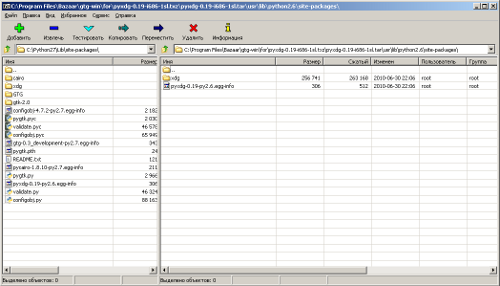
- Install Gtg itself. We go to the folder where it was unpacked, “C: \ gtg-win \” for example, and from there we run cmd and the commands we already know:
setup.py build

setup.py install

To run, use C: \ Python27 \ Scripts \ gtg_launcher.py.
Now you need to achieve synchronization of Windows and Linux versions. Where in Linux lies the task file is described in the article Time Management for Ubuntu’s watermarks . On Windows, it appeared in c: \. Local \ share \ gtg \ . There is one feature. The original Windows version for id tasks uses unique lines of the form 8c7d1f8b-99ed-4fff-9046-374afcd5ded7 , Linux is just natural numbers with the addition, for example: 34 @ 1 . To implement synchronization, I adjusted the Windows version to use a format like 34 @ 1 .
And one more feature. The program has different file formats projects.xml. To get around this, I used a small hack. As a result of my changes, Windows will look to see if there is project.xml , if not, it will read the initial settings from the projects.xml file from Linux, but will work with its project.xml in the future . That is, for correct operation, you must first run the Linux version to create the projects.xml file .
To implement synchronization, you must do the following.
The Linux side , partly citing an article that inspired me :
The idea is that when installing Dropbox, it asks you to specify which folder will be synchronized. It is in this folder that we are going to place our configuration files for GTG. And then just link to these files in those places where programs try to find them.
GTG stores its files in the ~ / .local / share / gtg folder . Let's say that we agreed with the default settings, and put the Dropbox folder in ~ / Dropbox / , then the sequence of actions is as follows:
- Create a working folder inside Dropbox, for example ~ / Dropbox / work /
- Copy the folder ~ / .local / share / gtg / to the working folder ~ / Dropbox / work /
- Now delete the folder at its original location (gtg is better at the same time let it be closed)
- Create a symbliic link to the folder in the right place:
ln -s ~ / Dropbox / work / gtg / ~ / .local / share / gtg
Windows side . We will use a similar symlink mechanism on ntfs. It is considered in detail here .
- We start Gtg-win.
- We look where he put the task. I store gtg tasks here: c: \. Local \ share \ gtg \ . We clean it by exiting gtg before this.
- Important. For correct operation, it is necessary that the copy of the folder on the Linux side is already in the Dropbox folder. Create a symlink to the folder <My Documents> \ Dropbox \ work \ gtg in the folder c: \. Local \ share \ . To create a symlink, or rather Junction Points, I used:
Junction Link Magic is a GUI program for creating, modifying and modifying Junction Points.
- Enjoy the synchronous operation of Gtg.
Image sources: