March 23, 2010 at 16:35
NVIDIA Optimus Technology and ASUS UL50VF Notebook Review
Not so long ago, NVIDIA announced NVIDIA Optimus technology , which allows the system to use a discrete graphics adapter only when necessary. I wrote about the technology earlier , as well as about the fact that it formed the basis of the new generation NVIDIA ION platform.
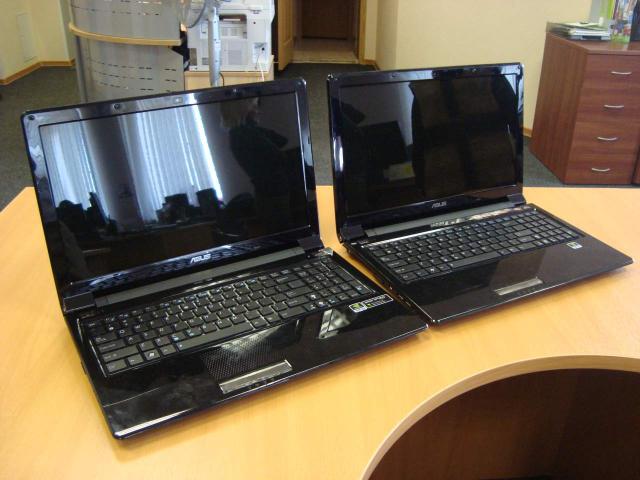
Just the other day, I got samples of two identical ASUS laptops: One - with support for NVIDIA Optimus technology, the second - with support for switchable NVIDIA Hybrid Graphics of the previous generation. Now I will be happy to share with the Khabrasociety my observations and evaluations of the work of these two technologies.
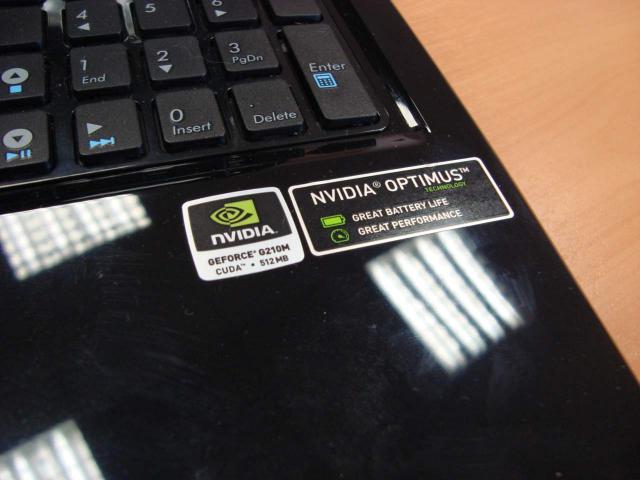
Externally, laptops differ only in the presence or absence of branded stickers, including those with NVIDIA Optimus technology. The space for this sticker on the second laptop was left free, which suggests the identical configuration of the laptops. In this case, to implement the technology on these laptop models, you just need to install the missing driver. I decided not to guess, so that no one would accuse me of ruining the sample. =)
I will give specs of laptops:
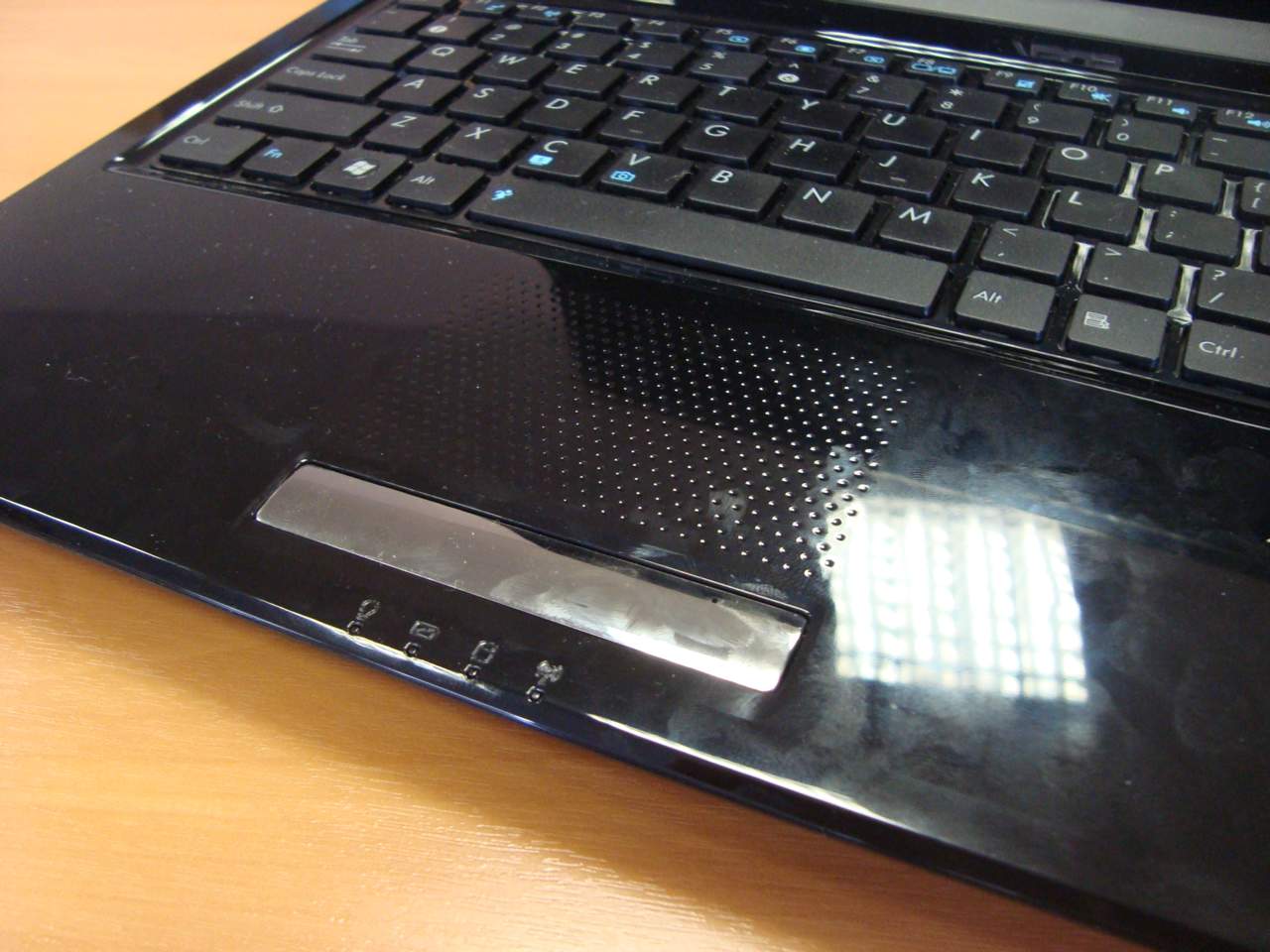
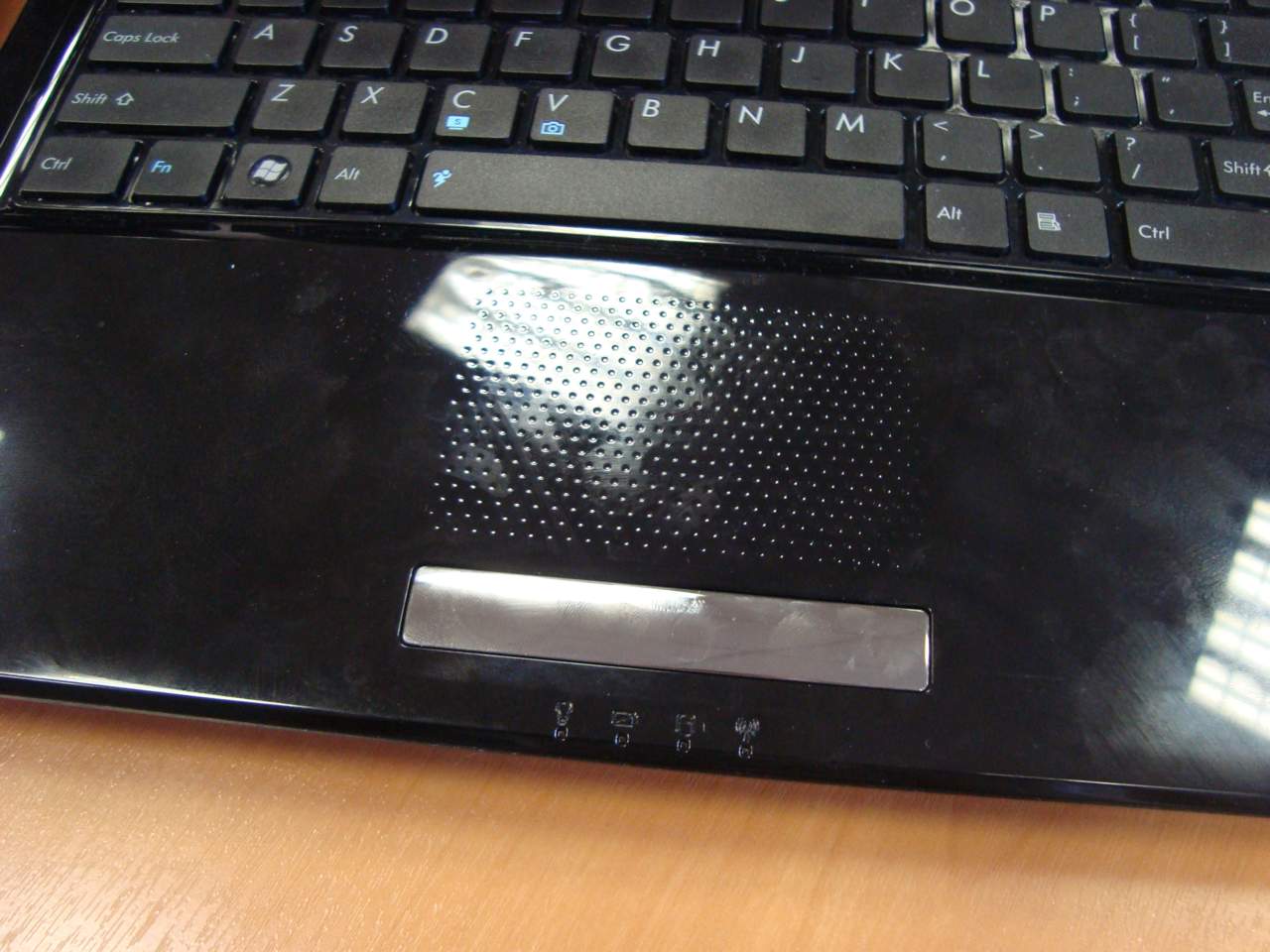
The first thing that caught my eye was that the laptops were glossy. And the cases themselves are glossy, and the screen is glossy, and even the touchpad is glossy. I don’t imagine what the designers thought about when developing a touchpad on which fingerprints remain. Yes, it certainly looks glamorous and organic, but not at all ergonomic. As a particularly aesthetic design solution - the touchpad has one on-off rocker key, which is completely inconvenient to use.
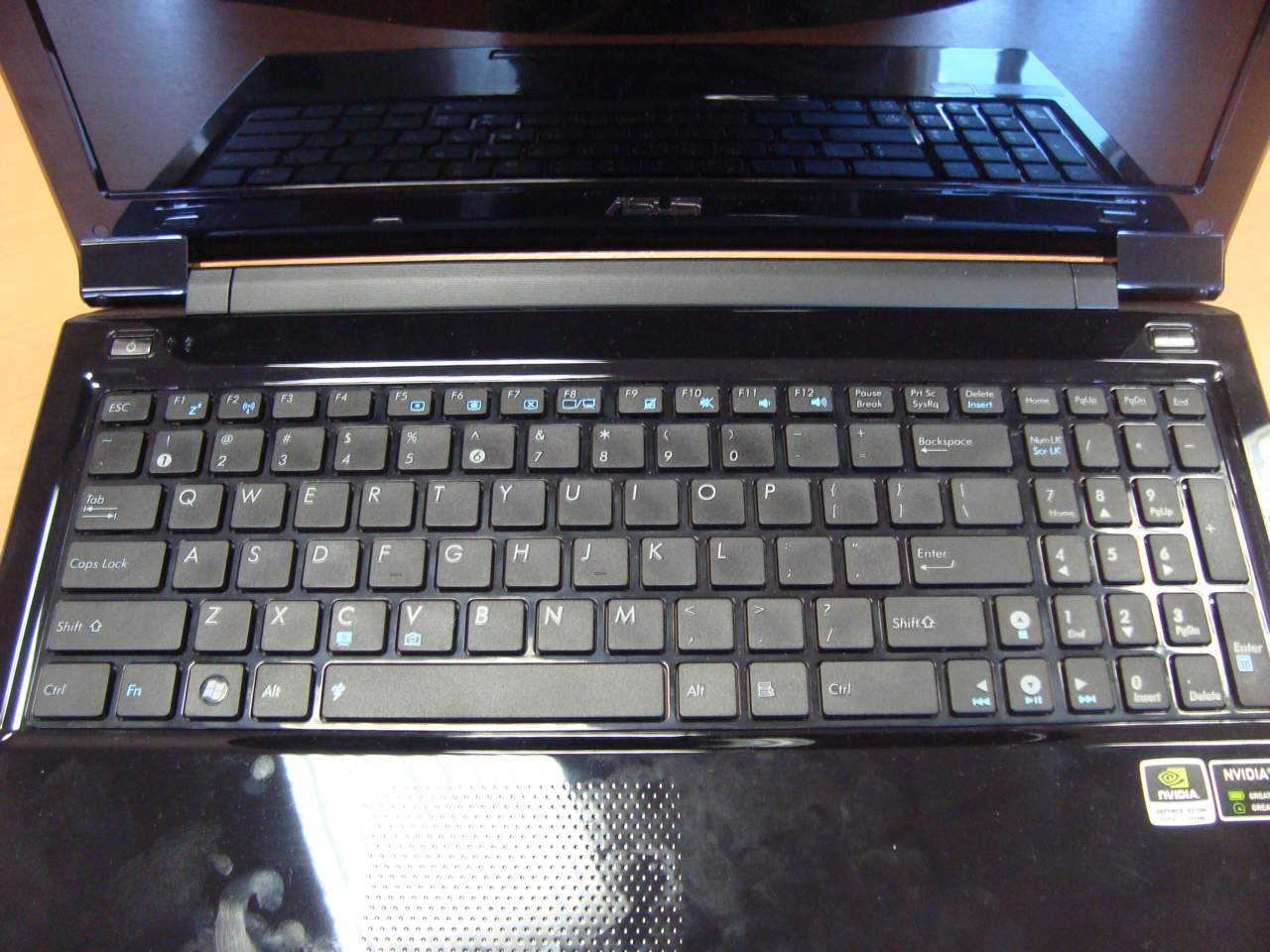

Externally, the keyboard in the laptop is pretty good. The keys acquired their own holes in the base of the keyboard substrate, and have a smooth ride. For some reason and to the delight of customers, the surface of the keys turned out to be matte and harmoniously combined with a glossy substrate. The very same substrate, shakes and loosens when you press any keys that are slightly removed from the edges of the keyboard unit. Apparently, saving on materials in favor of reducing the weight of the laptop is affecting.
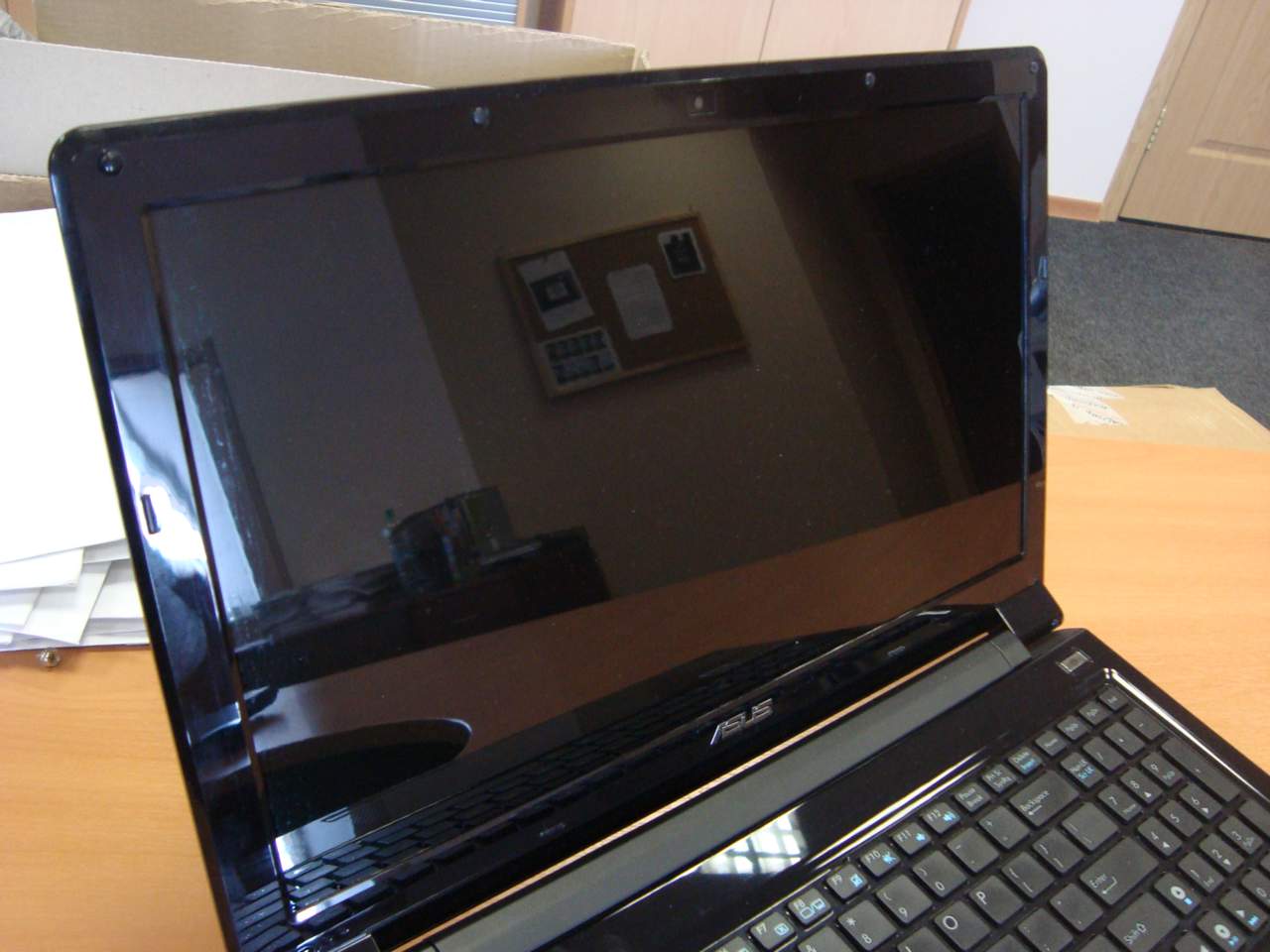
The LED widescreen has a low resolution, so even 3DMark Vantage refused to run on it. I will not scold him for gloss, since most have already got used to such screens.

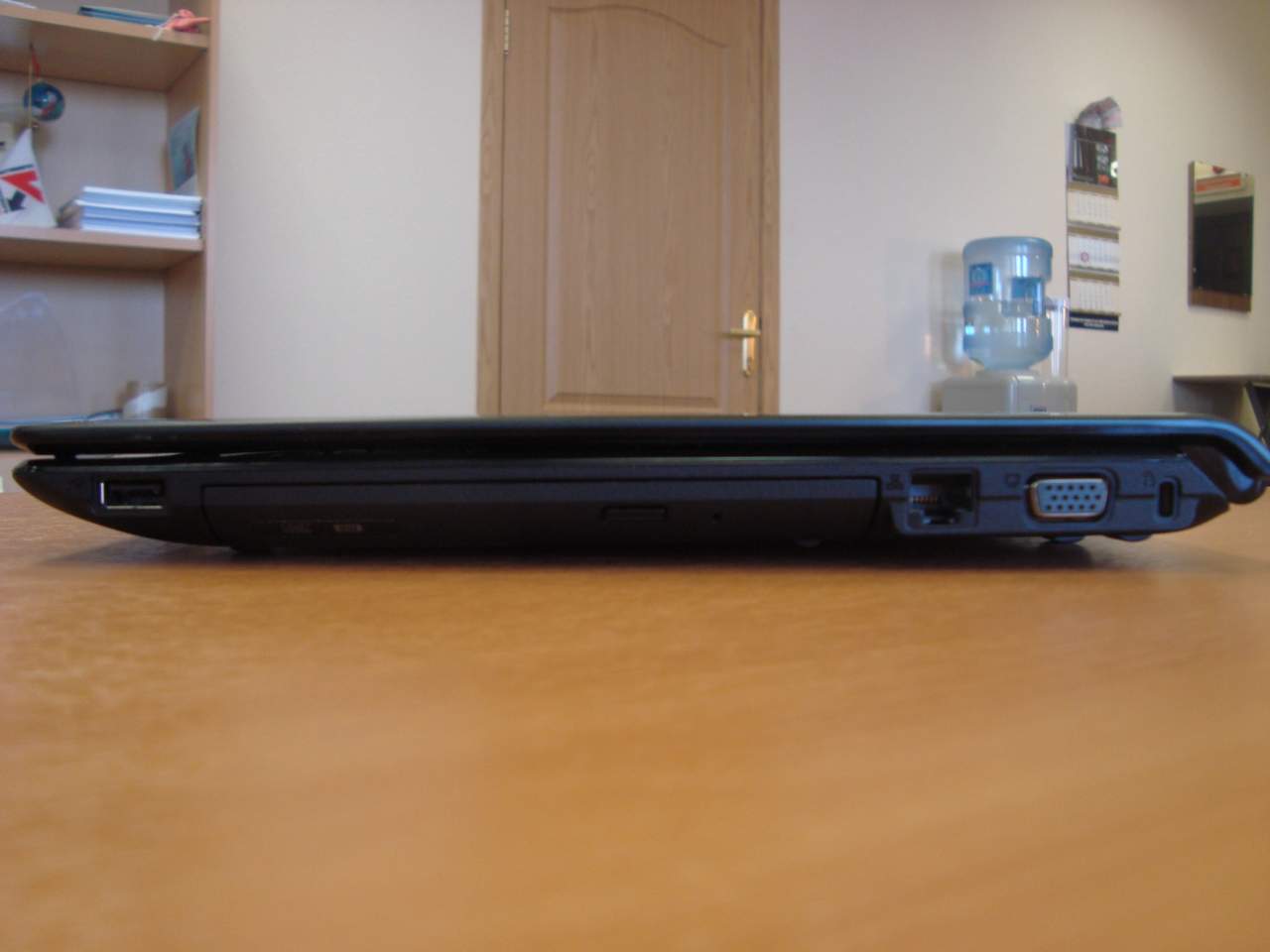
On the sides you can find a completely standard set of ports: an SD reader, 2 USB ports, audio connectors, HDMI and power on the left side, as well as a USB port, D-Sub and Kensington lock on the right side. In my opinion, the number of USB ports could be increased, as there is still room for them.

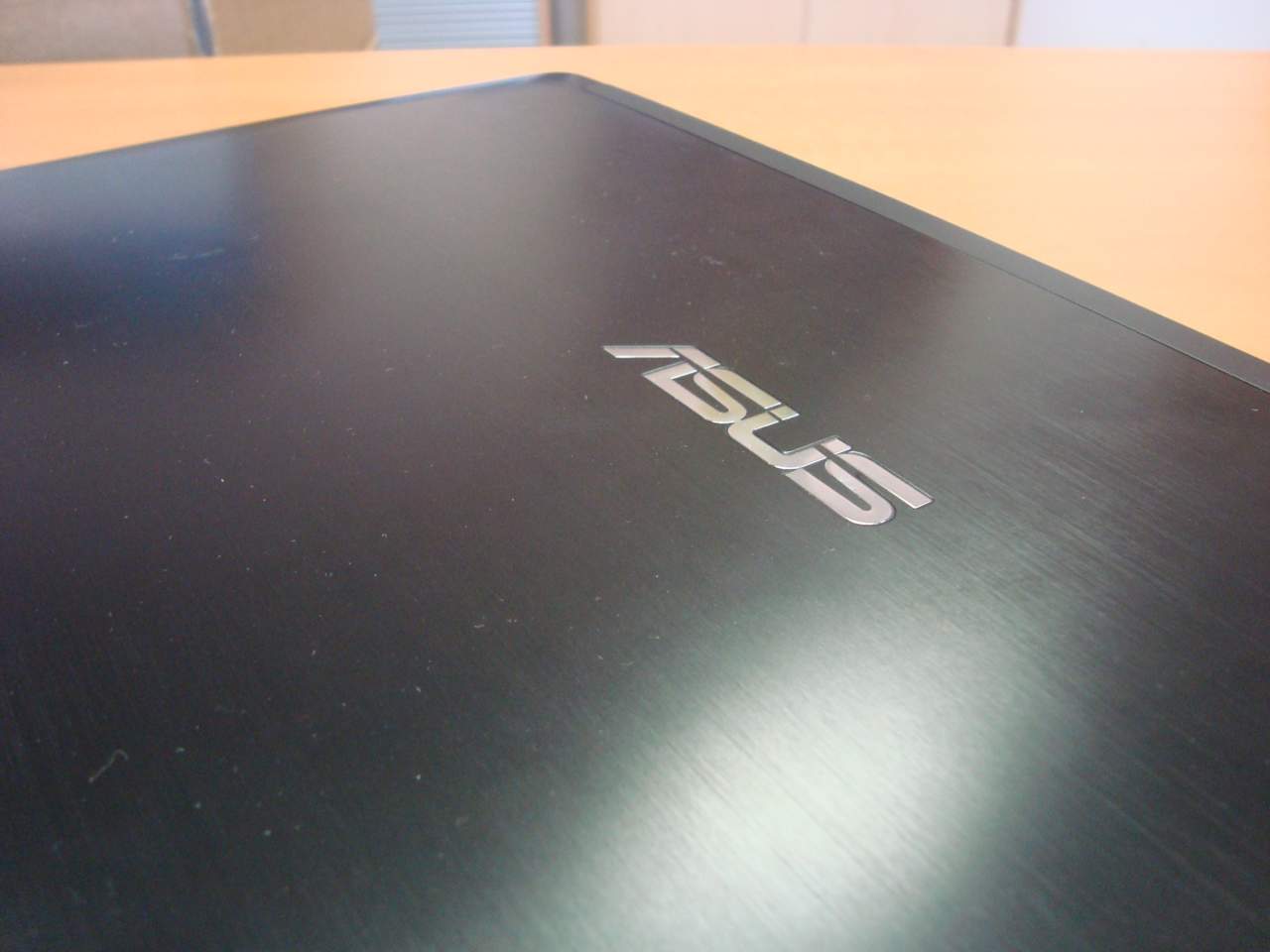
The cover is already familiar ASUS-ovskim styling under scratched aluminum, and fingerprints are also good on it, as well as on the inside of the laptop. When you lightly press with your finger, the lid noticeably loosens.
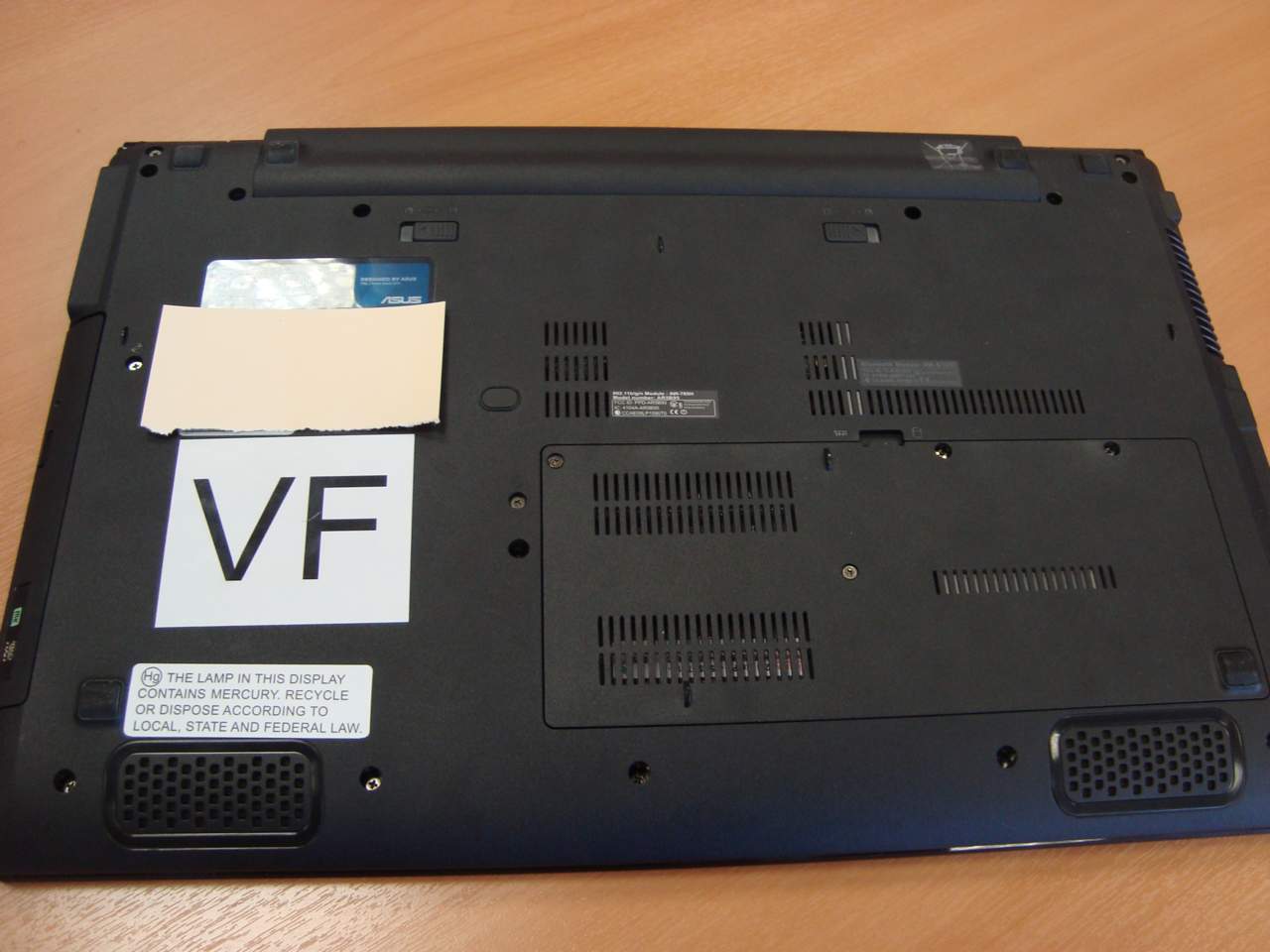
On the base of the laptop you can see a large VF sticker. Apparently, so that no one confuses laptops with each other if someone tears off the Optimus nameplate.
Let us go directly to verifying the performance of NVIDIA Optimus technology and its comparison with switchable Hybrid Graphics. Let's start with a laptop without the support of Optimus technology in order to understand how the function of switching between integrated graphics and discrete is implemented there.
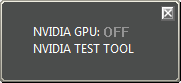
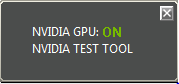
Especially for this, a proprietary mini-utility is installed on test samples, which is responsible for verifying the use of a discrete video adapter. It was using this utility that I dynamically monitored mode switching.
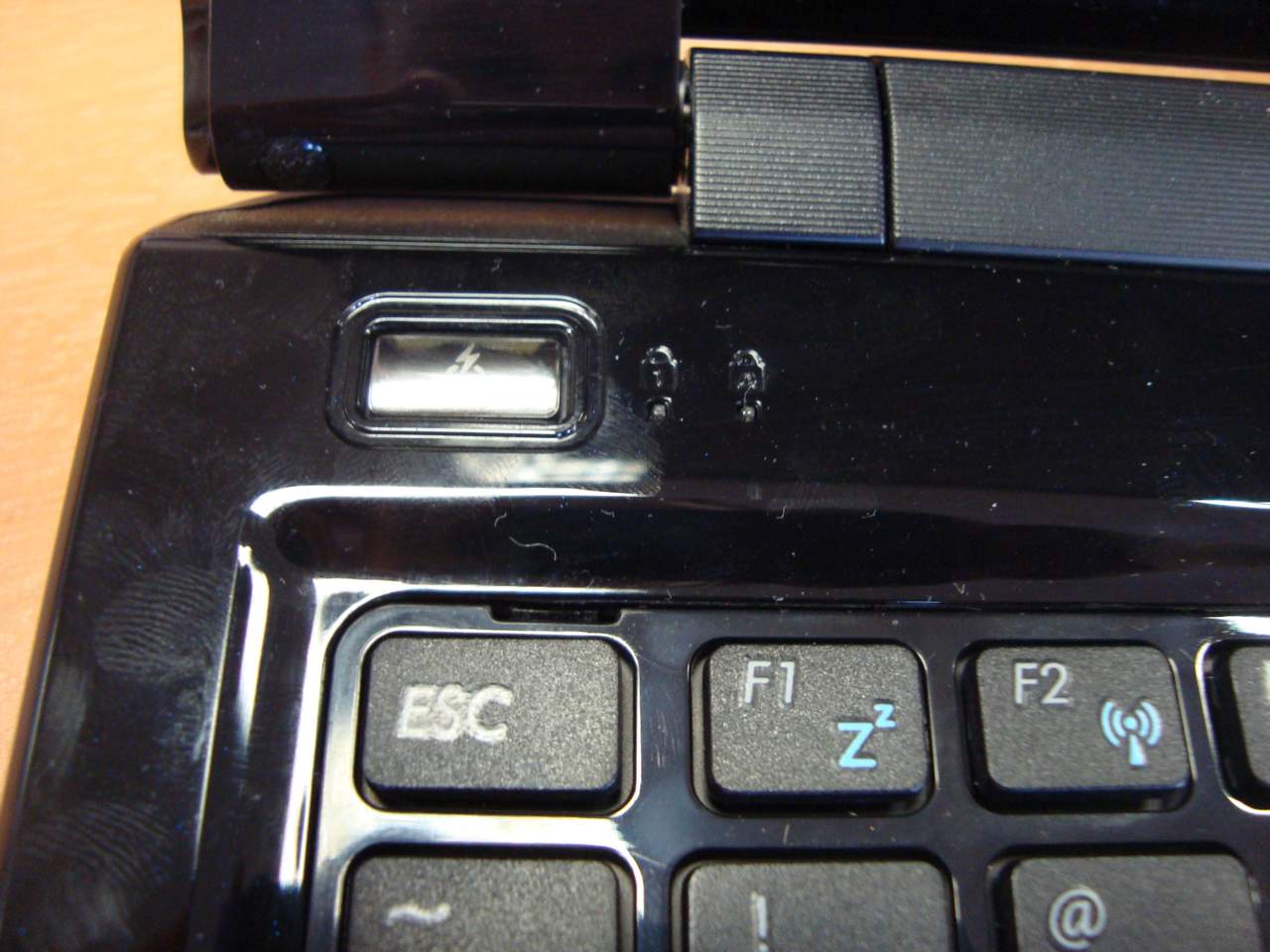
On laptops there is a magic key located symmetrically to the power control button. Off, this button launches Express Gate, which Boomburum recently talked about.. Moreover, Express Gate really starts in 5 seconds, which is much faster than the declared 8.

In the on state, this button performs the functions of a switch of energy-saving modes, with which graphic adapters are also switched. Switching does not happen right away - 3-5 seconds after pressing, the screen blinks black and switches to another video app, which the NVIDIA utility happily reports to us about. You can switch not by a button, but by clicking on the battery in the tray and selecting the desired energy saving mode.
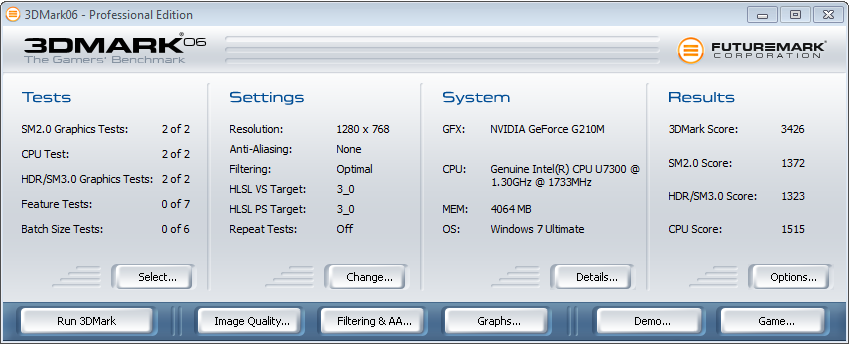

3DMark06 test results for a discrete and integrated graph, respectively. The difference is noticeable and significant.
IMHO, the main disadvantage of such a switch is the intuitive clarity of the switching process. Before my eyes - an example of my favorite VAIO Z-series, where the usual speed-stamina toggle switch is implemented, by which you can always determine the laptop's operating mode. Soon, a new Z-series will enter our market, where the switch is made three-position, especially for Optimus.
The second laptop behaves more intellectually. At least he responds to the mode button with vigorous writing on the screen, but the utility from NVIDIA shows that the GPU is turned off. I climbed into the control panel and began to study the settings ...
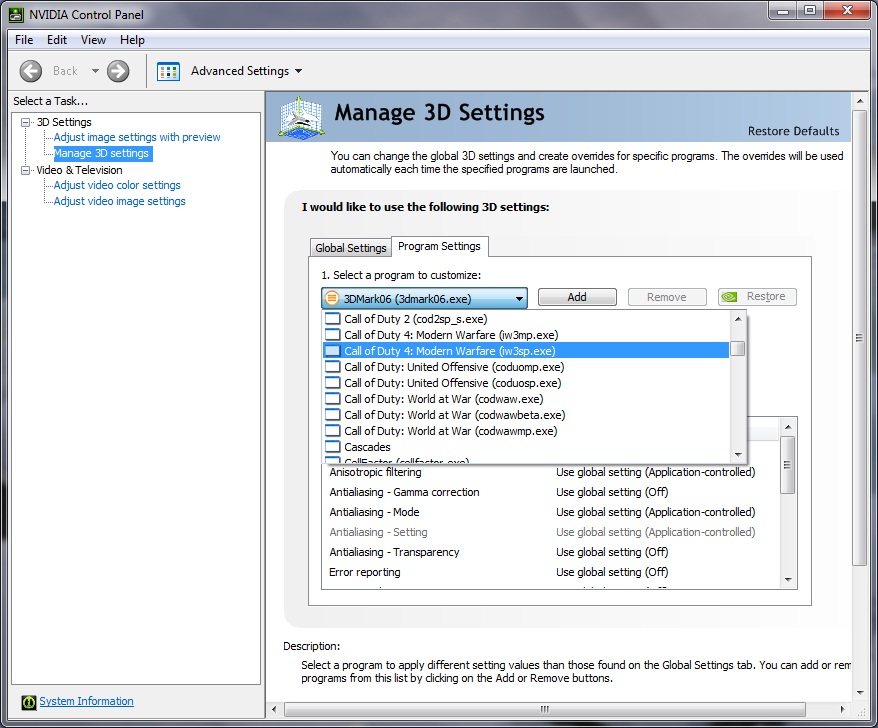
In the panel, you can configure 3D rendering options, both by default, and for each application directly. At first, I thought that starting a pre-configured application would serve as an unconditional trigger to turn on the GPU, but it turned on only when rendering 3D scenes. Graphics cheerfully switched, without blinking pictures and freezes, when using CUDA-applications, 3D-games and DXVA-video decoding.
I had to tinker with the video a bit, because there weren’t any “right” videos at hand that were compatible with hardware acceleration. Videos encoded with MPEG2 did not act as a trigger, but they worked perfectly on the integrated video, up to FullHD resolution.
It is also worth adding that the NVIDIA engineers tweaked the drivers a bit so that with any rendering of the picture using the discrete graphics adapter, a watermark with the Optimus logo appeared on the screen. So that testers can clearly distinguish between GPU rendering and IGP rendering.

3DMark produces a very funny result, especially if you compare it with the results for a similar configuration presented above. You can see right away that the GPU or Photoshop had a hand in the test ... Photoshop has nothing to do with it, honest pioneer. However, the test results are slightly lower than for a fully connected GPU in the case of manual graphics switching.
I confirm the efficiency of Optimus technology, but it remains to check the main thing - battery life.
To test the “endurance” of laptops in various graphics modes, I used the Battery Eater utility, which I ran on fully charged laptops with different graphics modes. I will round the values so that it is easier to calculate the effectiveness. During testing, the program renders a battery using OpenGL.
Test results for Switchable Graphics on UL50VT:
Balanced (GPU): approximately 4 hours of operation.
Power Saver (IGP): approximately 6 hours of operation.
Test results for Optimus on the UL50VF:
Balanced (GPU): approximately 4 hours of operation.
Balanced (IGP): approximately 5 hours of operation.
According to the test results, you can notice that the influence of the power consumption of the graphics adapter affects the battery life of the laptop. However, other energy saving settings of the system also have the same effect, so that the maximum efficiency from the technology can be obtained in the maximum energy saving mode.
According to preliminary estimates, in the typewriter mode the laptop will last for all 8 hours, since the well-fed 8-cell battery allows.
That's all, I’m going to erase fingerprints from laptops ... just in case. ;)
Good luck!
Just the other day, I got samples of two identical ASUS laptops: One - with support for NVIDIA Optimus technology, the second - with support for switchable NVIDIA Hybrid Graphics of the previous generation. Now I will be happy to share with the Khabrasociety my observations and evaluations of the work of these two technologies.
First about laptops
Externally, laptops differ only in the presence or absence of branded stickers, including those with NVIDIA Optimus technology. The space for this sticker on the second laptop was left free, which suggests the identical configuration of the laptops. In this case, to implement the technology on these laptop models, you just need to install the missing driver. I decided not to guess, so that no one would accuse me of ruining the sample. =)
I will give specs of laptops:
| CPU: | Intel Core 2 Duo SU7300 CULV (1.3GHz / 3MB L2 / 800MHz FSB) overclocked to 1.73GHz / 1066MHz FSB |
| OS: | Windows 7 Home Premium 64-bit (At the moment, it was Ultimate) |
| Display: | 15 "720p 1366x768, with LED backlight, glossy |
| Video Card: | Nvidia GeForce G210M 512MB GDDR3, dedicated and Intel GMA 4500MHD, integrated, switchable |
| Memory: | 4GB DDR3-1066 RAM |
| Data store: | 320GB 5400RPM hard drive |
| Wireless connection: | WiFi 802.11n, Bluetooth |
| Optical drive: | DVD Super Multi drive |
| Battery: | 8-cell Li-ion battery 84Wh (5800mAh) |
| Warranty: | 2 years |
| Dimensions (WxDxH): | 39.1 x 26.4 x 2.8 cm |
| Weight: | 2.4 kg |
The first thing that caught my eye was that the laptops were glossy. And the cases themselves are glossy, and the screen is glossy, and even the touchpad is glossy. I don’t imagine what the designers thought about when developing a touchpad on which fingerprints remain. Yes, it certainly looks glamorous and organic, but not at all ergonomic. As a particularly aesthetic design solution - the touchpad has one on-off rocker key, which is completely inconvenient to use.
Externally, the keyboard in the laptop is pretty good. The keys acquired their own holes in the base of the keyboard substrate, and have a smooth ride. For some reason and to the delight of customers, the surface of the keys turned out to be matte and harmoniously combined with a glossy substrate. The very same substrate, shakes and loosens when you press any keys that are slightly removed from the edges of the keyboard unit. Apparently, saving on materials in favor of reducing the weight of the laptop is affecting.
The LED widescreen has a low resolution, so even 3DMark Vantage refused to run on it. I will not scold him for gloss, since most have already got used to such screens.
On the sides you can find a completely standard set of ports: an SD reader, 2 USB ports, audio connectors, HDMI and power on the left side, as well as a USB port, D-Sub and Kensington lock on the right side. In my opinion, the number of USB ports could be increased, as there is still room for them.
The cover is already familiar ASUS-ovskim styling under scratched aluminum, and fingerprints are also good on it, as well as on the inside of the laptop. When you lightly press with your finger, the lid noticeably loosens.
On the base of the laptop you can see a large VF sticker. Apparently, so that no one confuses laptops with each other if someone tears off the Optimus nameplate.
Switchable Graphics Technology
Let us go directly to verifying the performance of NVIDIA Optimus technology and its comparison with switchable Hybrid Graphics. Let's start with a laptop without the support of Optimus technology in order to understand how the function of switching between integrated graphics and discrete is implemented there.
Especially for this, a proprietary mini-utility is installed on test samples, which is responsible for verifying the use of a discrete video adapter. It was using this utility that I dynamically monitored mode switching.
On laptops there is a magic key located symmetrically to the power control button. Off, this button launches Express Gate, which Boomburum recently talked about.. Moreover, Express Gate really starts in 5 seconds, which is much faster than the declared 8.
In the on state, this button performs the functions of a switch of energy-saving modes, with which graphic adapters are also switched. Switching does not happen right away - 3-5 seconds after pressing, the screen blinks black and switches to another video app, which the NVIDIA utility happily reports to us about. You can switch not by a button, but by clicking on the battery in the tray and selecting the desired energy saving mode.
3DMark06 test results for a discrete and integrated graph, respectively. The difference is noticeable and significant.
IMHO, the main disadvantage of such a switch is the intuitive clarity of the switching process. Before my eyes - an example of my favorite VAIO Z-series, where the usual speed-stamina toggle switch is implemented, by which you can always determine the laptop's operating mode. Soon, a new Z-series will enter our market, where the switch is made three-position, especially for Optimus.
Optimus Technology
The second laptop behaves more intellectually. At least he responds to the mode button with vigorous writing on the screen, but the utility from NVIDIA shows that the GPU is turned off. I climbed into the control panel and began to study the settings ...
In the panel, you can configure 3D rendering options, both by default, and for each application directly. At first, I thought that starting a pre-configured application would serve as an unconditional trigger to turn on the GPU, but it turned on only when rendering 3D scenes. Graphics cheerfully switched, without blinking pictures and freezes, when using CUDA-applications, 3D-games and DXVA-video decoding.
I had to tinker with the video a bit, because there weren’t any “right” videos at hand that were compatible with hardware acceleration. Videos encoded with MPEG2 did not act as a trigger, but they worked perfectly on the integrated video, up to FullHD resolution.
It is also worth adding that the NVIDIA engineers tweaked the drivers a bit so that with any rendering of the picture using the discrete graphics adapter, a watermark with the Optimus logo appeared on the screen. So that testers can clearly distinguish between GPU rendering and IGP rendering.
3DMark produces a very funny result, especially if you compare it with the results for a similar configuration presented above. You can see right away that the GPU or Photoshop had a hand in the test ... Photoshop has nothing to do with it, honest pioneer. However, the test results are slightly lower than for a fully connected GPU in the case of manual graphics switching.
I confirm the efficiency of Optimus technology, but it remains to check the main thing - battery life.
Battery test
To test the “endurance” of laptops in various graphics modes, I used the Battery Eater utility, which I ran on fully charged laptops with different graphics modes. I will round the values so that it is easier to calculate the effectiveness. During testing, the program renders a battery using OpenGL.
Test results for Switchable Graphics on UL50VT:
Balanced (GPU): approximately 4 hours of operation.
Power Saver (IGP): approximately 6 hours of operation.
Test results for Optimus on the UL50VF:
Balanced (GPU): approximately 4 hours of operation.
Balanced (IGP): approximately 5 hours of operation.
According to the test results, you can notice that the influence of the power consumption of the graphics adapter affects the battery life of the laptop. However, other energy saving settings of the system also have the same effect, so that the maximum efficiency from the technology can be obtained in the maximum energy saving mode.
According to preliminary estimates, in the typewriter mode the laptop will last for all 8 hours, since the well-fed 8-cell battery allows.
That's all, I’m going to erase fingerprints from laptops ... just in case. ;)
Good luck!