
Local ISO repository in Citrix XenServer
For some reason, I needed to install and configure Citrix XenServer. The distribution was downloaded from the Citrix website and successfully installed on the HP server. It seems to be possible to put it in a rack and enjoy the virtual life of the servers, but it wasn’t there. As it turned out, XenServer does not provide local storage for distributions, more specifically for ISO images. It is assumed that all distributions will be on network storage (for which there are all the tools), but if we talk about the Stand-alone server, without any network storage, then various ideas arise. One of these ideas is under the cut.
So, there is a problem: you need to make a storage of ISO images on the same server on which XenServer is installed.
First, go to the Citrix XenServer documentation and find the article there:docs.vmd.citrix.com/XenServer/5.0.0/1.0/en_gb/guest.html#iso_local_copies , which seems to solve the task very simply and quickly. However, I do not recommend doing so. About 3 gigabytes are allocated for the operating system with a hypervisor on the disk, of which 1.7 gigabytes remain free. Therefore, trying to copy an ISO image of Windows Server 2008 R2 with a volume of approximately 2.5 gigabytes, they completely killed XenServer.
Climbing the Admin Guide on XenServer, we find that XenServer can connect to network-attached ISO storages. In this regard, it is necessary to allocate a place on the server under the ISO-storage, make it available on the network and then connect it to our XenServer. I do not pretend to the correctness of this decision, but in my case it completely suited me.
Now, more on the steps:
1. The screenshot shows that we have Local Storage, from which we will cut off a piece to organize the ISO repository

2. We need to determine the SR UUID (Storage Repositpry Universal Unique IDentificator) for the Local Storage drive, for this we enter the command:
xe sr -list type = lvm, the result of the command is shown in the screenshot:
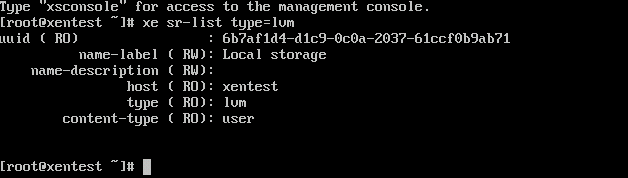
from the output we need the selected identifier sr uuid
3. Now we define the PBD UUID (Phisical Block Device Universal Unique IDentificator) on which Local Storage is located, for this we enter the command:
heh pbd- list sr-uuid = ... (here we indicate the number that we received in the previous step)
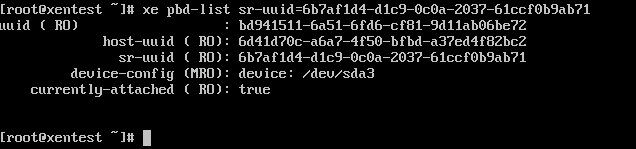
from the floor of scientific information, we will need a dedicated identifier pbd uuid in the future
4. Unmount the Local Storage, for this we enter:
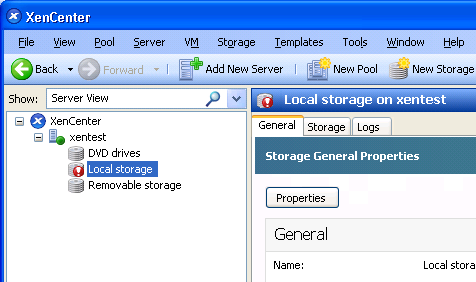
xe pbd-unplug uuid = ... (here the number obtained in step No. 3 is indicated)

after that the Local Storage storage will be highlighted with an exclamation mark in the XenCenter console:
5. Now delete Local Storage with the command:
xe pbd-destroy uuid = ... (specify pbd uuid obtained in step # 3),

notice that Local Storage is now gray
6. Now delete the link for Local Storage:
xe sr-forget uuid = ... (specify sr uuid, obtained in step №2)

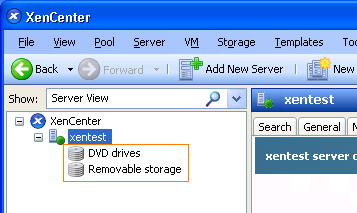
Now Local Storage has disappeared altogether:
7. Next, we look at what partitions we have on the disk using the fdisl -l command

We see that we have 3 partitions, the largest of which is / dev / sda3 (Linux LVM) - this is the same partition on which Local Storage
8 was located . Delete this section: the
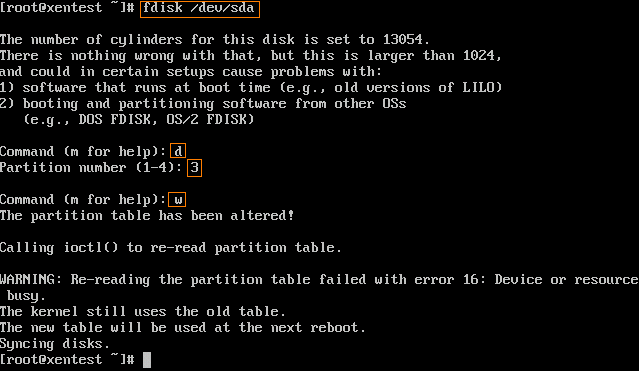
entered commands and values are highlighted.
Check that the necessary partition is deleted using fdisk -l
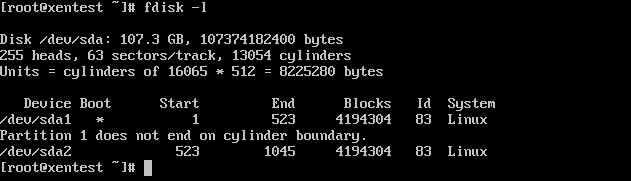
9. Now, instead of the deleted partition, we will create two, using the fdisk command for this as well:
Partition for ISO images (/ dev / sda3)

Partition for Local Storage (/ dev / sda4)
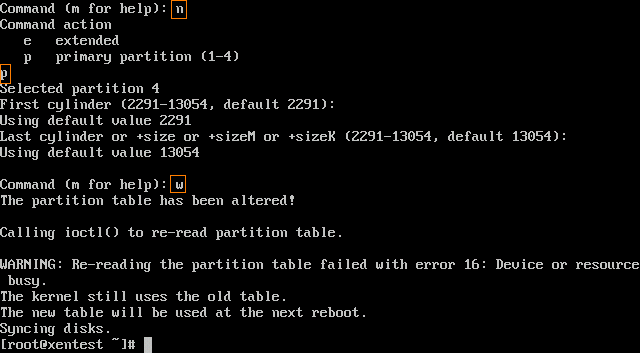
entered commands and values are highlighted.
Let's see the current state of the partitions:
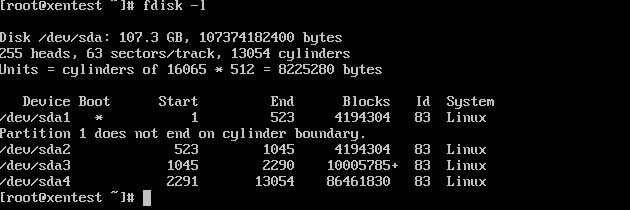
10. In order for the changes to take effect, you must restart the server.
11. Format the partition that was reserved for the ISO repository (/ dev / sda3):
mkfs -t ext3 / dev / sda3

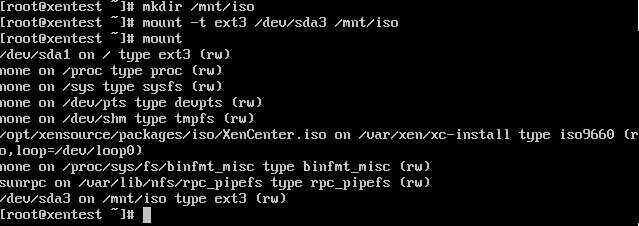
12. Create a mount point in the file system to which we will mount the newly created partition, and mount it:
mkdir / mnt / iso
mount -t ext3 / dev / sda3 / mnt / iso
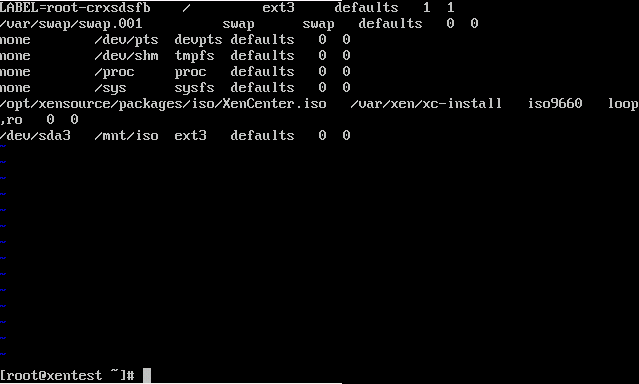
for automatic mounting at server startup, write the mount line in the / etc file / fstab:
/ dev / sda3 / mnt / iso ext3 defaults 0 0
13. Now the mount point / mnt / iso needs to be made available over the network. To do this, add a line to the / etc / exports file:
/ mnt / iso 127.0.0.1/255.255.255.255(rw,no_root_squash) - note that there is no space between the address and the opening bracket!

in order for the changes in the file to take effect immediately, we make the command:
exportfs -r
and to verify that we all wrote correctly, enter the command:
exportfs

14. We start the NFS service:
service nfs start
then enable the service to start when the server boots:
chlconfig nfs on

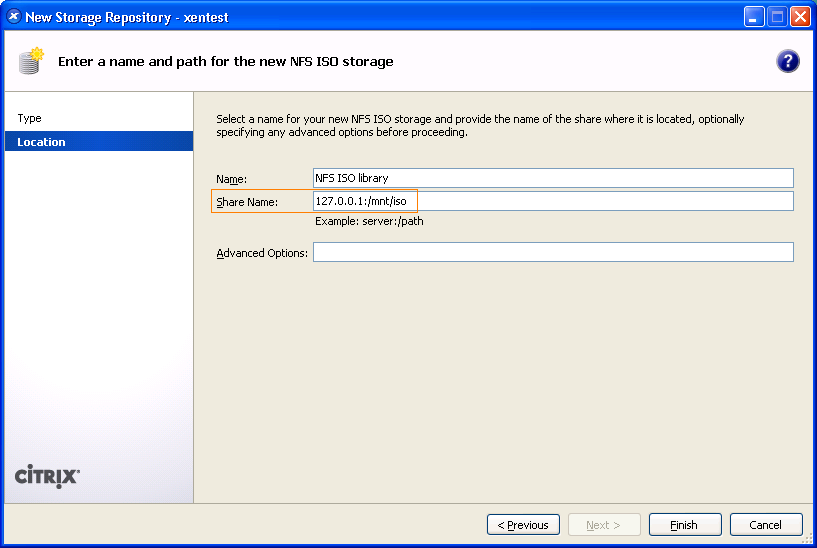
15. Now we need to connect this drive via XenCenter. In the XenCenter menu, select New Storage, in the window that appears, select NFS ISO, click Next.
Next, fill in the fields in the next window: In the Share Name field, write the following: 127.0.0.1:/mnt/iso
A new repository has now appeared in the XenCenter console:
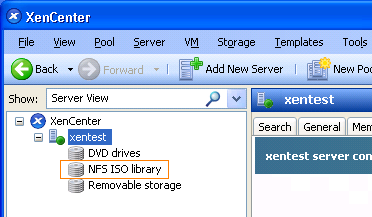
This completes the creation of the ISO repository. Copy iso images to / mnt / iso and use.
16. However, we still have to return the section for virtual machines. To do this, on the remaining / dev / sda4, create lvm and connect it to XenServer:
xe sr-create type = lvm content-type = user device-config: device = / dev / sda4 name-label = “Local Storage”

Notice that Local Storage appeared on the left side of the XenCenter. Right-click on it and select Set as Default from the context menu
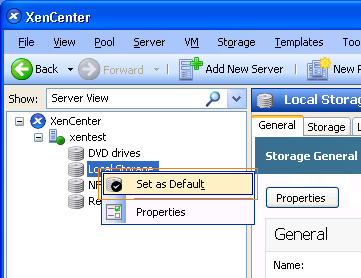
. The task is completed.
A few additions:
If you need to provide access to the iso-repository over the network, you need to:
1. Edit the / etc / exports file by adding the IP addresses from which access will be made.
2. Edit the file / etc / sysconfig / portmap, delete the -l parameter, the line should look like this: PMAP_ARGS = ""
3. Edit the file / etc / sysconfig / iptables
So, there is a problem: you need to make a storage of ISO images on the same server on which XenServer is installed.
First, go to the Citrix XenServer documentation and find the article there:docs.vmd.citrix.com/XenServer/5.0.0/1.0/en_gb/guest.html#iso_local_copies , which seems to solve the task very simply and quickly. However, I do not recommend doing so. About 3 gigabytes are allocated for the operating system with a hypervisor on the disk, of which 1.7 gigabytes remain free. Therefore, trying to copy an ISO image of Windows Server 2008 R2 with a volume of approximately 2.5 gigabytes, they completely killed XenServer.
Climbing the Admin Guide on XenServer, we find that XenServer can connect to network-attached ISO storages. In this regard, it is necessary to allocate a place on the server under the ISO-storage, make it available on the network and then connect it to our XenServer. I do not pretend to the correctness of this decision, but in my case it completely suited me.
Now, more on the steps:
1. The screenshot shows that we have Local Storage, from which we will cut off a piece to organize the ISO repository
2. We need to determine the SR UUID (Storage Repositpry Universal Unique IDentificator) for the Local Storage drive, for this we enter the command:
xe sr -list type = lvm, the result of the command is shown in the screenshot:
from the output we need the selected identifier sr uuid
3. Now we define the PBD UUID (Phisical Block Device Universal Unique IDentificator) on which Local Storage is located, for this we enter the command:
heh pbd- list sr-uuid = ... (here we indicate the number that we received in the previous step)
from the floor of scientific information, we will need a dedicated identifier pbd uuid in the future
4. Unmount the Local Storage, for this we enter:
xe pbd-unplug uuid = ... (here the number obtained in step No. 3 is indicated)
after that the Local Storage storage will be highlighted with an exclamation mark in the XenCenter console:
5. Now delete Local Storage with the command:
xe pbd-destroy uuid = ... (specify pbd uuid obtained in step # 3),
notice that Local Storage is now gray
6. Now delete the link for Local Storage:
xe sr-forget uuid = ... (specify sr uuid, obtained in step №2)
Now Local Storage has disappeared altogether:
7. Next, we look at what partitions we have on the disk using the fdisl -l command
We see that we have 3 partitions, the largest of which is / dev / sda3 (Linux LVM) - this is the same partition on which Local Storage
8 was located . Delete this section: the
entered commands and values are highlighted.
Check that the necessary partition is deleted using fdisk -l
9. Now, instead of the deleted partition, we will create two, using the fdisk command for this as well:
Partition for ISO images (/ dev / sda3)
Partition for Local Storage (/ dev / sda4)
entered commands and values are highlighted.
Let's see the current state of the partitions:
10. In order for the changes to take effect, you must restart the server.
11. Format the partition that was reserved for the ISO repository (/ dev / sda3):
mkfs -t ext3 / dev / sda3
12. Create a mount point in the file system to which we will mount the newly created partition, and mount it:
mkdir / mnt / iso
mount -t ext3 / dev / sda3 / mnt / iso
for automatic mounting at server startup, write the mount line in the / etc file / fstab:
/ dev / sda3 / mnt / iso ext3 defaults 0 0
13. Now the mount point / mnt / iso needs to be made available over the network. To do this, add a line to the / etc / exports file:
/ mnt / iso 127.0.0.1/255.255.255.255(rw,no_root_squash) - note that there is no space between the address and the opening bracket!
in order for the changes in the file to take effect immediately, we make the command:
exportfs -r
and to verify that we all wrote correctly, enter the command:
exportfs
14. We start the NFS service:
service nfs start
then enable the service to start when the server boots:
chlconfig nfs on
15. Now we need to connect this drive via XenCenter. In the XenCenter menu, select New Storage, in the window that appears, select NFS ISO, click Next.
Next, fill in the fields in the next window: In the Share Name field, write the following: 127.0.0.1:/mnt/iso
A new repository has now appeared in the XenCenter console:
This completes the creation of the ISO repository. Copy iso images to / mnt / iso and use.
16. However, we still have to return the section for virtual machines. To do this, on the remaining / dev / sda4, create lvm and connect it to XenServer:
xe sr-create type = lvm content-type = user device-config: device = / dev / sda4 name-label = “Local Storage”
Notice that Local Storage appeared on the left side of the XenCenter. Right-click on it and select Set as Default from the context menu
. The task is completed.
A few additions:
If you need to provide access to the iso-repository over the network, you need to:
1. Edit the / etc / exports file by adding the IP addresses from which access will be made.
2. Edit the file / etc / sysconfig / portmap, delete the -l parameter, the line should look like this: PMAP_ARGS = ""
3. Edit the file / etc / sysconfig / iptables