Full review of Snow Leopard. Part 1
- Transfer
On August 28, 2009, Apple released a new version of Mac OS X 10.6 Snow Leopard. It is expected that in Russia it will go on sale on Friday, September 4. Therefore, I suggest you get acquainted with the most detailed and accurate review of Snow Leopard from Jason Snell, editorial director of Macworld.
Apple has spent the past decade building and improving Mac OS X, combining the classic Mac OS and technology acquired from Steve Jobs Next with an impressive core operating system that many consider to be the best of its kind. But after a decade of continuous improvements and regular updates to the operating system, Apple paused with the release of Snow Leopard, also known as Mac OS X 10.6. Instead of adding hundreds of new features, Apple decided to use Snow Leopard to cut ties with the past, plan for the future and take on the goal of destroying its current competitors.
The result was an update to Mac OS X, unlike all the others that we remember, such an update that improves speed, returns disk space, establishes dozens of functions and lays the foundation for a new generation of computers that have 64-bit multi-core microprocessors, super- strong graphics processors and massive amounts of memory. These features, combined with a low upgrade price of $ 29, make Snow Leopard the biggest thought-free update since Mac OS X 10.1. (By the way, the update that the older of us remember was completely free).
We make an update
Unlike previous versions of Mac OS X that could be freely installed on any old Mac if it met the system requirements, the Snow Leopard license specifically limits it to Leopard users, which went on sale in October 2007. As a Leopard user, you can upgrade one Mac for $ 29, or up to five Macs in one family with the Snow Leopard Family Pack for $ 49. It is estimated that Tiger users - essentially people who bought Intel Macs before Leopard and never upgraded - will buy the Mac Box Set, which includes Snow Leopard, iLife '09 and iWork '09 for $ 169. (Snow Leopard does not work at all on old PowerPC Macs.)
However, unlike Microsoft, which offers a confusing list of full and upgrade versions of Windows, each of which requires the user to enter a unique serial number to prove that he is not a pirate, Apple continues to rely on honesty on Mac OS X. Snow Leopard not only does not require entering any serial numbers, but the standard version of Snow Leopard is a “full install” boot disk that does not actually check for Leopard to be installed. This also means that if you later want to erase your hard drive and reinstall Snow Leopard, you do not have to install Leopard first and then run the update on Snow Leopard on top of it. (The sound you hear is a thousand IT executives who breathed a sigh of relief).
The Snow Leopard installation process is slightly different from previous OS X installations. Instead of requiring an immediate restart, a lot of things happen right after the installer starts. In essence, Apple has removed expectation from this process. Now you make the installation settings and leave, the rest of the process, including rebooting, can happen without your direct intervention. In addition, the installation process itself takes less time in Snow Leopard than it was in Leopard.
If you decide to configure the installation, you will notice that the installation of printer drivers is completely different in Snow Leopard. In previous versions of OS X, it was possible to install drivers for printers from certain manufacturers. This has always been somewhat confusing:“If I don’t install the HP drivers now, does that mean I can never use HP printers again?” But Snow Leopard doesn't work that way. Instead, it automatically installs drivers for printers that your computer has used in the past. If you are on a network, it also installs drivers for the connected printers that it finds there. In addition, he installs drivers for printers that Apple considers popular.
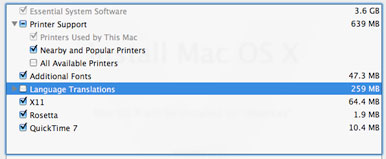
The updated installation process does not require an immediate reboot and saves space by changing how drivers are installed.
Apple boasted that Snow Leopard needed less disk space than previous versions of OS X; believe it or not, it is this updated printer driver system that is responsible for most of the space savings. It turns out that most of us wastes gigabytes of space on printer drivers that we don't need.
What happens if you meet an unfamiliar new printer? If you will be connected to the Internet at that moment, you should have no problems: Snow Leopard will automatically download and install the drivers that you need. If you need bulletproof instant compatibility with a large number of printers, you can choose to install all the drivers - then you will not save a place that you could have saved otherwise. But for many of us, Apple’s new method of installing printers should be completely invisible, with the exception of the increased disk space.
There are some other options in the custom installation window that are worth mentioning. Rosetta, a technology that allows you to run compiled code for PowerPC chips on Intel chips, is available, but notset by default. Rosetta takes only a few megabytes on the hard drive, and without it, older programs simply won’t start, so if you have such programs, you should select this option. To find out if the application is only for PowerPC, select the old application and click "Information" (Cmd + I) ; if its view is listed as “Program (PowerPC),” he needs Rosetta.
If you do not, and later try to run the PowerPC application, Snow Leopard will show you a pop-up window to explain that you need Rosetta and offer to install it for you using the Apple Software Update service. I can only assume that by making Rosetta optional, Apple tried to encourage users to update their applications and shame developers who have not yet recompiled their applications so that they run on Intel chips. But given the fact that most regular users have no idea which applications are native to Intel and which are designed for PowerPC, such a measure seems unnecessarily tough.
Another technology that suddenly appears in the list of installation options is QuickTime. No, QuickTime did not suddenly become optional in Snow Leopard. But the new QuickTime player in Snow Leopard is radically different from the old model, like iMovie '08 from iMovie HD: this is a complete change in the image of the application, eliminating many features that many of us find useful. If the Mac that you upgrade to Snow Leopard has a QuickTime Pro key, you will find that QuickTime Player 7 is still installed on your Mac, but it has been removed to the / Programs / Utilities folder . If you do not have a QuickTime Pro key, but still want to have access to the classic QuickTime 7 player, you will need to make a custom installation to get it.
Familiar face
Unlike previous OS X updates that offered significant new additions or changes to the Mac interface, Snow Leopard looks almost the same as Leopard. There was no radical rethinking of the color scheme or toolbars and menu items. However, Apple has improved the functionality of some programs, in particular Dock and Exposé.
It seems that the Dock in Snow Leopard, which has undergone minor changes in appearance in Leopard, looks unchanged at first glance. I contradict one cosmetic difference: if you right-click (Ctrl + click)in any subject, you’ll see that context menus no longer look like standard black text on a white background that can be found anywhere on OS X. Instead, they display white text on a translucent black background. It looks like the menus now fit the Dock in appearance, that's all.
Now you can go through the folders inside the stacks. More significantly, the stack function in the Dock is now much more useful. Now you can scroll (scroll) stacks in grid mode. This allows you to see much more contents of this folder, which is very useful if there are many objects in your stack folders. You can also click on a folder to delve into its contents, which is displayed right inside the stacks. This was enough to prompt me for the first time to really regularly use the grid view in the stacks in my downloads folder.
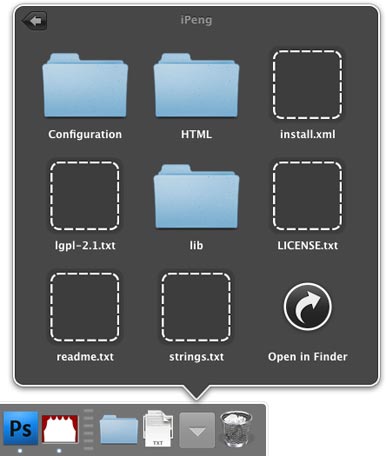
Now you can walk through folders right inside the stacks.
I was never a big fan of the way OS X controlled the minimization of windows that first appeared in the original release of Mac OS X. Despite the technically advanced animation effect, I never liked to press the yellow button in the upper left corner of the window to drive it into a ghost the area in the corner of the Dock where it will remain along with other exiled windows, as well as other folders and files that I moved there. This created a mess in the Dock, I could never remember what I put there, and if I clicked on the wrong object, the windows started to fly out of the Dock without permission. That is why I never pressed this little yellow button.

The new dark context menus in the Dock indicate with a rhombus that the two windows were minimized to the Safari icon in the Dock.
Fans of the yellow button, don't be afraid: By default, Snow Leopard still minimizes windows in the same dumb way that Mac OS X has been for the past ten years. For those of us who complained, there is a new alternative: the checkbox “minimize windows to the application icon”in the Dock settings panel in System Preferences. If you check the box next to this item, then when you click on the yellow button, your window will still fly to the Dock. But instead of disappearing into a mess on the right, it will decrease by the icon of the application to which it belongs. This will simplify your life when you need to return the naz window. (Minimized windows in most programs are indicated by a rhombus in the menu item of the "Windows" application; you can see the same list by Ctrl + clicking on the application icon in the Dock). Even better, this function works with Exposé: when you call Exposé, all minimized windows are displayed together at the very bottom of the screen.
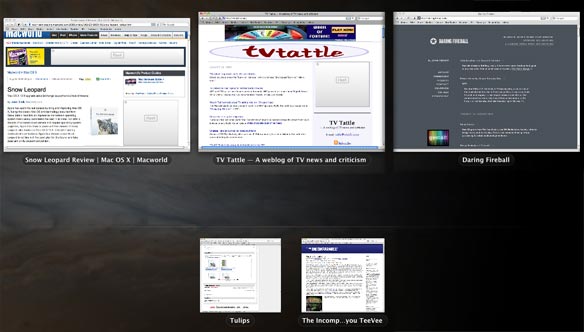
If you click and hold the button on the application icon in the Dock, Exposé displays all open windows of this application. (Minimized windows appear below the pale line dividing the top and bottom of the screen).
Exposé also improved. My favorite addition is that when you click and hold the button pressed on the application icon in the Dock, Exposé displays all the windows that belong to this application. For people who use the mouse more than the keyboard (geeks, sorry, but we, the adherents of the dominant use of the keyboard, are in the minority here), this is much more natural than trying to find a function key. (Or if you, like me, press all the function keys in turn until you find the right one). It even works with drag-and-drop: drag an object onto the application icon in the Dock and linger there for a split second, then Exposé will start. You can drag an object to a specific window, which will bring it to the fore. Then you can drag and drop this object anywhere you want, within this window. This is a smart addition that makes Exposé much more useful.
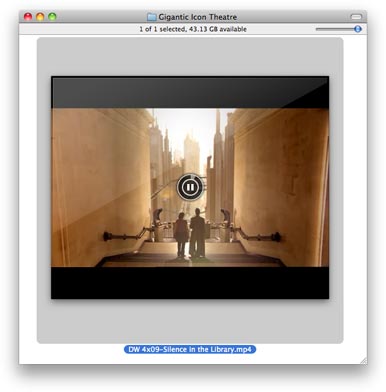
This is not just a giant icon in the Finder (512 x 512 pixels), but it also plays the video.
If all the salt in Snow Leopard is to preserve the appearance, but make big changes under the hood, Finder is a thumbnail image of the new operating system. The initial Finder was created at the initial stage of system development using the Carbon development frameworks; then the main goal was to facilitate the transition from the classic Mac OS to Mac OS X. However, over the past few years, Apple has made it clear that Carbon has no great future, especially when it announced that all 64-bit next-generation applications should Be built using the competing Cocoa framework.
Almost all applications in Snow Leopard are 64-bit; this means that old applications that are based on Carbon frameworks had to be rewritten using Cocoa. This is exactly what Apple has done with Finder - although this cannot be said in appearance. With the exception of some changes in the display of icons (they can be increased to 512 x 512 pixels, you can change the size of the icons right inside the window using a convenient slider, scroll through PDF documents and play videos directly inside their icons in Finder), there is not much new. These giant icons are generally useless in most cases, at least until Apple finally makes Mac OS X resolution-independent, so smart 512 x 512 pixel icons can be smaller and extremely detailed not the computer equivalent of a too large new check, which is usually given to lottery winners. Apple says the Finder should be more responsive now that it works in 64-bit mode and takes better advantage of several processor cores thanks to Grand Central Dispatch (more on that later). The Finder can still be attacked with a hiccup sometimes, but Apple has done a good job to make it more efficient. And amateurs in Finder will be pleasantly surprised that Apple finally made the behavior of the oblong button in the upper right corner of the window panel correct - it makes the toolbar and side panel disappear with a cute animation effect, while the window looks exactly the same as before of this. that Finder should be more responsive now that it works in 64-bit mode and takes better advantage of several processor cores thanks to Grand Central Dispatch (more on that later). The Finder can still be attacked with a hiccup sometimes, but Apple has done a good job to make it more efficient. And amateurs in Finder will be pleasantly surprised that Apple finally made the behavior of the oblong button in the upper right corner of the window panel correct - it makes the toolbar and side panel disappear with a cute animation effect, while the window looks exactly the same as before of this. that Finder should be more responsive now that it works in 64-bit mode and takes better advantage of several processor cores thanks to Grand Central Dispatch (more on that later). The Finder can still be attacked with a hiccup sometimes, but Apple has done a good job to make it more efficient. And amateurs in Finder will be pleasantly surprised that Apple finally made the behavior of the oblong button in the upper right corner of the window panel correct - it makes the toolbar and side panel disappear with a cute animation effect, while the window looks exactly the same as before of this. The Finder can still be attacked with a hiccup sometimes, but Apple has done a good job to make it more efficient. And amateurs in Finder will be pleasantly surprised that Apple finally made the behavior of the oblong button in the upper right corner of the window panel correct - it makes the toolbar and side panel disappear with a cute animation effect, while the window looks exactly the same as before of this. The Finder can still be attacked with a hiccup sometimes, but Apple has done a good job to make it more efficient. And amateurs in Finder will be pleasantly surprised that Apple finally made the behavior of the oblong button in the upper right corner of the window panel correct - it makes the toolbar and side panel disappear with a cute animation effect, while the window looks exactly the same as before of this.
Exchange without Entourage
When Apple first decided to use Exchange , Microsoft's popular server software, it did so in a major software update for the iPhone. IPhone 2.0 firmware brought Exchange calendars, contracts, and email support directly to Apple’s mobile platform. Now, along with Snow Leopard, Mac also gets the ability to directly connect to Exchange servers. Specifically, this means that Mail, iCal, and Address Book can be easily configured to connect to Exchange corporate servers. (Apple does not hesitate to show that now Mac out of the box provides better communication with Exchange than Windows, without requiring any additional software).
I have been using Snow Leopard with the Exchange server for a couple of weeks now and everything is quiet, stable and even pleasant. I can confirm receipt of meeting invitations right inside Mail and check if my colleagues are busy or free in iCal to make an appointment. Since my organization does not yet use Exchange, I cannot conduct large-scale testing; users in large enterprises that use Exchange, of course, will be able to evaluate it much more carefully than I do. (We will publish a detailed review of Exchange on Snow Leopard by an IT professional in the next few days.)
A few months before I started testing Snow Leopard, my company's IT manager suggested that perhaps in the future we will switch to Exchange. I must admit that after these words I was trembling, mainly because I am not a big fan of Microsoft Entourage, which was then the only real way to get Exchange support on the Mac. But with the release of iPhone 2.0 and Snow Leopard, my views on Exchange turned 180 degrees. If our IT department wants to transfer us to Exchange, I will now say, always please. (Unsurprisingly, Microsoft announced - what exactly on the eve of the release of Snow Leopard! - that they will replace Entourageon Outlook for Mac sometime in the next 15 months. In place of the Mac Business Unit at Microsoft (the Mac software development unit), I would be scared to death that by the end of 2010, all Macs using Exchange will do this using Mail, iCal, and Address Book).
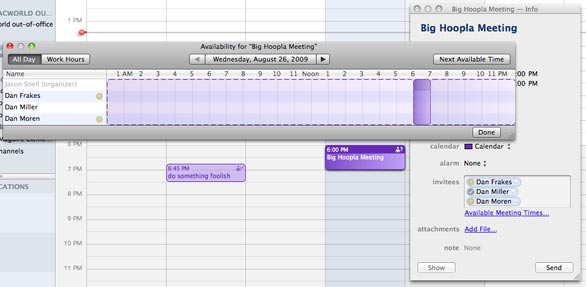
Support for Exchange in iCal includes a group schedule for meetings.
Since Habrahabr apparently considered that there were too many letters in the review, so it did not allow me to publish the entire text in full, I divided the review into two parts. And here is the sequel .