On stage again winners of the international competitions SSH and sudo. Under the guidance of Honored Conductor Active Directory
- Tutorial
Historically, sudo rights were regulated by the contents of files from /etc/sudoers.d and visudo , and key authorization was performed using ~ / .ssh / authorized_keys . However, with the growth of infrastructure, there is a desire to manage these rights centrally. To date, there may be several solutions:
In my subjective opinion, the best option for centralized management is still a bunch of Active Directory + sssd . The advantages of this approach are:
Today’s suite will be dedicated to the Active Directory + sssd bundle for managing sudo rights and storing ssh keys in a single repository.
So, the audience froze in tense silence, the conductor raised his wand, the orchestra prepared.
Go.
Given:
Both solutions make changes to the Active Directory schema , so we check everything on a test environment and only then make changes to the working infrastructure. I want to note - all changes are point-based and, in fact, add only the necessary attributes and classes.
To extend the Active Directory schema, you need to download the latest sudo release - 1.8.27 today. Unpack, copy the schema.ActiveDirectory file from the ./doc directory to the domain controller. From the command line with administrator rights from the directory where you copied the file, run:
(Do not forget to substitute your values)
Open adsiedit.msc and connect to the default context:
In the root of the domain, create a sudoers unit . (The bourgeois stubbornly argue that it is in this unit that the sssd daemon searches for sudoRoleobjects. However, after turning on the detailed debug and examining the logs, it was revealed that the search is performed throughout the catalog tree.)
We create the first object in the unit that belongs to the sudoRole class . The name can be chosen absolutely arbitrarily, as it serves solely for convenient identification.
Among the possible available attributes from the schema extension, the main ones are:
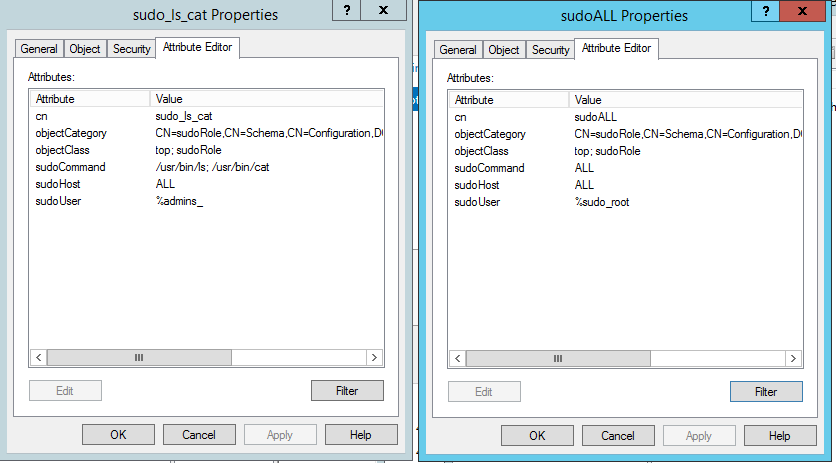
Figure 1. sudoRole objects in the sudoers unit at the root of the directory
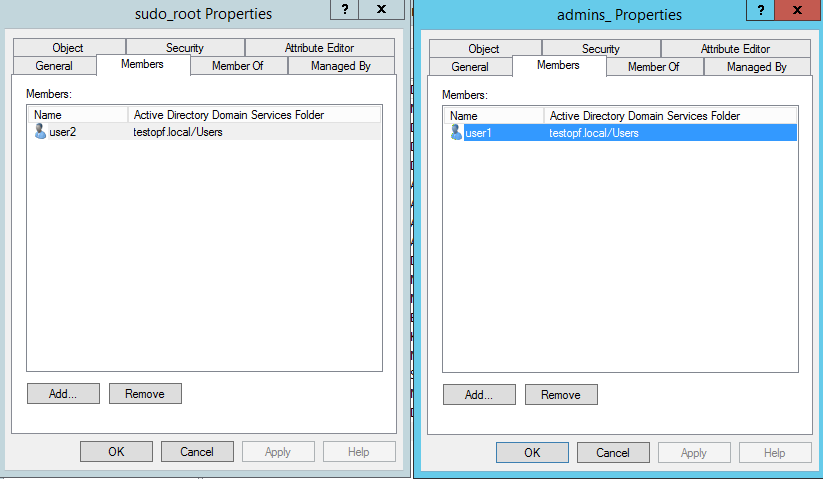
Figure 2. Membership in the security groups specified in sudoRole objects.
The following configuration is done on the Linux side.
In the /etc/nsswitch.conf file, add the line to the end of the file:
In the /etc/sssd/sssd.conf file in the [sssd] section, add sudo to the services
After all operations, you need to clear the sssd daemon cache. Automatic updates are made every 6 hours, but why do we have to wait so much when we want now.
It often happens that clearing the cache does not help. Then we stop the service, clean the base, start the service.
We connect under the first user and check that it is accessible from under sudo:
We do the same with our second user:
This approach allows you to centrally define sudo roles for different user groups.
With a small extension of the scheme, it is possible to store ssh keys in Active Directory user attributes and use them for authorization on Linux hosts.
Authorization via sssd must be configured.
Add the desired attribute using the PowerShell script.
After adding the attribute, restart Active Directory Domain Services.
We pass to users of Active Directory. In any way convenient for you, we generate a key pair for ssh connection.
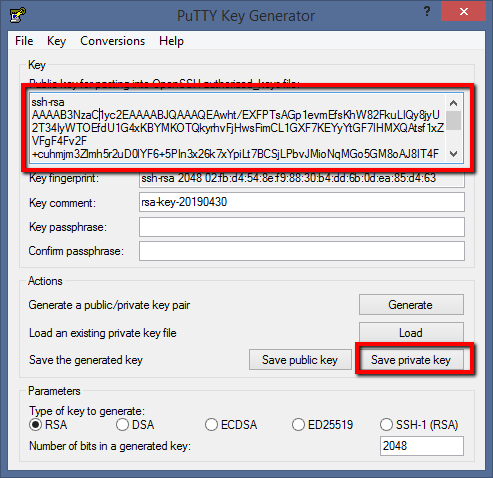
Launch PuttyGen, click the "Generate" button and frantically click on the mouse within an empty area.
Upon completion of the process, we can save the public and private keys, fill in the public key in the Active Directory user attribute and enjoy the process. However, the public key must be used from the " Public key for pasting into OpenSSH authorized_keys file: " window .
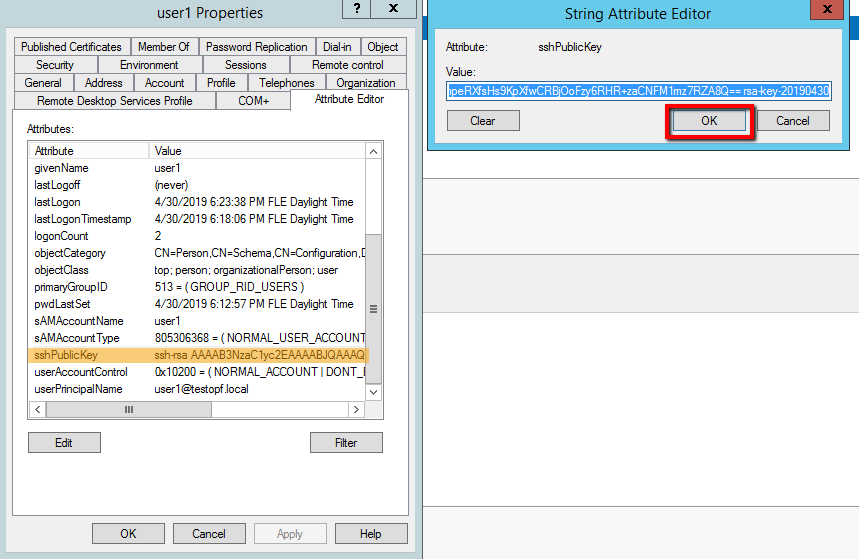
Add the key to the user attribute.
Option 1 - GUI:
Option 2 - PowerShell:
So, we have at the moment: a user with the sshPublicKey attribute filled in, a Putty client configured for key authorization. There remains one small point, how to make the sshd daemon pull the public key we need from the user attributes. A small script found on the open spaces of the bourgeois Internet successfully copes with this.
We set 0500 permissions for root on it.
In this example, the administrator account is used for the bind to the directory. In combat conditions there should be a separate account with a minimum set of rights.
I personally was very confused by the moment of the password in its pure form in the script, despite the rights set out.
Solution Option:
The final chord in today's suite is editing sshd_config
As a result, we get the following sequence with the key authentication configured in the ssh client:
Thus, keys are stored in Active Directory user attributes, sudo permissions - similarly, access to Linux hosts by domain accounts is carried out by checking membership in the Active Directory group.
The final wave of the conductor’s wand - and the hall freezes in awed silence.
Resources used in writing:
- Configuration Management System - Chef , Puppet , Ansible , Salt
- Active Directory + sssd
- Various distortions in the form of scripts and manual editing of files
In my subjective opinion, the best option for centralized management is still a bunch of Active Directory + sssd . The advantages of this approach are:
- Truly a single centralized user directory.
- Distributing sudo rights is about adding a user to a specific security group.
- In the case of various Linux-systems, there is a need to introduce additional checks for determining the OS when using configuration systems.
Today’s suite will be dedicated to the Active Directory + sssd bundle for managing sudo rights and storing ssh keys in a single repository.
So, the audience froze in tense silence, the conductor raised his wand, the orchestra prepared.
Go.
Given:
- Active Directory domain testopf.local on Windows Server 2012 R2.
- Linux host running Centos 7
- Configured authorization using sssd
Both solutions make changes to the Active Directory schema , so we check everything on a test environment and only then make changes to the working infrastructure. I want to note - all changes are point-based and, in fact, add only the necessary attributes and classes.
Step 1: manage sudo roles through Active Directory .
To extend the Active Directory schema, you need to download the latest sudo release - 1.8.27 today. Unpack, copy the schema.ActiveDirectory file from the ./doc directory to the domain controller. From the command line with administrator rights from the directory where you copied the file, run:
ldifde -i -f schema.ActiveDirectory -c dc=X dc=testopf,dc=local(Do not forget to substitute your values)
Open adsiedit.msc and connect to the default context:
In the root of the domain, create a sudoers unit . (The bourgeois stubbornly argue that it is in this unit that the sssd daemon searches for sudoRoleobjects. However, after turning on the detailed debug and examining the logs, it was revealed that the search is performed throughout the catalog tree.)
We create the first object in the unit that belongs to the sudoRole class . The name can be chosen absolutely arbitrarily, as it serves solely for convenient identification.
Among the possible available attributes from the schema extension, the main ones are:
- sudoCommand - Determines which commands are allowed to run on the host.
- sudoHost - determines which hosts this role applies to. It can be set as ALL , or for an individual host by name. It is also possible to use a mask.
- sudoUser - indicate which users are allowed to execute sudo .
If a security group is specified, add the “%” sign at the beginning of the name. If there are spaces in the group name, there’s nothing to worry about. Judging by the logs, the sssd mechanism takes on the task of escaping spaces .
Figure 1. sudoRole objects in the sudoers unit at the root of the directory
Figure 2. Membership in the security groups specified in sudoRole objects.
The following configuration is done on the Linux side.
In the /etc/nsswitch.conf file, add the line to the end of the file:
sudoers: files sssIn the /etc/sssd/sssd.conf file in the [sssd] section, add sudo to the services
cat /etc/sssd/sssd.conf | grep services
services = nss, pam, sudo
After all operations, you need to clear the sssd daemon cache. Automatic updates are made every 6 hours, but why do we have to wait so much when we want now.
sss_cache -EIt often happens that clearing the cache does not help. Then we stop the service, clean the base, start the service.
service sssd stop
rm -rf /var/lib/sss/db/*
service sssd start
We connect under the first user and check that it is accessible from under sudo:
su user1
[user1@testsshad log]$ id
uid=1109801141(user1) gid=1109800513(domain users) groups=1109800513(domain users),1109801132(admins_)
[user1@testsshad log]$ sudo -l
[sudo] password for user1:
Matching Defaults entries for user1 on testsshad:
    !visiblepw, always_set_home, match_group_by_gid, always_query_group_plugin,
    env_reset, env_keep="COLORS DISPLAY HOSTNAME HISTSIZE KDEDIR LS_COLORS",
    env_keep+="MAIL PS1 PS2 QTDIR USERNAME LANG LC_ADDRESS LC_CTYPE",
    env_keep+="LC_COLLATE LC_IDENTIFICATION LC_MEASUREMENT LC_MESSAGES",
    env_keep+="LC_MONETARY LC_NAME LC_NUMERIC LC_PAPER LC_TELEPHONE",
    env_keep+="LC_TIME LC_ALL LANGUAGE LINGUAS _XKB_CHARSET XAUTHORITY",
    secure_path=/sbin\:/bin\:/usr/sbin\:/usr/bin
User user1 may run the following commands on testsshad:
    (root) /usr/bin/ls, /usr/bin/cat
We do the same with our second user:
su user2
[user2@testsshad log]$ id
uid=1109801142(user2) gid=1109800513(domain users) groups=1109800513(domain users),1109801138(sudo_root)
[user2@testsshad log]$ sudo -l
Matching Defaults entries for user2 on testsshad:
    !visiblepw, always_set_home, match_group_by_gid, always_query_group_plugin,
    env_reset, env_keep="COLORS DISPLAY HOSTNAME HISTSIZE KDEDIR LS_COLORS",
    env_keep+="MAIL PS1 PS2 QTDIR USERNAME LANG LC_ADDRESS LC_CTYPE",
    env_keep+="LC_COLLATE LC_IDENTIFICATION LC_MEASUREMENT LC_MESSAGES",
    env_keep+="LC_MONETARY LC_NAME LC_NUMERIC LC_PAPER LC_TELEPHONE",
    env_keep+="LC_TIME LC_ALL LANGUAGE LINGUAS _XKB_CHARSET XAUTHORITY",
    secure_path=/sbin\:/bin\:/usr/sbin\:/usr/bin
User user2 may run the following commands on testsshad:
    (root) ALL
This approach allows you to centrally define sudo roles for different user groups.
Storing and using ssh keys in Active Directory
With a small extension of the scheme, it is possible to store ssh keys in Active Directory user attributes and use them for authorization on Linux hosts.
Authorization via sssd must be configured.
Add the desired attribute using the PowerShell script.
AddsshPublicKeyAttribute.ps1
Function New-AttributeID {
$ Prefix = "1.2.840.113556.1.8000.2554"
$ GUID = [System.Guid] :: NewGuid (). ToString ()
$ Parts = @ ()
$ Parts + = [UInt64] :: Parse ( $ guid.SubString (0.4), “AllowHexSpecifier”)
$ Parts + = [UInt64] :: Parse ($ guid.SubString (4.4), “AllowHexSpecifier”)
$ Parts + = [UInt64] :: Parse ($ guid .SubString (9,4), “AllowHexSpecifier”)
$ Parts + = [UInt64] :: Parse ($ guid.SubString (14,4), “AllowHexSpecifier”)
$ Parts + = [UInt64] :: Parse ($ guid.SubString (19,4), “AllowHexSpecifier”)
$ Parts + = [UInt64] :: Parse ($ guid.SubString (24,6), “AllowHexSpecifier”)
$ Parts + = [UInt64] :: Parse ($ guid.SubString (30 , 6), “AllowHexSpecifier”)
$ oid = [String] :: Format ("{0}. {1}. {2}. {3}. {4}. {5}. {6}. {7} ", $ prefix, $ Parts [0],
$ Parts [1], $ Parts [2], $ Parts [3], $ Parts [4], $ Parts [5], $ Parts [6])
$ oid
}
$ schemaPath = (Get-ADRootDSE) .schemaNamingContext
$ oid = New-AttributeID
$ attributes = @ {
lDAPDisplayName = 'sshPublicKey';
attributeId = $ oid;
oMSyntax = 22;
attributeSyntax = "2.5.5.5";
isSingleValued = $ true;
adminDescription = 'User Public key for SSH login';
}
New-ADObject -Name sshPublicKey -Type attributeSchema -Path $ schemapath -OtherAttributes $ attributes
$ userSchema = get-adobject -SearchBase $ schemapath -Filter 'name -eq "user"'
$ userSchema | Set-ADObject -Add @ {mayContain = 'sshPublicKey'}
$ Prefix = "1.2.840.113556.1.8000.2554"
$ GUID = [System.Guid] :: NewGuid (). ToString ()
$ Parts = @ ()
$ Parts + = [UInt64] :: Parse ( $ guid.SubString (0.4), “AllowHexSpecifier”)
$ Parts + = [UInt64] :: Parse ($ guid.SubString (4.4), “AllowHexSpecifier”)
$ Parts + = [UInt64] :: Parse ($ guid .SubString (9,4), “AllowHexSpecifier”)
$ Parts + = [UInt64] :: Parse ($ guid.SubString (14,4), “AllowHexSpecifier”)
$ Parts + = [UInt64] :: Parse ($ guid.SubString (19,4), “AllowHexSpecifier”)
$ Parts + = [UInt64] :: Parse ($ guid.SubString (24,6), “AllowHexSpecifier”)
$ Parts + = [UInt64] :: Parse ($ guid.SubString (30 , 6), “AllowHexSpecifier”)
$ oid = [String] :: Format ("{0}. {1}. {2}. {3}. {4}. {5}. {6}. {7} ", $ prefix, $ Parts [0],
$ Parts [1], $ Parts [2], $ Parts [3], $ Parts [4], $ Parts [5], $ Parts [6])
$ oid
}
$ schemaPath = (Get-ADRootDSE) .schemaNamingContext
$ oid = New-AttributeID
$ attributes = @ {
lDAPDisplayName = 'sshPublicKey';
attributeId = $ oid;
oMSyntax = 22;
attributeSyntax = "2.5.5.5";
isSingleValued = $ true;
adminDescription = 'User Public key for SSH login';
}
New-ADObject -Name sshPublicKey -Type attributeSchema -Path $ schemapath -OtherAttributes $ attributes
$ userSchema = get-adobject -SearchBase $ schemapath -Filter 'name -eq "user"'
$ userSchema | Set-ADObject -Add @ {mayContain = 'sshPublicKey'}
After adding the attribute, restart Active Directory Domain Services.
We pass to users of Active Directory. In any way convenient for you, we generate a key pair for ssh connection.
Launch PuttyGen, click the "Generate" button and frantically click on the mouse within an empty area.
Upon completion of the process, we can save the public and private keys, fill in the public key in the Active Directory user attribute and enjoy the process. However, the public key must be used from the " Public key for pasting into OpenSSH authorized_keys file: " window .
Add the key to the user attribute.
Option 1 - GUI:
Option 2 - PowerShell:
get-aduser user1 | set-aduser -add @{sshPublicKey = 'AAAAB...XAVnX9ZRJJ0p/Q=='}So, we have at the moment: a user with the sshPublicKey attribute filled in, a Putty client configured for key authorization. There remains one small point, how to make the sshd daemon pull the public key we need from the user attributes. A small script found on the open spaces of the bourgeois Internet successfully copes with this.
cat /usr/local/bin/fetchSSHKeysFromLDAP
#!/bin/sh
ldapsearch -h testmdt.testopf.local -xb "dc=testopf,dc=local" '(sAMAccountName='"${1%@*}"')' -D [email protected] -w superSecretPassword 'sshPublicKey' | sed -n '/^ /{H;d};/sshPublicKey:/x;$g;s/\n *//g;s/sshPublicKey: //gp'
We set 0500 permissions for root on it.
chmod 0500 /usr/local/bin/fetchSSHKeysFromLDAPIn this example, the administrator account is used for the bind to the directory. In combat conditions there should be a separate account with a minimum set of rights.
I personally was very confused by the moment of the password in its pure form in the script, despite the rights set out.
Solution Option:
- I save the password in a separate file:
echo -n Supersecretpassword > /usr/local/etc/secretpass - I set the permissions on the 0500 file for root
chmod 0500 /usr/local/etc/secretpass - I change the startup parameters of ldapsearch: the -w superSecretPassword parameter is changed to -y / usr / local / etc / secretpass
The final chord in today's suite is editing sshd_config
cat /etc/ssh/sshd_config | egrep -v -E "#|^$" | grep -E "AuthorizedKeysCommand|PubkeyAuthe"
PubkeyAuthentication yes
AuthorizedKeysCommand /usr/local/bin/fetchSSHKeysFromLDAP
AuthorizedKeysCommandUser root
As a result, we get the following sequence with the key authentication configured in the ssh client:
- The user connects to the server, indicating his username.
- The sshd daemon, through a script, pulls the value of the public key from the user attribute in Active Directory and authorizes the keys.
- The sssd daemon further authenticates the user based on group membership. Attention! If this is not configured, then any domain user will have access to the host.
- When sudo tries, the sssd daemon searches the Active Directory directory for roles. If there are roles, the attributes and user membership of the group are checked (if sudoRoles is configured to use user groups)
Total
Thus, keys are stored in Active Directory user attributes, sudo permissions - similarly, access to Linux hosts by domain accounts is carried out by checking membership in the Active Directory group.
The final wave of the conductor’s wand - and the hall freezes in awed silence.
Resources used in writing: