October 5, 2017 at 10:52
Say no to Electron! Writing a Fast JavaFX Desktop Application
- Transfer
- Tutorial
Recently, the programming forums turned not weak debate (for example, see. Here , here and here , and this today ) on Electron and its impact on the scope of the development of desktop applications.
If you don’t know Electron , then this is essentially a web browser ( Chromium ) in which only your web application works ... like a real desktop program (no, this is not a joke) ... this makes it possible to use the web stack and develop cross-platform desktop applications.
The newest, hipster desktop apps these days are made on Electron, including Slack , VS Code , Atomand GitHub Desktop . Extraordinary success.
We have been writing desktop programs for decades. On the other hand, the web only began to develop less than 20 years ago, and for most of this time it served only to deliver documents and animated gifs. Nobody used it to create full-fledged applications, even the simplest!
Ten years ago, it was impossible to imagine that a stack of web technologies could be used to create a desktop application. But 2017 has come, and many smart people believe that Electron is a great idea!
This is not so much the result of the superiority of the web stack for creating applications (it is far from such superiority, and it is unlikely that anyone will argue that the web is a mess), how many failures of the existing frameworks for developing UI on desktops. If people prefer to ship an entire web browser with their programs just to use great tools like JavaScript (sarcasm) for development, something went completely wrong.
So what are these terrible alternatives that have lost the competition to the web stack?
I decided to take a look and create a real application on one of these technologies.
If you don’t mind that several development teams will create different versions of the application for different OSs, the options look something like this: AppKit for MacOS, WPF for Windows (I'm not a specialist for development for specific platforms, so please let me know which options more popular these days).
However, the real competitors of Electron are multi-platform frameworks. I think among them the most popular today are GTK + , Qt and JavaFX .
GTK + is written in C, but is associated with many other languages . This framework was used to develop the beautiful GNOME-3 platform .
Qt seems to be the most popular alternative to Electron in the discussions that caught my eye ... This is a C ++ library, but also related to other languages (although it seems that none of them are supported on a commercial basis, and it's hard to say how much they are finalized). Qt seems to be a popular choice for embedded systems.
However, in this article, I will concentrate on developing desktop applications using JavaFX, because I believe that JavaFX and JVM are great for desktop programs.
Whatever you think of the JVM, there is no other platform (except, perhaps, Electron itself!) That is so simple for cross-platform development. Once you have created your jar, on any platform, you can distribute it among users of all OSs - and it will just work.
With a wide variety of languages that are now supported in the JVM, the choice of language should not be a problem either: there will definitely be one you like ( including JavaScriptif you are not able to refuse it), and you can use JavaFX with any JVM language without any problems. In this article, besides Java, I will show some code on Kotlin .
The UI itself is created simply by code (if you have wonderful IDE support from IntelliJ , Eclipse or NetBeans : these are all great free IDEs that are probably superior to any competitors and, by the way, are the best examples of desktop applications in Java) or in visual UI constructor: SceneBuilder (which can integrate into IntelliJ) or NetBeans Visual Debugger .
In my application for viewing LogFX logs , I decided to just use Java (because there is basically a rather low-level code, but I wanted to concentrate on the speed and small packet size) and IntelliJ as an IDE. I almost decided to write in Kotlin , but Java support in IntelliJ turned out to be so good, so writing in Java (more precisely, letting IntelliJ do this for me is closer to the truth) was not such a big problem to justify the extra 0.9 MB in distribution kit.
I decided not to use FXML (XML-based GUI for JavaFX) or the visual UI constructor, because the interface of the program is very simple.
So, look at some code!
A JavaFX application is simply a class that extends
This is how Hello World is written in JavaFX:
On the "poppy" this code will show something like this:
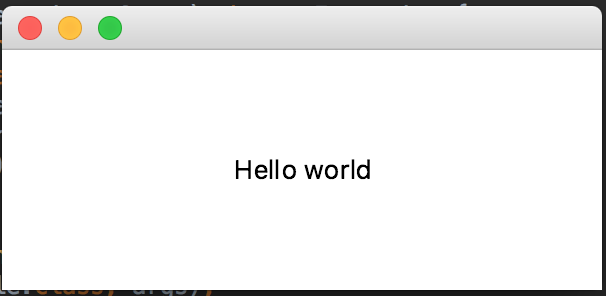
If you find it difficult to write code for the UI and prefer to use a markup language, here is the equivalent of the same code with FXML:
Note that IntelliJ supports FXML and will link its contents to the corresponding Java code and vice versa, highlight errors, make auto-completion, handle import, show built-in documentation and so on, which is pretty cool ... but as I said earlier, it was decided not to use FXML because the conceived UI was very simple and quite dynamic ... so I won’t show the FXML code anymore. If interested, read the FXML manual .
Before moving on, let's see how this code looks in a modern language like Kotlin with its own library for writing JavaFX applications called TornadoFX :
Many may find it attractive to use Kotlin and JavaFX, especially if you prefer type safety (TornadoFX has a nice feature called “ type-safe style sheets ”) and adding extra 5 MB to applications is not a problem for you .
Even if such overhead costs seem excessive and you do not want to include the framework in the program (and deal with all its complexities and quirks), then Kotlin works fine with pure JavaFX as well.
Now that we’ve figured out the basics of JavaFX, let's see how to apply styles to JavaFX applications.
Just as there are different approaches to prototyping, there are different styles for JavaFX.
Suppose we want to make a dark background and white text, as shown in the screenshot:
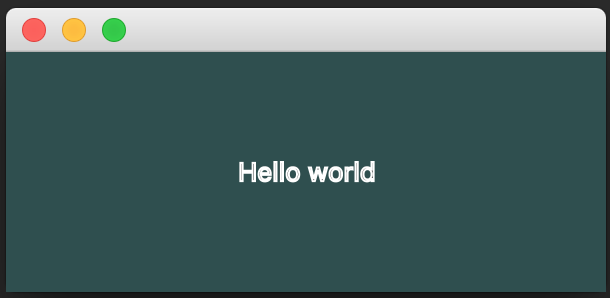
One of the options (painful, but with safe types) is to do this programmatically:
A simpler programmatic way is to set styles in CSS:
Note that here IntelliJ again provides auto-completion for row values.
If you are using FXML:
Same…
If you do not want to move away from the world of the web and prefer to set styles in separate style sheets, JavaFX can do it! I chose this approach because it allows you to style everything in one place and even gives users the opportunity to choose styles to their taste.
To do this, first create a stylesheet:
Now add it to
And that’s it.
Notice that style sheets set not only the background color
This means that all controls and background elements will accept a color based on that color. Pretty nifty feature, because you can set colors based on the primary color. So you guarantee that if you change the main color, then almost everything will look good in a new color.
For example, in our case, not white, but the “opposite” color relative to the main color of the theme will become the more suitable text color, so that the text always remains readable:
The JavaFX style sheets are pretty smart, see the CSS Reference Guide for more information .
Here is an example of a simple application where we put a button instead of text. The default styles are shown on the left, and the stylesheet we just created is used on the right:

Left: JavaFX default styles. Right: custom styles created above.
In my application, I wanted to set a dark theme by default, but at the same time leave the users the option to load their own styles so that they can use any theme they like.
Here's what LogFX looks like with the default theme : Note that I used the FontAwesome icons for the buttons . It was pretty simple

Stylize buttons in CSS . Just make sure that the font is installed as early as possible with the following instruction:
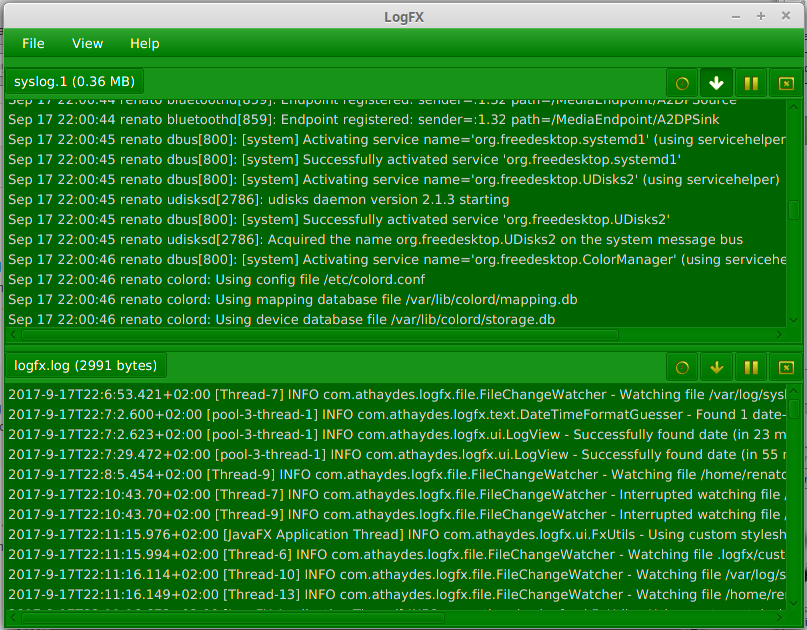
With custom style sheets, you can dramatically change the appearance of the application. For example, here is a very green theme in Linux Mint: Although the good taste of the author of this green theme is in question, it shows powerful styling capabilities in JavaFX. Here you can realize almost everything your imagination is capable of. In conclusion, I would like to mention the cool effects that JavaFX has ... I wanted to make a start screen that would look good just with rich text. In JavaFX, this is easy. Here's what I got (I made a screen based on a GroovyFX sample ): And here is a style sheet that matches this start screen:

Here you can create very good effects. See the manual for more information .
In the following sections, we will discuss how to change views (screens), reload code on the fly (hot reload) and update stylesheets while the program is running.
It is almost impossible to create a user interface without the ability to instantly view changes. Therefore, an important part of any UI framework is a hot reload of the code or some kind of UI constructor.
JavaFX (and the JVM itself) has several solutions to this problem.
The first one is SceneBuilder , a visual UI constructor that lets you create FXML by simply dragging and dropping UI components. It can be integrated into any Java IDE, which simplifies the creation of new views (screens). I used to have to use SceneBuilder to create forms and similar complex views, but I usually just threw something quick there and then manually edited the code to bring it to its final form. If you do this and then open the view in SceneBuilder, it will still work fine, so you can edit the code one by one manually or in SceneBuilder and view the result.

Once you have the basic design ready, you can run ScenicView to view and edit the scene graph while the application is running.
Imagine this as the equivalent of a developer tool in a browser. To run ScenicView with your application, just download the jar and pass the parameter to the JVM. ScenicView allows you to modify and delete nodes, track events, and read Javadocs documentation for selected items.

If you want to change the application code, which is not directly related to the UI, then for this, a Java debugger with a hot code replacement while the application is running is suitable. Basic support for code reloading is available in Oracle JVM and HotSpot. I think that it is in the OpenJDK JVM.
However, the basic support for this function is very limited: you are only allowed to change the implementation of existing methods.
But there is a HotSpot VM extension called DCEVM (Dynamic Code Evolution VM) with much more functionality: adding / removing methods and fields, adding / removing classes, changing the value of the resulting variables, and more. In another article, I already wrote about it and other ways to reload code in a running JVM.
I used this extension when developing LogFX - and it performed very well. If you don’t close and reopen the window, the view does not change automatically when the code is reloaded, but it’s not such a big problem if you change something in Stage ... besides, if you want to change only the UI component, you can use ScenicView or just go back to ScenicBuilder and change the design as you like.
To run DCEVM, you only need to install it and check the version numbers of the extension and the JVM. After that, the application starts with a debugger - and each time after recompilation into the IDE, the new code is automatically loaded into the working program.
In IntelliJ, after changing the class and recompiling, you will see something similar (Cmd + F9 on the “Mac”):

JavaFX does not automatically update style sheets. But for LogFX, I wanted to make it possible to change styles - and immediately observe the effect in the application.
Since LogFX is a program for viewing logs, it is quite advanced
But it only works if the styles come from a separate file, and not from the application itself (from jar).
Since I already allowed users to install an arbitrary file with style sheets, this did not become a problem.
I used this feature in the development process and it is very impressive. If you need the same feature, you can write your own file manager or copy mine (in the end, it is open source).
To select a stylesheet as a file (unlike the jar resource), unfortunately, you have to use different syntax for Unix / Mac and Windows. Here is the method I used to solve the problem:
It works on Mac, Windows and Linux Mint. But this is only the first of two problems that arise on different OSs (the second is that the icon does not appear in the system tray on the Mac, although there is an ugly workaround for this problem). Otherwise, JavaFX abstracts pretty well for the most part.
Finally, when the dispatcher has detected a change in the stylesheet file, you can update the style by simply deleting it and immediately adding it back:
This method works well. But if you don’t want to write it yourself, then ScenicView can also track stylesheets in external files (but not inside the jar), and TornadoFX also supports this , so there are options here.
Creating a JavaFX application has been a pretty enjoyable experience. I had some practice writing JavaFX applications to work a few years ago (when JavaFX was at an early stage of development, which is now in the past), so I definitely had some head start ... but I also worked as a web developer and now I can’t believe that someone would prefer to use the web stack instead of such a sane environment as the JVM.
The created LogFX application, in my opinion, works very well, and it achieved its goals in terms of speed and quick response, and at the same time it looks good on all operating systems without modification. Please see for yourself and express your opinion:
Although this is a fully functional application, the jar file weighs only 303 kilobytes. This is 0.3 MB, including several pictures and a TTF font file, and a few more HTML and CSS files besides Java class files!
Of course, the application does not include the JVM virtual machine itself, but the JVM is not part of the program and can be used for many applications! In Java 9, you can generally create native executables, including only the necessary parts of the JVM in them, so if your users don’t like the simple jar, then pack it as a native application, as I showed in the previous article (a small native JVM application will take about 35 MB or 21 MB after optimization).
LogFX requires about 50 MB RAM (not for the application itself, but mainly for JavaFX). You can verify this by running the program with this command:
This is fundamentally different from Electron applications, which usually consume 200 MB at the time of launch.
JavaFX is not perfect and there are many areas that still need improvement. One of them is distribution and automatic updating of programs. The current solution, JNLP and Java WebStart , seems poorly implemented , although there are alternatives from the community, such as Getdown and FxLauncher , and if you want the correct native installer, there is also a commercial Install4J solution (by the way, Install4J hasfree licenses for open source projects).
There are many things left about JavaFX, which I did not have time to mention in this already long article, but some of them, I think, are worthy of additional study if you are interested:
If you don’t know Electron , then this is essentially a web browser ( Chromium ) in which only your web application works ... like a real desktop program (no, this is not a joke) ... this makes it possible to use the web stack and develop cross-platform desktop applications.
The newest, hipster desktop apps these days are made on Electron, including Slack , VS Code , Atomand GitHub Desktop . Extraordinary success.
We have been writing desktop programs for decades. On the other hand, the web only began to develop less than 20 years ago, and for most of this time it served only to deliver documents and animated gifs. Nobody used it to create full-fledged applications, even the simplest!
Ten years ago, it was impossible to imagine that a stack of web technologies could be used to create a desktop application. But 2017 has come, and many smart people believe that Electron is a great idea!
This is not so much the result of the superiority of the web stack for creating applications (it is far from such superiority, and it is unlikely that anyone will argue that the web is a mess), how many failures of the existing frameworks for developing UI on desktops. If people prefer to ship an entire web browser with their programs just to use great tools like JavaScript (sarcasm) for development, something went completely wrong.
So what are these terrible alternatives that have lost the competition to the web stack?
I decided to take a look and create a real application on one of these technologies.
Alternatives to Electron
If you don’t mind that several development teams will create different versions of the application for different OSs, the options look something like this: AppKit for MacOS, WPF for Windows (I'm not a specialist for development for specific platforms, so please let me know which options more popular these days).
However, the real competitors of Electron are multi-platform frameworks. I think among them the most popular today are GTK + , Qt and JavaFX .
GTK +
GTK + is written in C, but is associated with many other languages . This framework was used to develop the beautiful GNOME-3 platform .
Qt
Qt seems to be the most popular alternative to Electron in the discussions that caught my eye ... This is a C ++ library, but also related to other languages (although it seems that none of them are supported on a commercial basis, and it's hard to say how much they are finalized). Qt seems to be a popular choice for embedded systems.
Javafx
However, in this article, I will concentrate on developing desktop applications using JavaFX, because I believe that JavaFX and JVM are great for desktop programs.
Whatever you think of the JVM, there is no other platform (except, perhaps, Electron itself!) That is so simple for cross-platform development. Once you have created your jar, on any platform, you can distribute it among users of all OSs - and it will just work.
With a wide variety of languages that are now supported in the JVM, the choice of language should not be a problem either: there will definitely be one you like ( including JavaScriptif you are not able to refuse it), and you can use JavaFX with any JVM language without any problems. In this article, besides Java, I will show some code on Kotlin .
The UI itself is created simply by code (if you have wonderful IDE support from IntelliJ , Eclipse or NetBeans : these are all great free IDEs that are probably superior to any competitors and, by the way, are the best examples of desktop applications in Java) or in visual UI constructor: SceneBuilder (which can integrate into IntelliJ) or NetBeans Visual Debugger .
History of JavaFX
JavaFX is not a new technology. She appeared in December 2008 and was very different from what we see today. The idea was to create a modern UI framework to replace the obsolete Swing Framework, which has been the official JVM framework since the late 90s.
Oracle almost ruined everything from the start, starting to create a special, declarative language that was supposed to be used to create UI applications. This was not very well accepted by Java developers, and that initiative nearly ruined JavaFX.
Having noticed the problem, Oracle decided to release JavaFX 2 in 2011 without its own special language, and instead using FXML as an option for pure Java code (as we will see later).
Around 2012, JavaFX gained some popularity, and Oracle made significant efforts to improve and popularize this platform. Since version 2.2, the JavaFX framework has become a fairly solid framework, but it was still not included in the standard Java runtime (although it always came with the JDK).
Only with JavaFX 8 (version change made to match Java 8) did it become part of the standard Java runtime.
Today, the JavaFX framework may not be a major player in the UI world, but it has made a lot of real applications , it has quite a few connected libraries, and it has been ported to a mobile platform .
Creating a JavaFX Application
In my application for viewing LogFX logs , I decided to just use Java (because there is basically a rather low-level code, but I wanted to concentrate on the speed and small packet size) and IntelliJ as an IDE. I almost decided to write in Kotlin , but Java support in IntelliJ turned out to be so good, so writing in Java (more precisely, letting IntelliJ do this for me is closer to the truth) was not such a big problem to justify the extra 0.9 MB in distribution kit.
I decided not to use FXML (XML-based GUI for JavaFX) or the visual UI constructor, because the interface of the program is very simple.
So, look at some code!
Java hello world
A JavaFX application is simply a class that extends
javafx.application.Applicationand exposes JavaFX Stage. This is how Hello World is written in JavaFX:
 public class JavaFxExample extends Application {
     @Override
     public void start(Stage primaryStage) throws Exception {
         Text helloWorld = new Text("Hello world");
         StackPane root = new StackPane(helloWorld);
         primaryStage.setScene(new Scene(root, 300, 120));
         primaryStage.centerOnScreen();
         primaryStage.show();
     }
     public static void main(String[] args) {
         launch(JavaFxExample.class, args);
     }
}On the "poppy" this code will show something like this:
FXML + Java Hello World
If you find it difficult to write code for the UI and prefer to use a markup language, here is the equivalent of the same code with FXML:
Hello world public class JavaFxExample extends Application {
@Override
public void start(Stage primaryStage) throws Exception {
Scene scene = FXMLLoader.load(getClass().getResource("Example.fxml"));
primaryStage.setScene(scene);
primaryStage.centerOnScreen();
primaryStage.show();
}
public static void main(String[] args) {
launch(JavaFxExample.class, args);
}
}Note that IntelliJ supports FXML and will link its contents to the corresponding Java code and vice versa, highlight errors, make auto-completion, handle import, show built-in documentation and so on, which is pretty cool ... but as I said earlier, it was decided not to use FXML because the conceived UI was very simple and quite dynamic ... so I won’t show the FXML code anymore. If interested, read the FXML manual .
Hello World on Kotlin + TornadoFX
Before moving on, let's see how this code looks in a modern language like Kotlin with its own library for writing JavaFX applications called TornadoFX :
 class Main : App() {
     override val primaryView = HelloWorld::class
 }
 class HelloWorld : View() {
     override val root = stackpane {
         prefWidth = 300.0
         prefHeight = 120.0
         text("Hello world")
     }
}Many may find it attractive to use Kotlin and JavaFX, especially if you prefer type safety (TornadoFX has a nice feature called “ type-safe style sheets ”) and adding extra 5 MB to applications is not a problem for you .
Even if such overhead costs seem excessive and you do not want to include the framework in the program (and deal with all its complexities and quirks), then Kotlin works fine with pure JavaFX as well.
Styles and Themes for the JavaFX User Interface
Now that we’ve figured out the basics of JavaFX, let's see how to apply styles to JavaFX applications.
Just as there are different approaches to prototyping, there are different styles for JavaFX.
Suppose we want to make a dark background and white text, as shown in the screenshot:
Software and inline styles
One of the options (painful, but with safe types) is to do this programmatically:
 root.setBackground(new Background(new BackgroundFill(
         Color.DARKSLATEGRAY, CornerRadii.EMPTY, Insets.EMPTY)));
 helloWorld.setStroke(Color.WHITE);
A simpler programmatic way is to set styles in CSS:
 root.setStyle("-fx-background-color: darkslategray");
 helloWorld.setStyle("-fx-stroke: white");
Note that here IntelliJ again provides auto-completion for row values.
If you are using FXML:
Hello world Same…
Using separate style sheets
If you do not want to move away from the world of the web and prefer to set styles in separate style sheets, JavaFX can do it! I chose this approach because it allows you to style everything in one place and even gives users the opportunity to choose styles to their taste.
To do this, first create a stylesheet:
 .root {
     -fx-base: darkslategray;
 }
 Text {
     -fx-stroke: white;
}Now add it to
Scene: primaryStage.getScene().getStylesheets().add("css/hello.css");And that’s it.
Notice that style sheets set not only the background color
StackPaneas darkslategray, but also change the main color of the theme. This means that all controls and background elements will accept a color based on that color. Pretty nifty feature, because you can set colors based on the primary color. So you guarantee that if you change the main color, then almost everything will look good in a new color.
For example, in our case, not white, but the “opposite” color relative to the main color of the theme will become the more suitable text color, so that the text always remains readable:
-fx-stroke: ladder(-fx-base, white 49%, black 50%);The JavaFX style sheets are pretty smart, see the CSS Reference Guide for more information .
Here is an example of a simple application where we put a button instead of text. The default styles are shown on the left, and the stylesheet we just created is used on the right:
Left: JavaFX default styles. Right: custom styles created above.
In my application, I wanted to set a dark theme by default, but at the same time leave the users the option to load their own styles so that they can use any theme they like.
Here's what LogFX looks like with the default theme : Note that I used the FontAwesome icons for the buttons . It was pretty simple
Stylize buttons in CSS . Just make sure that the font is installed as early as possible with the following instruction:
Font.loadFont( LogFX.class.getResource( "/fonts/fontawesome-webfont.ttf" ).toExternalForm(), 12 );With custom style sheets, you can dramatically change the appearance of the application. For example, here is a very green theme in Linux Mint: Although the good taste of the author of this green theme is in question, it shows powerful styling capabilities in JavaFX. Here you can realize almost everything your imagination is capable of. In conclusion, I would like to mention the cool effects that JavaFX has ... I wanted to make a start screen that would look good just with rich text. In JavaFX, this is easy. Here's what I got (I made a screen based on a GroovyFX sample ): And here is a style sheet that matches this start screen:
 Text {
     -fx-fill: white;
 }
 #logfx-text-log {
     -fx-font-family: sans-serif;
     -fx-font-weight: 700;
     -fx-font-size: 70;
     -fx-fill: linear-gradient(to top, cyan, dodgerblue);
 }
 #logfx-text-fx {
     -fx-font-family: sans-serif;
     -fx-font-weight: 700;
     -fx-font-size: 86;
     -fx-fill: linear-gradient(to top, cyan, dodgerblue);
     -fx-effect: dropshadow(gaussian, dodgerblue, 15, 0.25, 5, 5);
 }
Here you can create very good effects. See the manual for more information .
In the following sections, we will discuss how to change views (screens), reload code on the fly (hot reload) and update stylesheets while the program is running.
Design, debug, and reload code
It is almost impossible to create a user interface without the ability to instantly view changes. Therefore, an important part of any UI framework is a hot reload of the code or some kind of UI constructor.
JavaFX (and the JVM itself) has several solutions to this problem.
Scenebuilder
The first one is SceneBuilder , a visual UI constructor that lets you create FXML by simply dragging and dropping UI components. It can be integrated into any Java IDE, which simplifies the creation of new views (screens). I used to have to use SceneBuilder to create forms and similar complex views, but I usually just threw something quick there and then manually edited the code to bring it to its final form. If you do this and then open the view in SceneBuilder, it will still work fine, so you can edit the code one by one manually or in SceneBuilder and view the result.
Scenicview
Once you have the basic design ready, you can run ScenicView to view and edit the scene graph while the application is running.
Imagine this as the equivalent of a developer tool in a browser. To run ScenicView with your application, just download the jar and pass the parameter to the JVM. ScenicView allows you to modify and delete nodes, track events, and read Javadocs documentation for selected items.
-javaagent:/path-to/scenicView.jarHot Reload JVM Code
If you want to change the application code, which is not directly related to the UI, then for this, a Java debugger with a hot code replacement while the application is running is suitable. Basic support for code reloading is available in Oracle JVM and HotSpot. I think that it is in the OpenJDK JVM.
However, the basic support for this function is very limited: you are only allowed to change the implementation of existing methods.
But there is a HotSpot VM extension called DCEVM (Dynamic Code Evolution VM) with much more functionality: adding / removing methods and fields, adding / removing classes, changing the value of the resulting variables, and more. In another article, I already wrote about it and other ways to reload code in a running JVM.
I used this extension when developing LogFX - and it performed very well. If you don’t close and reopen the window, the view does not change automatically when the code is reloaded, but it’s not such a big problem if you change something in Stage ... besides, if you want to change only the UI component, you can use ScenicView or just go back to ScenicBuilder and change the design as you like.
To run DCEVM, you only need to install it and check the version numbers of the extension and the JVM. After that, the application starts with a debugger - and each time after recompilation into the IDE, the new code is automatically loaded into the working program.
In IntelliJ, after changing the class and recompiling, you will see something similar (Cmd + F9 on the “Mac”):
Updating Style Sheets
JavaFX does not automatically update style sheets. But for LogFX, I wanted to make it possible to change styles - and immediately observe the effect in the application.
Since LogFX is a program for viewing logs, it is quite advanced
FileChangeWatcher, which is suitable for viewing styles and reloading them. But it only works if the styles come from a separate file, and not from the application itself (from jar).
Since I already allowed users to install an arbitrary file with style sheets, this did not become a problem.
I used this feature in the development process and it is very impressive. If you need the same feature, you can write your own file manager or copy mine (in the end, it is open source).
To select a stylesheet as a file (unlike the jar resource), unfortunately, you have to use different syntax for Unix / Mac and Windows. Here is the method I used to solve the problem:
 private static String toAbsoluteFileUri( File file ) {
     String absolutePath = file.getAbsolutePath();
     if ( File.separatorChar == '\\' ) {
         // windows stuff
         return "file:///" + absolutePath.replace( "\\", "/" );
     } else {
         return "file:" + absolutePath;
     }
 }
It works on Mac, Windows and Linux Mint. But this is only the first of two problems that arise on different OSs (the second is that the icon does not appear in the system tray on the Mac, although there is an ugly workaround for this problem). Otherwise, JavaFX abstracts pretty well for the most part.
Finally, when the dispatcher has detected a change in the stylesheet file, you can update the style by simply deleting it and immediately adding it back:
 Runnable resetStylesheet = () -> Platform.runLater( () -> {
     scene.getStylesheets().clear();
     scene.getStylesheets().add( stylesheet );
 } );
This method works well. But if you don’t want to write it yourself, then ScenicView can also track stylesheets in external files (but not inside the jar), and TornadoFX also supports this , so there are options here.
Conclusion
Creating a JavaFX application has been a pretty enjoyable experience. I had some practice writing JavaFX applications to work a few years ago (when JavaFX was at an early stage of development, which is now in the past), so I definitely had some head start ... but I also worked as a web developer and now I can’t believe that someone would prefer to use the web stack instead of such a sane environment as the JVM.
The created LogFX application, in my opinion, works very well, and it achieved its goals in terms of speed and quick response, and at the same time it looks good on all operating systems without modification. Please see for yourself and express your opinion:
curl -sSfL https://jcenter.bintray.com/com/athaydes/logfx/logfx/0.7.0/logfx-0.7.0-all.jar -o logfx.jarAlthough this is a fully functional application, the jar file weighs only 303 kilobytes. This is 0.3 MB, including several pictures and a TTF font file, and a few more HTML and CSS files besides Java class files!
Of course, the application does not include the JVM virtual machine itself, but the JVM is not part of the program and can be used for many applications! In Java 9, you can generally create native executables, including only the necessary parts of the JVM in them, so if your users don’t like the simple jar, then pack it as a native application, as I showed in the previous article (a small native JVM application will take about 35 MB or 21 MB after optimization).
LogFX requires about 50 MB RAM (not for the application itself, but mainly for JavaFX). You can verify this by running the program with this command:
java -Xmx50m -jar logfx.jarThis is fundamentally different from Electron applications, which usually consume 200 MB at the time of launch.
JavaFX is not perfect and there are many areas that still need improvement. One of them is distribution and automatic updating of programs. The current solution, JNLP and Java WebStart , seems poorly implemented , although there are alternatives from the community, such as Getdown and FxLauncher , and if you want the correct native installer, there is also a commercial Install4J solution (by the way, Install4J hasfree licenses for open source projects).
There are many things left about JavaFX, which I did not have time to mention in this already long article, but some of them, I think, are worthy of additional study if you are interested:
- Binding properties makes it easy to implement reactive UIs.
- JavaFX charts look great.
- 3D support in JavaFX .
- Testing frameworks for JavaFX: TestFX and Automaton (disclaimer: I authored Automaton and worked with the team that originally developed TestFX).
- JavaFX Ensemble demos show you most of JavaFX's real-world capabilities.