October 2, 2017 at 16:41
Sometimes they come back. Mobile Banker BankBot back on Google Play
The mobile banker, which we first talked about at the beginning of the year, has acquired new features and is again distributed through Google Play.
During the year, BankBot evolved, its versions appeared on Google Play and on unofficial platforms. Finally, on September 4, we discovered on Google Play the first option combining all the features of evolution: improved code obfuscation, sophisticated functions for delivering the main components, and a sophisticated infection mechanism using the Android Accessibility Service.

The ability to use the Android Accessibility Service previously demonstrated several trojans, distributed mainly outside of Google Play. Recent studies by SfyLabs and Zscaler have confirmed that BankBot operators have added an accessibility application to Google Play that does not have a banker component.
An “established puzzle” with a banker function entered Google Play under the guise of a Jewels Star Classic game. It is important to note that the attackers used the name of the popular legitimate game line of the ITREEGAMER developer, which is not associated with a malicious campaign.
We notified Google security about a malicious application. However, approximately 5,000 users installed the application before it was uninstalled.
When a user downloads the Jewels Star Classic of the GameDevTony developer (Figure below), he receives a working Android game with hidden add-ons - a banker component hiding among the game’s resources and a malicious service waiting in the wings after a predetermined time delay period.
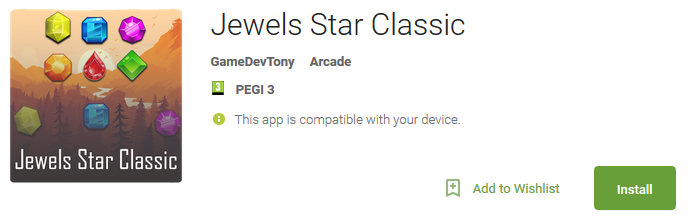
Figure 1. Malicious application on Google Play A
malicious service is activated 20 minutes after the first execution of Jewels Star Classic. The infected device displays a message asking you to enable something called Google Service (a malicious notification appears regardless of the user's current activity, without an explicit connection to the game).
The only way to remove the notification from the screen is to click OK. After that, the user is redirected to the accessibility menu of Android Accessibility, where services with these functions are managed. Among the legitimate ones on the list is a service called Google Service, created by Malware. The service description copies the original Google user agreement .
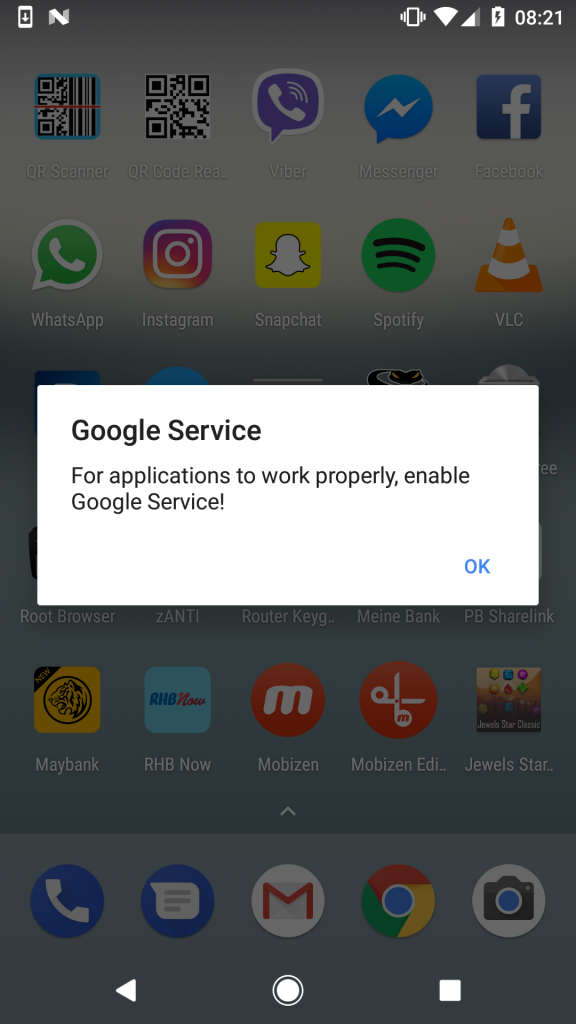
Figure 2. Notification prompting the user to enable Google Service
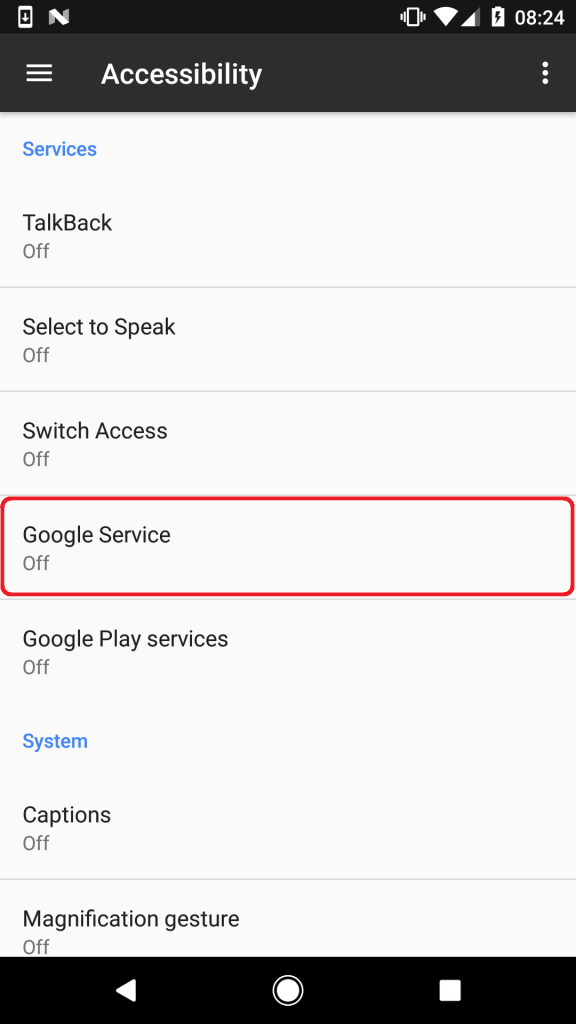
Figure 3. Google Service listed among Android Accessibility services
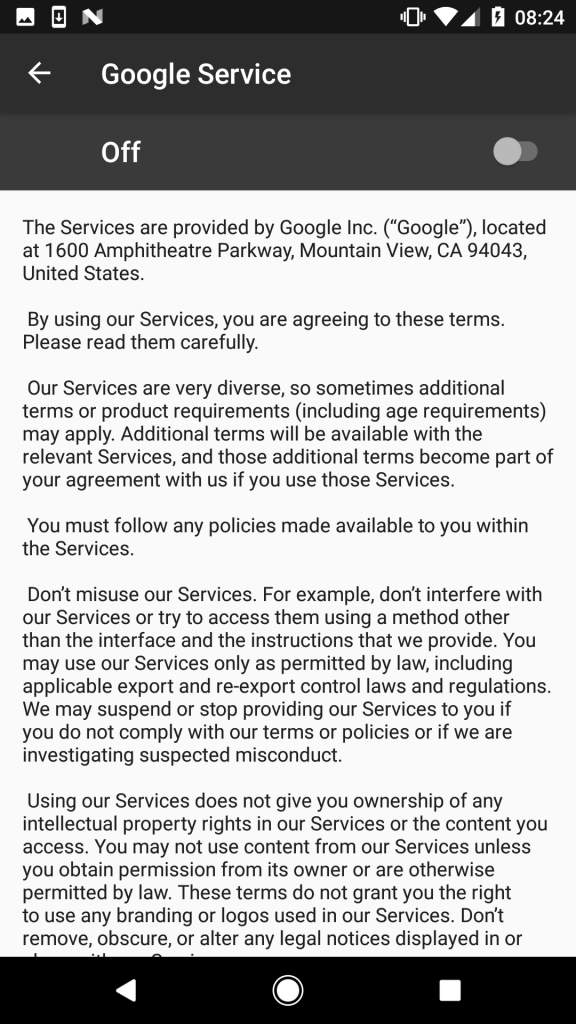
Figure 4. Description of the malicious service taken from Google’s user agreement
Having decided to activate the service, the user will see a list of required permissions: monitoring your actions, getting the contents of the window, enabling Explore by Touch, enabling improved web accessibility and managing gestures (Figure 5).
Pressing the “OK” button allows the Malware to use accessibility services. By giving these permissions, the user gives the banker complete freedom of action that is required to continue his malicious activity.
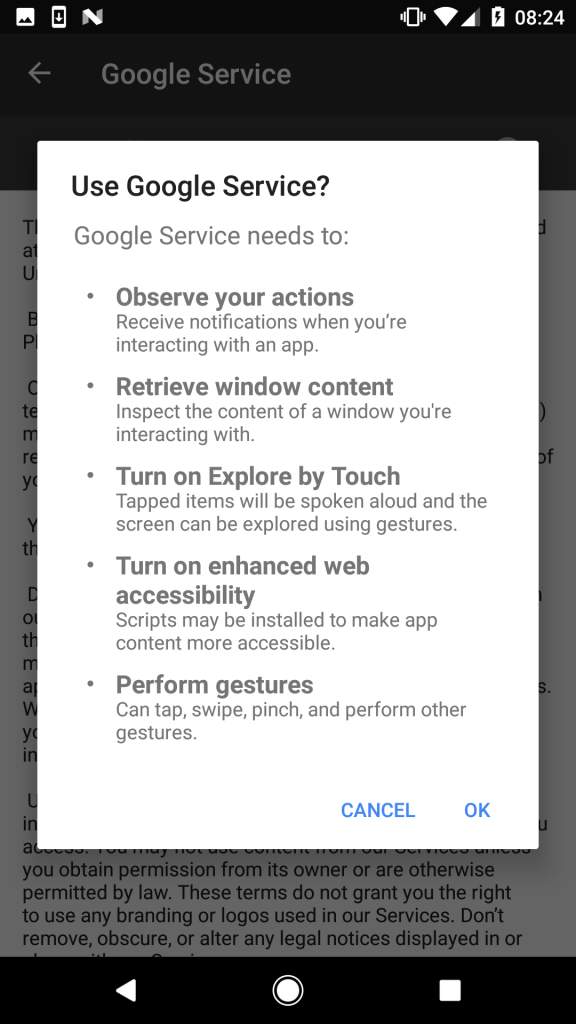
Figure 5. Permissions required to activate Google Service
In practice, after accepting these permissions, the user will be temporarily denied access to the screen due to an update to Google Service; in fact, it is not related to Google and works as a foreground process (Figure 6).
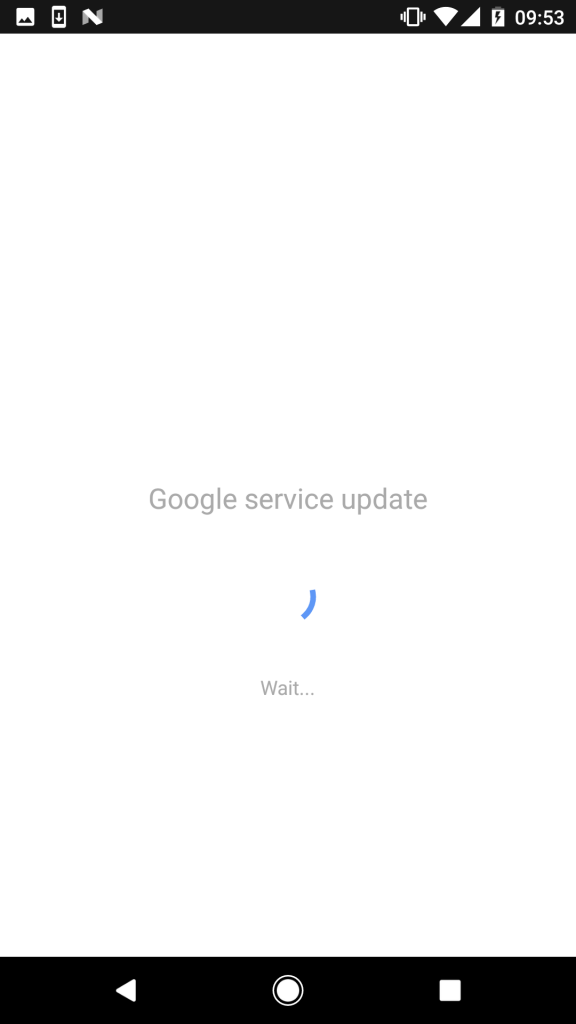
Figure 6. A screen that hides malicious activity
Malvar uses this screen to hide the next steps - use the obtained accessibility permissions. While the user expects to download a dummy update, the Malware performs the following tasks:
After successfully completing these tasks, the malware can begin to work on the following - theft of the victim's credit card information. Unlike other versions of BankBot, which target mobile banking applications and simulate login and password input forms, this version “specializes” exclusively in Google Play, an application preinstalled on every Android device.
When the user launches the Google Play application, BankBot enters and closes the screen of the legitimate application with a fake form to fill in the user's credit card data (Figure 7).
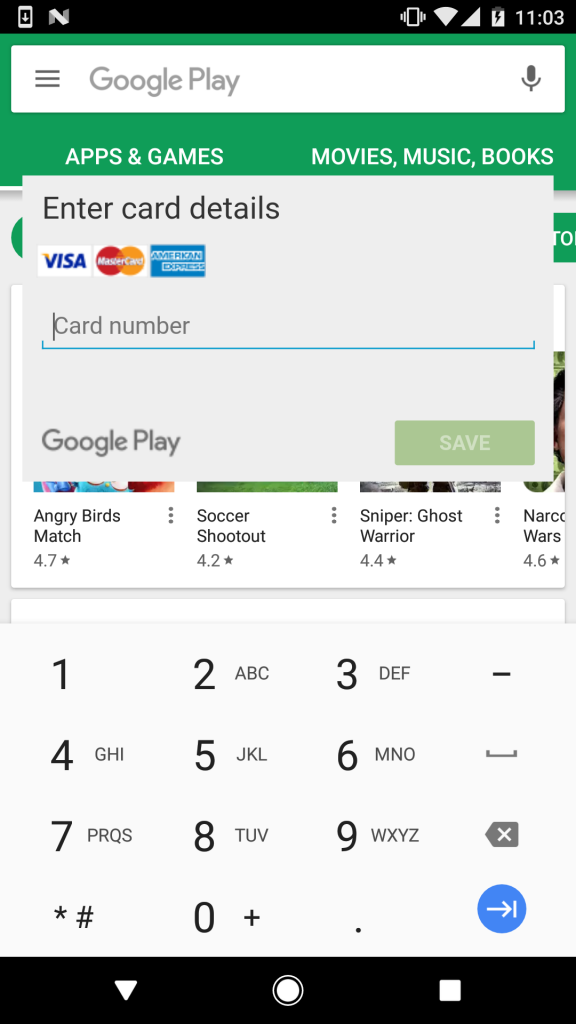
Figure 7. Simulation of the form for filling in the user’s bank card data
If the user did not recognize the fake and entered the bank card information, the attackers were successful. By setting BankBot as the default messaging app, the malware catches all SMS passing through the infected device. This allows attackers to bypass the two-factor authentication of the bank, which is the last possible obstacle between them and the victim's bank account.
In this campaign, cybercriminals combined several techniques that are becoming more and more popular among Android malware authors: using the Android Accessibility Service, disguising as Google, and setting a timer that delays the execution of malicious activity in order to circumvent Google’s security measures.
These techniques make it difficult for a victim to recognize a threat in a timely manner. Since the malware pretends to be Google and waits 20 minutes before showing the first notification, the user has little chance to associate its activity with the recently downloaded Jewel Star Classic application. Finally, the many names used by malware in the process of infection make it difficult to localize the threat and remove it manually.
If you often download applications from Google Play and other sites, you should check the presence / absence of BankBot on the device.
Making sure the Jewels Star Classic is missing is not enough, as attackers often change the applications used to distribute BankBot. To find out if the device has been infected, we recommend checking the following symptoms:

Figure 8. Malicious applications in the application manager

Figure 9. BankBot disguised as a system update in the list of active device administrators
Any of these signs indicates a possible infection with a new version of BankBot.
To remove the malware manually, cancel the device administrator privileges for System update, then uninstall Google Update and the corresponding trojanized application.
Finding a trojanized application that triggered the infection (in our case, Jewels Star Classic) is difficult due to a 20-minute delay in starting malicious activity, and also because it works as expected. To detect and remove a threat with all its components, we recommend using a reliable solution for the security of mobile devices.
ESET products detect this BankBot variant as Android / Spy.Banker.LA.
In addition to using a reliable solution for the security of mobile devices, there are several preventative measures:
Samples / Indicators of compromise
Package Name / Hash
com.mygamejewelsclassic.app B556FB1282578FFACDBF2126480A7C221E610F2F
com.w8fjgwopjmv.ngfes.app 4D3E3E7A1747CF845D21EC5E9F20F399D491C724
During the year, BankBot evolved, its versions appeared on Google Play and on unofficial platforms. Finally, on September 4, we discovered on Google Play the first option combining all the features of evolution: improved code obfuscation, sophisticated functions for delivering the main components, and a sophisticated infection mechanism using the Android Accessibility Service.
The ability to use the Android Accessibility Service previously demonstrated several trojans, distributed mainly outside of Google Play. Recent studies by SfyLabs and Zscaler have confirmed that BankBot operators have added an accessibility application to Google Play that does not have a banker component.
An “established puzzle” with a banker function entered Google Play under the guise of a Jewels Star Classic game. It is important to note that the attackers used the name of the popular legitimate game line of the ITREEGAMER developer, which is not associated with a malicious campaign.
We notified Google security about a malicious application. However, approximately 5,000 users installed the application before it was uninstalled.
Principle of operation
When a user downloads the Jewels Star Classic of the GameDevTony developer (Figure below), he receives a working Android game with hidden add-ons - a banker component hiding among the game’s resources and a malicious service waiting in the wings after a predetermined time delay period.
Figure 1. Malicious application on Google Play A
malicious service is activated 20 minutes after the first execution of Jewels Star Classic. The infected device displays a message asking you to enable something called Google Service (a malicious notification appears regardless of the user's current activity, without an explicit connection to the game).
The only way to remove the notification from the screen is to click OK. After that, the user is redirected to the accessibility menu of Android Accessibility, where services with these functions are managed. Among the legitimate ones on the list is a service called Google Service, created by Malware. The service description copies the original Google user agreement .
Figure 2. Notification prompting the user to enable Google Service
Figure 3. Google Service listed among Android Accessibility services
Figure 4. Description of the malicious service taken from Google’s user agreement
Having decided to activate the service, the user will see a list of required permissions: monitoring your actions, getting the contents of the window, enabling Explore by Touch, enabling improved web accessibility and managing gestures (Figure 5).
Pressing the “OK” button allows the Malware to use accessibility services. By giving these permissions, the user gives the banker complete freedom of action that is required to continue his malicious activity.
Figure 5. Permissions required to activate Google Service
In practice, after accepting these permissions, the user will be temporarily denied access to the screen due to an update to Google Service; in fact, it is not related to Google and works as a foreground process (Figure 6).
Figure 6. A screen that hides malicious activity
Malvar uses this screen to hide the next steps - use the obtained accessibility permissions. While the user expects to download a dummy update, the Malware performs the following tasks:
- Allows installation of applications from unknown sources
- installs BankBot from the set and launches it
- activates administrator rights for BankBot
- sets BankBot as the default SMS exchange application
- gets permission to display on top of other applications
After successfully completing these tasks, the malware can begin to work on the following - theft of the victim's credit card information. Unlike other versions of BankBot, which target mobile banking applications and simulate login and password input forms, this version “specializes” exclusively in Google Play, an application preinstalled on every Android device.
When the user launches the Google Play application, BankBot enters and closes the screen of the legitimate application with a fake form to fill in the user's credit card data (Figure 7).
Figure 7. Simulation of the form for filling in the user’s bank card data
If the user did not recognize the fake and entered the bank card information, the attackers were successful. By setting BankBot as the default messaging app, the malware catches all SMS passing through the infected device. This allows attackers to bypass the two-factor authentication of the bank, which is the last possible obstacle between them and the victim's bank account.
What is dangerous BankBot
In this campaign, cybercriminals combined several techniques that are becoming more and more popular among Android malware authors: using the Android Accessibility Service, disguising as Google, and setting a timer that delays the execution of malicious activity in order to circumvent Google’s security measures.
These techniques make it difficult for a victim to recognize a threat in a timely manner. Since the malware pretends to be Google and waits 20 minutes before showing the first notification, the user has little chance to associate its activity with the recently downloaded Jewel Star Classic application. Finally, the many names used by malware in the process of infection make it difficult to localize the threat and remove it manually.
How to clean an infected device?
If you often download applications from Google Play and other sites, you should check the presence / absence of BankBot on the device.
Making sure the Jewels Star Classic is missing is not enough, as attackers often change the applications used to distribute BankBot. To find out if the device has been infected, we recommend checking the following symptoms:
- The presence of an application called Google Update (Figure 8: located in the menu section Settings> Application manager / Apps> Google Update)
- An active device administrator called System update (Figure 9: located in Settings> Security> Device administrators).
- Google Service notification repeated occurrence (Figure 2)
Figure 8. Malicious applications in the application manager
Figure 9. BankBot disguised as a system update in the list of active device administrators
Any of these signs indicates a possible infection with a new version of BankBot.
To remove the malware manually, cancel the device administrator privileges for System update, then uninstall Google Update and the corresponding trojanized application.
Finding a trojanized application that triggered the infection (in our case, Jewels Star Classic) is difficult due to a 20-minute delay in starting malicious activity, and also because it works as expected. To detect and remove a threat with all its components, we recommend using a reliable solution for the security of mobile devices.
ESET products detect this BankBot variant as Android / Spy.Banker.LA.
How to protect yourself?
In addition to using a reliable solution for the security of mobile devices, there are several preventative measures:
- Use official app stores, if possible, rather than alternative sources. Although not perfect, Google Play does use advanced security mechanisms that third-party stores do not.
- Check applications before downloading - view the number of downloads, rating and reviews.
- After starting any installed application, pay attention to permission requests.
Samples / Indicators of compromise
Package Name / Hash
com.mygamejewelsclassic.app B556FB1282578FFACDBF2126480A7C221E610F2F
com.w8fjgwopjmv.ngfes.app 4D3E3E7A1747CF845D21EC5E9F20F399D491C724