September 23, 2017 at 13:27
Work with the KOMPAS-3D API → Lesson 4 → Title block
- Tutorial
We continue the series of articles on working with the KOMPAS-3D CAD API Sergey Norseev, software engineer at VNII Signal JSC, author of the book "Application Development for KOMPAS in Delphi." The environment used is C ++ Builder. In previous lessons on the KOMPAS API Basics and Drawing Design, we assumed that KOMPAS was not running, and started it ourselves using the CreateInstance method. In the next lesson, Correct connection to KOMPAS, we checked for the presence of already running KOMPAS and connected to it. In this lesson, we’ll show you how to fill out the main text of a drawing.
The main inscription in KOMPAS is described by the ksStamp interface . To get a pointer to it, the GetStamp () and GetStampEx () methods are used.interfaces ksDocument2D , ksSpcDocument and ksDocumentTxt .
The only parameter to the GetStampEx method is the sheet number for which the title block interface is requested. Sheet numbering starts with one . The GetStamp method has no parameters. It returns the title block interface for the first sheet of a drawing or specification.
Before proceeding to the discussion of the ksStamp interface , we briefly look at the ksTextItemParam interface .
The ksTextItemParam interface sets the text string component. By “component” is meant a string or a special character. Get this interface, you can use the method GetParamStruct interface KompasObject . For this, the constant ko_TextItemParam must be passed to this method as the only parameter . There are only three properties of the ksTextItemParam
interface .
In the KOMPAS-3D v17 documentation, the ksTextItemParam interface is described under the heading "Text document (ksDocumentTxt interface) / ksDocumentTxt - methods / Text element parameter interfaces /" .
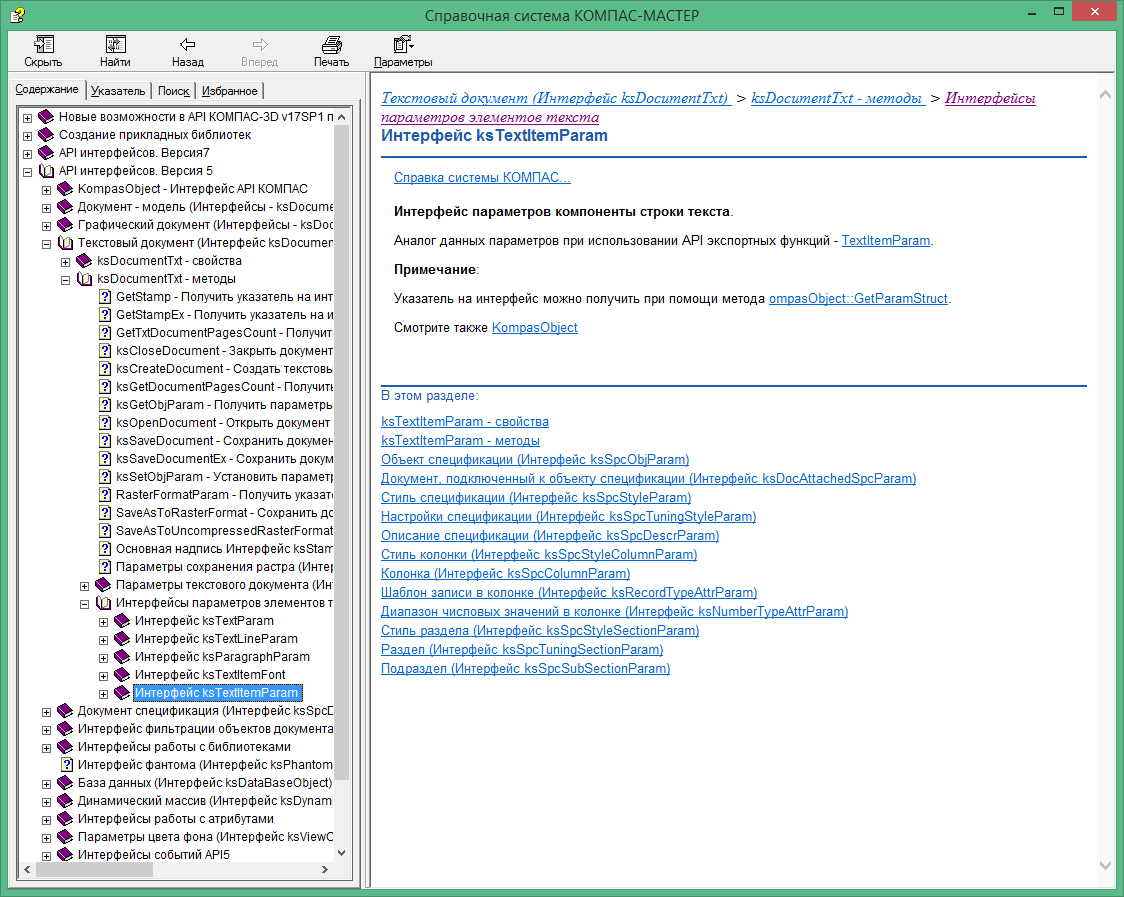
Description of text element parameter interfaces in the SDK
But the SPECIAL_SYMBOL constant is not mentioned in the description of the type property . It is given (though without a numerical value) in the section "Parameter structures and constants / Text parameter structures / TextItemParam - parameter structure of the text component" . Description of the structure of the text line component parameters in the SDK There are also three more possible values of the type property
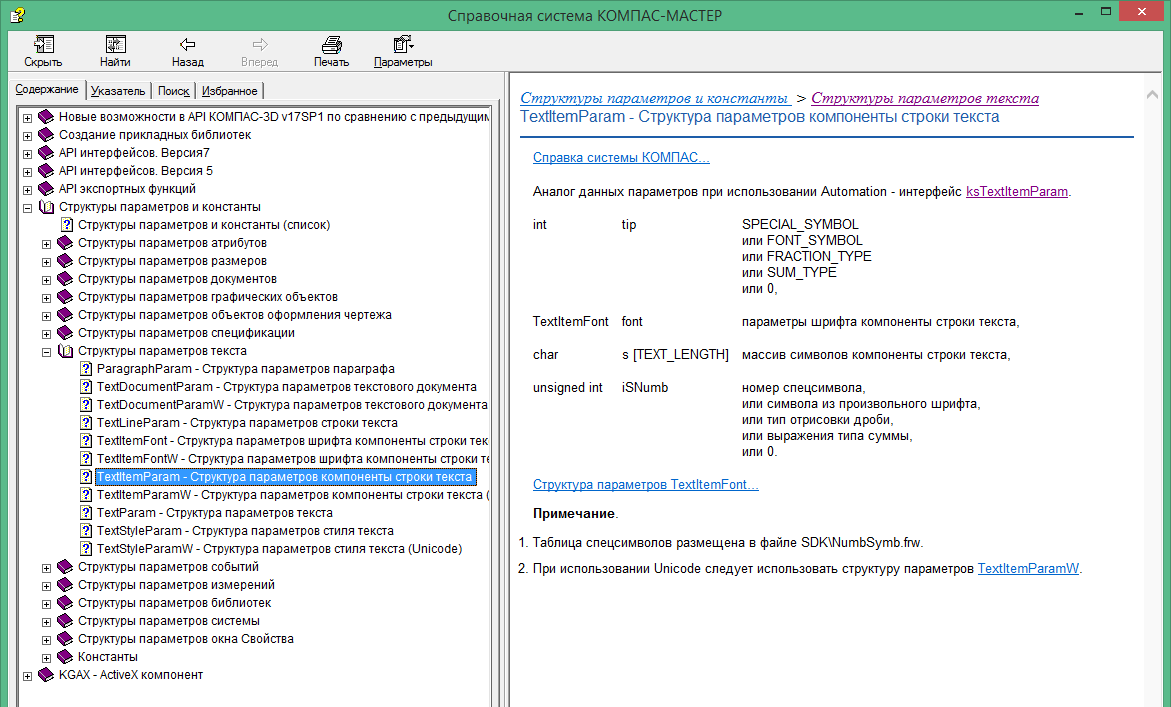
(FONT_SYMBOL, FRACTION_TYPE, SUM_TYPE) , but I still do not understand their purpose. As experiments have shown, the behavior of the ksTextItemParam interface with these constants is no different from the zero value of the type property . True, I tested in the context of the main inscription, it is possible that this imposes some restrictions.
Now consider the methods of the ksTextItemParam interface .
As mentioned above, the main label is described by the ksStamp interface . This interface has no interesting properties, so we immediately proceed to consider its methods.
This is an incomplete list of the ksStamp interface methods , but they are quite enough to work with the title block . However, a number of points need to be made.
Filling the main inscription consists of several successive stages:
The following is a snippet of the program that demonstrates how to work with the title block.
As a result of this program, you will see the main inscription, shown in the figure below.
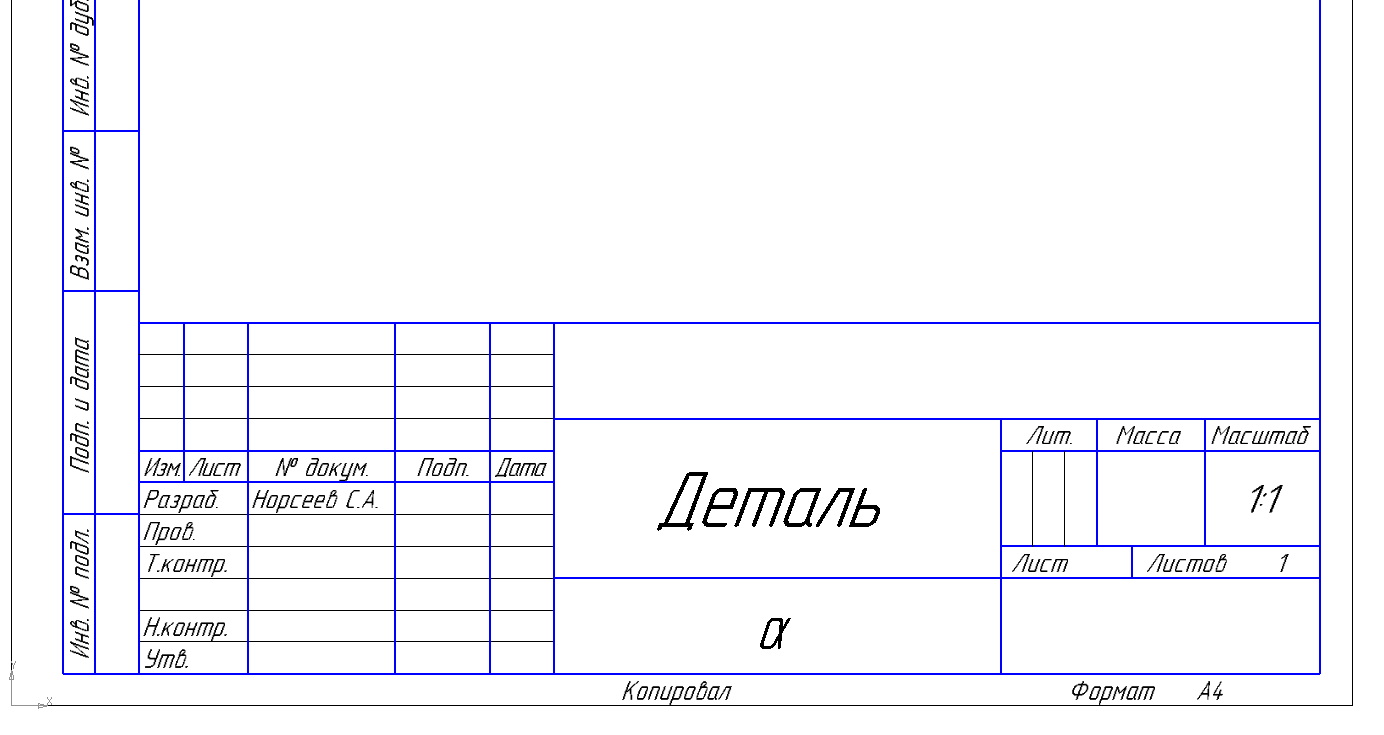
The main inscription obtained by software.
I will make two comments about the above program fragment.
Conclusion
In this article we learned how to fill in the main inscription and got acquainted with one of the interfaces for representing strings and special characters. In subsequent articles in the series, we will introduce other interfaces.
To be continued, follow the news of the blog.
 Sergey Norseev, author of the book "Application Development for COMPAS in Delphi."
The main inscription in KOMPAS is described by the ksStamp interface . To get a pointer to it, the GetStamp () and GetStampEx () methods are used.interfaces ksDocument2D , ksSpcDocument and ksDocumentTxt .
The only parameter to the GetStampEx method is the sheet number for which the title block interface is requested. Sheet numbering starts with one . The GetStamp method has no parameters. It returns the title block interface for the first sheet of a drawing or specification.
Before proceeding to the discussion of the ksStamp interface , we briefly look at the ksTextItemParam interface .
Row component
The ksTextItemParam interface sets the text string component. By “component” is meant a string or a special character. Get this interface, you can use the method GetParamStruct interface KompasObject . For this, the constant ko_TextItemParam must be passed to this method as the only parameter . There are only three properties of the ksTextItemParam
interface .
- iSNumb - special character code. Special characters and their numbers are given in the file NumbSymb.frw , which is supplied with KOMPAS. It is located in the SDK subdirectory of the KOMPAS main directory.
- s is a string. If the ksTextItemParam interface is used to describe a special character, then this line is displayed after the special character.
- type - sets the purpose of the interface. If the value of this property is SPECIAL_SYMBOL , then the interface describes the special character and string. In this case, the line is located immediately after the special character. If the value of this property is different from SPECIAL_SYMBOL , then the value of the iSNumb property is ignored, and the interface describes only the string s . Note that in the header files of older versions of KOMPAS this property is called type_ (with an underscore), and the constant SPECIAL_SYMBOL is not defined. She is equal to 17 .
In the KOMPAS-3D v17 documentation, the ksTextItemParam interface is described under the heading "Text document (ksDocumentTxt interface) / ksDocumentTxt - methods / Text element parameter interfaces /" .
Description of text element parameter interfaces in the SDK
But the SPECIAL_SYMBOL constant is not mentioned in the description of the type property . It is given (though without a numerical value) in the section "Parameter structures and constants / Text parameter structures / TextItemParam - parameter structure of the text component" . Description of the structure of the text line component parameters in the SDK There are also three more possible values of the type property
(FONT_SYMBOL, FRACTION_TYPE, SUM_TYPE) , but I still do not understand their purpose. As experiments have shown, the behavior of the ksTextItemParam interface with these constants is no different from the zero value of the type property . True, I tested in the context of the main inscription, it is possible that this imposes some restrictions.
Now consider the methods of the ksTextItemParam interface .
- GetItemFont () - returns the font parameters interface ksTextItemFont .
- SetItemFont - Sets the new ksTextItemFont font parameter interface . The installed interface is passed as the value of a single parameter. If successful, the method returns true .
- Init () - initializes the interface properties with zeros. If successful, returns true .
Main inscription
As mentioned above, the main label is described by the ksStamp interface . This interface has no interesting properties, so we immediately proceed to consider its methods.
- ksClearStamp - clears the title block or its individual cell. The only parameter of this method is the number of the cell being cleared. If its value is zero, then the entire main inscription is cleared. If successful, this method returns one , and in case of an error, returns zero .
- ksCloseStamp () - close the title block . This means quitting the title block editing mode. In case of success, returns one , and in case of error - zero .
- ksColumnNumber - makes the current cell the current one. As the only parameter to this method, the cell number is passed, which is made current. If successful, this method returns one , and in case of an error, returns zero .
- ksOpenStamp () - open the title block . This means entering the title block editing mode. It has no input parameters; if successful, returns one , and in case of an error, returns zero .
- ksTextLine - write a line to the current cell. The current cell must be set using the ksColumnNumber method . The only parameter to the ksTextLine method is a pointer to the ksTextItemParam interface , which I talked about a little earlier. If successful, the ksTextLine method returns one , and in case of an error, returns zero .
This is an incomplete list of the ksStamp interface methods , but they are quite enough to work with the title block . However, a number of points need to be made.
- All cells of the title block are numbered. The KOMPAS documentation does not contain these numbers, but there is a reference to the state standard specifications for the main inscription (GOST 2.104-68 and GOST 2.104-2006). Also, the numbering of the cells of the title block can be viewed on the page . The figures below show the cell numbers of the main inscription of forms 2a and 2b, obtained experimentally.
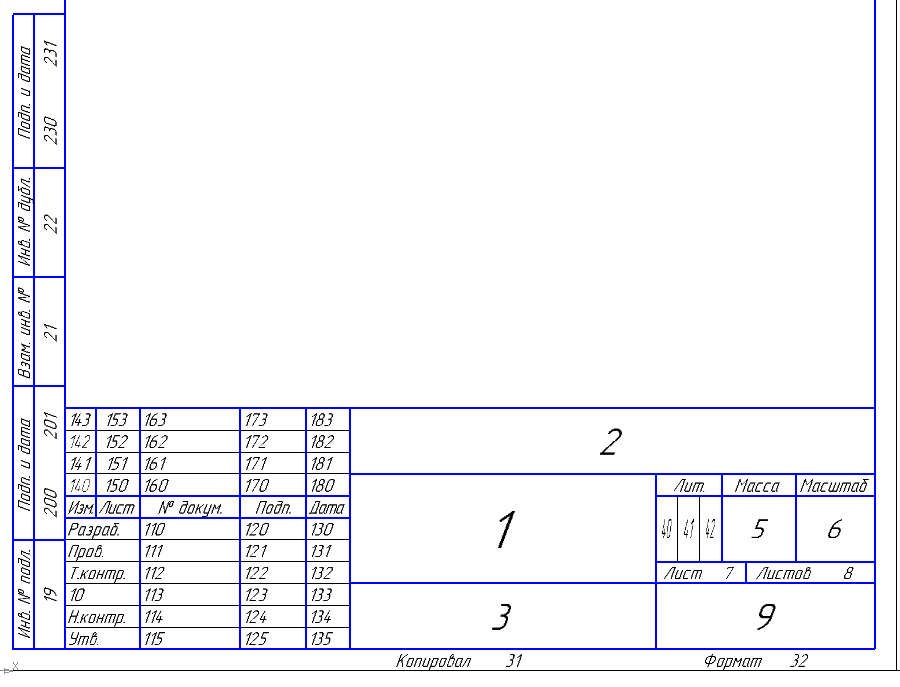
First sheet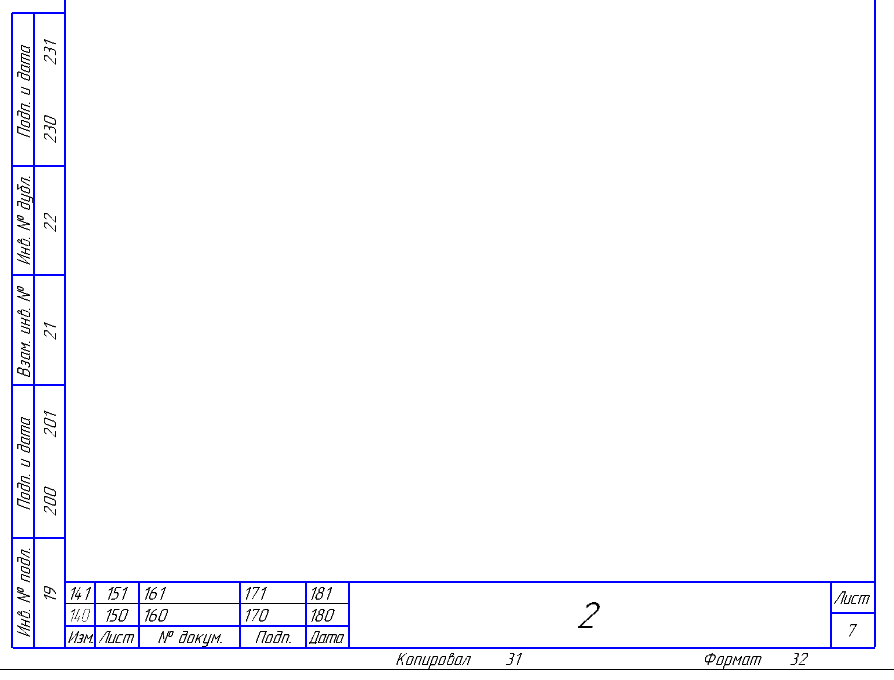
Second and subsequent sheets - The ksTextLine method is not the only way to write lines to the title block . In addition to it, the ksStamp interface has a ksSetStampColumnText method that does the same. The only difference is that in it the set string is set not in the form of the ksTextItemParam interface , but in the form of the ksDynamicArray dynamic array . In this article we will not consider it.
Title block editing
Filling the main inscription consists of several successive stages:
- Get a pointer to the ksTextItemParam interface . To do this, use the method GetParamStruct interface ksKompasObject . The ksTextItemParam interface is needed to represent strings written in the title block .
- Get a pointer to the ksStamp title block interface using the GetStamp or GetStampEx methods of the document interfaces specification.
- Call the method ksOpenStamp () interface ksStamp . So we enter the editing mode of the title block.
- Prepare a line to be written to the title block. The string should be represented as an interface ksTextItemParam .
- Select the cell in which you want to write the row. To isolate the cells using the method ksColumnNumber interface ksStamp .
- Call the method ksTextLine interface ksStamp , write the string in the selected cell.
- Repeat steps 4-6 for all lines written in the title block.
- Close the title block with the ksCloseStamp method of the ksStamp interface .
Example
The following is a snippet of the program that demonstrates how to work with the title block.
//Получаем интерфейс представления строк
TextItemParamPtr TextItemParam;
TextItemParam = (TextItemParamPtr)kompas->GetParamStruct(ko_TextItemParam);
//Получаем интерфейс основной надписи
StampPtr Stamp;
Stamp = (StampPtr)Document2D->GetStamp();
//Открываем основную надпись
Stamp->ksOpenStamp();
Stamp->ksColumnNumber(1);
TextItemParam->s = SysAllocString(L"Деталь");
Stamp->ksTextLine(TextItemParam);
Stamp->ksColumnNumber(3);
TextItemParam->s = SysAllocString(L"");
TextItemParam->type = SPECIAL_SYMBOL;
TextItemParam->iSNumb = 51;
Stamp->ksTextLine(TextItemParam);
Stamp->ksColumnNumber(110);
TextItemParam->set_s(SysAllocString(L"Норсеев С.А."));
TextItemParam->type = 0;
Stamp->ksTextLine(TextItemParam);
//Закрываем основную надпись
Stamp->ksCloseStamp();
As a result of this program, you will see the main inscription, shown in the figure below.
The main inscription obtained by software.
I will make two comments about the above program fragment.
- In this example, the code responsible for connecting to KOMPAS and creating a drawing is not given. I removed it to facilitate understanding of the code. How to connect to KOMPAS and configure the drawing (including choosing the format of the main inscription in it) was discussed in previous articles of the cycle.
- If you carefully look at the above code, you can see that in one case the string was set in the ksTextItemParam interface by assigning a value to the s property , and in the other by calling the set_s method , which I did not say anything about. The fact is that in COM technology all properties are represented in the form of methods (as a rule, installation and reading). The name of these methods is formed as follows:
get_ <property name>
set_ <property name>
In your programs, you can use any of these approaches (assigning a value to a property or calling the corresponding method).
Conclusion
In this article we learned how to fill in the main inscription and got acquainted with one of the interfaces for representing strings and special characters. In subsequent articles in the series, we will introduce other interfaces.
To be continued, follow the news of the blog.
 Sergey Norseev, author of the book "Application Development for COMPAS in Delphi."