Python for Network Engineers: Getting Started
Probably, many network engineers have already realized that administering network equipment only through the CLI is too time-consuming and unproductive. Especially when there are dozens or hundreds of devices under control, often configured according to a single template. Removing a local user from all devices, checking the configuration of all routers for compliance with some rules, counting the number of enabled ports on all switches are examples of typical tasks that are not practical to solve without automation.

This article is mainly for network engineers who are not yet familiar or are very new to Python. We will consider an example script for solving some practical problems, which you can immediately apply in your work.
To get started, I'll tell you why I chose Python.
Firstly, it is an easy-to-learn programming language that allows you to solve a very wide range of tasks.
Secondly, major manufacturers of network equipment, such as Cisco, Juniper, Huawei, are implementing Python support on their equipment. The language has a future in the network sphere, and its study will not be a waste of time.
Thirdly, the language is very common. Many useful libraries have been written for him, there is a large community of programmers, and you can find answers to most questions on the Internet in the first lines of search results.
I design and implement network projects a bit. In one of them it was required to solve two problems at once.
A Python script came to the rescue. Its development and testing took one day.
The first thing to do is install Python and highly desirable PyCharm CE. Download and install Python 3 (now the latest version 3.6.2). When installing, select "Customize installation" and at the "Advanced Options" stage, set the checkbox next to "Add Python to environment variables".
PyCharm CE is a free development environment with a very convenient debugger. Download and install.
The second step is to install the necessary netmiko library. It is needed to interact with devices via SSH or telnet. We install the library from the command line:
The third step is to prepare the source data and script for our tasks.
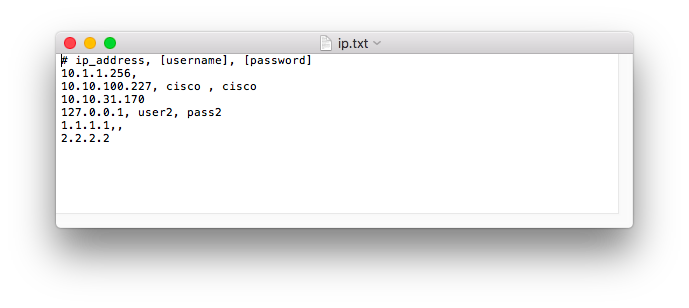
We will use the text file “ip.txt” as input. Each line of the file should contain the IP address of the device to which we are connecting. A comma can specify a username and password for a specific device. If this is not done, then those that you enter when you run the script will be used. Spaces will be ignored. If the first character in the string is "#", then it is considered a comment and ignored. Here is an example of a valid file:
The script itself logically consists of two parts: the main program and the function
Why is it necessary to make interaction with routers a separate function, and not execute everything in a loop in the main program? The main reason is the duration of the script. Connecting alternately to all routers took me 4 hours. Mainly due to the fact that some of them did not respond and the script waited a long time for the timeout to expire. Therefore, we will run in parallel 10 function instances. In my case, this reduced the execution time of the script to 10 minutes.
We now consider in more detail the main program.
For security's sake, we will not store the username and password in the script. Therefore, we will display a prompt to enter them. Moreover, when you enter the password, it will not be displayed. We use these global variables in the procedure.
Then we read the file with IP addresses. The design
Next, create a list of processes and start them. I set the process creation method as “spawn” so that the script works the same on Windows and OS X. The number of processes created will be equal to the number of IP addresses. But no more than 10 will be executed simultaneously. We
The command is
At the end, we create / rewrite a text file in which we will have the IP addresses of unconfigured routers. We also display this list.
Now we will analyze the procedure
Next, we create a dictionary with the necessary data to connect and connect to the router.
We send commands and analyze the received response from the router. It will be placed in a variable
The following string operations will be useful here.
To solve the problem of adding a static route, you first need to determine the IP address
You can send one or more configuration commands at once. Sending more than 5 commands at a time worked poorly for me, if necessary, you can simply repeat the design several times.
After preparing the script, you can execute it from the command line or from PyCharm CE. From the command line, run the command:
I recommend using PyCharm CE. There we create a new project, a Python file (File → New ...) and paste our script into it. In the folder with the script, put the ip.txt file and run the script (Run → Run)
We get the following result:
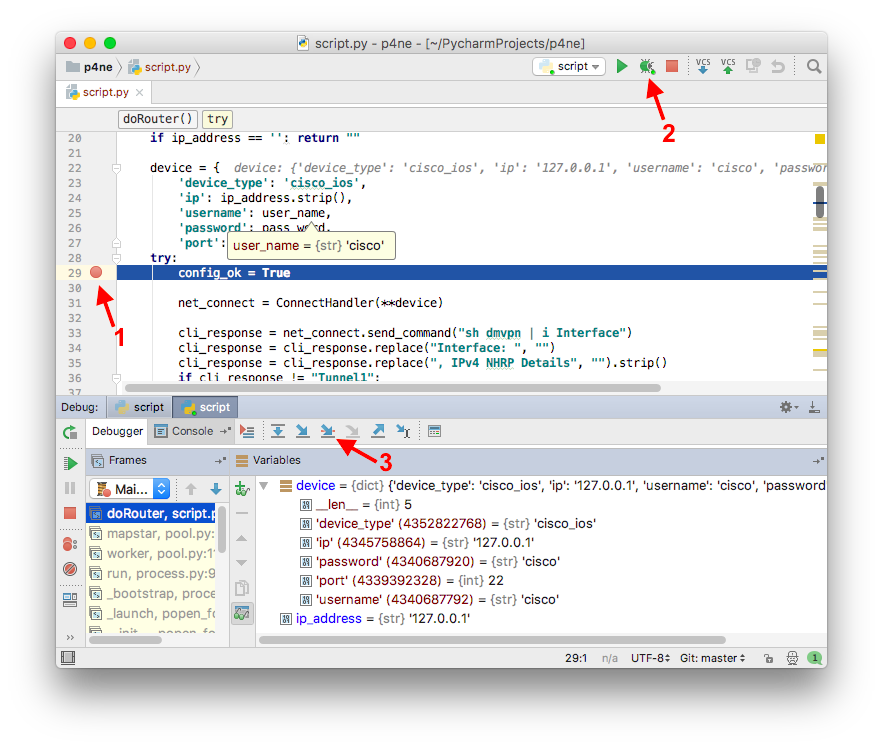
A few words on how to debug a script. This is easiest to do in PyCharm. We mark the line on which we want to stop the execution of the script, and start the execution in debug mode. After the script stops, you can see the current values of all variables. Check that the correct data is being transmitted and received. Using the “Step Into” or “Step Into My Code” buttons, you can continue to execute the script step by step.
Limitations of the described version of the script:
This script was written to solve specific problems. However, it is universal and, I hope, will help someone else in their work. And most importantly, it will be the first step in learning Python.
When writing the script, the following resources were used:
Alexander Garshin, Leading Design Engineer, Data Systems, Jet Infosystems
This article is mainly for network engineers who are not yet familiar or are very new to Python. We will consider an example script for solving some practical problems, which you can immediately apply in your work.
To get started, I'll tell you why I chose Python.
Firstly, it is an easy-to-learn programming language that allows you to solve a very wide range of tasks.
Secondly, major manufacturers of network equipment, such as Cisco, Juniper, Huawei, are implementing Python support on their equipment. The language has a future in the network sphere, and its study will not be a waste of time.
Thirdly, the language is very common. Many useful libraries have been written for him, there is a large community of programmers, and you can find answers to most questions on the Internet in the first lines of search results.
I design and implement network projects a bit. In one of them it was required to solve two problems at once.
- Walk through several hundred branch routers and make sure they are configured in the same way. For example, the Tunnel1 interface is used to communicate with the data center, not Tunnel0 or Tunnel99. And that these interfaces are configured the same, except for their IP addresses, of course.
- Reconfigure all routers, including adding a static route through the IP address of the local provider. That is, this command will be unique for each router.
A Python script came to the rescue. Its development and testing took one day.
The first thing to do is install Python and highly desirable PyCharm CE. Download and install Python 3 (now the latest version 3.6.2). When installing, select "Customize installation" and at the "Advanced Options" stage, set the checkbox next to "Add Python to environment variables".
PyCharm CE is a free development environment with a very convenient debugger. Download and install.
The second step is to install the necessary netmiko library. It is needed to interact with devices via SSH or telnet. We install the library from the command line:
pip install netmikoThe third step is to prepare the source data and script for our tasks.
We will use the text file “ip.txt” as input. Each line of the file should contain the IP address of the device to which we are connecting. A comma can specify a username and password for a specific device. If this is not done, then those that you enter when you run the script will be used. Spaces will be ignored. If the first character in the string is "#", then it is considered a comment and ignored. Here is an example of a valid file:
The script itself logically consists of two parts: the main program and the function
doRouter(). Inside it, you connect to the router, send commands to the CLI, receive and analyze responses. The input data for the function are: router IP address, login and password. If problems arise, the function will return the IP address of the router, we will write it into a separate fail.txt file. If everything went well, then a message will simply be displayed on the screen.Why is it necessary to make interaction with routers a separate function, and not execute everything in a loop in the main program? The main reason is the duration of the script. Connecting alternately to all routers took me 4 hours. Mainly due to the fact that some of them did not respond and the script waited a long time for the timeout to expire. Therefore, we will run in parallel 10 function instances. In my case, this reduced the execution time of the script to 10 minutes.
We now consider in more detail the main program.
For security's sake, we will not store the username and password in the script. Therefore, we will display a prompt to enter them. Moreover, when you enter the password, it will not be displayed. We use these global variables in the procedure.
doRouter. I had problems working with getpass in PyCharm on Windows. The script worked correctly only if you execute it in Debug mode, not Run. On the command line, everything worked flawlessly. The script was also tested in OS X, there were no problems in PyCharm.user_name = input("Enter Username: ")
pass_word = getpass()Then we read the file with IP addresses. The design
try…exceptwill correctly handle the error reading the file. At the output, we get an array of data for the connection connection_data, containing the IP address, username and password.try:
f = open('ip.txt')
connection_data=[]
filelines = f.read().splitlines()
for line in filelines:
if line == "": continue
if line[0] == "#": continue
conn_data = line.split(',')
ipaddr=conn_data[0].strip()
username=global_username
password=global_password
if len(conn_data) > 1 and conn_data[1].strip() != "": username = conn_data[1].strip()
if len(conn_data) > 2 and conn_data[2].strip() != "": password = conn_data[2].strip()
connection_data.append((ipaddr, username, password))
f.close()
except:
sys.exit("Couldn't open or read file ip.txt")Next, create a list of processes and start them. I set the process creation method as “spawn” so that the script works the same on Windows and OS X. The number of processes created will be equal to the number of IP addresses. But no more than 10 will be executed simultaneously. We
routers_with_issueswrite in the list that the functions will be returned doRouter. In our case, these are the IP addresses of the routers that were having problems.multiprocessing.set_start_method("spawn")
with multiprocessing.Pool(maxtasksperchild=10) as process_pool:
routers_with_issues = process_pool.map(doRouter, connection_data, 1)
process_pool.close()
process_pool.join()The command is
process_pool.join()needed so that the script waits for the completion of the execution of all instances of functions doRouter()and only then continues to execute the main program. At the end, we create / rewrite a text file in which we will have the IP addresses of unconfigured routers. We also display this list.
failed_file = open('fail.txt', 'w')
for item in routers_with_issues:
if item != None:
failed_file.write("%s\n" % item)
print(item)Now we will analyze the procedure
doRouter(). The first thing to do is process the input. Using ReGex, we verify that the correct IP address was passed to the function.ip_check = re.findall("^(([0-9]|[1-9][0-9]|1[0-9]{2}|2[0-4][0-9]|25[0-5])\.){3}([0-9]|[1-9][0-9]|1[0-9]{2}|2[0-4][0-9]|25[0-5])$", ip_address)
if ip_check == []:
print(bcolors.FAIL + "Invalid IP - " + str(ip_address) + bcolors.ENDC)
return ip_addressNext, we create a dictionary with the necessary data to connect and connect to the router.
device = {
'device_type': 'cisco_ios',
'ip': ip_address.strip(),
'username': username,
'password': password,
'port': 22, }
try:
config_ok = True
net_connect = ConnectHandler(**device)We send commands and analyze the received response from the router. It will be placed in a variable
cli_response. In this example, we check the current settings. The result is displayed on the screen. This part needs to be changed for different tasks. In this script, we check the current configuration of the router. If it is correct, then make changes. If problems are detected during the verification, we assign a config_okvalue to the variable False and do not apply the changes.cli_response = net_connect.send_command("sh dmvpn | i Interface")
cli_response = cli_response.replace("Interface: ", "")
cli_response = cli_response.replace(", IPv4 NHRP Details", "").strip()
if cli_response != "Tunnel1":
print(str(ip_address)+" - " + bcolors.WARNING + "WARNING - DMVPN not on Tunnel1. " + cli_response+ " " + bcolors.ENDC)
config_ok=FalseThe following string operations will be useful here.
| Operation | Description | Example |
|---|---|---|
| + | Line concatenation | s3 = s1 + s2 >>> print ('Happy New' + str (2017) + 'Year') Happy New 2017 Year |
| len (s) | Determining Line Length | |
| [] | Highlight substring (index starts from zero) | s [5] is the sixth character s [5: 7] is the sixth through eighth characters s [-1] is the last character, the same as s [len (s) -1] |
| s.split () s.join () | Split Lines Merge Lines | >>> 'Petya, Lyosha, Kolya'.split (', ') [' Petya ',' Lyosha ',' Kolya '] >>>', '. Join ({' Petya ',' Lyosha ',' Kolya '}) ' Lesha, Petya, Kolya ' |
| str (L) list (s) | Convert List to String Convert String to List | >>> str (['1', '2', '3']) "['1', '2', '3']" >>> list ('Test') ['T', 'e ',' s', 't'] |
| % | Template formatting | >>> s1, s2 = 'Mitya', 'Vasilisa' >>> '% s +% s = love'% (s1, s2) 'Mitya + Vasilisa = love' |
| f | Variable substitution | >>> a = 'Maxim' >>> f'Name {a} ' ' Name Maxim ' |
| str.find (substr) | Search substr substr in string str Returns the position of the first found substring | >>> 'This is a text'.find (' a ') 8 |
| str.replace (old, new) | Replacing substring old with substring new in string str | >>> newstr = 'This is a text'.replace (' is', 'is not') >>> print (newstr) This is not a text |
| str.strip () str.rstrip () | Remove spaces and tabs at the beginning and end (or only at the end) | >>> 'This is a text \ t \ t \ t'.strip () ' This is a text ' |
To solve the problem of adding a static route, you first need to determine the IP address
next-hop. In my case, the easiest way is to look at the address next-hopof existing static routes.cli_response2=net_connect.send_command("sh run | i ip route 8.8.8.8 255.255.255.255")
if cli_response2.strip() == "":
print(str(ip_address)+" — " + bcolors.FAIL + "WARNING — couldn't find static route to 8.8.8.8" + bcolors.ENDC)
config_ok=False
ip_next_hop = ""
if cli_response2 != "":
ip_next_hop = cli_response2.split(" ")[4]
if ip_next_hop == "":
print(str(ip_address)+" — " + bcolors.FAIL + "WARNING — couldn't find next-hop IP address " + bcolors.ENDC)
config_ok=FalseYou can send one or more configuration commands at once. Sending more than 5 commands at a time worked poorly for me, if necessary, you can simply repeat the design several times.
config_commands = ['ip route 1.1.1.1 255.255.255.255 '+ip_next_hop,
'ip route 2.2.2.2 255.255.255.255 '+ip_next_hop]
net_connect.send_config_set(config_commands)Full script.
import sys
from netmiko import ConnectHandler
from getpass import getpass
import time
import multiprocessing
import re
start_time = time.time()
class bcolors:
HEADER = '\033[95m'
OKBLUE = '\033[94m'
OKGREEN = '\033[92m'
WARNING = '\033[93m'
FAIL = '\033[91m'
ENDC = '\033[0m'
BOLD = '\033[1m'
UNDERLINE = '\033[4m'
def doRouter(connection_data):
ip_address = connection_data[0]
username = connection_data[1]
password = connection_data[2]
ip_check = re.findall("^(([0-9]|[1-9][0-9]|1[0-9]{2}|2[0-4][0-9]|25[0-5])\.){3}([0-9]|[1-9][0-9]|1[0-9]{2}|2[0-4][0-9]|25[0-5])$", ip_address)
if ip_check == []:
print(bcolors.FAIL + "Invalid IP - " + str(ip_address) + bcolors.ENDC)
return ip_address
device = {
'device_type': 'cisco_ios',
'ip': ip_address.strip(),
'username': username,
'password': password,
'port': 22, }
try:
config_ok = True
net_connect = ConnectHandler(**device)
cli_response = net_connect.send_command("sh dmvpn | i Interface")
cli_response = cli_response.replace("Interface: ", "")
cli_response = cli_response.replace(", IPv4 NHRP Details", "").strip()
if cli_response != "Tunnel1":
print(str(ip_address)+" - " + bcolors.WARNING + "WARNING - DMVPN not on Tunnel1. " + cli_response+ " " + bcolors.ENDC)
config_ok=False
cli_response2=net_connect.send_command("sh run | i ip route 1.1.1.1 255.255.255.255")
if cli_response2.strip() == "":
print(str(ip_address)+" - " + bcolors.WARNING + "WARNING - couldn't find static route to 8.8.8.8" + bcolors.ENDC)
config_ok=False
ip_next_hop = ""
if cli_response2 != "":
ip_next_hop = cli_response2.split(" ")[4]
if ip_next_hop == "":
print(str(ip_address)+" - " + bcolors.WARNING + "WARNING - couldn't find next-hop IP address " + bcolors.ENDC)
config_ok=False
if config_ok:
config_commands = ['ip route 1.1.1.1 255.255.255.255 '+ip_next_hop,
'ip route 2.2.2.2 255.255.255.255 '+ip_next_hop]
net_connect.send_config_set(config_commands)
print(str(ip_address) + " - " + "Static routes added")
else:
print(str(ip_address) + " - " + bcolors.FAIL + "Routes weren't added because config is incorrect" + bcolors.ENDC)
return ip_address
if config_ok:
net_connect.send_command_expect('write memory')
print(str(ip_address) + " - " + "Config saved")
net_connect.disconnect()
except:
print(str(ip_address)+" - "+bcolors.FAIL+"Cannot connect to this device."+bcolors.ENDC)
return ip_address
print(str(ip_address) + " - " + bcolors.OKGREEN + "Router configured sucessfully" + bcolors.ENDC)
if __name__ == '__main__':
# Enter valid username and password. Note password is blanked out using the getpass library
global_username = input("Enter Username: ")
global_password = getpass()
try:
    f = open('ip.txt')
    connection_data=[]
    filelines = f.read().splitlines()
    for line in filelines:
if line == "": continue
        if line[0] == "#": continue
        conn_data = line.split(',')
        ipaddr=conn_data[0].strip()
        username=global_username
        password=global_password
        if len(conn_data) > 1 and conn_data[1].strip() != "": username = conn_data[1].strip()
        if len(conn_data) > 2 and conn_data[2].strip() != "": password = conn_data[2].strip()
        connection_data.append((ipaddr, username, password))
    f.close()
except:
    sys.exit("Couldn't open or read file ip.txt")
multiprocessing.set_start_method("spawn")
with multiprocessing.Pool(maxtasksperchild=10) as process_pool:
routers_with_issues = process_pool.map(doRouter, connection_data, 1) # doRouter - function, iplist - argument
process_pool.close()
process_pool.join()
print("\n")
print("#These routers weren't configured#")
failed_file = open('fail.txt', 'w')
for item in routers_with_issues:
    if item != None:
      failed_file.write("%s\n" % item)
      print(item)
#Completing the script and print running time
print("\n")
print("#This script has now completed#")
print("\n")
print("--- %s seconds ---" % (time.time() - start_time))After preparing the script, you can execute it from the command line or from PyCharm CE. From the command line, run the command:
python script.pyI recommend using PyCharm CE. There we create a new project, a Python file (File → New ...) and paste our script into it. In the folder with the script, put the ip.txt file and run the script (Run → Run)
We get the following result:
bash ~/PycharmProjects/p4ne $ python3 script.py
Enter Username: cisco
Password:
Invalid IP - 10.1.1.256
127.0.0.1 - Cannot connect to this device.
1.1.1.1 - Cannot connect to this device.
10.10.100.227 - Static routes added
10.10.100.227 - Config saved
10.10.100.227 - Router configured sucessfully
10.10.31.170 - WARNING - couldn't find static route to 8.8.8.8
10.10.31.170 - WARNING - couldn't find next-hop IP address
10.10.31.170 - Routes weren't added because config is incorrect
2.2.2.2 - Cannot connect to this device.
#These routers weren't configured#
10.1.1.256
127.0.0.1
217.112.31.170
1.1.1.1
2.2.2.2
#This script has now completed#
A few words on how to debug a script. This is easiest to do in PyCharm. We mark the line on which we want to stop the execution of the script, and start the execution in debug mode. After the script stops, you can see the current values of all variables. Check that the correct data is being transmitted and received. Using the “Step Into” or “Step Into My Code” buttons, you can continue to execute the script step by step.
Limitations of the described version of the script:
- tested only in Python 3
- cannot handle the situation when you connect to the router for the first time and get a question like:
The authenticity of host '11.22.33.44 (11.22.33.44)' can't be established.RSA key fingerprint is SHA256:C+BHaMBjuMIoEewAbjbQbRGdVkjs&840Ve3z4aJo.Are you sure you want to continue connecting (yes/no)?
This script was written to solve specific problems. However, it is universal and, I hope, will help someone else in their work. And most importantly, it will be the first step in learning Python.
When writing the script, the following resources were used:
- https://github.com/ktbyers/netmiko - the netmiko library page on GitHub. There is documentation and examples.
- https://pynet.twb-tech.com/blog/automation/netmiko.html - another example with netmiko
- https: //docs.Python .org / 3 / library / multiprocessing.html - description and examples of the multiprocessing library
Alexander Garshin, Leading Design Engineer, Data Systems, Jet Infosystems