
 July 22, 2017 at 08:51
We determine the numbers using CallKit
- Tutorial
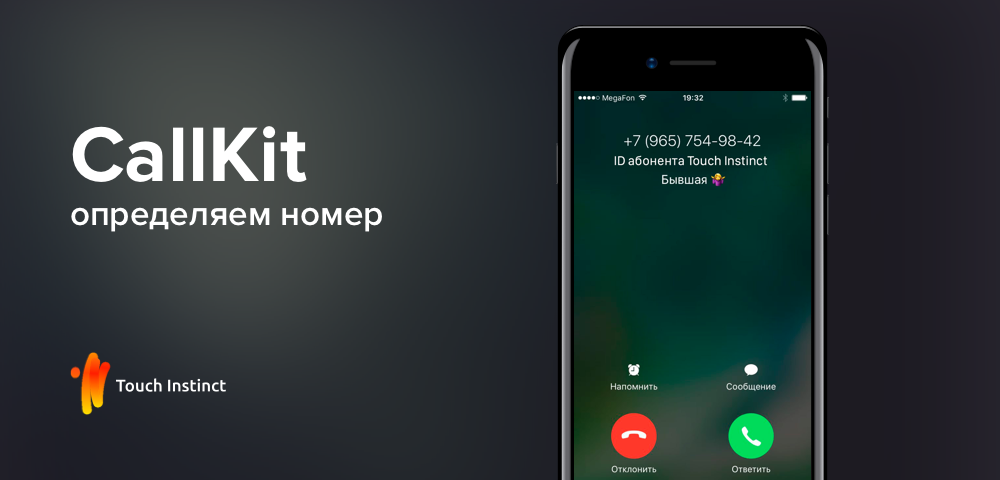
When there are 57,000 contacts in CRM, people don’t feel like writing them to iPhone manually. We need to find a more elegant solution that will allow us not only to search for contacts in a separate application, but also to display the name of the person with an incoming call. We googled for a long time, and then remembered the announcement of the CallKit framework with WWDC. There was not so much information on this topic: laconic documentation , an article on Habré and not a single step-by-step guide. I want to fill this gap. Using the example of creating a simple application, I’ll show you how to teach CallKit to identify thousands of numbers.
We determine one number
First, let's try to determine one single number.
Let's start with an empty project. Create a Single View Application named TouchInApp.
Add extension to determine the numbers. From the Xcode menu, select File> New> Target ... In the Application Extension section, select Call Directory Extension, click Next.
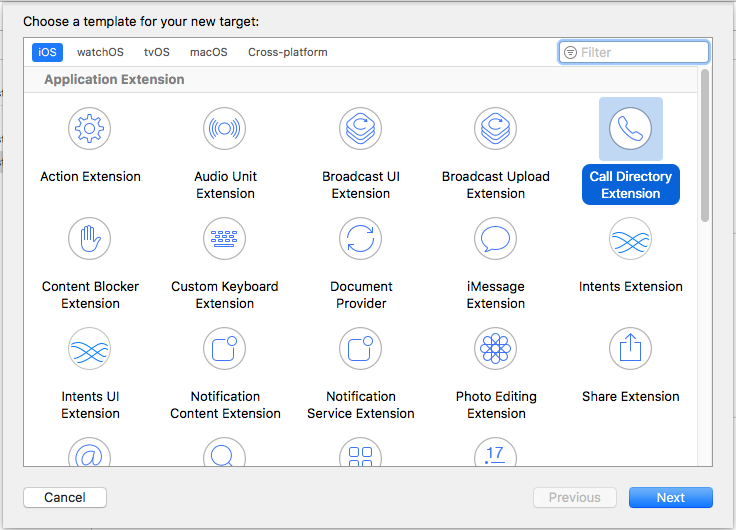
In the Product Name field, enter TouchInCallExtension, click Finish. In the alert that appears, click Cancel.
I hope you have already prepared a test phone from which you will call. If not, now is the time.
In the Project navigator, expand TouchInCallExtension and open CallDirectoryHandler.swift. Find the function
addIdentificationPhoneNumbers. There you will see arrays phoneNumbersand labels. Delete the numbers from phoneNumbers, enter the test number there. Delete the contents of the array labels, enter “Test number” there. You will get something like this:
private func addIdentificationPhoneNumbers(to context: CXCallDirectoryExtensionContext) throws {
   let phoneNumbers: [CXCallDirectoryPhoneNumber] = [ 79214203692 ]
   let labels = [ "Test number" ]
   for (phoneNumber, label) in zip(phoneNumbers, labels) {
       context.addIdentificationEntry(withNextSequentialPhoneNumber: phoneNumber, label: label)
   }
}
CXCallDirectoryPhoneNumber - just
typealiasfor Int64. The number must be in the format 7XXXXXXXXXX, that is, first the country code (country calling code), then the number itself. The Russian code is +7, so in this case we write 7. Install the application on the device and close it immediately. There is nothing to do in it yet. Go to phone settings> Phone> Call Blocking & Identification. Find the TouchInApp app there and let it identify and block calls. It happens that the application does not immediately appear in the list. In this case, close the settings, open and close the application again and try again.
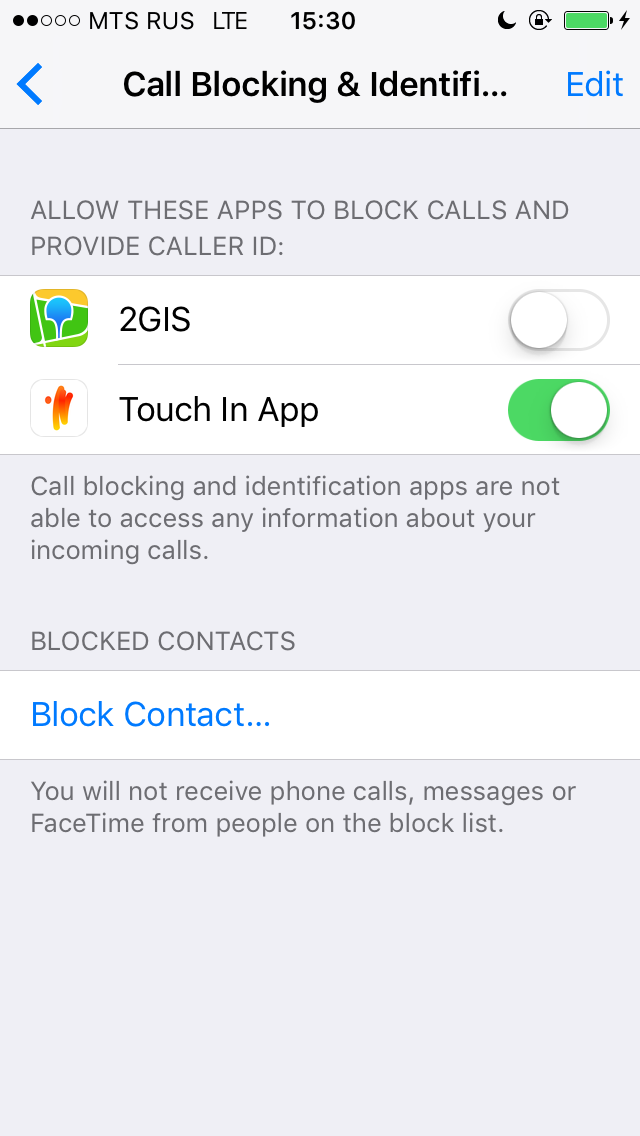
When you put the Switch in the On state, it is called
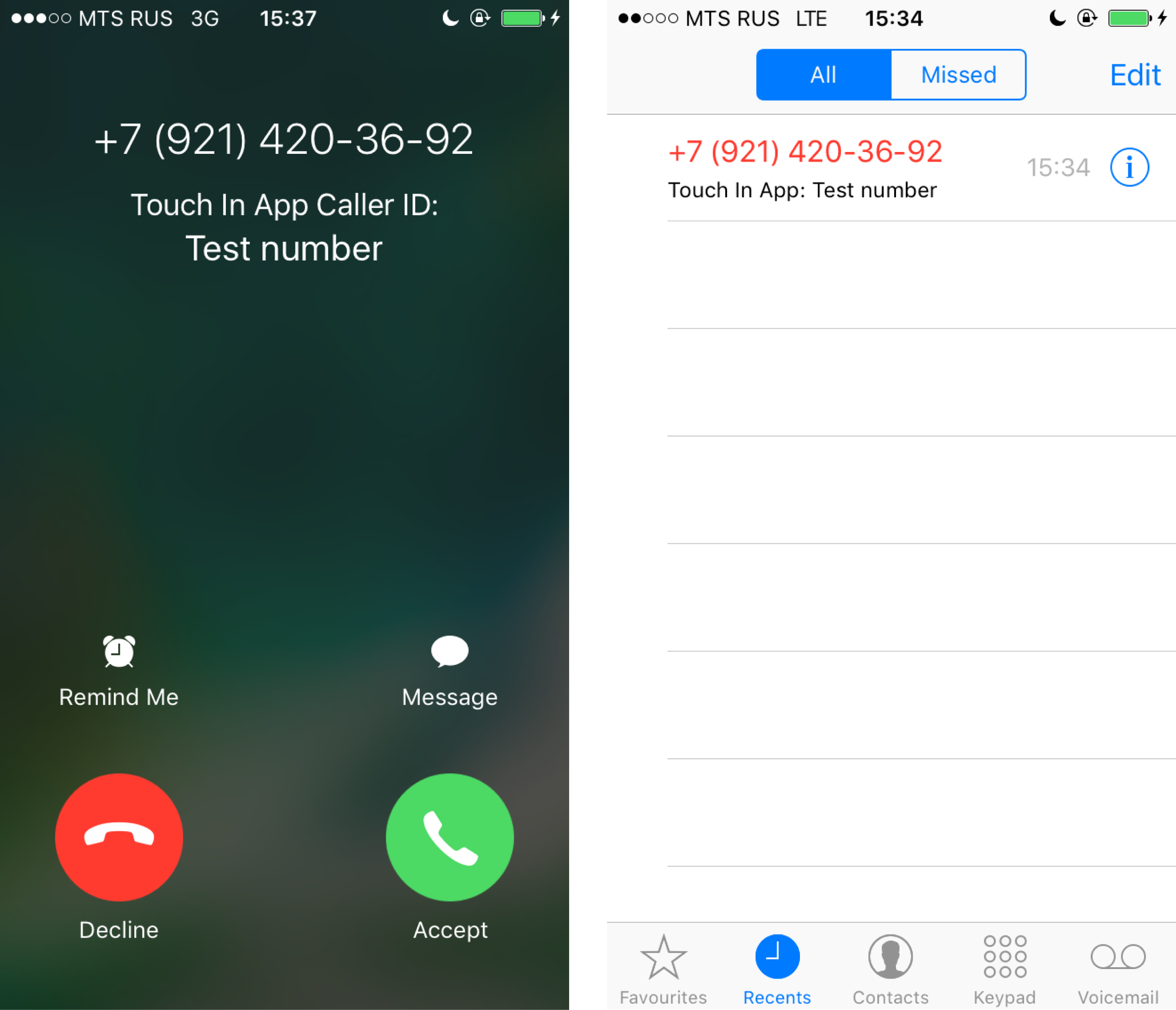
addIdentificationPhoneNumbersfrom the previously added extension and reads the contacts from there. Call from the test number to your device. The number must be determined.
We determine thousands of numbers
All this, of course, is great, but this is just one number. And at the beginning of the article, we talked about thousands of contacts. Obviously, we will not manually rewrite them all into arrays
phoneNumbersand labels. So, we must add contacts in the extension. We cannot do this from the application. We can only call the function
reloadExtension, the call of which will lead to the call addIdentificationPhoneNumbers. I will talk about her a little later. One way or another, the application will have access to contacts. Either they will immediately be delivered with it in a certain format, or we will receive them upon request to the API, or somehow else it does not matter. It is important that the extension must somehow get these contacts.
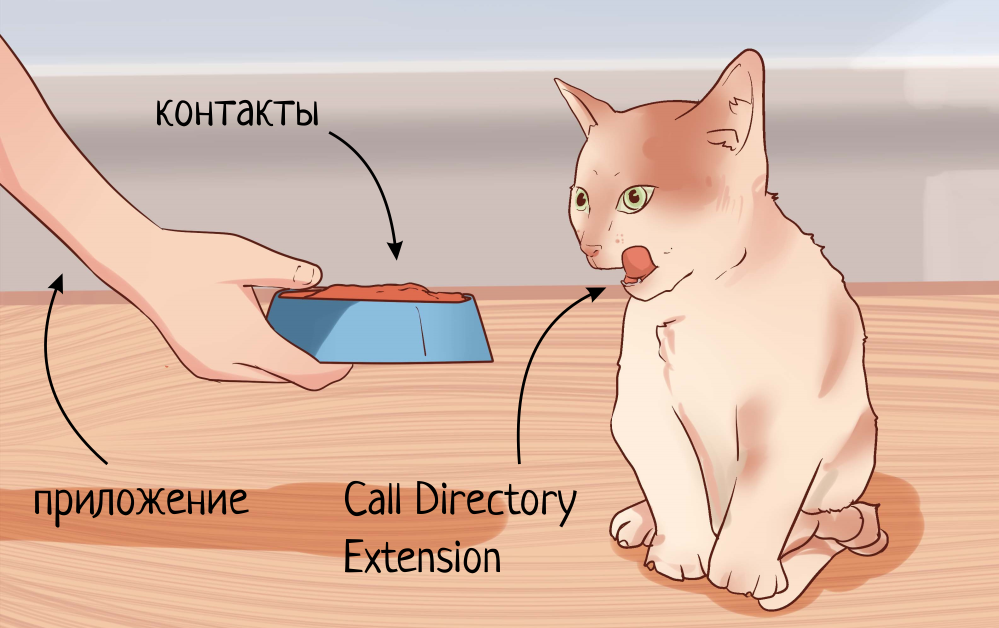
Let's digress for a second and draw a small analogy. Imagine you have a cat. If there is, you can not imagine. You wake up in the morning and are going to feed him. How will you do this? In all likelihood, pour the food into a bowl. And already from it the cat eats.
Now imagine that the Call Directory Extension is a cat, and you are an application. And you want to feed contacts with the Directory Directory Extension. What in our case will play the role of a bowl, which we must fill with contacts and from which extension will subsequently consume them? Unfortunately, we do not have many options. We cannot use Core Data or SQLite, as it is very limited in resources while the extension is running.
When you edited the function
addIdentificationPhoneNumbers, you probably noticed comments. It states that "Numbers must be provided in numerically ascending order." Sorting a selection from the database is too resource-intensive to expand. Therefore, a solution using a database does not suit us. All that remains for us is to use the file. For ease of implementation, we will use a text file in the following format:
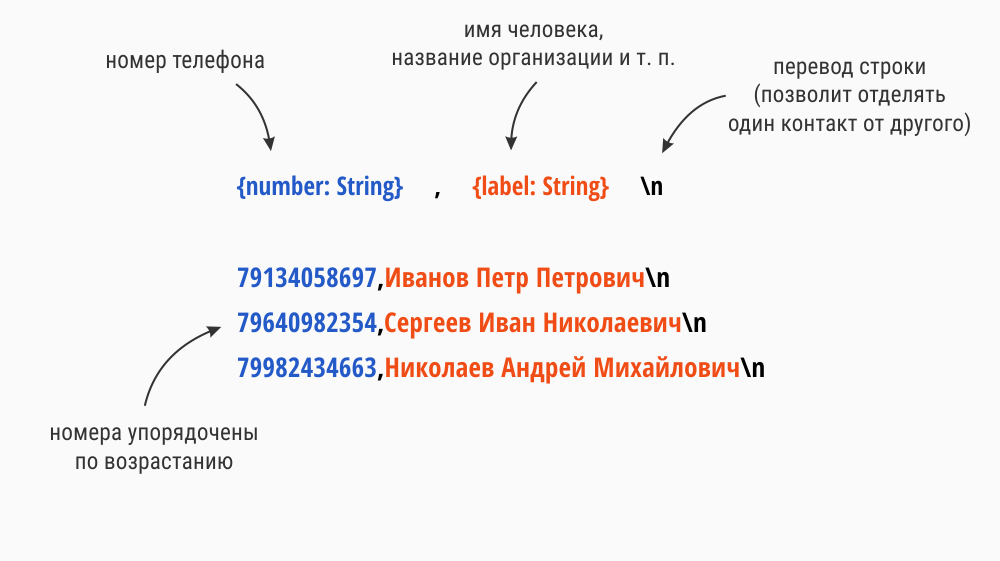
Using this format does not lead to optimal performance. But this will allow you to focus on the main points, instead of immersing yourself in working with binary files.
Alas, we can’t just get and access one file both from the application and from the extension. However, if you use the App Groups, it becomes possible.
Sharing contacts using App Groups

The App Group allows the application and extension to access shared data. More details are in the Apple documentation . If you have never worked with this, it’s not scary, now I’ll tell you how to set it up.
In the Project navigator, click on your project. Select target applications, go to Capabilities tab, enable App Groups. Add the group "group.ru.touchin.TouchInApp". The logic here is the same as with the bundle identifier. Just add the group prefix. I have a bundle identifier - “ru.touchin.TouchInApp”, respectively, a group - “group.ru.touchin.TouchInApp”.
Go to the target of the extension, go to the Capabilities tab, turn on the App Groups. The group you entered earlier should appear there. Put a tick on it.
If we use the option “Automatically manage signing”, App Groups are configured quite easily. As you can see, I met a couple of paragraphs. Thanks to this, I can not turn an article about CallKit into an article about App Groups. But if you use profiles from the developer account, then you need to add the App Group in the account and include it in the App ID of the application and extension.
We write contacts to a file
After turning on the App Group, we can access the container in which our file will be stored. This is done as follows:
let container = FileManager.default
   .containerURL(forSecurityApplicationGroupIdentifier: "group.ru.touchin.TouchInApp")
"Group.ru.touchin.TouchInApp" is our App Group, which we just added.
Let's name our file “contacts” and form for it
URL:guard let fileUrl = FileManager.default
.containerURL(forSecurityApplicationGroupIdentifier: "group.ru.touchin.TouchInApp")?
.appendingPathComponent("contacts") else { return }A little later you will see the full code, now I just want to clarify some points.
Now you need to write numbers and names into it. It is assumed that you have already prepared them in the following form:
let numbers = ["79214203692",
"79640982354",
"79982434663"]
let labels = ["Иванов Петр Петрович",
"Сергеев Иван Николаевич",
"Николаев Андрей Михайлович"]Let me remind you that the numbers must be with the correct country code and sorted in ascending order.
Now we will form the future contents of the file from the contacts:
var string = ""
for (number, label) in zip(numbers, labels) {
string += "\(number),\(label)\n"
}
Each pair number-name is written on one line, separated by a comma. We end with a linefeed character.
We write the whole thing into a file:
try? string.write(to: fileUrl, atomically: true, encoding: .utf8)And now for the fun part. It is necessary to inform the extension that the bowl is full and it is time to eat. To do this, call the following function:
CXCallDirectoryManager.sharedInstance.reloadExtension(
withIdentifier: "ru.touchin.TouchInApp.TouchInCallExtension")The function parameter is the bundle identifier of the extension.
Full code:
@IBAction func addContacts(_ sender: Any) {
let numbers = ["79214203692",
"79640982354",
"79982434663"]
let labels = ["Иванов Петр Петрович",
"Сергеев Иван Николаевич",
"Николаев Андрей Михайлович"]
writeFileForCallDirectory(numbers: numbers, labels: labels)
}
private func writeFileForCallDirectory(numbers: [String], labels: [String]) {
guard let fileUrl = FileManager.default
   .containerURL(forSecurityApplicationGroupIdentifier: "group.ru.touchin.TouchInApp")?
   .appendingPathComponent("contacts") else { return }
var string = ""
for (number, label) in zip(numbers, labels) {
   string += "\(number),\(label)\n"
}
try? string.write(to: fileUrl, atomically: true, encoding: .utf8)
CXCallDirectoryManager.sharedInstance.reloadExtension(
   withIdentifier: "ru.touchin.TouchInApp.TouchInCallExtension")
}
Read contacts from a file
But that is not all. We did not prepare the extension so that it could read this file. Let’s ask him to read the file one line at a time, to extract the number and name from the line. Then we proceed in the same way as with the test number.
Alas, iOS does not provide the ability to read text files line by line. We will use the approach proposed by the user of StackOverflow. Copy the class to you
LineReaderalong with the extension. Let's go back to the CallDirectoryHandler.swift file and make changes. First we get the URL of our file. This is done exactly the same as in the application. Then initialize the
LineReaderpath to the file. We read the file line by line and add contact by contact. Updated Feature Code
addIdentificationPhoneNumbers:private func addIdentificationPhoneNumbers(to context: CXCallDirectoryExtensionContext) throws {
guard let fileUrl = FileManager.default
.containerURL(forSecurityApplicationGroupIdentifier: "group.ru.touchin.TouchInApp")?
.appendingPathComponent("contacts") else { return }
guard let reader = LineReader(path: fileUrl.path) else { return }
for line in reader {
autoreleasepool {
// удаляем перевод строки в конце
let line = line.trimmingCharacters(in: .whitespacesAndNewlines)
// отделяем номер от имени
var components = line.components(separatedBy: ",")
// приводим номер к Int64
guard let phone = Int64(components[0]) else { return }
let name = components[1]
context.addIdentificationEntry(withNextSequentialPhoneNumber: phone, label: name)
}
}
}
The function should use a minimum of resources, so wrap the loop iteration in
autoreleasepool. This will free up temporary objects and use less memory. All. Now, after calling the function, the
addContactsphone will be able to determine the numbers from the array numbers. You can download the final version of the project in the repository on GitHub .
What's next?
This is just one of the options for solving the problem. It can be improved using a binary file instead of a text file, as 2GIS did . This will allow you to quickly write and read data. Accordingly, it is necessary to think over the structure of the file, as well as rewrite the functions for writing and reading.
When you have an idea of how this works, everything is in your hands.