June 25, 2017 at 15:26
Two in one: how to use Vim and Nano?
Upd. 07/07/2017 : updated section about vim. Thanks to Wimer for valuable additions.
Why do we need another, 1001st publication on this subject? A huge amount of articles has been written about vim and nano, but as a rule they relate only to one of the editors, or represent a general overview. So that both editors are succinctly described in one, but at the same time, without deepening into the jungle, all the main control keys for full work are shown, I could not find. Therefore, after reading the materials found, I began to outline them, and this article was born.

Any text editor can be mastered "by typing." But not vim.
Why is nano better than vim?
You can exit nano without reset! (c) Internet
Initially, I did not plan to write about both editors, but I wanted to make a brief reference only on nano, but in the process of collecting information, data on vim also accumulated. Then I discovered that Vim is not so scary if you know the commands and the concept of its use.
When the graphical environment is unavailable, for example, when working on ssh, setting up the system before loading xserver, or just out of love forperversions, the red- eyed girl begins to feel like a disabled person in a console text editor whose control keys you don’t know from the word at all. Even file navigation and copy-paste begin to constitute an almost insurmountable barrier. Just because many familiar keyboard shortcuts do not work in the console, being used for other purposes even during 5.25 "floppy disks of 320Kb.
For a long time I used the editor from Midnight Commander mcedit, used nano a little, and did not use vim at all. To memorize all these combinations beyond what is possible - even after spending time on it, after some period of inactivity they are successfully forgotten. Before I started writing this article, I couldn’t get myself to master even the basics of vim , it scares already at the launch stage, “you try to get out of it right away and you can't!” This is how you go into the ZX Spectrum interpreter BASIC48, then without knowing the basics of even the simplest PRINT program “Hello World!” Do not write. I did not stop asking myself the question: “Interesting, and why do vim gurus love so much? Why spend a lot of time on retraining, and most importantly how not to lose your skills, for what purpose to constantly use it, this vim? ”
Below I will describe the most necessary key combinations and working methods in both editors.
After the Alt-6 combination, as a “copy” command, I don’t even know what to say.
Probably the author Nano was a pianist
© from the habr-commentary.
The article on the habr was the basis for me: " Nano: And still have to learn it, " as well as all comments on her. They not only supplemented it, but also forced to look towards vim .
Ros Nano-k concept:
In terms of nano, text separated by blank lines is called a “paragraph”. All commands are issued by pressing key combinations - function buttons or a combination of Ctrl + letter or Alt + letter. If in any case the combination with Ctrl or Alt is reserved by the system, duplicate combinations with Esc should be used.
Single click on Escemulates the Alt key . Double Esc Esc emulates the Ctrl key . That is, instead of Alt + X, you can type Esc X , instead of Ctrl + K, you can type Esc Esc K in turn .
Most important:
Alt + U (Esc U) - Undo, undo the last action.
Alt + E (Esc E) - Redo, repeat the canceled action.
F1 (Ctlr + G) - Show help
F2 - Exit with saving the file
Ctrl + X - Return to editing from the help, and other dialogs, exit the program.
Copy and paste text:
Alt-A (Ctrl-6)- set \ remove the marker for the start of text selection (or just arrows with shift)
Alt + 6 (Esc 6) - copy the selection text to the clipboard. The alt + 6 combination is busy and not working.
Ctrl + K (or F9) - cut the selected fragment to the clipboard, if there is no selection, delete the line.
Ctrl + U (or F10) - paste a fragment from the clipboard
Ctrl + Shift + V - paste from the clipboard GUI
Ins - Insert text from another file, or the output of the command.
Search and replace:
Ctrl + W - Search
Alt + W - Re-search
Ctrl + \ - Replace. Remember last search as mutable by default.
Navigation:
Alt + \ (Ctrl + Home)- To the beginning of the file
Alt + / (Ctrl + End) - To the end of the file
Ctrl + Y (PgUp) - To the page up
Ctrl + V (PgDn) - To the page down
Alt + S - Switch between smooth scrolling of pages and fixed
Duplication of cursor keys, then what vim is so proud of, only flashing:
Ctrl + B - Left to the character
Ctrl + F - Right to the character
Ctrl + N - Down to the character
Ctrl + P - Up to the character
Ctrl + Space - Forward, you can simply Ctrl + cursor . (the cursor rises at the beginning of the word)
Alt + Space ( ESC Space ) - One word back.
(for me this combination calls the KRunner quick launch line in KDE, so I use ESC Space )
Alt + - - Scroll up without changing the cursor position
Alt + = - Scroll down without changing the cursor position
Alt + 7 (Esc 7) - To the previous block of text , or just Ctrl + cursor
Alt + 8 (Esc 8) - Go to the next block of text .
Alt + 0 (Esc 0) - Go to the next paragraph (down to the first empty line).
Alt + 9 (Esc 9) - To the previous paragraph (up to the first blank line up).
Alt + G - Go to the line with the specified number.
Ctrl + D (Del) - delete the character under the cursor
Ctrl + H (BSp) - Delete the character to the left of the cursor
Ctrl + M (Enter) - Insert an empty line.
Ctrl + I (Tab) - Insert tab.
Alt + Shift + { - Decrease paragraph indent by deleting tabs or spaces Alt + Shift +} - Increase paragraph indent by inserting tabs. If there was already an indent with spaces, add a tab to it and highlight it in red.
Ctrl +] - Autocompletion of words, such as commands in the program. Programmers will appreciate it!
Alt + 3 (Esc 3) - For (ra) comment on the current line, the selected paragraph with the # character.
Alt + J (F4) - Justify, align the current paragraph
Miscellaneous:
Esc Esc 220 - Enter characters by decimal code. For example 220 - input Ü with umlaut.
Alt + V - Enter the ASCII sequence of a combination or key.
Alt + T - Trunkate. Erases everything from the cursor to the end of the file.
Ctrl + C ( F11 ) - One-time displays information on the current line, column, character number.
Alt + D - Count the number of words, lines, characters in a file
Ctrl + L - Refresh screen
Settings nano:
Alt + Shift + 4 - Soft transfer of long lines enable / disable Alt + K - switches the action by Ctrl + K between deleting the default line and deleting from the cursor to the end of the line.
Alt + Q - Switch from tabs to spaces.
Alt + L - Enable and disable hard line breaks. Alt + C - Toggles constant info output per line by Ctrl + C
Alt + X - Show \ hide the prompt line at the bottom of the screen.
Alt + Shift + 3 - Show line numbers.
Alt + P - Show spaces with the "·" symbol
Alt + Y - Show syntax highlighting.
Alt + H (Esc H) - Turn on the Home smart key (moves the cursor not to the 1st column, but to the 1st character of the line)
Alt + I (Esc I) - Turn on automatic indentation (line break to a new one with the same indentation as the previous one)
Alt + B- Switch to backup and back
Alt + M - Enable "mouse support". better not to use, bullshit!
They say that nano did not support undo by default. Everything supports me in Manjaro, but just in case, the solution is to run nano with the -u switch: nano -u filename.
To enable syntax highlighting in nano, uncomment the include directives in the / etc / nanorc file.
That's all.
Other links used:
Times | two | three
“Vi has two modes: beep and spoil everything”
© Kholivarnenko
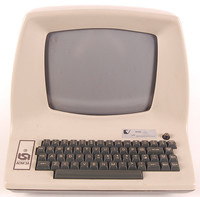
Initially, Vim was developed for the ADM-3A hardware terminal , it is on the left in the photo .
An advanced
text editor is a nightmare for the casual user. If you
manage to close it in the end, you sigh with relief and firm
confidence that you will no longer run this program nirazu in
life. Perhaps Vim can’t just be started and started working -
some preparation is required. But it’s worth it once to test it in practice and
you are amazed at how you could manage without it.
© https://ru.wikibooks.org/wiki/Vim
* * *
Well, look, a person starts vim, crawls to the right
place with the cursor , erases the excess, starts typing, at some point it reaches the
letter 'i' / ' c ', etc., after which the rest of the entered appears on the screen
not where the person wanted. He presses esc, q, he starts
some garbage, he presses esc, esc several times, then he writes: q,
then he presses three times Esc writes: Q !, then he presses Esc a couple more times, he
writes: q !, then vim again and already edit. (q) An example of hell with vim
* * *
By the way, I had the opposite situation, when I went to an employee to
tell me what to fix in the config and in the Farov editor I printed
him half a line of letters j before I realized that something was wrong, the cursor was
moving to the right, and not down, and also some kind of garbage appears.
(q) A tale about the power of habit
* * *
Judging by what I just read, users ... no, rather, "activists"
vi - not just morons, but selected masochists. I don’t know, maybe someone in
this article sees the benefits of vi, but I see a killer hemorrhoid that
complicates simple code entry to the level of DNA sequencing. ( y ) +15 votes in Habrocomments
* * *
Now the funds are divided into editors (type text) and IDE (work
with the project). Wim turns out in the middle, like a duck. But this is no longer necessary.
If I want to type text, I don’t need an editor that takes
longer to master than an IDE, I need ee / nano. And if I need to work with a project,
I need a normal IDE with great features and a low
entry threshold , and not a white ninja school for mastering a sophisticated text
editor.
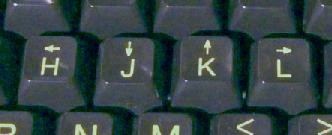
( q ) killer hubcoment The old IBM PC AT original keyboard is shown above. Take a closer look. Vim was developed back in the days when the Ctrl key was in the place of CapsLock, where it is more convenient to press the little finger. How often do you use this key? What about the Ctrl key? But IBM decided differently, and everything turned out as it turned out.

VIM is a blind ten-finger text editing method. (th) youtube
It should be remembered that Vim has two modes: command and modal. In the first, commands are entered, for example, simply by entering a colon : you can use the up and down arrows to sort through the history of previously entered commands. Entering the beginning of a command, by Ctrl + d you can see a list of similar commands, and by Tab, add an abbreviation to the full name of the command. All commands starting with : must end with ENTER , the rest are executed instantly. In the second mode, the text is corrected. Entering modal mode by a , i . After editing a piece of text, always press Escto return to command mode, and you will never have a question in which mode the editor is now.
Explanatory quote about entering commands: Commands in vim are designed to be combined: ' d ' means "delete", ' e ' means
"move the cursor to the end of the word", so ' de ' is a complete command
meaning "delete everything from the current cursor position to the next
end words »Teams are case sensitive !
For example, entering modal mode (text editing) by i , entering “True”, and entering the command mode by Esc ,
you can move around the file with the full power of navigation commands and press' . ''
wherever you need to repeat the command, that is, insert the word “True” at the
current cursor position in this case. The entire entered
fragment with cursor movements and erasing characters is taken into account . So you can
automate point- by- point input of forms into identical blocks.
Vim Commands:
Perhaps this was just a sudden discovery for me ,
but all the help in Russian on the vim keys is available inside the
terminal in the form of lessons on the command (including this I did this
compendium):
Moving :
hjkl - duplication of cursor keys left, down, up, right.
^ or 0 (zero) - To the beginning of the line
$ - To the end of the line
w - Go to the beginning of the next word. e - Go to the end of the current, then the next, word. E (Shift + e) —Like e only without punctuation. % - Moving in a line between brackets: () {} []
Entering a number before the move operator will cause it to repeat a specified number of times.
2w - Move the cursor forward to the beginning of the second word.
3e - Move the cursor forward to the endthird word.
Combining commands simplifies navigation: j $ —Down, to the end of the next line.
Alt + { ( Alt + Shift + [ ) - Move to an empty line before the current paragraph
Alt +} ( Altl + Shift +] ) - Move to an empty line after the current paragraph
Shift + g - Go to the end of the file. If before this, enter the line number , then go to it.
507 Shift + g - For example, this is how the transition will not go to the end, but to line number 507
: 45 Enter or 45gg - Go to line number 45
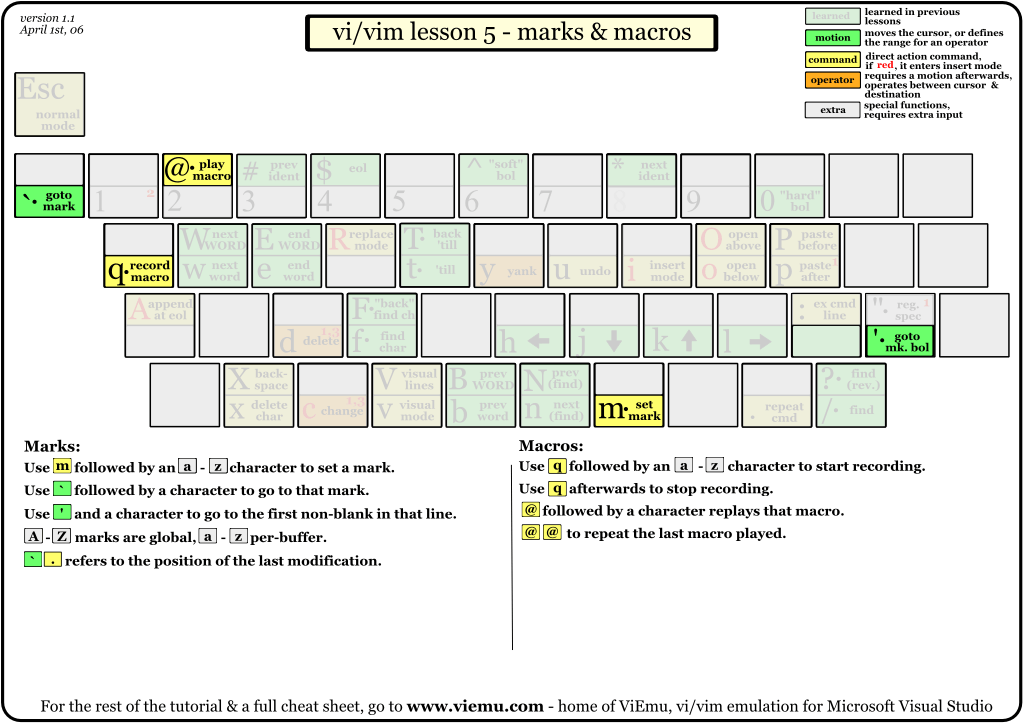
Instead of k, there can be any small letter for local labels, and a large one for global labels, which can be accessed from another file. mk - Mark the current position as k
'k - Go to the previously created label k
'. - (backquote, dot) jump to the beginning of the last edited line by automatic label.
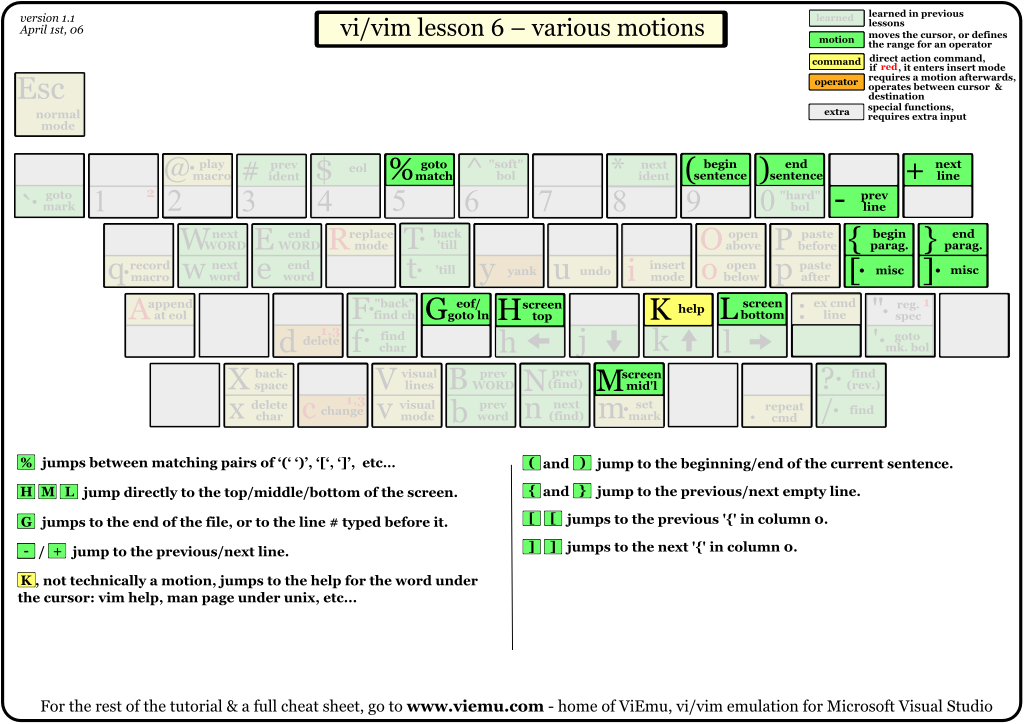
H , M , L - move the cursor to the top, middle and bottom line of the screen.
zt , zz , zb - move the cursor along with the text to the top, middle and bottom line of the screen.
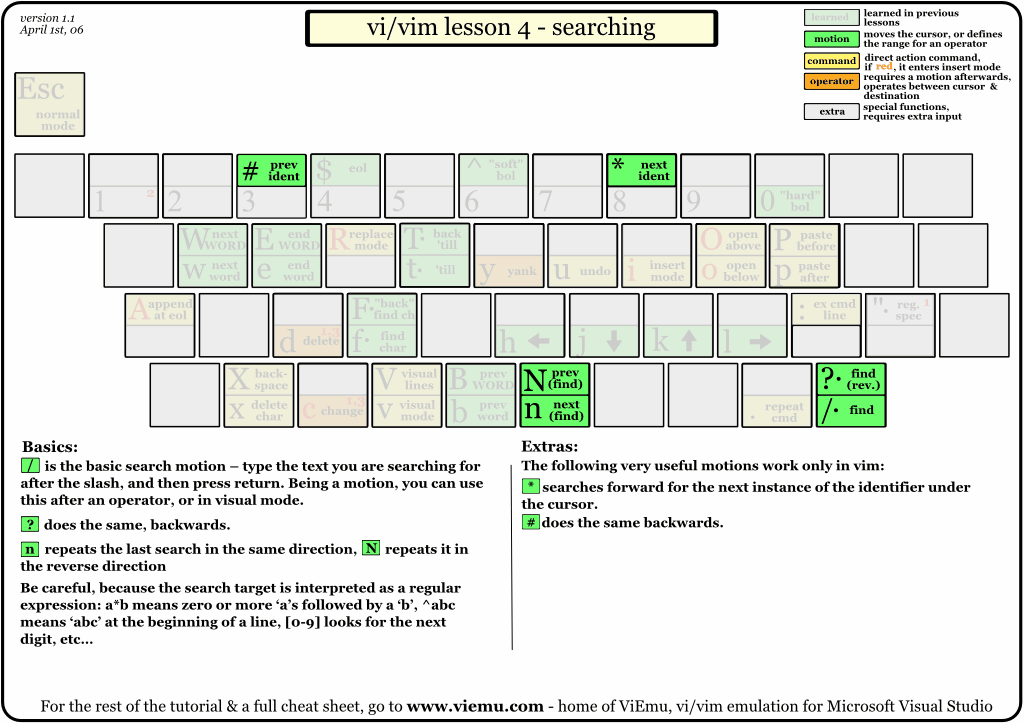
* - Move the cursor to the next word, the same as under the cursor
#- Move the cursor to the PREVIOUS word, the same as under the cursor
Window navigation - windows and tabs :
Each open file has its own editing buffer that the user operates on. With several open files, you can switch between them, that is, between their buffers::
bn - open the following buffer in the current window
: bp - previous
: ls - view the list of open buffers
: b buffer_name - switch to the buffer of the open file, Tab completion works.
: bd buffer_name - delete the buffer by name : bd - delete the current buffer, or exit vim if this buffer is the only window.
Splitting a window into several subwindows and navigating between them:
Ctrl + wv - ( : vsplit ) split a window vertically
Ctrl + ws - ( : split ) split a window horizontally
Ctrl + wf - split a window and open a file in a new file, name and path to which is under the cursor
ctrl + wq or c - close the current window
the ctrl + wn - create a new window (: new filename)
ctrl + of w o - expand the current window to full screen, closing the other panes.
Ctrl + of w _ - (underscore) to expand the window to its maximum size
ctrl+ W = - Make all the tab of the current window of the same size
Ctrl + w + or Ctrl + w - - increasing or decreasing the current window size
Esc 5 w + Ctrl + or Ctrl + w 5+ - Increase the size of the current window immediately by 5 lines / columns . 5 Esc Ctrl + w - or Ctrl + w 5- - Decrease the size of the current window immediately by 5 lines / columns.
Ctrl + w Ctrl + w - go to the next sub-window
Ctrl + w HJKL - move the windowleft / right / up / down, plus rearranging the window layout Ctrl + w hjkl or cursor - move the cursor to the window left / right / up / down
Launch options vim:
vim -o filename1 filename2 - run vim with two files open in horizontal windows
vim -O filename1 filename2 - run vim with two files open in vertical windows
vim -d filename1 filename2 - run vim with two files and compare them, highlighting the differences.
In addition to windows, there is another option to decompose open files into separate tabs
: Tab ball- Place all open files in tabs
: tabnew - Create a new tab so as not to beat the current window on a large number of small windows
gt - ( g o to t ab) Go to the next tab
gT - ( g o to t ab) Go to the previous tab
: tabn - Next tab
: tabp - Previous tab
Ctrl + PageUp and Ctrl + PageDown - standard hot keys for moving between tabs, but they can be occupied by the terminal emulator.
: set mouse = a- If enabled, it will be possible to select tabs and windows with the mouse and change their size.
Enter modal text editing mode :
i - Insert, switch to text insertion mode to the left of cursor
a - Append, switch to text insertion mode to the right of cursor
A - App_end, switch to insert text mode at the end of the line
R - Replace, switch to replace text mode .
o - create an empty line below the current one and proceed to its editing.
O - create an empty line OVER the current one and go to its editing.
Editing :
u- UNDO, undo the last action
U - UNDO, undo changes only in the last line
Ctrl + r - Redo, repeat the canceled action of the current modal editing session.
Many text editing commands consist of an operator and an object . For example, the delete operator d is combined below with the object of the direction of removal:
dw - ( d elete w ord) delete from the cursor to the end of the word, including the subsequent space.
de - delete from the cursor to the end of the word, NOT including the subsequent space.
d $ - delete from cursor to end of line.
d ^- delete from the cursor to the beginning of the line.
ce - Deletes a word and puts it in insert mode.
c $ - delete from the cursor to the end of the line and switch to insert mode (text editing).
Entering a number in front of the operator will cause it to repeat a specified number of times.
d2w - Delete two words in a row
x - Del, delete the character under the cursor.
dd - Delete line
D (Shift + d) - Cut the contents from the cursor to the end of the line into the buffer.
C (Shift + c) - Cut the contents of the cursor to the end of the line into the buffer and switch to edit mode.
r - replace the character under the cursor with the next r
After pressing r +, the character returns to command mode, which makes it inconvenient to
use Russian text for editing without adapting
vim command mode to the Russian keyboard layout.
diw - ( d elete i nner w ord) delete the word under the cursor
ciw - ( c hange i nner w ord) replace the word under the cursor (delete and switch to edit mode)
cib - ( c hange i n b rackets) Delete the expression inside the brackets () and go to edit
c%- Cut expression in pair brackets from cursor to next brackets. (% this is Shift + 5)
dit - ( d elete i n t ag) Delete text inside html or xml tag under cursor
cit - ( c hange i n t ag) Replace text inside html or xml tag under cursor, (delete and ed. in editor.)
ce WORD Esc - enter a word on the first character to replace it with WORD. After a point, this can be done with anyone.
d $ or D (Shift + d) - delete the line after the cursor
db - delete the word BEFORE the cursor
di (- removes what is in brackets.
di " - that in quotes
ya ( - copy the contents inside the brackets () together with the brackets
s - Delete the character under the cursor and go into edit mode
S - Delete everything to the end of the line and go into edit mode
d5d - delete 5 lines from down cursor
Ctrl + a - Increase the number closest to the right on the unit
Ctrl + x - Decrease the number closest to the right on the unit
Vu - Translate the line to lower case
VU - Translate the line to upper case
g ~~ - Invert
AutoComplete:
Ctrl + p or Ctrl + n - auto-completion of programming language commands
Ctrl + x Ctrl + f - files, they are searched in the current directory
Ctrl + x Ctrl + d - defines
Ctrl + x Ctrl + i - words from the current and open files
Ctrl + x Ctrl + k - from the dictionary
Ctrl + x Ctrl +] - all tags
Ctrl + x Ctrl + o - omni completion, works great with C, Python, etc. Search: When reaching the end of the file, the search will continue from the beginning. f - Search for the character following the f on the right in the current line ; - Repeat the search for f, the next match found in the current line /
- Search for text in a forward pattern
? - Search for text by pattern back
n - Next match found
N - Previous match found
Ctrl + o - go back to where you started the search
Ctrl + i - go back to the one found after ctrl + o
% - Search for parentheses: (), [] or {}
Search and replace ::
s / was / become - Search and replace only the first match found in the current line
: s / was / become / g - Search and replace all matches found in the current line
: g / string / d Delete all lines containing "string"
: v / string / d Delete all lines that do not contain “string” : 30.90s / was / became / gc - search and replace from 30 to 90 lines along their entire length, with confirmation
:% s / was / became / gc - Search and replace in the entire file with confirmation.
That is : s / is the current line ,: 30.90s / is the range, :% s / is the whole file.
g - in the whole line, c - with confirmation, otherwise only the first match in the line, and without confirmations.
You do not have to re-write the command every time, just enter : a colon and iterate over the previously entered options with the arrow keys up and down.
Highlight :
v - ( v isual) visual selection, selection of a fragment of text for operations on it.
Ctrl + v - selection of rectangular blocks .
gv - Re-highlight the last selection. d - delete the selected fragment
c - Cut the selected fragment to the clipboard
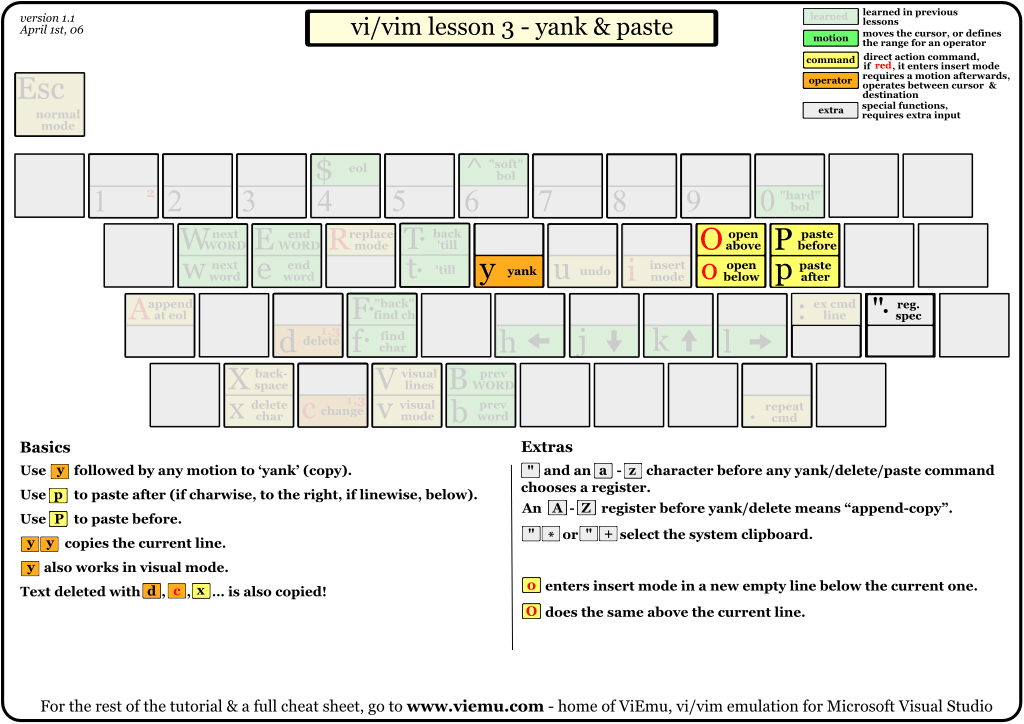
y - ( y ank) copy the selected fragment
yw - copy one word from the cursor to the end of the word with a space.
p - ( p aste) paste the copied fragment
vip - Select the entire current paragraph (text separated by empty lines)
vgU- select a fragment in visual mode and transfer it to upper case.
vg ~ - Select a fragment in visual mode and INVERT its register.
The combinations below work for the selection. For a single line, press twice . You can change the indentation length from 8 to 4 through the config, or by entering it in command mode: set tabstop = 4
For some reason, they don’t work for comments #
<(Shift +,) - Reduce the indent of the selected one.
> (Shift +.) - Increase the indent of the selected.
File operations ::
w - save changes to the current file
: w file.txt - save to file.txt
: w! file.txt- save and overwrite file.txt if exists.
: w ~ / file.txt - save to file.txt in the home folder
: e - Reopen the current file.
: e file.txt - open file.txt file.
: ene - Create a new file.
: ene file.txt - Create file.txt file.
To save a fragment, select it with the v key and save with the name as above. The command line will look like this : '<,'> w file.txt
: r file.txt - insert the contents of file.txt into the position below the cursor
: r! Ls - insert the output of the external ls command.
:! ls - execute any external command, in this case ls
Settings:
According to the mind, the settings should be written in ~ / .vimrc (they are written there without a colon!) Then you will not have to re-enter them.
: set ic - IgnoreCase, ignoring case when searching or replacing
: set noic - return case-sensitive search or replace
: set hls - Hlsearch, highlight found
: set nohls - DO NOT highlight found
: set is - Incsearch, incremental search - display partial matches when searching
: set nois - Disable incremental search, search by enter.
: set nu - number the lines
: set mouse = a - Use the mouse to select a window, cursor position.
: syntax on - highlighting the code
Miscellaneous :
Ctrl + g - Shows the status line with the name of the open file, the current line number.
Esc or Ctrl + C or Ctrl + [ - exit to command mode. : e
Enter - Exit. It is with the LEFT! I myself could not go out for a long time. I decided
that ':' is part of the sentence, and not part of the combination that needs to be
typed and long stung 'q'.
: e! Enter - Exit without saving
: x and: wq - exit with saving, and the first saves only if there have been changes. : w! or: wq! forced saving in readonly file, 2nd option with exit.
Zq- Instant exit without saving and confirmation.
The default settings can be written to the configuration file ~ / .vimrc
For example, without this I start to write in vim is no program on the Python:
set tabstop = 4 # Length tab
set expandtab # Replace tab spaces
Useful Tricks :
:% s #> [^ <] \ +> ## g - Clear text from HTML tags
:% s / ^ \ (. * \) \ n \ 1 $ / \ 1 / - Delete lines that are repeated twice
:% s / \ s \ + $ // - Delete spaces at the end of lines, and lines from single spaces ( link )
: 1, $ g / ^ $ / d - Delete empty lines
: g / ^ $ / d - Delete empty lines
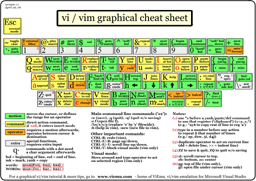
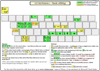
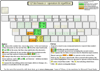
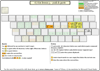
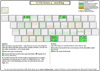
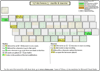
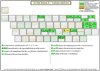
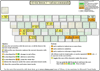
Educational maps of the location of teams in pictures. Taken from here:
http://www.viemu.com/a_vi_vim_graphical_cheat_sheet_tutorial.html
set langmap =
ABCDEFGHIJKLMNOPQRSTUVWXYZ :, complete list; abcdefghijklmnopqrstuvwxyz
However, I noticed a single minus - in the lower right corner the input characters in command mode are no longer displayed.
* * *
This couple of lines saves a lot of time on digging into .vimrc
“## Edit .vimrc ##
map, v: vsp $ MYVIMRC
map, V: source $ MYVIMRC
The first mappit on, v .vimrc opening in a vertical window, and the second asks VIM to recalculate the file.
* * *
About the difference, which key to exit to command mode: Ctlr-C simply goes into normal mode. If
any hooks are hung by some plugins to exit insert mode , then when you press
Ctrl-C vim will ignore them, and when you press Esc or Ctrl- [will launch. ( th )
* * *
Q (shift + q) - not a command input mode. This is a transition to legacy Ex mode, supported only for compatibility. You should not use it. To return to normal mode, type “visual”.
* * *
List of used and recommended literature:
introduction
Why do we need another, 1001st publication on this subject? A huge amount of articles has been written about vim and nano, but as a rule they relate only to one of the editors, or represent a general overview. So that both editors are succinctly described in one, but at the same time, without deepening into the jungle, all the main control keys for full work are shown, I could not find. Therefore, after reading the materials found, I began to outline them, and this article was born.
Any text editor can be mastered "by typing." But not vim.
Why is nano better than vim?
You can exit nano without reset! (c) Internet
Initially, I did not plan to write about both editors, but I wanted to make a brief reference only on nano, but in the process of collecting information, data on vim also accumulated. Then I discovered that Vim is not so scary if you know the commands and the concept of its use.
What is it and why is it necessary?
When the graphical environment is unavailable, for example, when working on ssh, setting up the system before loading xserver, or just out of love for
For a long time I used the editor from Midnight Commander mcedit, used nano a little, and did not use vim at all. To memorize all these combinations beyond what is possible - even after spending time on it, after some period of inactivity they are successfully forgotten. Before I started writing this article, I couldn’t get myself to master even the basics of vim , it scares already at the launch stage, “you try to get out of it right away and you can't!” This is how you go into the ZX Spectrum interpreter BASIC48, then without knowing the basics of even the simplest PRINT program “Hello World!” Do not write. I did not stop asking myself the question: “Interesting, and why do vim gurus love so much? Why spend a lot of time on retraining, and most importantly how not to lose your skills, for what purpose to constantly use it, this vim? ”
Below I will describe the most necessary key combinations and working methods in both editors.
Nano
After the Alt-6 combination, as a “copy” command, I don’t even know what to say.
Probably the author Nano was a pianist
© from the habr-commentary.
The article on the habr was the basis for me: " Nano: And still have to learn it, " as well as all comments on her. They not only supplemented it, but also forced to look towards vim .
In terms of nano, text separated by blank lines is called a “paragraph”. All commands are issued by pressing key combinations - function buttons or a combination of Ctrl + letter or Alt + letter. If in any case the combination with Ctrl or Alt is reserved by the system, duplicate combinations with Esc should be used.
Single click on Escemulates the Alt key . Double Esc Esc emulates the Ctrl key . That is, instead of Alt + X, you can type Esc X , instead of Ctrl + K, you can type Esc Esc K in turn .
Most important:
Alt + U (Esc U) - Undo, undo the last action.
Alt + E (Esc E) - Redo, repeat the canceled action.
F1 (Ctlr + G) - Show help
F2 - Exit with saving the file
Ctrl + X - Return to editing from the help, and other dialogs, exit the program.
Copy and paste text:
Alt-A (Ctrl-6)- set \ remove the marker for the start of text selection (or just arrows with shift)
Alt + 6 (Esc 6) - copy the selection text to the clipboard. The alt + 6 combination is busy and not working.
Ctrl + K (or F9) - cut the selected fragment to the clipboard, if there is no selection, delete the line.
Ctrl + U (or F10) - paste a fragment from the clipboard
Ctrl + Shift + V - paste from the clipboard GUI
Ins - Insert text from another file, or the output of the command.
Search and replace:
Ctrl + W - Search
Alt + W - Re-search
Ctrl + \ - Replace. Remember last search as mutable by default.
Navigation:
Alt + \ (Ctrl + Home)- To the beginning of the file
Alt + / (Ctrl + End) - To the end of the file
Ctrl + Y (PgUp) - To the page up
Ctrl + V (PgDn) - To the page down
Alt + S - Switch between smooth scrolling of pages and fixed
Duplication of cursor keys, then what vim is so proud of, only flashing:
Ctrl + B - Left to the character
Ctrl + F - Right to the character
Ctrl + N - Down to the character
Ctrl + P - Up to the character
Ctrl + Space - Forward, you can simply Ctrl + cursor . (the cursor rises at the beginning of the word)
Alt + Space ( ESC Space ) - One word back.
(for me this combination calls the KRunner quick launch line in KDE, so I use ESC Space )
Alt + - - Scroll up without changing the cursor position
Alt + = - Scroll down without changing the cursor position
Alt + 7 (Esc 7) - To the previous block of text , or just Ctrl + cursor
Alt + 8 (Esc 8) - Go to the next block of text .
Alt + 0 (Esc 0) - Go to the next paragraph (down to the first empty line).
Alt + 9 (Esc 9) - To the previous paragraph (up to the first blank line up).
Alt + G - Go to the line with the specified number.
Alt + < - Go to the previous open file (If nano is running with several files)
Alt +> - Go to the next open file.
They also write about the Alt + F command , which either includes this possibility, or for some reason allows you to have separate clipboards for each file, but I did not understand how it works.
Editing text:Ctrl + D (Del) - delete the character under the cursor
Ctrl + H (BSp) - Delete the character to the left of the cursor
Ctrl + M (Enter) - Insert an empty line.
Ctrl + I (Tab) - Insert tab.
Alt + Shift + { - Decrease paragraph indent by deleting tabs or spaces Alt + Shift +} - Increase paragraph indent by inserting tabs. If there was already an indent with spaces, add a tab to it and highlight it in red.
Ctrl +] - Autocompletion of words, such as commands in the program. Programmers will appreciate it!
Alt + 3 (Esc 3) - For (ra) comment on the current line, the selected paragraph with the # character.
Alt + J (F4) - Justify, align the current paragraph
Miscellaneous:
Esc Esc 220 - Enter characters by decimal code. For example 220 - input Ü with umlaut.
Alt + V - Enter the ASCII sequence of a combination or key.
Alt + T - Trunkate. Erases everything from the cursor to the end of the file.
Ctrl + C ( F11 ) - One-time displays information on the current line, column, character number.
Alt + D - Count the number of words, lines, characters in a file
Ctrl + L - Refresh screen
Settings nano:
Alt + Shift + 4 - Soft transfer of long lines enable / disable Alt + K - switches the action by Ctrl + K between deleting the default line and deleting from the cursor to the end of the line.
Alt + Q - Switch from tabs to spaces.
Alt + L - Enable and disable hard line breaks. Alt + C - Toggles constant info output per line by Ctrl + C
Alt + X - Show \ hide the prompt line at the bottom of the screen.
Alt + Shift + 3 - Show line numbers.
Alt + P - Show spaces with the "·" symbol
Alt + Y - Show syntax highlighting.
Alt + H (Esc H) - Turn on the Home smart key (moves the cursor not to the 1st column, but to the 1st character of the line)
Alt + I (Esc I) - Turn on automatic indentation (line break to a new one with the same indentation as the previous one)
Alt + B- Switch to backup and back
Alt + M - Enable "mouse support". better not to use, bullshit!
They say that nano did not support undo by default. Everything supports me in Manjaro, but just in case, the solution is to run nano with the -u switch: nano -u filename.
To enable syntax highlighting in nano, uncomment the include directives in the / etc / nanorc file.
That's all.
Other links used:
Times | two | three
 Vim, a bit of crypto
“Vi has two modes: beep and spoil everything”
© Kholivarnenko
Initially, Vim was developed for the ADM-3A hardware terminal , it is on the left in the photo .
I’ll quote a few quotes before the article, which seem to hint to the reader: "- Terrify and run. Do you hear the mortal? Run! And don’t tell me later that you weren’t warned ..."
An advanced
text editor is a nightmare for the casual user. If you
manage to close it in the end, you sigh with relief and firm
confidence that you will no longer run this program nirazu in
life. Perhaps Vim can’t just be started and started working -
some preparation is required. But it’s worth it once to test it in practice and
you are amazed at how you could manage without it.
© https://ru.wikibooks.org/wiki/Vim
* * *
Well, look, a person starts vim, crawls to the right
place with the cursor , erases the excess, starts typing, at some point it reaches the
letter 'i' / ' c ', etc., after which the rest of the entered appears on the screen
not where the person wanted. He presses esc, q, he starts
some garbage, he presses esc, esc several times, then he writes: q,
then he presses three times Esc writes: Q !, then he presses Esc a couple more times, he
writes: q !, then vim again and already edit. (q) An example of hell with vim
* * *
By the way, I had the opposite situation, when I went to an employee to
tell me what to fix in the config and in the Farov editor I printed
him half a line of letters j before I realized that something was wrong, the cursor was
moving to the right, and not down, and also some kind of garbage appears.
(q) A tale about the power of habit
* * *
Judging by what I just read, users ... no, rather, "activists"
vi - not just morons, but selected masochists. I don’t know, maybe someone in
this article sees the benefits of vi, but I see a killer hemorrhoid that
complicates simple code entry to the level of DNA sequencing. ( y ) +15 votes in Habrocomments
* * *
Now the funds are divided into editors (type text) and IDE (work
with the project). Wim turns out in the middle, like a duck. But this is no longer necessary.
If I want to type text, I don’t need an editor that takes
longer to master than an IDE, I need ee / nano. And if I need to work with a project,
I need a normal IDE with great features and a low
entry threshold , and not a white ninja school for mastering a sophisticated text
editor.
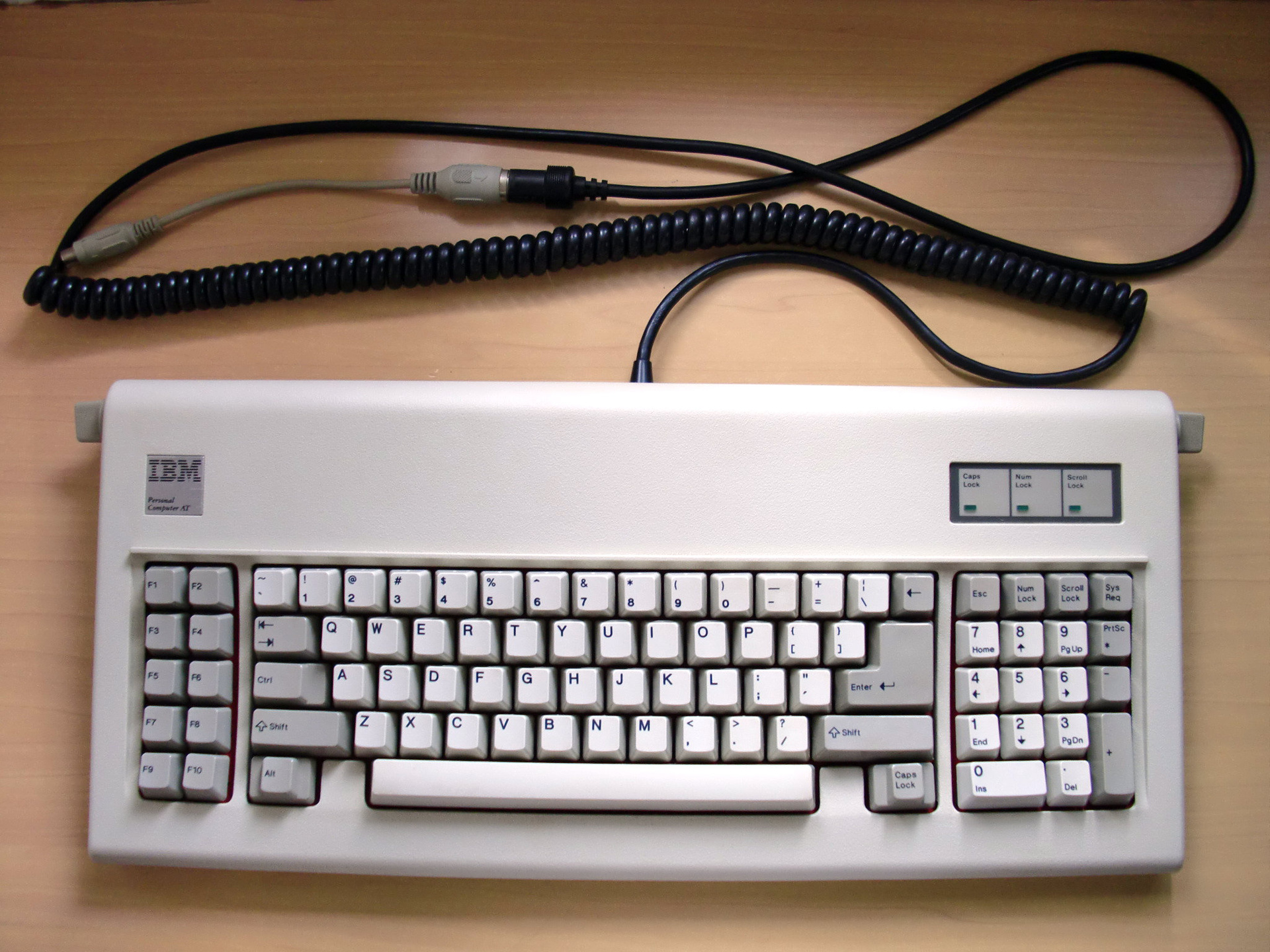
( q ) killer hubcoment The old IBM PC AT original keyboard is shown above. Take a closer look. Vim was developed back in the days when the Ctrl key was in the place of CapsLock, where it is more convenient to press the little finger. How often do you use this key? What about the Ctrl key? But IBM decided differently, and everything turned out as it turned out.
However, we will try!
VIM is a blind ten-finger text editing method. (th) youtube
It should be remembered that Vim has two modes: command and modal. In the first, commands are entered, for example, simply by entering a colon : you can use the up and down arrows to sort through the history of previously entered commands. Entering the beginning of a command, by Ctrl + d you can see a list of similar commands, and by Tab, add an abbreviation to the full name of the command. All commands starting with : must end with ENTER , the rest are executed instantly. In the second mode, the text is corrected. Entering modal mode by a , i . After editing a piece of text, always press Escto return to command mode, and you will never have a question in which mode the editor is now.
Explanatory quote about entering commands: Commands in vim are designed to be combined: ' d ' means "delete", ' e ' means
"move the cursor to the end of the word", so ' de ' is a complete command
meaning "delete everything from the current cursor position to the next
end words »Teams are case sensitive !
For example, entering modal mode (text editing) by i , entering “True”, and entering the command mode by Esc ,
you can move around the file with the full power of navigation commands and press' . ''
wherever you need to repeat the command, that is, insert the word “True” at the
current cursor position in this case. The entire entered
fragment with cursor movements and erasing characters is taken into account . So you can
automate point- by- point input of forms into identical blocks.
Vim Commands:
Perhaps this was just a sudden discovery for me ,
but all the help in Russian on the vim keys is available inside the
terminal in the form of lessons on the command (including this I did this
compendium):
vimtutor ru
Moving :
hjkl - duplication of cursor keys left, down, up, right.
^ or 0 (zero) - To the beginning of the line
$ - To the end of the line
w - Go to the beginning of the next word. e - Go to the end of the current, then the next, word. E (Shift + e) —Like e only without punctuation. % - Moving in a line between brackets: () {} []
Entering a number before the move operator will cause it to repeat a specified number of times.
2w - Move the cursor forward to the beginning of the second word.
3e - Move the cursor forward to the endthird word.
Combining commands simplifies navigation: j $ —Down, to the end of the next line.
Alt + { ( Alt + Shift + [ ) - Move to an empty line before the current paragraph
Alt +} ( Altl + Shift +] ) - Move to an empty line after the current paragraph
Shift + g - Go to the end of the file. If before this, enter the line number , then go to it.
507 Shift + g - For example, this is how the transition will not go to the end, but to line number 507
: 45 Enter or 45gg - Go to line number 45
Instead of k, there can be any small letter for local labels, and a large one for global labels, which can be accessed from another file. mk - Mark the current position as k
'k - Go to the previously created label k
'. - (backquote, dot) jump to the beginning of the last edited line by automatic label.
H , M , L - move the cursor to the top, middle and bottom line of the screen.
zt , zz , zb - move the cursor along with the text to the top, middle and bottom line of the screen.
* - Move the cursor to the next word, the same as under the cursor
#- Move the cursor to the PREVIOUS word, the same as under the cursor
Window navigation - windows and tabs :
Each open file has its own editing buffer that the user operates on. With several open files, you can switch between them, that is, between their buffers::
bn - open the following buffer in the current window
: bp - previous
: ls - view the list of open buffers
: b buffer_name - switch to the buffer of the open file, Tab completion works.
: bd buffer_name - delete the buffer by name : bd - delete the current buffer, or exit vim if this buffer is the only window.
Splitting a window into several subwindows and navigating between them:
Ctrl + wv - ( : vsplit ) split a window vertically
Ctrl + ws - ( : split ) split a window horizontally
Ctrl + wf - split a window and open a file in a new file, name and path to which is under the cursor
ctrl + wq or c - close the current window
the ctrl + wn - create a new window (: new filename)
ctrl + of w o - expand the current window to full screen, closing the other panes.
Ctrl + of w _ - (underscore) to expand the window to its maximum size
ctrl+ W = - Make all the tab of the current window of the same size
Ctrl + w + or Ctrl + w - - increasing or decreasing the current window size
Esc 5 w + Ctrl + or Ctrl + w 5+ - Increase the size of the current window immediately by 5 lines / columns . 5 Esc Ctrl + w - or Ctrl + w 5- - Decrease the size of the current window immediately by 5 lines / columns.
Ctrl + w Ctrl + w - go to the next sub-window
Ctrl + w HJKL - move the windowleft / right / up / down, plus rearranging the window layout Ctrl + w hjkl or cursor - move the cursor to the window left / right / up / down
Launch options vim:
vim -o filename1 filename2 - run vim with two files open in horizontal windows
vim -O filename1 filename2 - run vim with two files open in vertical windows
vim -d filename1 filename2 - run vim with two files and compare them, highlighting the differences.
In addition to windows, there is another option to decompose open files into separate tabs
: Tab ball- Place all open files in tabs
: tabnew - Create a new tab so as not to beat the current window on a large number of small windows
gt - ( g o to t ab) Go to the next tab
gT - ( g o to t ab) Go to the previous tab
: tabn - Next tab
: tabp - Previous tab
Ctrl + PageUp and Ctrl + PageDown - standard hot keys for moving between tabs, but they can be occupied by the terminal emulator.
: set mouse = a- If enabled, it will be possible to select tabs and windows with the mouse and change their size.
Enter modal text editing mode :
i - Insert, switch to text insertion mode to the left of cursor
a - Append, switch to text insertion mode to the right of cursor
A - App_end, switch to insert text mode at the end of the line
R - Replace, switch to replace text mode .
o - create an empty line below the current one and proceed to its editing.
O - create an empty line OVER the current one and go to its editing.
Editing :
u- UNDO, undo the last action
U - UNDO, undo changes only in the last line
Ctrl + r - Redo, repeat the canceled action of the current modal editing session.
Many text editing commands consist of an operator and an object . For example, the delete operator d is combined below with the object of the direction of removal:
dw - ( d elete w ord) delete from the cursor to the end of the word, including the subsequent space.
de - delete from the cursor to the end of the word, NOT including the subsequent space.
d $ - delete from cursor to end of line.
d ^- delete from the cursor to the beginning of the line.
ce - Deletes a word and puts it in insert mode.
c $ - delete from the cursor to the end of the line and switch to insert mode (text editing).
Entering a number in front of the operator will cause it to repeat a specified number of times.
d2w - Delete two words in a row
x - Del, delete the character under the cursor.
dd - Delete line
D (Shift + d) - Cut the contents from the cursor to the end of the line into the buffer.
C (Shift + c) - Cut the contents of the cursor to the end of the line into the buffer and switch to edit mode.
r - replace the character under the cursor with the next r
After pressing r +, the character returns to command mode, which makes it inconvenient to
use Russian text for editing without adapting
vim command mode to the Russian keyboard layout.
diw - ( d elete i nner w ord) delete the word under the cursor
ciw - ( c hange i nner w ord) replace the word under the cursor (delete and switch to edit mode)
cib - ( c hange i n b rackets) Delete the expression inside the brackets () and go to edit
c%- Cut expression in pair brackets from cursor to next brackets. (% this is Shift + 5)
dit - ( d elete i n t ag) Delete text inside html or xml tag under cursor
cit - ( c hange i n t ag) Replace text inside html or xml tag under cursor, (delete and ed. in editor.)
ce WORD Esc - enter a word on the first character to replace it with WORD. After a point, this can be done with anyone.
d $ or D (Shift + d) - delete the line after the cursor
db - delete the word BEFORE the cursor
di (- removes what is in brackets.
di " - that in quotes
ya ( - copy the contents inside the brackets () together with the brackets
s - Delete the character under the cursor and go into edit mode
S - Delete everything to the end of the line and go into edit mode
d5d - delete 5 lines from down cursor
Ctrl + a - Increase the number closest to the right on the unit
Ctrl + x - Decrease the number closest to the right on the unit
Vu - Translate the line to lower case
VU - Translate the line to upper case
g ~~ - Invert
AutoComplete:
Ctrl + p or Ctrl + n - auto-completion of programming language commands
Ctrl + x Ctrl + f - files, they are searched in the current directory
Ctrl + x Ctrl + d - defines
Ctrl + x Ctrl + i - words from the current and open files
Ctrl + x Ctrl + k - from the dictionary
Ctrl + x Ctrl +] - all tags
Ctrl + x Ctrl + o - omni completion, works great with C, Python, etc. Search: When reaching the end of the file, the search will continue from the beginning. f - Search for the character following the f on the right in the current line ; - Repeat the search for f, the next match found in the current line /
- Search for text in a forward pattern
? - Search for text by pattern back
n - Next match found
N - Previous match found
Ctrl + o - go back to where you started the search
Ctrl + i - go back to the one found after ctrl + o
% - Search for parentheses: (), [] or {}
Search and replace ::
s / was / become - Search and replace only the first match found in the current line
: s / was / become / g - Search and replace all matches found in the current line
: g / string / d Delete all lines containing "string"
: v / string / d Delete all lines that do not contain “string” : 30.90s / was / became / gc - search and replace from 30 to 90 lines along their entire length, with confirmation
:% s / was / became / gc - Search and replace in the entire file with confirmation.
That is : s / is the current line ,: 30.90s / is the range, :% s / is the whole file.
g - in the whole line, c - with confirmation, otherwise only the first match in the line, and without confirmations.
You do not have to re-write the command every time, just enter : a colon and iterate over the previously entered options with the arrow keys up and down.
Highlight :
v - ( v isual) visual selection, selection of a fragment of text for operations on it.
Ctrl + v - selection of rectangular blocks .
gv - Re-highlight the last selection. d - delete the selected fragment
c - Cut the selected fragment to the clipboard
y - ( y ank) copy the selected fragment
yw - copy one word from the cursor to the end of the word with a space.
p - ( p aste) paste the copied fragment
vip - Select the entire current paragraph (text separated by empty lines)
vgU- select a fragment in visual mode and transfer it to upper case.
vg ~ - Select a fragment in visual mode and INVERT its register.
The combinations below work for the selection. For a single line, press twice . You can change the indentation length from 8 to 4 through the config, or by entering it in command mode: set tabstop = 4
For some reason, they don’t work for comments #
<(Shift +,) - Reduce the indent of the selected one.
> (Shift +.) - Increase the indent of the selected.
File operations ::
w - save changes to the current file
: w file.txt - save to file.txt
: w! file.txt- save and overwrite file.txt if exists.
: w ~ / file.txt - save to file.txt in the home folder
: e - Reopen the current file.
: e file.txt - open file.txt file.
: ene - Create a new file.
: ene file.txt - Create file.txt file.
To save a fragment, select it with the v key and save with the name as above. The command line will look like this : '<,'> w file.txt
: r file.txt - insert the contents of file.txt into the position below the cursor
: r! Ls - insert the output of the external ls command.
:! ls - execute any external command, in this case ls
Settings:
According to the mind, the settings should be written in ~ / .vimrc (they are written there without a colon!) Then you will not have to re-enter them.
: set ic - IgnoreCase, ignoring case when searching or replacing
: set noic - return case-sensitive search or replace
: set hls - Hlsearch, highlight found
: set nohls - DO NOT highlight found
: set is - Incsearch, incremental search - display partial matches when searching
: set nois - Disable incremental search, search by enter.
: set nu - number the lines
: set mouse = a - Use the mouse to select a window, cursor position.
: syntax on - highlighting the code
Miscellaneous :
Ctrl + g - Shows the status line with the name of the open file, the current line number.
Esc or Ctrl + C or Ctrl + [ - exit to command mode. : e
Enter - Exit. It is with the LEFT! I myself could not go out for a long time. I decided
that ':' is part of the sentence, and not part of the combination that needs to be
typed and long stung 'q'.
: e! Enter - Exit without saving
: x and: wq - exit with saving, and the first saves only if there have been changes. : w! or: wq! forced saving in readonly file, 2nd option with exit.
Zq- Instant exit without saving and confirmation.
The default settings can be written to the configuration file ~ / .vimrc
For example, without this I start to write in vim is no program on the Python:
set tabstop = 4 # Length tab
set expandtab # Replace tab spaces
Useful Tricks :
:% s #> [^ <] \ +> ## g - Clear text from HTML tags
:% s / ^ \ (. * \) \ n \ 1 $ / \ 1 / - Delete lines that are repeated twice
:% s / \ s \ + $ // - Delete spaces at the end of lines, and lines from single spaces ( link )
: 1, $ g / ^ $ / d - Delete empty lines
: g / ^ $ / d - Delete empty lines
Application:
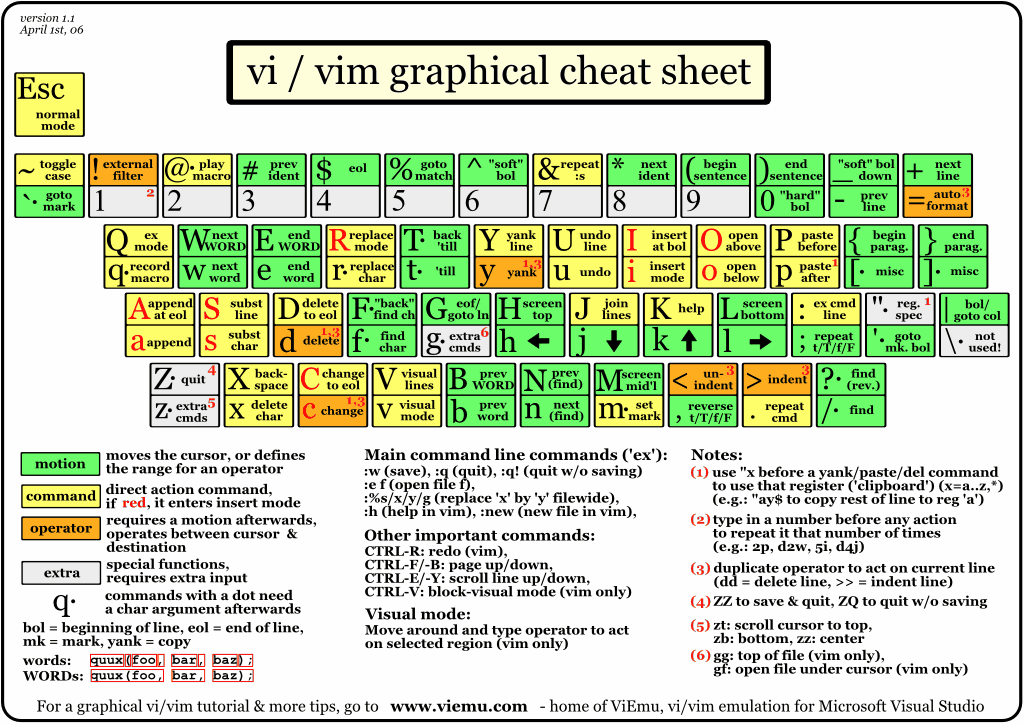
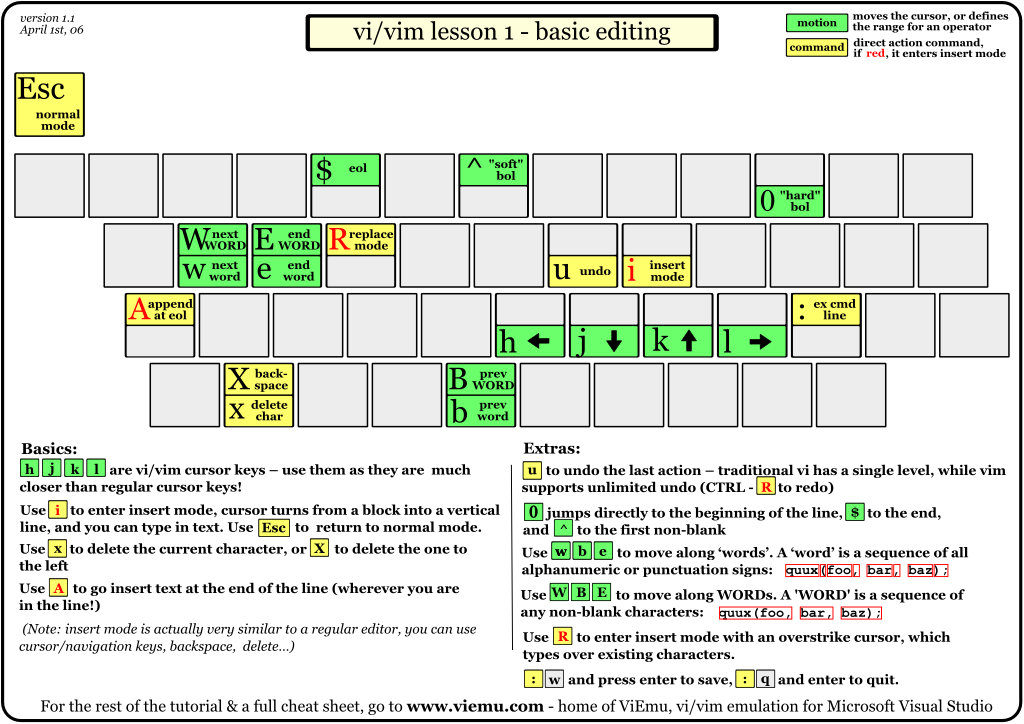
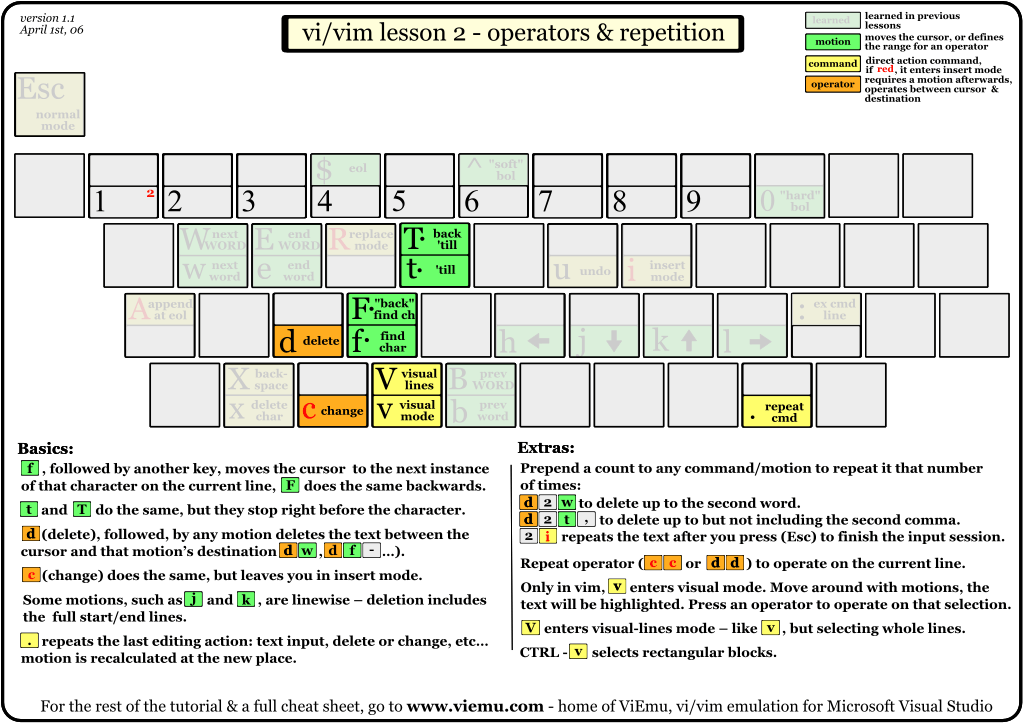
Educational maps of the location of teams in pictures. Taken from here:
http://www.viemu.com/a_vi_vim_graphical_cheat_sheet_tutorial.html
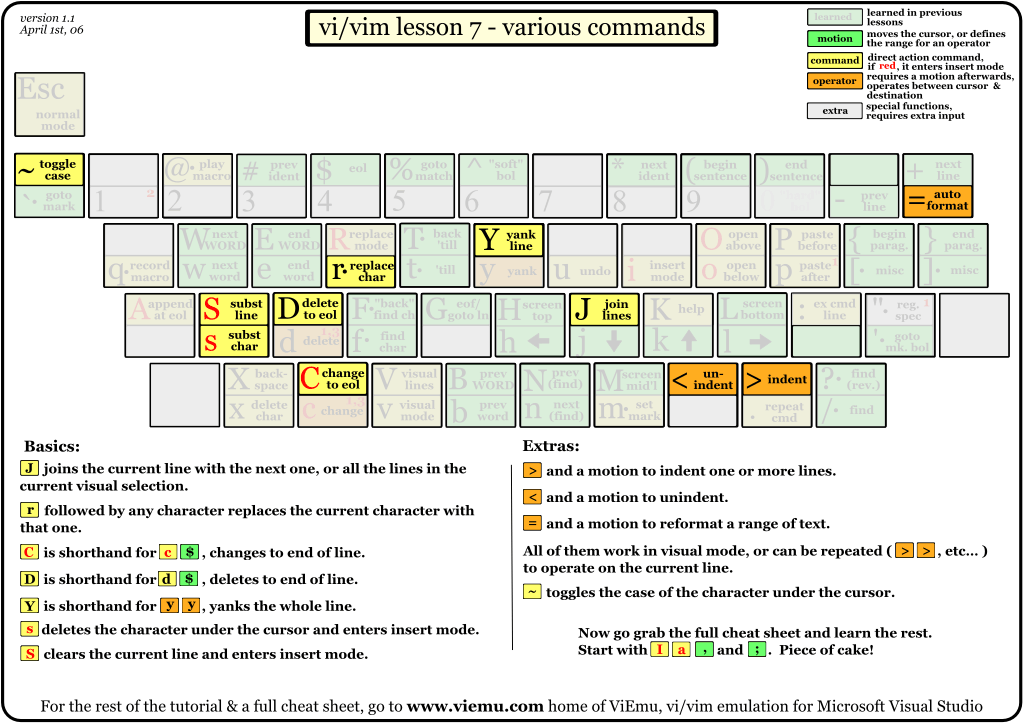
Solution of problems:
A simple solution to the command mode problem in the Russian layout, put in the ~ / .vimrc file with the contents in one line:set langmap =
ABCDEFGHIJKLMNOPQRSTUVWXYZ :, complete list; abcdefghijklmnopqrstuvwxyz
However, I noticed a single minus - in the lower right corner the input characters in command mode are no longer displayed.
* * *
This couple of lines saves a lot of time on digging into .vimrc
“## Edit .vimrc ##
map, v: vsp $ MYVIMRC
map, V: source $ MYVIMRC
The first mappit on, v .vimrc opening in a vertical window, and the second asks VIM to recalculate the file.
* * *
About the difference, which key to exit to command mode: Ctlr-C simply goes into normal mode. If
any hooks are hung by some plugins to exit insert mode , then when you press
Ctrl-C vim will ignore them, and when you press Esc or Ctrl- [will launch. ( th )
* * *
Q (shift + q) - not a command input mode. This is a transition to legacy Ex mode, supported only for compatibility. You should not use it. To return to normal mode, type “visual”.
* * *
List of used and recommended literature:
- Articles on the hub:
https://habrahabr.ru/hub/vim/ - Why, why, these #? @! morons use vi? (great article! And the comments just burn)
https://habrahabr.ru/post/307084/ - Vim and Cyrillic: a couple of tricks
https://habrahabr.ru/post/98393/ - Already a whole book was washed down on this vim, I wonder. Found
on a file washhere:
http://mirrors.pdp-11.ru/_books/desktop%20soft/vim/ - Direct link to a book:
O'Reilly - Learning the vi and Vim Editors 7th Edition (translation) .pdf - The book "Just About Vim" ("A Byte of Vim") is a Russian translation.
Download in .odt or .pdf format - Vimtouch for Android. If ready in googleplay:
https://github.com/momodalo/vimtouch - 100 vim commands every http://scabere.livejournal.com/62886.html should know
- Windows and buffers - Navigation
https://habrahabr.ru/post/28572/ - Vim Golf - Tasks and Solutions for vim
http://www.vimgolf.com/ - Many tricks for working with vim
http://najomi.org/vim - We configure Vim under Python
https://habrahabr.ru/post/74128/ - VIM as an IDE for development on Python
https://habrahabr.ru/post/224979/ - Vim as an IDE for web development
https://habrahabr.ru/post/53435/ - Windows and buffers
https://habrahabr.ru/post/28572 - Multi-window file editing mode in Vim
https://www.opennet.ru/tips/1714_vip_edit_text.shtml - A good, almost like a vimtutor, video tutorial cycle on vim.
https://www.youtube.com/playlist?list=PLcjongJGYetkY4RFSVftH43F91vgzqB7U