April 26, 2017 at 00:21
How to properly configure a firewall or Check Point Security Best Practices

I am sure that the majority of system administrators or network engineers had a question: " Have I configured the firewall correctly and what else can be done for better protection? ". Naturally, in this matter it is worth relying on various manuals (PCI DSS, ISO, NIST, etc.) and common sense. The help of more experienced colleagues is also welcome.
In the framework of this article, we will try to describe the main recommendations or best practices for setting up firewalls. This is a “checklist”, following which you can significantly improve the quality of network protection. The manual was written specifically for Check Point equipment, but it can also be used as the basis for an independent audit of a network built on equipment of other vendors (Cisco, Fortinet, Palo Alto, etc.). If you are interested, then welcome to the ...
Compliance Blade
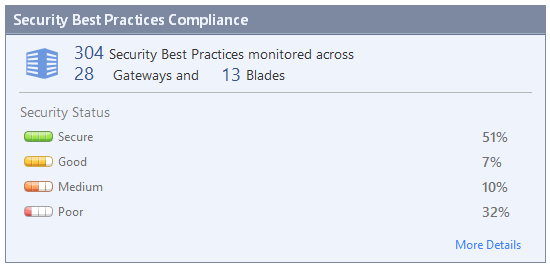
Generally speaking, in the case of Check Point, an audit of the “correctness” of settings can be performed automatically. This is done using the Compliance software blade, which is activated on the management server:

This blade performs the following functions:
- 24/7 Software Blade Monitoring
- Continuous monitoring to ensure that the management system, software blades and security gateways are optimally configured.
- Shows incorrect configuration settings and security vulnerabilities.
- Provides recommendations for enhancing security.
- Real time notifications
- Shows how a configuration change will affect security.
- Notifies you of policy changes that adversely affect security.
- Teaches users what the consequences of the desired changes will be.
- Ready reports
- Translates thousands of regulatory requirements into practical guidelines.
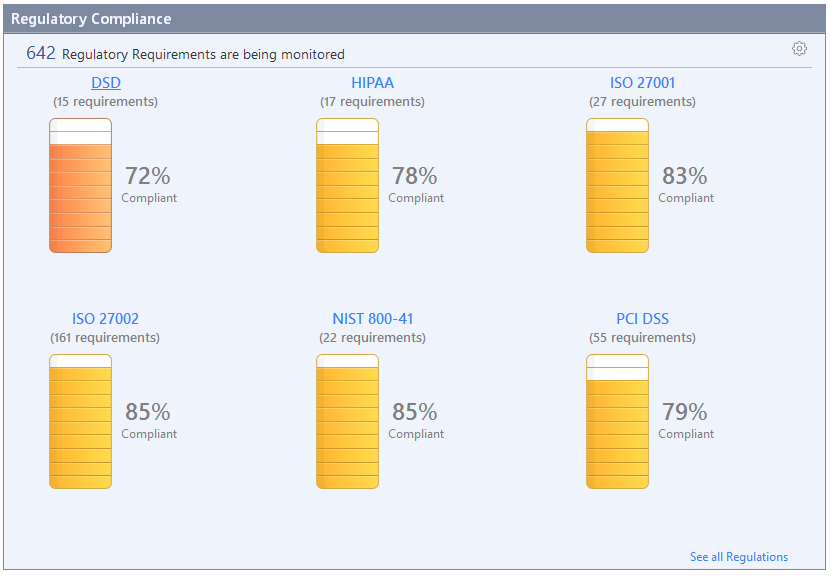
- Continuous assessment of compliance with regulatory requirements (PCI DSS, ISO, NIST, DSD, and so on).
Evaluation of settings:
Evaluation of compliance with regulatory requirements:
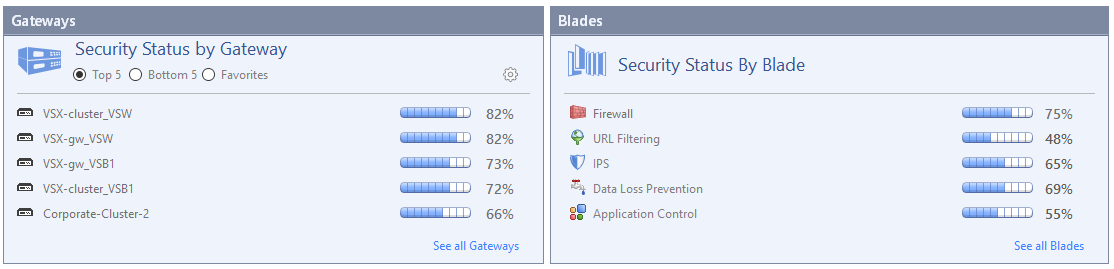
Evaluation of the performance of individual gateways and blades:
Compliance blade comes free with a 1-year subscription when you purchase a management server (whether it is a physical appliance Smart-1 or a virtual machine). This time is quite enough for the comprehensive setup of security tools with the subsequent evaluation of configurations. Thus, in the first year you get a free audit of network security (Check Point settings).
If you have never activated this blade before, then it is very simple to do this in the properties of the Management Server (Management Server), as shown in the picture above. After that, install the policies and wait a while (depending on the size of the network and the number of gateways). The result of the configuration evaluation can be found on the corresponding Compliance tab in the SmartDashboard:

It is worth noting that the further use of the Compliance blade requires the extension of the corresponding subscription, the price of which does not always correspond to the budget of small and medium-sized companies.
What to do after the end of the subscription?
Especially for such cases, we created this manual, which will allow you to manually check the “adequacy” and safety of the current settings in accordance with the recommendations of Check Point. At the same time, we will not consider the standards of various regulators (PCI DSS, ISO, etc.), but only touch on the best practices (Best Practices) for setting up network protection.
Firewall Best Practices
1. There is a Management rule (the name may differ):

This rule is used to access the Security Gateway from the management server and the administrator's computer. The rest should be denied access.
2. There is a Stealth rule (name may vary):

This rule is used to block any attempt to access the gateway itself, which makes it “invisible” and excludes the possibility of unauthorized access. Make sure this rule is lower than Management.
3. There is a Clean up rule (the name may differ):

By default, Check Point blocks all connections that are not explicitly allowed. This rule is used exclusively for logging all packets that would have been blocked without it. The rule must be the last on the list.
4. There is a Do Not Log rule (the name may differ) for which logging is disabled:

This rule is used to filter “spurious” broadcast traffic. Such traffic includes: udp-high-ports (UDP ports> 1024-65535), domain-udp, bootp, NBT (NetBios), rip (the list may differ, depending on your network). Logging is turned off intentionally so as not to overload the firewall logs with useless information. The rule should be as high as possible in the list (better first).
5. In the access lists in the source column, the value Any is missing; any traffic. Always indicate the specific source in the rules, whether it is a network or a host. Except Stealth, Clean up rule, Do Not Log.
6. There are no rules allowing all traffic (any any accept).
7.Inbound Internet traffic is prohibited for the segments of Accounting (Finance) and Human Resources (HR).
8. FTP traffic from the Internet to the DMZ is prohibited.
9. There are no unused rules. In the SmartDashboard console, you can view the hit counter for each access list:
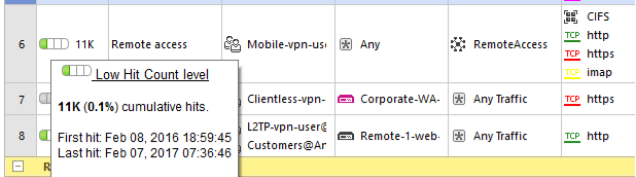
If the counter shows a zero value or the last hit was more than 6 months ago, it is recommended to delete this rule so as not to overload the general list.
10. For all the rules, the Log option is set in the Track field. In addition to the Do Not Log rule. So you can log all important events except broadcast traffic.
11. For all the rules, an “adequate” name is indicated and there is a comment explaining the purpose of this rule.
12. Logging is enabled on all gateways.
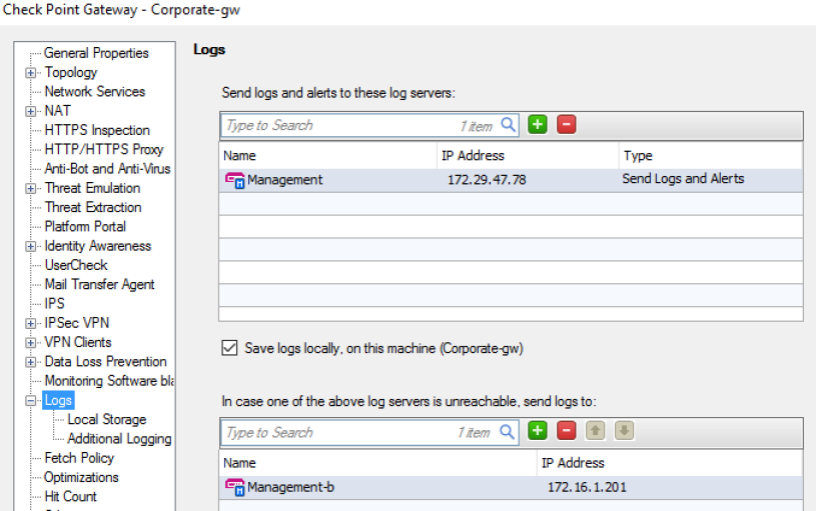
The Management Server or another third-party solution can be used as a Log Server (SIEM or Log Management systems can be used).
13. A backup Log server is configured on all gateways. This will save important messages in case of failure of the main Log server.
14. On all gateways, the function of local storage of logs is also enabled. This will save information about events in case the Log server is unavailable.
15. All gateways are configured to create a new log file when a certain size of the old one is reached.
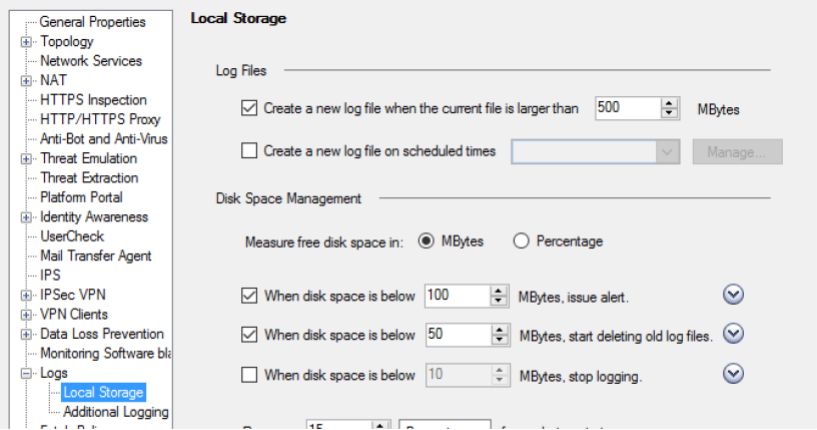
This will significantly speed up the processing of logs (display, search). You can return to the older logs by switching the log file.
16.All gateways are configured with notifications that indicate running out of disk space. The response level is selected depending on the total hard disk capacity. As a rule, the threshold is set in the region of 50-100 MB.
17. All gateways are configured to delete old Log files with running out of disk space. The response level is selected depending on the total hard disk capacity. As a rule, the threshold is set in the region of 50 MB.
18. Scripts are executed on all gateways, which are executed before deleting old Log files.
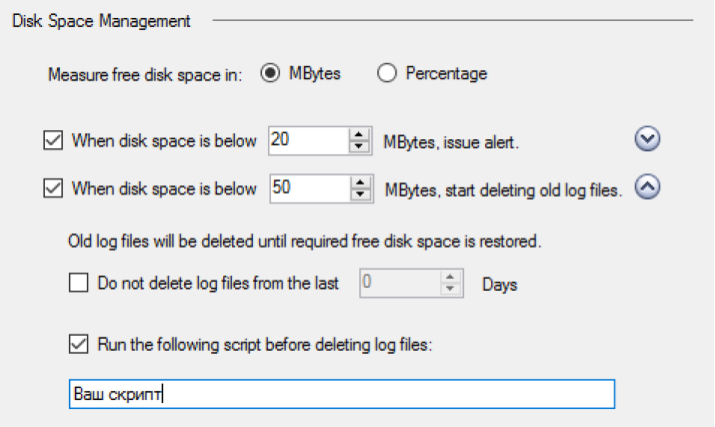
Using this function, you can verify that log backups are created.
19.Logging for “VPN packet handling errors”, “VPN successful key exchange”, “VPN configuration & key exchange errors”, “Administrative notifications”, “Packet is incorrectly tagged” and “Packet tagging brute force attack” is enabled in the global settings:
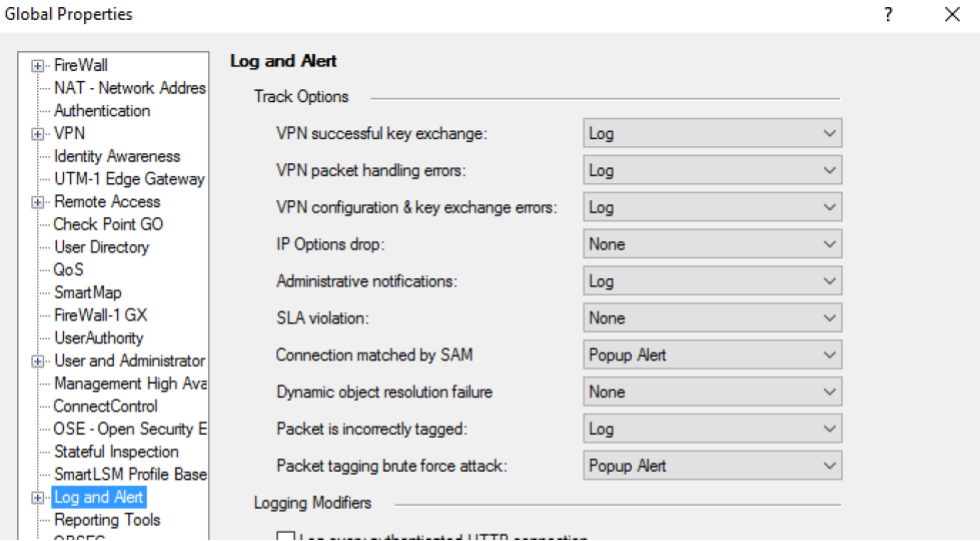
20 . on all gateways included in the Anti-Spoofing prevent mode (for all interfaces):

21. The global setting (global properties), check the value of time slots by default for stateful inspection:
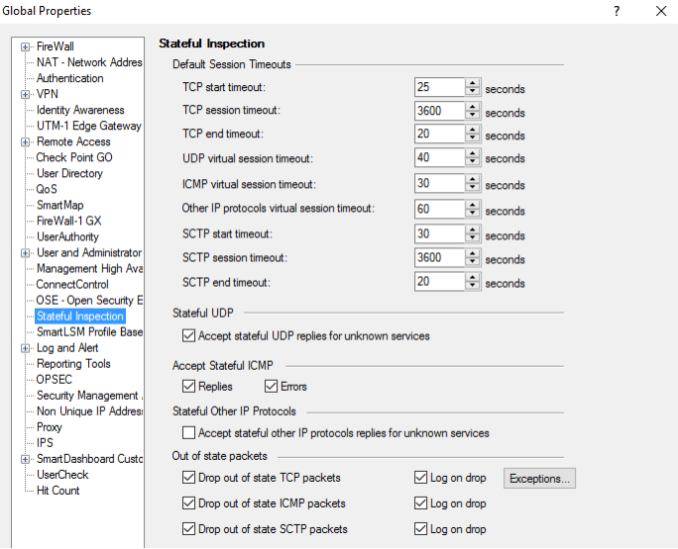
change in accordance with the requirements of your network in case of need.
22. For the fields “Drop out of state TCP packets”, “Drop out of state ICMP packets” and “Drop out of state SCTP packets” Log on drop is enabled (see the picture above).
23.Hit Count is included in the properties of each gateway.

This will allow you to see the number of matches for each rule (access list) and delete unused ones.
24. In the gateway optimization settings, specify the maximum number of concurrent sessions.

This parameter depends on the gateway model and helps prevent congestion.
25. In the global settings (global properties), the passwords of user accounts (User Accounts) and administrators (Administartor Accounts) expire no later than 180 days later.

An expiring password alert should also be configured.
26. When integrating with Active Directory, a password change is configured:

27.In the global settings (global properties), the Administrators lock is activated. The account is blocked for 30 minutes in case of 3 unsuccessful login attempts.

A lock notification and a reset of a control session that is inactive for 15 minutes are also configured.
28. The option “Rematch connections” is set in the gateway properties.

This will allow you to block forbidden connections immediately after installing a new policy and not wait for the session to end.
29. Time synchronization (NTP)
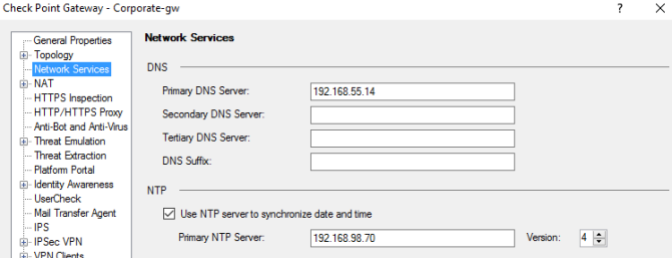
is configured. This will allow you to see the current date and time for all events (logs).
These are Check Point recommendations for setting up a Firewall blade. But I think many have noticed that most of the tips apply to other vendors. There are similar recommendations for all blades (IPS, DLP, Application Control, URL Filtering, etc.), which we may consider in the following articles.
More information on Check Point can be found on our corporate blog . And to check Check Point security settings for free, click here .