
Writing a 2d game in Java
Good day to all!
This article will describe the creation of a 2D game in Java. I warn you right away that you should at least have a basic knowledge of the Java language, since I don’t have time to explain each line in detail. And I beg you, do not just write off the code, but try to understand what each line means, and write with meaning. And yet, I use Eclipse, but you can use any IDE.
I plan to create a game resembling a shooter with a 3-person view.
Well, let's get started!
First, create a project. Let's call it "Just game." And immediately create the class Display.java. We write in it:
Now let's figure out what we did.
we create a frame that will be displayed when our game starts
set the operation that will occur when you click on the cross. EXIT_ON_CLOSE - exit the program
set our frame to the maximum size, remove the scenery (minimize, close, reduce / enlarge buttons, etc.), i.e. make the game full screen. If you want the game to not be full screen, then use:
Just do not forget, all the settings for the frame must be written before you make it visible
Well, well, now click "Run" and try to run our game. If everything is written correctly, you should not have errors and an empty, gray window should appear.
The gray window ... How boring ... Let's create something more interesting.
Create a new class called "Main". Our main class will be a panel that we will insert into the frame, so it should expand JPanel. (For those who do not know, expand is written as extends after the class name) We
return to the Display class and after setting the frame, but before setting its visibility, we write:
You ask - "Well, why did we do this?" Imagine a picture. This picture is our ultimate game. Now imagine the frame. Without anything inside, just an empty frame. Nothing can be drawn on it, it is useless. To do this, we inserted an empty sheet into the picture, on which the program can draw a picture in the future. This concludes our lyrical digression and return to the Main class.
We need to render, so we must add the paint method. For this we write:
Well, for starters, we can write a line drawing inside this method. For this we write:
Now we launch the program, and we see:

Yeah-hh, not a
lot ... Let's draw some picture. For example this:
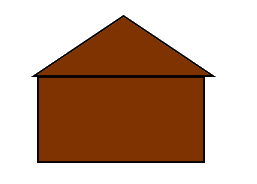
To get started, we need to specify the path to the picture. For this, not in the paint method, we write:
(first you need to drop a picture into our project and name it 2.png)
After that, delete the line for drawing the line, and instead write to the paint method:
Let's take a closer look at the drawImage method, since we will often touch it.
drawImage (the picture we will draw, which we announced earlier, the X coordinate with which the picture will be drawn, the Y coordinate with which the picture will be drawn, paint);
I would also like to talk about the paint parameter. Best of all, leave it null. I only came across once when I needed to use paint. This was when I rendered the text, and set the font size to it. But I advise you not to go there and use null.
Now run the program, and see:

Something is small, is not it? Let's learn how to increase its size. Add parameters to drawImage () so that it turns out:
What have we added now? These two parameters stretch the picture to the coordinates of 1920 and 1080. It turns out that the picture is full screen. Let's run the program and check it out.
It turns out:
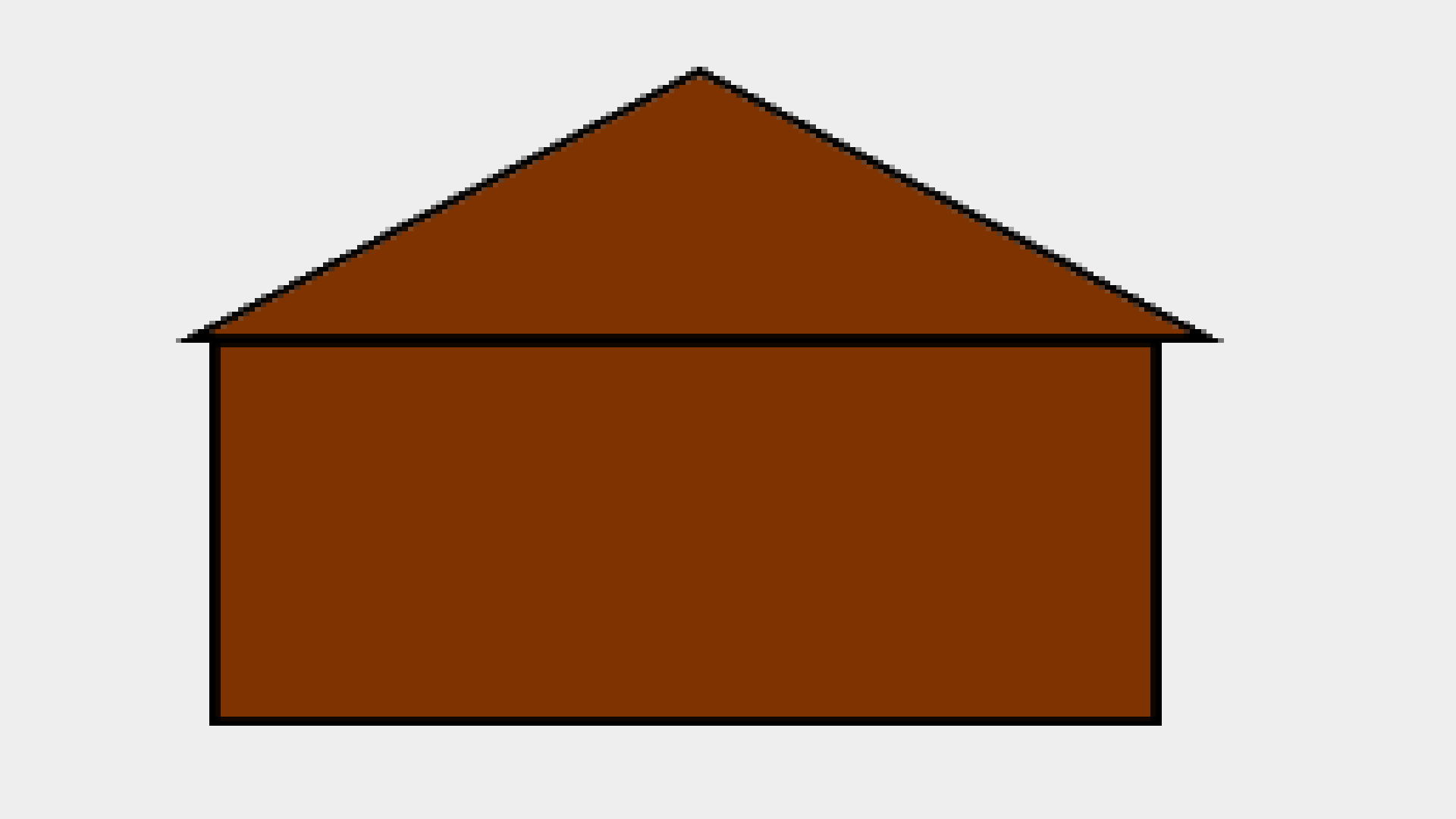
Well, finally. Now we can stretch any pictures to full screen. But here is the problem. The paint method is called only once. And how to update it constantly? There is a very useful thing for this - a timer. Let's create it.
For this we write:
(20 is the frequency with which the timer is updated, this- where to execute the method when updating the timer
This should be entered immediately after the class definition line, i.e. after:
Also, it is necessary to supplement the class definition line in this way:
After writing this line, your class name should be underlined in red. To fix this, add a method at the very end of the class:
This method will be executed when the timer is updated. In it we must write repaint (); so that with each update of the timer, all the elements would be erased and drawn again.
Next, we must start the timer. To do this, create the constructor of the Main class and write to it:
After that, you can not run the program, because nothing will change in it. Let's replace the texture of the house with the normal texture of the map. You can draw it yourself, or copy a trial one from me:
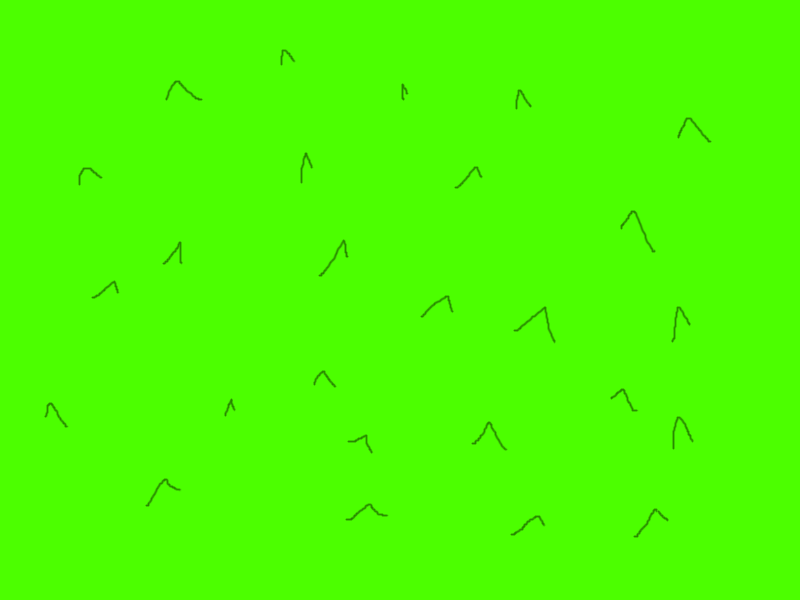
The image size can be any, anyway its size will be adjusted directly in the program. Oh yes, computer permissions can be different, so add such things to the constructor:
And before the constructor add:
And let's go to the Display.java class and change the frame.add method a little:
Thus, our frame will be passed to the Main.java class. Go to this class, and where we have the paint () method, change the line drawImage () to:
Thus, now our game will render the picture in full screen, regardless of its resolution. Launch:
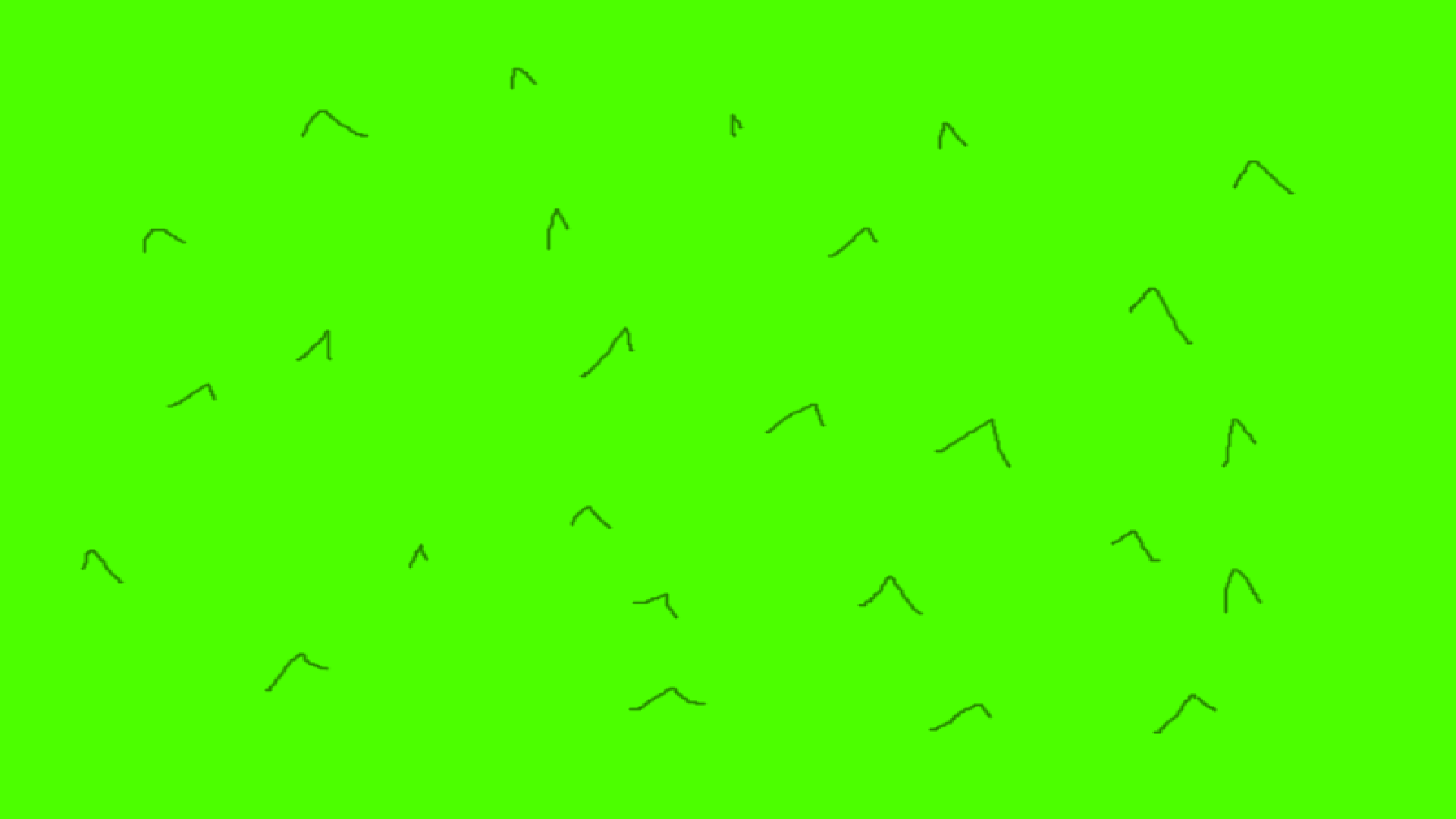
That's it for today. I leave the code for those who are confused:
Thanks for attention!
Continuation of habrahabr.ru/post/326302
This article will describe the creation of a 2D game in Java. I warn you right away that you should at least have a basic knowledge of the Java language, since I don’t have time to explain each line in detail. And I beg you, do not just write off the code, but try to understand what each line means, and write with meaning. And yet, I use Eclipse, but you can use any IDE.
Task:
I plan to create a game resembling a shooter with a 3-person view.
Start:
Well, let's get started!
First, create a project. Let's call it "Just game." And immediately create the class Display.java. We write in it:
public static void main(String[] args) {
		JFrame frame = new JFrame(/* название нашей игры */);
		frame.setDefaultCloseOperation(JFrame.EXIT_ON_CLOSE);
		frame.setExtendedState(JFrame.MAXIMIZED_BOTH);
		frame.setUndecorated(true);
		frame.setVisible(true);
	}
Now let's figure out what we did.
JFrame frame = new JFrame(/*название нашей игры*/);we create a frame that will be displayed when our game starts
frame.setDefaultCloseOperation(JFrame.EXIT_ON_CLOSE);set the operation that will occur when you click on the cross. EXIT_ON_CLOSE - exit the program
frame.setExtendedState(JFrame.MAXIMIZED_BOTH);
frame.setUndecorated(true);
set our frame to the maximum size, remove the scenery (minimize, close, reduce / enlarge buttons, etc.), i.e. make the game full screen. If you want the game to not be full screen, then use:
frame.setSize(/*ширина*/,/*высота*/);
frame.setResizable(false); //false чтобы нельзя было бы поменять размеры рамки, true -можноframe.setVisble(true);Just do not forget, all the settings for the frame must be written before you make it visible
Well, well, now click "Run" and try to run our game. If everything is written correctly, you should not have errors and an empty, gray window should appear.
The gray window ... How boring ... Let's create something more interesting.
Create a new class called "Main". Our main class will be a panel that we will insert into the frame, so it should expand JPanel. (For those who do not know, expand is written as extends after the class name) We
return to the Display class and after setting the frame, but before setting its visibility, we write:
frame.add(new Main());You ask - "Well, why did we do this?" Imagine a picture. This picture is our ultimate game. Now imagine the frame. Without anything inside, just an empty frame. Nothing can be drawn on it, it is useless. To do this, we inserted an empty sheet into the picture, on which the program can draw a picture in the future. This concludes our lyrical digression and return to the Main class.
We need to render, so we must add the paint method. For this we write:
public void paint(Graphics g) {
//отрисовка всех объектов
}
Well, for starters, we can write a line drawing inside this method. For this we write:
g.drawLine(20, 20, 100, 100);Now we launch the program, and we see:
Yeah-hh, not a
lot ... Let's draw some picture. For example this:
To get started, we need to specify the path to the picture. For this, not in the paint method, we write:
Image img = new ImageIcon("2.png").getImage();(first you need to drop a picture into our project and name it 2.png)
After that, delete the line for drawing the line, and instead write to the paint method:
g.drawImage(img, 0, 0, null);Let's take a closer look at the drawImage method, since we will often touch it.
drawImage (the picture we will draw, which we announced earlier, the X coordinate with which the picture will be drawn, the Y coordinate with which the picture will be drawn, paint);
I would also like to talk about the paint parameter. Best of all, leave it null. I only came across once when I needed to use paint. This was when I rendered the text, and set the font size to it. But I advise you not to go there and use null.
Now run the program, and see:
Something is small, is not it? Let's learn how to increase its size. Add parameters to drawImage () so that it turns out:
g.drawImage(img, 0, 0, 1920, 1080, null);What have we added now? These two parameters stretch the picture to the coordinates of 1920 and 1080. It turns out that the picture is full screen. Let's run the program and check it out.
It turns out:
Well, finally. Now we can stretch any pictures to full screen. But here is the problem. The paint method is called only once. And how to update it constantly? There is a very useful thing for this - a timer. Let's create it.
For this we write:
Timer timer = new Timer(20, this);(20 is the frequency with which the timer is updated, this- where to execute the method when updating the timer
This should be entered immediately after the class definition line, i.e. after:
public class Main extends JPanel{Also, it is necessary to supplement the class definition line in this way:
public class Main extends JPanel implements ActionListener{After writing this line, your class name should be underlined in red. To fix this, add a method at the very end of the class:
@Override
	public void actionPerformed(ActionEvent e) {
		// TODO Auto-generated method stub
	}
This method will be executed when the timer is updated. In it we must write repaint (); so that with each update of the timer, all the elements would be erased and drawn again.
Next, we must start the timer. To do this, create the constructor of the Main class and write to it:
timer.start();After that, you can not run the program, because nothing will change in it. Let's replace the texture of the house with the normal texture of the map. You can draw it yourself, or copy a trial one from me:
The image size can be any, anyway its size will be adjusted directly in the program. Oh yes, computer permissions can be different, so add such things to the constructor:
public Main(JFrame frame) {
timer.start();
this.frame = frame;
}
And before the constructor add:
JFrame frame;And let's go to the Display.java class and change the frame.add method a little:
frame.add(new Main(frame));Thus, our frame will be passed to the Main.java class. Go to this class, and where we have the paint () method, change the line drawImage () to:
g.drawImage(img, 0, 0,frame.getWidth(), frame.getHeight(), null);Thus, now our game will render the picture in full screen, regardless of its resolution. Launch:
That's it for today. I leave the code for those who are confused:
Display.java
import javax.swing.JFrame;
public class Display {
	public static void main(String[] args) {
		JFrame frame = new JFrame("JustGame");
		frame.setDefaultCloseOperation(JFrame.EXIT_ON_CLOSE);
		frame.setExtendedState(JFrame.MAXIMIZED_BOTH);
		frame.setUndecorated(true);
		frame.add(new Main(frame));
		frame.setVisible(true);
	}
}
Main.java
import java.awt.Graphics;
import java.awt.Image;
import java.awt.event.ActionEvent;
import java.awt.event.ActionListener;
import javax.swing.ImageIcon;
import javax.swing.JFrame;
import javax.swing.JPanel;
import javax.swing.Timer;
public class Main extends JPanel implements ActionListener{
	Image img = new ImageIcon("2.png").getImage();
	Timer timer = new Timer(20, this);
	JFrame frame;
	public Main(JFrame frame) {
		this.frame = frame;
	}
	public void paint(Graphics g) {
		g.drawImage(img, 0, 0,frame.getWidth(), frame.getHeight(), null);
	}
	@Override
	public void actionPerformed(ActionEvent e) {
		// TODO Auto-generated method stub
		repaint();
	}
}
Thanks for attention!
Continuation of habrahabr.ru/post/326302