
 February 13, 2017 at 13:56
Broadcast WebRTC video stream from a browser to YouTube Live in 65 lines of JavaScript / HTML code
In this article, we will describe how Youtube Live broadcasts work and show how a person with basic JavaScript knowledge can encode a Youtube Live broadcast from an HTML page using WebRTC technology.
To work categorically, the following knowledge and skills will be required:
1) Basic knowledge of JavaScript / HTML
2) The ability to work on the Linux command line.
3) Straight arms.
Youtube Live Broadcasts
Youtube gives you the opportunity to broadcast in real time. Those. not just upload the video, but create a full-fledged live broadcast of yourself, your murzik cat or other important event.
The YouTube television studio is located on this page and in the Google Chrome browser looks like this:

In order to make the broadcasts available, you need to click the Enable live streaming button and pass the verification in two steps. Then the button turns into Create live event and you can start broadcasting.
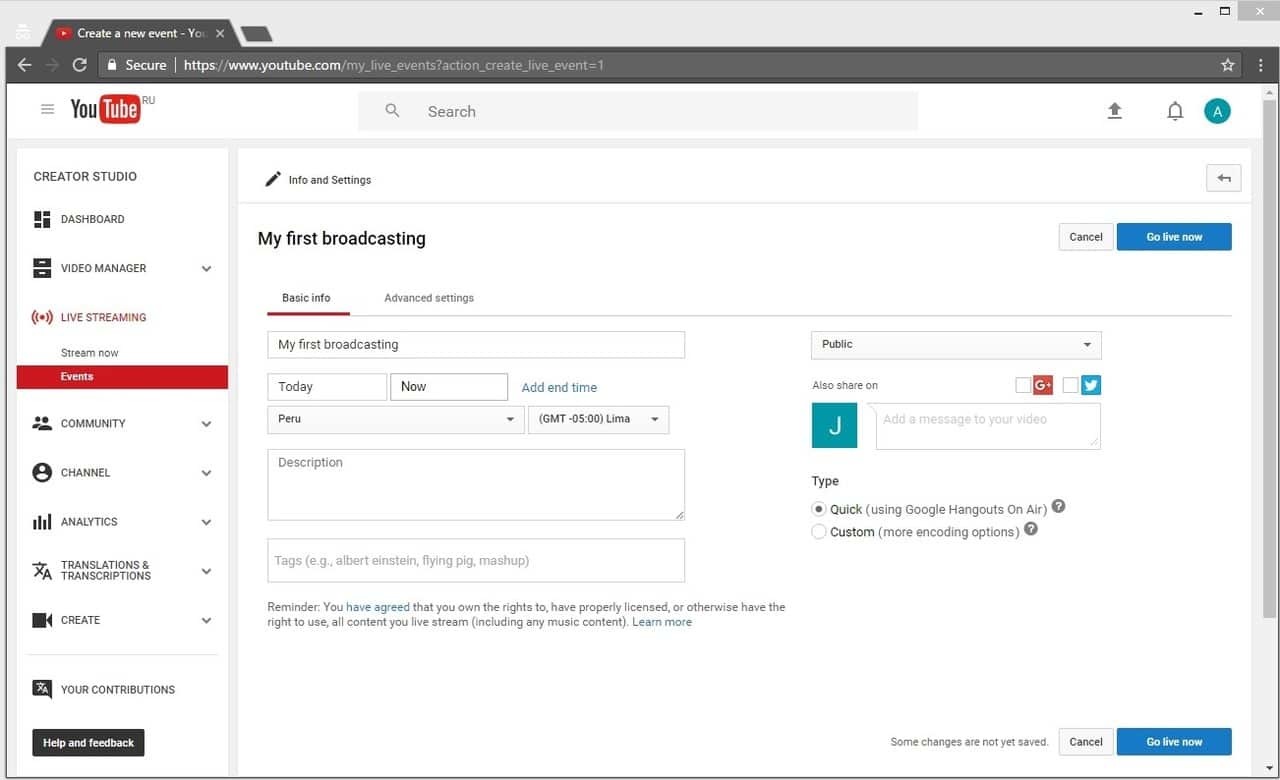
Click Go live now to go directly to the broadcast.
Youtube opens Google Hangouts window through which all manipulations with the video stream are carried out.
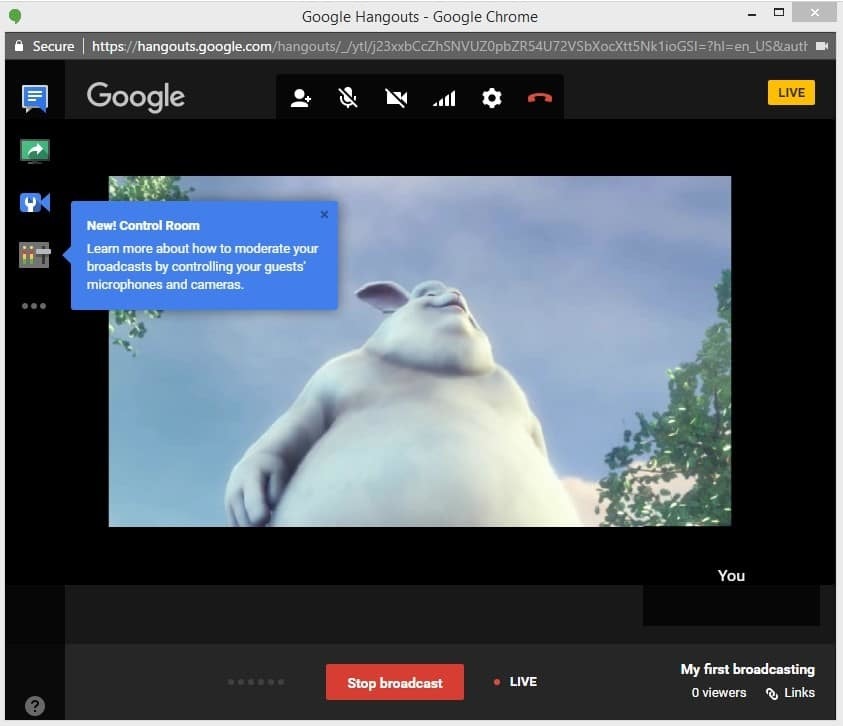
Thus, we created a live broadcast on Youtube Live, started broadcasting, stopped broadcasting. Got a video recording on Youtube. Broadcast took place using Google Hangouts.
Everything is great, but judging by IT news , Google has been closing the Hangouts API for developing video applications since April 25, 2017. For developers, this means that using the Hangouts API it will no longer be possible to make your own custom application that streams video, including on Youtube.
Broadcast with RTMP live encoder
Next, we’ll look at an alternative version of creating a broadcast that is not tied to Google Hangouts and allows you to broadcast a video stream from a specialized video capture device (RTMP Live Encoder).
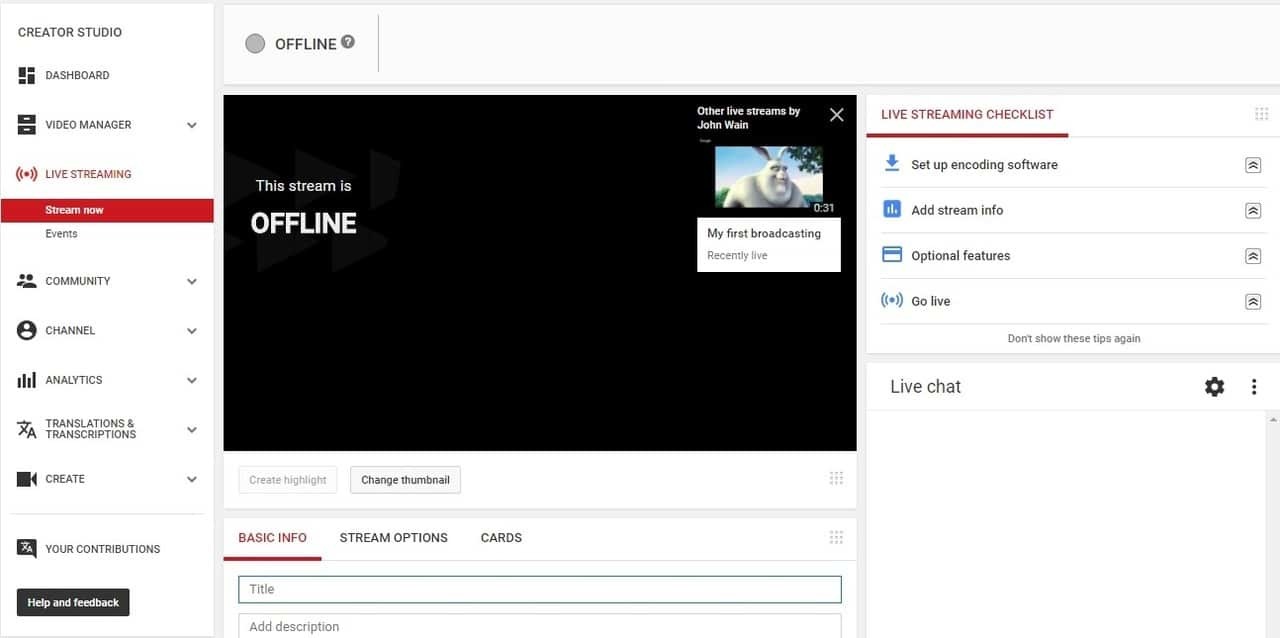
If we click on the Stream Now button, we get into the familiar interface for creating a broadcast.
The most important part is the encoder settings:
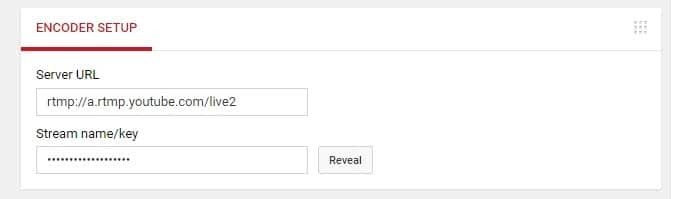
As you can see, there are only two fields:
1) Server URL
2) Stream name / key
If you click the Reveal button , the name of your stream will be displayed and will be available for copying.
This data is enough to send a video stream from RTMP Live Encoder to Youtube Live from any location and any computer, without using Google Hangouts. RTMP Live Encoder (aka encoder) is a device or software that captures the stream from a webcam or a professional video camera, encodes the video into the RTMP protocol and sends it to the specified address (Encoder setup).
To get high-quality audio and video stream, you need to use standard codecs for Live Encoders, namely H.264 video codec and AAC audio codec. This combination of codecs is the most common and reliable and is the actual standard of application in RTMP when using stand-alone encoders.
For example, the Adobe Flash Player browser plug-in is also an encoder and can stream video directly from the browser’s web page, but it does not support AAC audio codec for streaming and therefore there may be problems with broadcasting, namely, there may be no sound.
Therefore, we immediately take into testing only those encoders that explicitly support H.264 and AAC codecs. At the moment, we are aware of two test candidates who use these codecs:
Adobe Flash Media Live Encoder on Mac OS is a free software encoder from Adobe that can encode RTMP streams in H.264 and AAC. Please note that AAC audio codec is only supported in the FMLE version for Mac OS. If you use the same software on Windows, the AAC codec will not be available. Instead, there will be mp3.
Wirecast- This is a paid encoder that has a free trial version in which a logo is inserted over the broadcast video and sound is added every 30 seconds. Wirecast has a Windows distribution.
Let's start with Adobe FMLE. We install FMLE on Mac and hook up to the computer (Mac Mini was used in the tests) webcam. With virtual cameras, FMLE does not seem to work, so you need an honest USB webcam or built-in (if you have a macbook).
Set the video codec to H.264 with a resolution of 640x480. As an audio codec, we leave the default AAC 22050 Hz mono. Other configurations and settings for H.264 and AAC should also work without problems.
In the FMS URL field, put the RTMP broadcast address that was received on Youtube.
In the Stream field, put the name of the stream, which was again received on Youtube.
* The field has such a strange name FMS URL because FMLE thinks that there is only one server in the world that can receive an RTMP video stream - Flash Media Server from Adobe (now Adobe Media Server), but as we see it is not so, and with this task it’s fine copes, for example, Youtube and another hundred other servers and services.
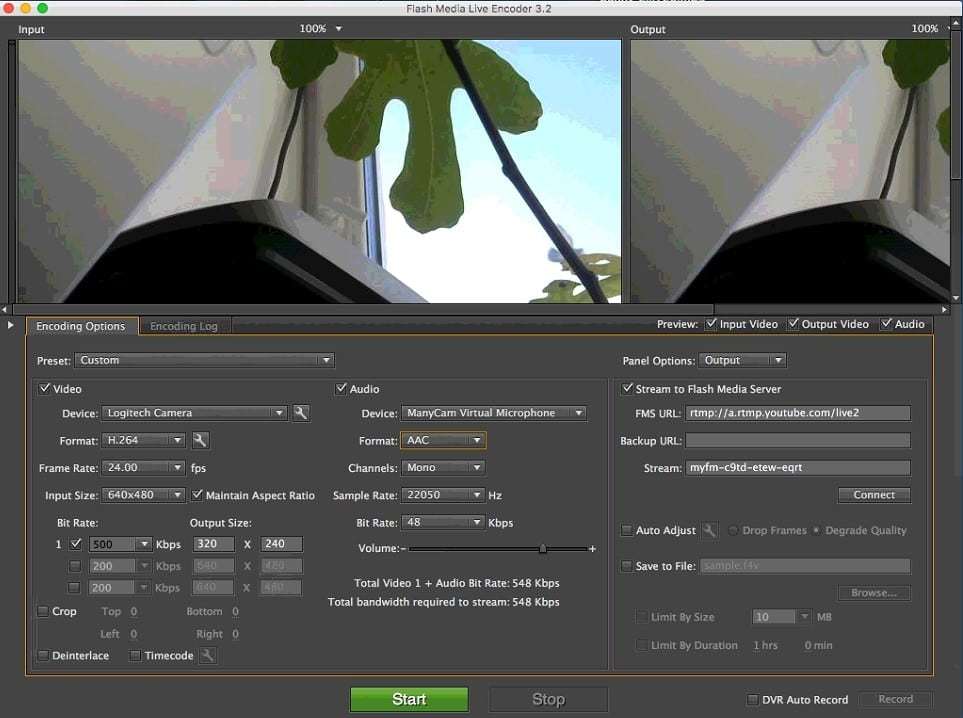
After all the settings are set, click the green Start buttonto start the broadcast and the video is sent to Youtube. The picture is a bit dull, but my Mac is overloaded and I take screenshots through Teamviewer, so I can’t count on special quality. To get a high-quality stream, take care of a high-quality high-resolution webcam and a powerful CPU, for example, a Core i7 processor and an SSD would be useful for smooth and high-quality encoding of an RTMP video stream.

Since we have achieved some success using FMLE, there is no point in testing Wirecast. If you have problems with FMLE or not Mac OS at hand, try the same with Wirecast. For example, in this article you can find several screenshots with a description of how to broadcast a video stream to Wirecast. The Wirecast encoder is interesting in that it can be used even without a webcam. Broadcast and encode in RTMP can be a regular video.
WebRTC to RTMP Conversion
Above, we conducted a test showing how to create a broadcast on the Youtube Live service and how to send an RTMP video stream encoded in H.264 + AAC to Youtube.
The next task is to do the same with WebRTC . WebRTC is a technology built into browsers that allows the browser to capture video from the camera and audio from the microphone and send it to the network. Thus, a browser that supports WebRTC can work just like a Live Encoder — capture and send. WebRTC is supported in the following browsers:
- Chrome
- Firefox
- Opera
- Chrome for Android
- Firefox for android
Those. WebRTC video streams can be sent from desktop browsers Chrome, FF and the same browsers running Android.
As a result, our task is to make the broadcast on Youtube from the Google Chrome browser from a regular HTML page, without using Google Hangouts or RTMP Live Encoder.
Three problems:
- WebRTC does not support the RTMP protocol, which requires Youtube.
- WebRTC does not support the AAC audio codec that Youtube requires.
- WebRTC in Chrome does not support the H.264 codec on mobile devices, it uses the VP8 codec.
For these three reasons, WebRTC cannot directly send the audio + video stream to Youtube Live.
Speaking of Adobe Flash Player, it has a different problem
- Does not encode audio in AAC
Therefore, regardless of whether you use a browser that supports WebRTC (Chrome) or a browser that supports Flash Player (IE or Safari), you cannot send an H.264 + AAC RTMP video stream directly from the browser.
The solution is to convert the video stream on the server side, which is shown in the diagram below.

Thus, an intermediary server appears in the broadcast, which receives the WebRTC video stream and converts it to the format that Youtube accepts.
For testing, we will use Web Call Server 5 . This is a media server with support for WebRTC technology and RTMP protocol, which has a trial version.
Our task is to install Web Call Server 5 on a Linux server and send a WebRTC video stream to it, which will be redirected to Youtube. To do this, you need a local iron server on a 64-bit Linux system or a VPS server at the host. Minimum requirements: 1 processor core and 1 gigabyte of RAM, Linux x86_64.
An old dual-core Athlon 64 bit, 1.8 GHz with CentOS 6 and 2 gigabytes of RAM installed on it was found on the local network. For experiments, we decided to use it.
The installation process is described on the developer's site.
1. Download the archive
wget https://flashphoner.com/download-wcs5-server.tar.gzWhen downloading, wget swears on certificates. I have to add a flag:
wget --no-check-certificate https://flashphoner.com/download-wcs5-server.tar.gz2. Unpack
tar -xzf download-wcs5-server.tar.gz3. Run the installer
./install.shWhen installing, it throws an error and indicates the absence of Java.
4. Install java using the package manager, and then run the installer again.
yum install java
./install.sh
During installation, the installer asks if the server is on the local network. We answer in the affirmative 'yes', after which the installer registers the local IP address of the server 192.168.1.59 in the settings.
5. Next, start the server.
service webcallserver startStarting the server takes about a minute.
6. Open the dashboard at 192.168.1.59 : 8888 in Chrome.
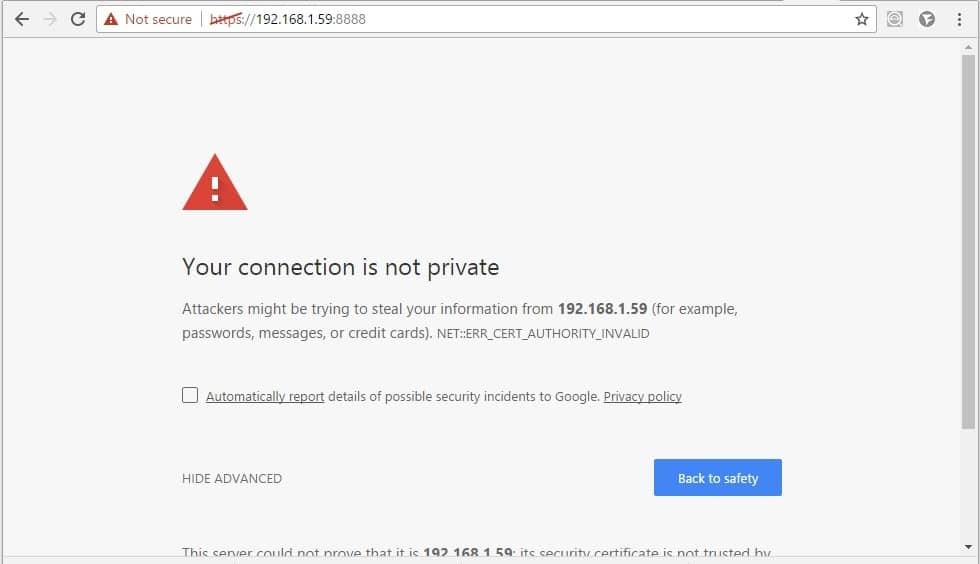
The browser is expected to complain about the lack of normal SSL certificates. Later they can be imported, for example, take free ones on letsencrypt .
Now just click Advanced / Proceed and confirm the security exception.
7. According to the development documentation, one more thing related to certificates needs to be done. You need to do the same on the page: 192.168.1.59 : 8443
This is so that the signal websocket connections also pass. WebRTC will not work without them, because It requires SDP exchange through a separate connection.
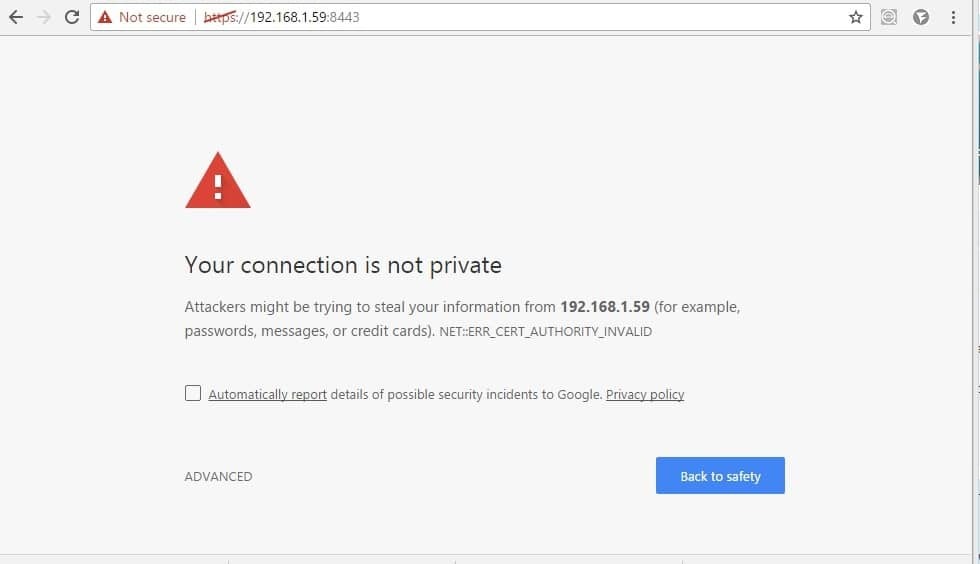
After these two certificate manipulations, the Dashboard page with demos should open. The demo we need is called WebRTC as RTMP re-publishing and looks like this:
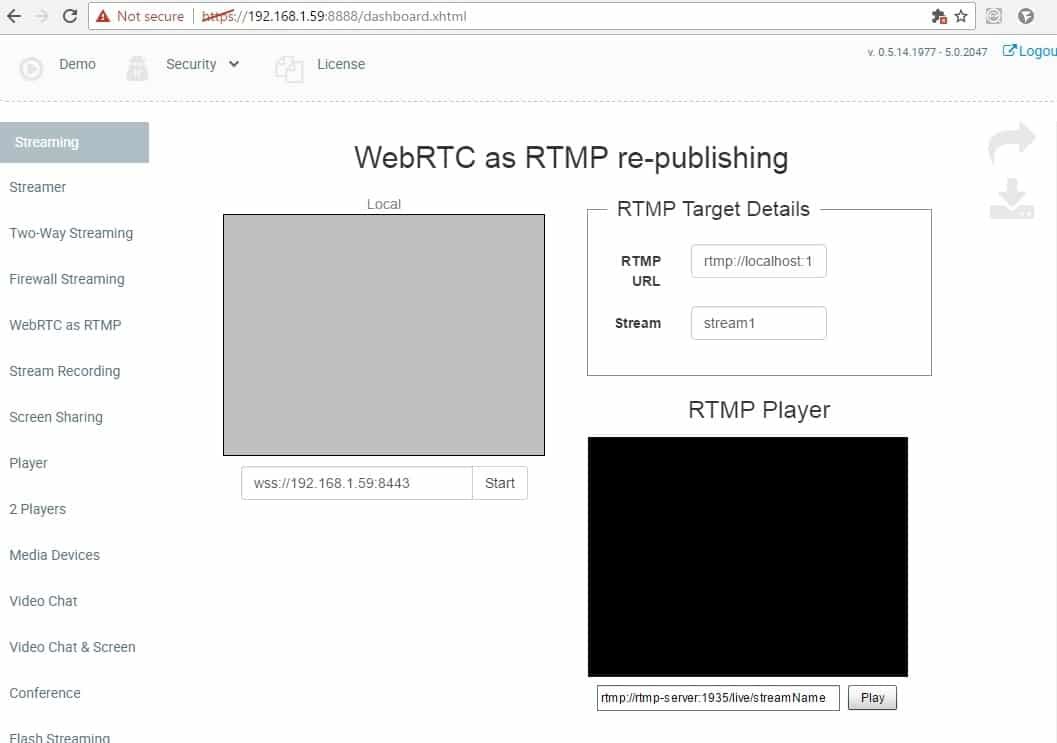
Let's test it in the Google Chrome browser. The objective of this example is to send WebRTC audio + video stream to Web Call Server 5, convert to RTMP and redirect it to a given direction.
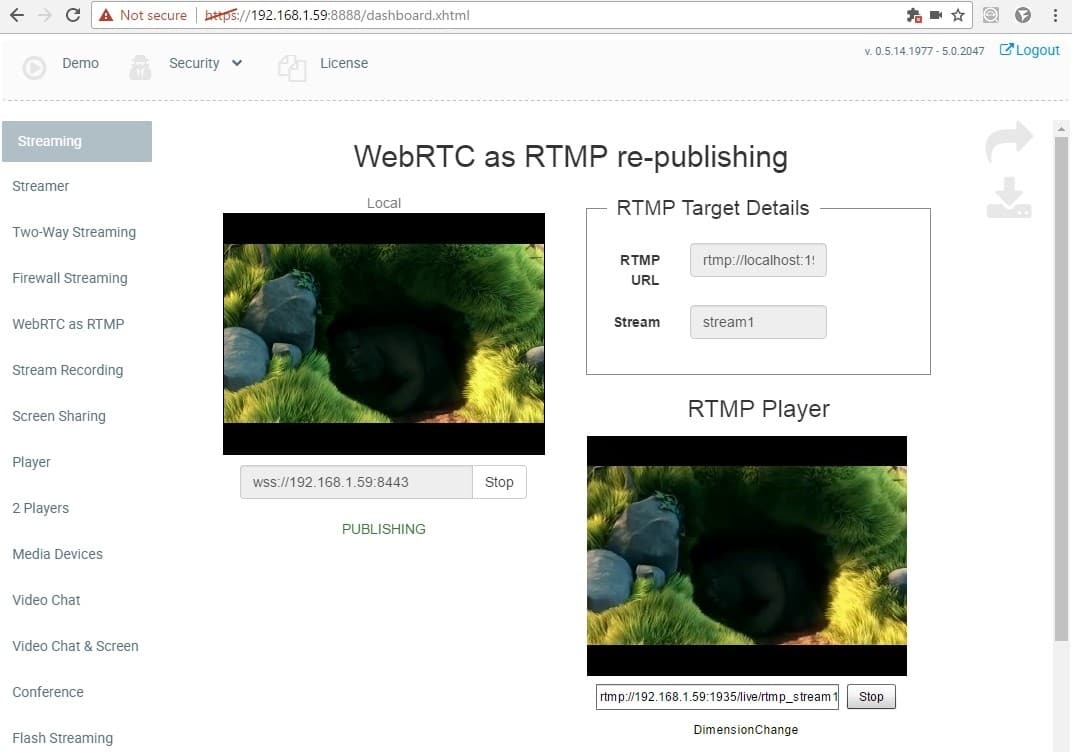
To start testing, just click the Start button and enable the use of the camera and microphone at the request of the browser.
The following occurs in the screenshot above:
1. A connection is made between the Google Chrome browser and Web Call Server 5 using the websocket protocol via a secure connection: wss: //192.168.1.59: 8443
2.WebRTC audio + video stream is sent to the server and the PUBLISHING status is displayed, which indicates the successful sending of the video stream to the server.
3. Web Call Server redirects received WebRTC audio + video stream to the specified RTMP address:
- rtmp: // localhost: 1935 / live
- stream1
Thus, the RTMP video stream is redirected to localhost, i.e. On the same server 192.168.1.59 in our case. Those. We can say that the Web Call Server received the WebRTC stream and wrapped it on itself as RTMP.
Notice how this correlates with Youtube Live. There we specified the Server URL and Stream name / key
4. Next, it remains to play the video stream in the built-in player. An address is automatically generated there and the name of the stream is affixed.
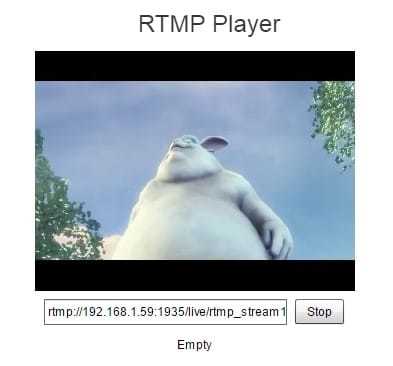
The built-in RTMP player on the page is very simple and allows you to make sure that the stream is in place and plays correctly.
The full stream address looks like this: rtmp: //192.168.1.59: 1935 / live / rtmp_stream1
Here you need to pay attention to an important detail - Web Call Server 5 substitutes the rtmp_ prefix in the stream name. Those. receives a stream called stream1, and redirects it as rtmp_stream1. This is important for testing on localhost so that the stream names are different.
Local testing was successful and it's time to send the stream to Youtube Live.
Recall that for testing Youtube Live with RTMP live video encoder we used
Server URL: rtmp: //a.rtmp.youtube.com/live2
Stream name / key: myfm-c9td-etew-eqdf
Those. Youtube expects from us the name of the video stream of just this and no other: myfm-c9td-etew-eqdf. And if the Web Call Server prefixes rtmp_, then the resulting name will be rtmp_myfm-c9td-etew-eqdf and Youtube will not accept the stream.
In order to get around this, edit the /usr/local/FlashphonerWebCallServer/conf/flashphoner.properties config on the server side.
We comment or remove the config line:
#rtmp_transponder_stream_name_prefix =rtmp_Thus, we tell the server not to prefix and redirect the received stream with the same name.

Changing this setting requires a reboot. We execute the server reboot command and wait 1 minute.
service webcallserver restartAfter rebooting, we proceed to the final stage of testing. Again, open the dashboard and WebRTC as RTMP re-publishing demo, but this time we enter the RTMP address exactly as for the Live Encoder.

And finally, open Youtube Live and see the result:
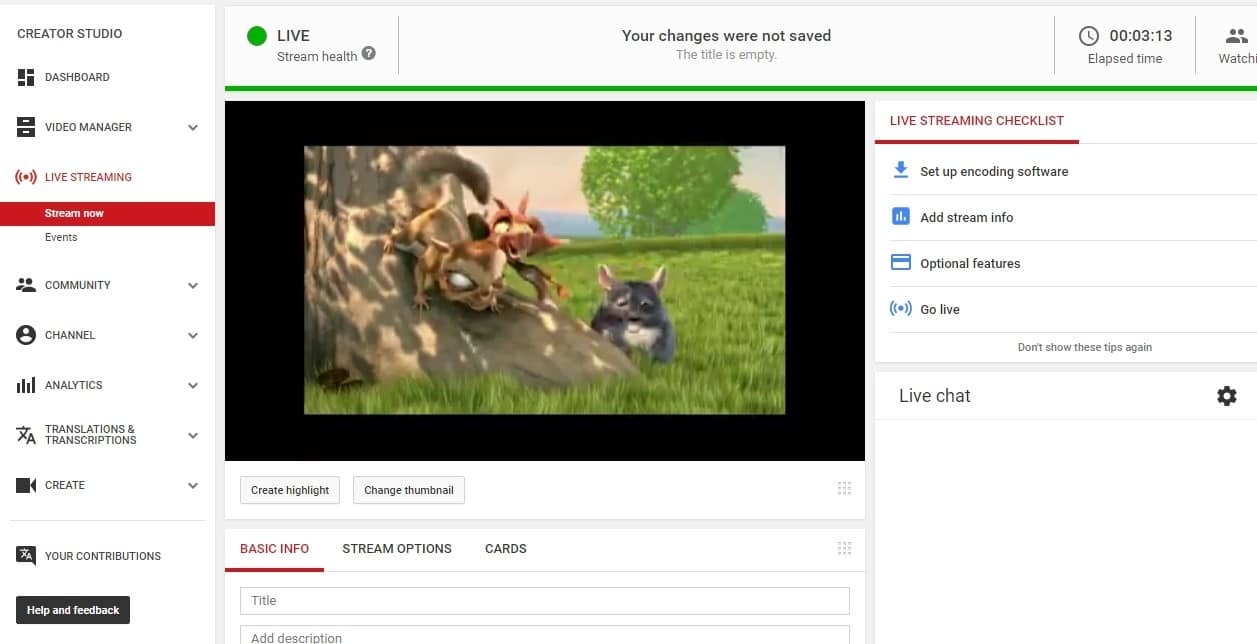
This time we managed to forward the WebRTC video stream to Youtube as RTMP and get a picture.
In the Google Chrome browser, in the chrome: // webrtc-internals tab, you can see graphs that describe the delivery of WebRTC video stream to the server:

On the Youtube side, the incoming traffic looks like this:
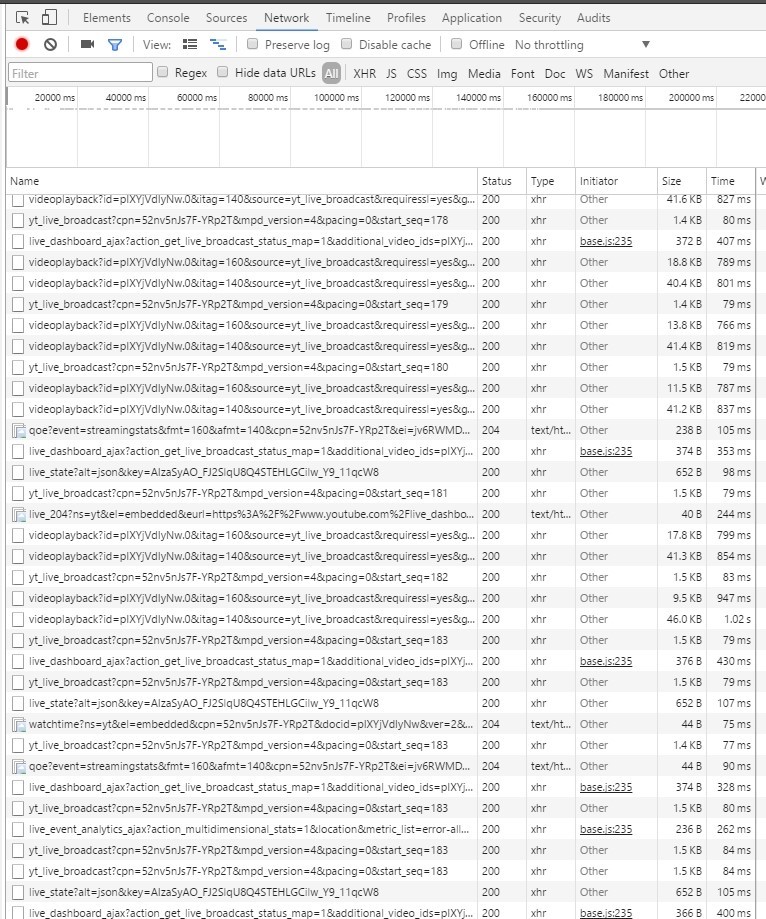
It is very similar to HTTP Live streaming (HLS) with video segments loaded via HTTP (Https).
Well, we managed to test and make sure that it really works. There is a picture, there is sound, the video stream goes directly from the browser and gets to Youtube.
Now you can move on to programming. Namely, we would like to be able to do the same from a simple HTML page and in the future from our website or web application.
Programming an HTML Page Submitting WebRTC to Youtube
The easiest way would be to figure out the example by downloading three source files: HTML, JavaScript, CSS. But we are not looking for easy ways and want to create a minimal page from scratch (from scratch, so to speak).
We start by creating the test-webrtc-youtube.html disc
Now you need to download the flashphoner.js script, which does all the work related to WebRTC and transferring the video stream to the server. This script is part of the Web SDK, which is available for download at this link .
Download and unpack the Web SDK on a separate server where Apache is installed (someone has Nginx).
wget https://flashphoner.com/downloads/builds/flashphoner_client/wcs_api-2.0/flashphoner-api-0.5.14.1977-48448b99eddb0da1248519290dba2d4d00d4a505.tar.gzWe create the folder / var / www / html / test-webrtc-youtube in which the html page will be located and copy the html and js files to this folder:
- test-webrtc-youtube.html
- flashphoner.js
This structure is obtained:
test-webrtc-youtube
-- flashphoner.js
-- test-webrtc-youtube.html
1. Add the following elements to the page:
   Server URL

   Stream URL:

   Stream name / key:
1) localVideo is just a div block in which the video from the webcam will be placed
2) urlServer, rtmpUrl, streamName - fields already familiar from the previous test
3) status - this field displays the status of the connection or stream
2. Add three variables :
var SESSION_STATUS = Flashphoner.constants.SESSION_STATUS;
var STREAM_STATUS = Flashphoner.constants.STREAM_STATUS;
var localVideo;
The first two are simply abbreviations. The localVideo variable will store the reference to the div element.
3. Initialize the API
function init_page() {
   Flashphoner.init();
   localVideo = document.getElementById("localVideo");
}
4. Connect to the WCS server and start streaming.
function publishToYoutube(){
   var urlServer = document.getElementById("urlServer").value;
   Flashphoner.createSession({urlServer: urlServer}).on(SESSION_STATUS.ESTABLISHED, function(session){
       //session connected, start streaming
       startStreaming(session);
   }).on(SESSION_STATUS.DISCONNECTED, function(){
       setStatus("Connection DISCONNECTED");
   }).on(SESSION_STATUS.FAILED, function(){
       setStatus("Connection FAILED");
   });
}
Upon successful connection by the ESTABLISHED event, streaming begins by calling the startStreaming
5 function . Sending a video stream.
function startStreaming(session) {
   var streamName =  document.getElementById("streamName").value;
   var rtmpUrl =  document.getElementById("rtmpUrl").value;
   session.createStream({
       name: streamName,
       display: localVideo,
       cacheLocalResources: true,
       receiveVideo: false,
       receiveAudio: false,
       rtmpUrl: rtmpUrl
   }).on(STREAM_STATUS.PUBLISHING, function(publishStream){
       setStatus(STREAM_STATUS.PUBLISHING);
   }).on(STREAM_STATUS.UNPUBLISHED, function(){
       setStatus(STREAM_STATUS.UNPUBLISHED);
   }).on(STREAM_STATUS.FAILED, function(){
       setStatus(STREAM_STATUS.FAILED);
   }).publish();
}
Here we created a stream and called the publish function for it.
6. All statuses are displayed as a separate function.
function setStatus(status){
   document.getElementById("status").innerHTML = status;
}
In the end, they got about the same as using the demo out of the box.
The result looks like this:
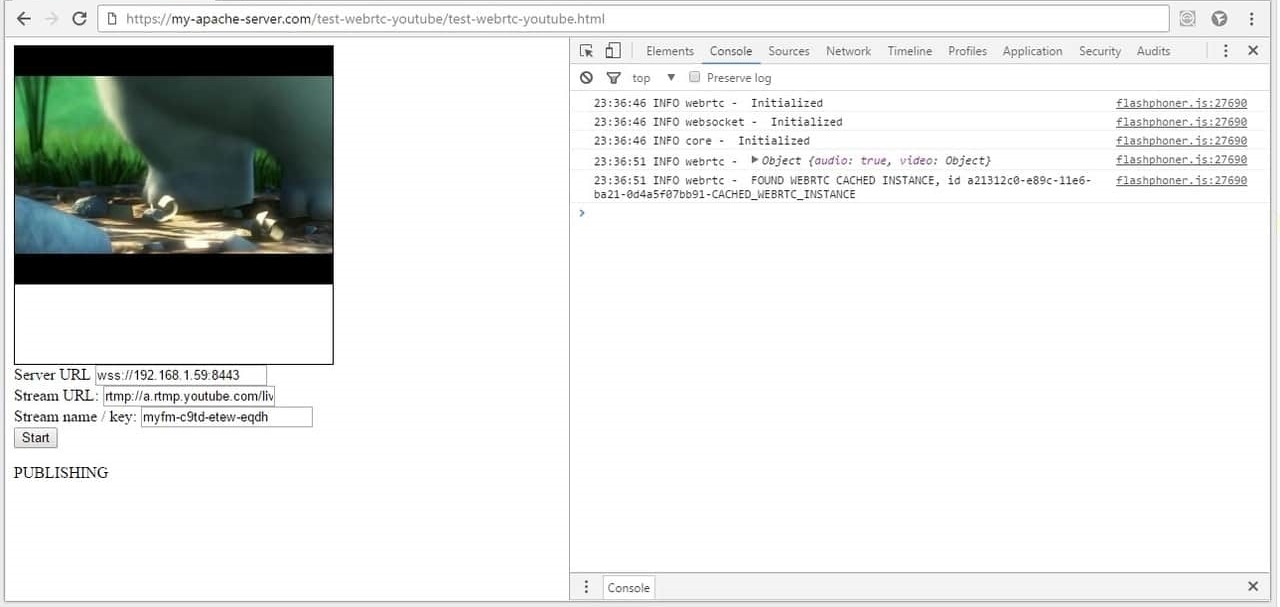
Note that the https protocol is used again. Your web server must be configured to work via https. This is usually done quite simply by setting mod_ssl:
yum install mod_sslThe HTML page code took exactly 65 lines and looks like this: You
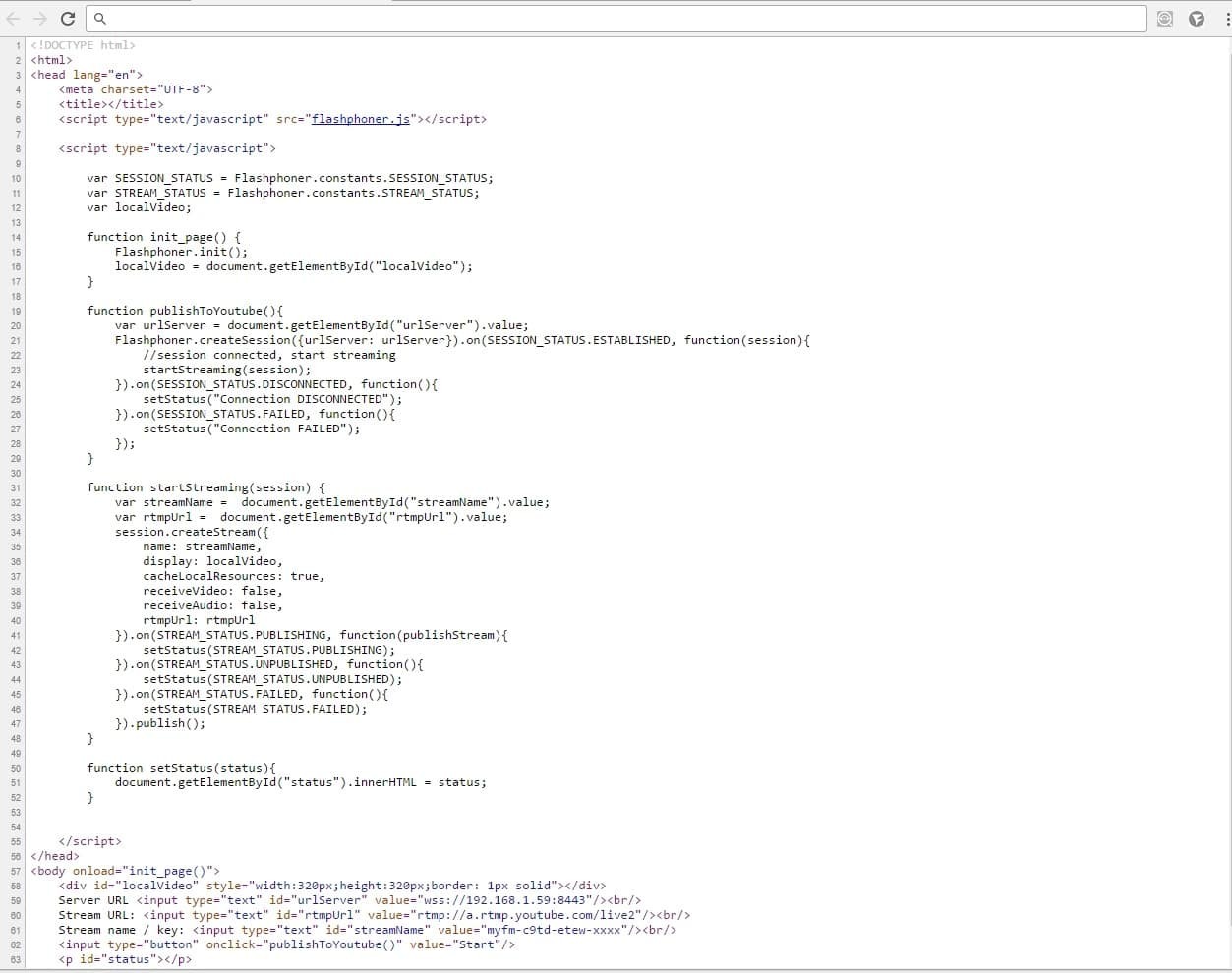
can download the source here.
As a result, we created an HTML page with a size of 65 lines, including scripts, which, using the flashphoner.js API file, sends WebRTC video to Web Call Server, which the queue redirects this video stream to the Youtube Live service.
That's all. For those wishing to repeat, I quote the links and materials used in the article.
Links:
1) Youtube Live
2) Adobe Flash Media Live Encoder
3) Wirecast
4) Web Call Server (used version 2047)
5) WebRTC
6) HTML + Javascript sources
7)Google closes Hangouts API