February 7, 2017 at 16:28
Switching from CruiseControl.NET to Jenkins in the PVS-Studio Development Team
Now it’s hard to imagine software development without automated project assemblies and testing. To minimize the time spent on integrating the changes of developers into the project, there are various ready-made solutions. In this article, I will talk about replacing the CruiseControl.NET continuous integration server with Jenkins in the PVS-Studio development team. And also about what prompted us to this, what goals we pursued and what problems we encountered.
Introduction
Continuous Integration (Eng. Continuous Integration, hereinafter referred to as CI) is an automated process of assembling, deploying and testing developed software. This development practice is popular both in large teams and among individual developers. There are many ready-made solutions for this practice. This article will talk about free open source projects CruiseControl.NET and Jenkins.
CruiseControl.NET(CCNet) is a tool for continuous software integration implemented on the .NET Framework. There are also Java tool variants (CruiseControl) and a Ruby environment version (CruiseControl.rb). Management and viewing of information about assemblies is carried out through a web interface or desktop utility. Integrates with various version control systems. It is an open source project and, unfortunately, has not been developing since about 2013.
Jenkins is an open source continuous integration tool written in Java. Was forked from the Hudson projectafter a dispute with Oracle. Providing continuous integration functions, it allows you to automate part of the software development process in which human participation is not necessary. Jenkins features can be enhanced with plugins. At the moment, the project is actively developing and supported by both developers and the community.
Although the article is a bit similar to the CCNet Vs. style review Jenkins ”, the focus will immediately be on choosing a server with Jenkins. The main reason for changing the continuous integration tool for us is the lack of development of the CruiseControl.NET project. The article will also describe other aspects of working with CCNet with which difficulties arose.
Recently, the PVS-Studio project had an anniversary of 10 years, which can be found in the article "How the PVS-Studio project started 10 years ago . For more than half of the product’s existence, we used CCNet. Its interface, settings and functions became so familiar that Jenkins seemed extremely inconvenient. The first time we started using it when PVS-Studio for Linux appeared. The transition to Jenkins was preceded by a long study of this tool, part of the time we spent looking for an analogue of the familiar functions from CCNet, which will describe interesting points from the work done.
Our claims to CCNet
- CCNet is no longer developing. You can still use it, but to expand the functionality and correct existing / potential errors will have to do it on our own.
- The SCM (Source Code Management) polling mode for changes is unstable, namely for automatic start when there are changes in the version control system. If there are problems with the network, in this mode the project receives the status “Failed”, even if it did not start. In practice, the problem arises so often (unfortunately, our office does not have the most stable Internet access) that it becomes impossible to use this mode.
- When polling SCM for changes, if there is a version control system error (for example, if some directory specified in the settings was deleted from the repository and a tree conflict arose), the project is immediately interrupted and the status is “Success” - the project stops working, but its status in the web interface and desktop utility remains “green”. In this mode, the launch of, for example, tests may not take weeks, and there is a risk that no one will pay attention to it, thinking that the tests work successfully.
- The general server operation log is too verbose and unstructured: it is difficult to understand which assembly step fell off and find the log for this particular step. When several projects work in parallel, the build log is “mixed”. The XML build log of a single project is available in the web interface, but on the contrary it is often not detailed enough and does not contain all the commands that are run.
- Ineffective parallelization of subtasks within the project. Subtasks are run in parallel in groups by the number of processor cores. If long and fast tasks fall into the group, then new tasks will not be launched until all tasks from the previous run are completed.
Use Case Comparison
Server settings
CCNet project settings (server configuration) were stored in one xml file, and different passwords in another. Although the settings file reached ~ 4,500 lines, it was quite convenient to use it. With a light press of Alt + 2 in Notepad ++, the list of all projects can be collapsed and edited as needed (Figure 1).

Figure 1 - Editing CCNet settings in Notepad ++
Although the file contained duplicate code, there were no special difficulties with the server support.
This is how the SCM block populated:
&SVN_USERNAME; &SVN_PASSWORD; &SVN_ROOT;... &PROJECT_ROOT;... &SVN_FOLDER; true true true 30 So the MSBuild block was populated:
PVS-Studio 2015 &PROJECT_ROOT;... ...\PVS-Studio-vs2015.sln /p:Configuration=Release Build 600 &MSBUILD14_PATH; And so the block was filled for general tasks:
PVS-Studio 2015 sign &PROJECT_ROOT;...\SignToolWrapper.exe &PROJECT_ROOT;... "&SIGNTOOL;" ... \PVS-Studio-vs2015.dll" 600 Based on such a project file, CCNet then conveniently displays all the steps that are performed (although only in the desktop tray utility. For some reason, the Web interface did not support this). In Jenkins, with a “high-level” display of the stages of the integration project, I had to tinker with, but I will talk about later.
For Jenkins, you need to store quite a lot of configuration files: server config, configuration files of some plugins, each project has its own configuration file. Although all these files are specified in xml format, they are not very convenient for viewing and editing (at least in comparison with CCNet), because all commands inside the tags are written in solid text. True, this is largely due to the ideology of using the tool. In CCNet, the config is written manually, and therefore, it can be “beautifully” formatted. Jenkins, however, involves editing project settings through its web interface, and generates configs automatically.
This is what the commands in Jenkins configs look like:
And this is a very small example.
View task statuses
As I wrote earlier, in CCNet, projects are populated with Task blocks. This is what a successfully completed task looks like with steps displayed (Figure 2).

Figure 2 - Viewing task status in CCTray (desktop client for CCNet) An
error in any of the blocks is clearly visible in the hierarchy of subtasks. This is a very convenient and visual visualization of the integration process. Almost never there was a need to look for logs, according to the description of the task it was immediately clear what it was worth checking on the local computer. Nothing was found directly in this form in Jenkins, so I had to study this moment in detail before moving to a new server.
You can draw an analogy between CCNet and Jenkins: CCNet has a project, the step in this project is Task (as seen in the figure above). Jenkins also has a project (Job), and its steps are Steps (Figure 3).

Figure 3 - Correspondence of project naming in CCNet and Jenkins
Unfortunately, Jenkins ’s web interface is not able to visualize the work of individual steps - Job has only a complete console log of all steps together. The big inconvenience here is that it is impossible to see from Jenkins which of the steps failed - you need to look at the complete job assembly log. And since you quickly get used to the good, you did not want to abandon the old use case. Then the Multijob Plugin came to our aid .
This plugin allowed us to make the following innovations:
1. Using Jobs as Steps in other Jobs. Thus, universal Jobs appeared, which made it possible to separate the log of specific subtasks and, most importantly, to separately view the status of specific subtasks. Jenkins Web interface is able to visualize well the execution of individual Jobs within the Multijob - just what we were looking for. Figure 4 shows an example of a completed Multijob.
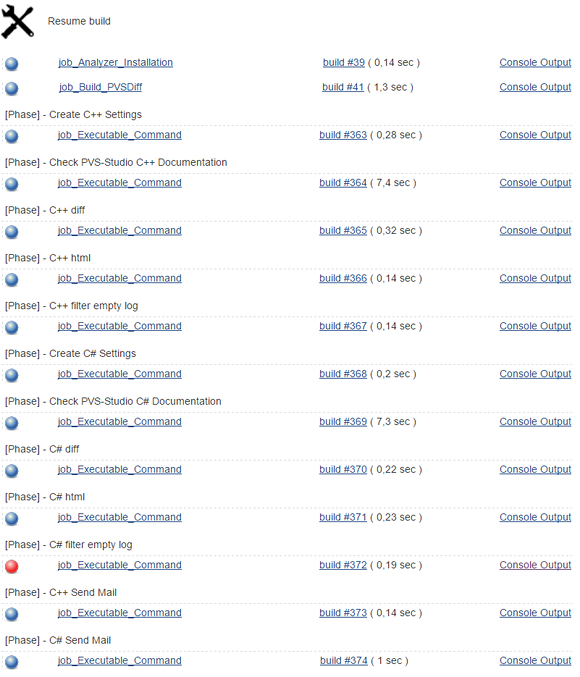
Figure 4 - View the completed Multijob'a
2. Using universal Jobs managed to get rid of duplicate code. For example, there is a compilation of some utility: for a distribution kit, for running tests and for starting code analysis. In CCNet, these were the same Task blocks in 3 different projects. Jenkins has a Job done to compile this utility, which is used by several Multijob's.
3. When creating projects in Jenkins, the following ideology is used. All jobs we share on Multijob "projects" and universal "steps". The names of universal Jobs have the prefix “job_” and do not imply use as an independent project. They also do not contain downloading source code from the repository. Multijob names are prefixed with “proj_” and include loading the source code, and only launching other Jobs. (Steps we try to avoid, because they are not visualized).
Universal Jobs are launched with the following parameter:
WORKSPACE=$WORKSPACEThis means that Job will be launched in the Multijob's working directory.
Thus, it is possible to obtain separately the update log of the source files and the logs of all stages of the assembly separately. Following this ideology for all projects is difficult and pointless. This is done only for a few of the largest and most important projects that need to be studied in detail when problems arise.
4. In Multijob, you can configure conditional and parallel runs of Jobs. Multijob can run Multijob according to the same rules. So you can combine project launches: for example, run the assembly of all installers or all tests.
View build logs
In CCNet, viewing the project build logs was extremely inconvenient, as they mixed up with the server output, and had special markup. Jenkins does not have such a problem, and in addition it became possible to split logs for subtasks in some projects.
Getting Source Code Revision
Jenkins defines a revision version for each added link to the SVN repository. Those. if you add several directories, then the numbers can be very different, but you need one maximum.
According to the documentation, you need to work with this as follows:
If you have multiple modules checked out, use the svnversion command. If you have multiple modules checked out, you can use the svnversion command to get the revision information, or you can use the SVN_REVISION_
And so they did: of all the set values SVN_REVISION_
Useful plugins for Jenkins
Expanding capabilities with plugins allows you to configure the server as flexibly as possible. The plugins for running tests in Visual Studio are perhaps the only ones we refused to use. They had additional mandatory launch parameters that we did not use, so it was easier to make a universal Job, just running tests from the command line. Unfortunately, out of the box, Jenkins did not know much of what we are used to in CCNet. However, with the help of plugins it was possible to "return" all the functionality we require.
The following is a list of plugins with a small description that we found convenient to use:
- Multijob plugin - allows you to use other Jobs as stages of assembly with the possibility of sequential and parallel execution.
- Environment Injector Plugin - with this plugin you can set global passwords. They are used as environment variables, while the plugin hides the values of such a variable in the log.
- Pre SCM BuildStep Plugin - add additional steps before executing commands of the version control system.
- MSBuild Plugin is a handy plugin for building projects using MSBuild. In the settings, the paths to different versions of MSBuild are indicated once. Further in the project, you can easily add assembly steps.
- Parameterized Trigger plugin - Adds project launch options. You can, for example, make a choice of the trunk / stable branch for building the distribution.
- Post-Build Script Plug-in - performing additional steps after assembly.
- Throttle Concurrent Builds Plug-in - this plugin allows you to adjust the number of parallel builds of the project globally or within a given category. It allows you to get functionality similar to queues in CCNet in Jenkins - the ability to execute several projects from different categories (queues) in parallel, while ensuring sequential execution of projects within a single queue. For example, we have queues of Installers (distributions) and Tests (tests). We want to be able to collect some distribution kit while running the tests, but at the same time the tests should not work in parallel - there will not be enough "kernels" on the server.
- Build Name Setter Plugin - allowed to set the assembly name in the format we need: Major.Minor.Revision.Build .
- Dashboard View - allows you to add your own display of Jobs in the browser. Because Since we have universal Jobs that do not make sense to run manually, we created a list without them using this plugin.
- ZenTimestamp Plugin is a handy plugin that adds timestamps to build logs.
Desktop Client Overview
To receive notifications from CCNet, we used the client for Windows - CCTray.
Here are some options for working with Jenkins:
1. CCTray - this program can also be used for a server with Jenkins. The projects will look approximately the same as before (Figure 5).

Figure 5 - Screenshot of CCTray
Description as a client for Jenkins:
- It does not develop, like CCNet;
- Cannot show subtasks (works only for CCNet);
- Does not know how to run projects;
- By clicking on the name, you can go to the project page;
- The type of display of projects (Icons, List, Details) is adjusted;
- Open source.
2. CatLight (Figure 6)
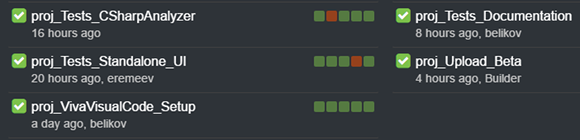
Figure 6 - Screenshot of CatLight
Client Description:
- At the moment, Beta version, the final version will be paid;
- There are still crashes during installation, operation and glitches in the interface;
- When a computer is taken out of hibernation, the status of projects on the dashboard is not automatically updated;
- Does not know how to show subtasks for Multijob;
- Does not know how to run projects;
- The display type of projects is not configured (the only possible view is Figure 6);
- By clicking on the name, you can go to the project page;
- You can see the status of the last 5 starts and go to them;
- You can see the progress of the launched project;
- When adding multiple servers, they are conveniently separated by a dash;
- There are for Windows, Linux and Mac.
3. Kato (Figure 7)
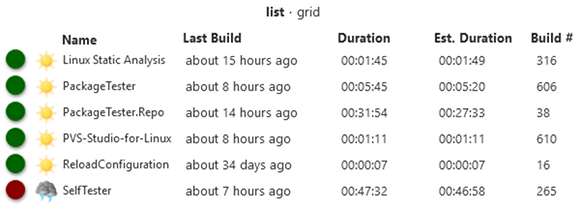
Figure 7 - Screenshot Kato
Client Description:
- Does not know how to show subtasks for Multijob;
- Able to launch projects. Unfortunately, it does not support projects with parameterized launch - the utility crashes when trying to launch such a project;
- Projects from different servers are displayed in one list and are indistinguishable (not always convenient);
- The type of display of projects (List, Grid) is adjusted;
- By clicking on the name, you can go to the project page;
- You can view the last log directly in the client, but due to the lack of a monospaced text, this is not very convenient;
- Open source;
- Windows only.
4. CCMenu is an open-source Mac only client. For us it is not relevant, but it may come in handy for someone.
Conclusion
Using CI is useful in any project. To do this, there is a wonderful free tool Jenkins, which was discussed in the article, as well as many other free and paid CI. It's nice to use a developing project: a lot of updates periodically come out for Jenkins and plugins. New solutions are emerging, such as, for example, the new Blue Ocean project , which is still at the Beta stage, is being presented on the main page .
The clients for monitoring Jenkins projects did not please me very much. Missing a lot of obvious features. Perhaps desktop clients are not particularly in demand and it is more correct to use only the web-interface.
When moving to a new server, I couldn’t use Jenkins as a Windows service, because UI tests are not performed in this mode. We got out of the situation by configuring the server to start as a console application with a hidden window.
If you have additions to the material presented or interesting solutions to the above problems, then we will be glad if you leave a comment on the article or write to us through the feedback form .

If you want to share this article with an English-speaking audience, then please use the link to the translation: Svyatoslav Razmyslov. Moving from CruiseControl.NET to Jenkins in the PVS-Studio development team
Have you read the article and have a question?
Often our articles are asked the same questions. We collected the answers here: Answers to questions from readers of articles about PVS-Studio, version 2015 . Please see the list.