One of the vulnerabilities of WPS technology
First, let's see what WPS is.
Most modern routers support the WPS (Wi-Fi Protected Setup) mechanism. With it, a user can set up a secure wireless network in a matter of seconds without bothering with his head saying that “somewhere else you need to enable encryption and register a WPA key.
WPS allows the client to connect to the access point using an 8-character code consisting of numbers (PIN). However, due to an error in the standard, only 4 of them need to be guessed. Thus, just 10,000 attempts at selection and regardless of the complexity of the password to access the wireless network, you automatically get this access, and with it, this same password as it is.
Given that this interaction occurs before any security checks, 10-50 login requests via WPS can be sent per second, and after 3-15 hours (sometimes more, sometimes less) you will get the keys.
When this vulnerability was discovered, manufacturers began to introduce a limit on the number of login attempts (rate limit), after exceeding which the access point automatically disables WPS for a while - however, until now, such devices are not more than half of those already released without this protection. Even more - a temporary shutdown fundamentally does not change anything, since with one attempt to enter a minute we will need only 10,000 / 60/24 = 6.94 days. And the PIN is usually searched before the entire cycle.
How it works:
The mechanism itself sets the network name and encryption, i.e. the user does not need to go into the web interface and configure anything. His task is simply to enter the correct Pin and he will receive all the necessary settings.
Next, I will show one of the ways to connect to a wifi connection without a password. Of course, this is not a 100% connection guarantee, but there is a chance.
For this we need two programs: Dumpper and Jumpstart.
The first of them we need in order to find out the very Pin from the found WiFi connections.
So let's get started:
We start the Dumpper program. On the redes tab, which is marked in Figure 1, we check the availability of the WiFi adapter, and then click the Scan button. This is necessary in order to check the availability of wireless networks.
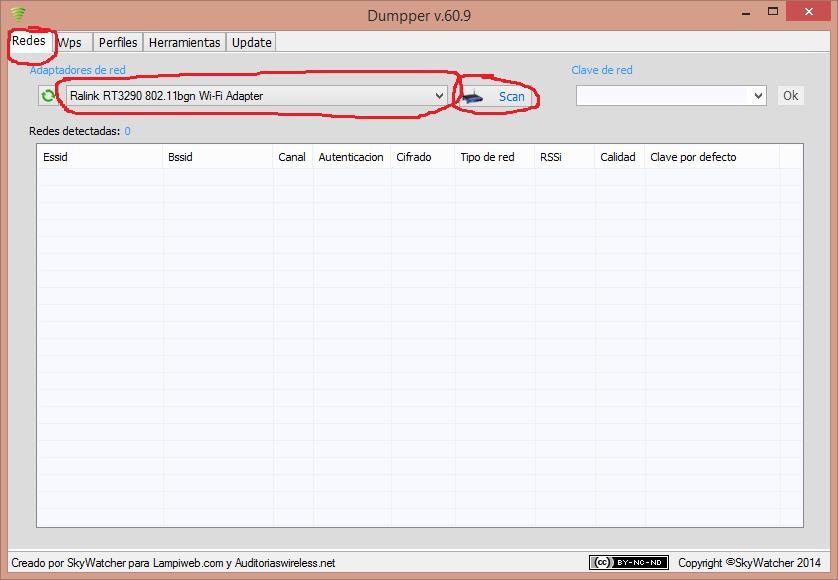
Figure 1 - Redes tab
After that, the number and list of found wireless networks will appear in the Redes detectadas field as shown in Figure 2.
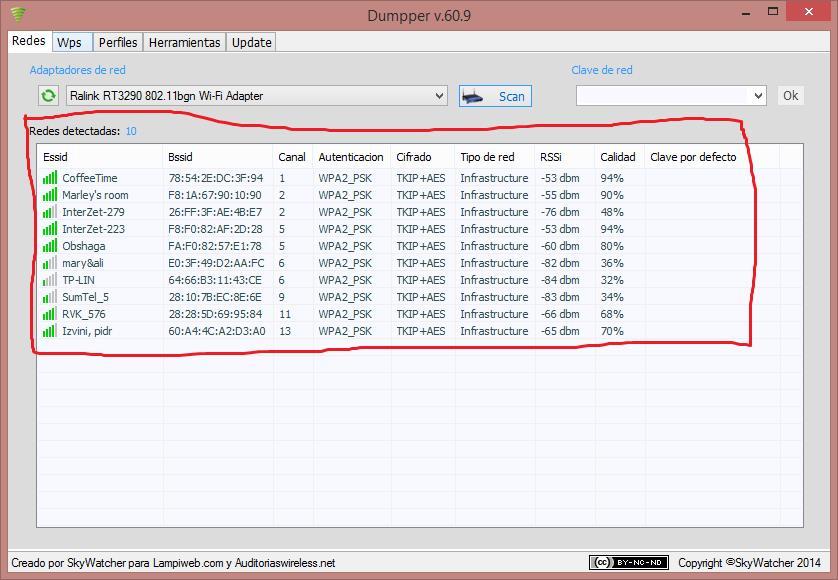
Figure 2 - Found networks
Next we need to go to the WPS tab. Here you need to click on the Todas las redes button in order to determine the pin devices available for connection. And click on Scan. After that, the output of the connections and their pin will appear.
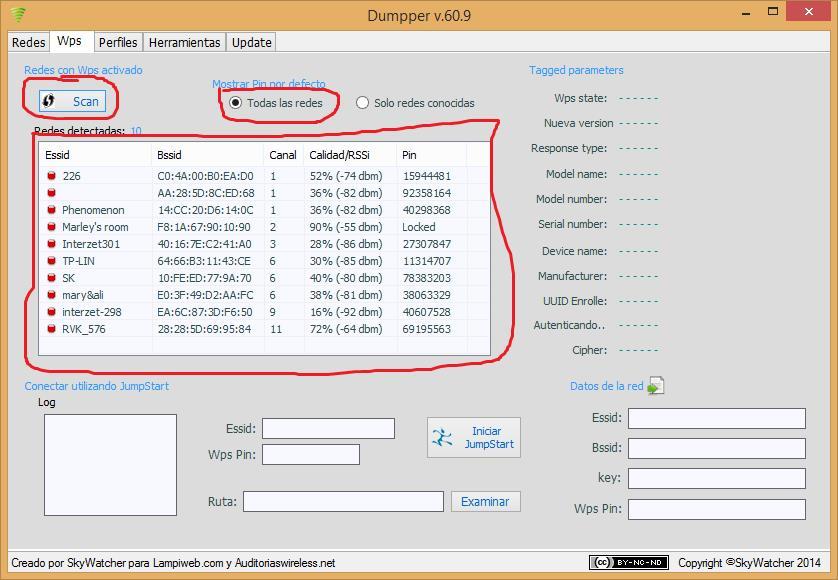
Figure 3 - WPS
Next, select the WiFi connection and click on it. For example, I’ll select the connection RVK_576 as shown in Figure 4. Now in the WPS Pin field we have a pin for copying, which we need to do.
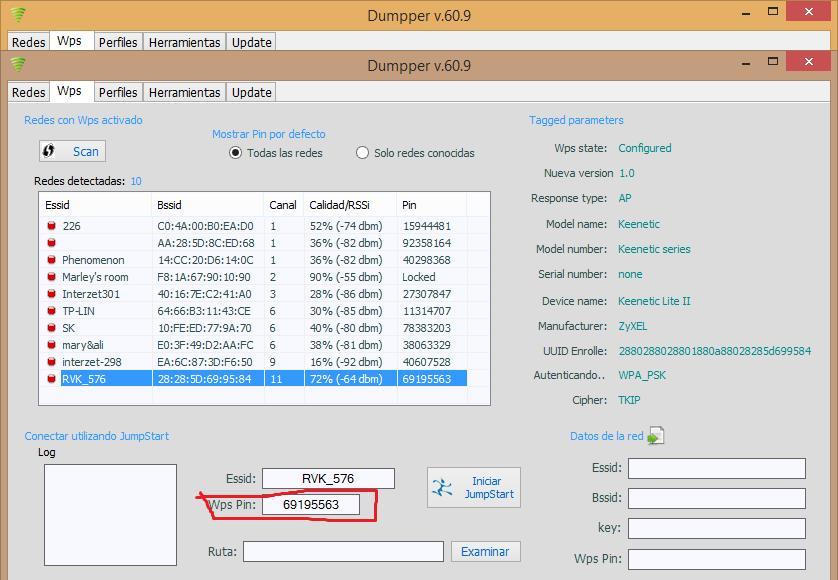
Figure 4 - WPS Pin
The next step is to check the connection to the RVK_576 WiFi connection via pin. To do this, run the JumpStart program.
Select the “Join a wireless network” item and click “next” as shown in Figure 5:

Figure 5 - JumpStart
Next we need to select the “Enter the pin from my access point” item and in the field that appears, paste the Pin copied from the Dumpper program.
It is important to uncheck the “Automatically select the network” item as shown in Figure 6.
After that, click next.
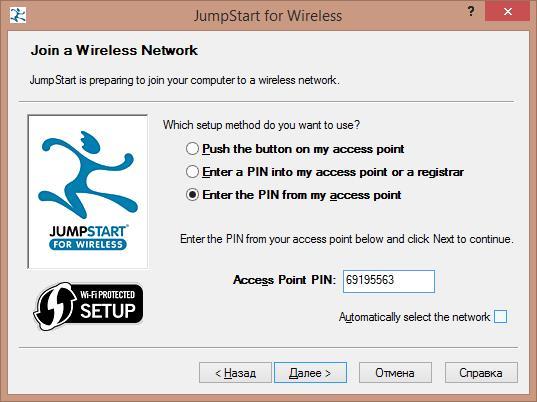
Figure 6 - Insert Pin
After that, select the desired connection as in Figure 7 and click on.
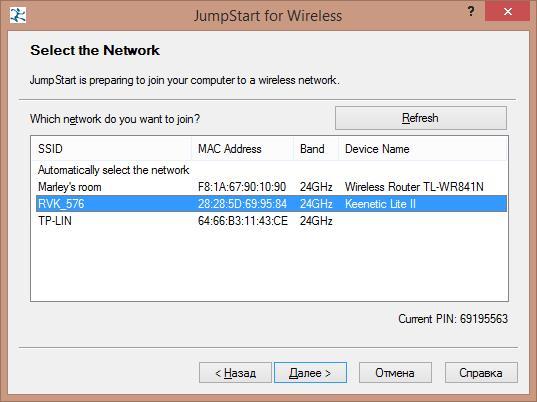
Figure 7 - Connection selection.
After that, the process of connecting to the RVK_576 network via the pin starts, as in Figure 8:

Figure 8 - Connection process.
If the WPS connection function is enabled in the settings of the router to which we are connecting, then we will see a window with a message, as in Figure 9, that the connection has been established.

Figure 9 - Connection
After all these actions, we can look at the password for the WiFi connection in the properties of the wireless network by checking the box “display entered characters”. Example in Figure 10.
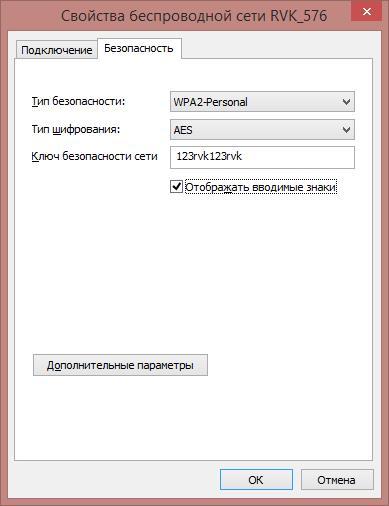
Figure 10 - Wireless network properties.
If the Wps function is disabled, the connection will be interrupted.
How to protect your Wifi network from such connections?
To date, the only option is to disable WPS. If you or your friends have difficulties with “setting up” the network, turn on WPS only when you connect a new device. True, not all routers / firmware in general give this opportunity. However, not everything is so bad. Newer firmware limits the selection with rate limiting - after several unsuccessful authorization attempts, WPS is automatically disabled. Some models increase the shutdown time even further if even unsuccessful attempts to enter were made in a short interval.