September 14, 2016 at 10:06
Configure and use speed limits for Open vSwitch with DPDK
- Transfer
This article describes how to configure an inbound speed limit for the Data Plane Development Kit (DPDK) interface in Open vSwitch (OVS) with DPDK. This article is intended for network administrators who can use the Open vSwitch speed limit to provide guaranteed receive speeds for DPDK ports on deployed Open vSwitch servers. This article complements the article Configuring and using Quality of Service for Open vSwitch * with DPDK , because speed limits and quality of service operate respectively in the receive and transmit paths using unique API commands for configuration and operation.

Note. At the time of this writing, OVS speed limitation with DPDK was only available inmain branch of OVS . Download the ZIP archive of the main OVS branch here . The steps for installing OVS with DPDK are described here .
Before setting the speed limit, you should talk about the differences from the quality of service and the interaction with traffic in vSwitch.
Quality of service applies to outgoing traffic, that is, to data transmitted from the OVS port. The speed limit, in contrast, is only valid for incoming traffic, that is, for data received by the vSwitch port. Speed limit is implemented in OVS with DPDK using an inbound traffic limiter (similar to an outbound traffic limiter for quality of service supported in OVS with DPDK). The incoming traffic limiter starts to simply drop packets after exceeding a certain receive speed in the interface (marker buffer algorithm). For a physical device, an inbound traffic limiter will discard traffic coming from outside the system through the network adapter. For the virtual interface, that is, the vhost-user DPDK port, the limiter will discard the traffic transmitted from the guest machine to vSwitch. In fact, The data transfer rate from the guest machine to this port is limited. This is shown in fig. 1.
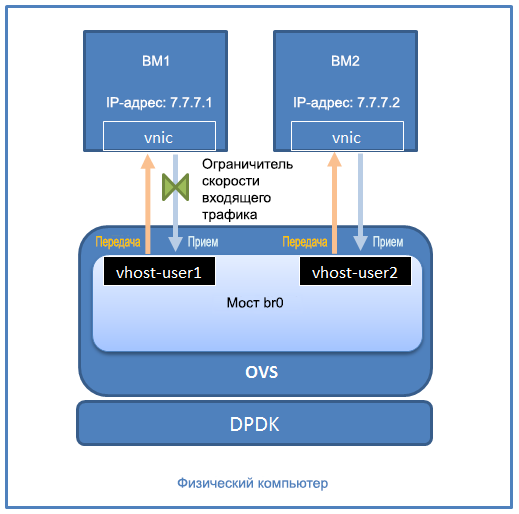
Fig. 1. Speed limit by restricting inbound traffic for vhost-user port

Fig. 2. Test environment
Note. Both the host computer and the virtual machines (VMs) used in this environment are running the 64-bit version of Fedora * 23 Server with the Linux * 4.4.6 kernel. Each VM has a virtual network adapter connected to the vSwitch bridge through the vhost-user DPDK interface. The virtual network adapter appears as a Linux kernel device (for example, ens0) in the virtual machine's operating system. Make sure that there is a connection between the virtual machines (for example, send an echo request to VM2 from VM1).
To test the setup, install iPerf * on both VMs . Ensure that the rpm version matches the guest OS version. In this case, use the 6564-bit version of Fedora. If Fedora 23 uses a package manager, such as dnf on Fedora 23, you can automatically install iPerf using the following command:
To verify your settings, make sure iPerf is installed on both virtual machines. iPerf can be run in client mode and server mode. In this example, we will launch the iPerf client on VM1 and the iPerf server on VM2.
On VM2, run the following command to deploy the iPerf server in UDP mode on port 8080:
On VM1, run the following command to deploy the iPerf client in UDP mode on port 8080 with a data throughput of 100 Mbps:
In this case, VM1 will try to transmit data to VM2 via UDP at a speed of 100 Mbps. After 10 seconds, a set of values appears. Run these commands before setting the speed limit. You will see results similar to those shown in fig. 3. In the server report, we are interested in the Bandwidth column.
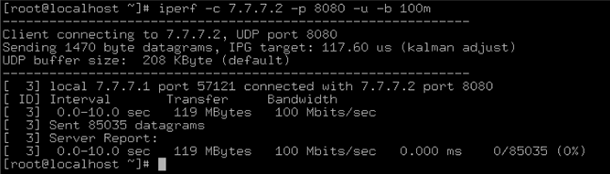
Fig. 3. Output data without restriction of incoming traffic. The
data shown in Fig. 3, indicate that the bandwidth of the connection between virtual machines is 100 Mbps.
Now configure the speed limit using the incoming traffic limiter vhost-user1 to 10 Mbps using the following command:
The options are described below.
If you run the iPerf UDP bandwidth test again, the results will be similar to those shown in Fig. 4.
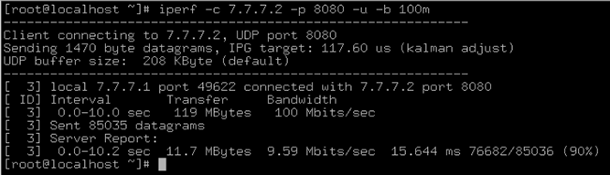
Fig. 4. Output data with restriction of incoming traffic
Please note that now, with the traffic limiter configured, the available bandwidth is 9.59 Mbit / s, and not 100 Mbit / s. IPerf sent UDP traffic from the VM1 client to the VM2 server at a speed of 100 Mbps, but the traffic speed was reduced, because the incoming traffic limiter operates on the incoming port path vhost-user1 vSwitch. Due to this, the speed of traffic transmitted from the iPerf BM1 client was reduced to approximately 10 Mbit / s.
Note that if TCP traffic is used, then the value of the ingress_policing_burst parametermust be a significant proportion of the value of the parameter ingress_policing_rate ; it is recommended that it exceed 10%. This is due to a decrease in TCP protocol performance when dropping packets and problems with retransmission of packets.
The existing speed limit setting for vhost-user1 can be obtained using the following command:
To remove the vhost-user1 traffic speed limits, set the ingress_policing_rate parameter to 0, as shown below (you do not need to configure the value of the ingress_policing_burst parameter ):
In this article, we showed a simple example in which traffic is transferred between two virtual machines through Open vSwitch * with DPDK with a configured limit for incoming traffic. We demonstrated commands for setting the speed limit for a given DPDK port, for getting information about the current speed limit setting, and for canceling the speed limit.
For more information about using speed limits, options, and more, see the topics about speed limits in vswitch.xml and ovs-vswitchd.conf.db .
Have a question? Requests for Open vSwitch can be sent to the mail discussion .
For more information about Open vSwitch * with DPDK, see the following videos and articles on the Intel Developer Zone and Intel Network Builders University sites.
Translated articles on Habrahabr
Note. At the time of this writing, OVS speed limitation with DPDK was only available inmain branch of OVS . Download the ZIP archive of the main OVS branch here . The steps for installing OVS with DPDK are described here .
Speed Limit in OVS with DPDK
Before setting the speed limit, you should talk about the differences from the quality of service and the interaction with traffic in vSwitch.
Quality of service applies to outgoing traffic, that is, to data transmitted from the OVS port. The speed limit, in contrast, is only valid for incoming traffic, that is, for data received by the vSwitch port. Speed limit is implemented in OVS with DPDK using an inbound traffic limiter (similar to an outbound traffic limiter for quality of service supported in OVS with DPDK). The incoming traffic limiter starts to simply drop packets after exceeding a certain receive speed in the interface (marker buffer algorithm). For a physical device, an inbound traffic limiter will discard traffic coming from outside the system through the network adapter. For the virtual interface, that is, the vhost-user DPDK port, the limiter will discard the traffic transmitted from the guest machine to vSwitch. In fact, The data transfer rate from the guest machine to this port is limited. This is shown in fig. 1.
Fig. 1. Speed limit by restricting inbound traffic for vhost-user port
Test environment
Fig. 2. Test environment
Note. Both the host computer and the virtual machines (VMs) used in this environment are running the 64-bit version of Fedora * 23 Server with the Linux * 4.4.6 kernel. Each VM has a virtual network adapter connected to the vSwitch bridge through the vhost-user DPDK interface. The virtual network adapter appears as a Linux kernel device (for example, ens0) in the virtual machine's operating system. Make sure that there is a connection between the virtual machines (for example, send an echo request to VM2 from VM1).
Configure and test speed limits
To test the setup, install iPerf * on both VMs . Ensure that the rpm version matches the guest OS version. In this case, use the 6564-bit version of Fedora. If Fedora 23 uses a package manager, such as dnf on Fedora 23, you can automatically install iPerf using the following command:
dnf install iperf
To verify your settings, make sure iPerf is installed on both virtual machines. iPerf can be run in client mode and server mode. In this example, we will launch the iPerf client on VM1 and the iPerf server on VM2.
Test without limit on incoming traffic
On VM2, run the following command to deploy the iPerf server in UDP mode on port 8080:
iperf –s –u –p 8080
On VM1, run the following command to deploy the iPerf client in UDP mode on port 8080 with a data throughput of 100 Mbps:
iperf -c 7.7.7.2 -u -p 8080 -b 100m
In this case, VM1 will try to transmit data to VM2 via UDP at a speed of 100 Mbps. After 10 seconds, a set of values appears. Run these commands before setting the speed limit. You will see results similar to those shown in fig. 3. In the server report, we are interested in the Bandwidth column.
Fig. 3. Output data without restriction of incoming traffic. The
data shown in Fig. 3, indicate that the bandwidth of the connection between virtual machines is 100 Mbps.
Test with configured incoming traffic limiter
Now configure the speed limit using the incoming traffic limiter vhost-user1 to 10 Mbps using the following command:
ovs-vsctl set interface vhost-user1 ingress_policing_rate=10000 ingress_policing_burst=1000
The options are described below.
- ingress_policing_rate : The maximum speed (Kbps) allowed for this virtual machine. This value is required to create an inbound traffic limiter. If no value is specified, the existing speed limit setting will remain unchanged.
- ingress_policing_burst : marker buffer size in kilobytes. The minimum value for this parameter should be equal to the largest estimated packet size. If not specified, the default value of 8000 KB is used.
If you run the iPerf UDP bandwidth test again, the results will be similar to those shown in Fig. 4.
Fig. 4. Output data with restriction of incoming traffic
Please note that now, with the traffic limiter configured, the available bandwidth is 9.59 Mbit / s, and not 100 Mbit / s. IPerf sent UDP traffic from the VM1 client to the VM2 server at a speed of 100 Mbps, but the traffic speed was reduced, because the incoming traffic limiter operates on the incoming port path vhost-user1 vSwitch. Due to this, the speed of traffic transmitted from the iPerf BM1 client was reduced to approximately 10 Mbit / s.
Note that if TCP traffic is used, then the value of the ingress_policing_burst parametermust be a significant proportion of the value of the parameter ingress_policing_rate ; it is recommended that it exceed 10%. This is due to a decrease in TCP protocol performance when dropping packets and problems with retransmission of packets.
The existing speed limit setting for vhost-user1 can be obtained using the following command:
ovs-vsctl list interface vhost-user1
To remove the vhost-user1 traffic speed limits, set the ingress_policing_rate parameter to 0, as shown below (you do not need to configure the value of the ingress_policing_burst parameter ):
ovs-vsctl set interface vhost-user1 ingress_policing_rate=0
Conclusion
In this article, we showed a simple example in which traffic is transferred between two virtual machines through Open vSwitch * with DPDK with a configured limit for incoming traffic. We demonstrated commands for setting the speed limit for a given DPDK port, for getting information about the current speed limit setting, and for canceling the speed limit.
additional information
For more information about using speed limits, options, and more, see the topics about speed limits in vswitch.xml and ovs-vswitchd.conf.db .
Have a question? Requests for Open vSwitch can be sent to the mail discussion .
For more information about Open vSwitch * with DPDK, see the following videos and articles on the Intel Developer Zone and Intel Network Builders University sites.
- Configure and use quality of service for Open vSwitch * with DPDK
- Open vSwitch * with DPDK: Detailed Architecture
- DPDK Open vSwitch *: Accelerating Guest Connection
Translated articles on Habrahabr