Script-server. WebUI to remotely run your scripts
Hello. In this article I would like to talk about my home project. In short: Script server is a web server for providing users with access to your scripts through a web interface. The server and scripts are launched locally, and are parameterized and displayed remotely.
At the new place of work, my first tasks were very routine and monotonous. Schematically, they looked like this:
There were more steps and they were more complicated, but after a couple of iterations, laziness won and shell scripts were written for all repetitive tasks, which were run with several parameters and sometimes requested additional input data during the work. At the same time, the workflow began to look something like this:
All these points were clearly asking for a collapse into one, so that the project manager would specify the parameters and run the script himself. But giving him scripts was very problematic for a number of reasons - the scripts were adapted to my environment, they could fail, they were friendly enough for me, but not for non-technical people, etc.
I must say that at a certain point such tasks had already ceased to be assigned to me and the scripts created without the necessary adaptation had a very illusive future.
Therefore, I decided to create a tool that allows me to remotely run my scripts to other people, without the need to create the necessary environment and configure their launch in a more convenient form.

The server administrator (i.e., I) creates configuration files for each script, which describes the purpose of the script, the launch path and the required parameters. These configuration files are used by the server to provide data about the scripts to the user, as well as to run them. Information on the user's page is transmitted by Ajax requests.
The user fills in the parameters and runs the script on the server, where its execution is passed to a special handler. The handler in asynchronous mode accepts input and provides output, and also monitors the script execution process.
The web server serves as a layer between this handler and the page, and exchanges data through web sockets.
At that time I was learning Python and decided to use it as a good practice for development. Python 3 was chosen for the project, without support for the 2nd version, since there is no need for this, and I did not want to spend too much time.
At the beginning of development for the server, I used Flask, but I could not ( read, understand ) with asynchrony and monitoring client connections / disconnections, so I quickly transferred everything to Tornado.
Regarding web development: I am not a web developer, so here I also decided to practice a little syntax and basics. In this regard, almost no frameworks and libraries were used, with the exception of materializecss, for a more or less decent design.
The web page is a "one-page application" with a minimum of HTML and the creation of content in JS by Ajax requests.
About a month later, I got a server that, at the very least, could be used, and I shared it with fellow developers who also had to perform these routine tasks (which, as luck would have it, almost ended during this period).
During the operation, both bugs and obviously missing elements were discovered, on which I slowly worked and improved. At the same time, minor improvements were added, such as parameter types, logging of all launches, etc.
An interesting point: for some small tasks (related to working in the console and with scripts) I also stopped using the console, and switched to this UI. Those. I have several script configurations that I use more often than other people.
After some time of local testing (by me and other developers), the tool was finally provided to the project manager, who began to use it slowly. And it should be noted that he is very satisfied, because this saves even his time. The process of "implementation" and user training took about 5 minutes.
Due to the peculiarities of the processes and limitations, the Script server is mainly used for the test environment. But some of its parts have already begun to be used for Production (in the part where it is safe).
Below is a list of problems and my personal discoveries that I most remember.
Transferring the output from the script execution process to the page in asynchronous mode. This was due to a lack of experience both in Flask and on the web: how best to organize such a transfer. As a result, I implemented data transfer in the form of events on web sockets (type and data). Also in events, you can send other commands at run time, but so far this is not used.
Passing user input to an executable script. I tried to make a request for input only while waiting for one in the script, but could not find a way. Therefore, users can enter as much information as they want during the execution of the script (a regular terminal behaves the same way). Data is sent via the same web socket.
Track user disconnections. It was because of this problem that Flask refused: at that moment I was doing not on web sockets, but on SSE (well, almost). However, later I still transferred the input / output script to web sockets, so maybe Flask would do. In Tornado, you can simply sign up for the closure of the web socket.
Reading the output of script execution. There was a problem in order to read only the current available data and send it to the client. It is impossible to read line by line, because for example, "read -p input_prompt" does not wrap to the next line. You can read by characters, but sending so many requests to the client is not worth it. Reading with a buffer gives a string trimmed in obscure places (and even in the case of UTF-8 this generates incorrect characters). The current solution abounds with a set of compromises and crutches, but in general it is a buffer-free read with disabling read locks.
Output scripts in (non) terminal mode. Honestly, this was a discovery for me: the output of the scripts may differ if you run them in the terminal or out. For example, the same ...
... shows input_prompt only in terminal mode. It’s not good to expect anything from users without showing them exactly what. I had to deal with pty to spoof running scripts. For this reason, I now have two types of wrappers for running scripts: with terminal support and without. The first is turned on by default, the second can be turned on using the configuration (left it just in case, if the terminal mode will fail).
Autoscroll script output. On the one hand, this is solved quite simply, on the other hand, there were problems with setting to automatically disable this (if the user scrolls manually or selects text), as well as with the shadow, user input, etc. Nothing extraordinary, but I had to spend several hours.
Setting up the panel with the script output so that it takes up all available space, but never goes beyond the window. Thus, the page always fits in the window and the only scroll is added exactly inside the output panel. This was especially important for me, because I categorically do not like scrolls in scrolls.
Page performance with a very large amount of script output. Then the following code played a trick on me:
The fact is that getting innerText is a rather resource-intensive operation in itself, which tries to present the incoming html as a string, even if it is just text. If you call this operation a couple of hundred times for a thousand characters, the effect is not noticeable, but in my case there was much more data and the browser just hung for several minutes from this load. It was decided by changing the code to the following:
Hanging processes i.e. no one does anything, but an executable script hangs in the processes. The reasons were different, for example: the user closed the page, and the server does not process this. Or not a private file descriptor. Or unclosed child processes. And that's not counting other obvious bugs. But everything was eliminated by googling, study and correction.
She is not at all. This tool is designed to run locally and work on a local network with trusted users. Since often scripts are also written for themselves, they are also not particularly protected. Accordingly, before starting such a server, you need to be 100% confident in the firewall and users.
From the point of view of data hiding, there is currently nothing in the Script server either. It is highly discouraged to include passwords as parameters or in the configuration, as they will be logged and stored in pure form.
For debugging in the project, I started test configurations that can be used for testing and demonstration. In this section, all provided screenshots will be based on them.
Relatively standard bash script with parameters, user input during operation and printing: Write file .
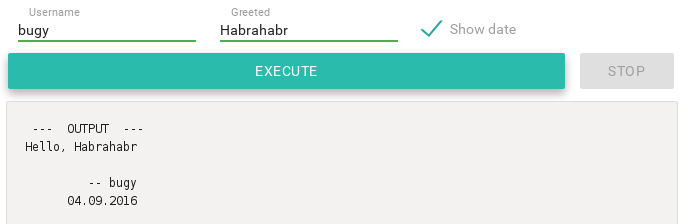
A simple python script that displays a wall of text, breaking it into paragraphs and requesting user input: Destroy world . This configuration is used to debug the user interface when displaying options. Contains all possible types of parameters: Parameterized

On the left is the script selection area, on the right is information on the current open script:

In this chaos, you can see a family of different types of parameters: required, lists, numbers, booleans. Screenshot created based on Parameterized configuration
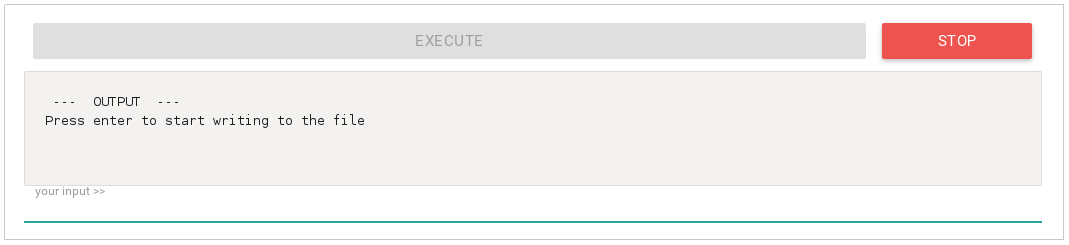
Top of the start and stop buttons. Since the script is running, only the last one is active. Below the output panel of the script, at the very bottom of the input field. The output panel is compressed in height for a demo target, in a regular window it is much higher.
At the moment, development is not underway, because in its current form, the Script server fully covers the tasks assigned to it. I also do not see the need to optimize anything in the current interface. Thus, both of us are waiting for new challenges and problems.
In particular, I would be extremely glad if this tool were also useful to someone from the habrasociety and I would have a need for new improvements.
»Link to the project repository: github.com/bugy/script-server
List of used libraries / frameworks / thanks:
Thanks to all those who took the time to read this article. I would be grateful for valuable comments and criticism (in terms of approach, application, or implementation features).
Background
At the new place of work, my first tasks were very routine and monotonous. Schematically, they looked like this:
- Create my_file.txt file
- Register a new configuration there
- Crash on the server
- Commit
There were more steps and they were more complicated, but after a couple of iterations, laziness won and shell scripts were written for all repetitive tasks, which were run with several parameters and sometimes requested additional input data during the work. At the same time, the workflow began to look something like this:
- ask the project manager for the necessary parameters
- run script
- report on readiness
All these points were clearly asking for a collapse into one, so that the project manager would specify the parameters and run the script himself. But giving him scripts was very problematic for a number of reasons - the scripts were adapted to my environment, they could fail, they were friendly enough for me, but not for non-technical people, etc.
I must say that at a certain point such tasks had already ceased to be assigned to me and the scripts created without the necessary adaptation had a very illusive future.
Therefore, I decided to create a tool that allows me to remotely run my scripts to other people, without the need to create the necessary environment and configure their launch in a more convenient form.
On the way to create
Scheme of work
The server administrator (i.e., I) creates configuration files for each script, which describes the purpose of the script, the launch path and the required parameters. These configuration files are used by the server to provide data about the scripts to the user, as well as to run them. Information on the user's page is transmitted by Ajax requests.
The user fills in the parameters and runs the script on the server, where its execution is passed to a special handler. The handler in asynchronous mode accepts input and provides output, and also monitors the script execution process.
The web server serves as a layer between this handler and the page, and exchanges data through web sockets.
Tool selection
At that time I was learning Python and decided to use it as a good practice for development. Python 3 was chosen for the project, without support for the 2nd version, since there is no need for this, and I did not want to spend too much time.
At the beginning of development for the server, I used Flask, but I could not ( read, understand ) with asynchrony and monitoring client connections / disconnections, so I quickly transferred everything to Tornado.
Regarding web development: I am not a web developer, so here I also decided to practice a little syntax and basics. In this regard, almost no frameworks and libraries were used, with the exception of materializecss, for a more or less decent design.
The web page is a "one-page application" with a minimum of HTML and the creation of content in JS by Ajax requests.
First use and improvements
About a month later, I got a server that, at the very least, could be used, and I shared it with fellow developers who also had to perform these routine tasks (which, as luck would have it, almost ended during this period).
During the operation, both bugs and obviously missing elements were discovered, on which I slowly worked and improved. At the same time, minor improvements were added, such as parameter types, logging of all launches, etc.
An interesting point: for some small tasks (related to working in the console and with scripts) I also stopped using the console, and switched to this UI. Those. I have several script configurations that I use more often than other people.
Real user operation
After some time of local testing (by me and other developers), the tool was finally provided to the project manager, who began to use it slowly. And it should be noted that he is very satisfied, because this saves even his time. The process of "implementation" and user training took about 5 minutes.
Due to the peculiarities of the processes and limitations, the Script server is mainly used for the test environment. But some of its parts have already begun to be used for Production (in the part where it is safe).
Main stones
Below is a list of problems and my personal discoveries that I most remember.
Transferring the output from the script execution process to the page in asynchronous mode. This was due to a lack of experience both in Flask and on the web: how best to organize such a transfer. As a result, I implemented data transfer in the form of events on web sockets (type and data). Also in events, you can send other commands at run time, but so far this is not used.
Passing user input to an executable script. I tried to make a request for input only while waiting for one in the script, but could not find a way. Therefore, users can enter as much information as they want during the execution of the script (a regular terminal behaves the same way). Data is sent via the same web socket.
Track user disconnections. It was because of this problem that Flask refused: at that moment I was doing not on web sockets, but on SSE (well, almost). However, later I still transferred the input / output script to web sockets, so maybe Flask would do. In Tornado, you can simply sign up for the closure of the web socket.
Reading the output of script execution. There was a problem in order to read only the current available data and send it to the client. It is impossible to read line by line, because for example, "read -p input_prompt" does not wrap to the next line. You can read by characters, but sending so many requests to the client is not worth it. Reading with a buffer gives a string trimmed in obscure places (and even in the case of UTF-8 this generates incorrect characters). The current solution abounds with a set of compromises and crutches, but in general it is a buffer-free read with disabling read locks.
Output scripts in (non) terminal mode. Honestly, this was a discovery for me: the output of the scripts may differ if you run them in the terminal or out. For example, the same ...
read -p input_prompt... shows input_prompt only in terminal mode. It’s not good to expect anything from users without showing them exactly what. I had to deal with pty to spoof running scripts. For this reason, I now have two types of wrappers for running scripts: with terminal support and without. The first is turned on by default, the second can be turned on using the configuration (left it just in case, if the terminal mode will fail).
Autoscroll script output. On the one hand, this is solved quite simply, on the other hand, there were problems with setting to automatically disable this (if the user scrolls manually or selects text), as well as with the shadow, user input, etc. Nothing extraordinary, but I had to spend several hours.
Setting up the panel with the script output so that it takes up all available space, but never goes beyond the window. Thus, the page always fits in the window and the only scroll is added exactly inside the output panel. This was especially important for me, because I categorically do not like scrolls in scrolls.
Page performance with a very large amount of script output. Then the following code played a trick on me:
htmlElement.innerText += "text";The fact is that getting innerText is a rather resource-intensive operation in itself, which tries to present the incoming html as a string, even if it is just text. If you call this operation a couple of hundred times for a thousand characters, the effect is not noticeable, but in my case there was much more data and the browser just hung for several minutes from this load. It was decided by changing the code to the following:
var textNode = document.createTextNode("text");
htmlElement.appendChild(textNode);
Hanging processes i.e. no one does anything, but an executable script hangs in the processes. The reasons were different, for example: the user closed the page, and the server does not process this. Or not a private file descriptor. Or unclosed child processes. And that's not counting other obvious bugs. But everything was eliminated by googling, study and correction.
Security
She is not at all. This tool is designed to run locally and work on a local network with trusted users. Since often scripts are also written for themselves, they are also not particularly protected. Accordingly, before starting such a server, you need to be 100% confident in the firewall and users.
From the point of view of data hiding, there is currently nothing in the Script server either. It is highly discouraged to include passwords as parameters or in the configuration, as they will be logged and stored in pure form.
Examples and screenshots
For debugging in the project, I started test configurations that can be used for testing and demonstration. In this section, all provided screenshots will be based on them.
Script configuration
Relatively standard bash script with parameters, user input during operation and printing: Write file .
A simple python script that displays a wall of text, breaking it into paragraphs and requesting user input: Destroy world . This configuration is used to debug the user interface when displaying options. Contains all possible types of parameters: Parameterized
Screenshots
Full Screen
On the left is the script selection area, on the right is information on the current open script:
- Title
- Description
- Parameter List
- Start / stop buttons
- Script output
Options Panel
In this chaos, you can see a family of different types of parameters: required, lists, numbers, booleans. Screenshot created based on Parameterized configuration
Input / output panel
Top of the start and stop buttons. Since the script is running, only the last one is active. Below the output panel of the script, at the very bottom of the input field. The output panel is compressed in height for a demo target, in a regular window it is much higher.
Further steps
At the moment, development is not underway, because in its current form, the Script server fully covers the tasks assigned to it. I also do not see the need to optimize anything in the current interface. Thus, both of us are waiting for new challenges and problems.
In particular, I would be extremely glad if this tool were also useful to someone from the habrasociety and I would have a need for new improvements.
»Link to the project repository: github.com/bugy/script-server
List of used libraries / frameworks / thanks:
- materializecss - materializecss.com
- tornado - www.tornadoweb.org
- Special thanks to my former colleague for their support and help in solving some web problems, especially layout issues.
Thanks to all those who took the time to read this article. I would be grateful for valuable comments and criticism (in terms of approach, application, or implementation features).